Assignment 2-RADIOSS Engine File Editing & 3D Meshing Challenge
#2 Assignment Crashworthiness Analysis using Hypermesh and Radioss
Questions:
1.Check the material properties of the rail component and calculate the speed of sound in steel rail=_______
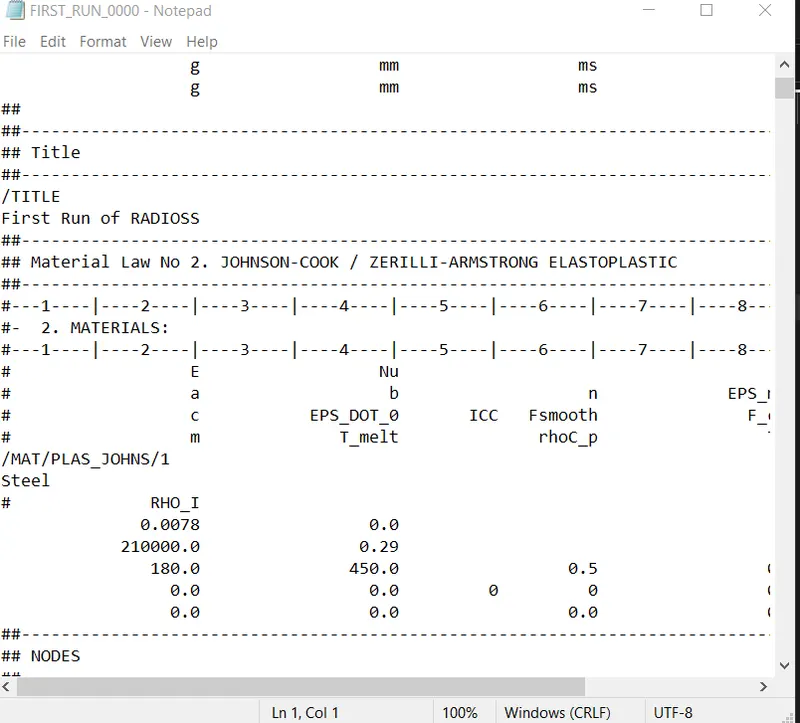
E=210000
ρ=0.0078
C=√210000/0.0078
=5188.74521662771.
The speed of sound in steel rail=5188.74521662771mm.
2. The length of the rail is about 1000 mm.calculate the time takes for a shock wave to travel from one end of the rail to the other.
Given that
The length of the rail=1000mm
Find
Time=?
Formula for time caluculations(Δt)=Lenght of the rail(L)/Speed of sound(C)
Δt=1000/5188.74521662771.
=0.19272482233ms.
3.Time for sound to travel length of rail=______
Time for sound to travel the length of rail(Δt)=Lenght of the rail(L)/Speed of sound(C)
Δt=1000/5188.74521662771.
Time for sound to travel the length of rail(Δt)=0.19272482233.
4.Edit the engine file so that the stress wave can be monitored, moving from one end of the rail to the other during impact -this will require a termination time equal to the time it takes for the sound to travel the length of the rail(set on/RUN card)
Open the engine file on a note pad (First run_0001)
Edit the values as shown ( based on calculated results)
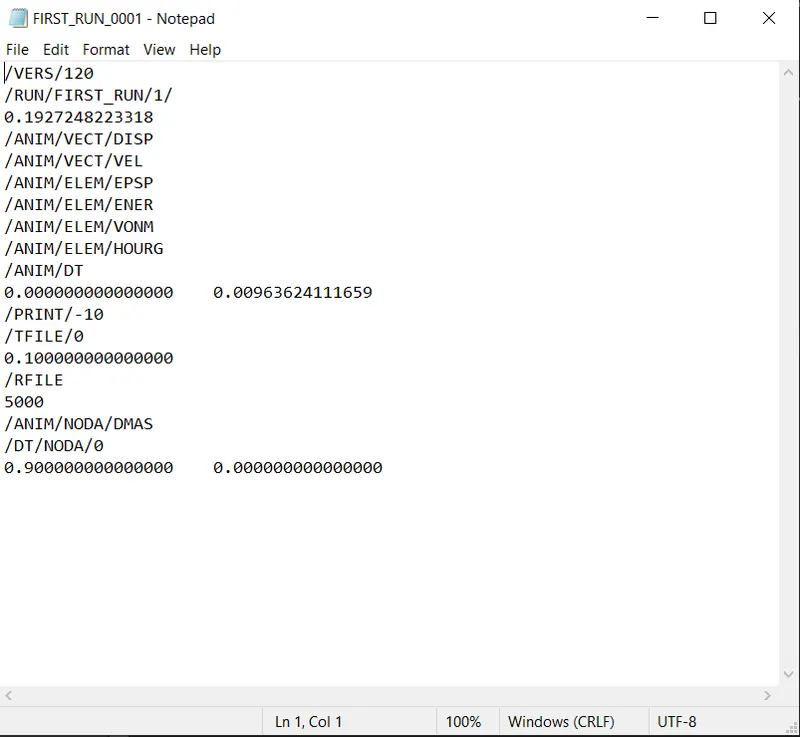
5.Set the frequency of animation output to a time that will give 20 animation steps(/ANIM/DT)
Time-frequency =Termination time/Number of animation steps.
Termination time = 0.1927248223318ms. and animation steps=20 (given in the question)
Put the values in the formula.
Time frequency=0.1927248223318/20.
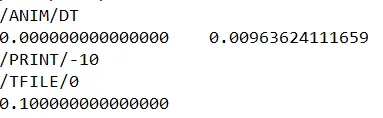
Time frequency=0.00963624111659
6.Change /print -10.
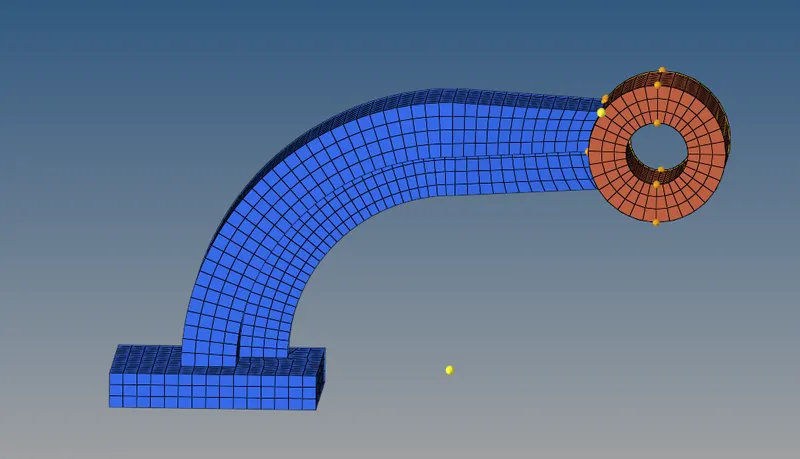
7.3d meshing tetra mesh and hex mesh
- Repeat class examples and, maintain the quality.
- Target tet size=5mm,hex size=10mm,tet collapse=0.15.
Import the geometry
Import the geometry to the Hypermesh Radioss user profile
On importing the perform the operation to delete the solids.
1D Element
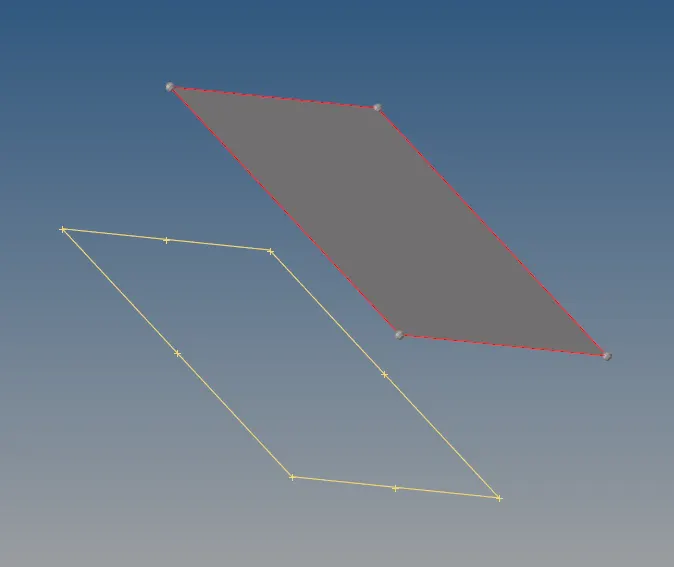
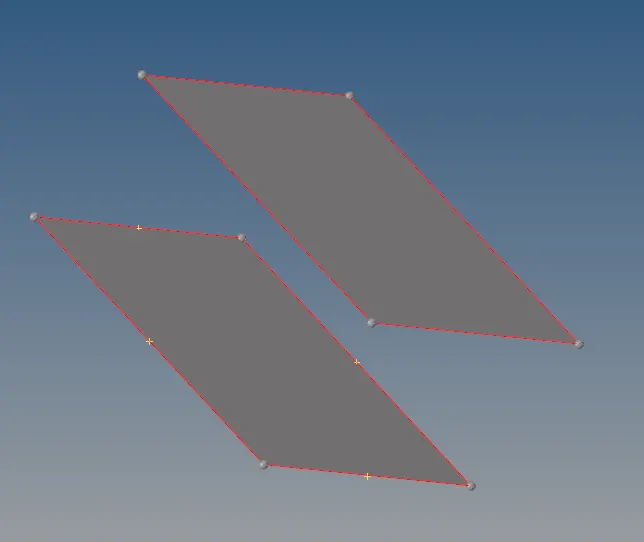
Create the surface withe the existed lines using surface > Ruled > Linelist.
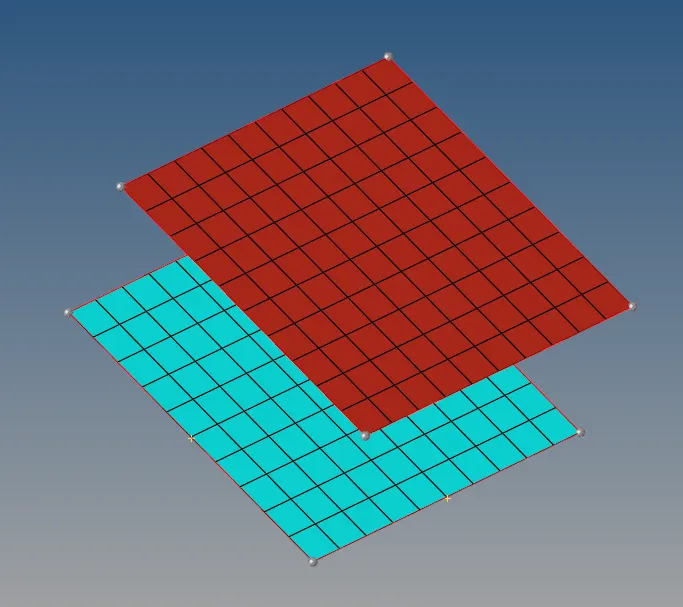
Create the 2D mesh on the both surfaces.
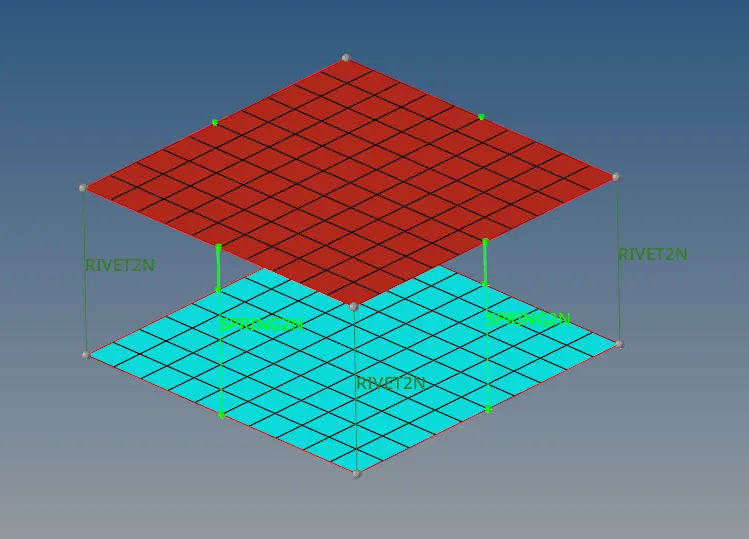
Create the 1D Connectors in between the both surfaces.
Housing
Import the model to the Radioss user profile
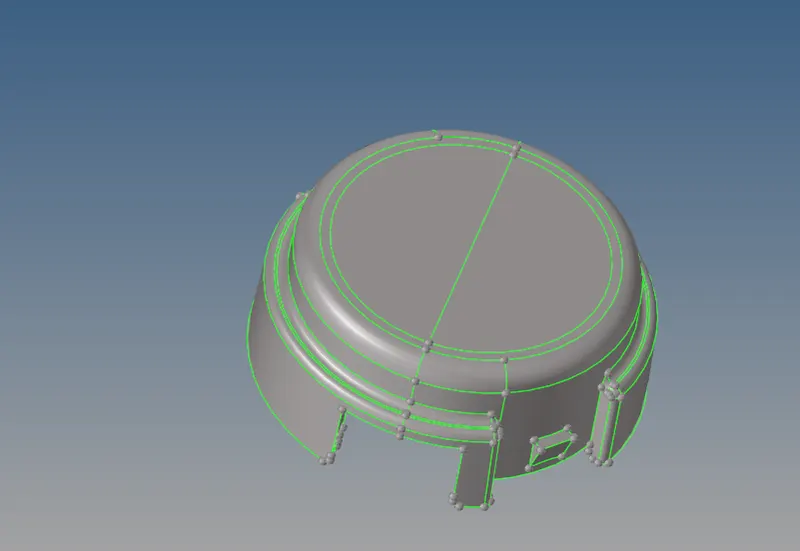
Create the 2D mesh with only trias
Select the all surfaces of the component.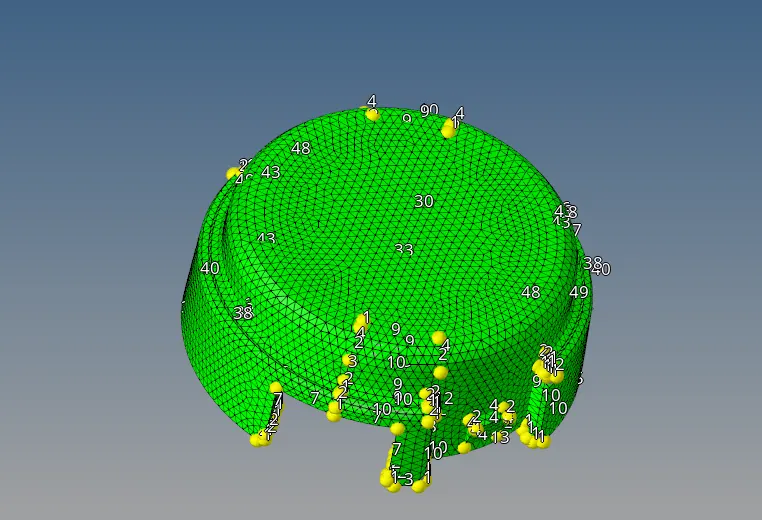

Now goto 3D menu and select the Tetramesh
In the Tetramesh parameter section change the value of Tet Collapse to the assigned value.

Now move te the Tetramesh section and select the 2d elements and select the mesh

Now check the Tet Collapse from Tools> Elements > Tet Collapse
The Elements has been created successfully.
Delete the 2D elements that we created primarily.
Goto Delete > Elements >By Config > Tria


Now check the elements by masking a part of the component.
The Result:
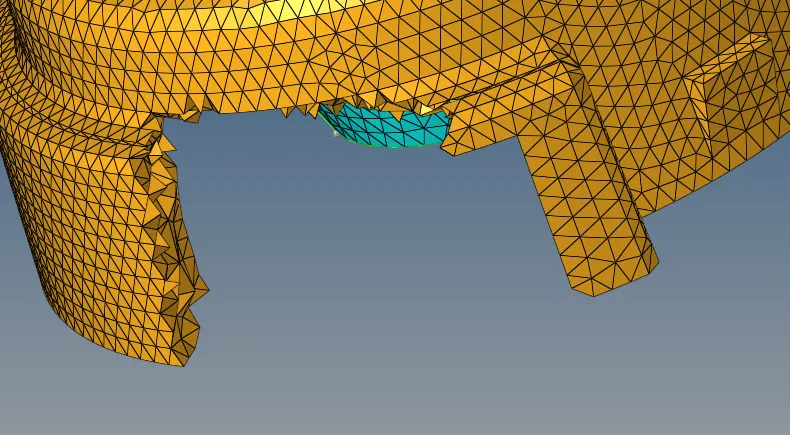
Unmask the elements.
Arm Bracket:
Import the geometry the Radioss user profile
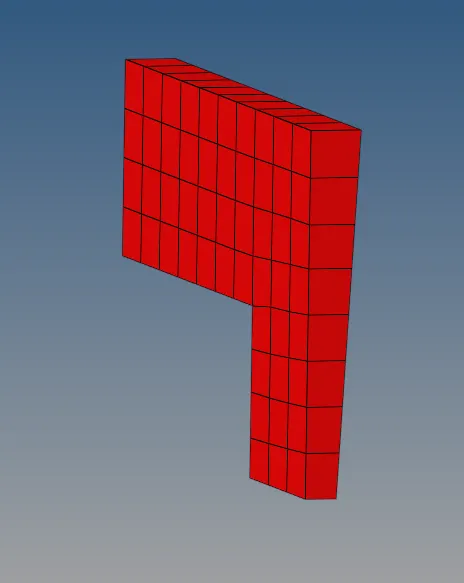
Hide the other components and create 2D mesh on the base surface and avoid trias as shown.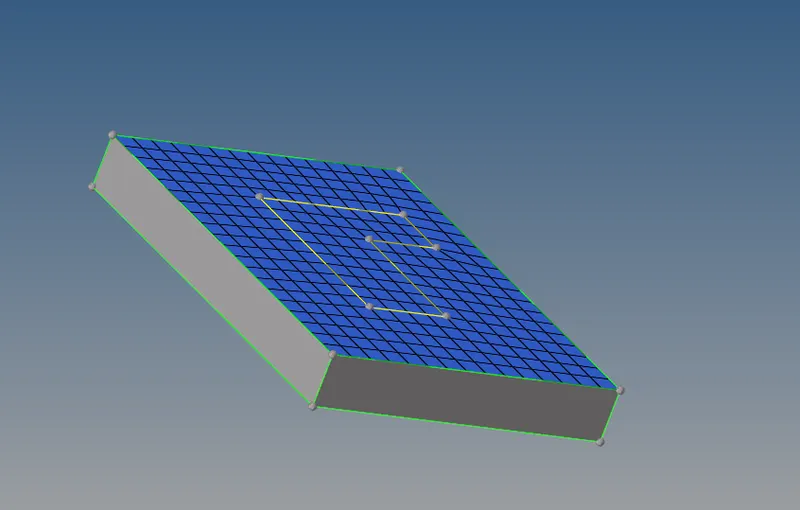
Goto 3D and select the drag option and drag the elements throughout the component.
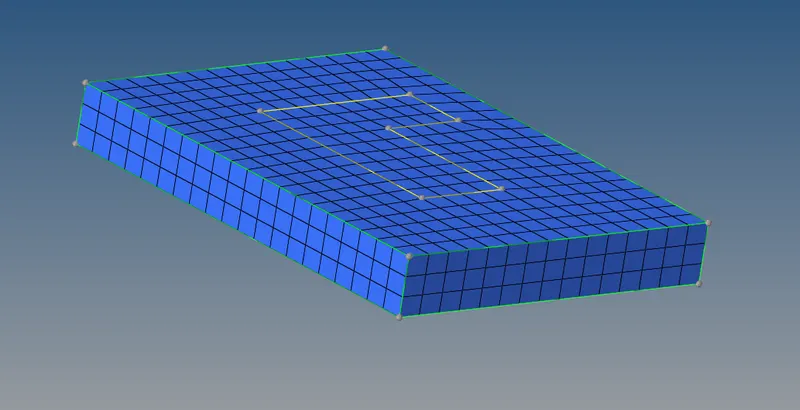
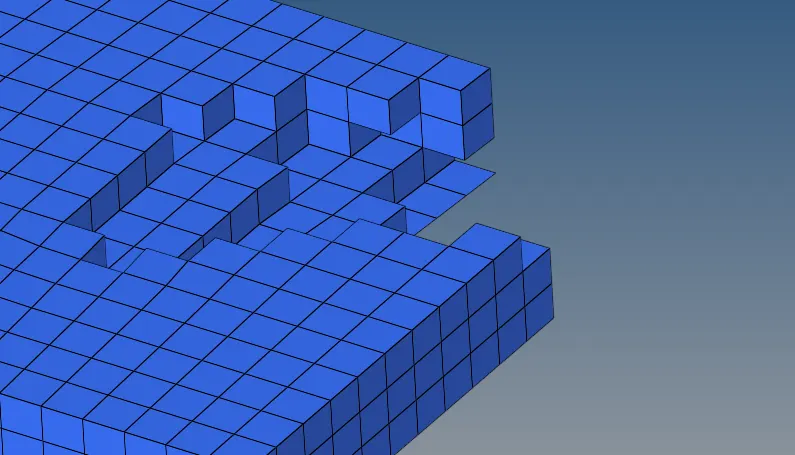
Now create the arc center to the arc shaped component.
Geom > Nodes > Arc Center
r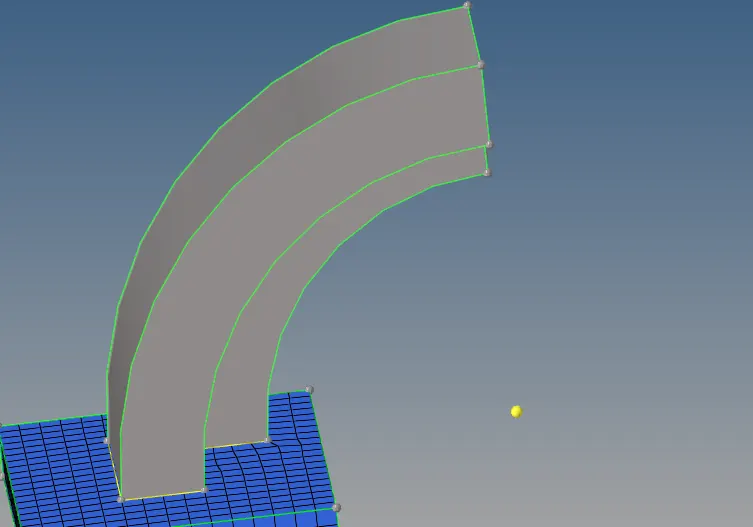
Goto 3D menu > Spin > Spin Elements

Now select the elements that are under the arc component and spin them.
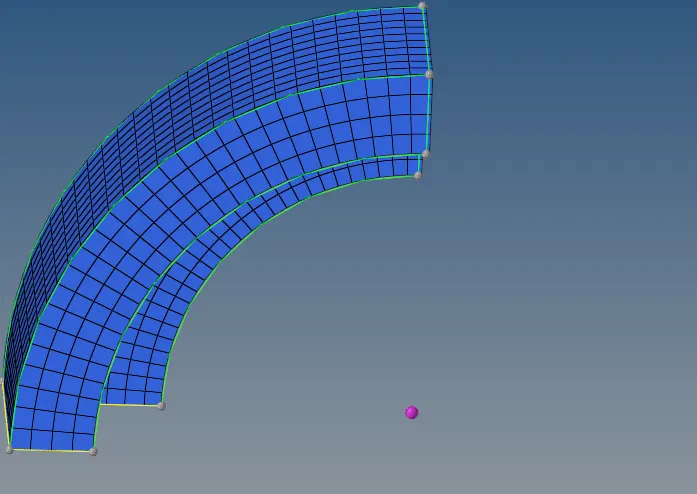
Now select the face elements and create the similar elements on the next piece of component using 2D Automesh.

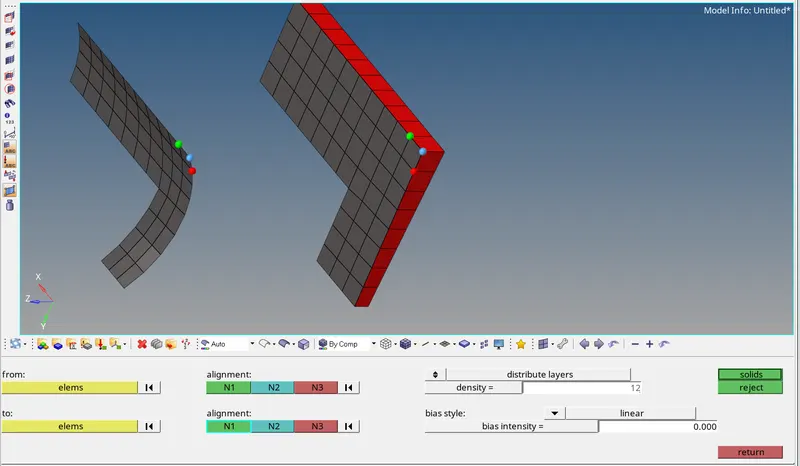
Goto 3D > Linear Solid
Change density to 12

Create 2D mesh on the circular part and make sure the elements align to the previous mesh so that they get match.
Now toggle the surfaces on the face of the cylinder.
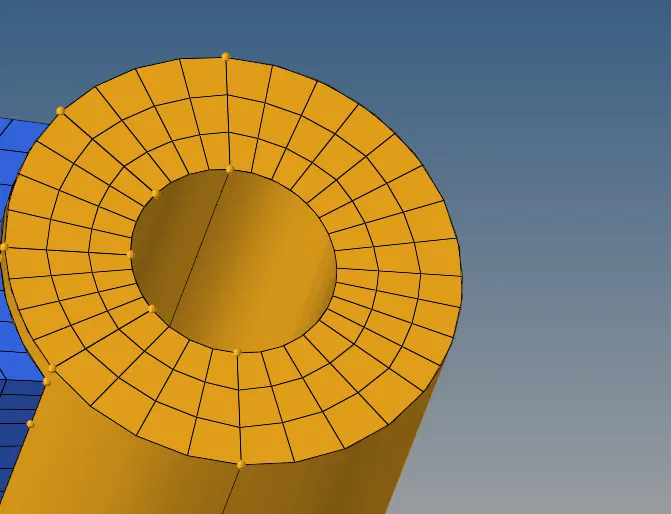

Dest geom is the base of the cylindrical component
Elements to drag are the elements on the cylindrical surface.
The Output: