Assignment 2-RADIOSS Engine File Editing & 3D Meshing Challenge
RADIOSS ENGINE FILE EDITING AND 3D MESHING CHALLENGE
Aim:
- To calculate various parameters of the engine file.
- Edit the engine file with the obtained values.
- Perform 3D mesh on the given model.
Given model:
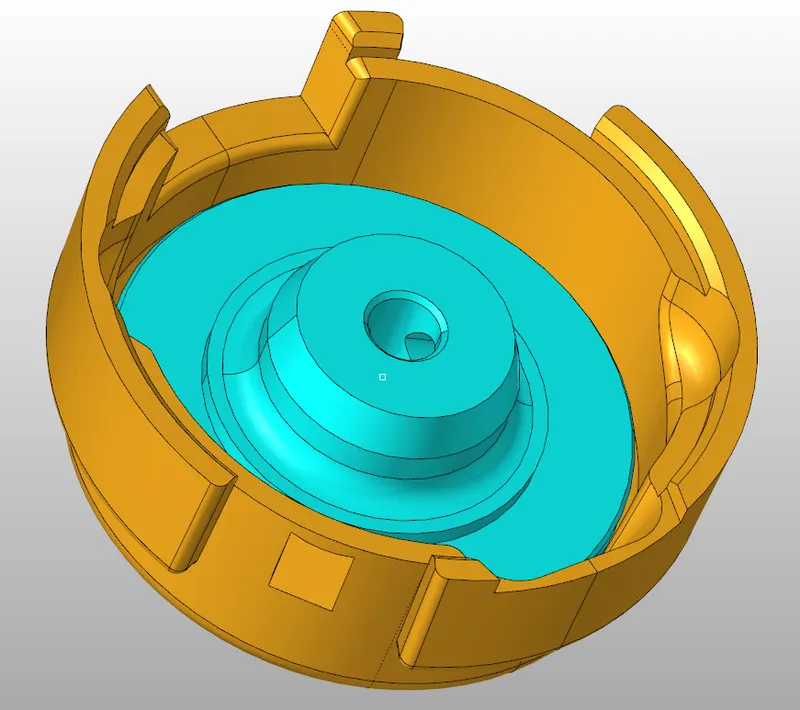
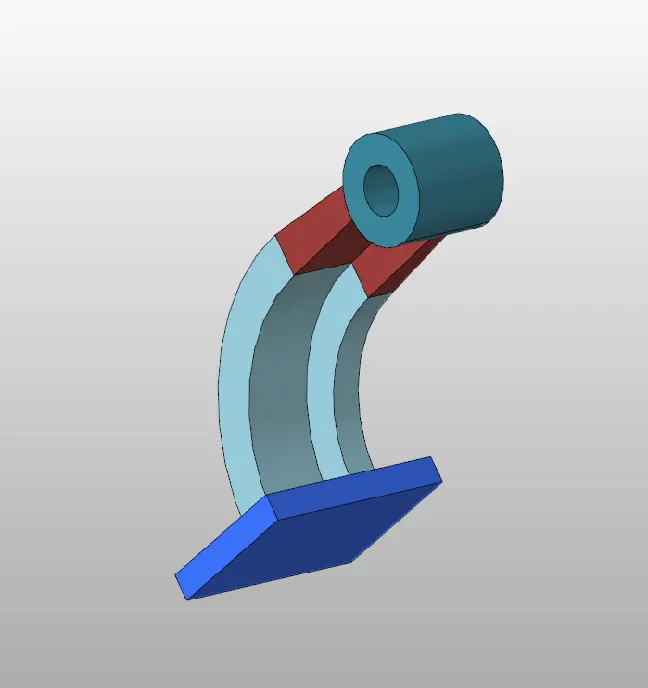
Quality criteria:
For 2D mesh:
|
S. No |
Quality Criteria |
Value |
|
1. |
Target Element Length |
5 |
|
2. |
Min length |
3.5 |
|
3. |
Max length |
7 |
|
4. |
Aspect ratio |
5 |
|
5. |
Skewness |
60 |
|
6. |
Jacobian |
0.5 |
|
7. |
Warpage |
15 |
|
8. |
Tria min angle |
20 |
|
9. |
Tria max angle |
120 |
|
10. |
Quad min angle |
40 |
|
11. |
Quad max angle |
140 |
For 3D mesh:
|
S. No |
Quality Criteria |
Value |
|
1. |
Element Length for Tetra mesh |
5 |
|
2. |
Element Length for Hexa mesh |
10 |
|
3. |
Tet collapse |
0.15 |
Steps Involved:
- Calculating the parameters required for the engine file and editing the engine fine with obtained results.
- Performing 3D meshing on the given model.
Step 1:
1. Calculating the speed of sound in steel rail.
From the engine the following values are obtained.
E = 210000 MPa; `rho`= 0.0078 kg/ mm3.
Speed of the sound can be calculated using the formula C = `sqrt`(E/`rho`).
C = `sqrt (210000/0.0078)`
C = 5188.7 m/sec.
2. Calculate the time taken for the shock wave to travel from one end to other whose length is 1000mm.
Time taken for shock wave `delta t = l/C`
`delta t = 1/ 5188.7 = 0.1927 ms`
3. Calculate the time taken for the sound to travel length of rail
Time taken for the sound to travel length of rail is same as time taken for shock wave i.e 0.1927 ms.
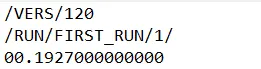
4. Edit the engine file so that the stress wave can be monitored, moving from one end of the rail to the other during impact -this will require a termination time equal to the time it takes for the sound to travel the length of the rail(set on/RUN card)
5. Set the frequency of animation output to a time that will give 20 animation steps(/ANIM/DT)
Frequency of animation = Termination time / No of animation steps
Frequency of animation = `0.1927/ 20 = 0.009635 ms`

6. Change/print -10

Step 2:
1. Performing tetra meshing on the model:
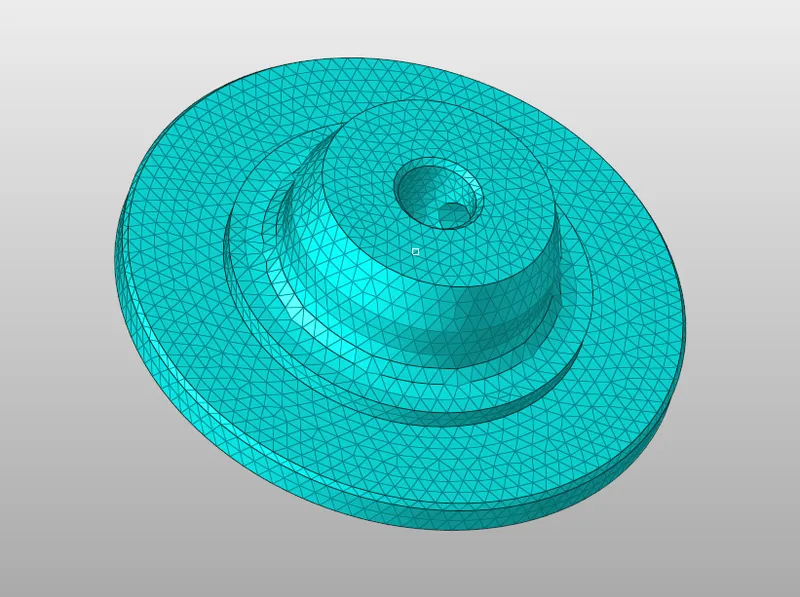
- To generate the 3D mesh, go to 3D >> tetra mesh >> volume tetra >> from the drop-down menu change solids to surfs >> give element size and mesh.
- To check elements failing for tet collapse go to tools >> check elements >> 3D >> tetcollapse. Now at the bottom left corner the no of elements failed are shown. To fix the quality tetra remesh option can be used which is present in 3D panel.
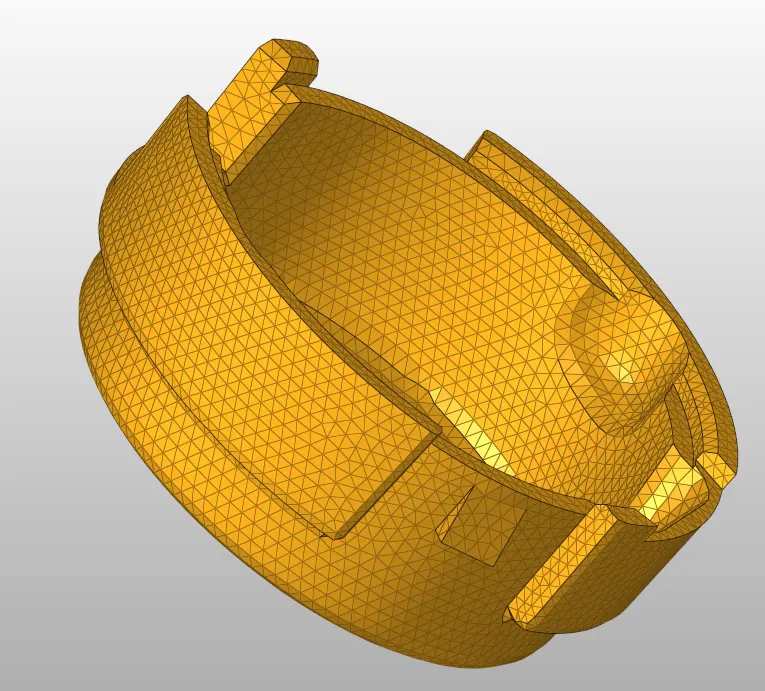
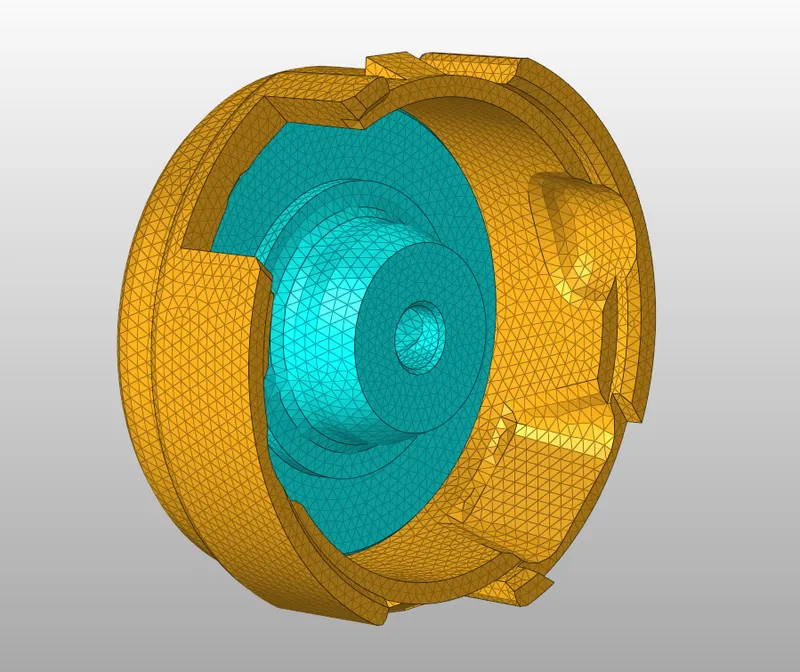
2. Performing Hexa meshing on the model:
- Create a 2D mesh on one side of the base component and use the line drag command to create a Hexa mesh.
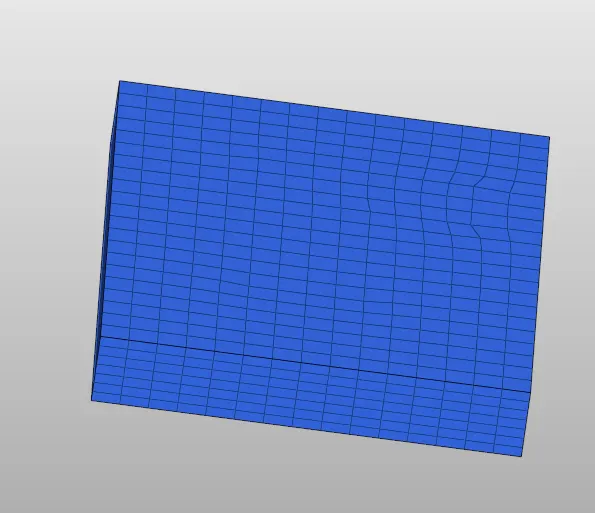
- Now using arm curve geometry create a center node. The elements which need to be spined are selected and center node is selected as a base point and 3D mesh is generated.
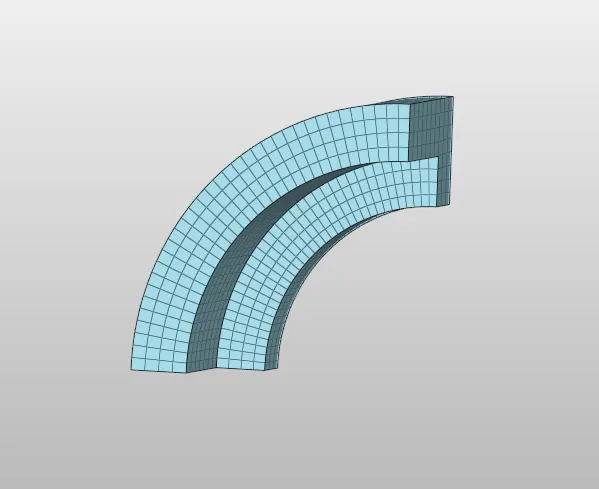
- To generate mesh for arm straight, the 3D elements are used to generate 2D mesh using face option. Now we calculate the no of elements and generate the 2D mesh on the other side of the component and solid map option is used to generate the 3D mesh in between.
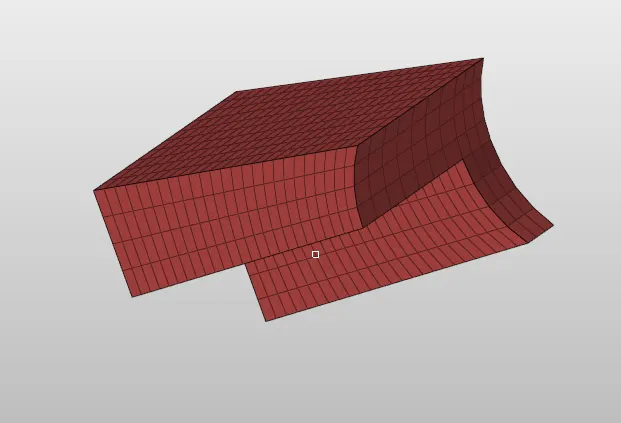
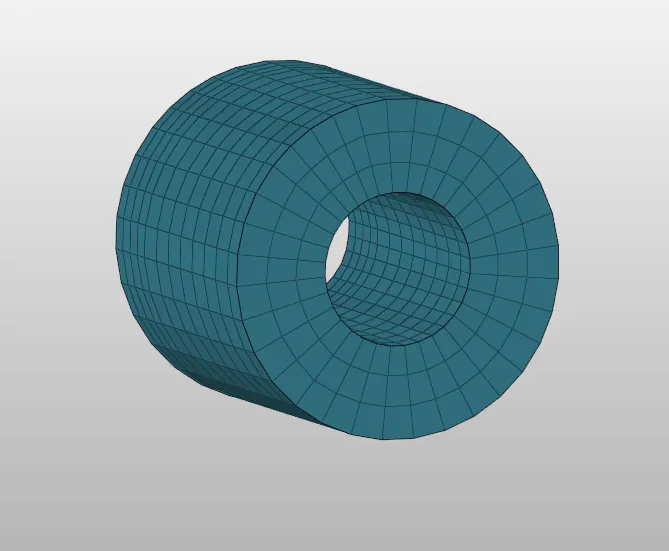
- To generate mesh for the boss, on side 2D mesh is generated and line drag option is used to create the 3D mesh.
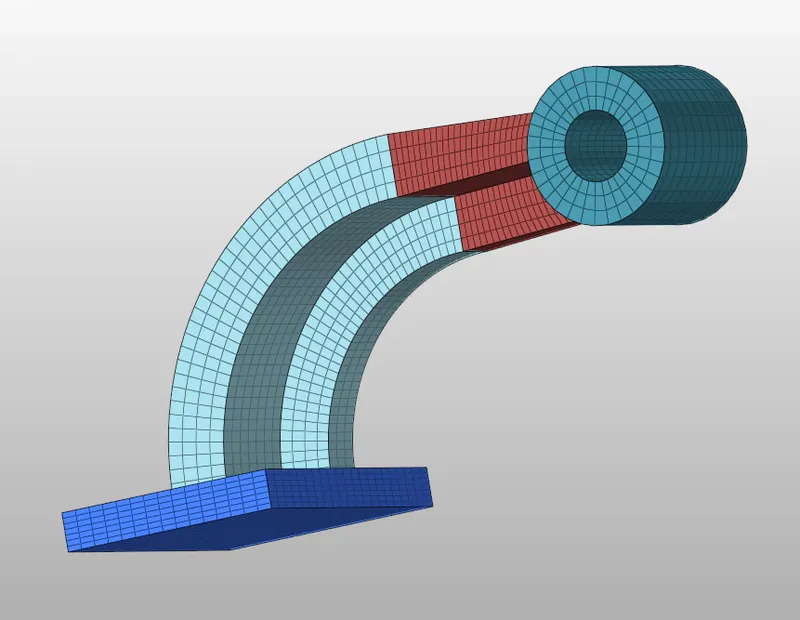
- The final image is shown below
Conclusion:
1. Required parameters are calculated for the engine file.
2. Engine file is edited with the obtained values.
3. Tetra mesh and Hexa mesh is generated for the given models.