2D Meshing
AIM:
- To clean the geometry, extract mid-surface and mesh with the given target element length, also assign thickness to the mesh elements using the Radioss profile.
OBJECTIVES OF THE PROJECT:
- To clean the geometry.
- To extract mid-surface.
- To mesh the mid-surface with the given target element length.
- To check the elements failing for quality.
- To assign property and thickness to the elements.
PROCEDURE:
- PART-1 :
- First step is to import the model, go to FILE > IMPORT > MODEL > OPEN > BROWSE > OK.
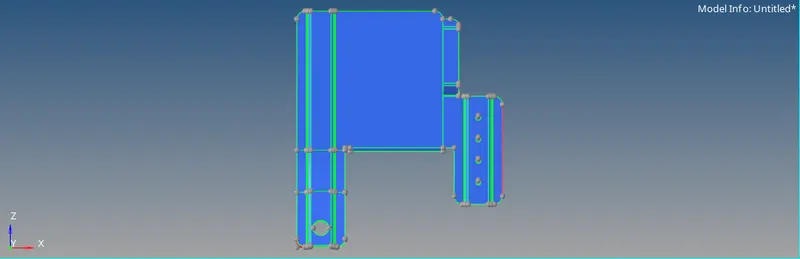
- Now, check the model for any free edges and missing surfaces.
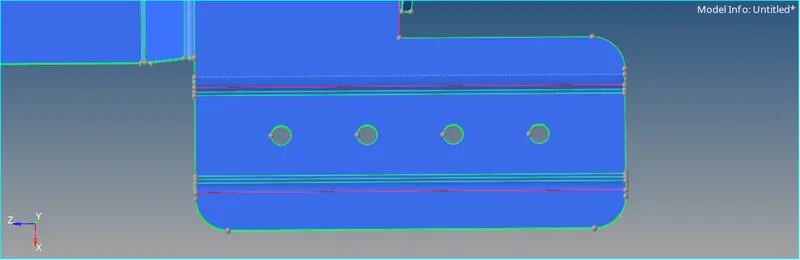
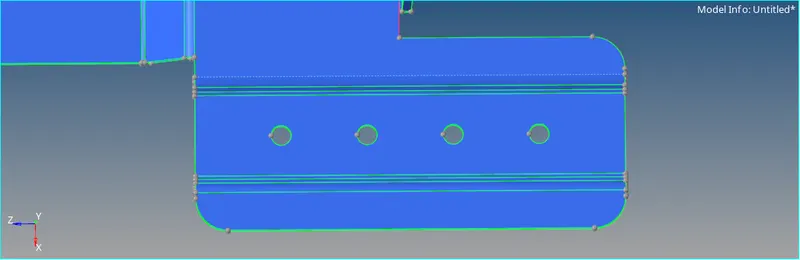
- For free edges with small tolerance, go to GEOM > QUICK EDIT > TOGGLE > TOLERANCE = 0.2 > SELECT THE FREE EDGES, this will stitch the edges together.
- For missing surfaces, go to GEOM > QUICK EDIT > FILLER SURFACE, this will create a face between the free edges.
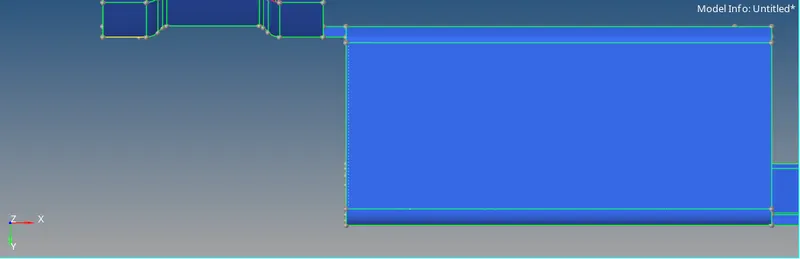
- Now, after all the geometry clean up we have to extract mid-surface.
- Go to GEOM > MIDSURFACE > EXTRACTION OPTIONS > SKIN OFFSET > AUTO EXTRACTION > SURFS > DISPLAYED > EXTRACT.
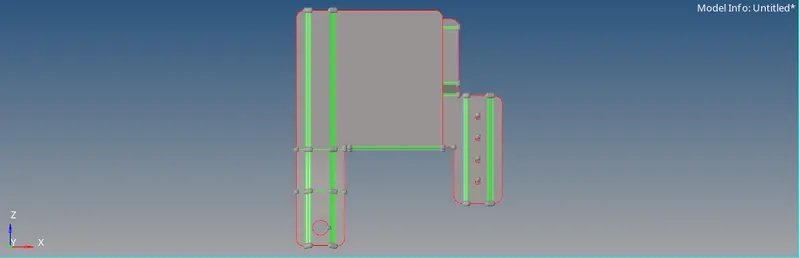
- Now, start meshing the mid-surface.
- Before meshing go to PREFERENCES > CRITERIA FILE SETTINGS and enter the following values-
Target Element Length = 5mm
Minimum element Length = 3.5mm
Maximum Element Length = 7mm
- This will set the quality criteria for the mesh.
- Now, go to 2D > AUTOMESH > ELEMENT SIZE = 5MM > ELEMENT TYPE = MIXED > SURFS > DISPLAYED > MESH.
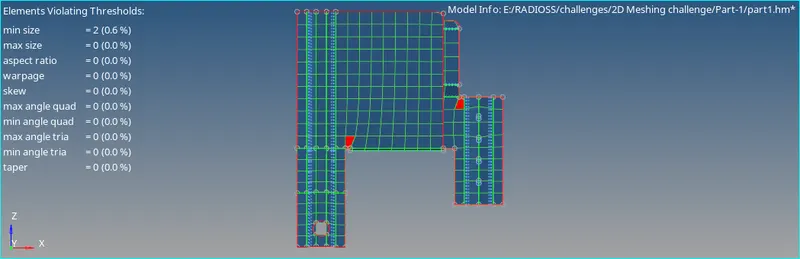
- Go to VISUALIZATION > ELEMENT > BY ELEMENT QUALITY to check the elements failing for quality.
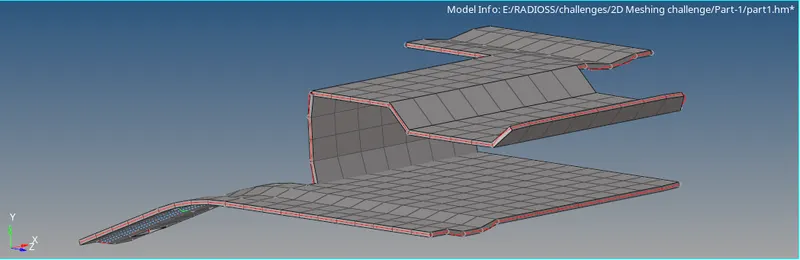
- Now, in the TAB area, CREATE > PROPERTY > ID = PSHELL > THICKNESS = 0.91MM.
- Now, assign this property card to the extracted mid-surface.
- PART-2 :
- First step is to import the model, go to FILE > IMPORT > MODEL > OPEN > BROWSE > OK.
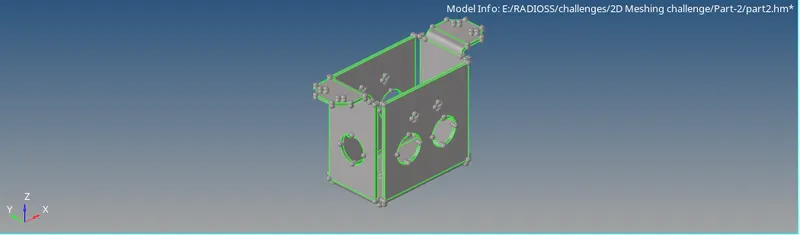
- Now, after all the geometry clean up we have to extract mid-surface.
- Go to GEOM > MIDSURFACE > EXTRACTION OPTIONS > SKIN OFFSET > AUTO EXTRACTION > SURFS > DISPLAYED > EXTRACT.
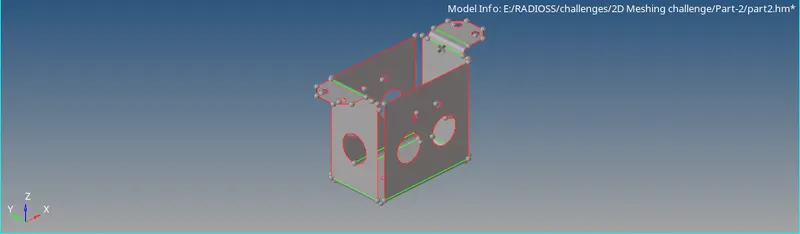
- Now, start meshing the mid-surface.
- Before meshing go to PREFERENCES > CRITERIA FILE SETTINGS and enter the following values-
Target Element Length = 5mm
Minimum element Length = 3.5mm
Maximum Element Length = 7mm
- This will set the quality criteria for the mesh.
- Now, go to 2D > AUTOMESH > ELEMENT SIZE = 5MM > ELEMENT TYPE = MIXED > SURFS > DISPLAYED > MESH.
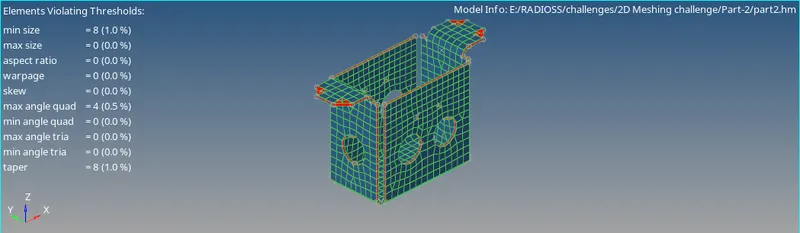
- Go to VISUALIZATION > ELEMENT > BY ELEMENT QUALITY to check the elements failing for quality.
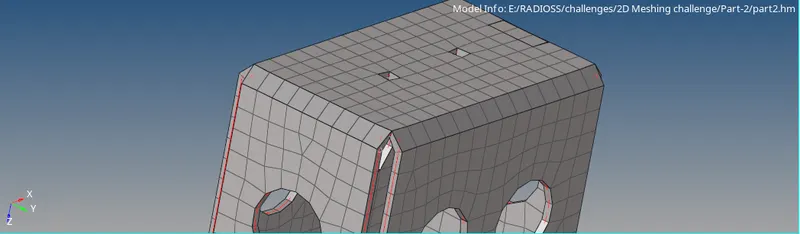
- Now, in the TAB area, CREATE > PROPERTY > ID = PSHELL > THICKNESS = 2MM.
- Now, assign this property card to the extracted mid-surface.
- PART-3 :
- First step is to import the model, go to FILE > IMPORT > MODEL > OPEN > BROWSE > OK.
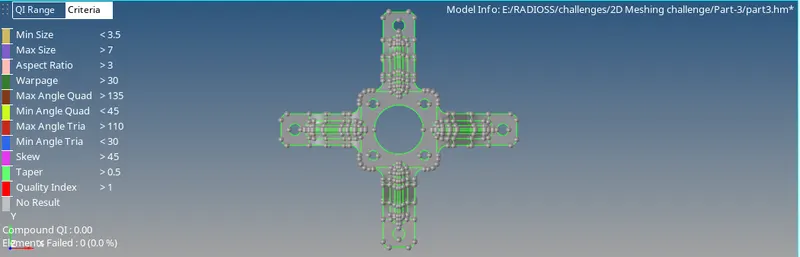
- Now, check the model for any free edges and missing surfaces.
- For free edges with small tolerance, go to GEOM > QUICK EDIT > TOGGLE > TOLERANCE = 0.2 > SELECT THE FREE EDGES, this will stitch the edges together.
- Now, after all the geometry clean up we have to extract mid-surface.
- Go to GEOM > MIDSURFACE > EXTRACTION OPTIONS > SKIN OFFSET > AUTO EXTRACTION > SURFS > DISPLAYED > EXTRACT.
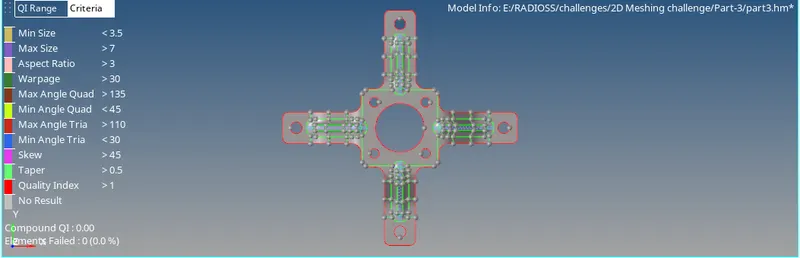
- For the support legs defeature the surface by creating midline.
- Go to GEOM > LINES > MIDLINES and then GEOM > SURF EDIT > TRIM SURF WITH LINES > TRIM.
- Then toggle the remaining lines so that after meshing the elements will not fail.
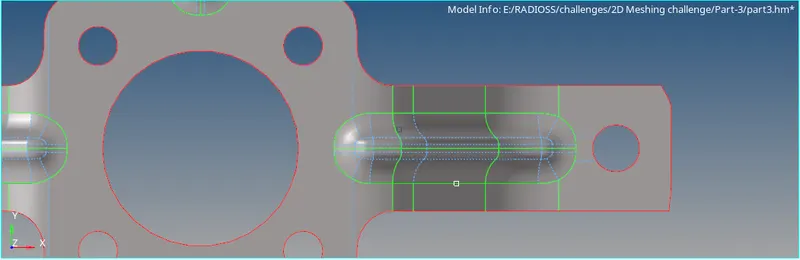
- Now, start meshing the mid-surface.
- Before meshing go to PREFERENCES > CRITERIA FILE SETTINGS and enter the following values-
Target Element Length = 5mm
Minimum element Length = 3.5mm
Maximum Element Length = 7mm
- This will set the quality criteria for the mesh.
- Now, go to 2D > AUTOMESH > ELEMENT SIZE = 5MM > ELEMENT TYPE = MIXED > SURFS > DISPLAYED > MESH.
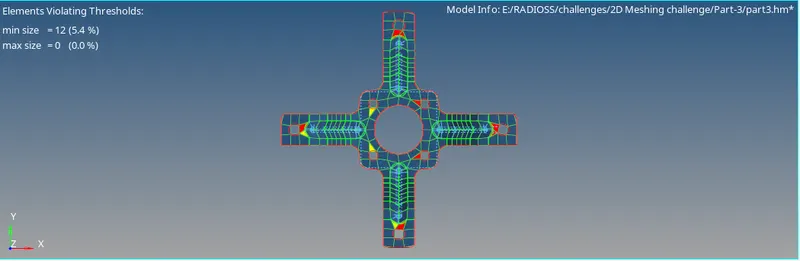
- Go to VISUALIZATION > ELEMENT > BY ELEMENT QUALITY to check the elements failing for quality.
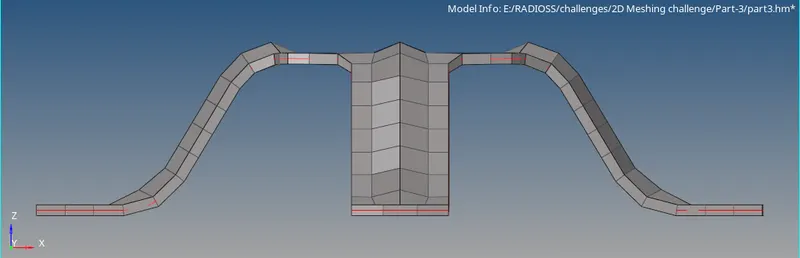
- Now, in the TAB area, CREATE > PROPERTY > ID = PSHELL > THICKNESS = 1.8MM.
- Now, assign this property card to the extracted mid-surface.
LEARNING OUTCOMES:
- To clean the geometry.
- To extract mid-surface.
- To automesh the surfaces.
- To check the quality criteria.
- To assign thickness to the mesh elements.
- To clear the fail elements using cleanup tools and translate tool.
RESULTS:
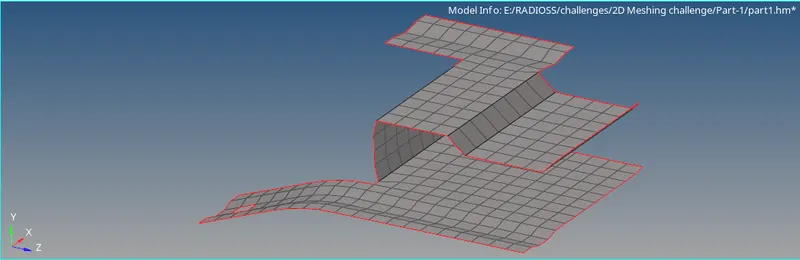
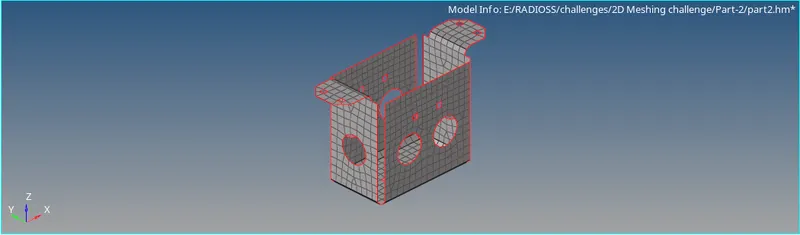
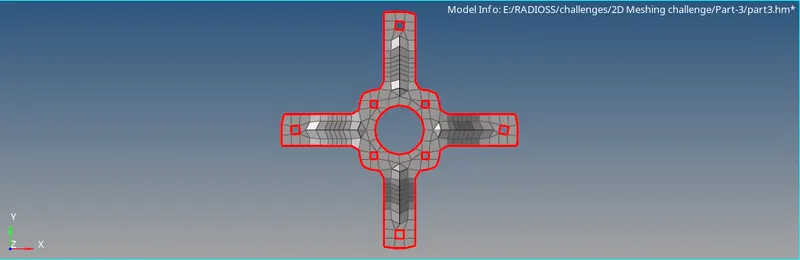
CONCLUSION:
- Hence, by performing this project we conclude that Mid-surface extraction, 2D shell meshing and assigning thickness to the mesh elements.