Assignment 1-2D Meshing Challenge
Geometry Cleanup Exercise: (Note: All the .hm models are done Radioss profile)
Carry out the geometry cleanup operation on the given 3 files.
- Practice
- Clip Repair
- Mounting Bracket
There should not be any free edges, convert all of them into refine geometry.
- Clean the geometry.
- Extract midsurface.
- Clean midsurface geometry.
- Ignore holes less than dia 5mm.
- Create 2D mesh with target length 5mm, min 3.5mm max 7mm.
- And assign proper thickness, by creating a generic property.
Target Element Length = 5mm
Importing the model.
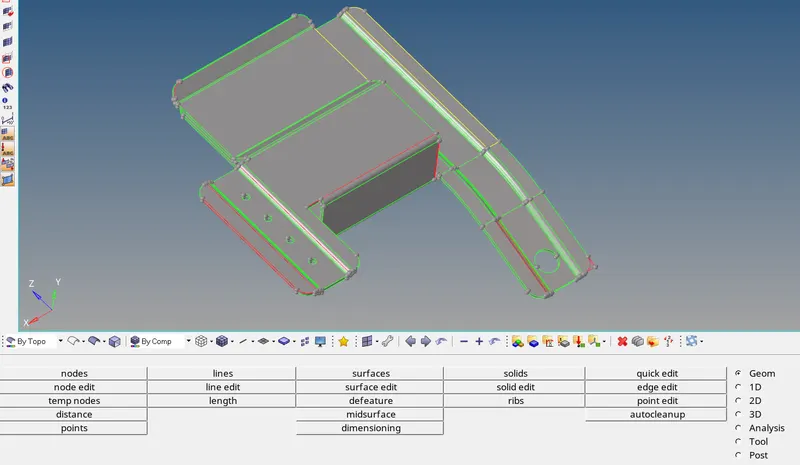
Creation of Missing Surfaces:
Geom -- > Surfaces -- > Splines/Fillers
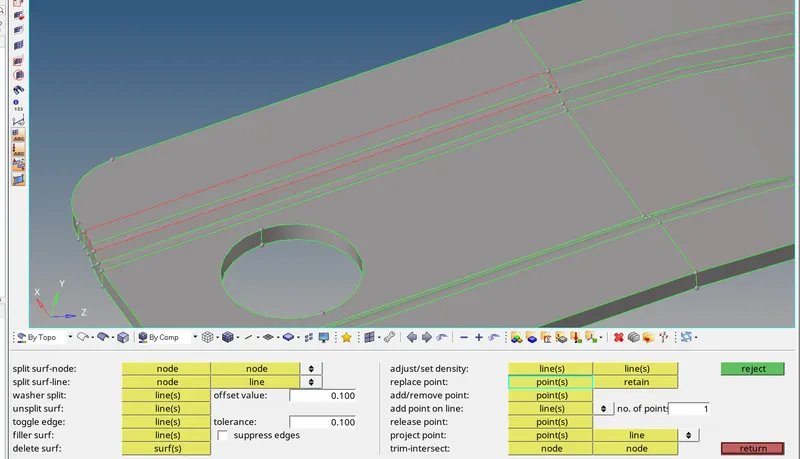
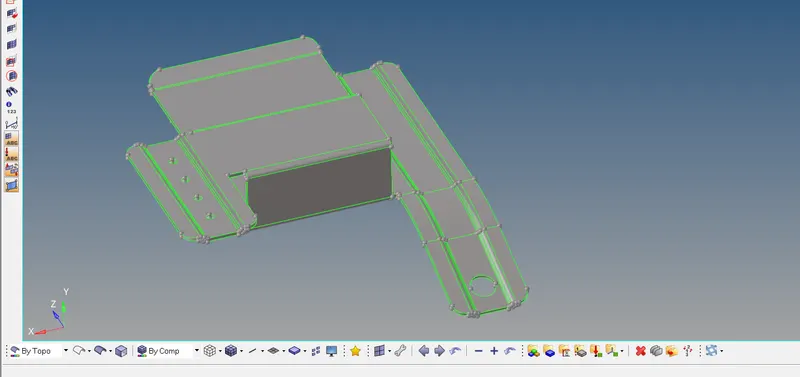
- The model is cleared of free edges.
Creating all the mid-surface:
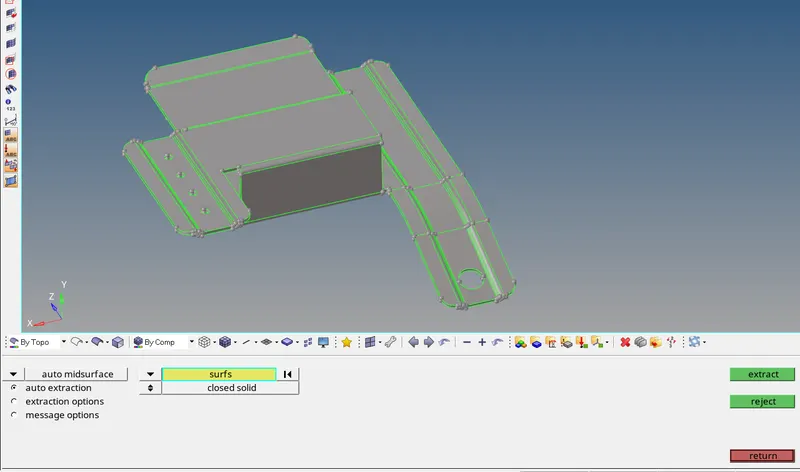
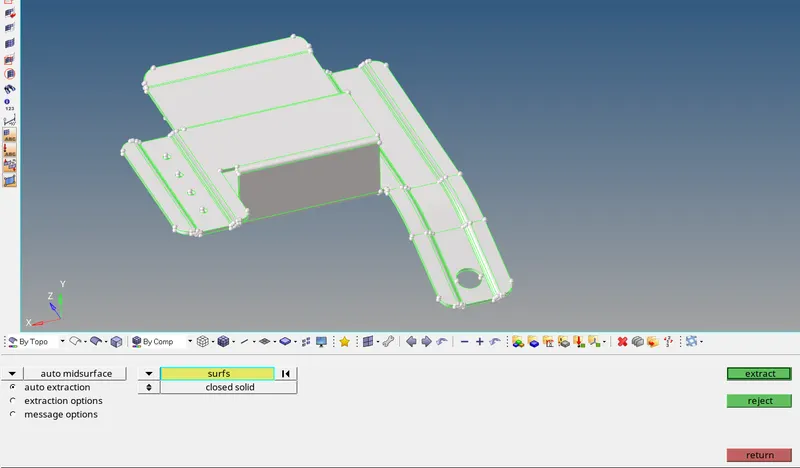
- Select the model to which the mid surface is to be created.
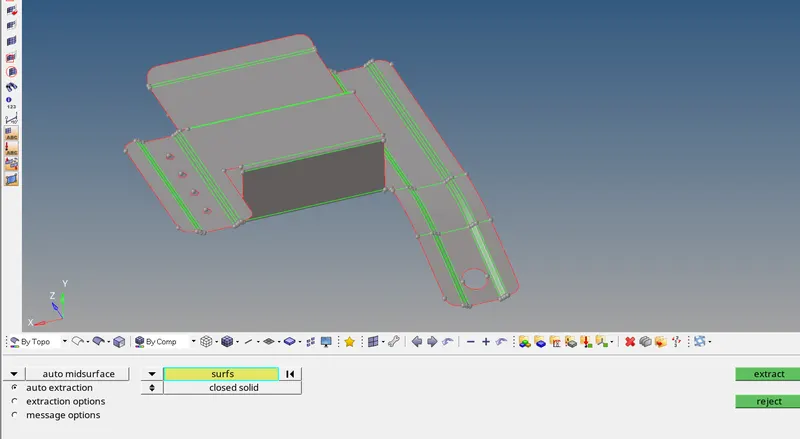
- Mid surface is extracted.
Now start meshing mid-surfaces:
Cleanup:
After creating all missing surfaces, deleting all extra surfaces, and ready the geometry for cleanup.
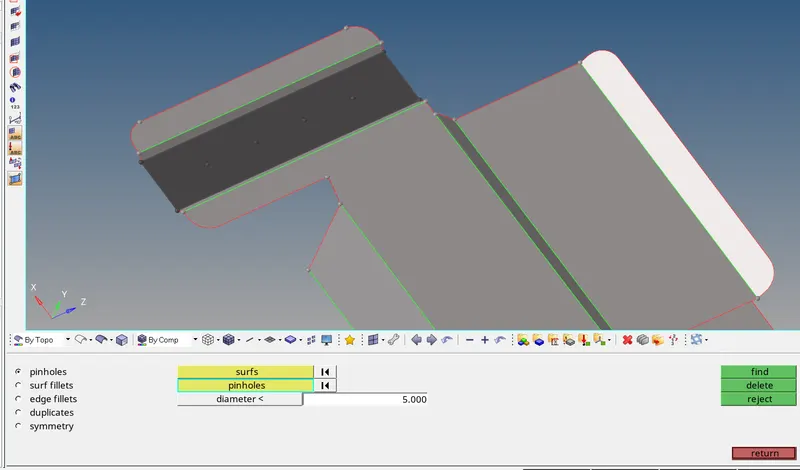
- As the holes are less than 5mm they are cleaned up.
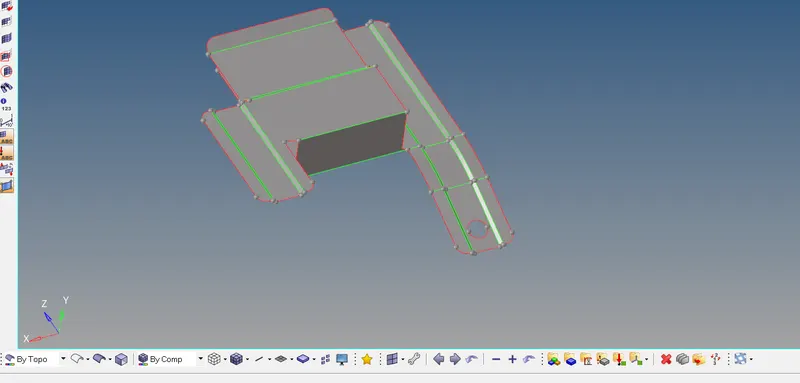
- Clean up is completed and the model is ready for automesh.
Creation of Mesh: 2D -- > automesh

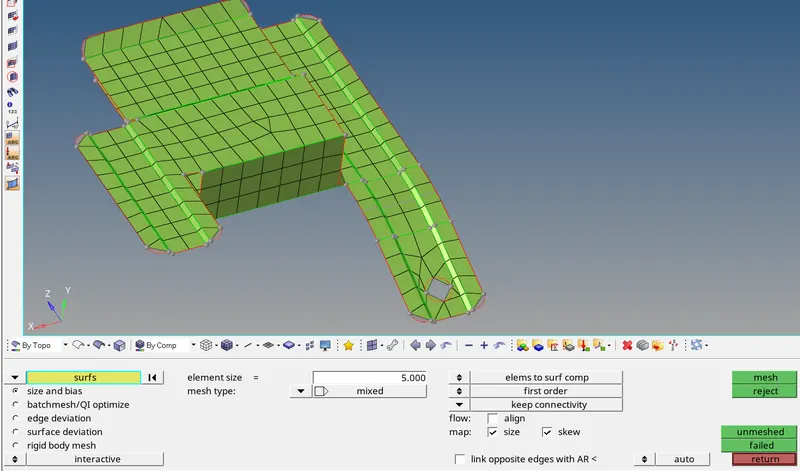
- Enter the required mesh dimension(5).
- Selection of the surfaces to mesh and press mesh.
- Need to re-mesh locally if required.
- Or we can also mesh optimize.
Qualityindex : 2D -- > qualityindex

Check Elements for Quality : Tool -- > check elems (F10)


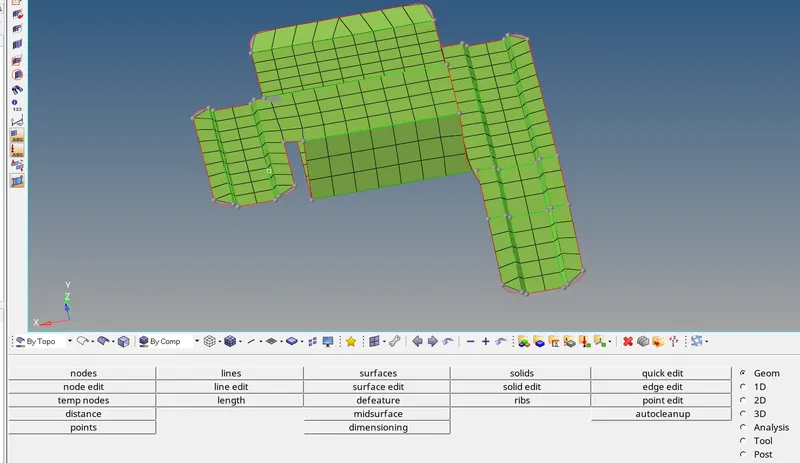
- After all the elements are checked for size the mesh is completed.
Assign proper thickness:
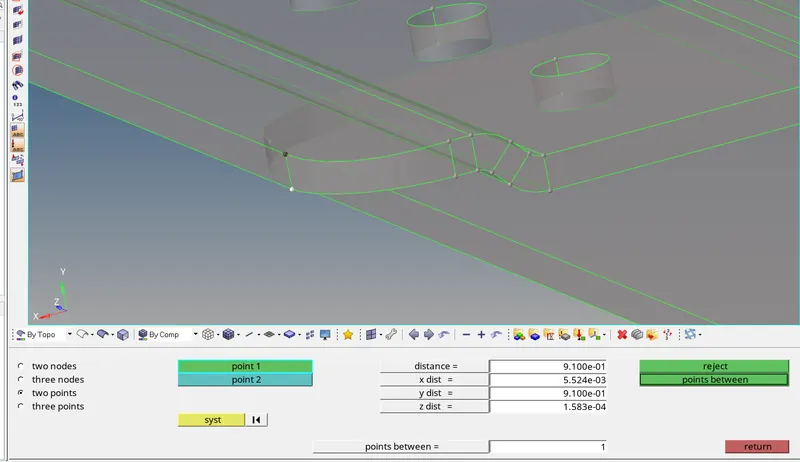
- Found the thickness to be 0.9 mm
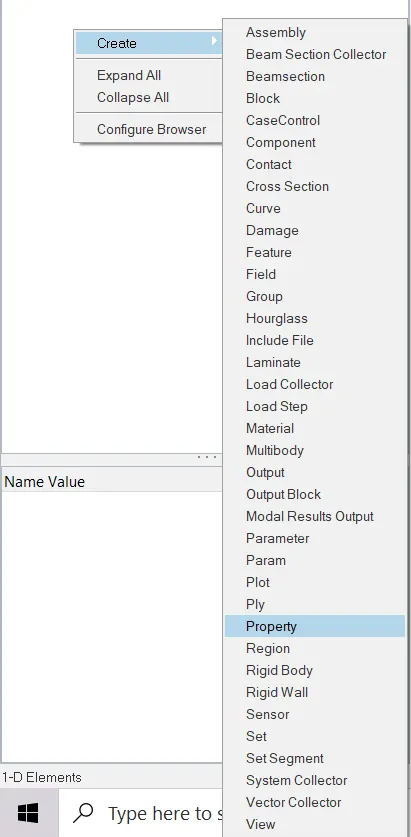
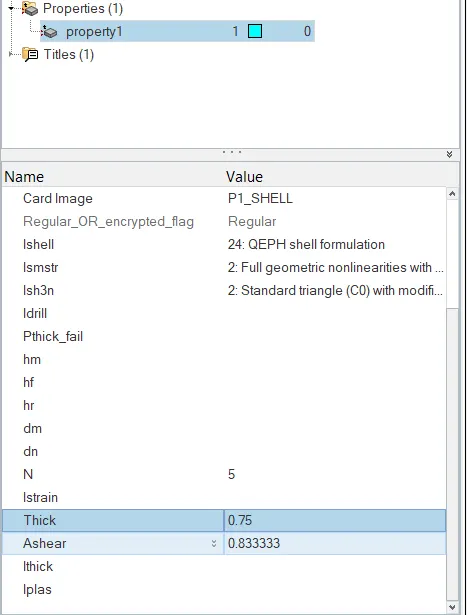
- Property is created and required thickness is assigned.
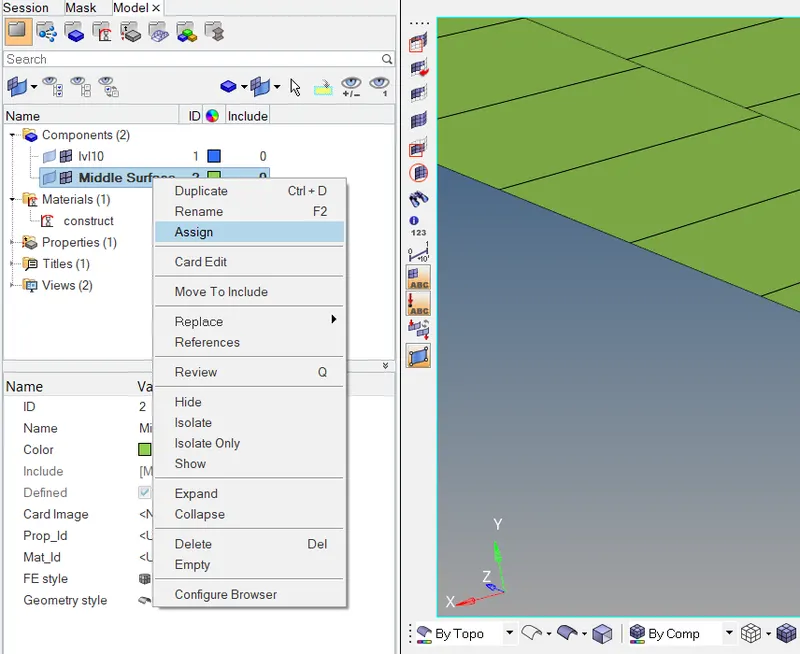
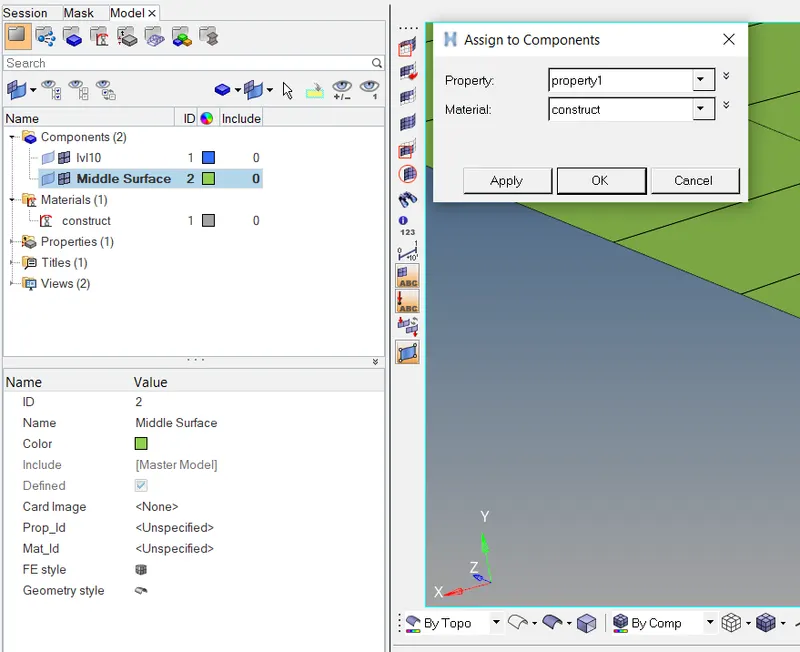
- Property is assigned to the model.
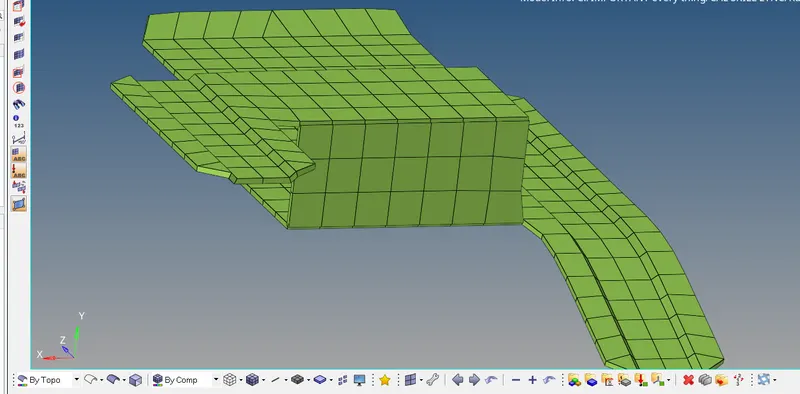
- Completed model with thickness assigned.
Similarly, the model 2 and 3 are done.
Model 2:
Importing the model
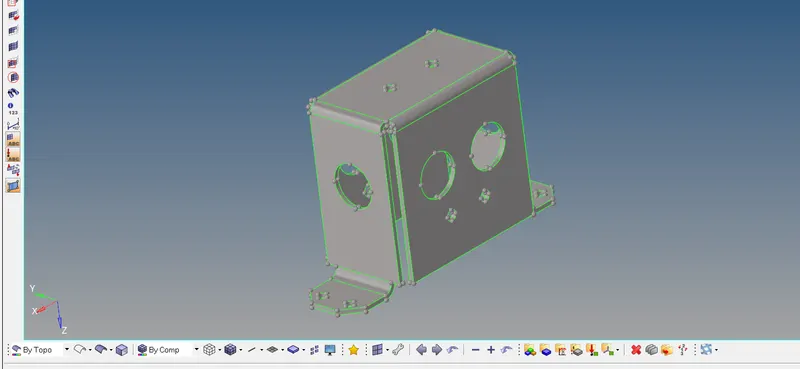
Creation of Missing Surfaces:
Geom -- > Surfaces -- > Splines/Fillers
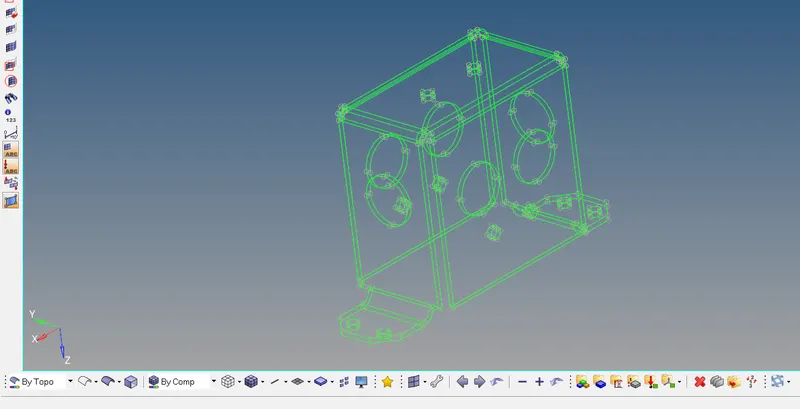
- The model is cleared of free edges.
Creating all the mid-surface:
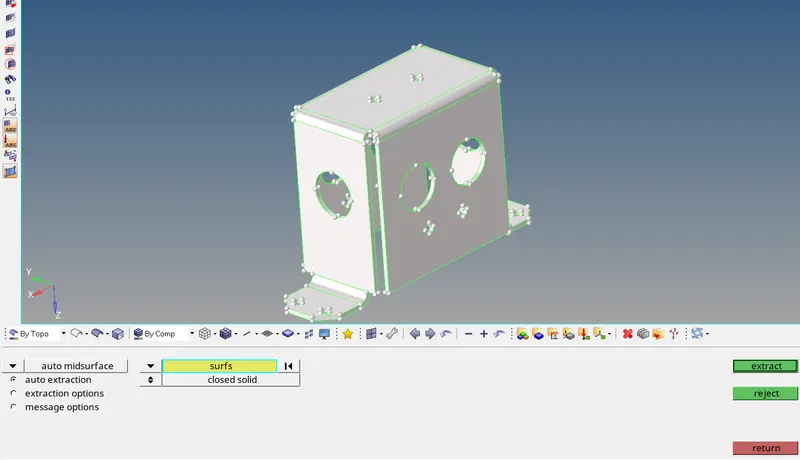
- Select the model to which the mid surface is to be created.
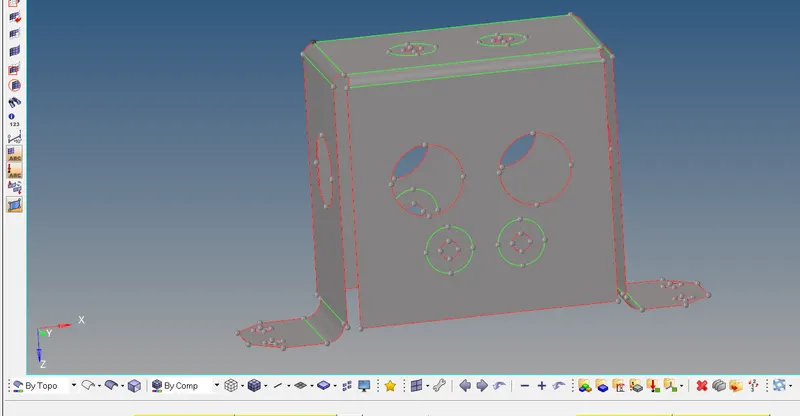
- Mid surface is extracted.
Now start meshing mid-surfaces:
Cleanup:
After creating all missing surfaces, deleting all extra surfaces and ready the geometry for cleanup.
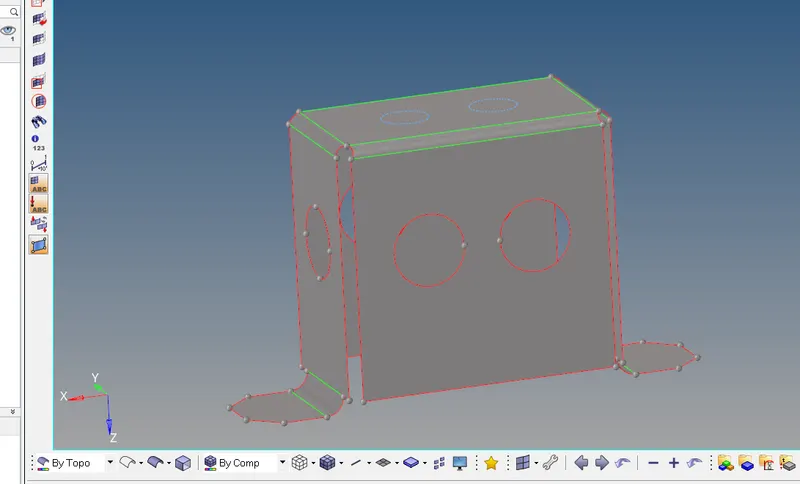
- Clean up is completed and the model is ready for automesh.
Creation of Mesh: 2D -- > automesh
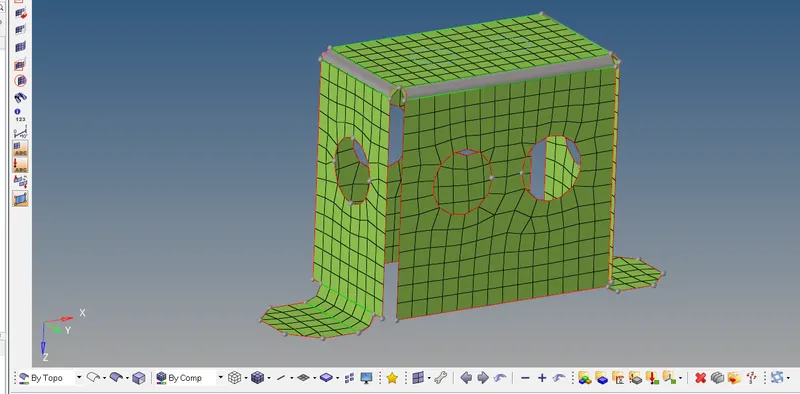
- After all the elements are checked foe size the mesh is completed.
Assign proper thickness:
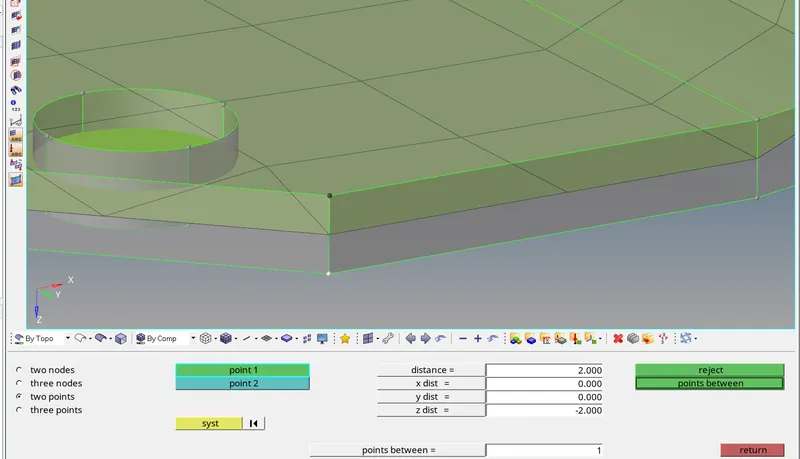
- Found the thickness to be 2.0 mm
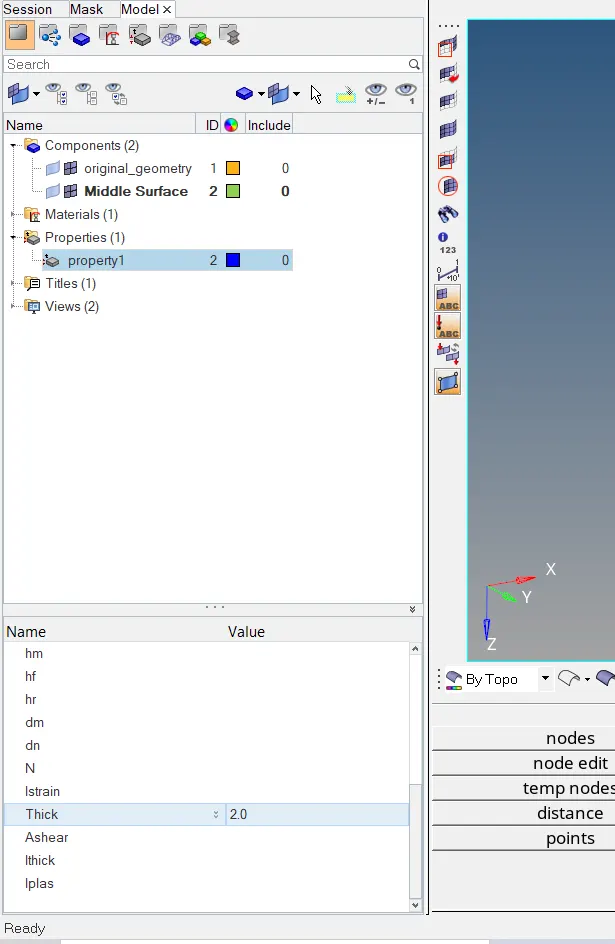
- Property is created and required thickness is assigned.
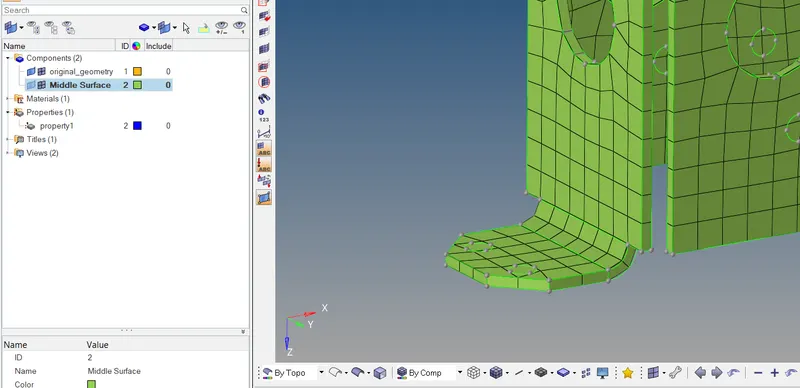
- Completed model with thickness assigned.
Model 3:
Importing the model
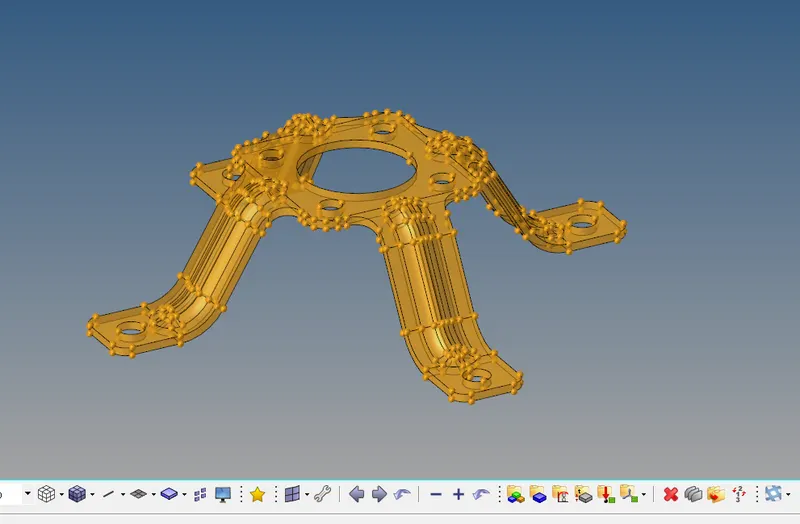
Creation of Missing Surfaces:
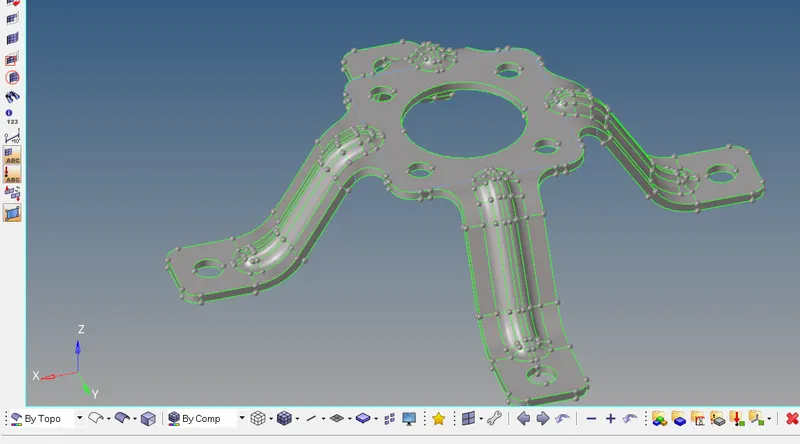
- The given model is a perfectly closed model without any free edges.
Creating all the mid-surface:
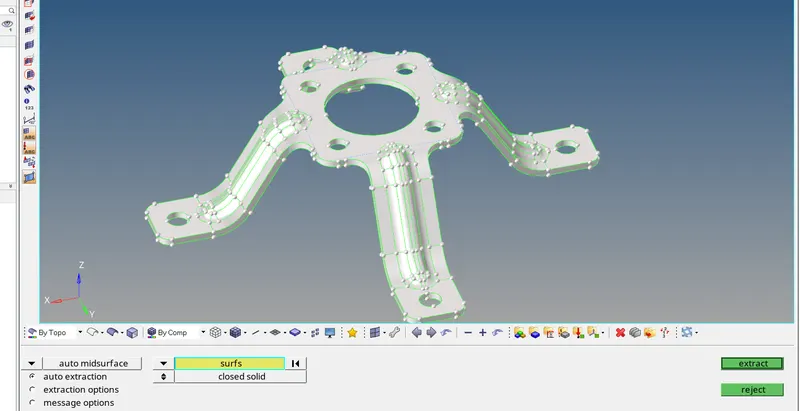
- Select the model to which the mid surface is to be created.
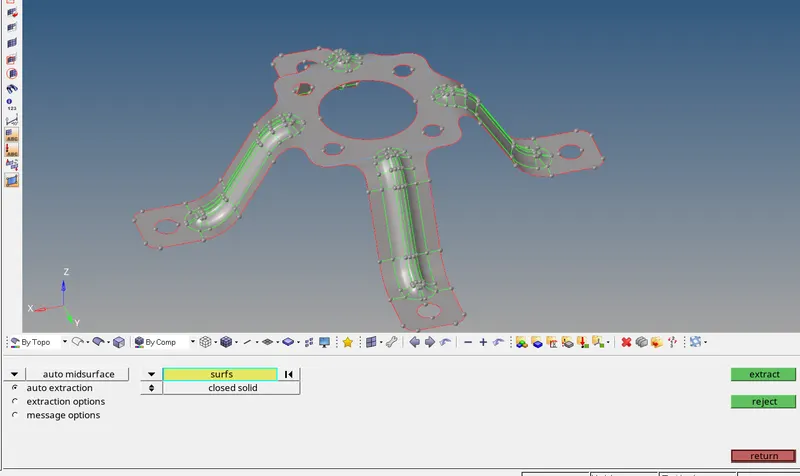
- Mid surface is extracted.
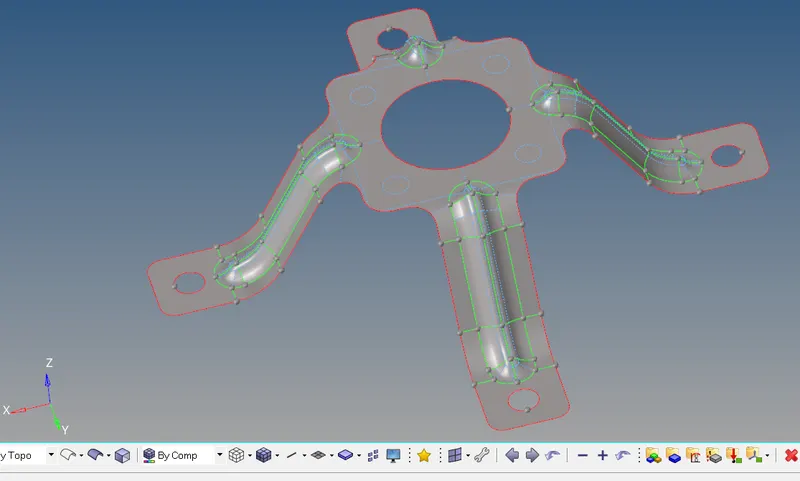
- Cleaned up model ready for meshing.
Creation of Mesh: 2D -- > automesh
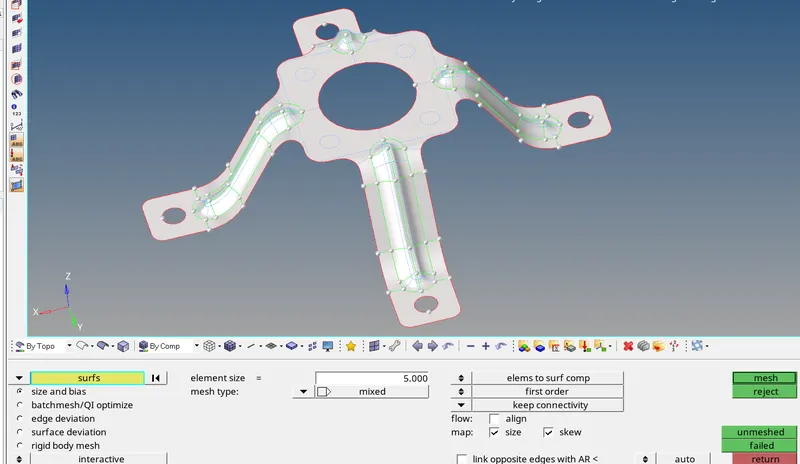
- Enter the required mesh dimension(5).
- Selection of the surfaces to mesh and press mesh.
- Need to re-mesh locally if required.
- Or we can also mesh optimize.
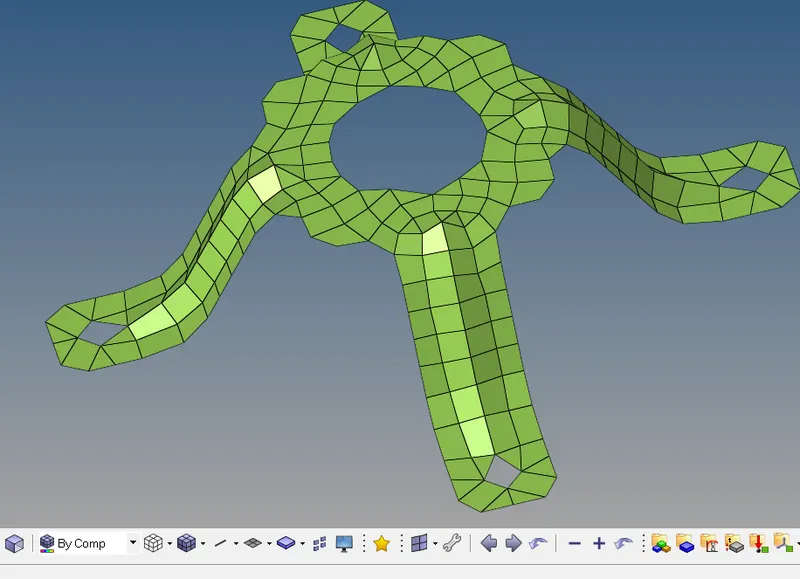
- After all the elements are checked for size the mesh is completed.
Assign proper thickness:
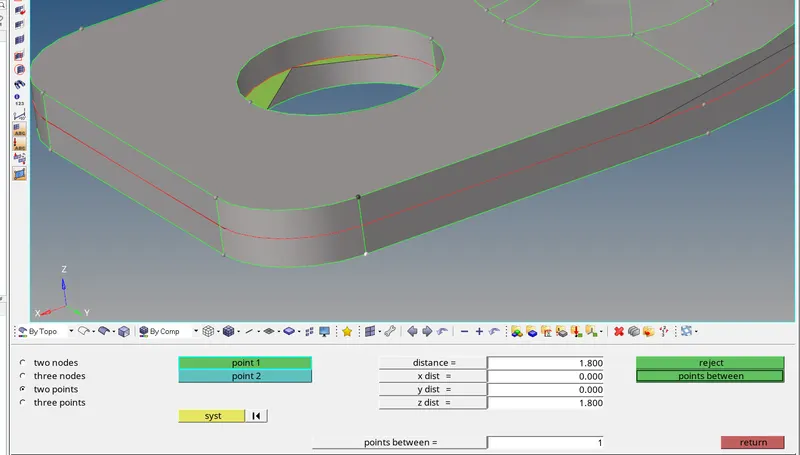
- Found the thickness to be 1.8 mm
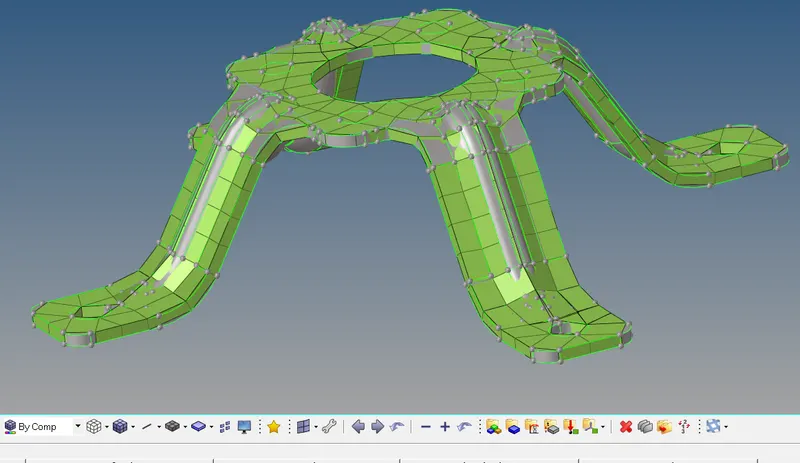
- Completed model with thickness assigned.