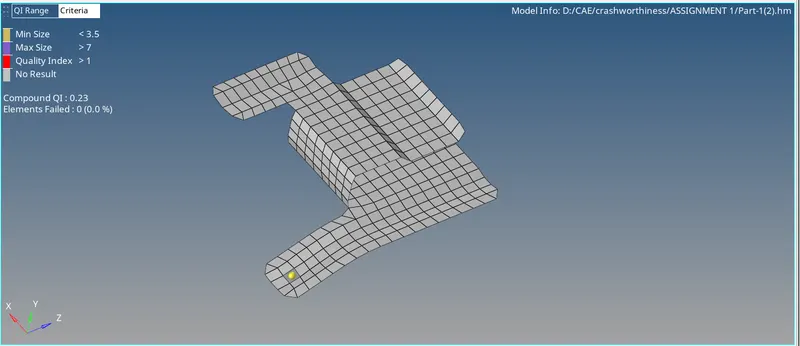
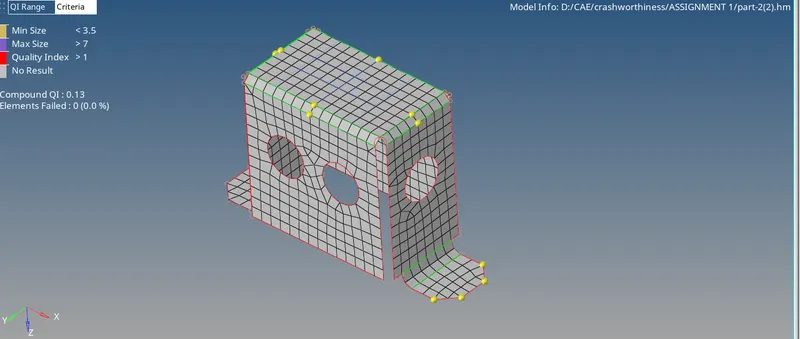
Assignment 1-2D Meshing Challenge
Assignment 1-2D Meshing Challenge
AIM
In assignment 1 we will know about how to extract the mid surface what are the different ways to take mid surface in case auto mid surface may fail how can we get offset the component and also how to clean up geometry how can we mesh the component and also what are the tools by using to get better mesh flow and also how to assign the thickness for the mid surface taking component
we have to create the component 2D mesh with a target size is 5mm
min length is 3.5mm, max length is 7mm
and then we have assigned the thickness concerning the parent component size
PROCEDURE
part - 1
- import the files to hypermesh
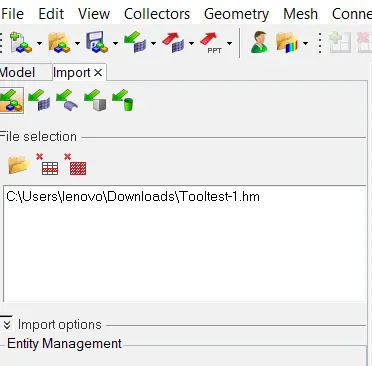
- after importing the component to the workplace
- we have to take the mid surface
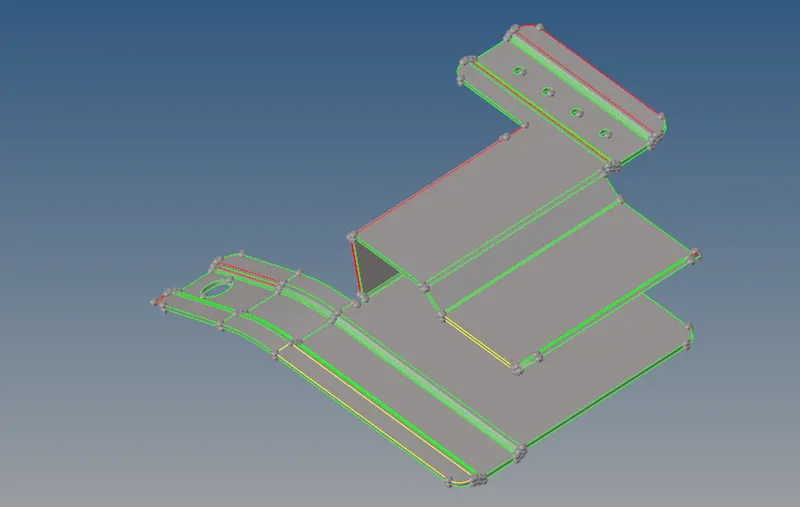
- then go to geom - mid surface - auto

- after that select the whole component and click the auto mid surface
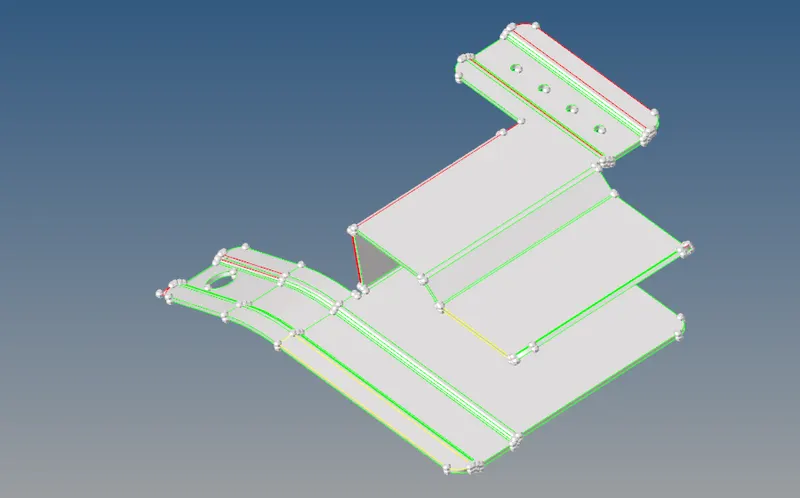
- and we have a mid surface component like this
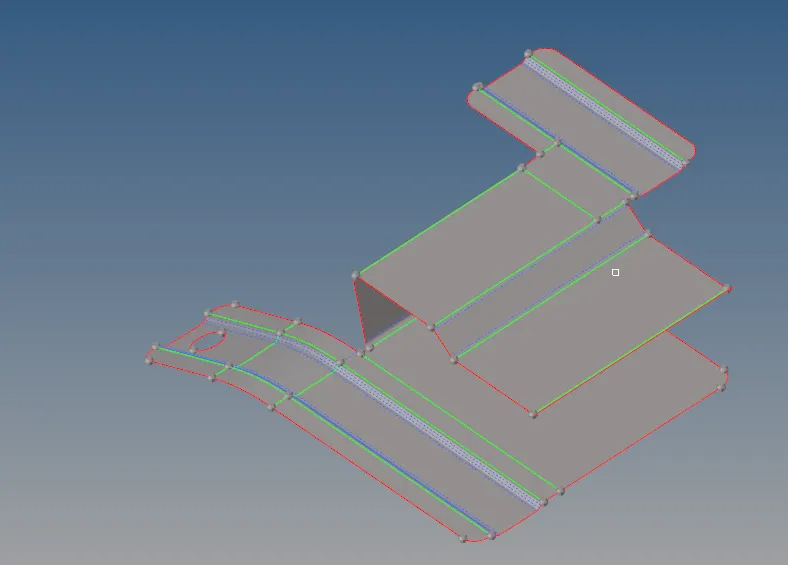
- after that, we have to mesh the component
- go to 2D - auto mesh - select the surf - and give the mesh

- and we have to select the surface of the component
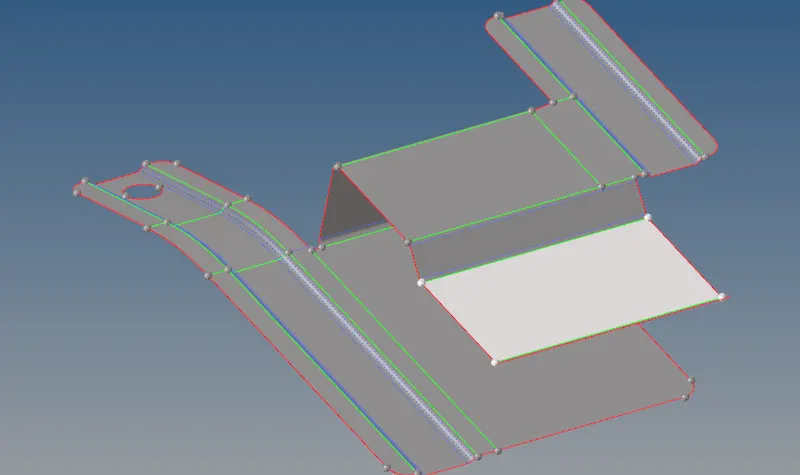
- after selecting the component we have hit the mesh button to mesh the component
- we have a result like this
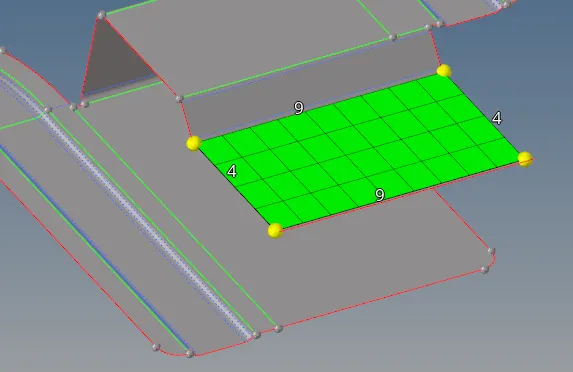
- by the same we have to mesh the small area by area finally we have a whole meshed component like this
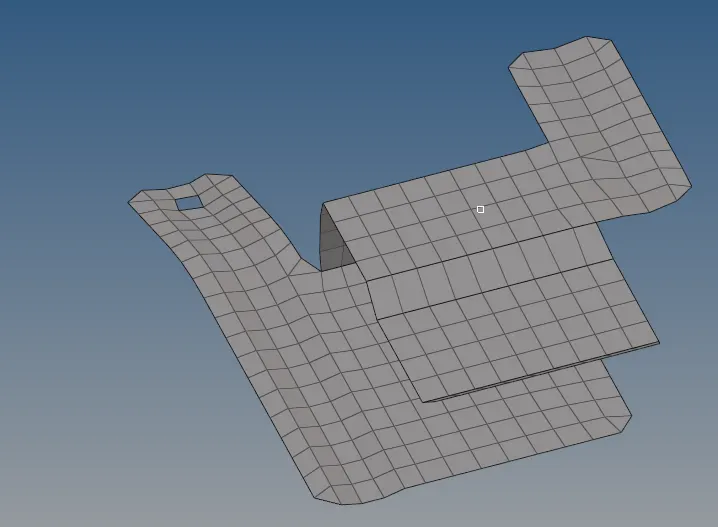
- after that we have to assign the thickness for the component
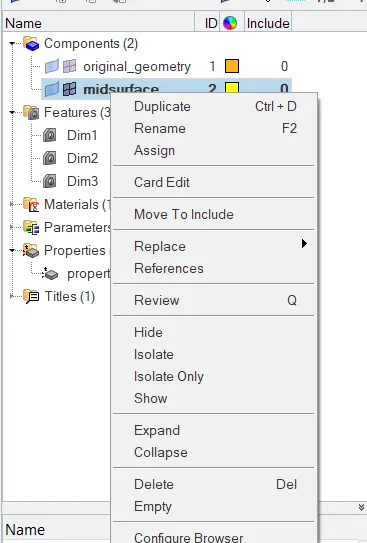
- go to component and assign the property
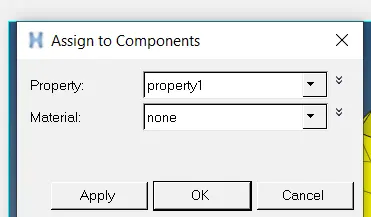
- and go to the property and assign the thickness from we calculated from the parent component
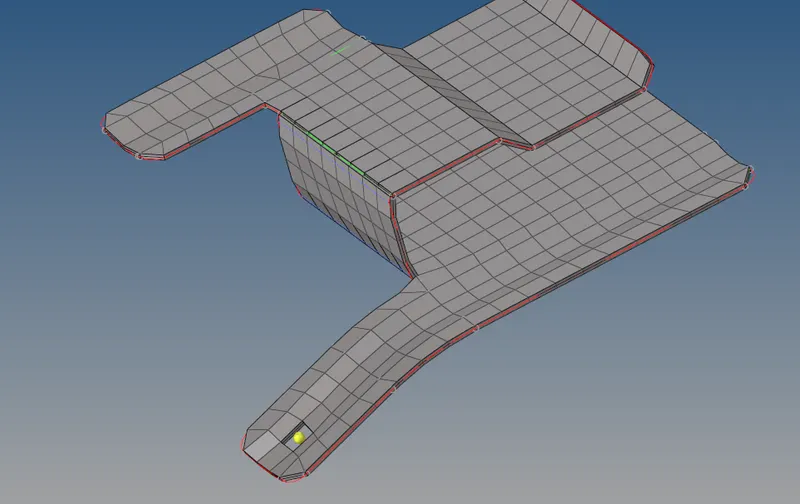
- and change into 2D traditional and material view
part - 2
-
- import the files to hypermesh
- after importing the component to the workplace
- we have to take the mid surface
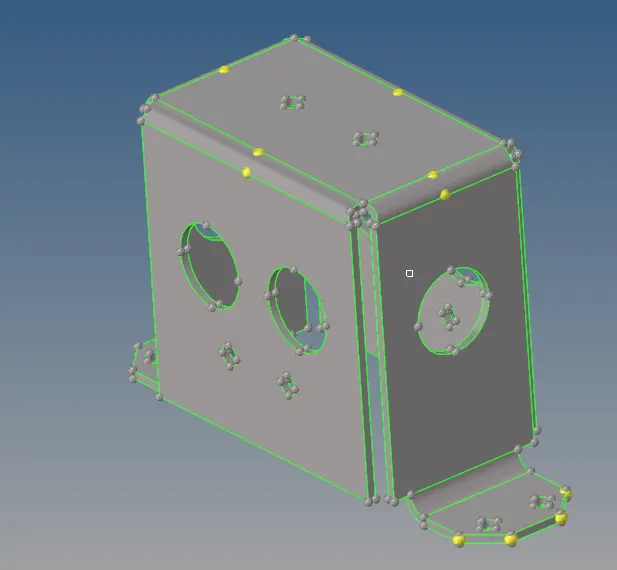
- then go to geom - mid surface - auto
- after that select the whole component and click the auto mid surface
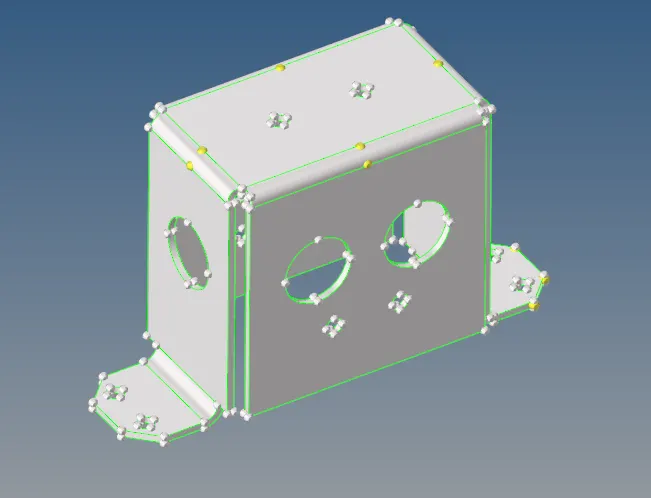
- and we have a mid surface component like this
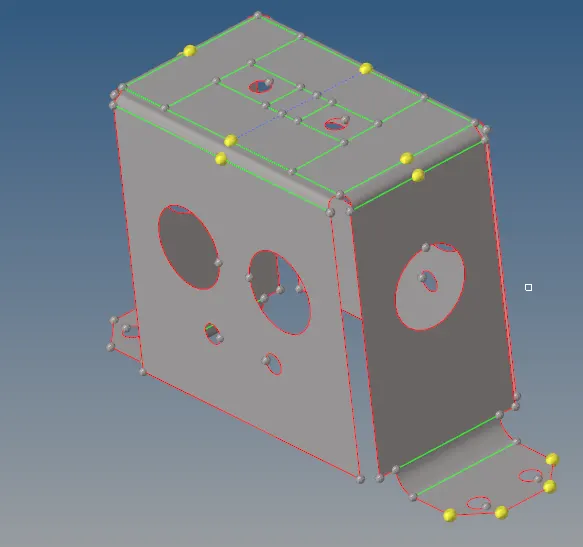
- after that, we have to mesh the component
- go to 2D - auto mesh - select the surf - and give the mesh
- and we have to select the surface of the component
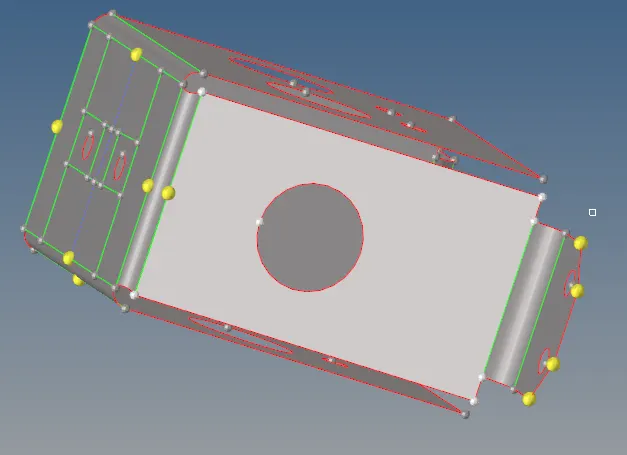
- after selecting the component we have hit the mesh button to mesh the component
- we have a result like this
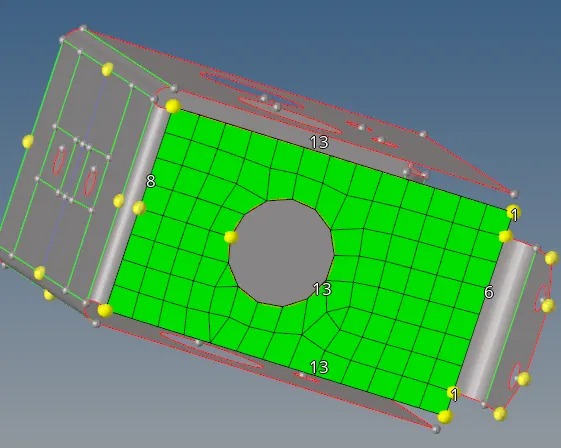
- by the same we have to mesh the small area by area finally we have a whole meshed component like this
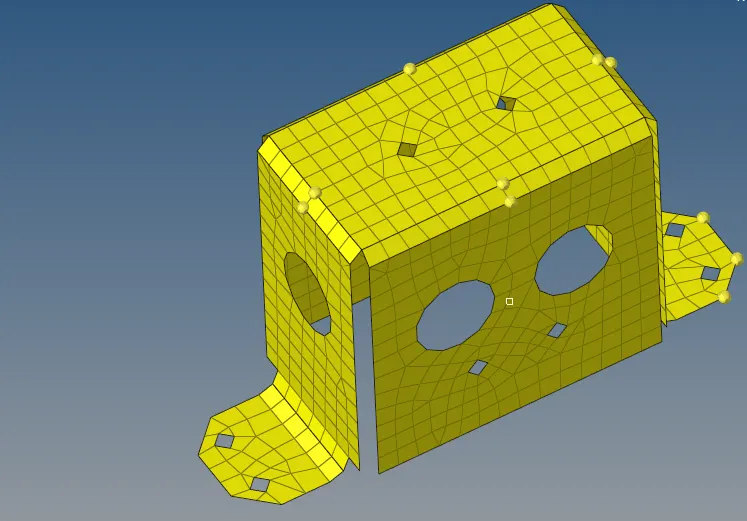
- after that we have to assign the thickness for the component
- go to component and assign the property
- and go to property and assign the thickness from we calculated from the parent component
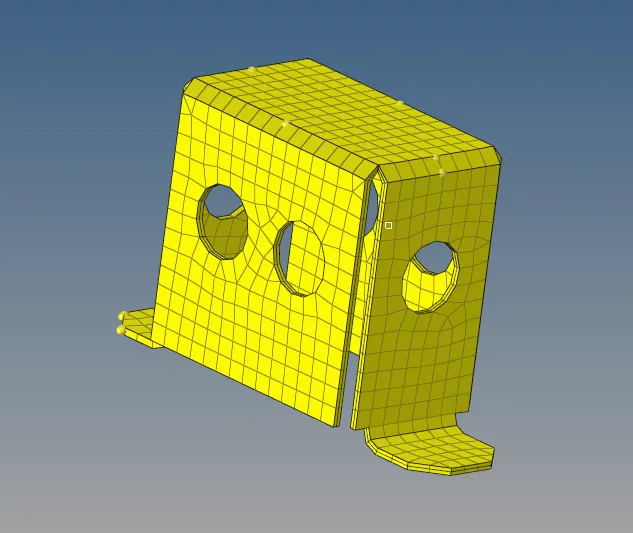
- and change into 2D traditional and material view
PART - 3
- import the files to hypermesh
- after importing the component to the workplace
- we have to take the mid surface
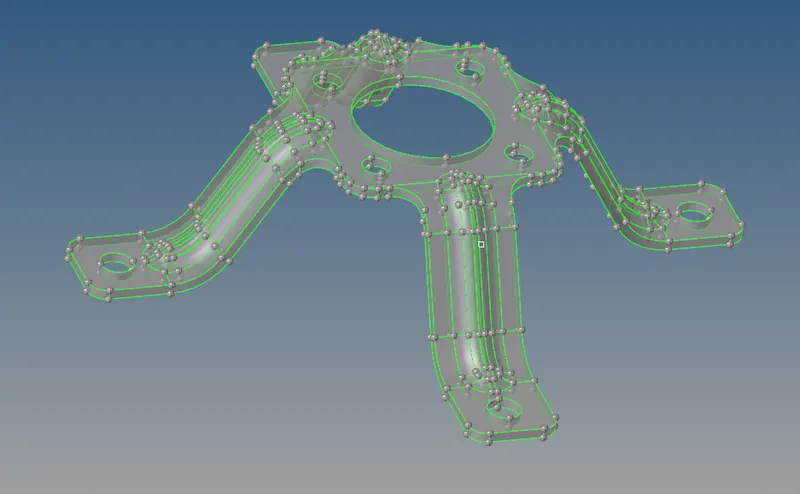
- then go to geom - mid surface - auto
- after that select the whole component and click the auto mid surface
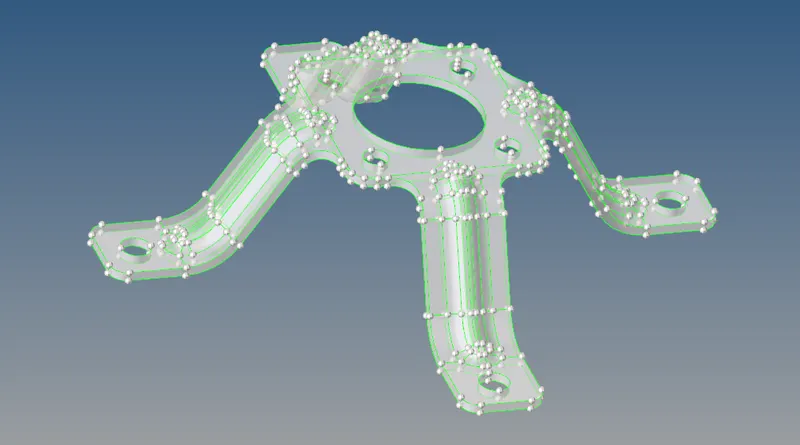
- and we have a mid surface component like this
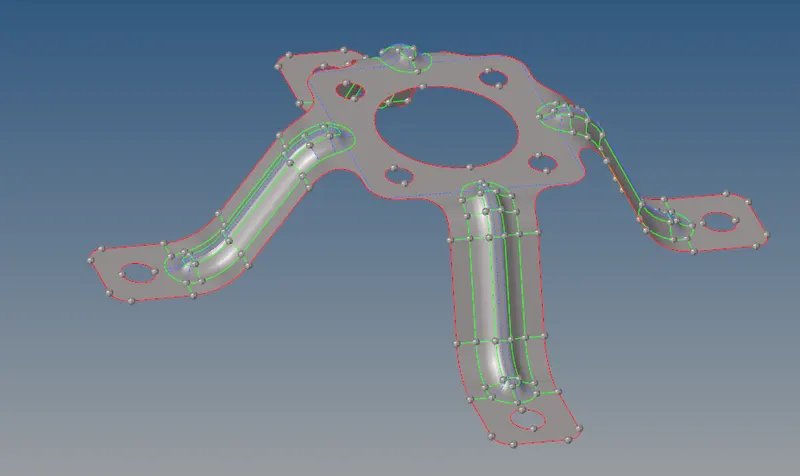
- after that, we have to mesh the component
- go to 2D - auto mesh - select the surf - and give the mesh
- and we have to select the surface of the component
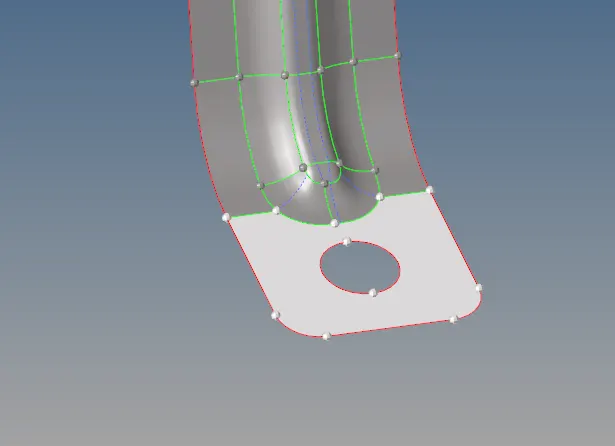
- after selecting the component we have hit the mesh button to mesh the component
- we have a result like this
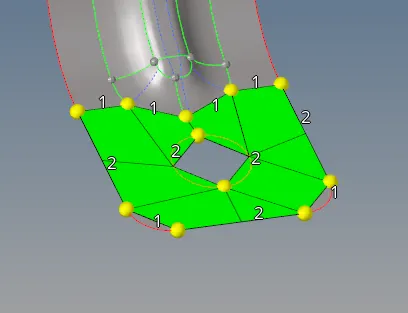
- by the same we have to mesh the small area by area finally we have a whole meshed component like this
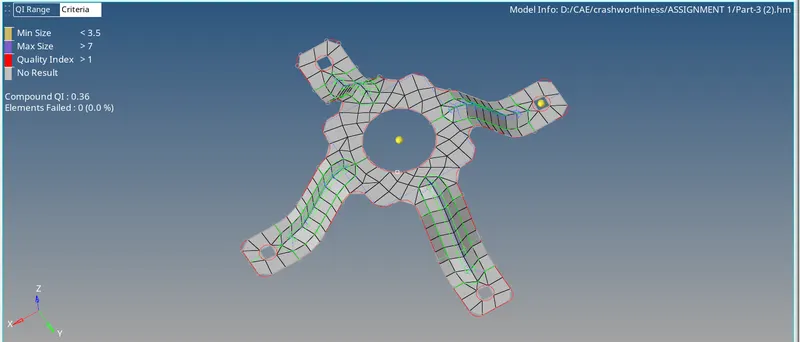
- after that we have to assign the thickness for the component
- go to component and assign the property
- and go to property and assign the thickness from we calculated from the parent component
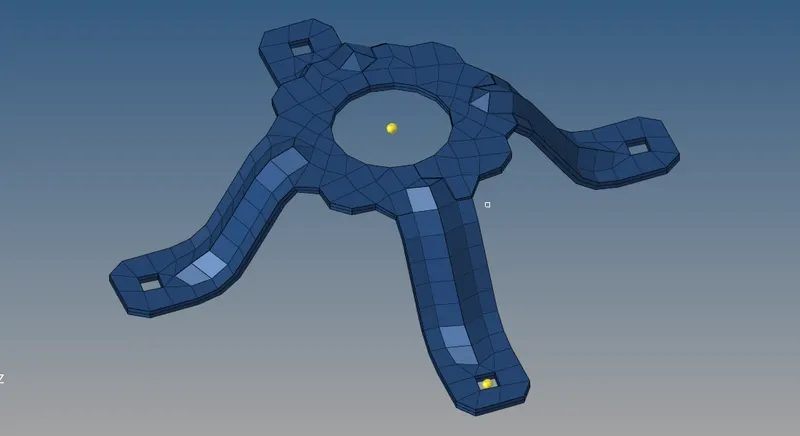
- and change into 2D traditional and material view
-
RESULT
By this experiment, we well versed in the area of taking mid surface and geometry cleanup and 2d meshing and also assign the thickness of the component