Proper mesh flow to practice crash analysis
AIM:
To extract the mid surface and generate a proper flow mesh of a given CAD model.
SOFTWARE:
Hyperworks.
PROCEDURE:
Part: 1
Firstly, import the CAD geometry to the graphical screen by selecting "Model".
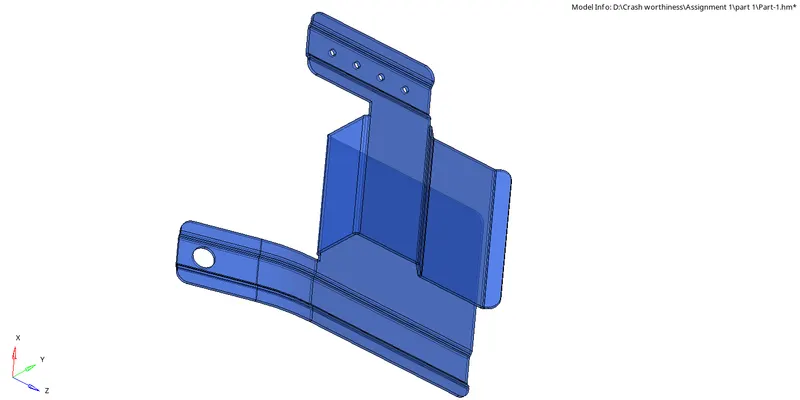
Check for the geometry cleanup, where surfaces are tore, extended or duplicate.
Extract the mid surface by using auto mid surface extraction.
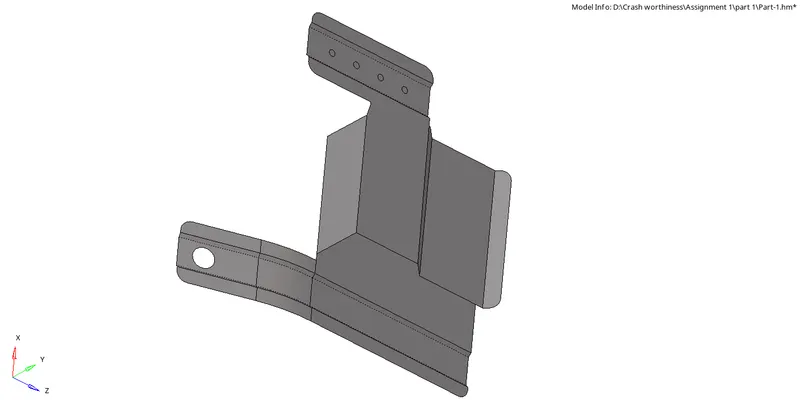
Now generate the mesh.
Check for the element quality, proper mesh flow, trias on edges, and edges.
After completely checking the element quality.
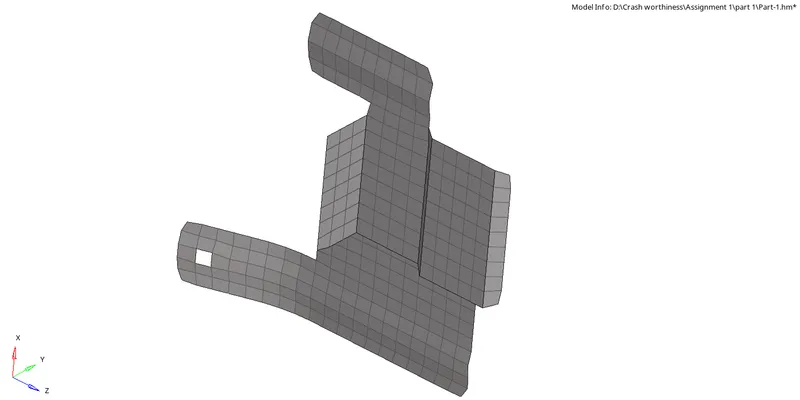
Save the model in .hm file.
Part: 2
Firstly, import the CAD geometry to the graphical screen by selecting "Model".
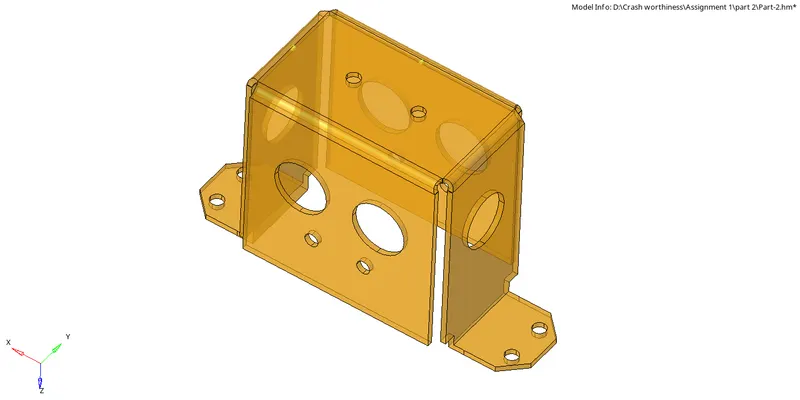
Check for the geometry cleanup, where surfaces are tore, extended or duplicate.
Extract the mid surface by using auto mid surface extraction.
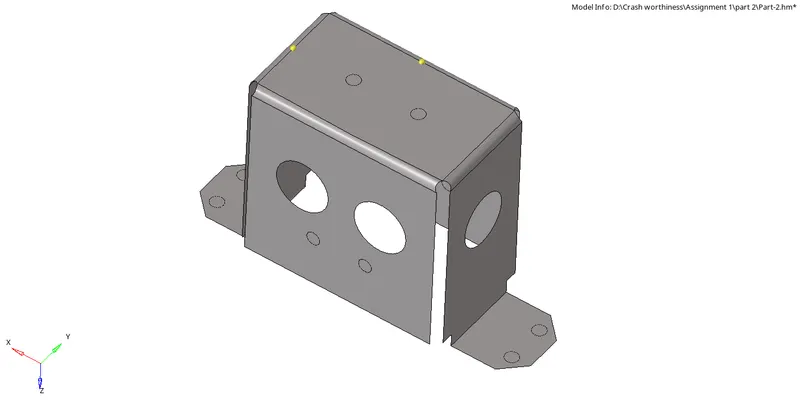
Now generate the mesh, as the model is symmetric we can use the reflect option.
Mesh the half model the by reflect option reflect it on other side.
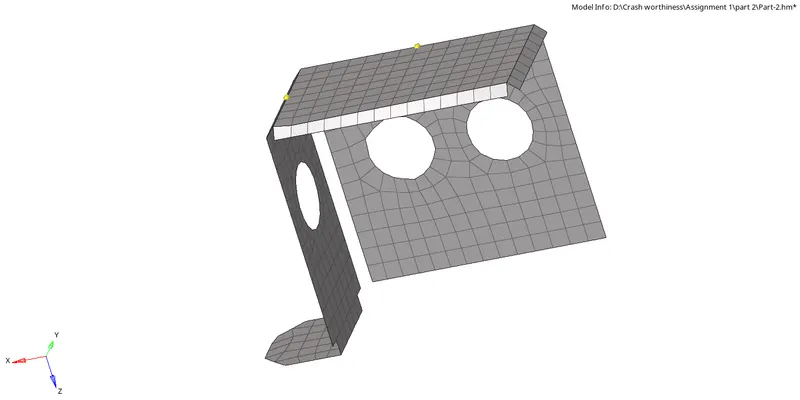
Firstly, select the elements and duplicate it.
After duplicating select the vectors and base point and reflect it.
Now check for the free edges and preview equivalance it.
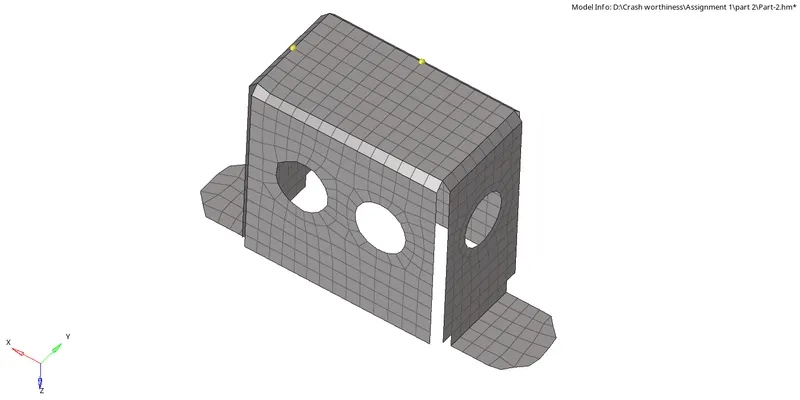
Save the model in .hm file.
Part: 3
Firstly, import the CAD geometry to the graphical screen by selecting "Model".
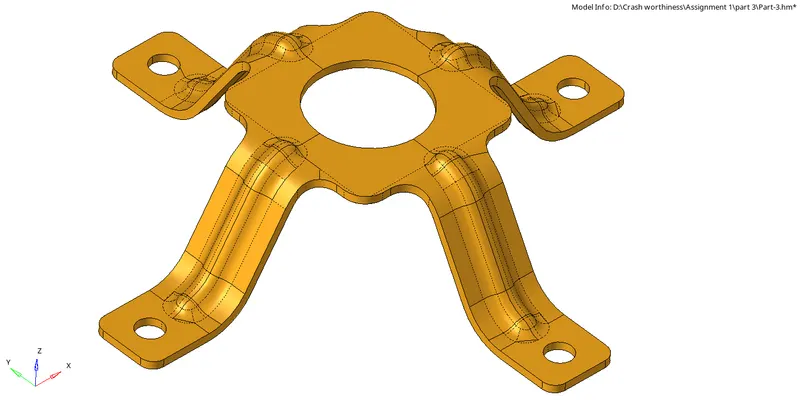
Check for the autocleanup, where surfaces are tore, extended or duplicate.
Goto "geom">select "surface edit">select "offset" or Shift + F9.
Now select the "surface" and "duplicate" then "enter the value" and "offset".
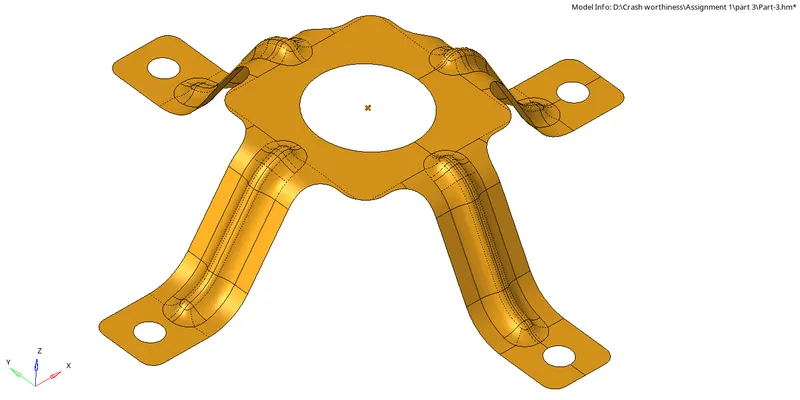
After offsetting, generate the mesh as the model is symmetric we can use the reflect option.
Mesh the 1/4 model and reflect it.
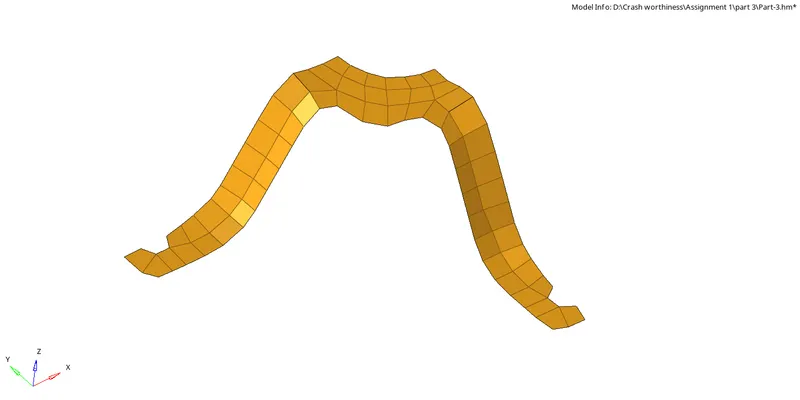
Firstly, select the elements and duplicate it.
After duplicating select the vectors and base point and reflect it for other three sides.
Now check for the free edges and preview equivalance it.
After checking the "quality criteria" save the model in ".hm file".
Result:-
The given CAD geometry has been meshed as per given target.