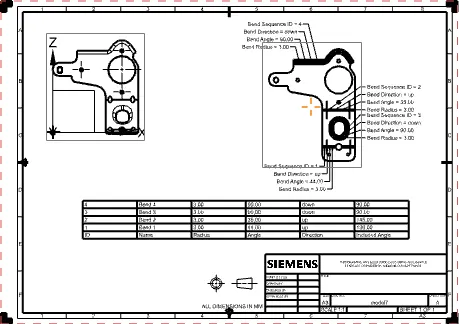
Advanced Sheet Metal Design Using NX Cad Challenge_7_ Metal bracket-II
Metal bracket-II:
INTRODUCTION:
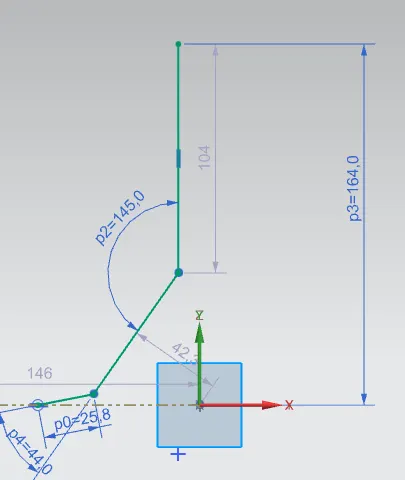
SKETCHING:
- select the plane according to your requirement:
- line are provided according to X AND Y-AXIS:
- provided lengths shown in the figure.
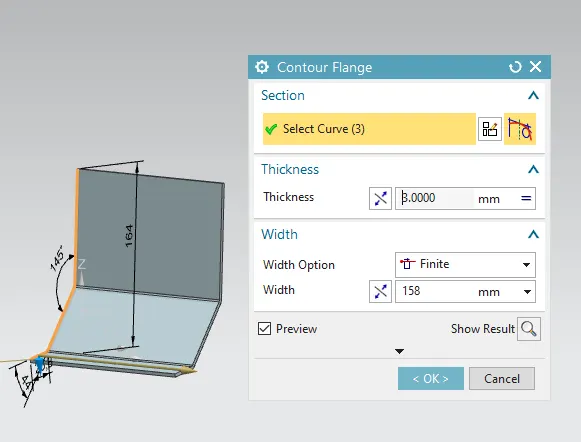
contour flange:
- select the contour flange.
- select the sketch and add the width to the surface.
- add the thickness accounting to your requirement.
- by using the local value.
NORMAL CUTOUT:
- create the sketch on the surface.
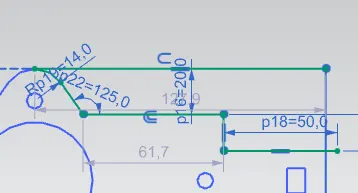
- provide the length to make sure the line fully contains.
- finish the sketch.
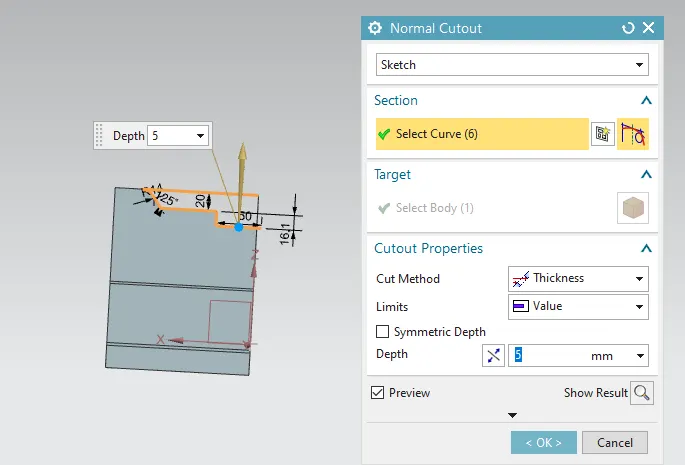
- the depth to cut is 5mm
- if required, it can be increased.
- do a similar operation to remove other material from the metal sheet.
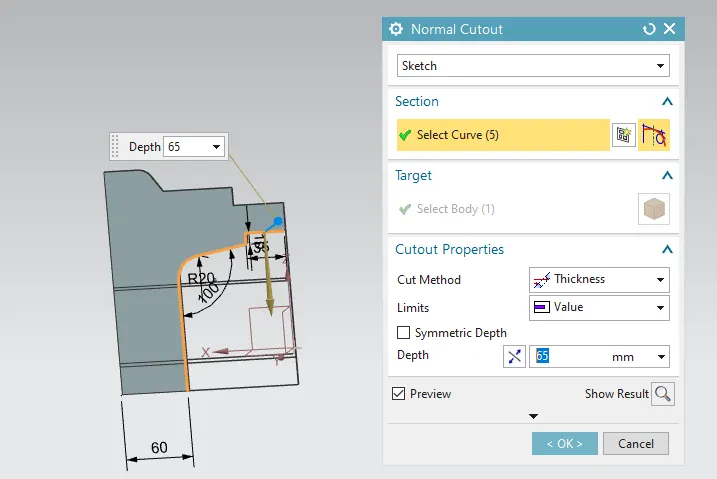
- for creating the circle did the same operation to remove the material.
- by using the normal cutout.
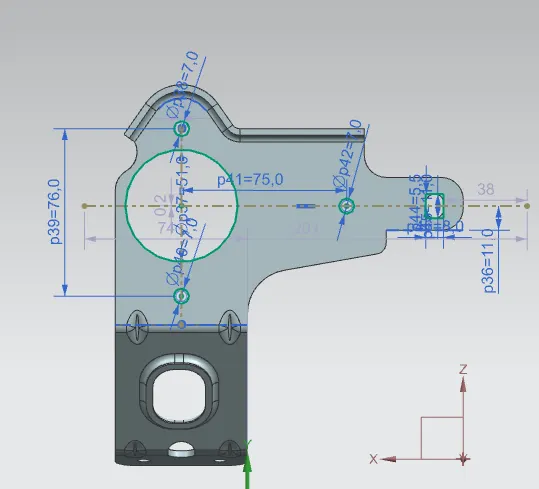
- after removing the required material.
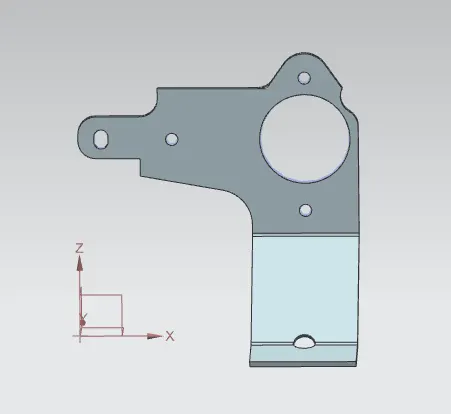
ADVANCE FLANGE :
- Select the advance flange command
- select the edge and give the angle 90 degrees.
- provide the depth of the surface is 4mm.
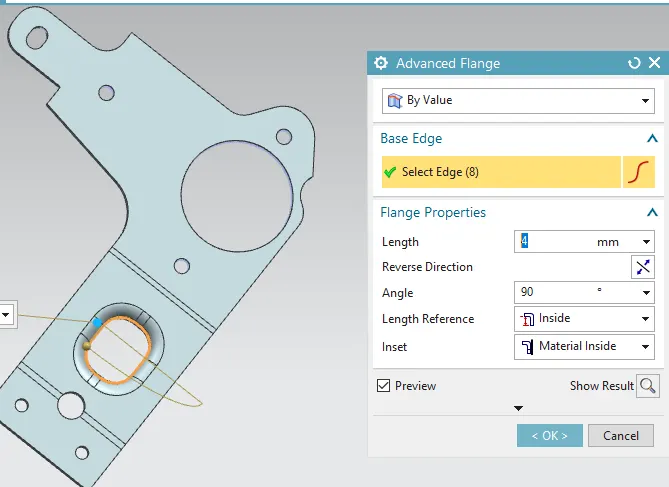
- Do a similar operation on the top side of the surface.
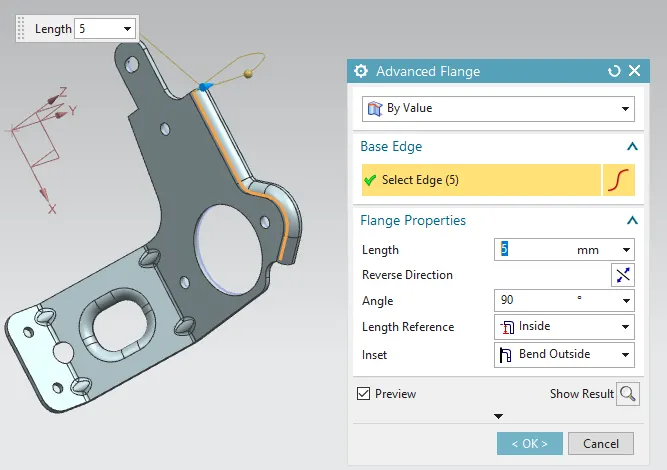
- length is 5mm
- provide the 90 degrees.
- inset is bent outside.
break corners.
- break corner is used to sharp edges.
- select the corner and provide the required radius to the sheet metal.
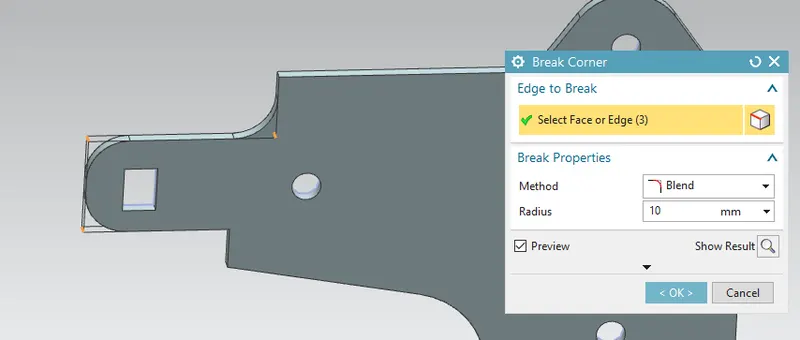
GUSSET:
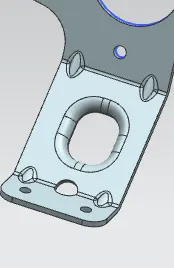
- SELECT THE GUSSET command is nothing but the stiffener.
- select the edge of the surface to select the specific plane.
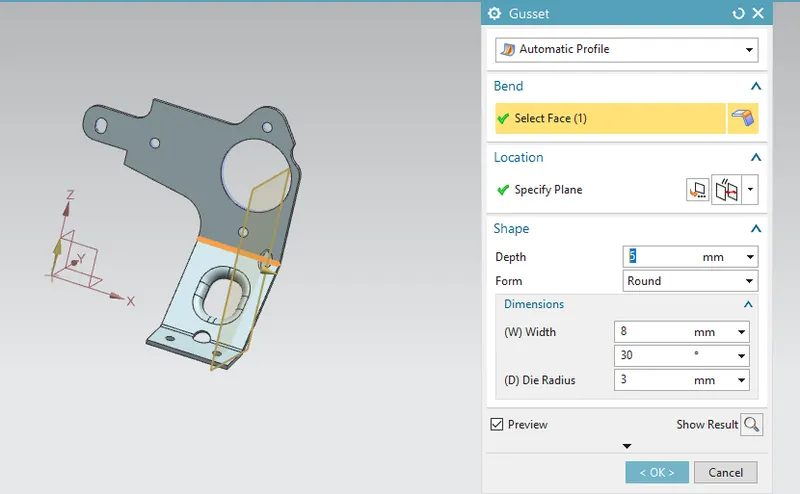
- keep in the automatic profile.
- depth is 5mm.
- the form is round.
- similarly, create the 4 stiffness on the opposite side.
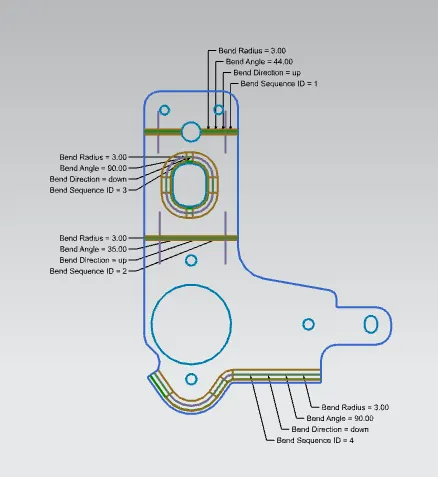
flat pattern:
select the flat pattern command.
select the face and edge of the surface.
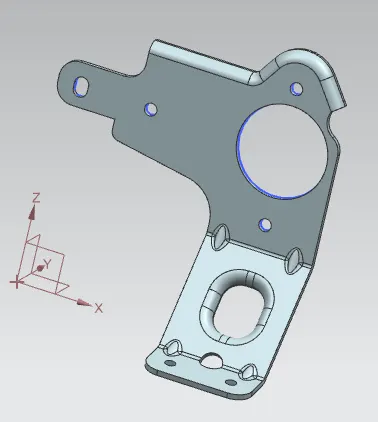
final out:
drafting :
select the drafting command.
select the sheet of A3.
set title bar.
select the base view.
place the required views.