Advanced Sheet Metal Design Using NX Cad Challenge_7_ Metal bracket-II
DESIGN OF METAL BRACKET USING SIEMENS NX SHEET METAL APPLICATION
Objective:
The objective is to develop a metal bracket by following the instructions and 2d drawing sheet. To create this part various sheet metal tools like contour flange, break corner, advanced flange, normal cutout, unbend, rebend, gusset, etc in NX CAD has been used.
Introduction:
Sheet metal is metal formed by an industrial process into thin, flat pieces. It is one of the fundamental forms used in metalworking, and we can obtain varieties of shapes using a wide range of processes, tools, etc. Sheet metals are available in flat pieces and coiled strips with thicknesses varying from 0.1mm to 10mm.
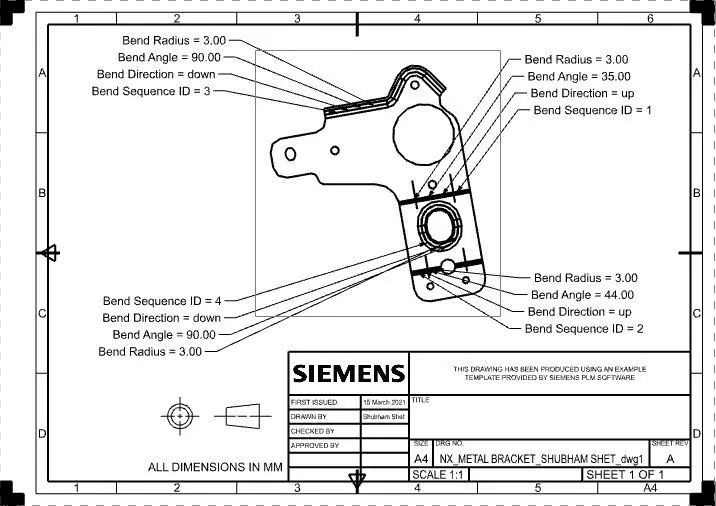
In this sheet metal bracket design we will follow all the design constraints and dimensions as mentioned in the 2d drawing sheet.
Design methodology:
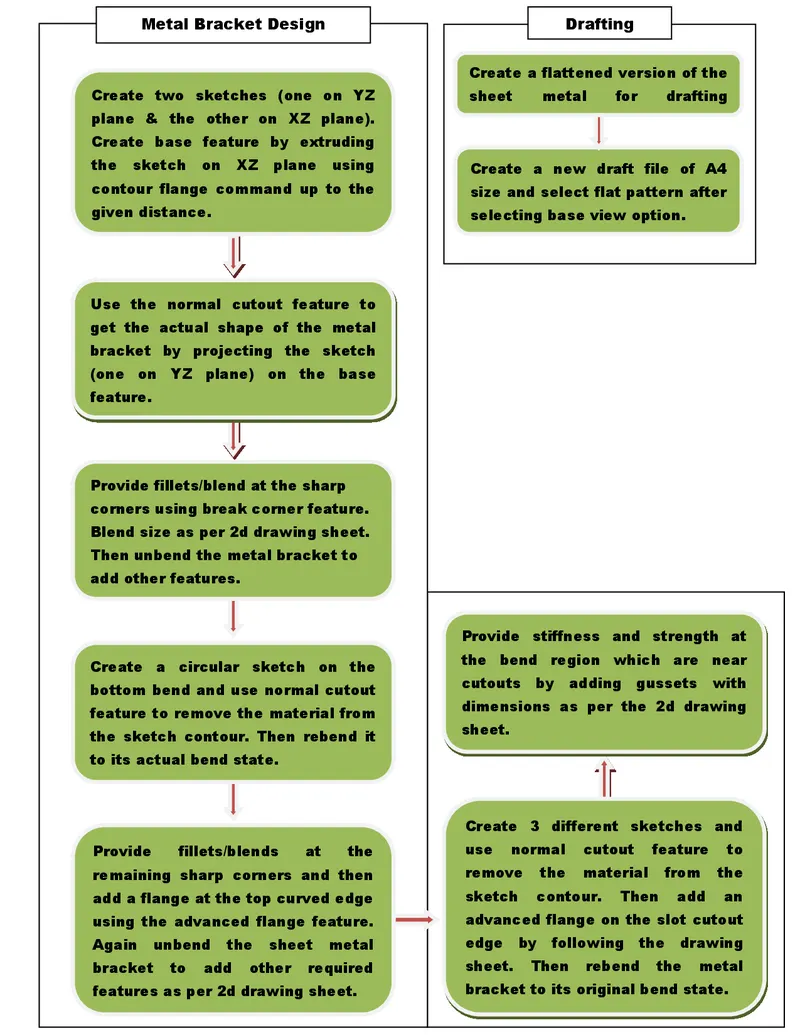
Description:
1. Metal Bracket design:
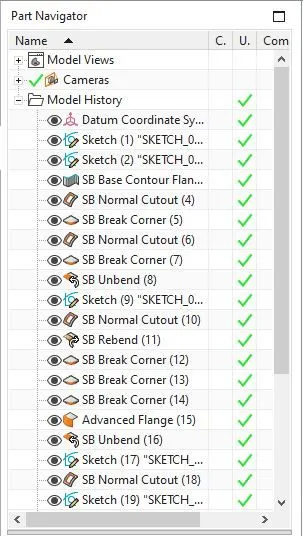
- To begin with the metal bracket design, first, understand the details provided in the given 2d drawing sheet and then design the metal bracket accordingly using NX sheet metal application.
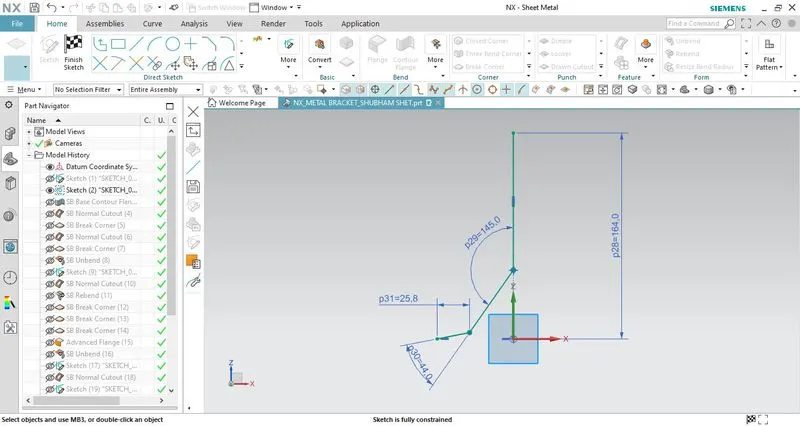
- First, create a sketch on the YZ plane that will be later used to create the actual shape of the bracket by projecting it on the base feature metal bracket.
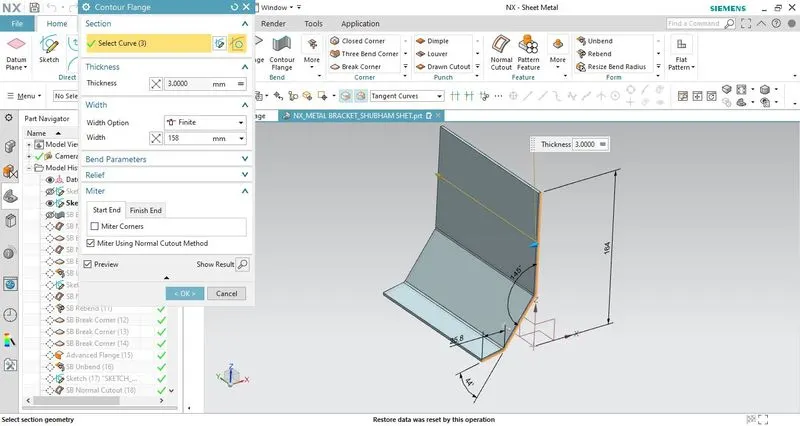
- Then create a base feature of the bracket by extruding a fully constrained sketch using the contour flange feature.
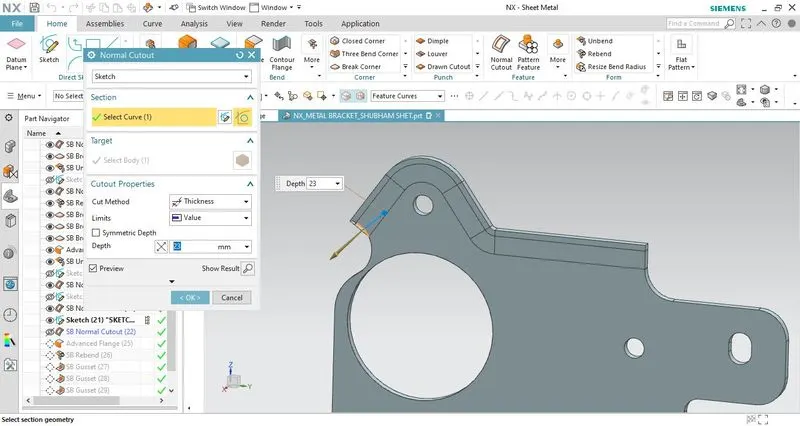
- Then, as explained earlier use the previously created sketch to create the actual shape of the metal bracket by using the normal cutout feature.
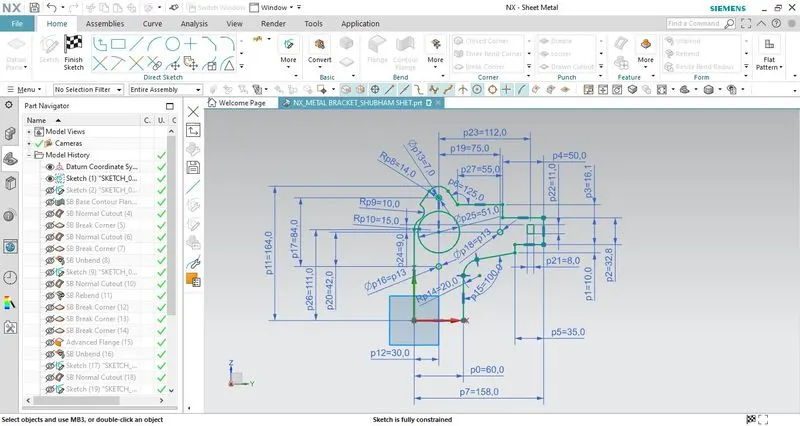
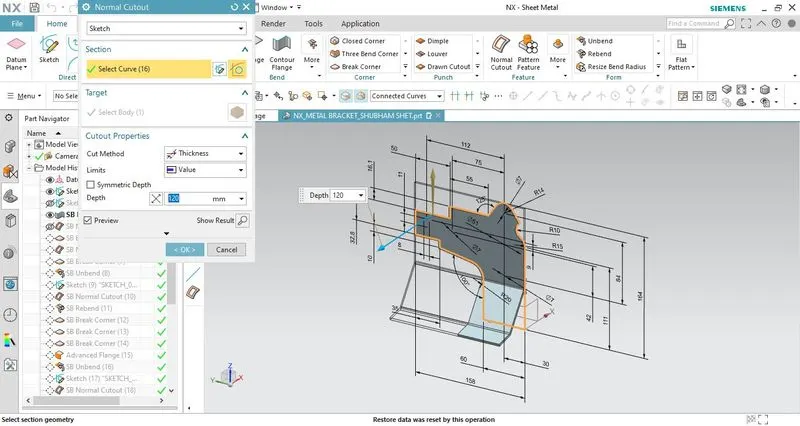
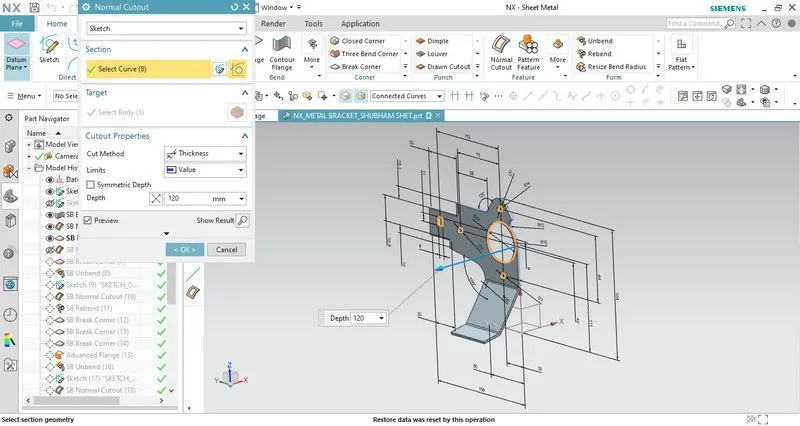
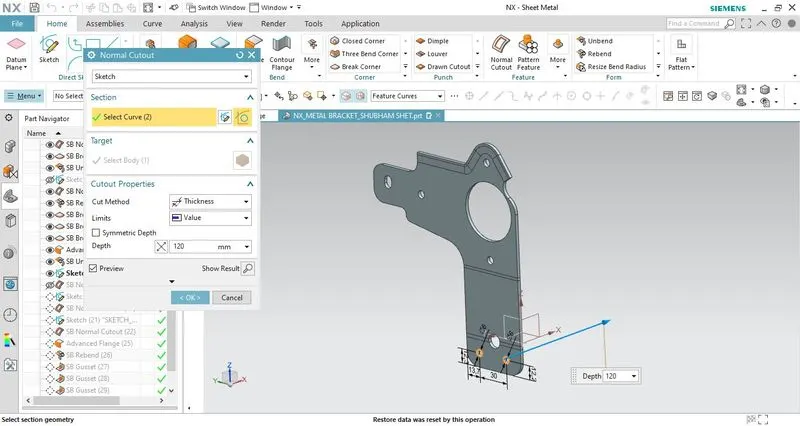
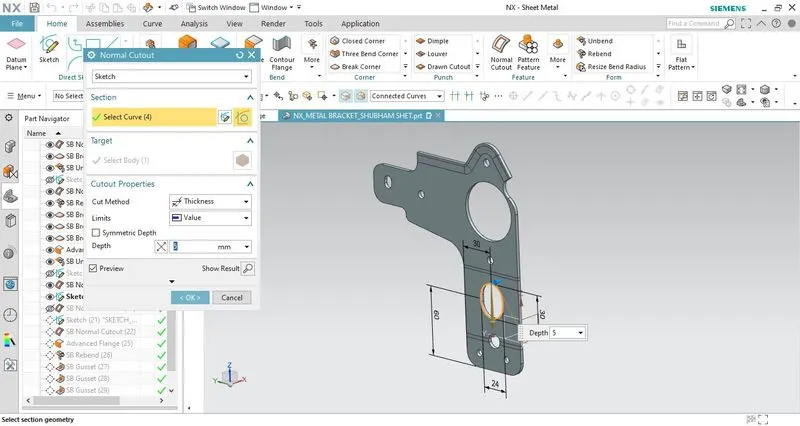
- Create another circular and rectangular-shaped sketch and remove the material in these sketch contours using the normal cutout feature.
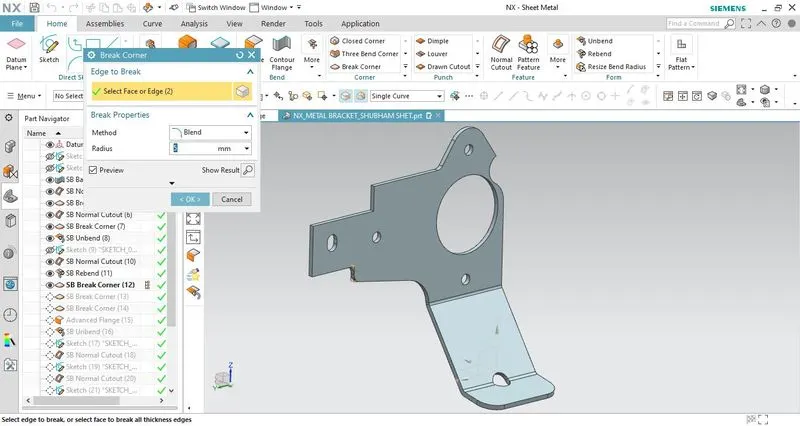
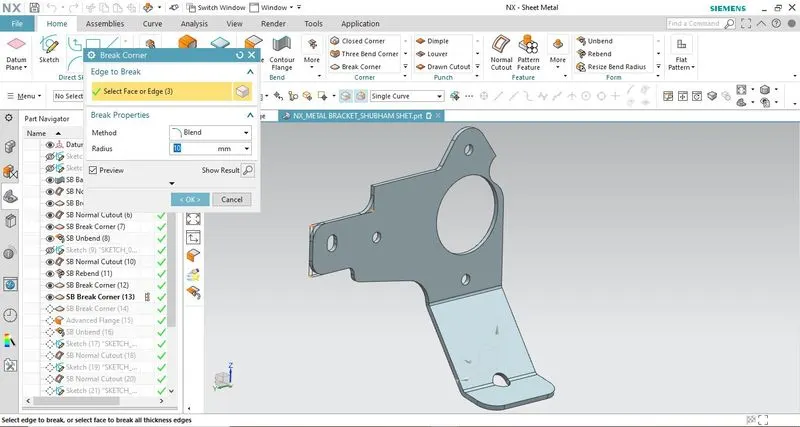
- Provide fillets at the top edge and the rectangular cutout using the break corner feature.
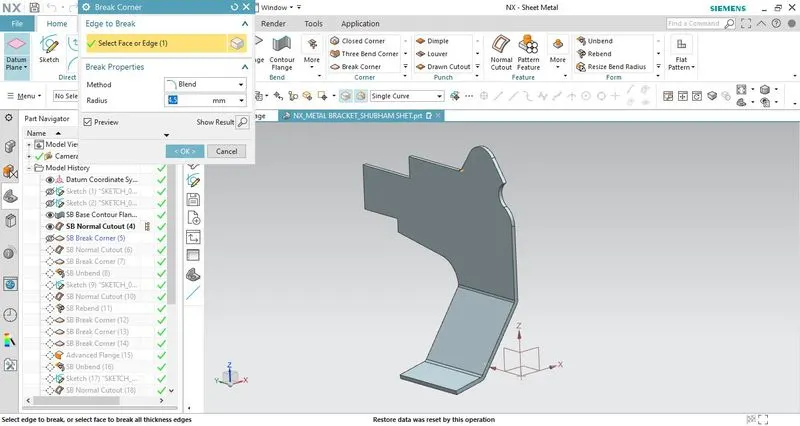
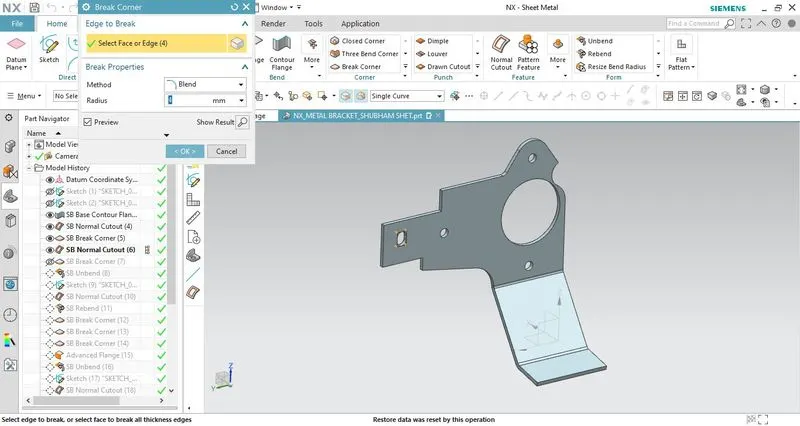
- Unbend the formed sheet metal bracket to provide a hole in the bend region.
- After unbending the metal bracket, create a circular sketch in the bottom band region and remove the material from that sketch contour using the normal cutout feature.
- After adding the hole in the bend region using rebend feature rebend the unbend feature to its actual state.
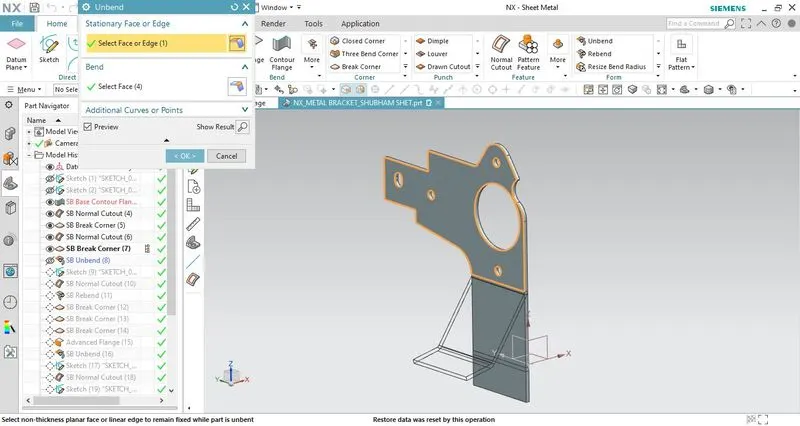
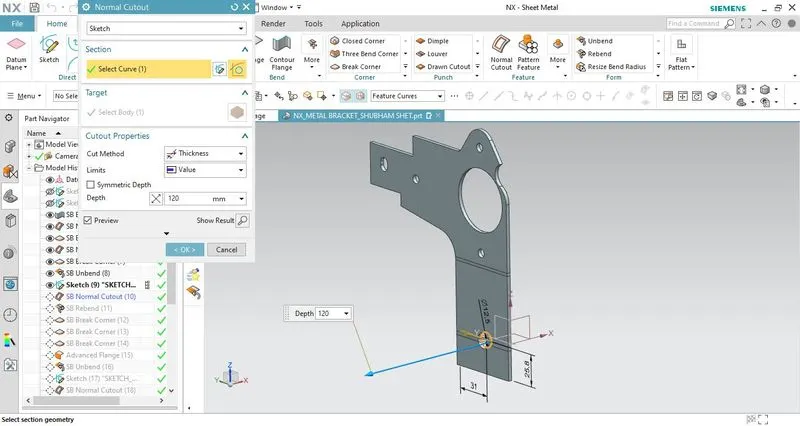
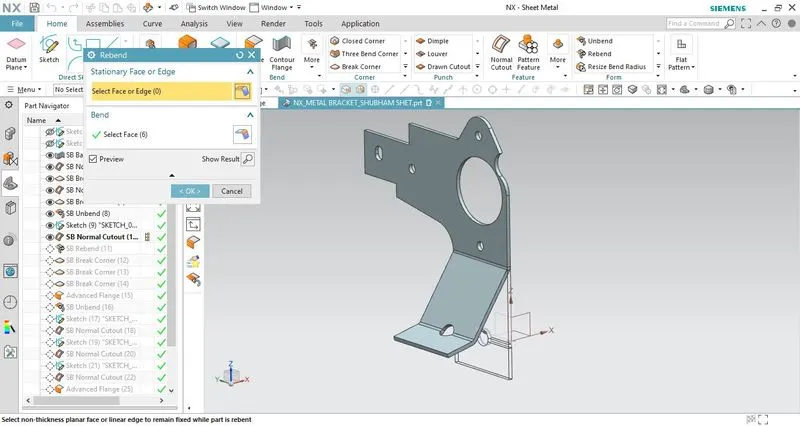
- Provide fillets/blends at the remaining sharp corners using the break corner feature.
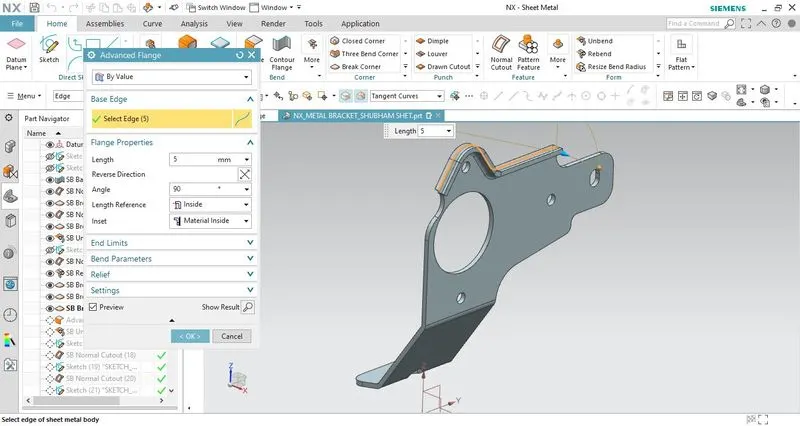
- After providing fillets create a flange on the top curved surface which will be the reference face in the advanced flange feature.
- Then again use unbend feature to add other remaining features to the metal bracket.
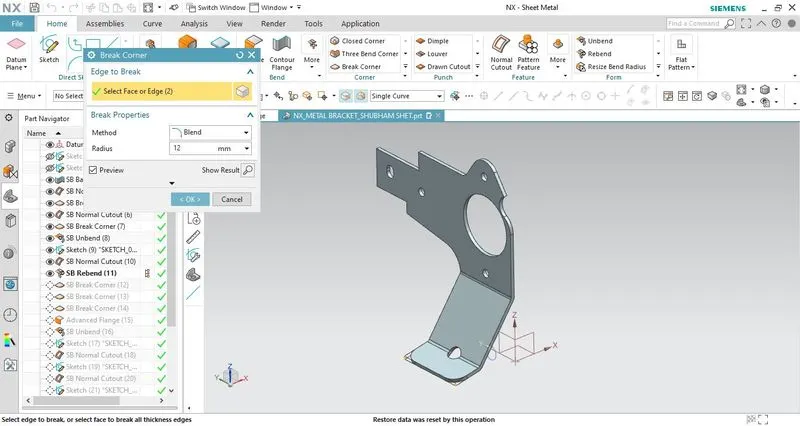
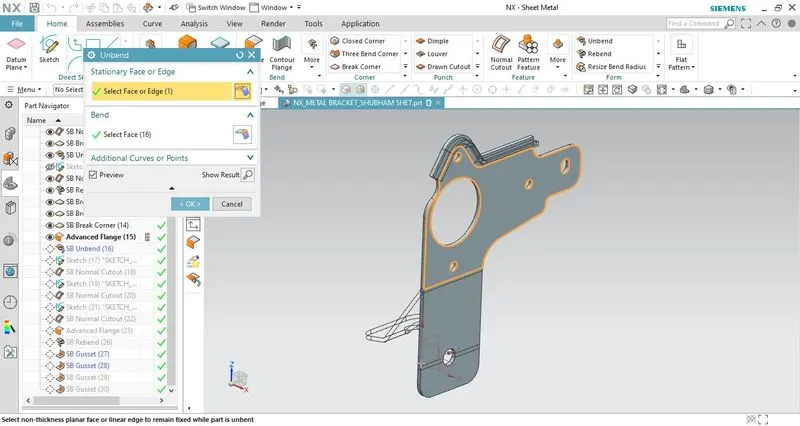
- After unbending create two circular sketches, a slot shape sketch, and a curved shape sketch which will be used to remove the material within the sketch contour using the normal cutout feature.
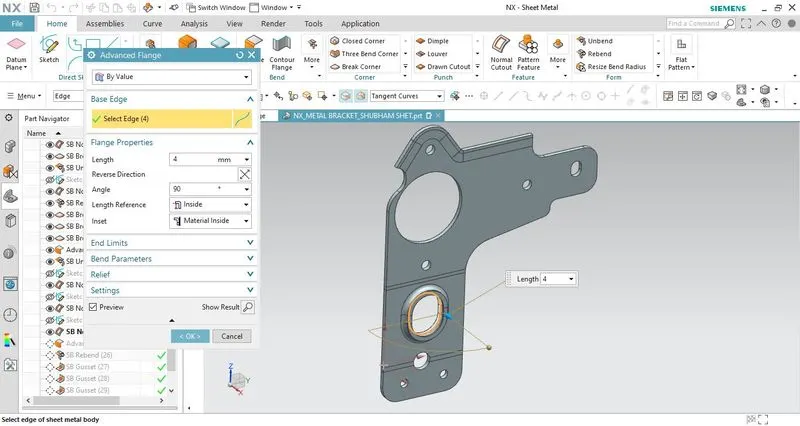
- After creating the cutouts create an advanced flange and use the slot shape sketch as the input sketch. Provide suitable values and characteristics to create the advanced flange to avoid any sort of errors.
- After adding all these features rebend the unbend features and newly added features to its bend state.
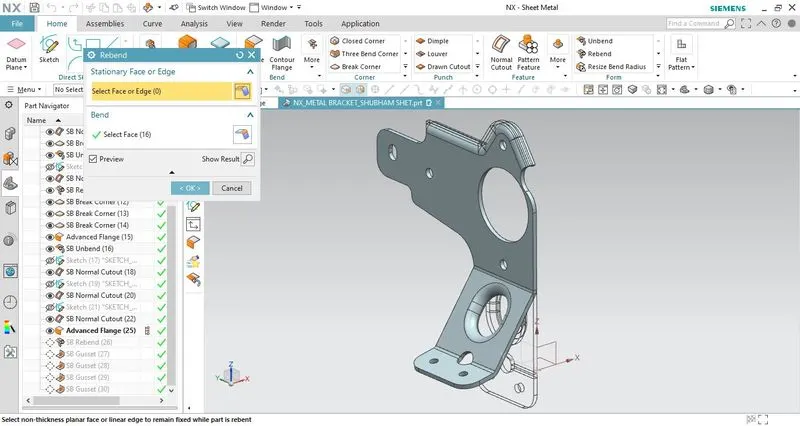
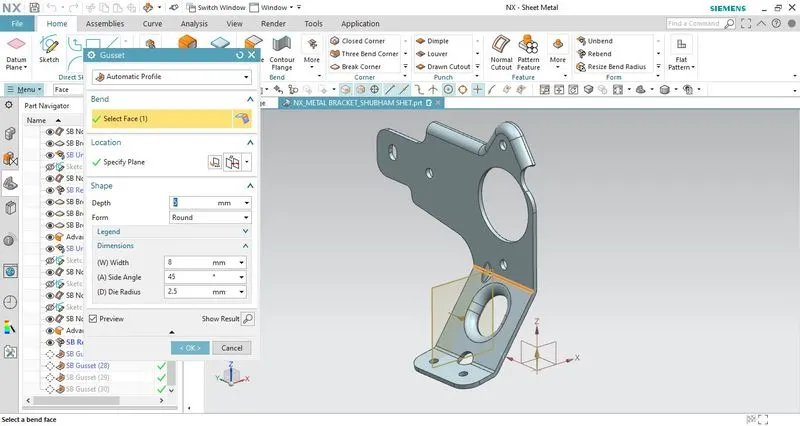
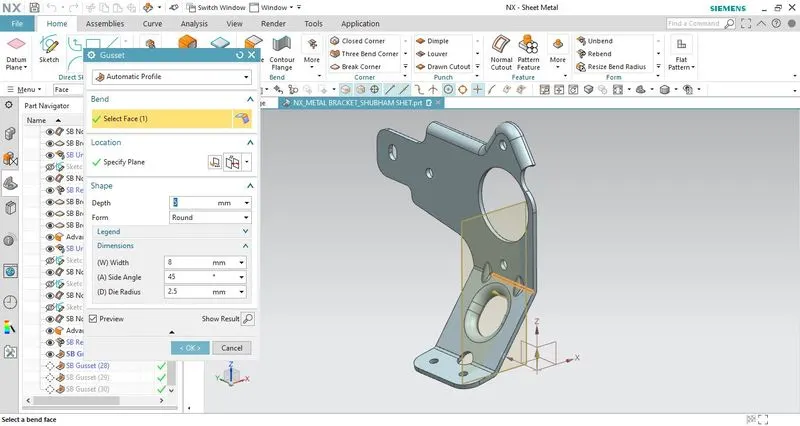
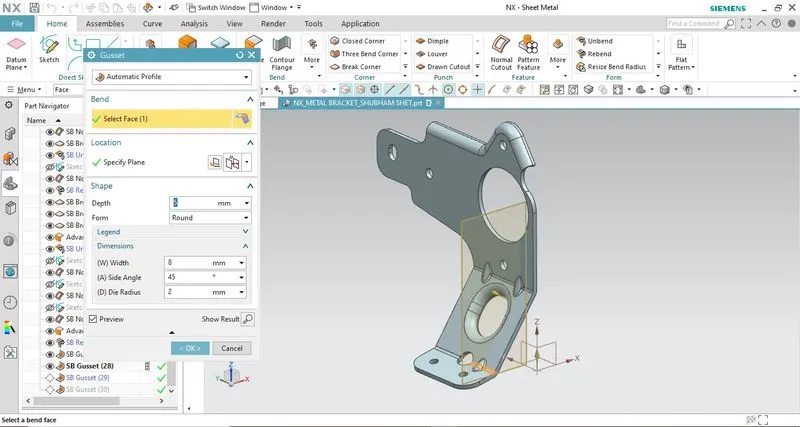
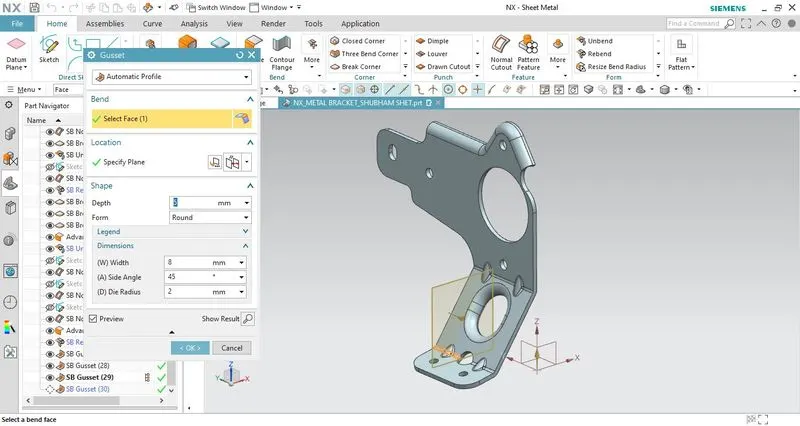
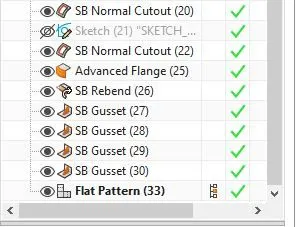
- To add more strength, stiffness to the bend areas provide gussets on this bend region using appropriate dimensions.
2. Drafting:
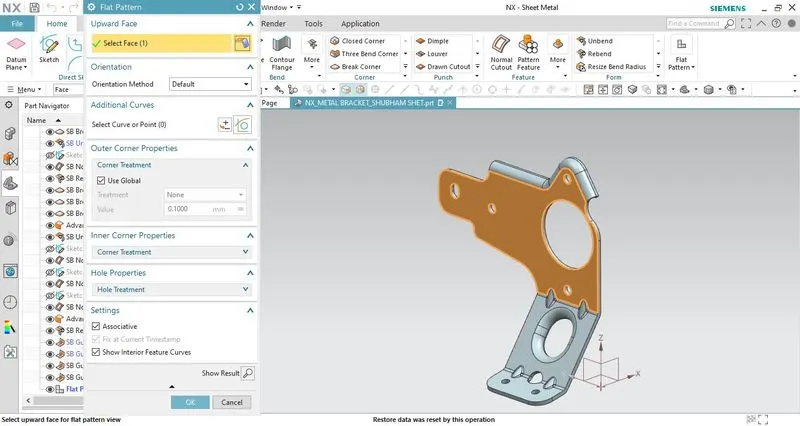
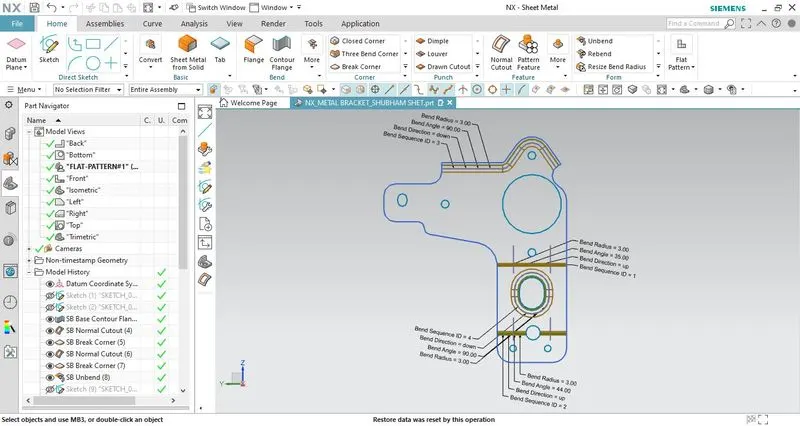
- The flat pattern feature is used to generate the 2-D representation of the formed sheet metal object that consists of annotations such as bend radius, bend angle, bend direction, hole size, etc. The flat pattern view is available in the model views of the part navigator.
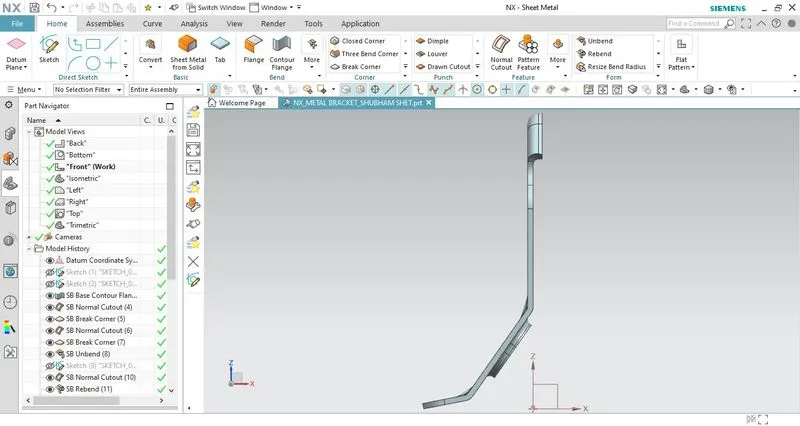
Standard views of sheet metal bracket:
Front View
Top View
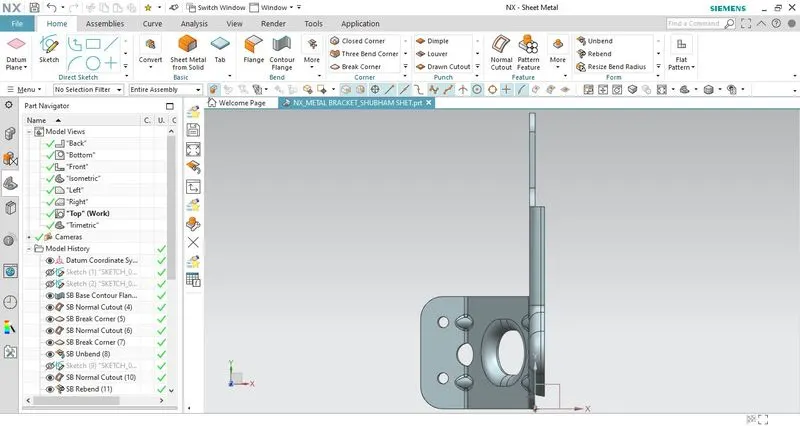
Side View
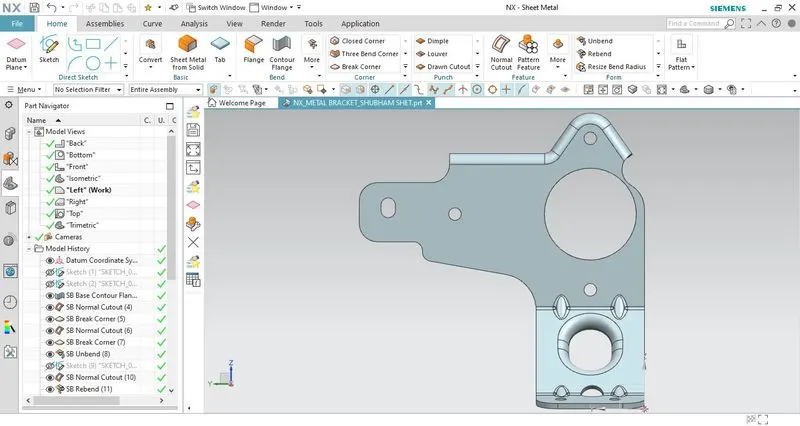
Isometric View
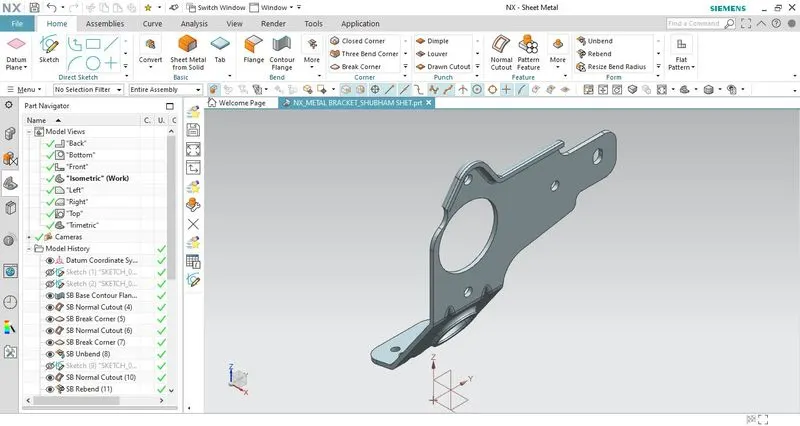
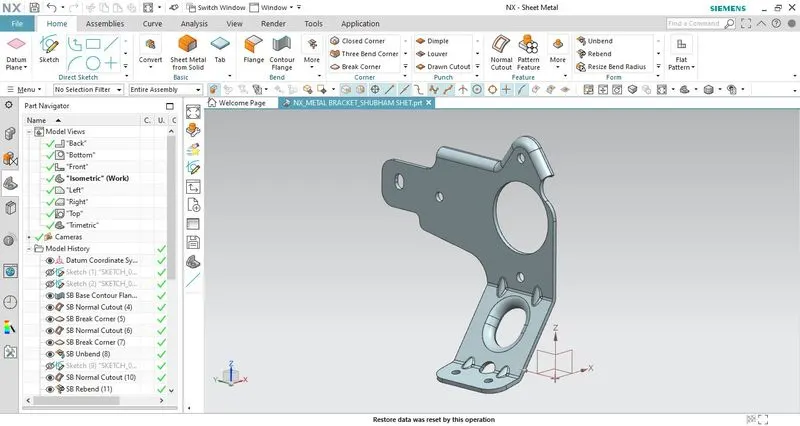
Conclusion:
- In this sheet metal design challenge, I have learned how to create a metal bracket using various sheet metal features such as contour flange, normal cutout, advanced flange, unbend, rebend, stiffening feature like gusset, etc.
- Observing and understanding all the details mentioned in the 2d drawing sheet and how we can convert them into sheet metal objects.