Adams challenge 5 - post processing
AIM :-
To run a simulation on ADAMS and to perform the following postprocessing tasks,
- Graph, styles, titles and labels.
- Plot configuration files - export and import.
- Export numeric data.
- Import numeric data and plot.
- Animations, camera and video export.
GRAPHS, STYLES, TITLES AND LABELS :-
The model that is used to simulation is the Mcpherson strut assembly.
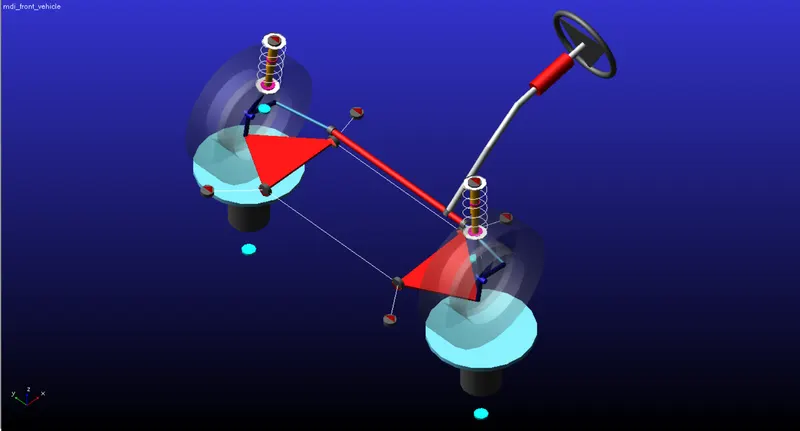
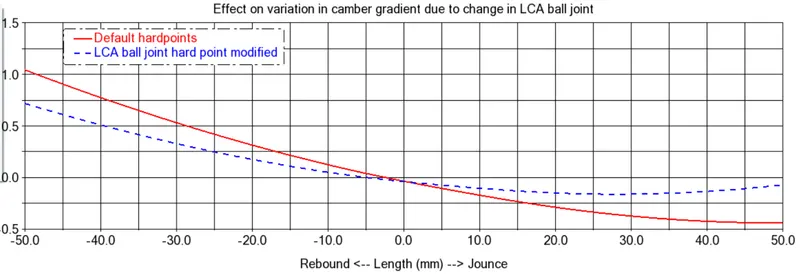
A parallel wheel travel simulation is conducted for 100 steps and 50 mm of wheel travel in jounce and rebound. The postprocessor window is opened and the variation in camber gradient is plotted.
A second simulation is conduced where the hardpoint of the lower control arm ball joint is modified. The following is the procedure to create a new plot.
- Click on new page.
- Set the independent axis to data.
- Under request click on testrig and select wheel travel and vertical left under component.
- In the post processor window, under request click on testrig, select camber angle and select left under component.
- Click on surf to add both the plots into the page.
The graph can also be personalised, where the title, legend, axes, font size and borders can be varied. A plot of the variation in camber gradient is provided below where a title is added and the axes are renamed.
IMPORTING AND EXPORTING PLOT CONFIGURATION FILES :-
The plots can be exported to the database where it is stored as a .plt file under the plot_configs.tbl folder in the database. To export the file,
- Click on file in the post processor window.
- Select export and click on plot config file.
- Enter the file name.
- Select the database location.
- Under the page name dialouge box, right click on it and select the plot of choice.
Similarly, plot configuration files can be imported to the post processor window from the database. To import a plot configuration file,
- Click on file in the post processor window.
- Select import and click on plot config file.
- Right click on the plot config file dialouge box and click on search.
- Select the database.
- Choose the .plt file to open from the database.
ANIMATION, CAMERA AND VIDEO EXPORT :-
To add an animation of the simulation,
- In the postprocessor window, click on add new page.
- Right click on the new page and select load animation and choose the simulation.
- The animation gets loaded to the postprocessor.
- Frame rates can be altered, the lighting and camera angles can be altered.
- To record the animation, select record to save the recorded file.
- First click on the record button and then click on play.
- Ensure that the animation is at the 1st step for a proper recording.
IMPORTING AND EXPORTING NUMERIC DATA :-
Numeric data of the simulation can be exported in the form of a spreadsheet, html report or a text document.
To export the simulation as a text file,
- Click on file in the postprocessor window.
- Select export and click on numeric data.
- Right click on the result data dialouge box.
- Select result set component and click on browse.
- Choose the data to be tabulated.
- Under sort by select time and click on apply.
- The text document gets saved as FILE in the directory.
To export the simulation as a spreadsheet,
- Click on file in the postprocessor window.
- Select export and click on spreadsheet.
- Enter a name for the file.
- Right click on the result set name dialouge box and select result set and then browse.
- Choose the component and click on apply.
- The data gets saved as a TABFILE in the directory.
- To open the file, drag and drop it into excel.
Similarly a data file can be imported from the directory to the post processor window. To import a file,
- Click on file and select import.
- Select the file type.
- Select the file name.
- Click on apply.
CONCLUSION :-
The post processing functions are performed on a Mcpherson strut assembly simulation.