Wiring harness design in CATIA V5 - 3D modeling Week 7 Challenge
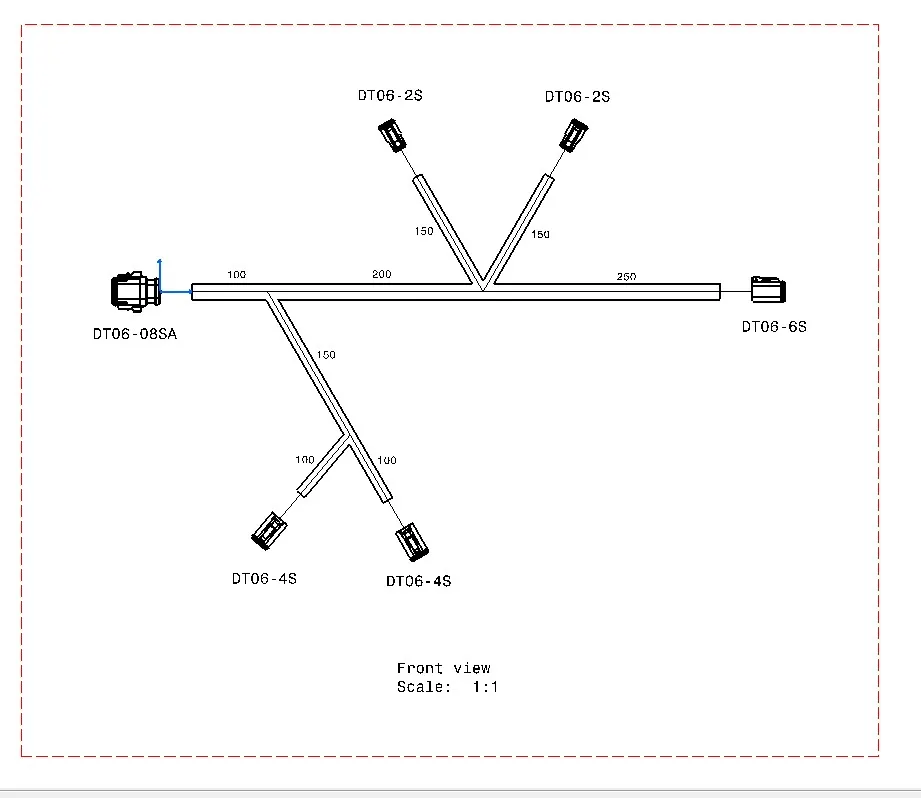
OBJECTIVE- Flatten the harness assembly completed in “ week 4 challenge”. Place the flattened view on drawing sheet. Ensure bundles with protective coverings has different visuals on drawing view.
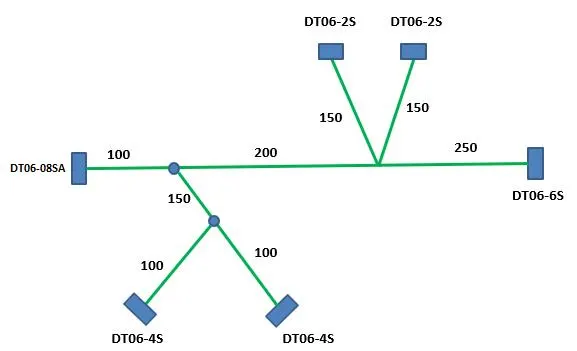
PROCESS-
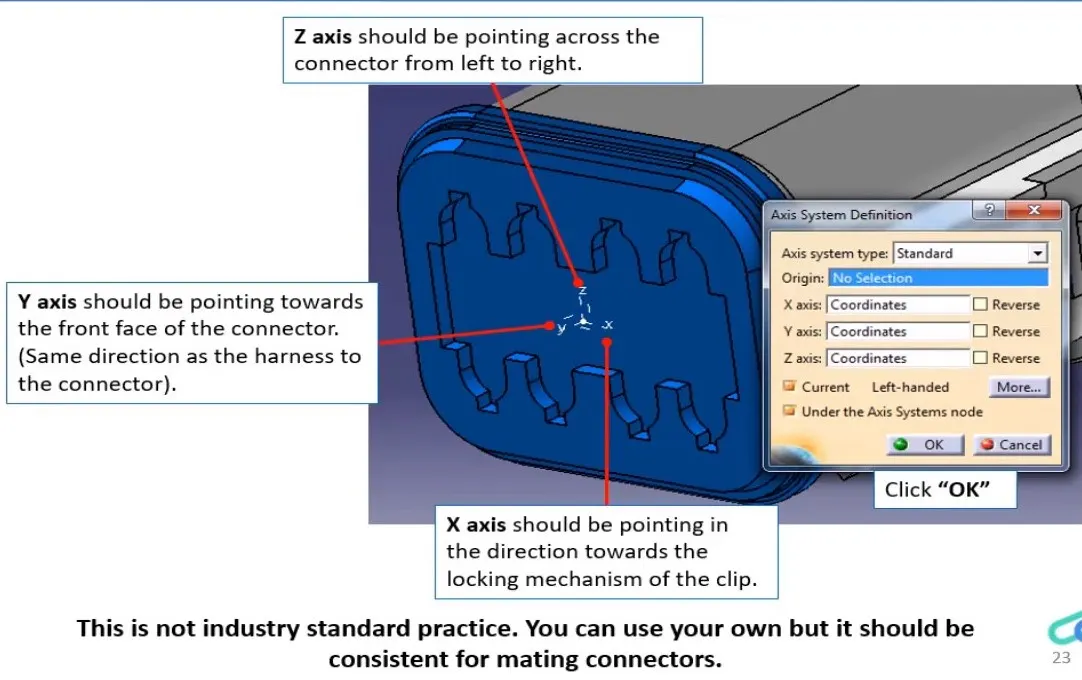
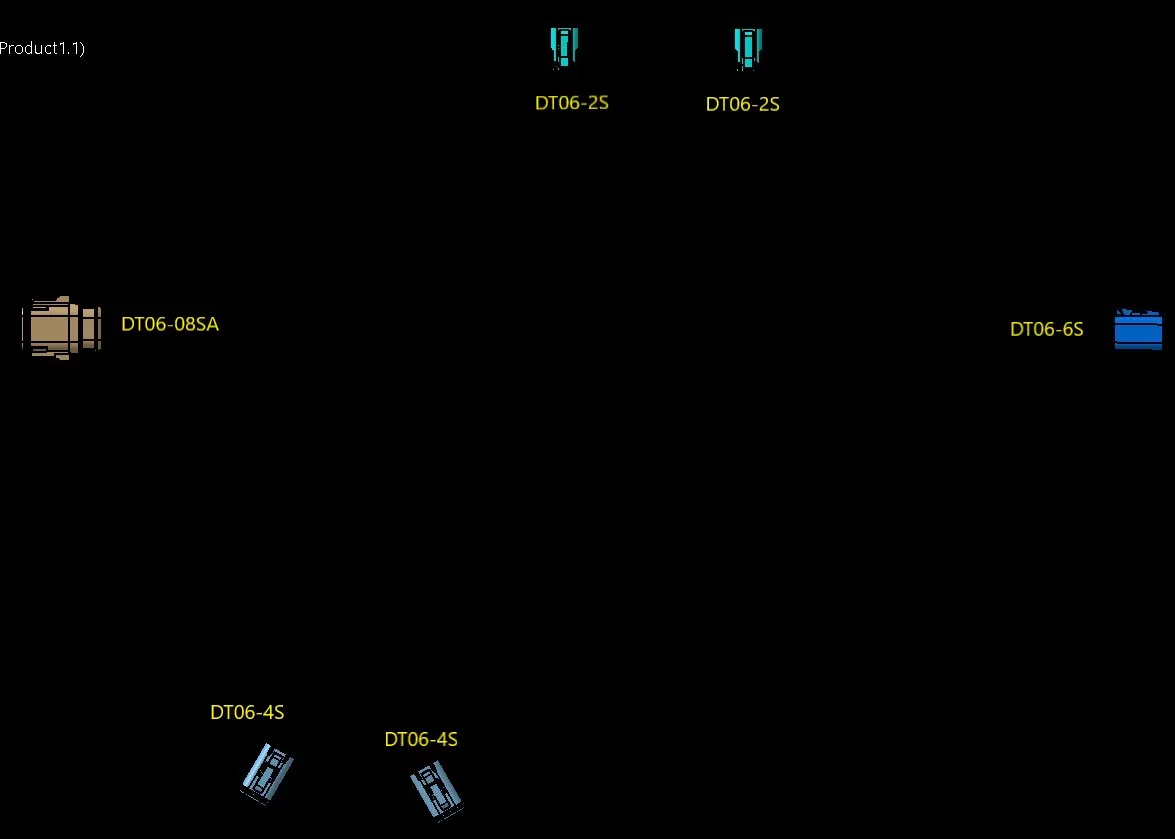
Convert the above connectors as Electrical part
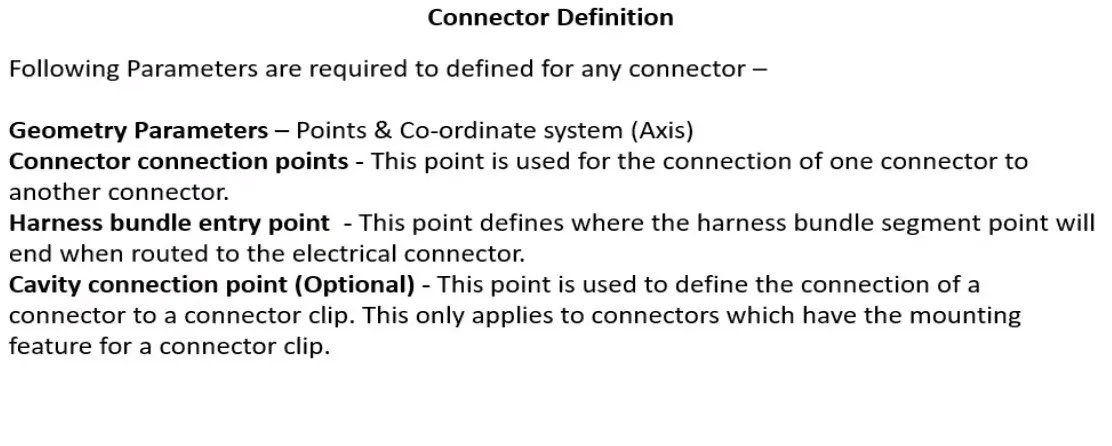
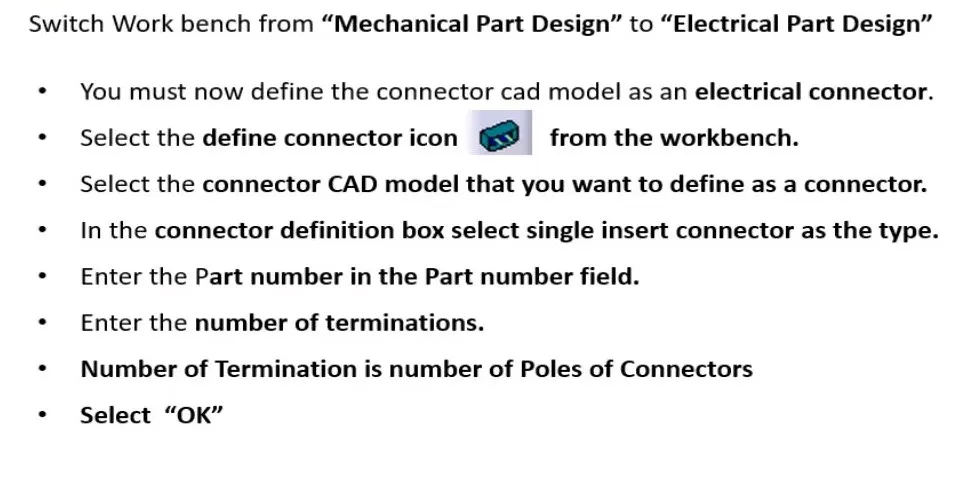
DT06-2S
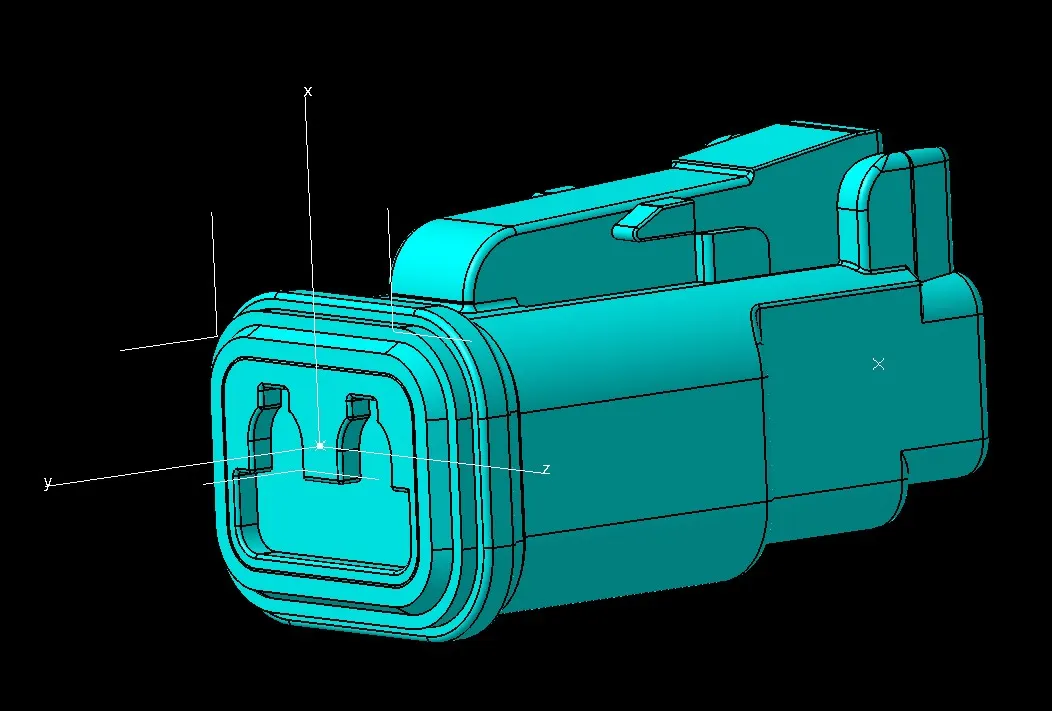
DT06-4S
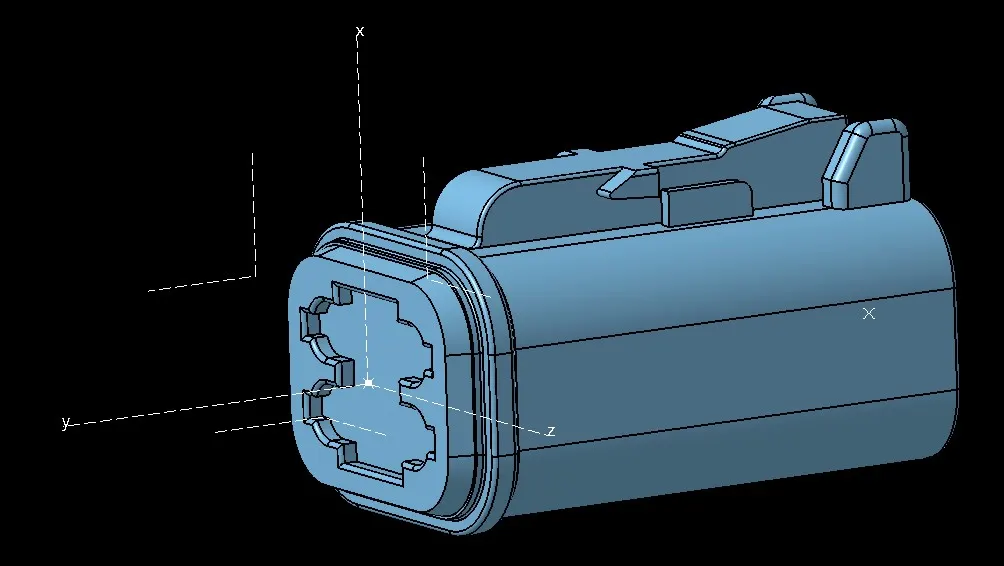
DT06-6S
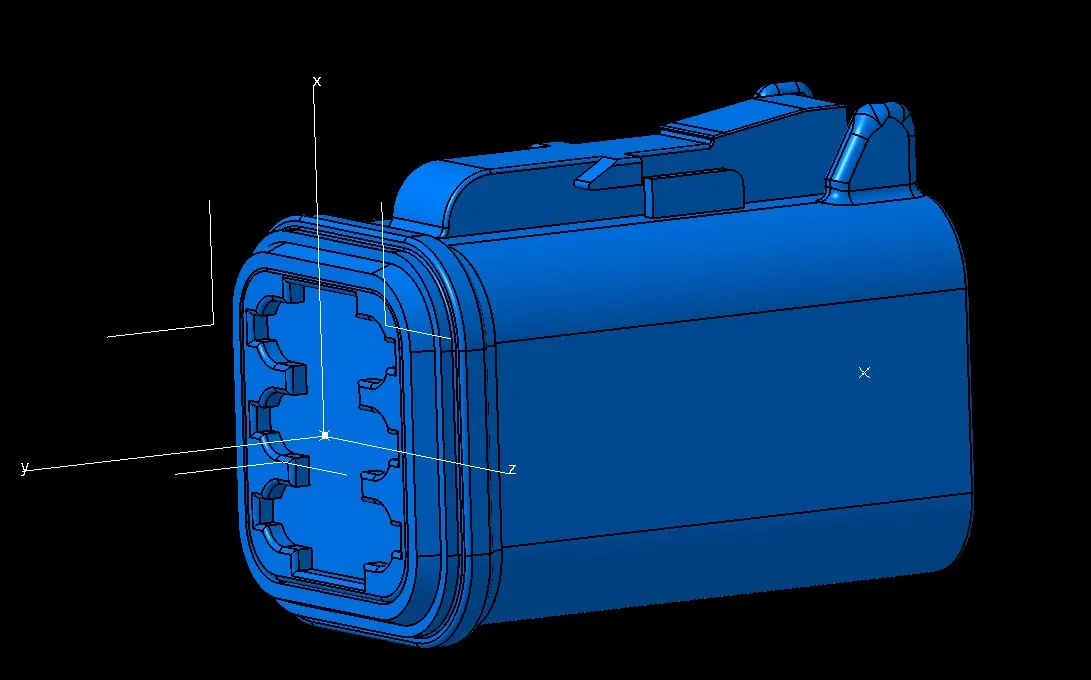
DT06-08SA
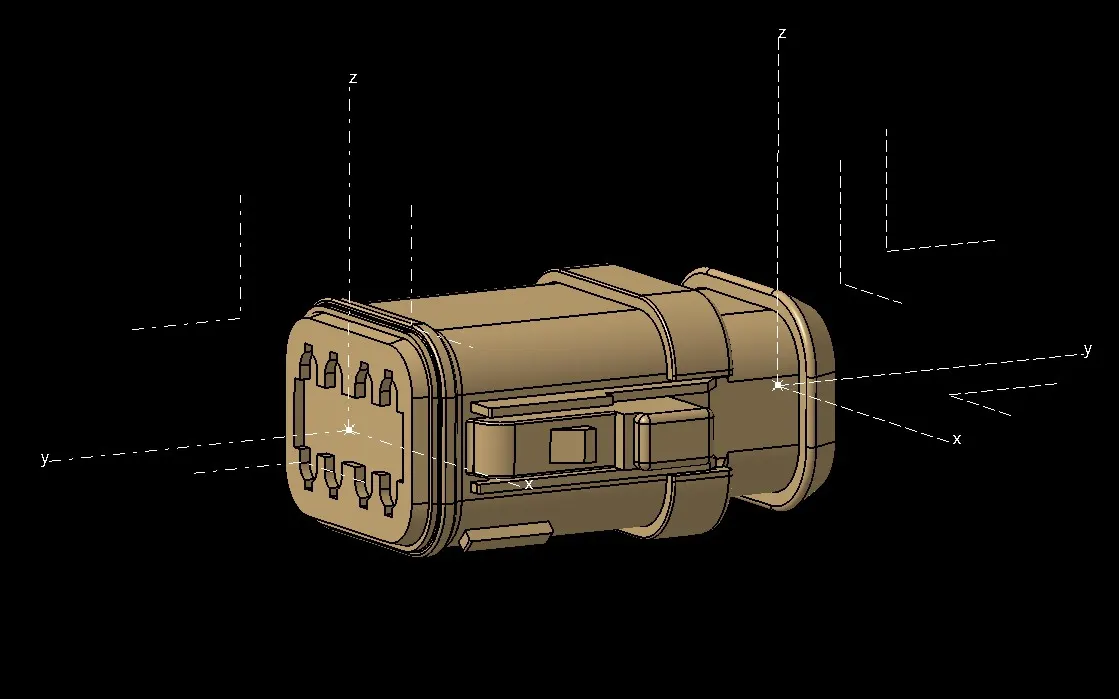
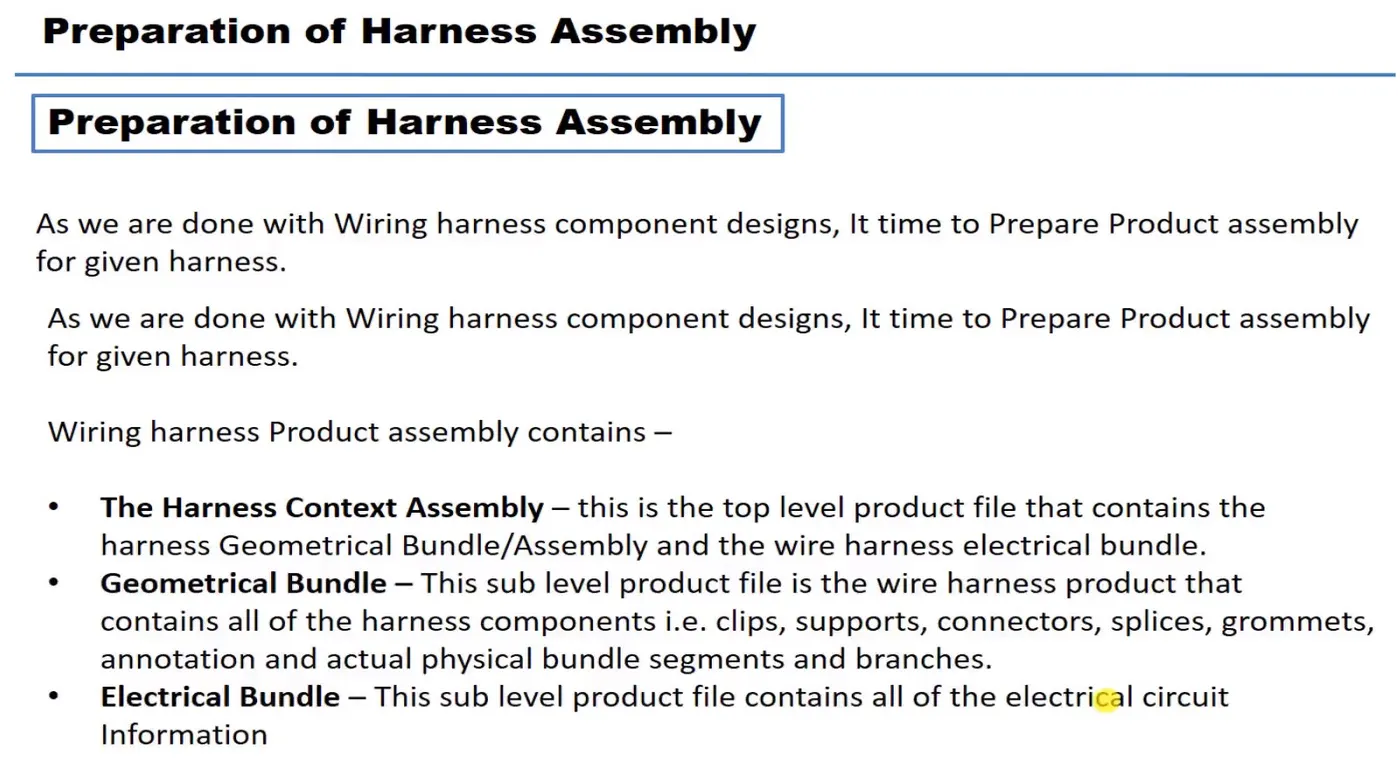
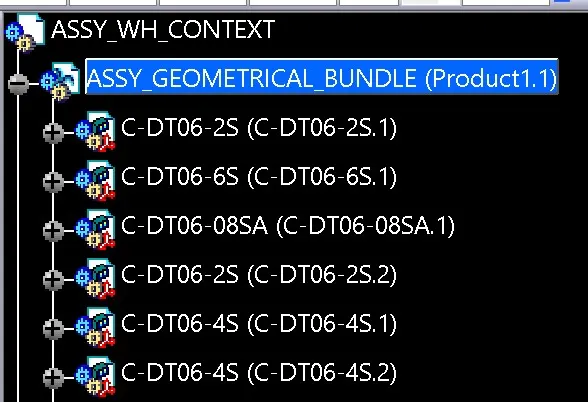
Geometrical bundle assembly should be converted into electrical assembly to do so switch to electrical harness assembly workbench
Select command geometrical bundle then select geometrical bundle assembly on specification tree
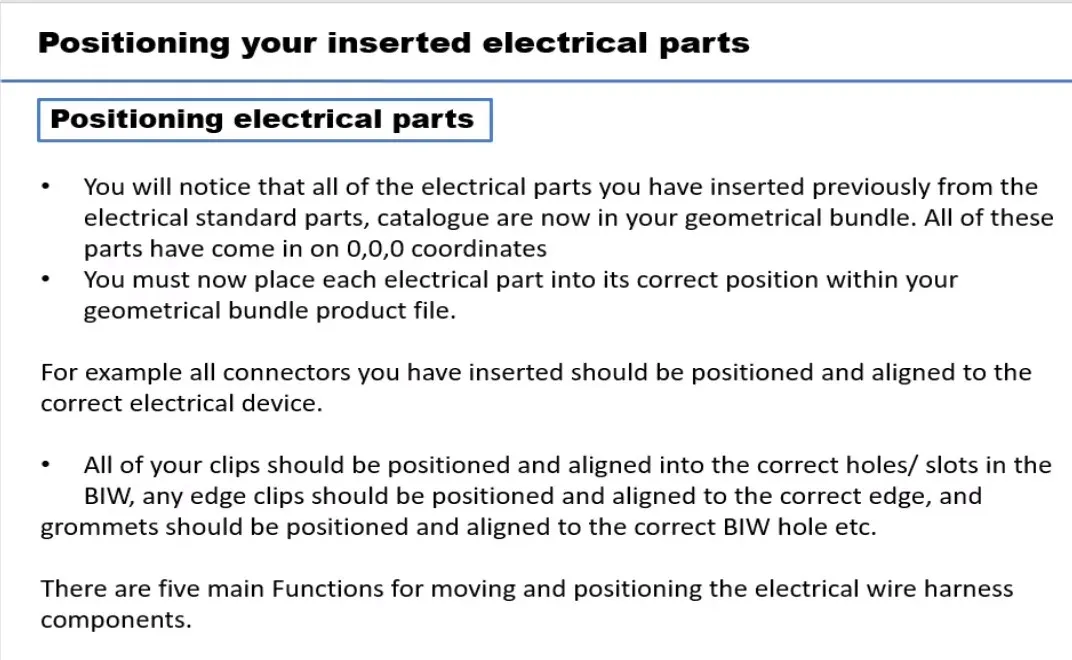
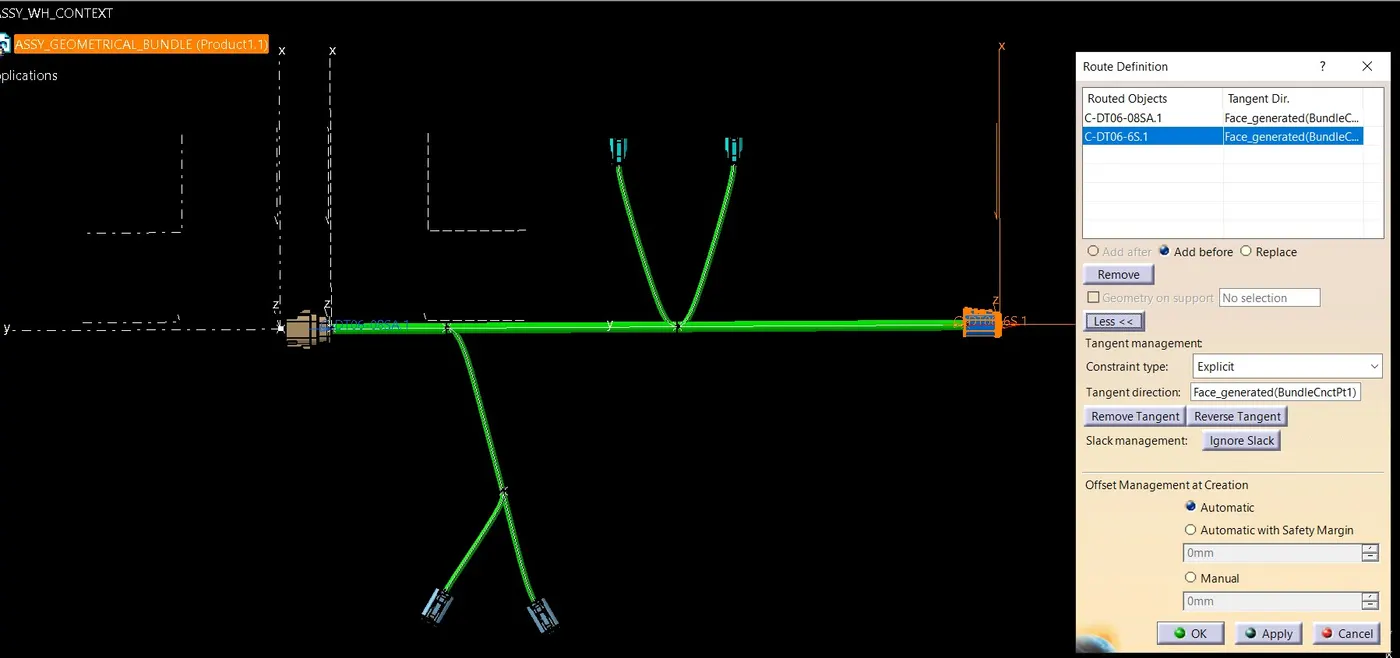
Creating Multi-Branching to the connectors to do so
Select multibranchable document command-give bundle diameter and bend radius ratio-select route definition-select connectors
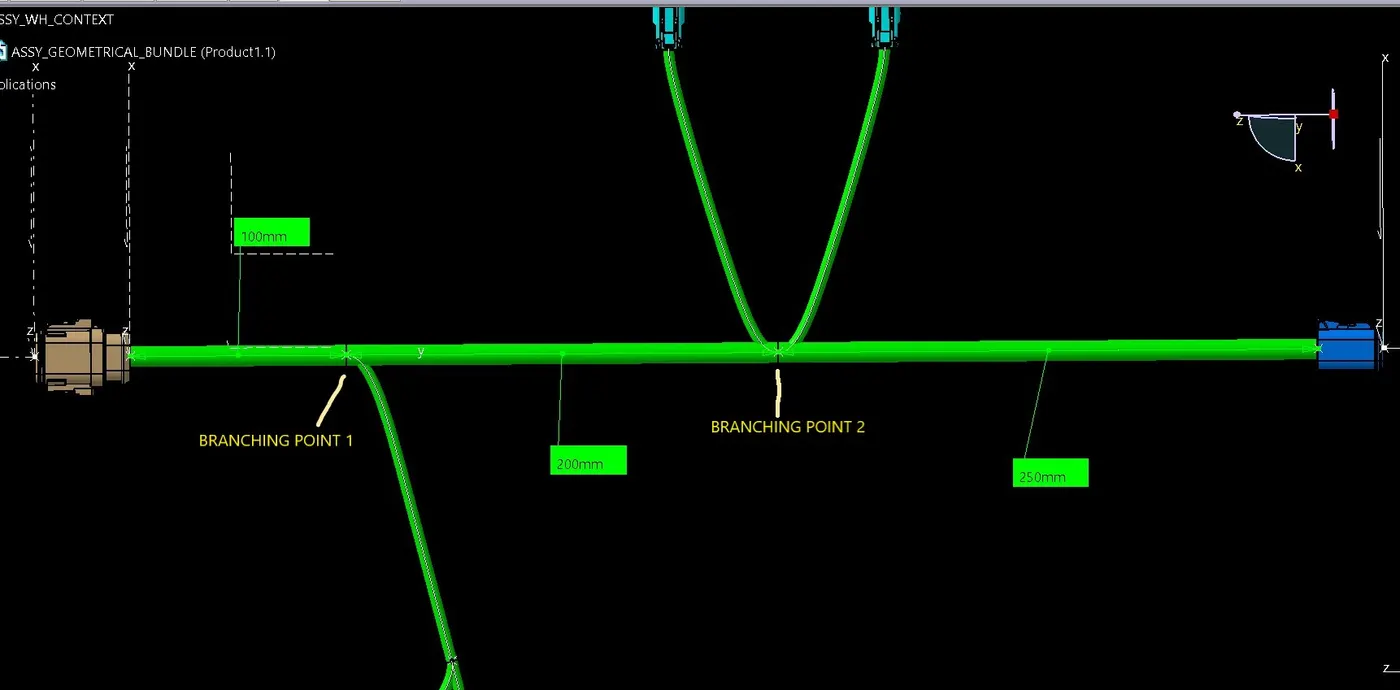
Create branching point
Select command add branch point inside electrical harness installation workbench then select the bundle on which need to create branching point
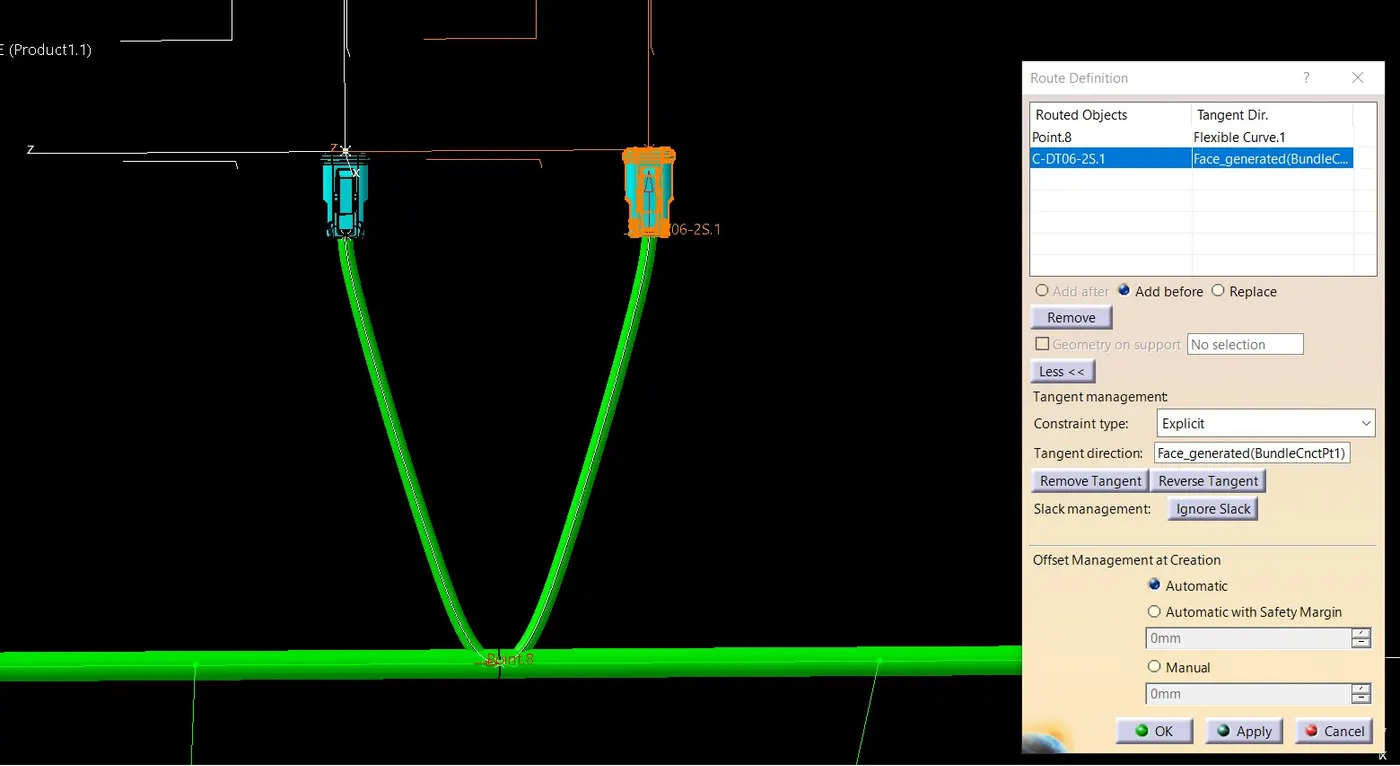
select branch definition command to create wire harness bundle between branching point 2 and connector DT06-2S
select route definition then select branch point 2 and connector dt06-2s as shown below
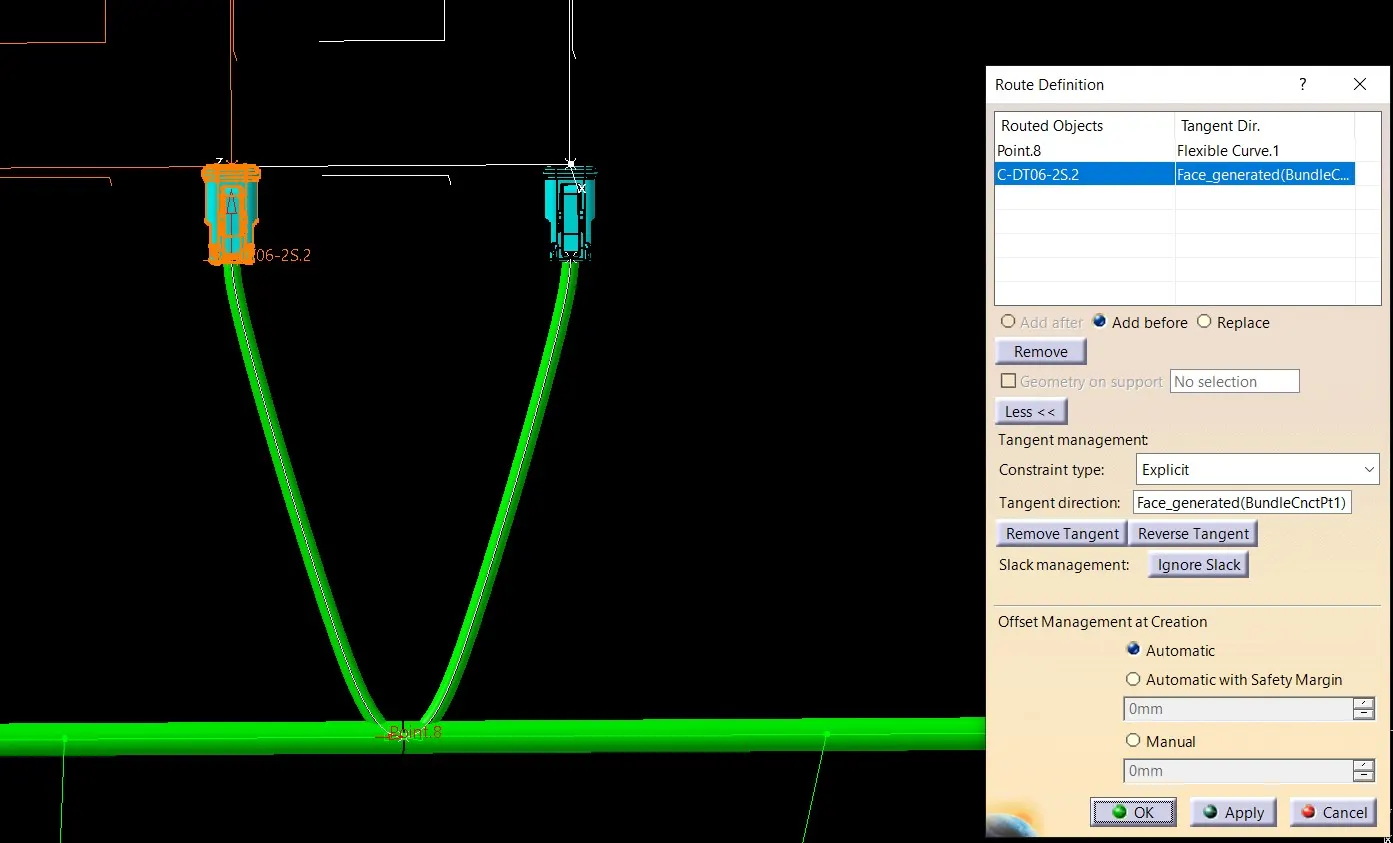
Again repeat the same process to create bundle between branching point 1 and connector dt06-4s as show below and create branching point 3 on this bundle
Create bundle between branching point 3 and connector dt06-4s by branch definition command
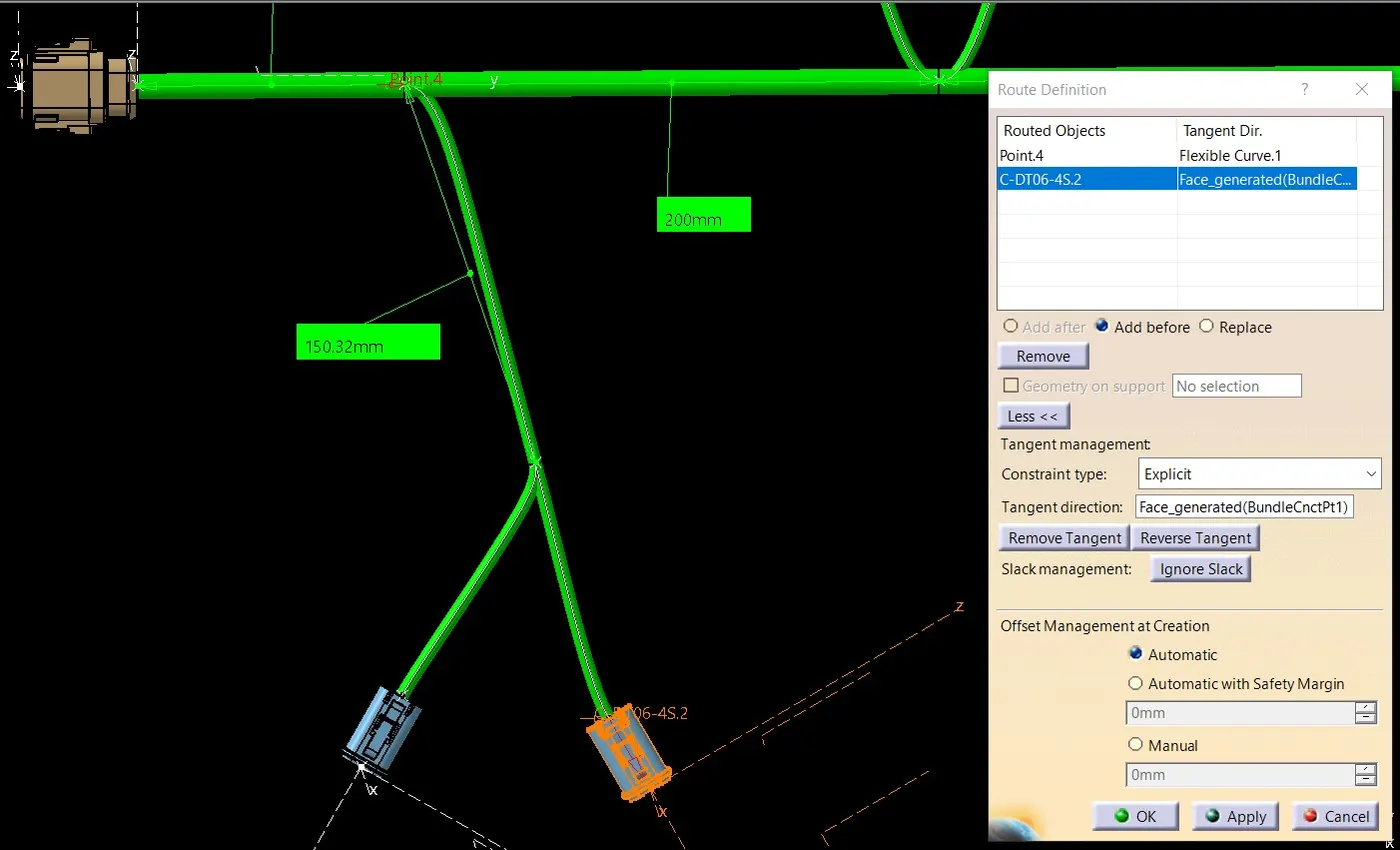
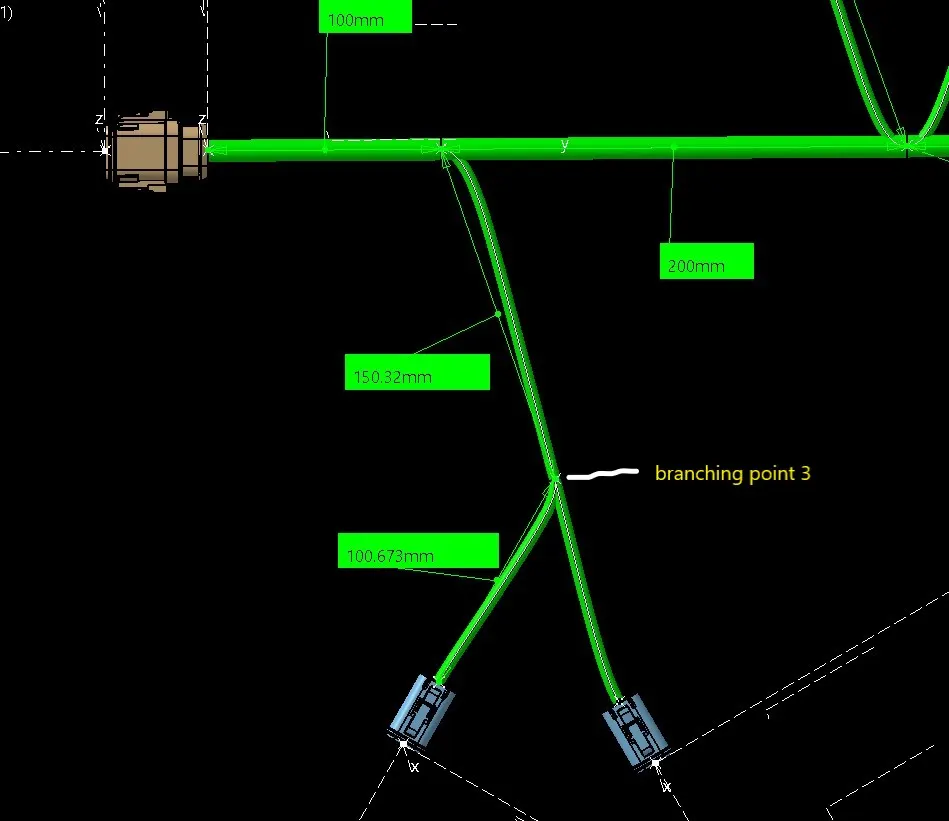
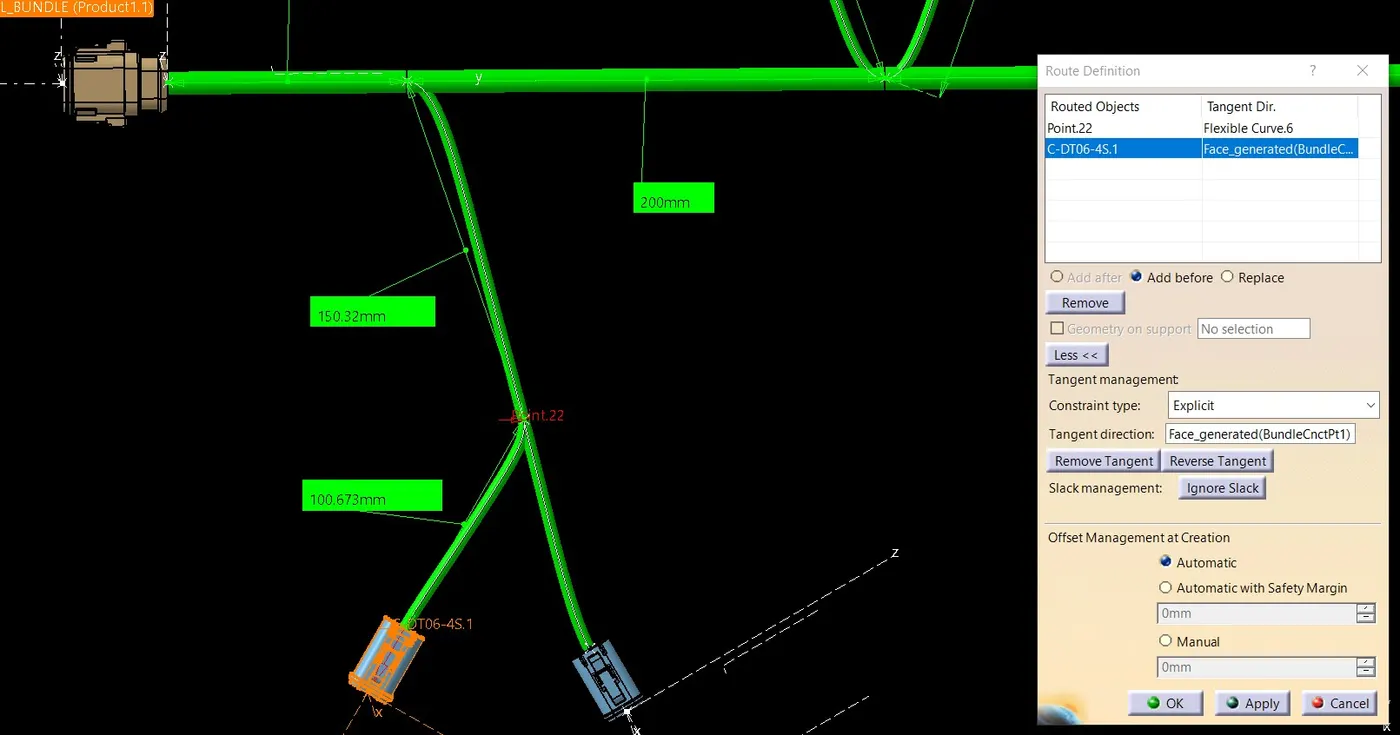
Apply protecting covering on bundles
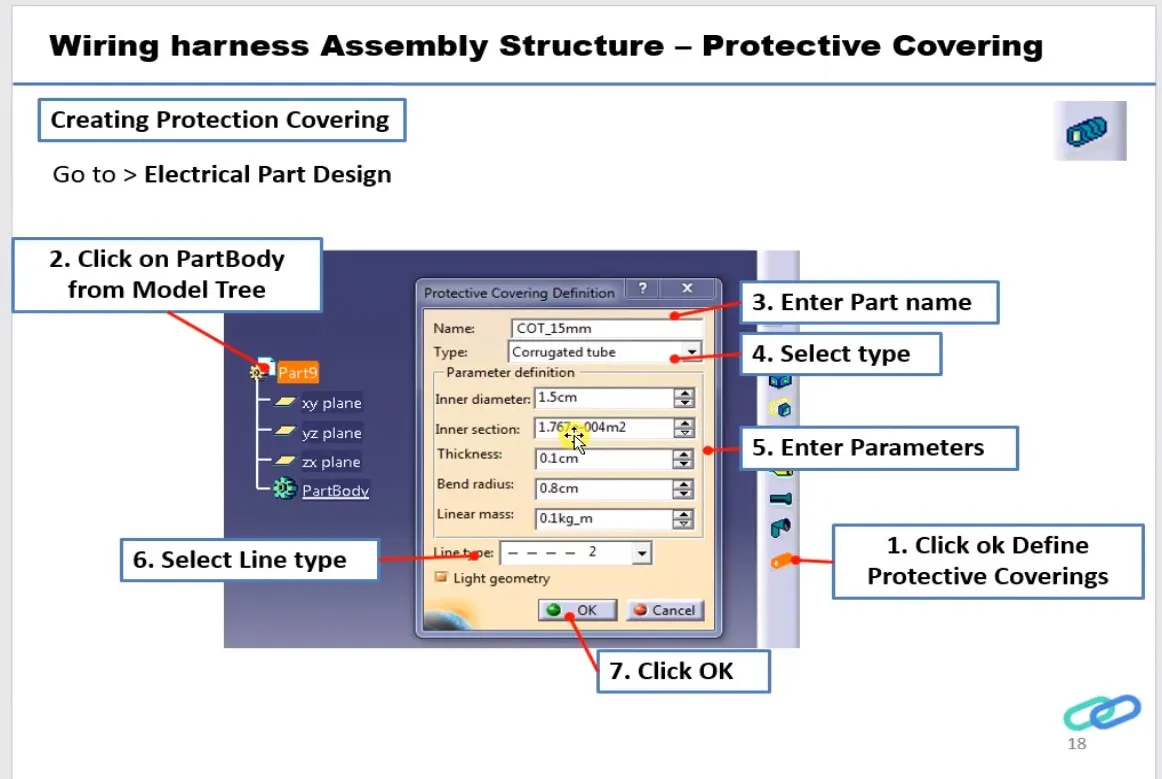
To create protective covering follow the below mention process
select command protective covering - select the bundle - select protective covering from the catalog
make sure protective covering 30mm away from the connectors
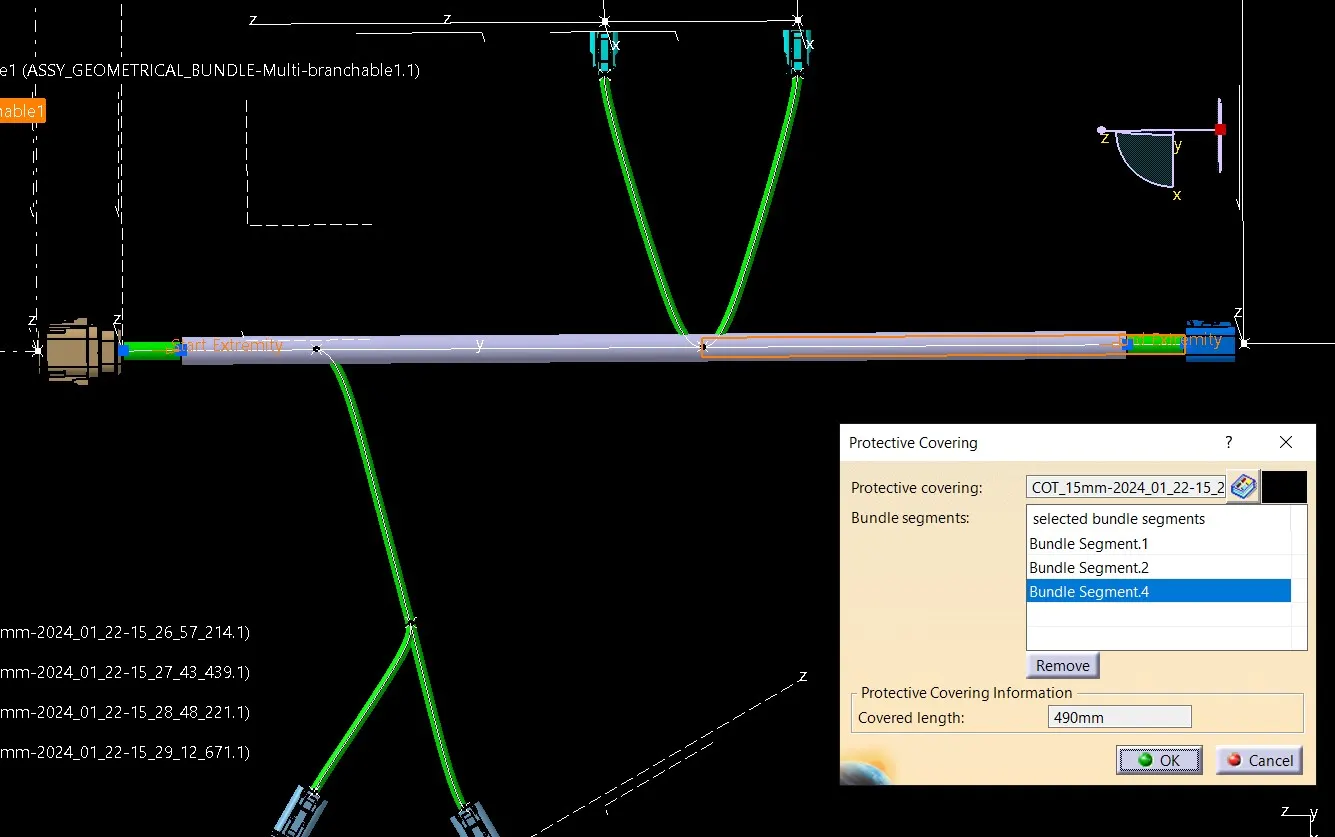
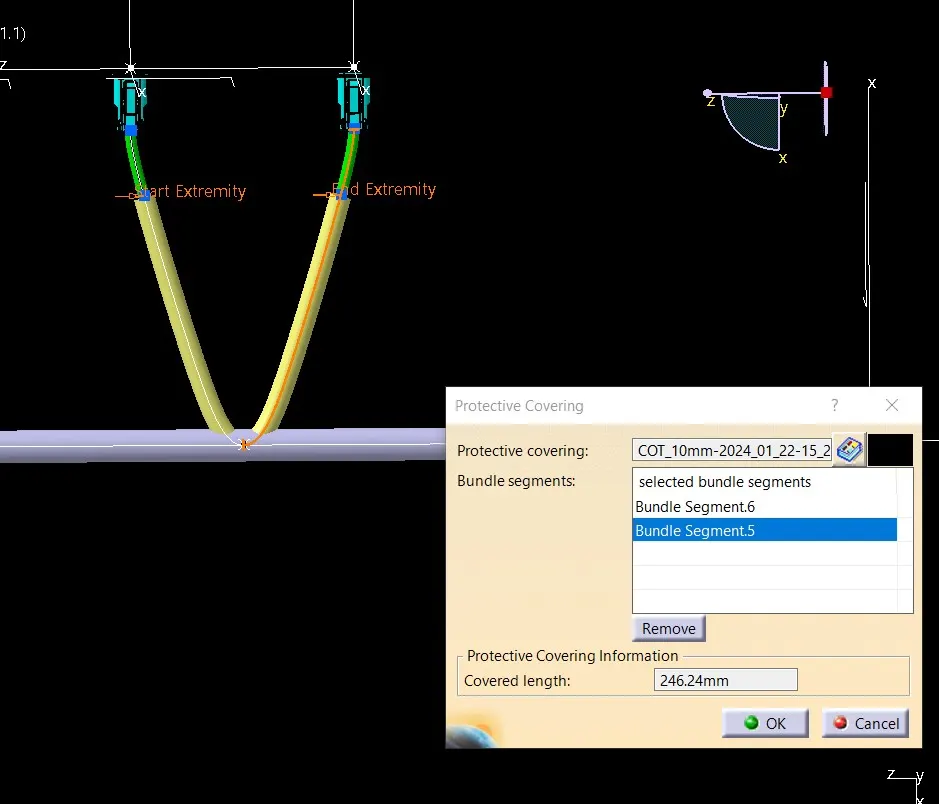
FINAL ASSEMBLY
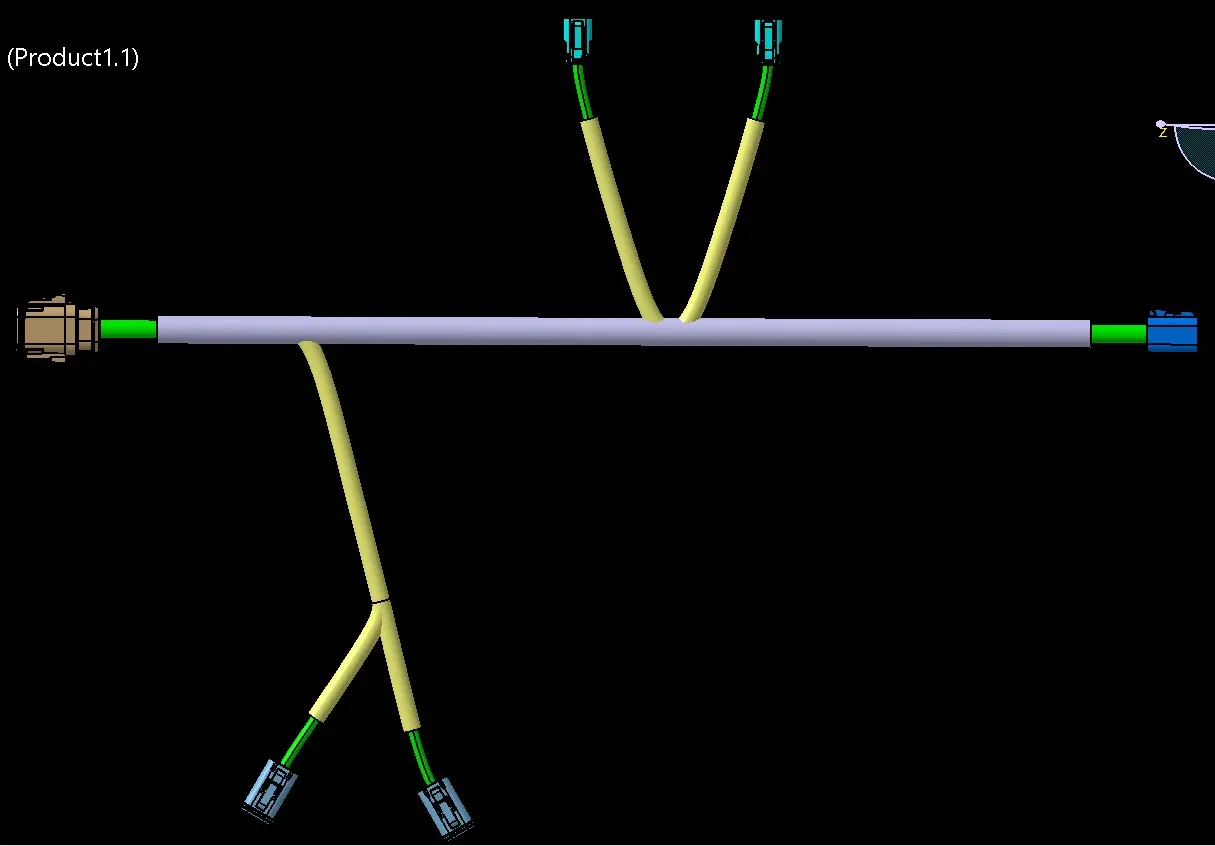
Harness Flattening Procedure
Harness flattening can be created from the Electrical Harness Flattening Workbench in CATIA V5.
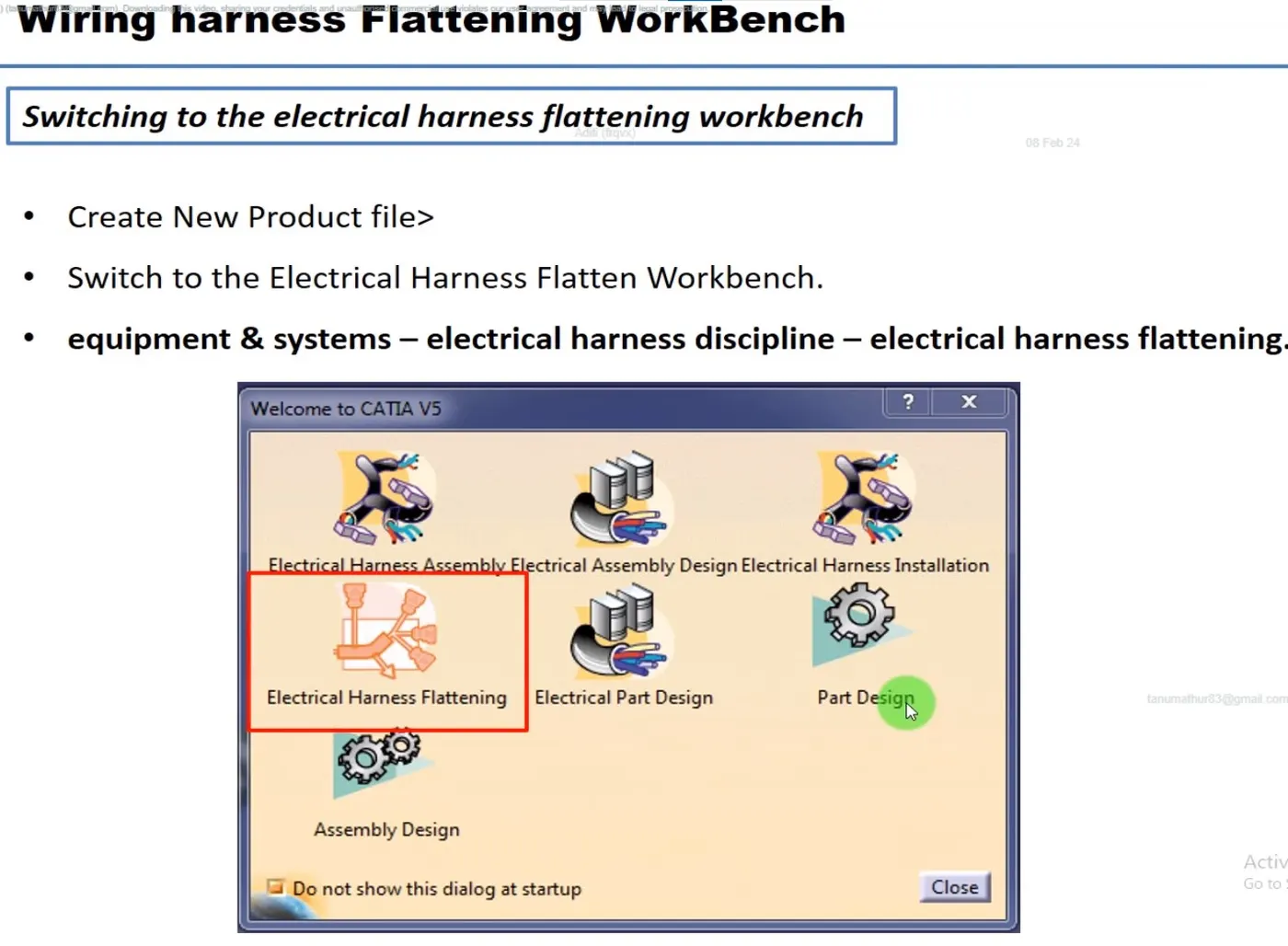
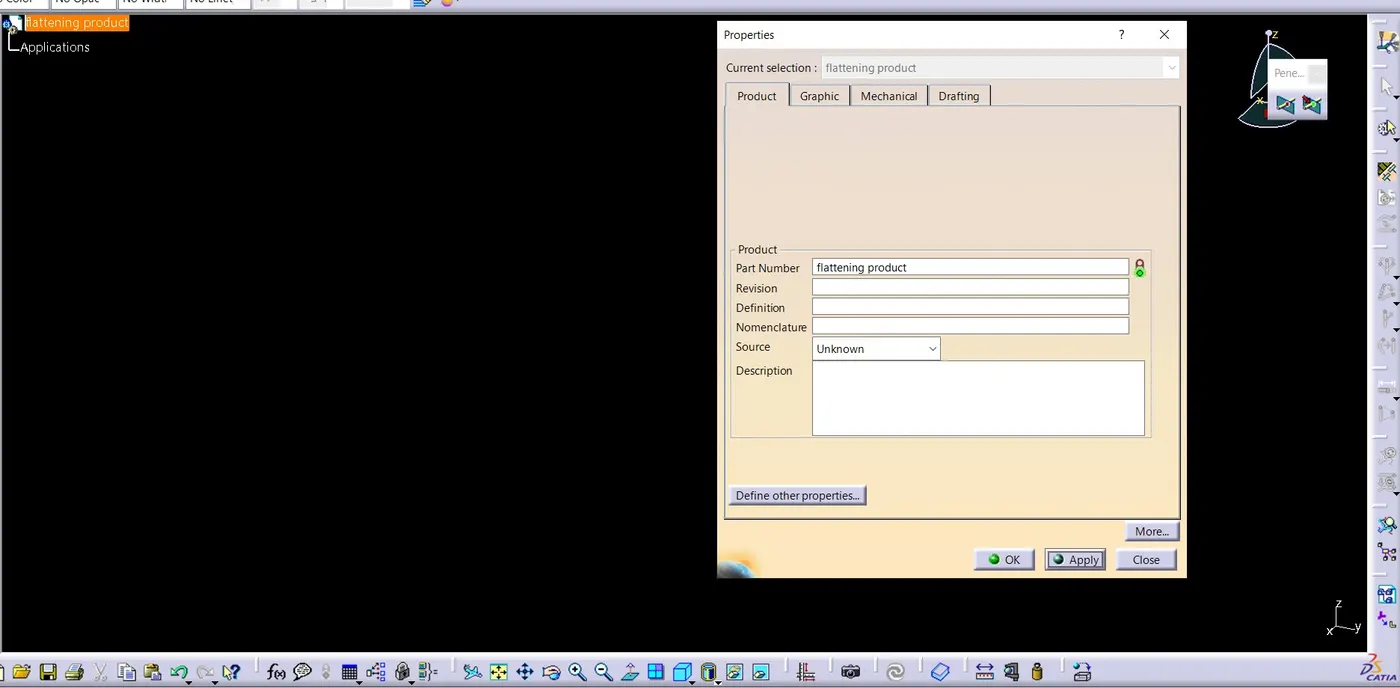
Create a new product file in the Electrical Harness Flattening workbench and rename it as flattening product
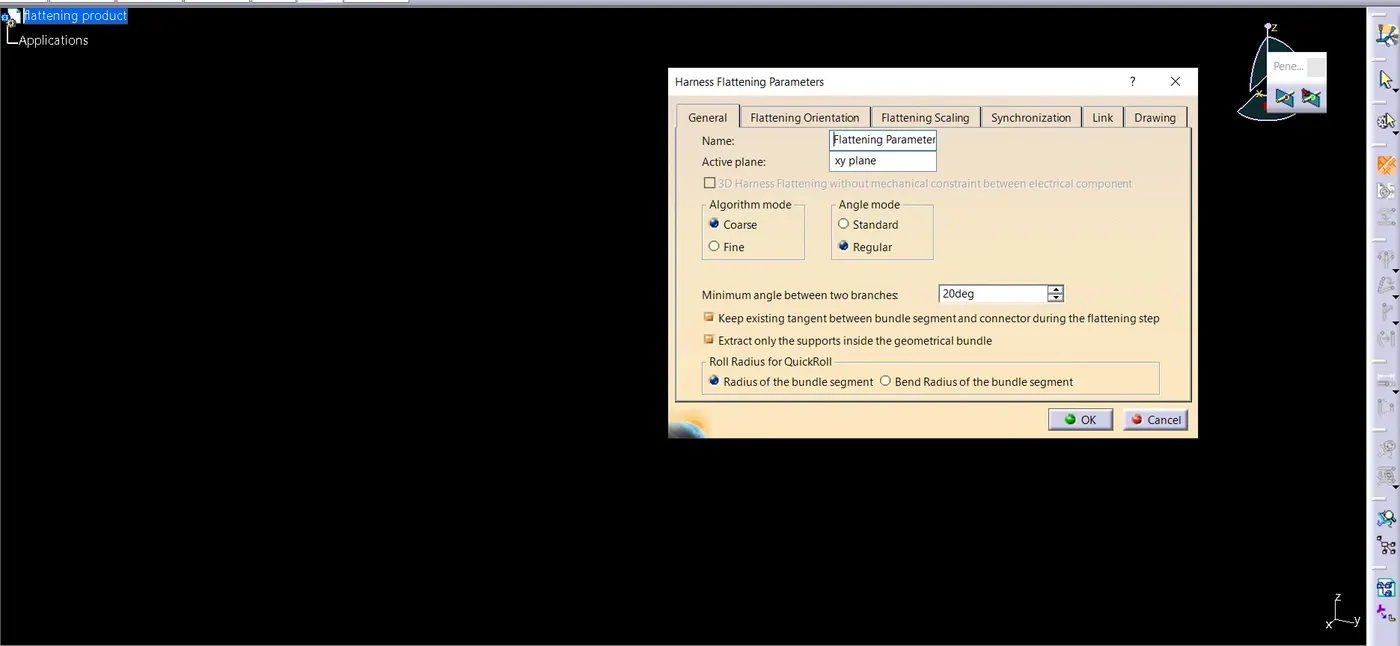
Select the harness flattening parameter icon and use the setting shown below for parameter
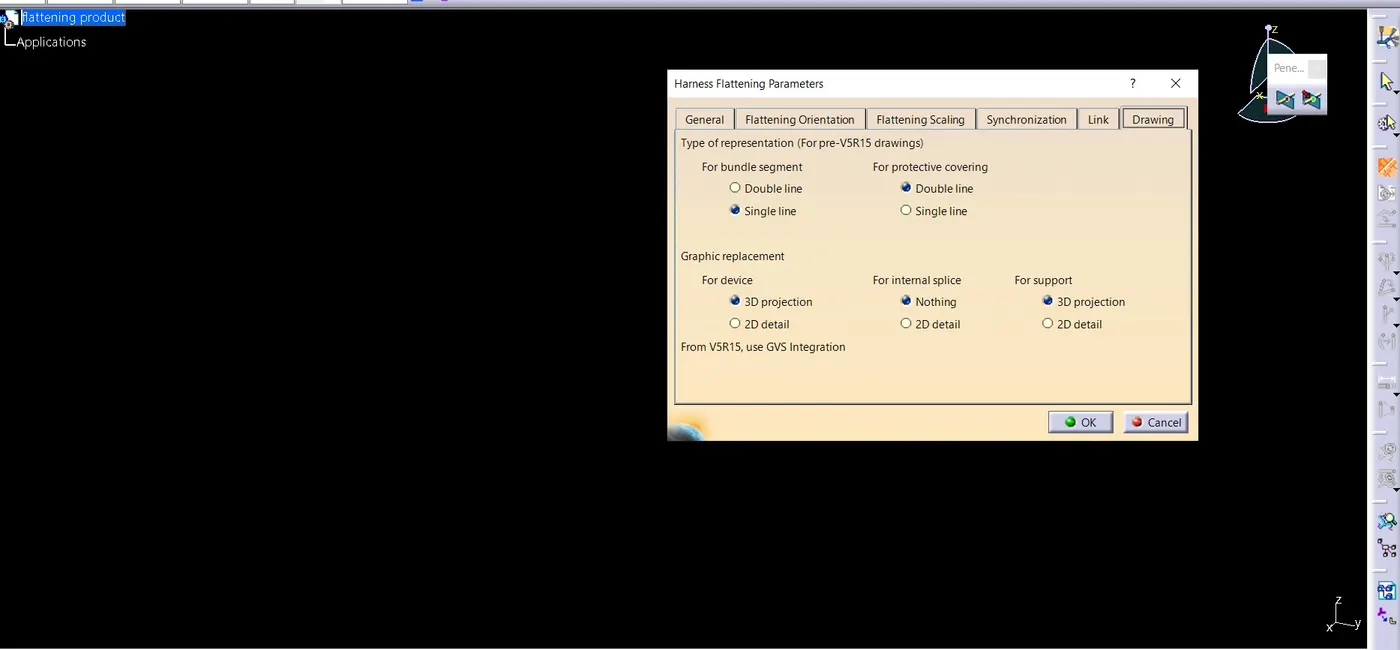
Save the flattening product file in the same folder in which we having the other entire required product files related to challenge week 4
Create vertical windows with Harness assembly product and flattening product files.
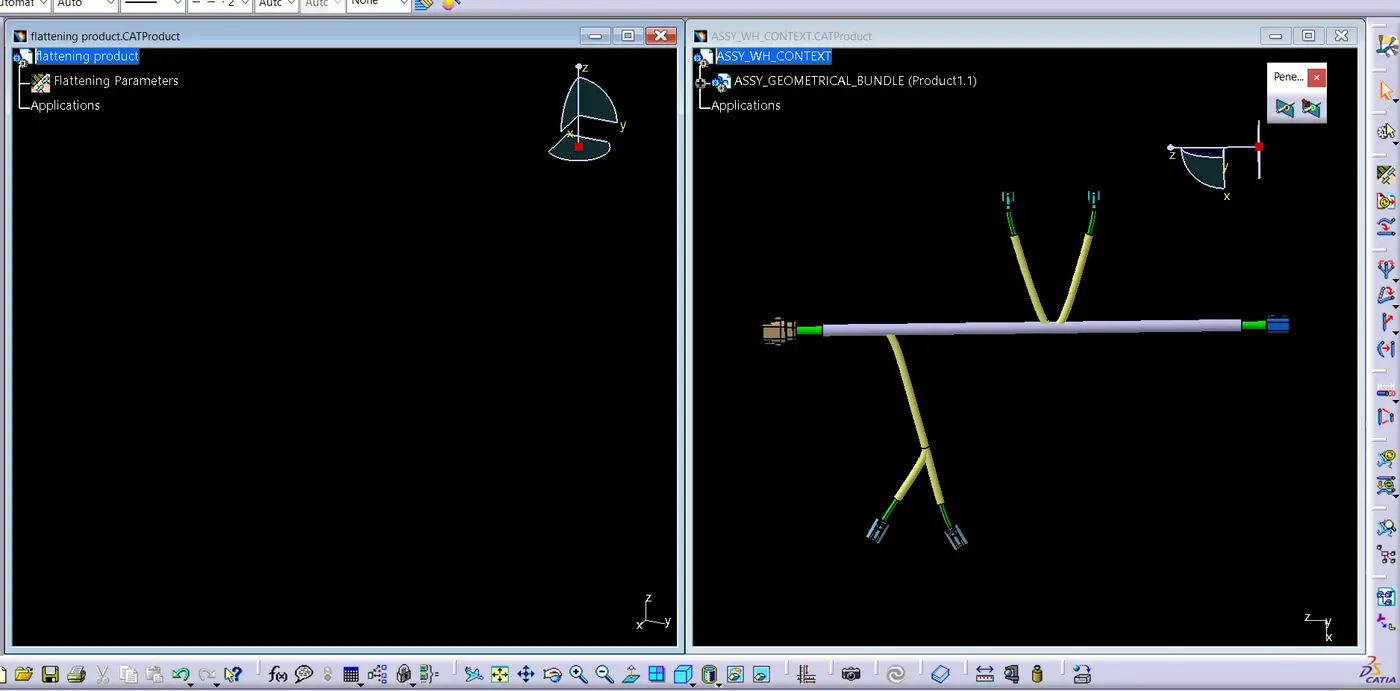
Using the Extract option, extract the harness assembly into the flattening product.
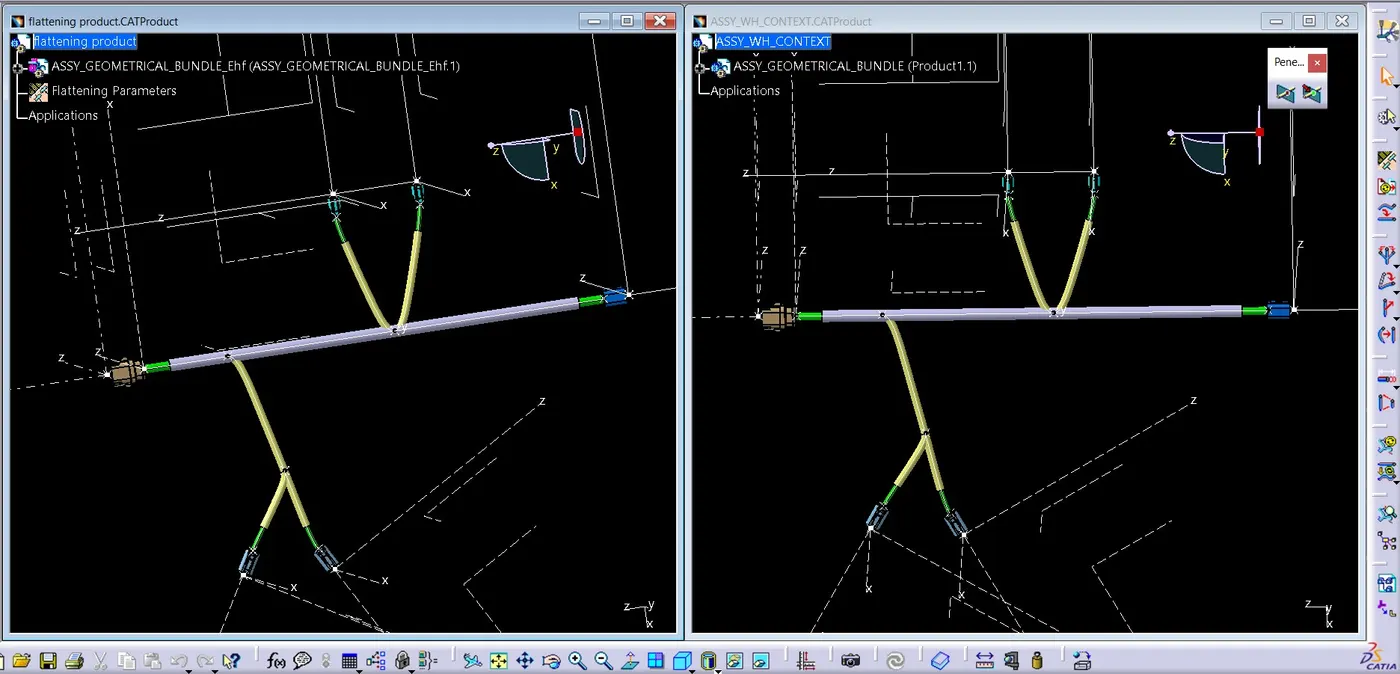
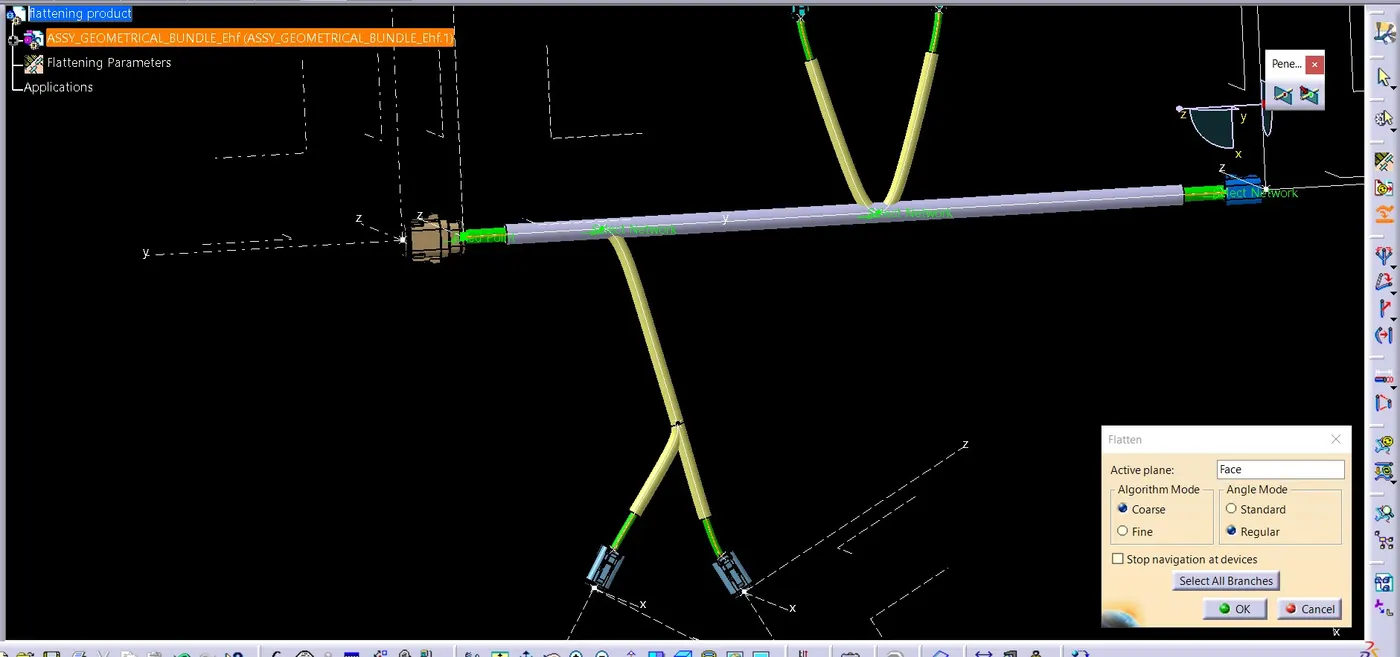
Convert the extracted harness assembly into the flattened harness assembly by using the Flatten commend.
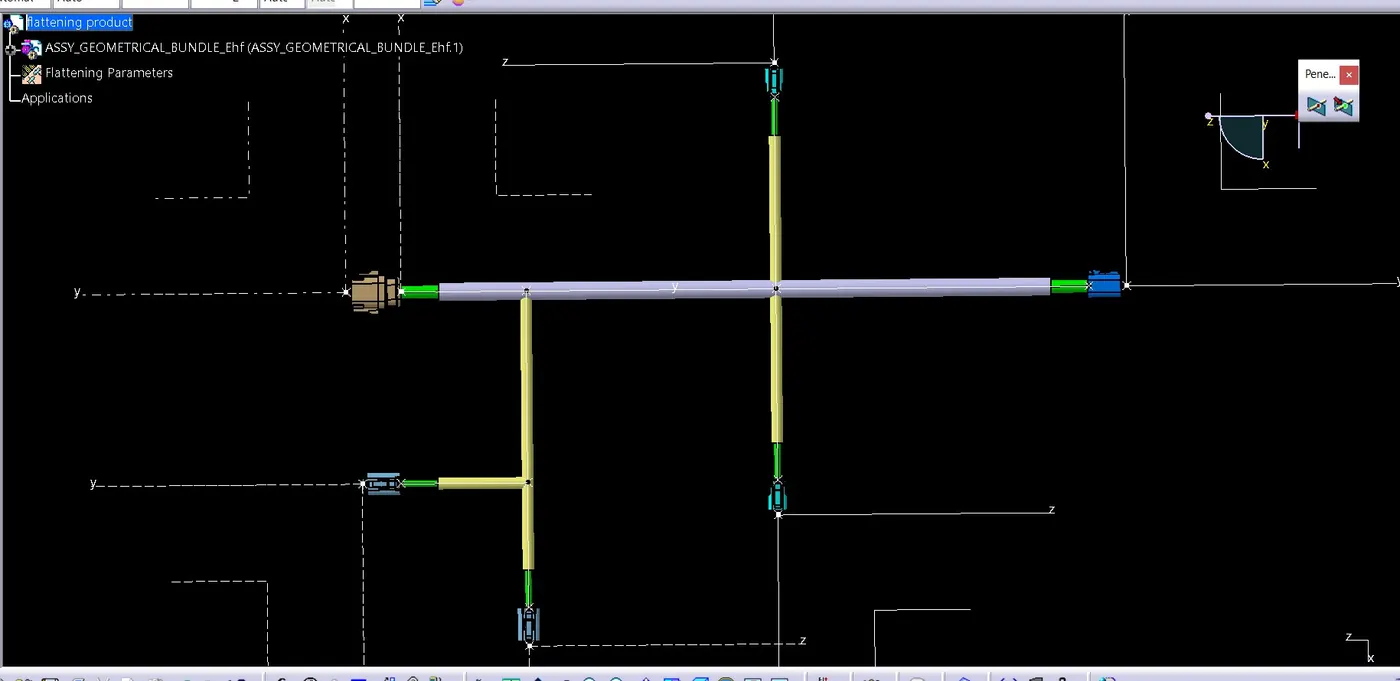
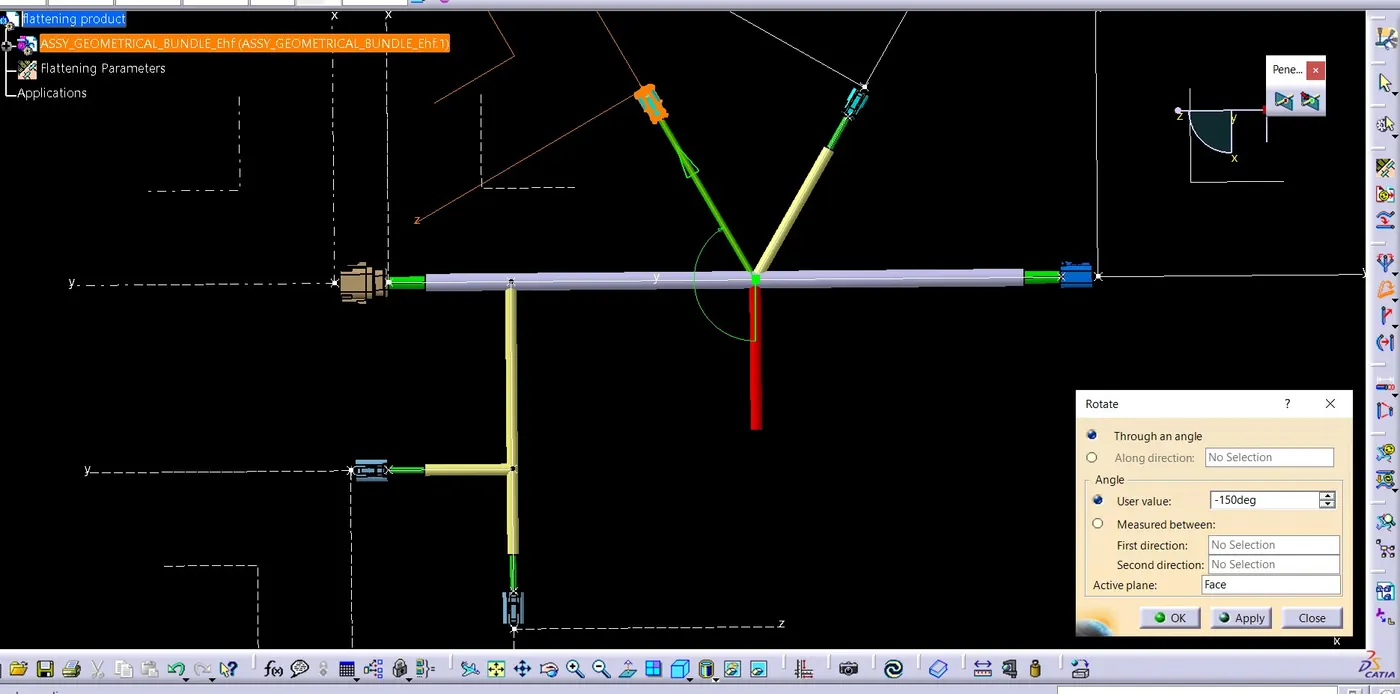
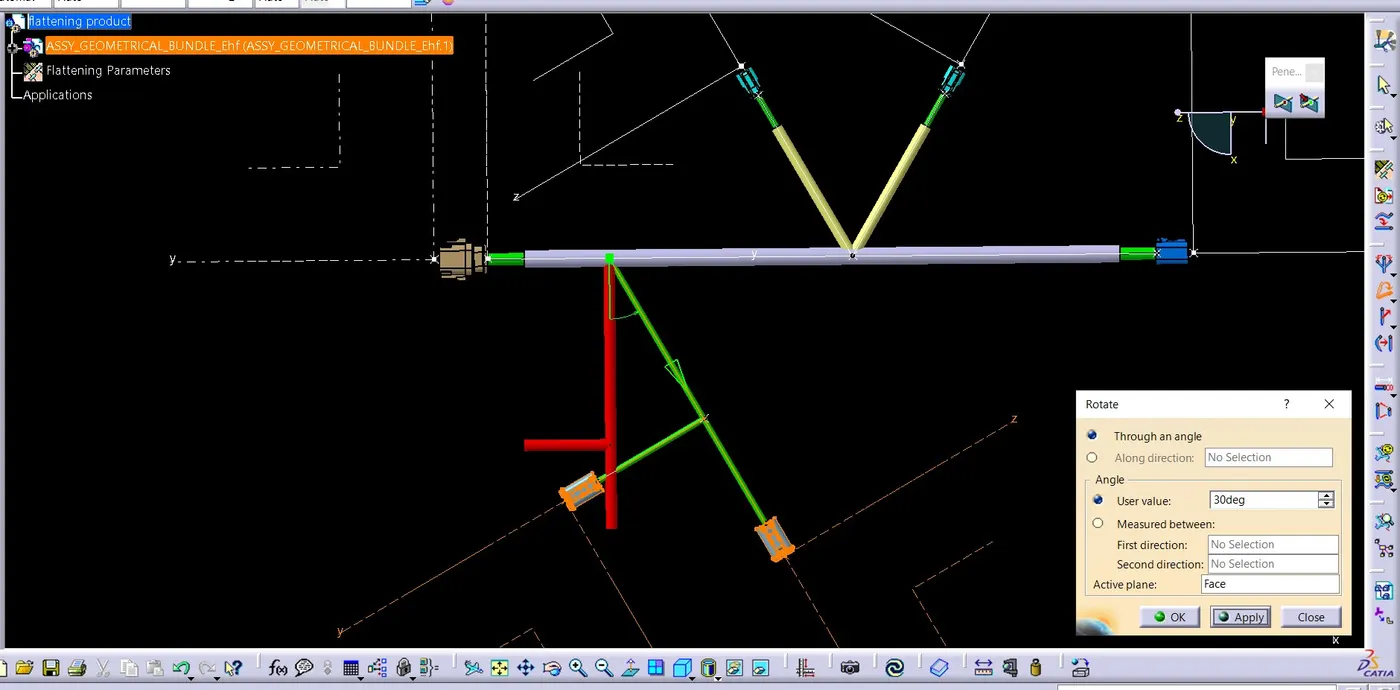
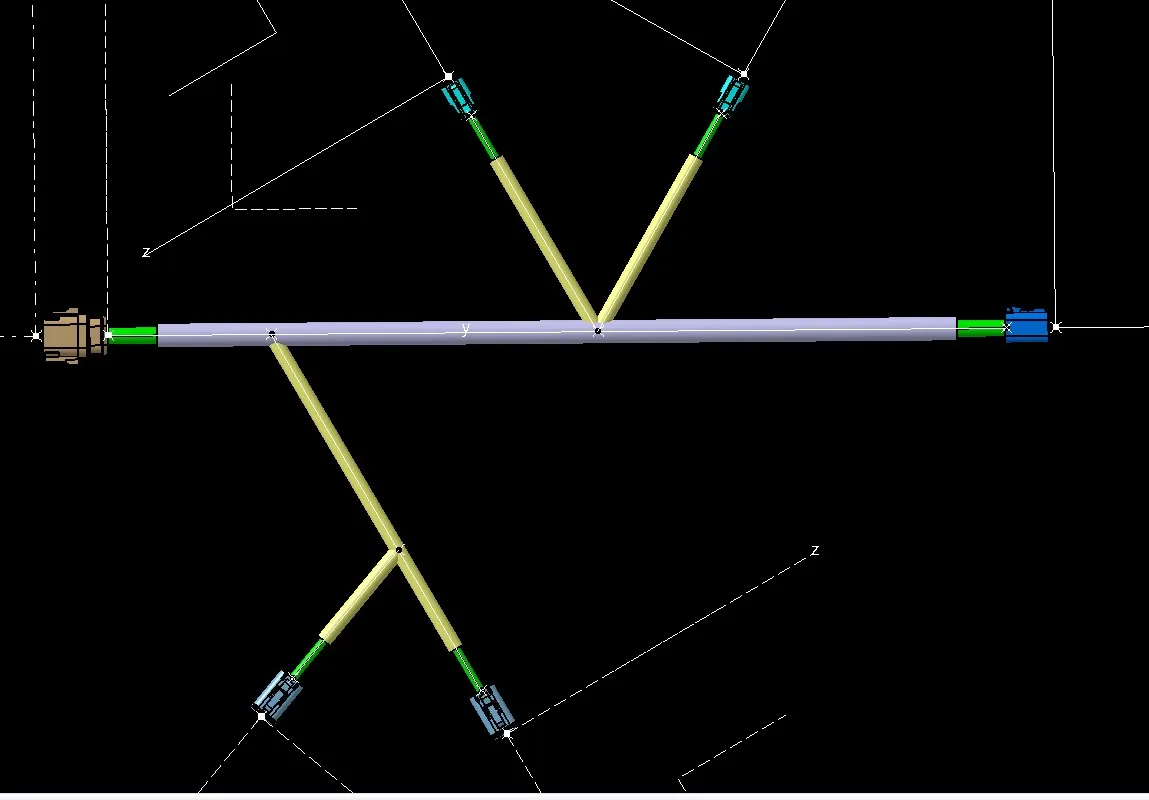
Rotate the flattened bundle segments to the desired directions using the rotate command and manually update the product to update the changes occurred during the rotate command.
Create a new drawing file in the drafting workbench
Insert the flattened harness product into the drawing sheet using view option and selecting the front view command.
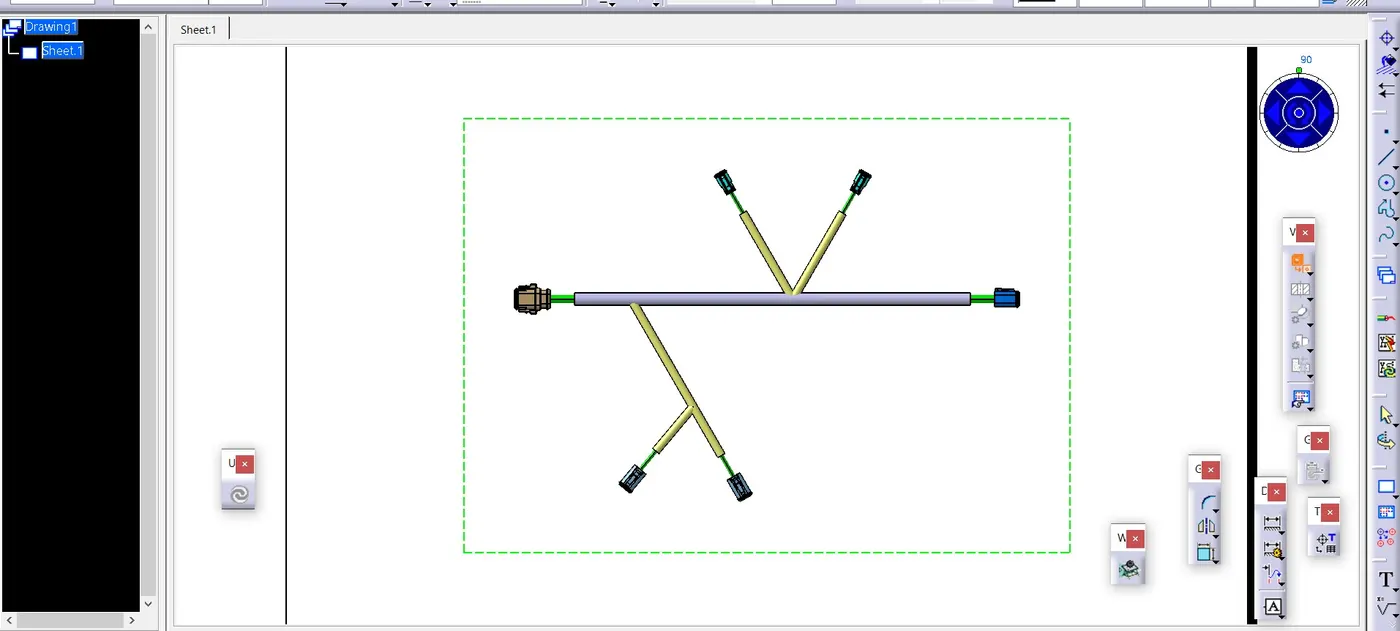
We can see the drawing representation for the wiring harness bundle is not visible in the drawing sheet. Here, we need to change some settings in sheet properties.
In sheet>front view properties, go to the views and dress-up area, activate the 3D wireframe and change it into always visible and click OK.
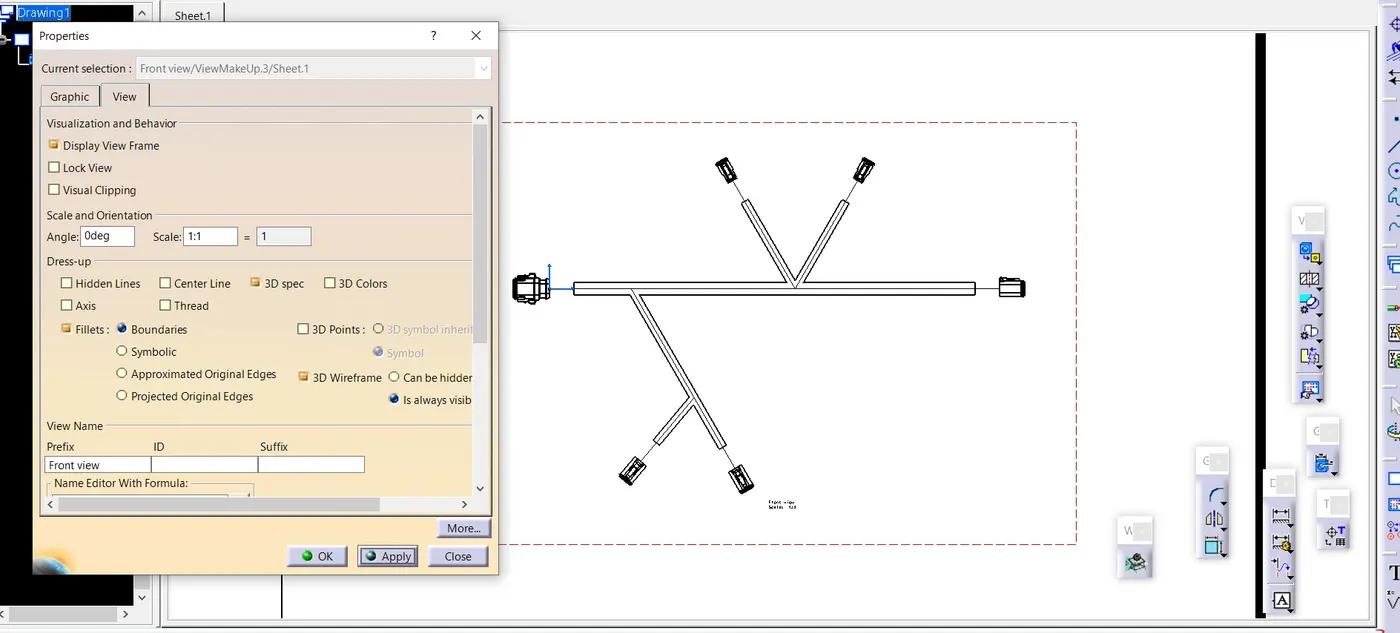
FINAL DRWAING