Wiring harness design in CATIA V5 - 3D modeling Week 7 Challenge
WEEK 7 CHALLENGE OF WIRING HASNESS DESIGN:
AIM:
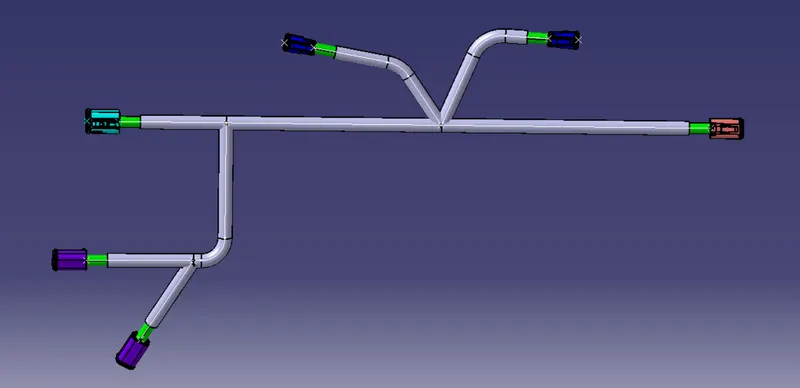
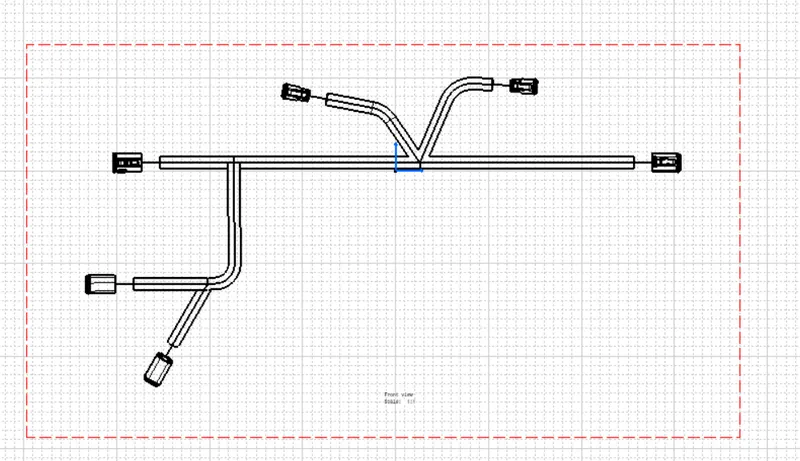
To route the following harness layout in Electrical workbench. Make assumption for harness bundle diameters. Place the flattened view on drawing sheet.
GIVEN CONNECTOR:
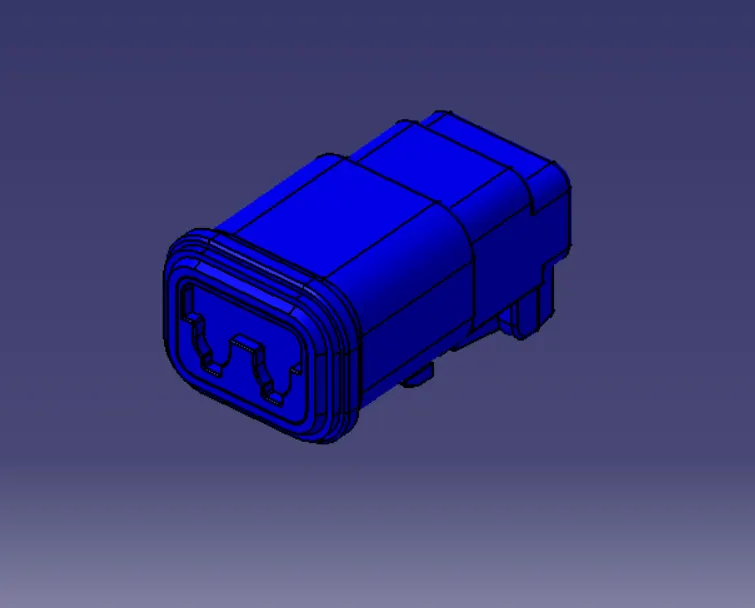
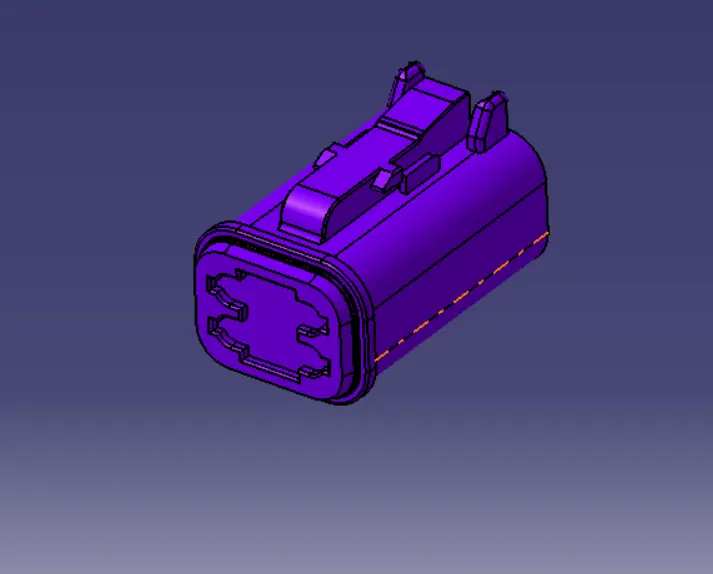
- DT06-4S
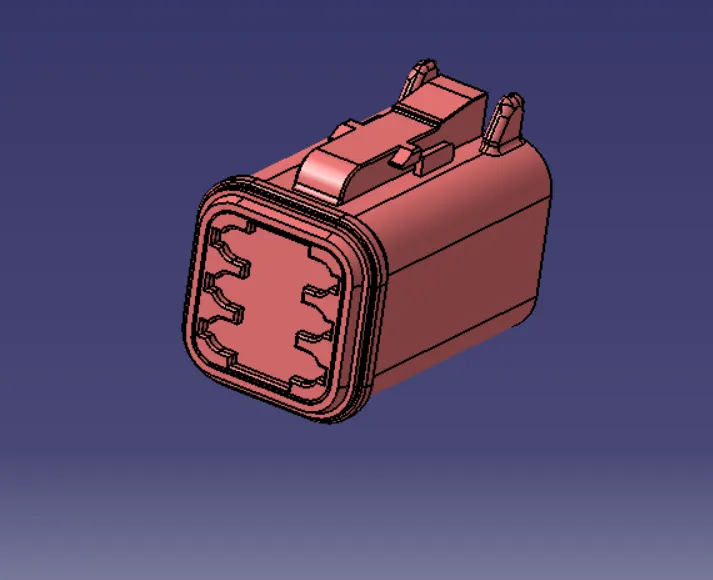
- DT06-6S
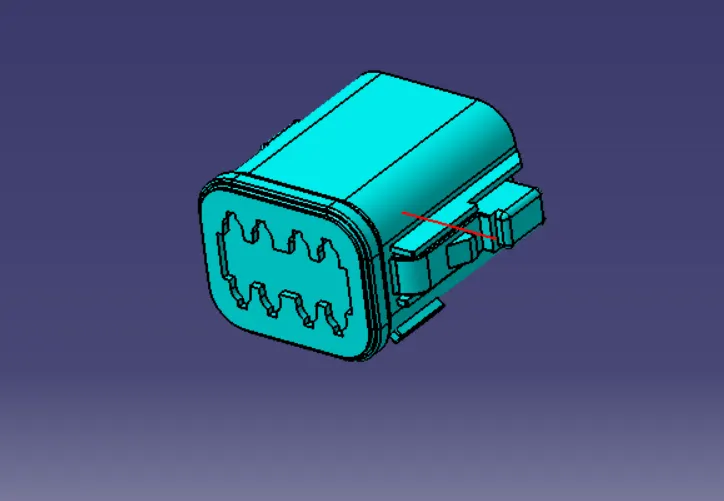
- DT06-08SA
DTO6-2S:
DT06-4S:
DT06-6S:
DT06-08SA:
DEFINE THE ELECTRICAL CONNECTOR:
- Create/download connector in 3D
- Create required geometrical parameter
- Define part as connector

- Define bundle connection point

- Define connector connection point

PREPARATION OF HARNESS ASSEMBLY:
- To create product file in the electrical harness routing workbench after convertion of mechanical into electrical part.
- When creating the wire harness bundle segment first required to insert the electrical component that need to route the wire harness from and to.
- Before can route the wire harness from need an electrically define component for that electrical bundle command to convert into electrical component.
- From given input layout of wire harness geometrical bundle.
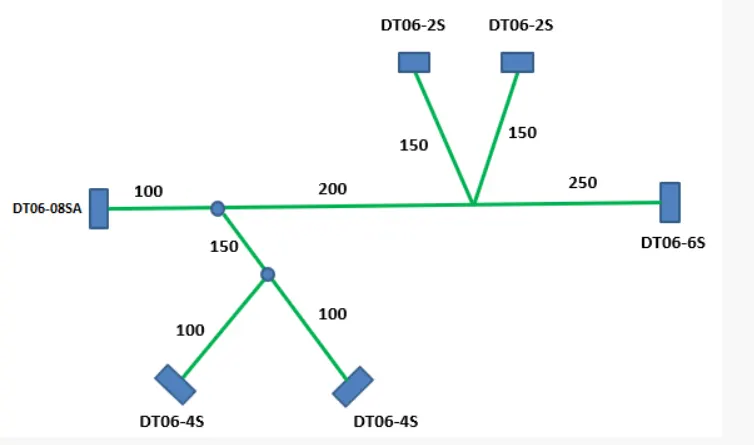
- After alline the connector has given layout of wiring harness routing.
- To create bundle use command of multi branchable document.
- After select the command it enter into the other page.
- To connect the connector use define branchable command.
- After select the command it open dialog box in that name of the bundle, diameter of the bundle, length of the bundle and blend radius of the bundle.
- Mean while connect the all the connector.
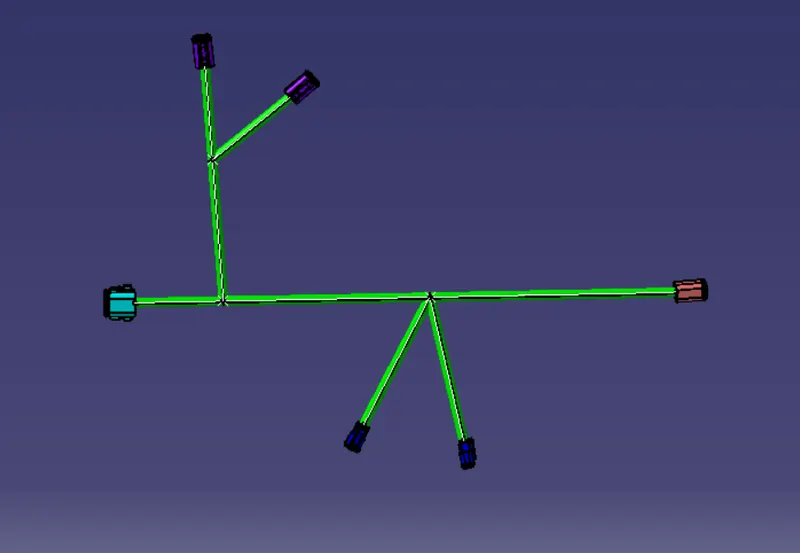
- To protection the wiring harness of the bundle corrugated tube is used.
- To place the corrugated tube protection covering command is used.
- Pick the suitable corrugated tube in the wiring harness bundle.
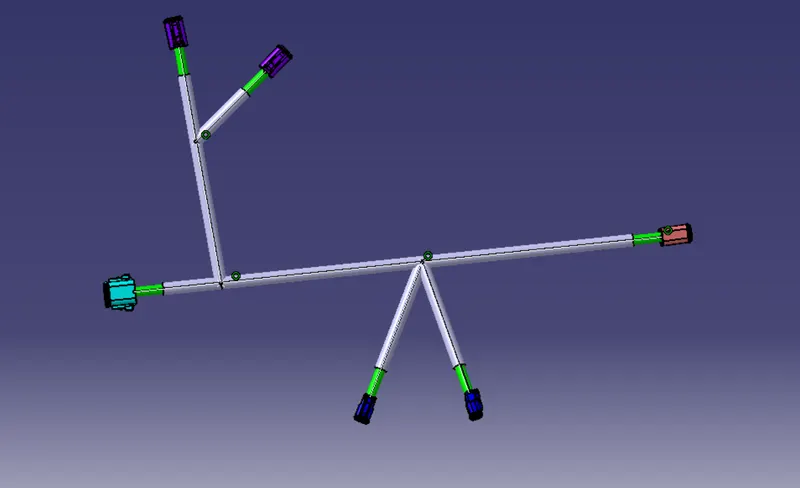
PREPARATION FLATTENING:
- After created the wiring harness bundle then create a new product file switch to electrical harness flattening workbench.
- Extract the wiring harness bundle before created.
- Then set the parameter of flattening the wiring bundle.
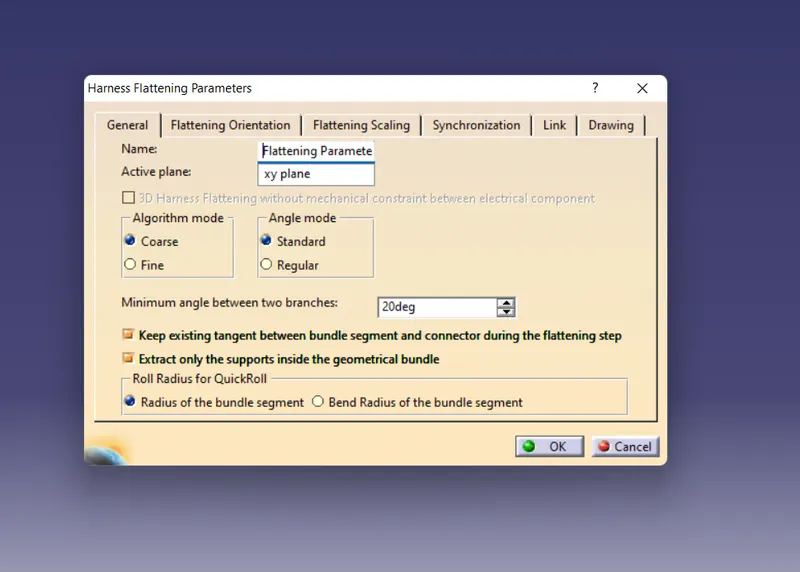
- In dialog box can change the name of the parameter and then select the active plane which side to projected the wiring harness bundle.
- After set the all parameter then give ok.

- After set the parameter now its ready to flattening the wiring bundle in tree structure flattening parameters has been highlighted.
- To flatten the bundle use flatten command.
- Select the flatten obtion then select the active plane which place to projected the wiring bundle.
- whether can use rotate and roll the bundle to which has required.
PREPARATION OF DRAWING SHEET:
- After the flattening bundle can ready for drafting the bundle.
- Create the drawing workbench and select the sheet and position to the sheet.
- Then import the drawing with help of front view command.
- select the wiring the bundle which side to concided has the front view.
CONCLUSION:
Routed the wiring harness following the given layout using electrical assembly workbench then flattening the wiring bundle and created the drawing sheet.