Wiring harness design in CATIA V5 - 3D modeling Week 5 & 6 Challenge
procedure to check bundle continuity.
- press control plus then one pop up will come.
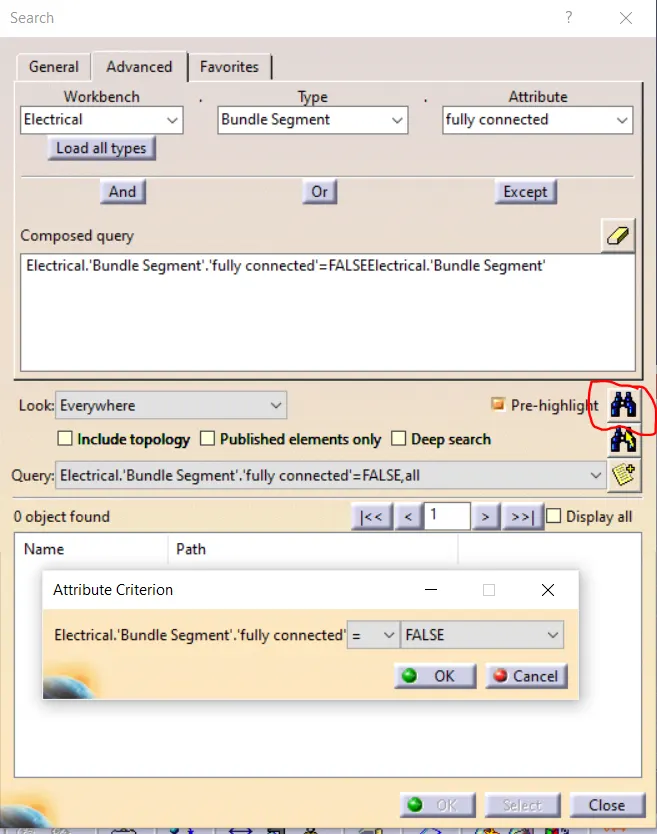
- In this select go to advanced then select workbench electrical ,type bundle segement, and attribute fully connected.
- Then attribute criterion select false and select ok.
- Then click on red colour highlight part to see any branch is disconnnected or not.
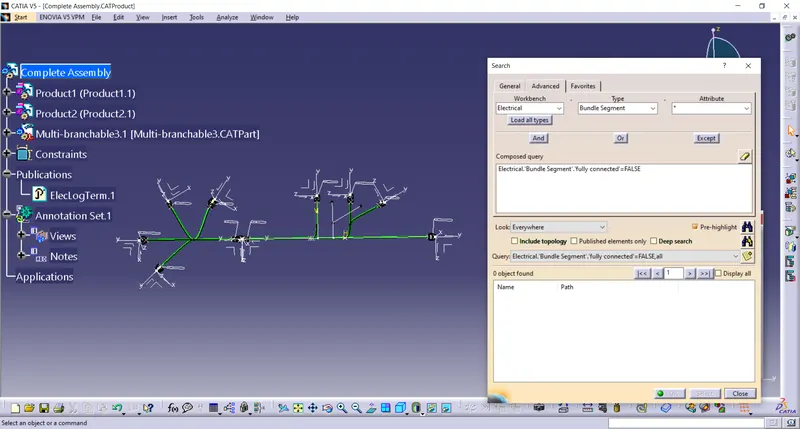
- Result shows all branches are fully connected.
procedure to add annotation.
- switch to the assembly design work bench.
- Make sure geometrical budle is active.
- Select front view annotation plane icon.
- Select a plane to wish to use .
- select the flag note witha lader icon.
- slect the reference point on the part you wish to add annotation to.
- input connector function (unit name ) in name definition.
- select ok
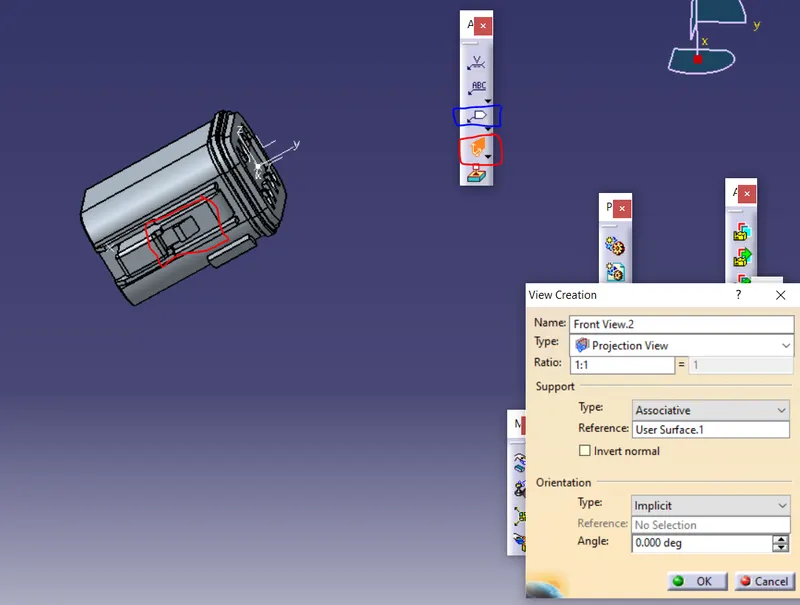
- In red colour right side top is front view annotation plane icon.
- On the part the red colour surface is selected.
- Then sin black colour the flag note witha ladder icon.
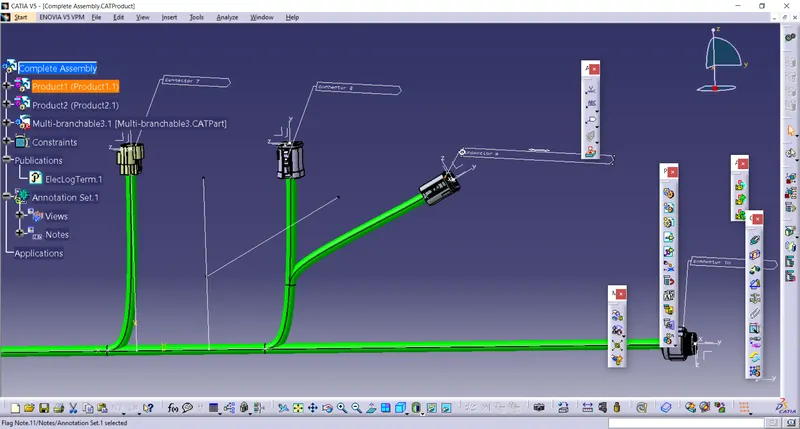
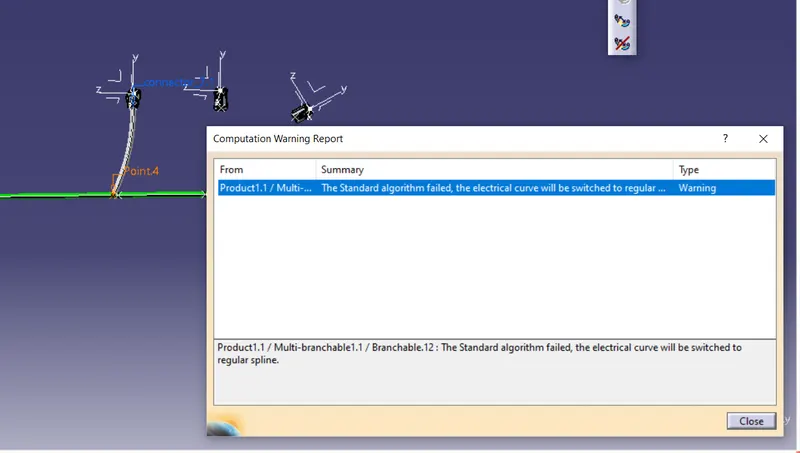
Bundle warning
To generate cat file of product.
- First go to mechanical assembly design then go to tools.
- in that you get option called genrate cat file. select on that anf give a name to the file.