Wiring harness design in CATIA V5 - 3D modeling Week 2 Challenge
Q1. Download following connectors & Connector clip cad data from given link & define it as Electrical Connector using Electrical Part design Workbench. Define all the necessary properties to Connectors & Clip.
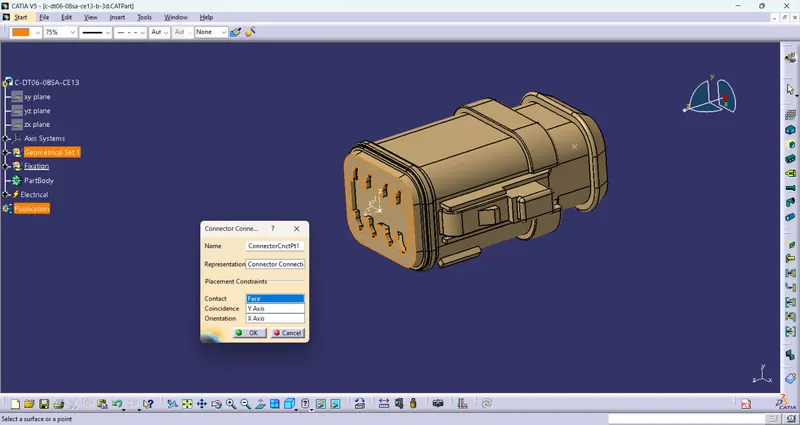
1. Deutsch DT06 – 08SA
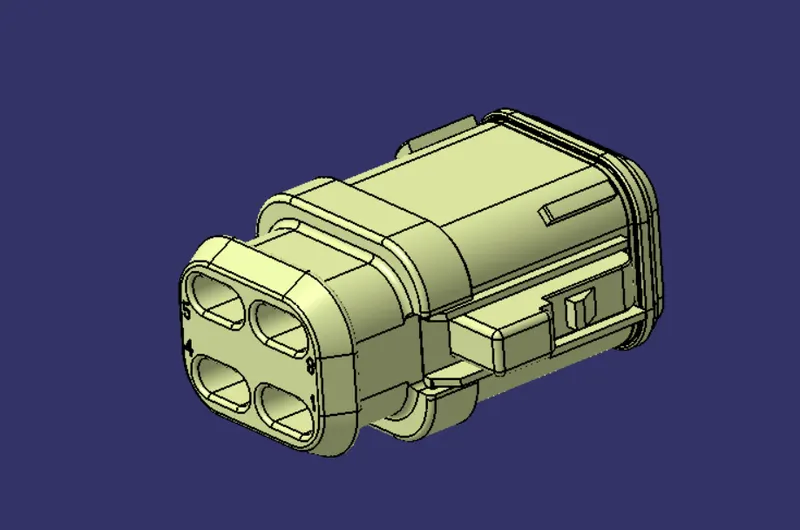
Process for defining for the Electrical Connector using Electrical Part design Workbench
- After download the connector, Create a point Bundle entry point on middle of one face of the connector and other point Connector connecting point on the middle of the another face of connector in Part design WB.
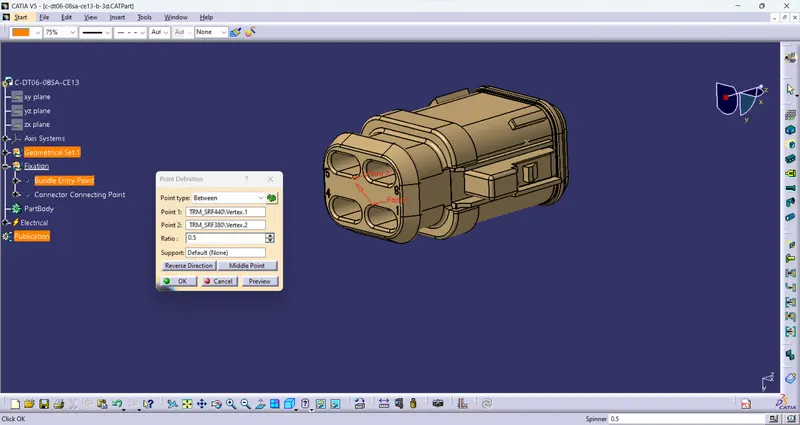
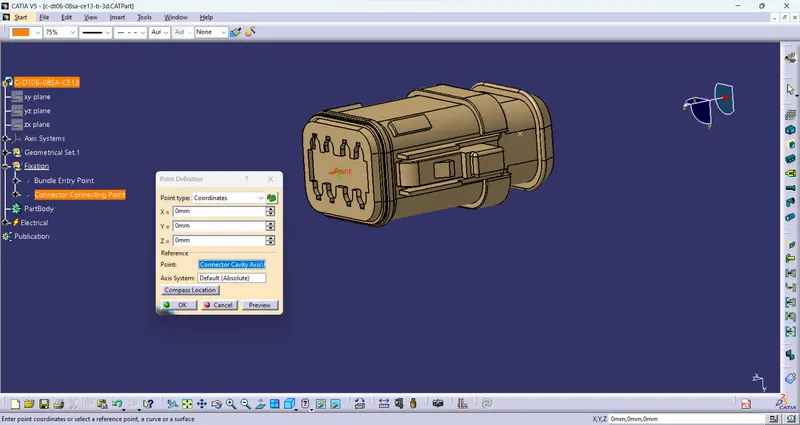
- Create axis system on the connector connection point in same WB.
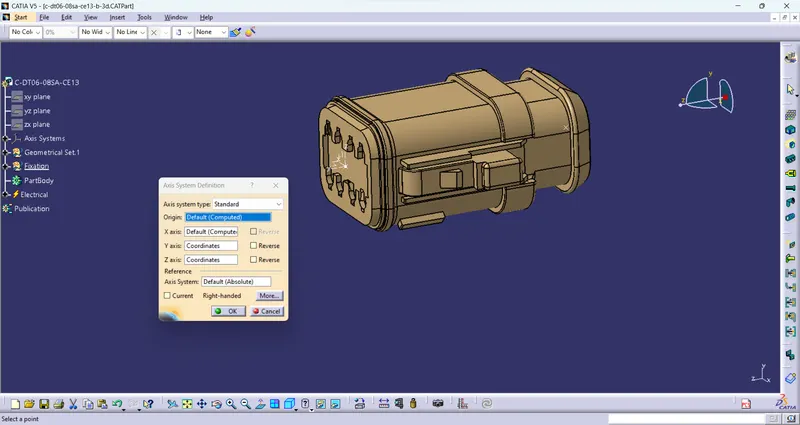
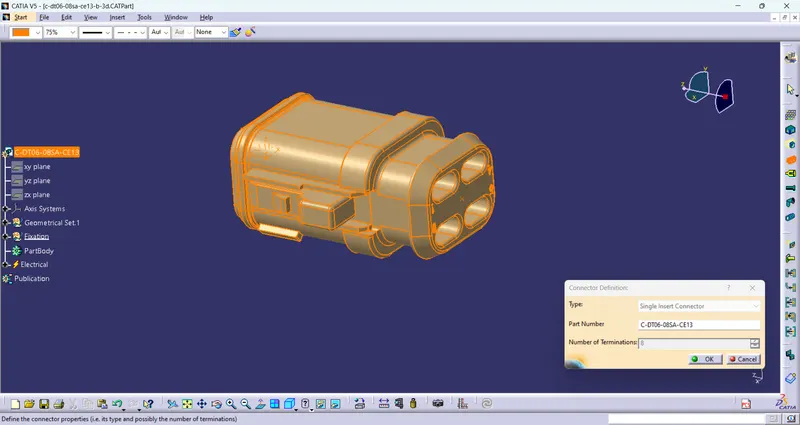
- Define the part as a connector by using Electrical part design WB.
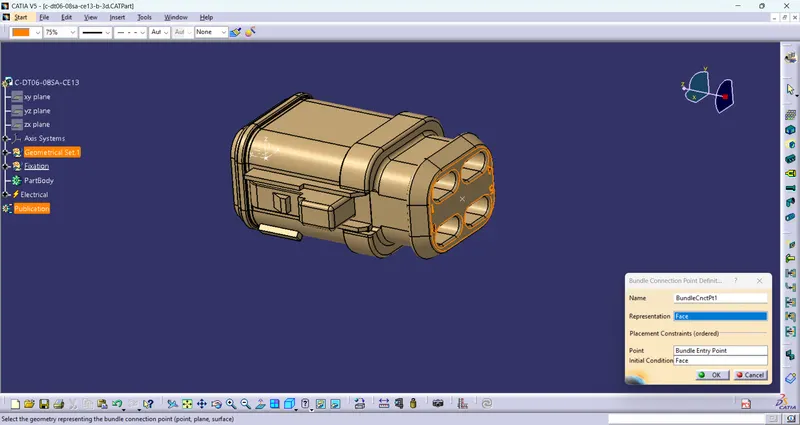
- Now define the bundle connection point and connector connecting point in same WB.
2. Tyco 174357-2
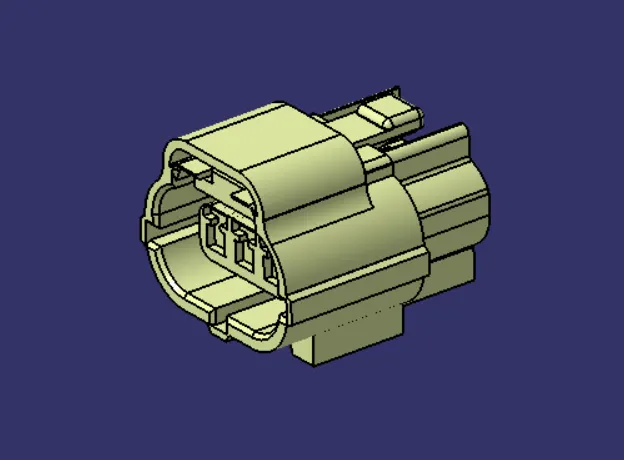
Repeat the same process for defining for the another Electrical Connector using Electrical Part design Workbench
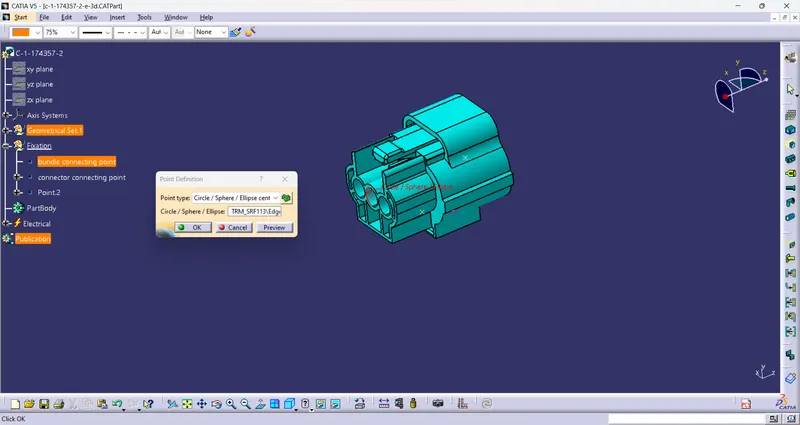
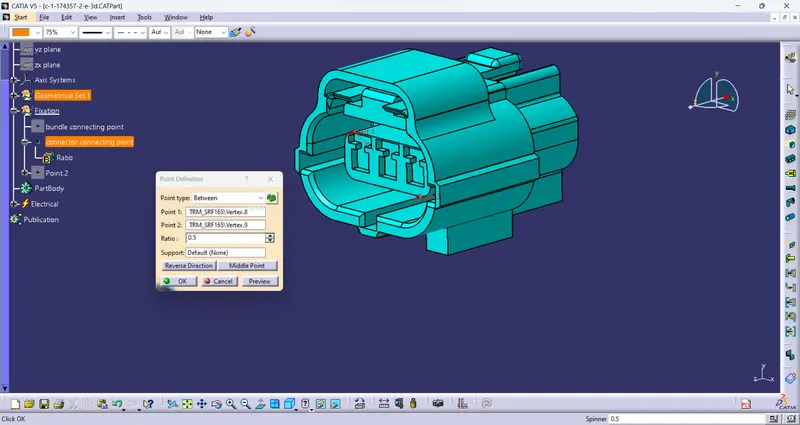
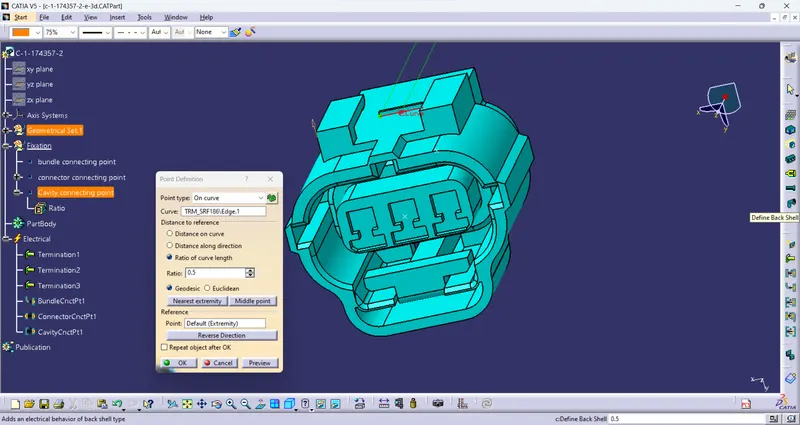
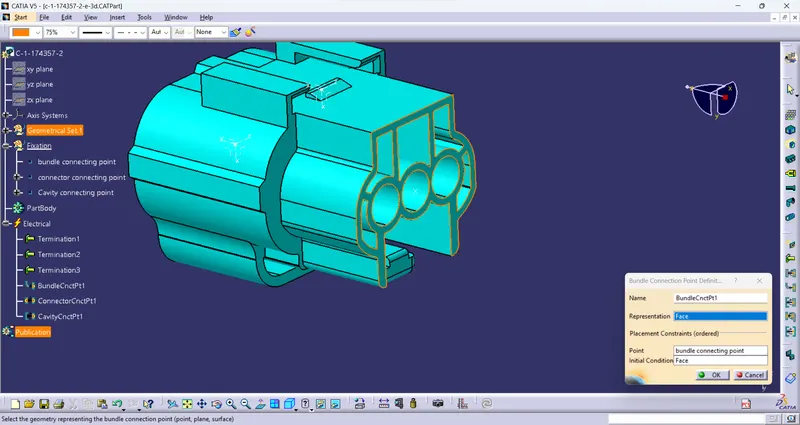
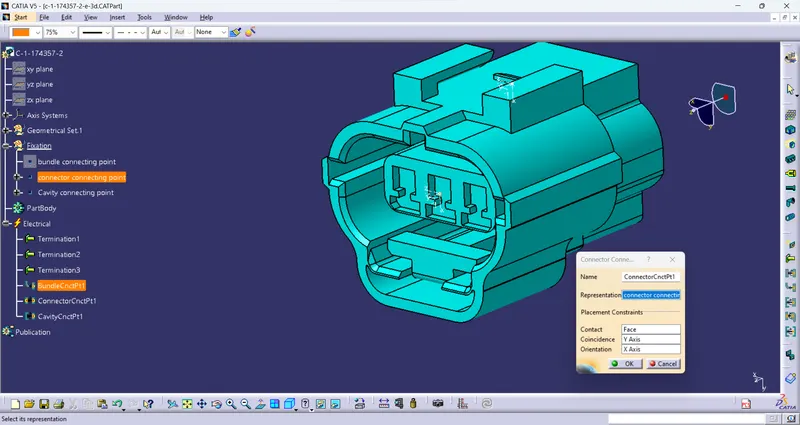
- After download the connector, Create a point Bundle entry point on middle of one face of the connector and a point Connector connecting point on the middle of the another face of connector in Part design WB.
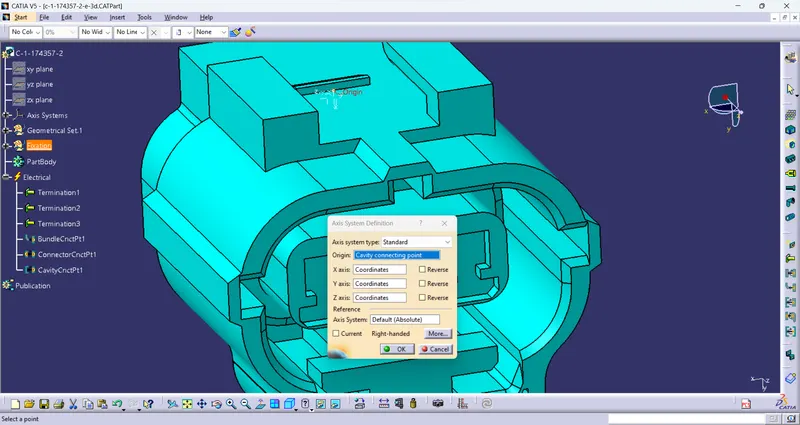
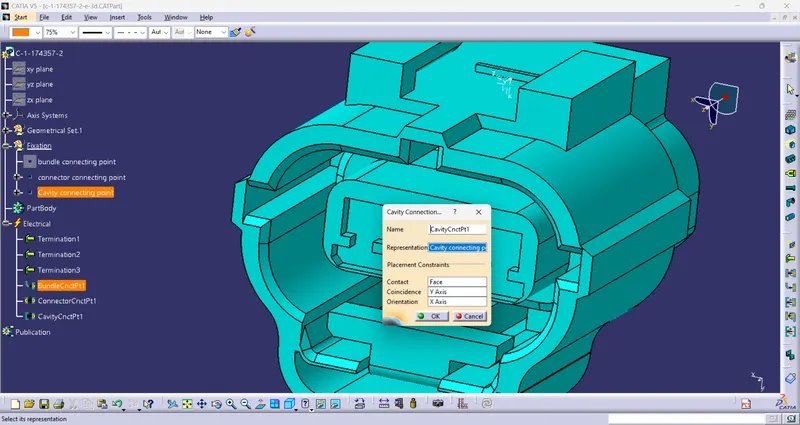
- and also create another point for cavity connecting point.
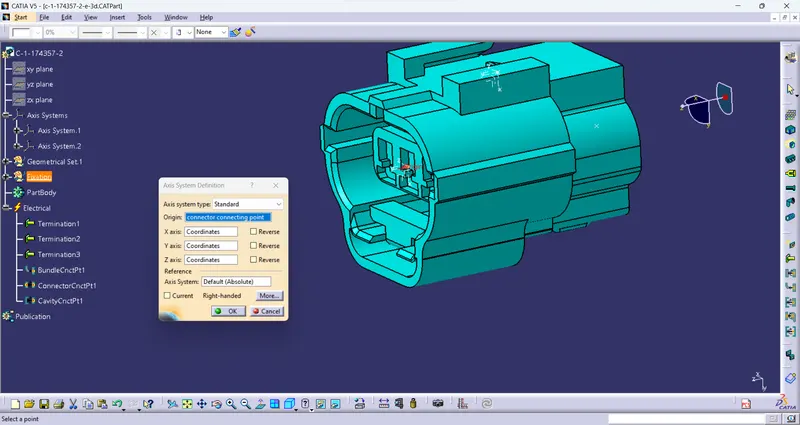
- Create axis system on the connector connection point in same WB.
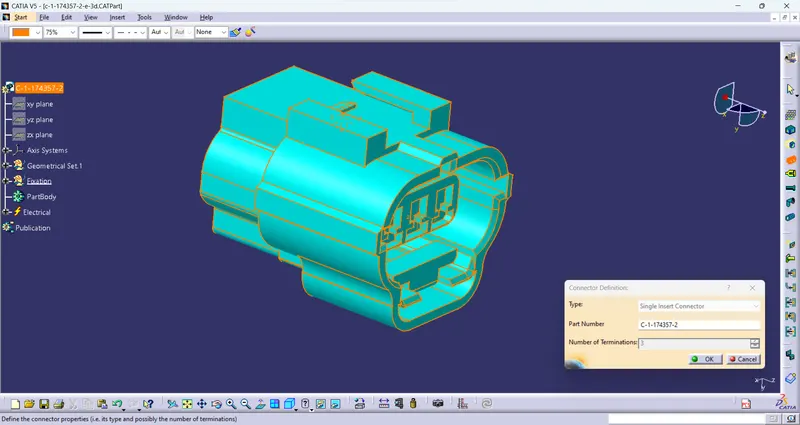
- Define the part as a connector by using Electrical part design WB.
- Now define the bundle connection point and connector connecting point in same WB.
3. Tyco 85229-1
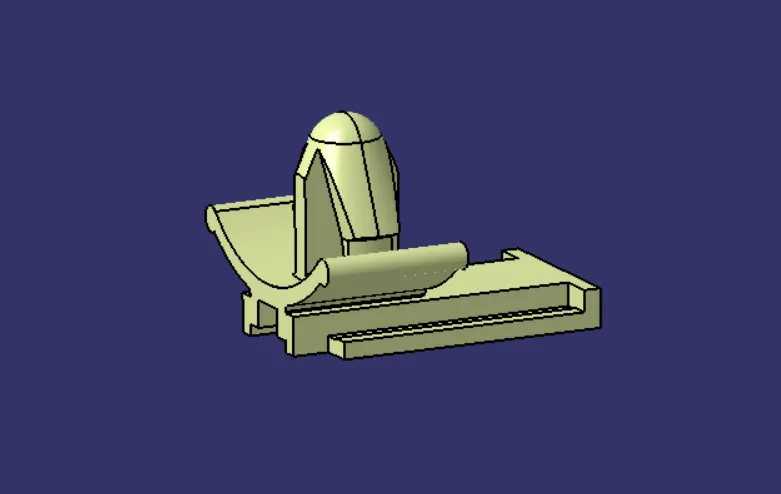
Process for defining for the Connector Clip using Electrical Part design Workbench
- Create a point for Cavity connecting point.
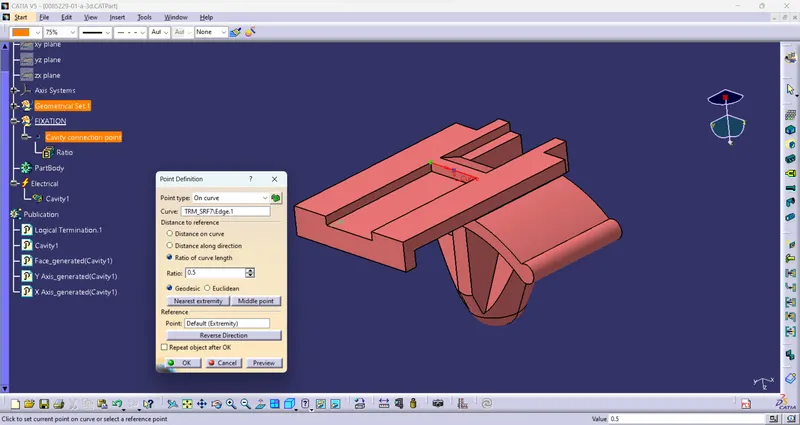
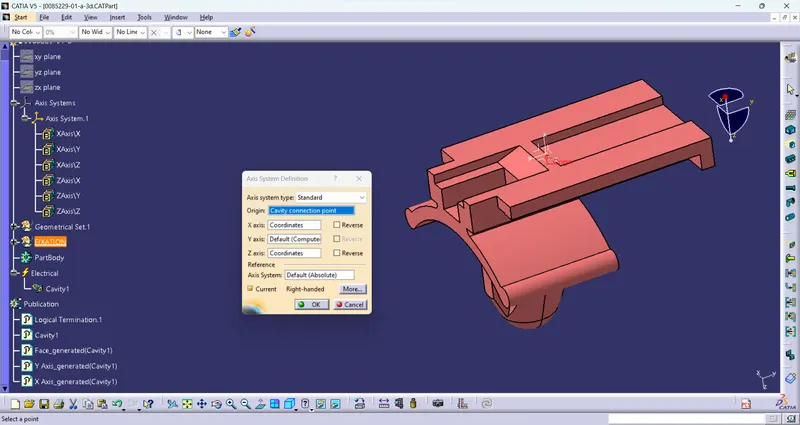
- Create axis system at the cavity connecting point.
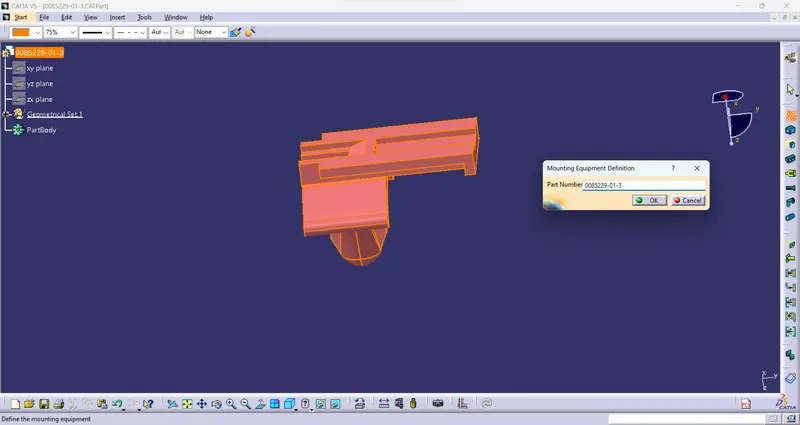
- Now define the part as Mounting equipment.
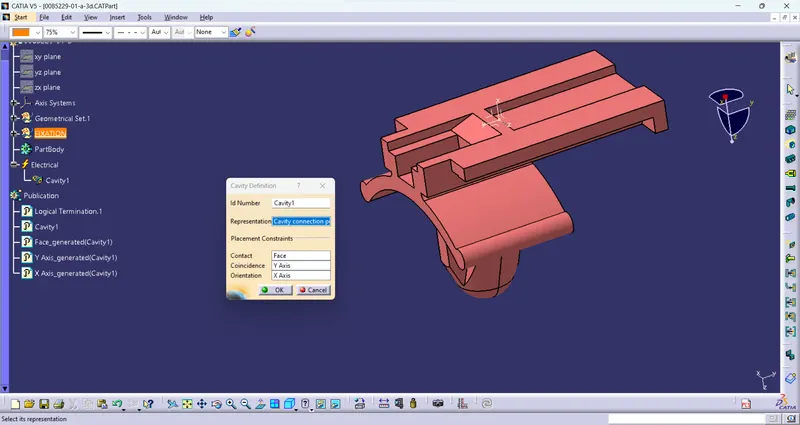
- Define the cavity connection point.
Procedure to create Catalogue of the Components like connector
- First open new file.
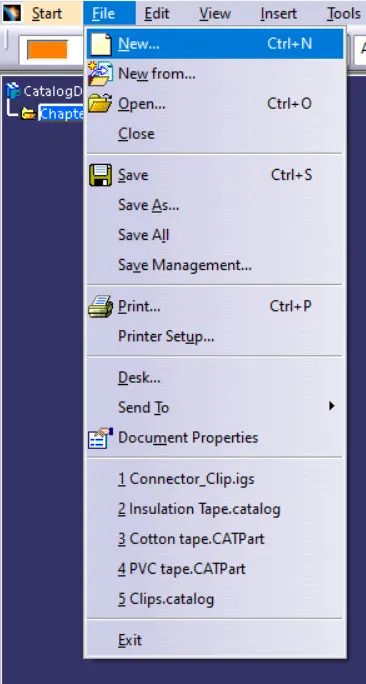
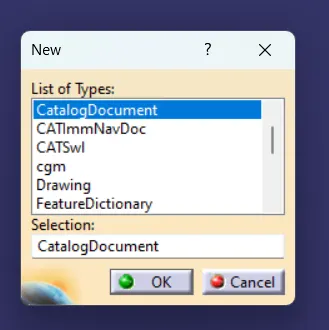
- Then, click on CatalogDocument
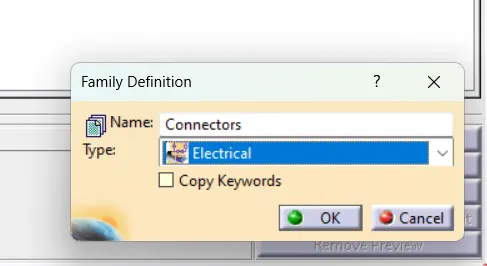
- After family defination window pop-up, where add the Name and Type of the compenent.
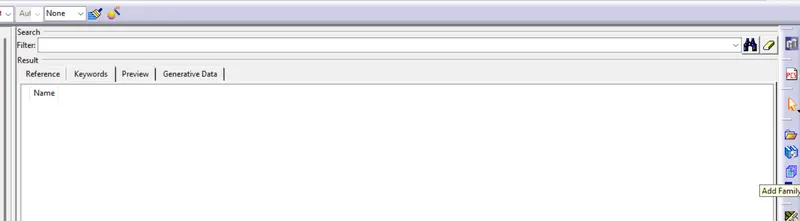
- Then, add the family for the connnector and click save.
- Now save as window popup on screen to select the location for the connector catalog and save it.
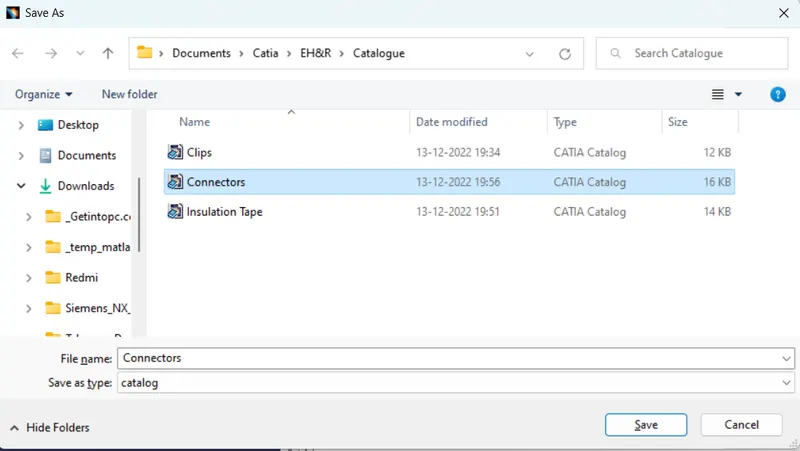
Now to add the connector in the create catalogue.
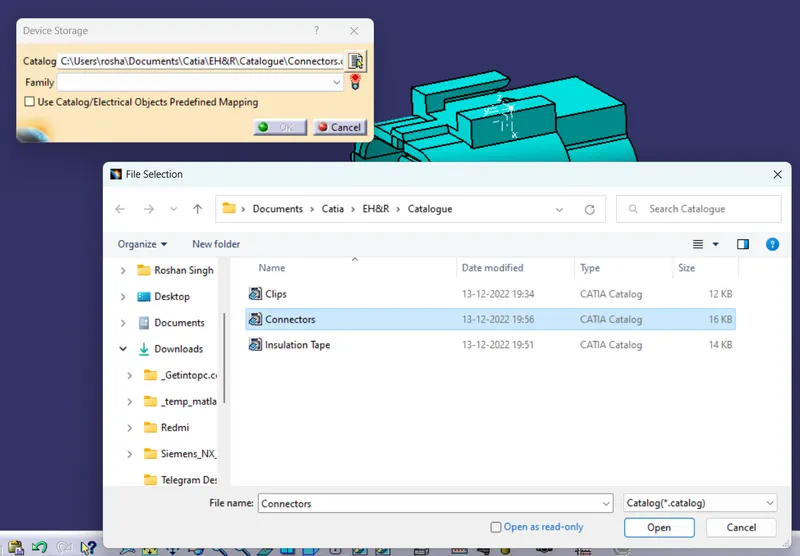
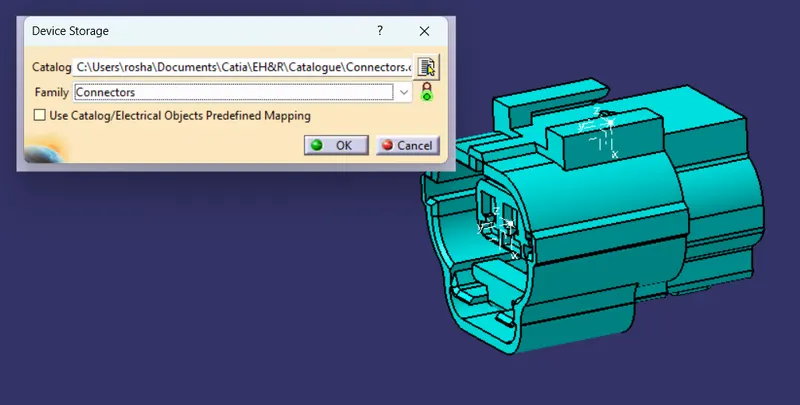
- Open the connector in Electrical Part design WB and click on store device.
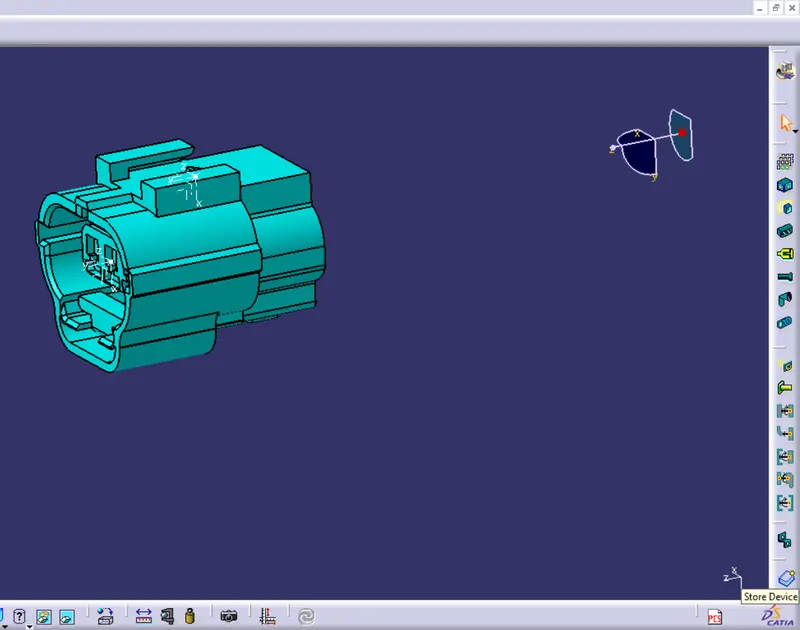
- Now Device storage window popup on screen, where choose the created catalog folder and select the family of the connector and the click ok.