Week 9-Creation of 1D Connectors Challenge
For this challenge, you will have to mesh the given geometry. Provided below are the quality parameters that you have to follow.
Target Element size - 5 Units
|
S.N |
Quality Criteria |
Value |
|
1 |
Aspect Ratio |
5 |
|
2 |
Skewness |
45 |
|
3 |
Warping |
15 |
|
4 |
Taper |
0.5 |
|
5 |
Min. Length |
2 Units |
|
6 |
Max. Length |
8 Units |
|
7 |
Min angle Quad |
45 |
|
8 |
Max angle Quad |
135 |
|
9 |
Min angle Tria |
30 |
|
10 |
Max angle Tria |
110 |
|
10 |
Tria % |
15 |
Create connector and Attach the various parts of the given model
- Right_Rail_2 & Front_truss_1:- Seam-Quad(angled+capped+L)
- Left_Rail_2 & Front_truss_1:- Quad elements
- Front_truss_2, Front_truss_1 & Right_Rail_1:- Spot weld with 2 Layers and 5 mm Diameter
- Front_truss_2, Front_truss_1 & Left_Rail_1:- Hexa (Adhesive)
- Rear_truss_2 & Right_Rail_2:- Bolt Connector
- Rear_truss_2 & Left_Rail_2:- Bolt Connector
- Right_Rail_1 & Right_Rail_2:- Spot-weld with Rigid Elements
- Left_Rail_1 & Left_Rail_2:- Spot-weld with Spring Elements
- Rest all the component left Join them with suitable connectors
- Import the .hm model and the connector points in the model tree are hidden while meshing
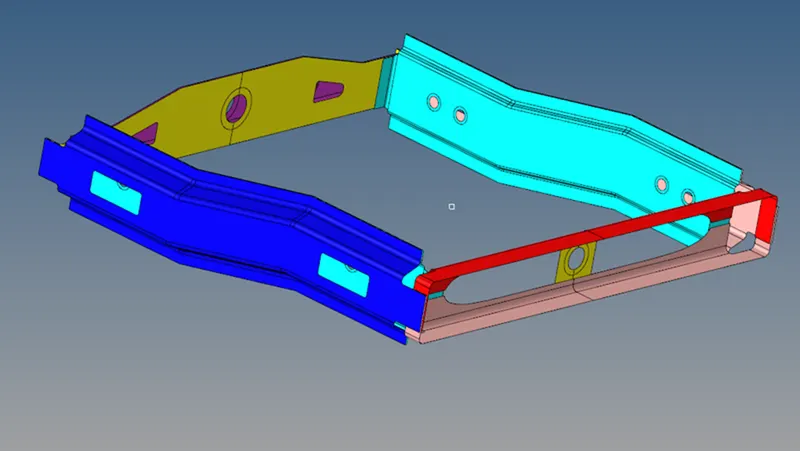
- Each individual component is separated and meshed separately.
- If required, the components can be cleaned for topological errors and defeatured using manual or auto cleanup method.
- To clean geometrical errors: Geom - auto cleanup - set parameters - clean
2D surface Meshing & Mesh refinement
- To generate a shell mesh over each component:
- 2D - auto mesh - surfs (displayed) - target length =5 - specify Elem type and order - mesh
- However to achieve a perfect mesh without quality errors the comp is sectioned into different surfaces using surf trim option and meshed separately.
- Since volume tetras aren't being generated, the surfaces can be meshed with quads majority
l 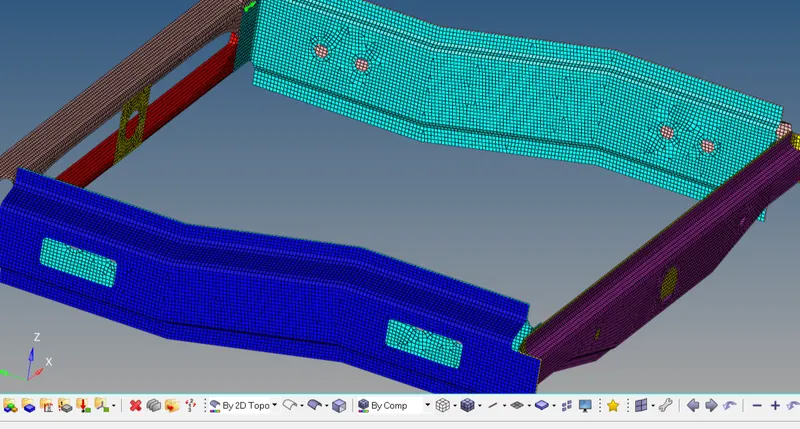
Assigning property card
- A single property and material card is added for every component.
- Assuming every comp has the identical thickness and material, a single card is added to each
- To create a material card: name =steel - type=ISOTROPIC - card=MAT1
- Then the necessary material values like poisons ratio, young's mod etc.. are specified
- Similarly a new property card is created with the PSHELL card image and the above mat card is assigned to it.
- The thickness of the comp are also specified in the property card.
- Each card is assigned the property card which is linked to the material card.
1D Connections
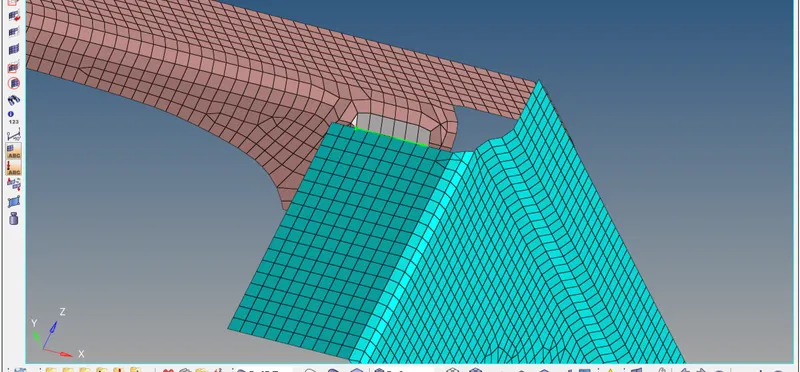
1.Seam-Quad(angled+capped+L)
For: Right_Rail_2 & Front_truss_1
- To create a seam weld: Connectors - seam
- Select the nodes (by path) on one of the component
- tolerance = Specify the search distance (10mm)
- Select the two components and keep the imprint check on
- weld type is set as seam-quad (angled+capped+L)
- The weld angle can be altered but an angle of 60 or 45 is widely preferred based on the alignment of the two components.
- The spacing is set a 5mm. Spacing defines the distance between the two adjacent weld elements
2.Left_Rail_2 & Front_truss_1:- Quad elements
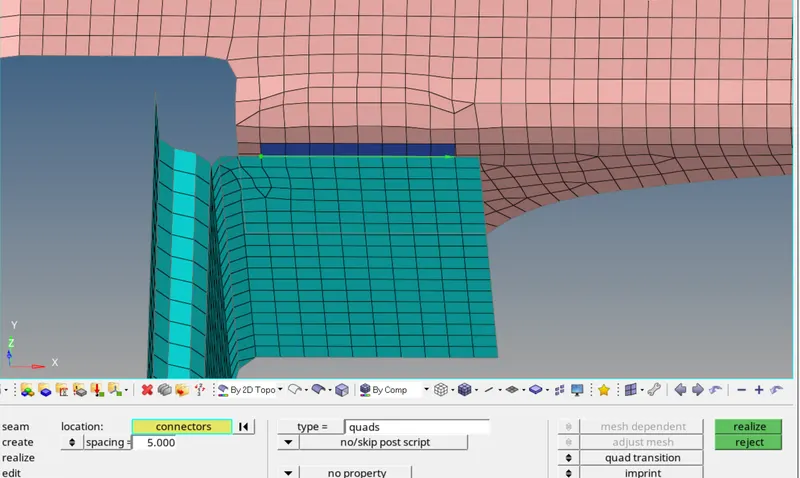
- To create a seam weld: Connectors - seam
- Select the nodes (by path) on one of the components
- tolerance = Specify the search distance (10mm)
- Select the two components and keep the imprint check on
- weld type is set as quad and the spacing (distance between the two adjacent weld elements) is kept as 5mm
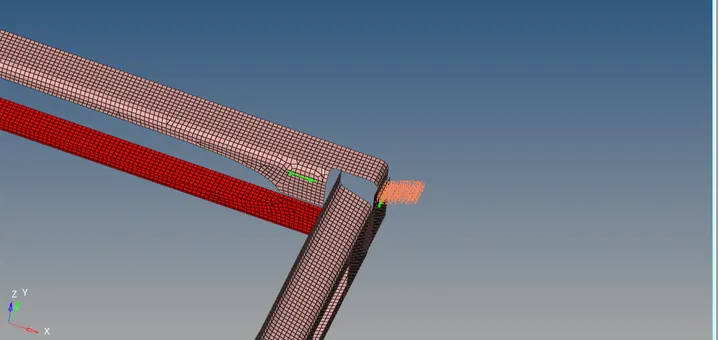
3.Spot weld with 3 Layers and 5 mm Diameter
Front_truss_2, Front_truss_1 & Right_Rail_1
- To create a spot weld: 2D - connectors - spot - type=weld
- Select all the required nodes where the location of the spot weld has to be placed.
- Then select all the 3 components
- Specify a diameter of 5mm and number of layers as 3.
- NOTE: Since the layer is set as 3, a minimum of three components have to be selected and in case only two components are present then the layer has to be set as 2.
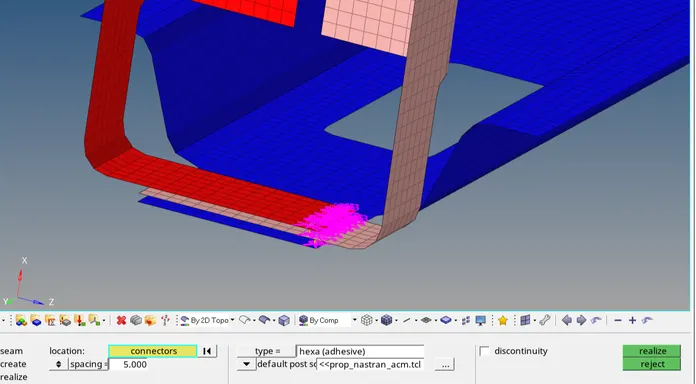
4.Hexa (Adhesive)
For: Front_truss_2, Front_truss_1 & Left_Rail_1
- To create a seam weld: Connectors - seam
- Select the nodes (by path) on one of the component
- tolerance = Specify the search distance (10mm)
- Select the two components and keep the imprint check on
- weld type is set as hexa (adhesive) under the weld type category.
- The strips and coats of the weld can be altered. In this case, the strip is set as 2 and a single coating is specified
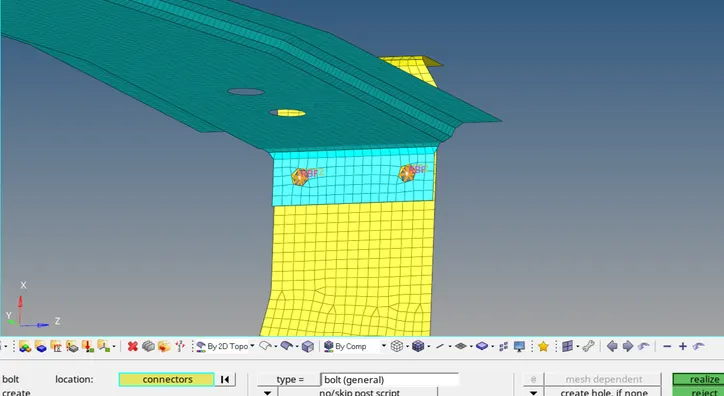
5.Bolt Connector
For: Rear_truss_2 & Right_Rail_2
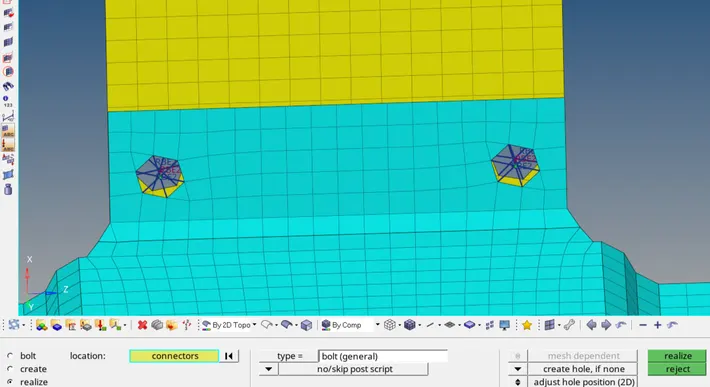
- To create a bolt connector: Connectors - bolt
- Specify the location of the bolt by selecting two single nodes at a certain distance in one of the component since two bolt connectors are being realised.
- Select the two components which has to be fixed by the bolt.
- Select the option to create a hole to define the bolt as a physical element (Note that this will modify and alter the neighbouring mesh )
Specify the search length (about 10mm)
6. For: Rear_truss_2 & Left_Rail_2
7.Spot-weld with Rigid Elements
For: Right_Rail_1 & Right_Rail_2
- As similar to previous spot weld creation, this spot weld is created using rigids instead of weld
- To create a spot weld: 2D - connectors - spot - type=rigids
- Select all the required nodes where the location of the spot weld has to be placed. (by path)
- Then select all the 2 components
- Specify the diameter and number of layers as 2 (since only two components are present)
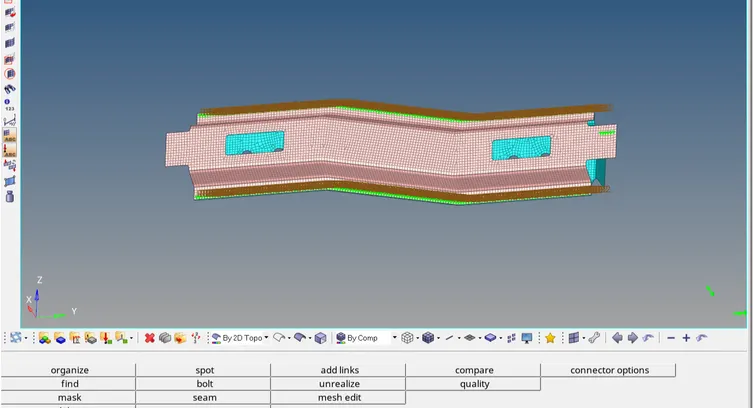
8.Spot-weld with Spring Elements
For: Left_Rail_1 & Left_Rail_2
- Similarly as done for the previous case, here the spot element type is set as spring instead of rigid or weld
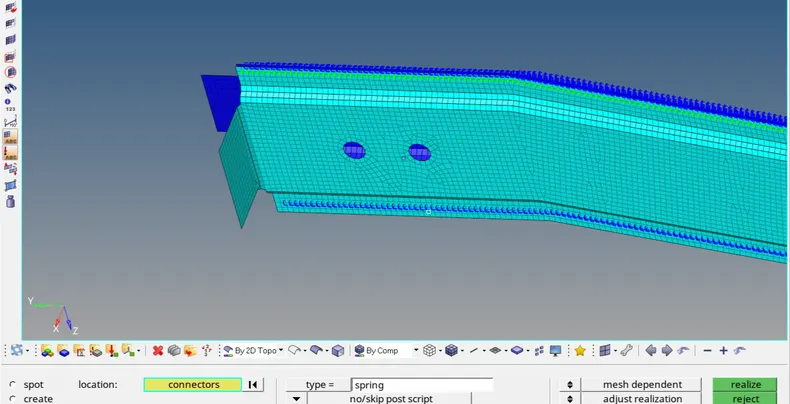
9.For other components
- In case of the shell component with the hole, a adhesive connection is made.
- Adhesives are RBE3 elements that distribute load applied to its master node. Unlike RBE2 elements, RBE3's do not impart infinite stiffness to the component.
- To create adhesives using area connector method:
- 2D - connectors - area - type=adhesive - select elems and components - (optional) specify coat layer - specify search tolerance - create
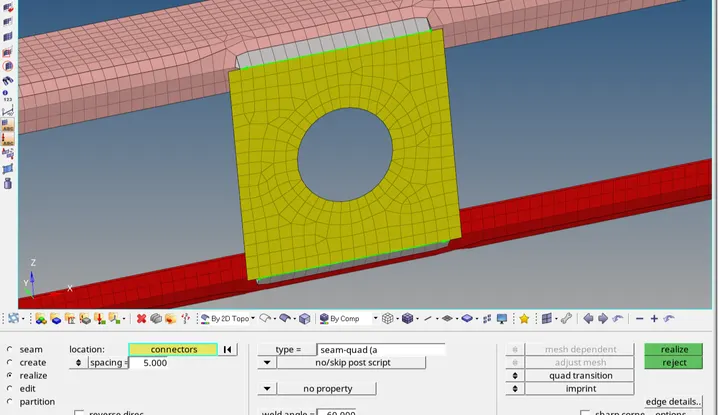
CONCLUSION:
- Hence every components have been meshed and required connections have be defined and successfully realized. Finally the entire connections and meshed components are shown above.