Tertramesh & Volume Tetra
MODEL 1: HOUSING
Aim:
To create Tetramesh (3D meshing) on the given component / model.
Software:
HyperWorks 2020
Procedure:
- Firstly import the CAD geometry in the Hyperworks by selecting file type as ‘STEP.
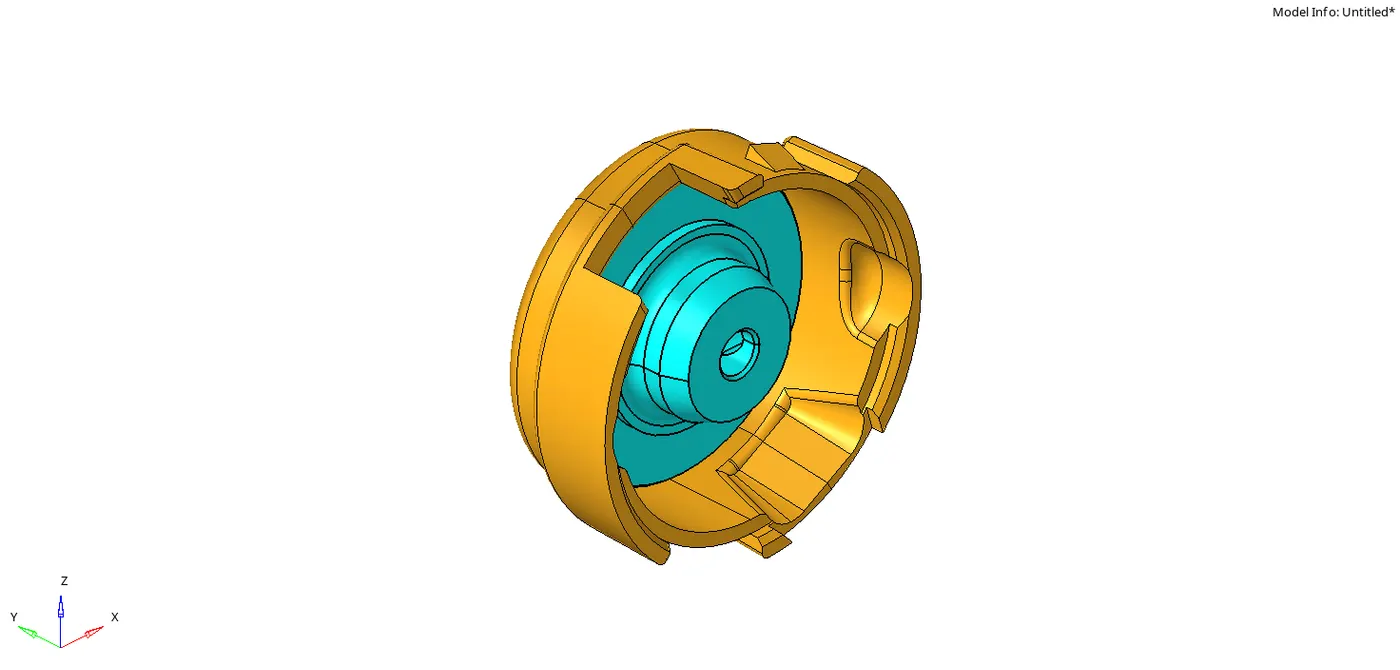
- After importing the model delete the solids.
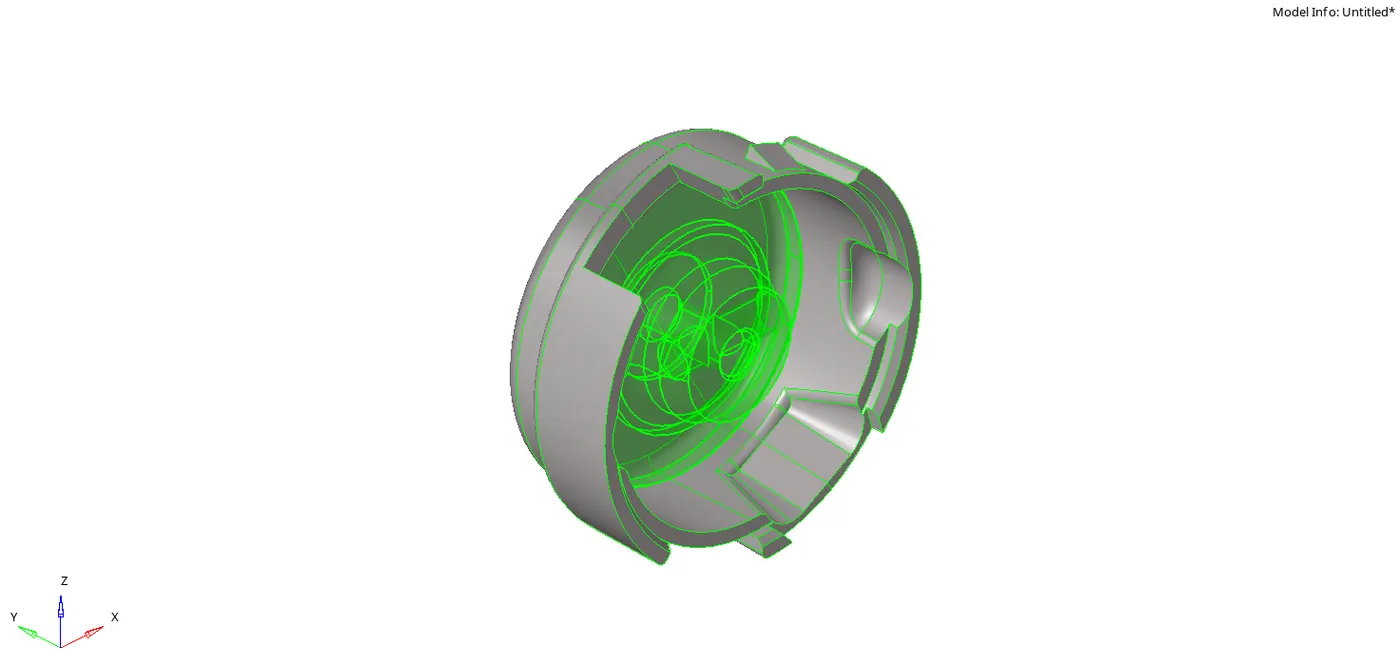
- Now first create the 2D shell elements separately for each component by going to 2D automesh panel and select mesh type as trias and target element size as 5mm.
- If the elements matches the criteria (i.e min size as 2mm and max size as 7mm) then create 3D tetra elements by selecting the 2D shell elements.
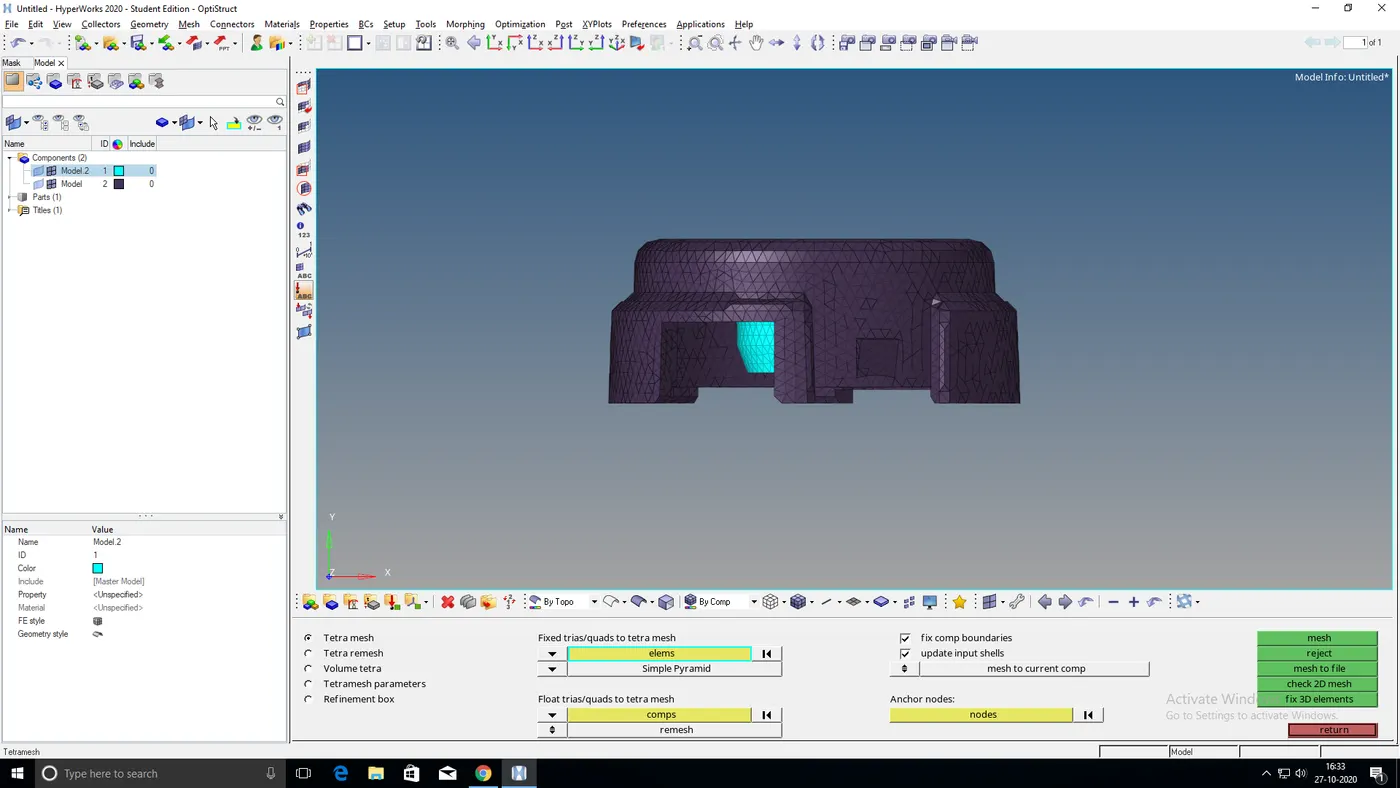
- To create tetramesh, go to 3D > tetramesh > “Tetra mesh” option, select the shell elements and mesh.
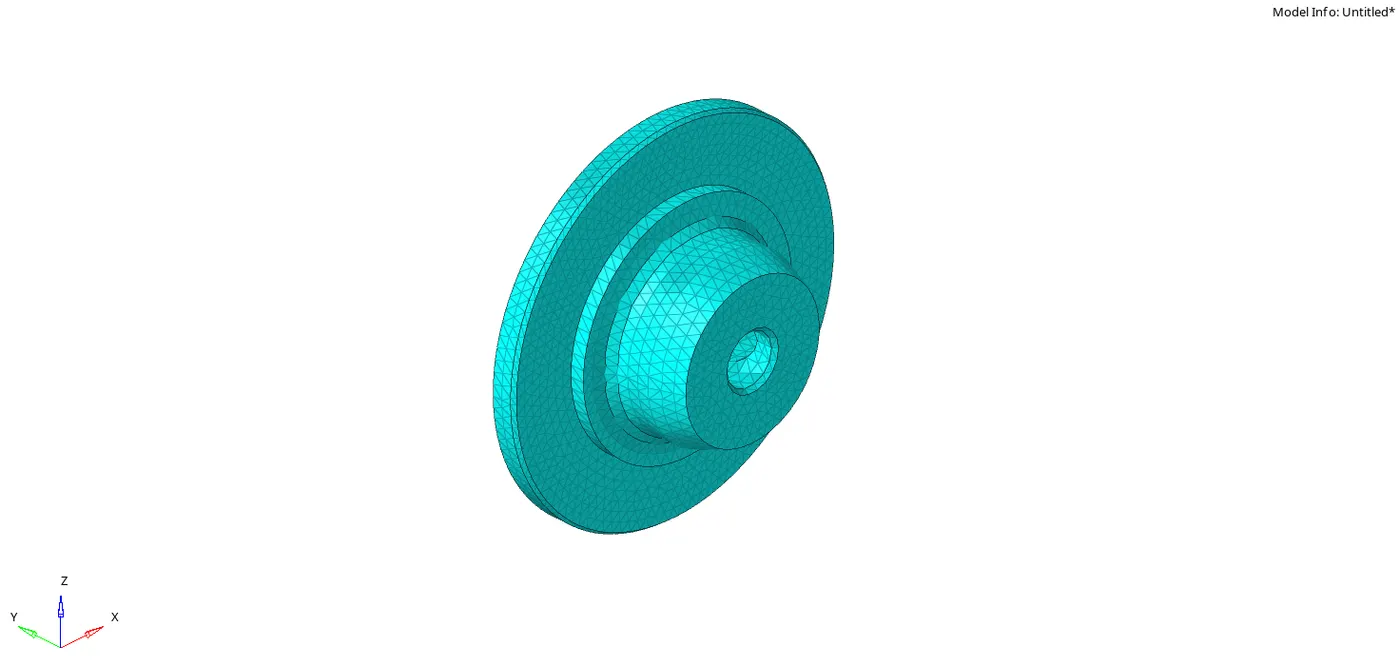
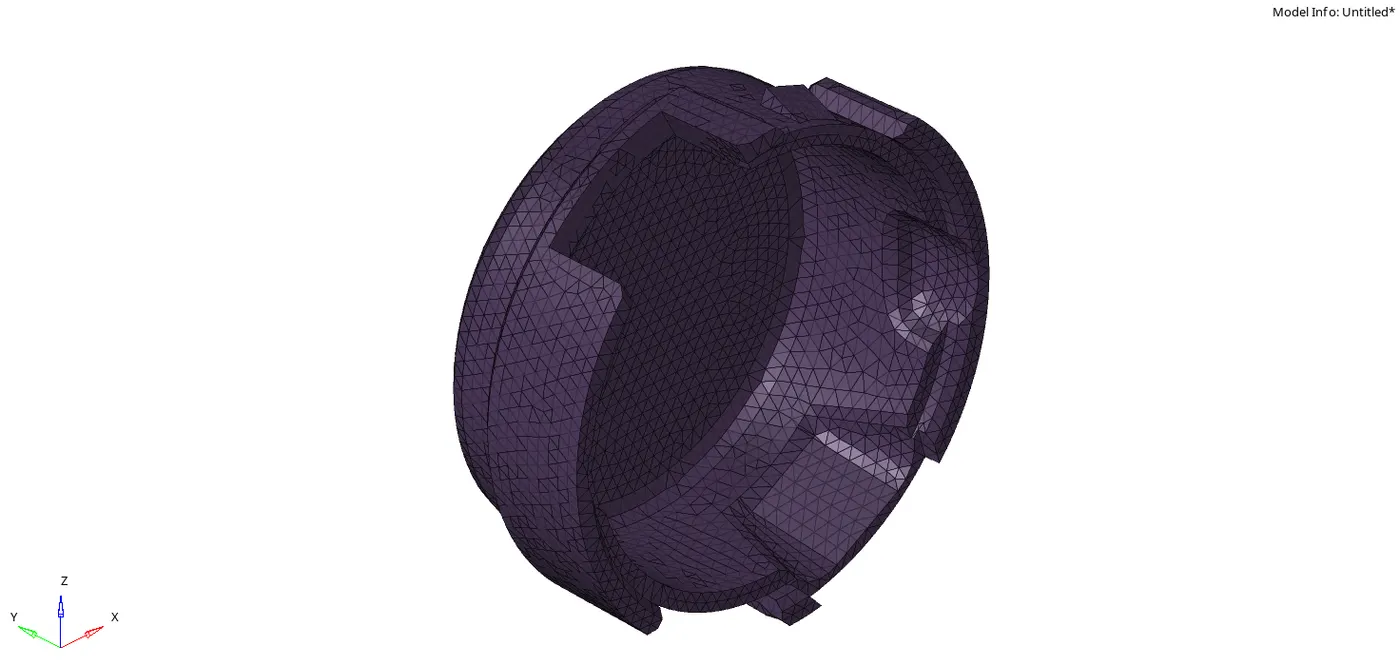
- Now check for the “Tet collapse” by going to “check elements’ under tool option and set the given value as 0.15.
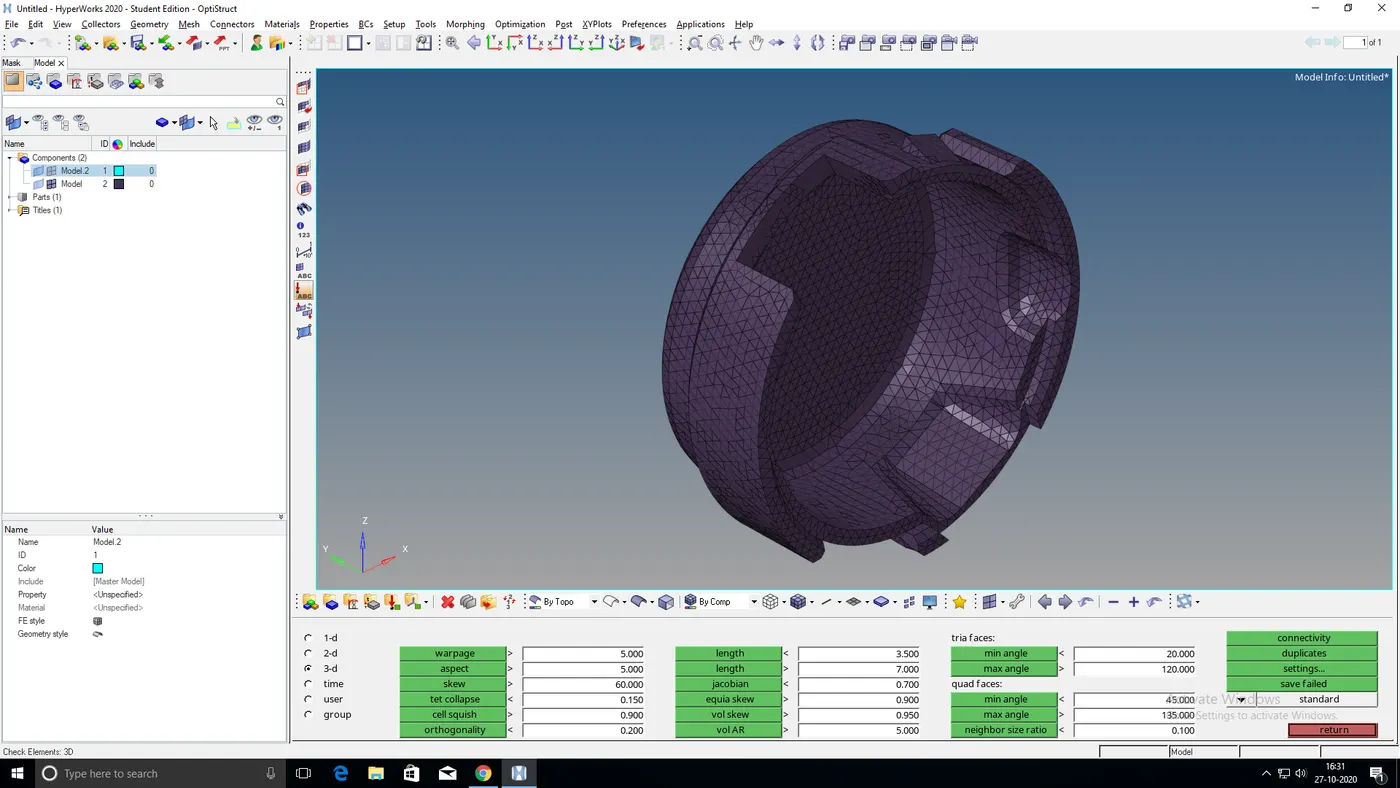
- If any Tet collapse is found then clear the failed elements by remeshing them through “Tetra remesh” option.
- Once meshing is completed save the model in HM format.
Final output:
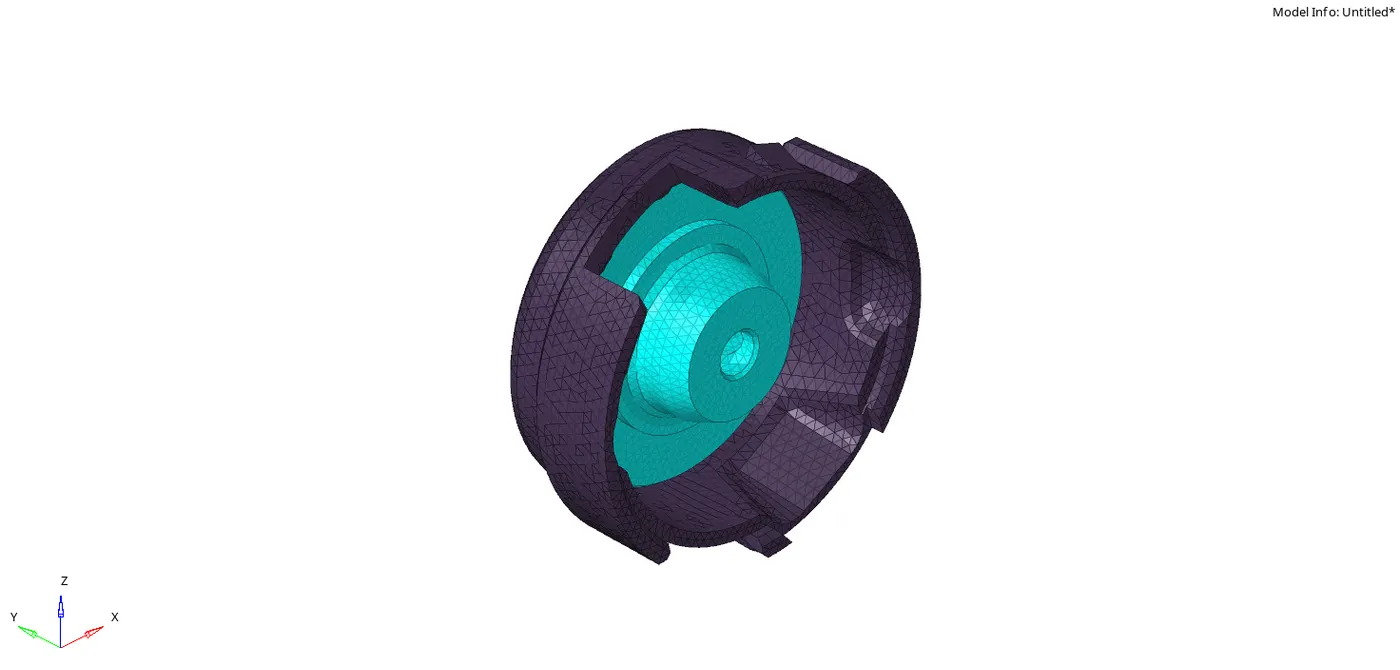
Result:
3D Tetramesh have been successfully generated on the given component and also pass all the given quality
Parameters.
MODEL 2: TETRA MESH
Aim:
To Create 3D mesh with 6mm target size on the given component.
Software:
HyperWorks 2020
Procedure:
- Firstly import the CAD geometry in the Hyperworks by clicking on import model option. The given component is already in HM file.
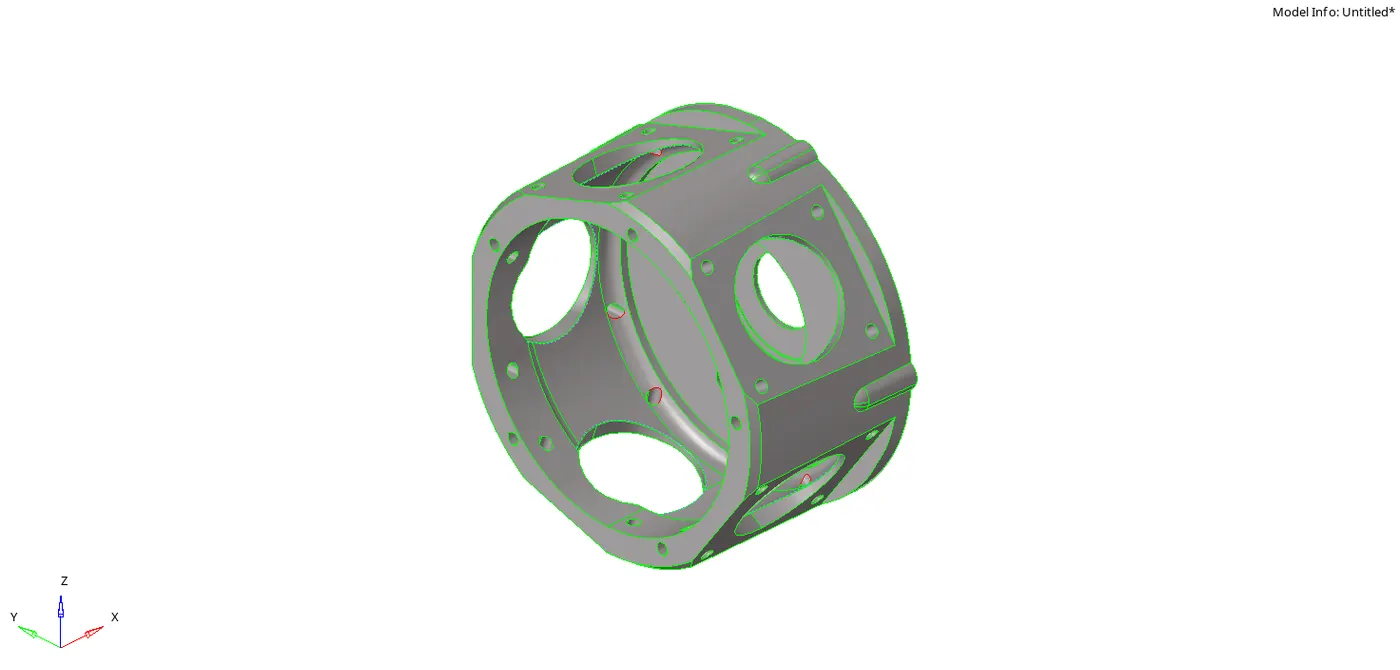
- In this model instead of creating 2D shell elements we can directly create 3D tetra mesh. It can be done by the help of quick tetramesh option.
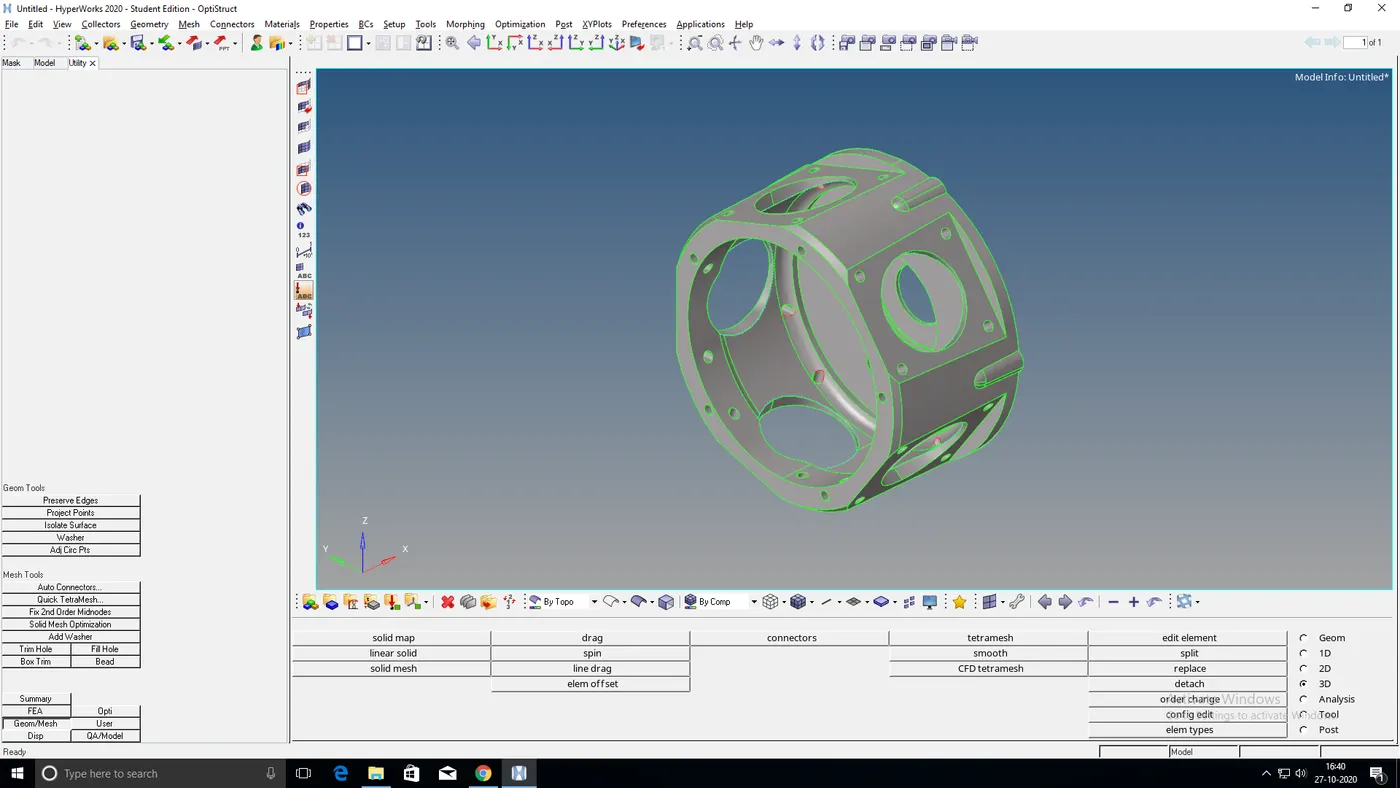
- To perform quick tetramesh first go to “menu bar” > “view” > “Browsers” > “Hypermesh” > “utility” and now select “quick tetramesh” option under “mesh tools”.
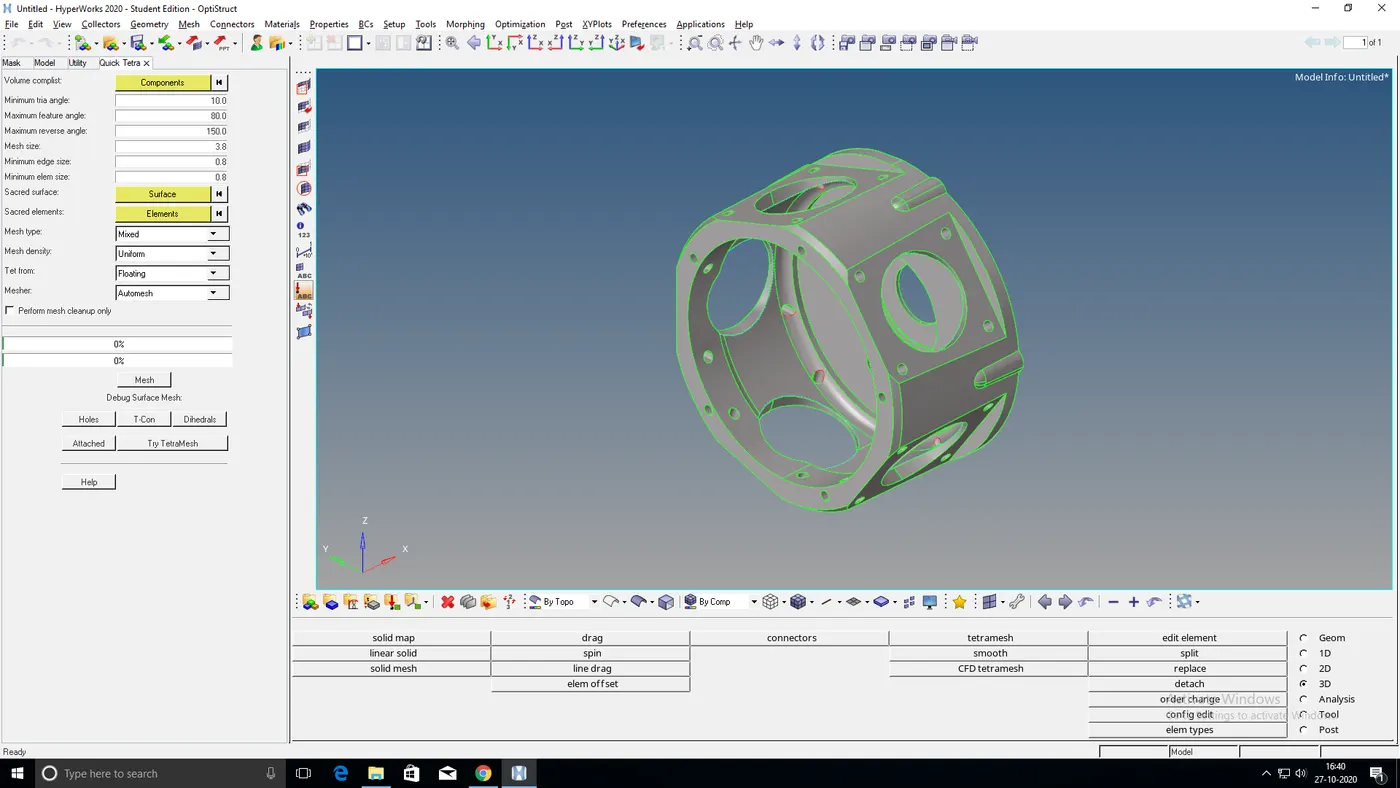
- Give the target element size as 6mm and click on “mesh”.
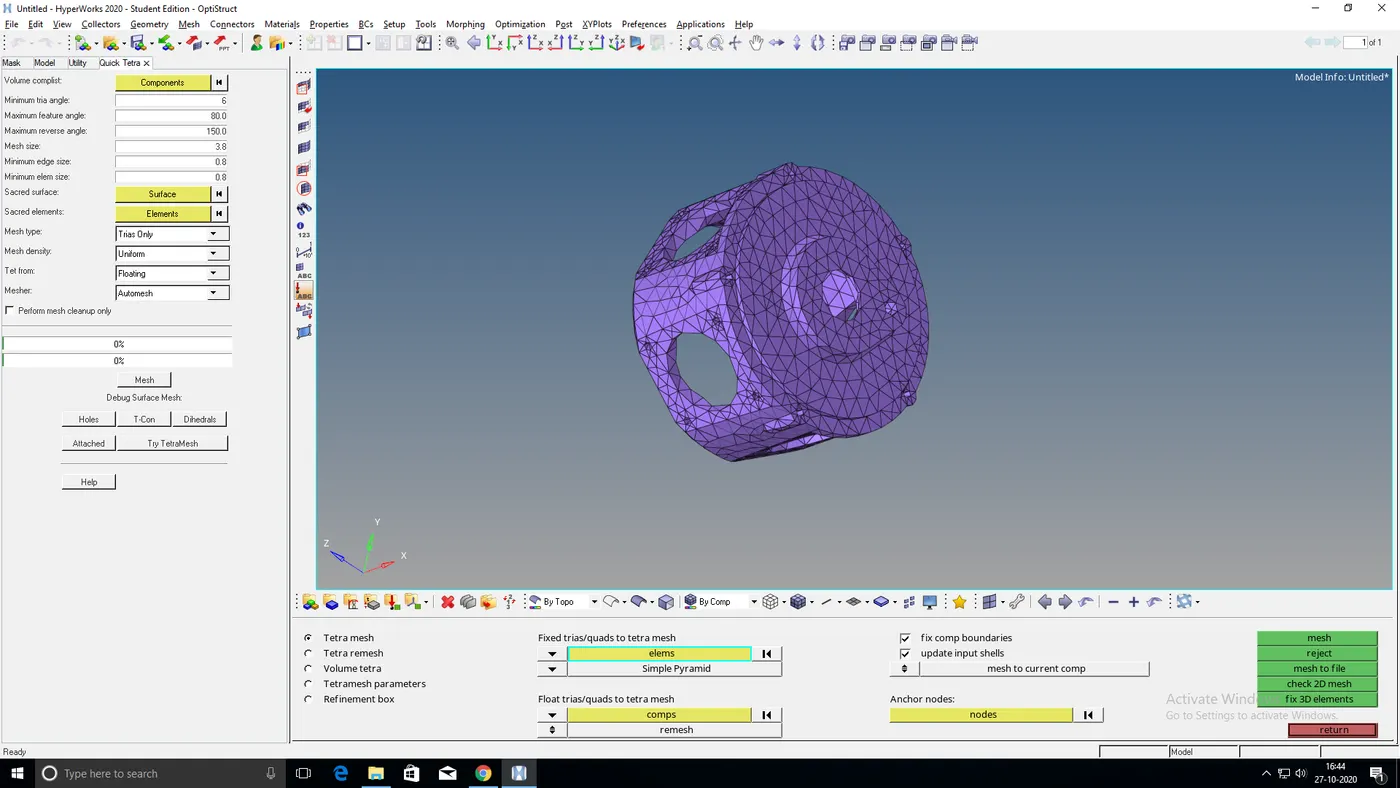
- Check for the “Tet collapse”.If any Tet collapse is found then clear the failed elements by remeshing them through the “Tetra remesh” option.
- Once meshing is completed save the model in HM format.
Final output:
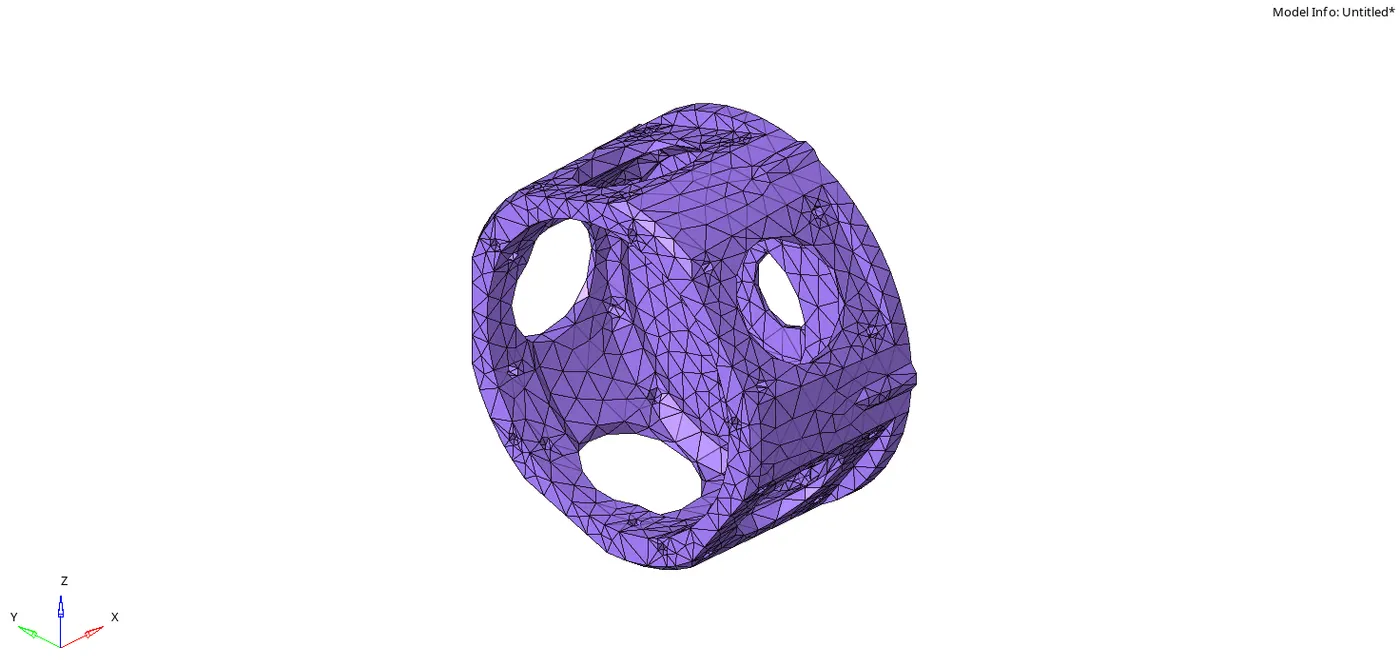
Result:
3D mesh have been successfully generated on the given component with zero failed elements.
MODEL 3: CHASSIS
Aim:
To Create 3D mesh with 6mm target size on the given component.
Software:
HyperWorks 2020
Procedure:
- Firstly import the CAD geometry in the Hyperworks by clicking on import model option. The given component is already in HM file.
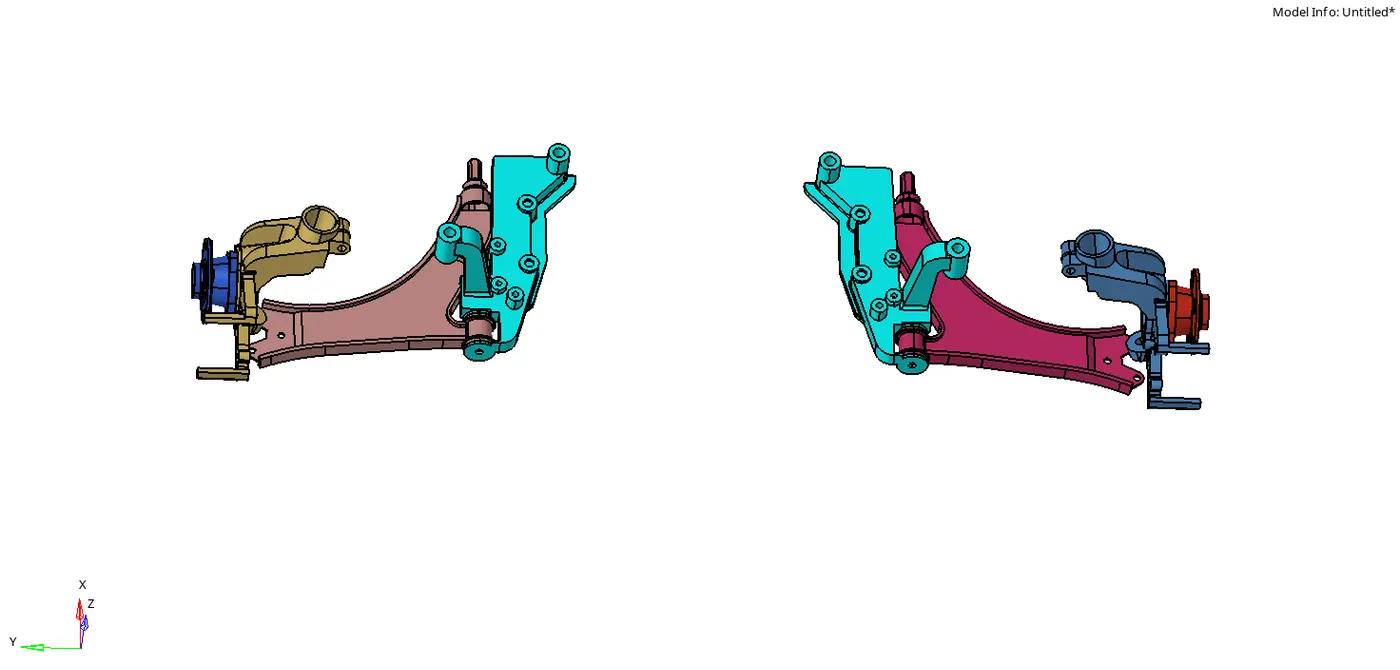
- In this model we need to separate all the components and save it as an individual model.
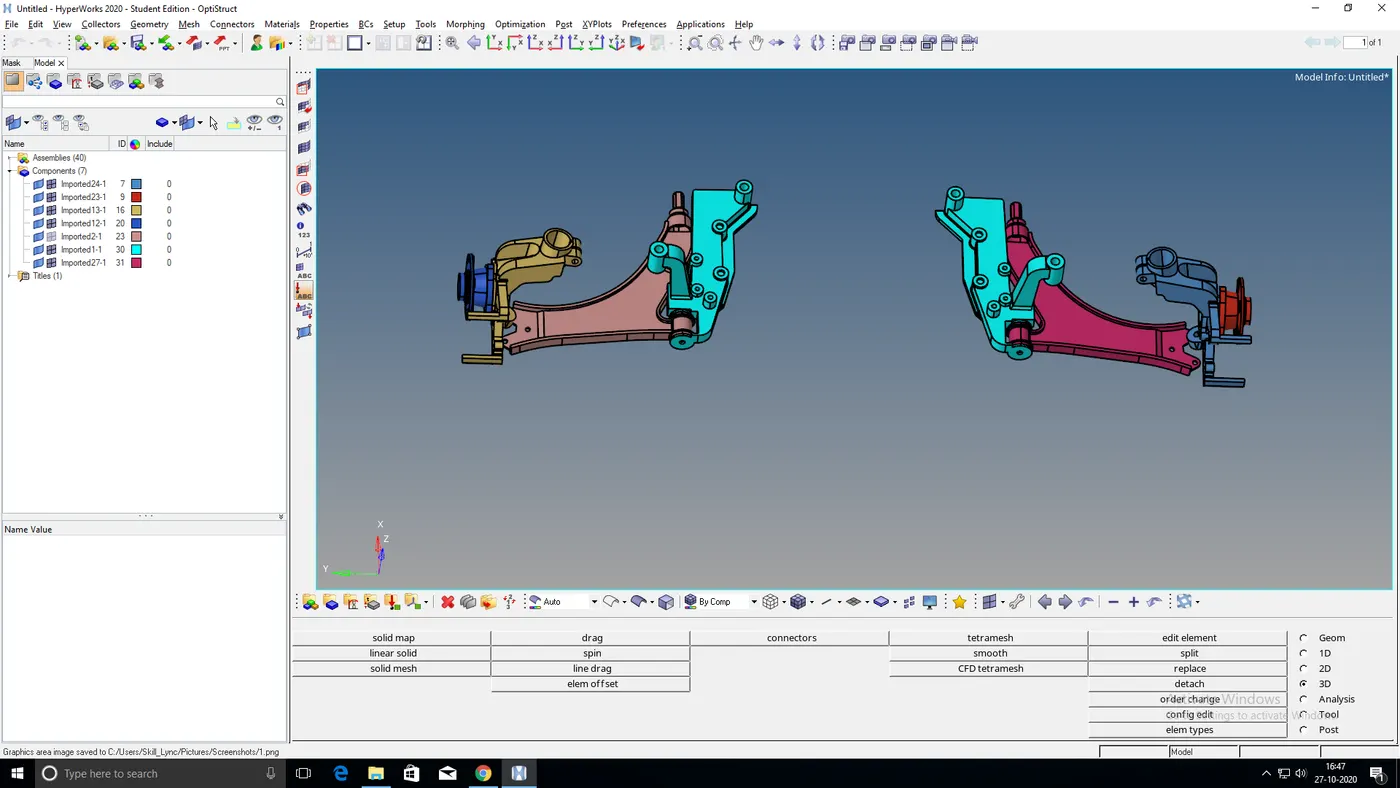
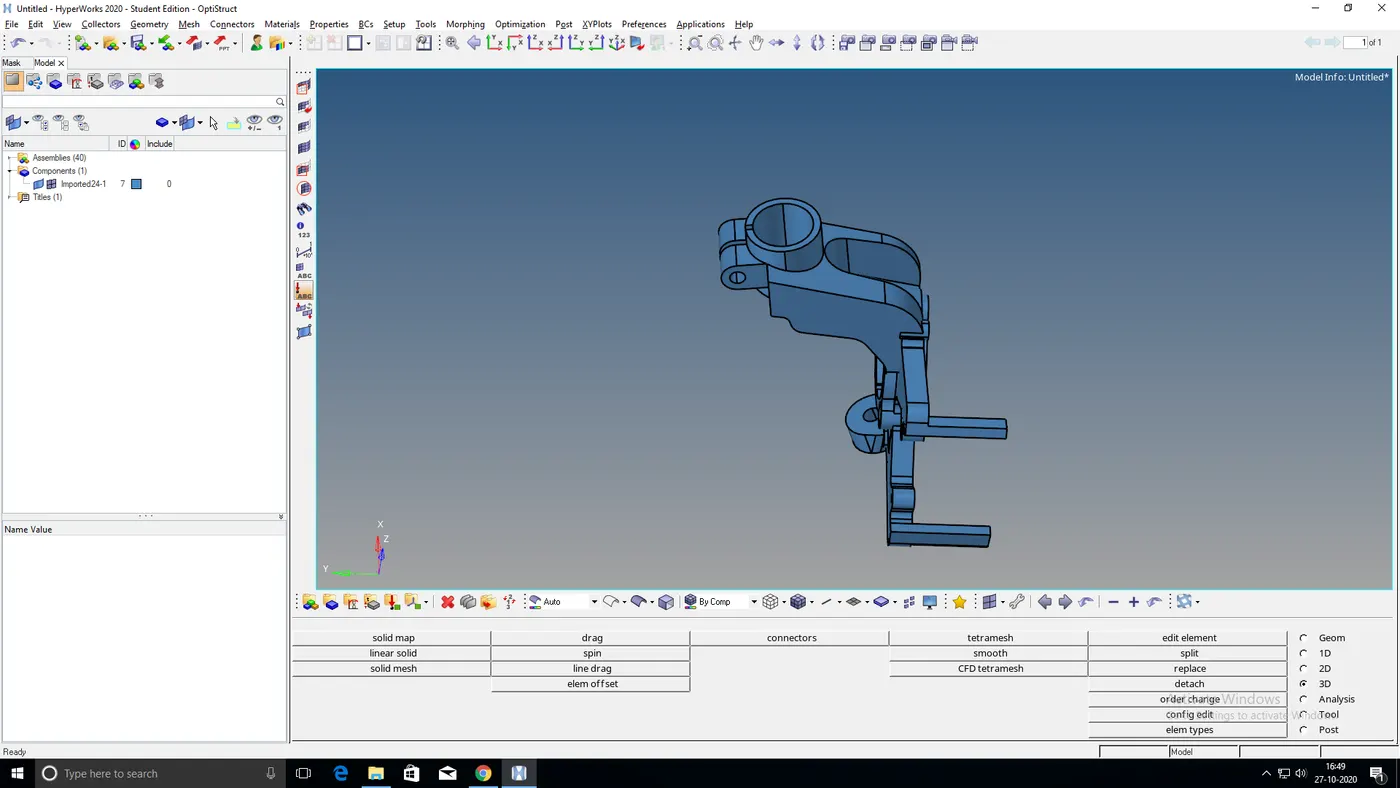
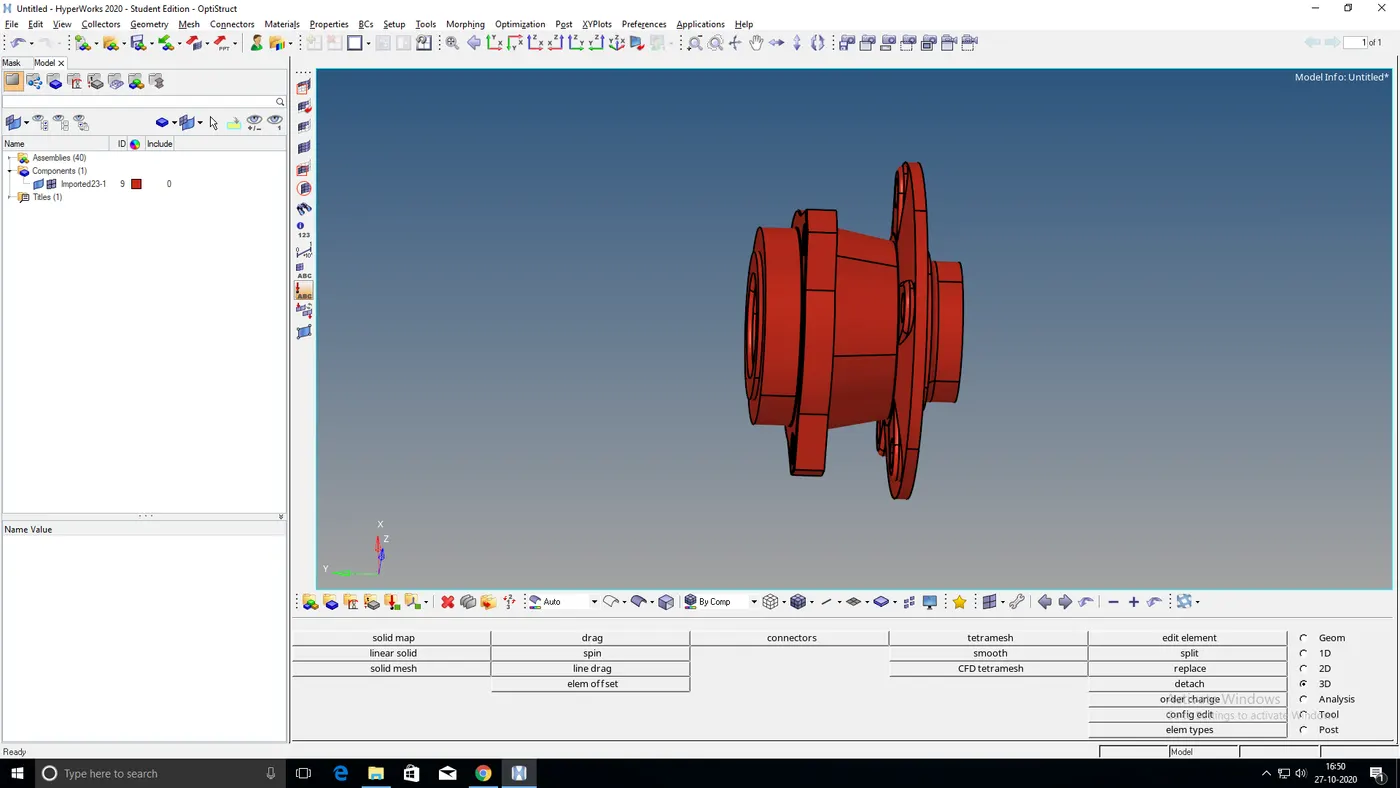
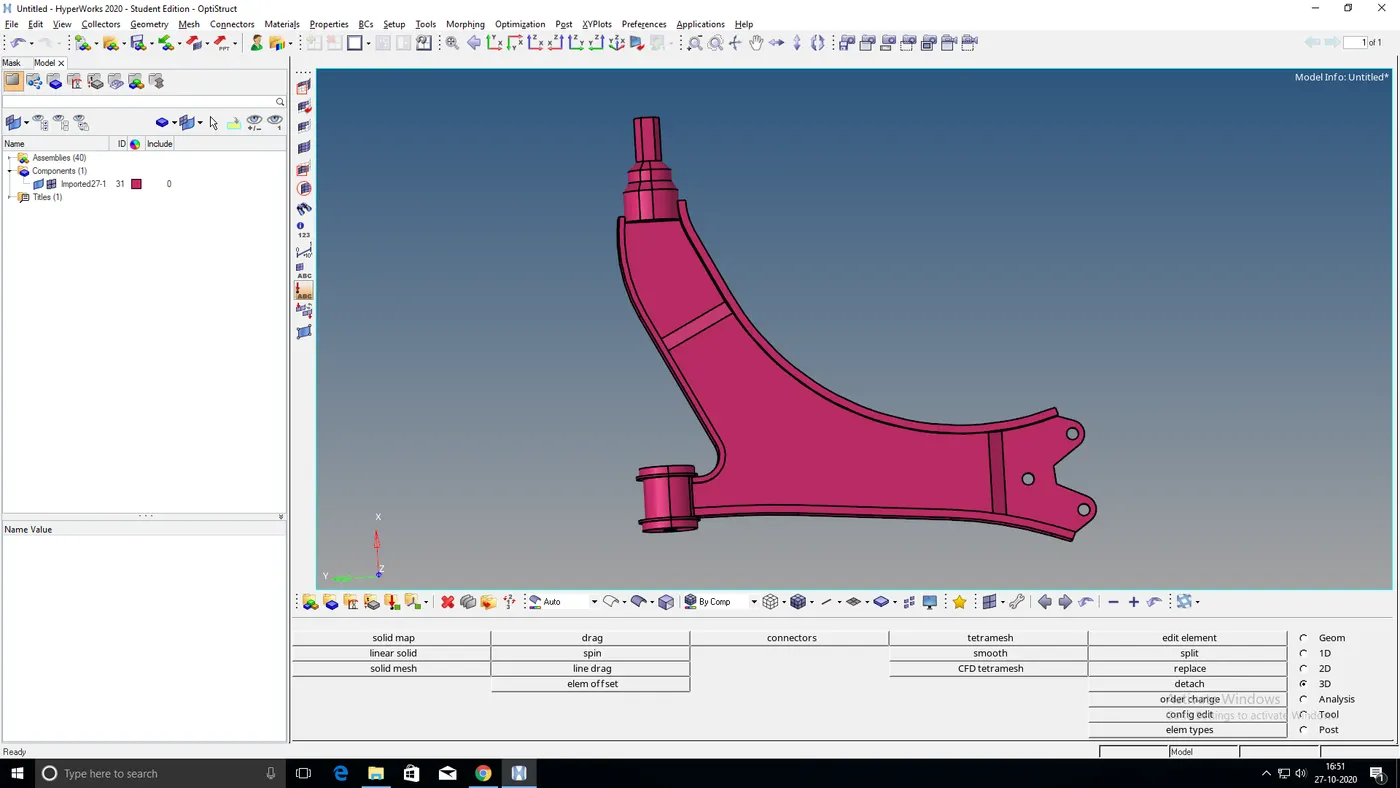
- In this model instead of selecting surface for meshing we need to select the solids.
- To mesh the solid, go to 3D > tetramesh > “volume tetra” and select the solid to mesh.
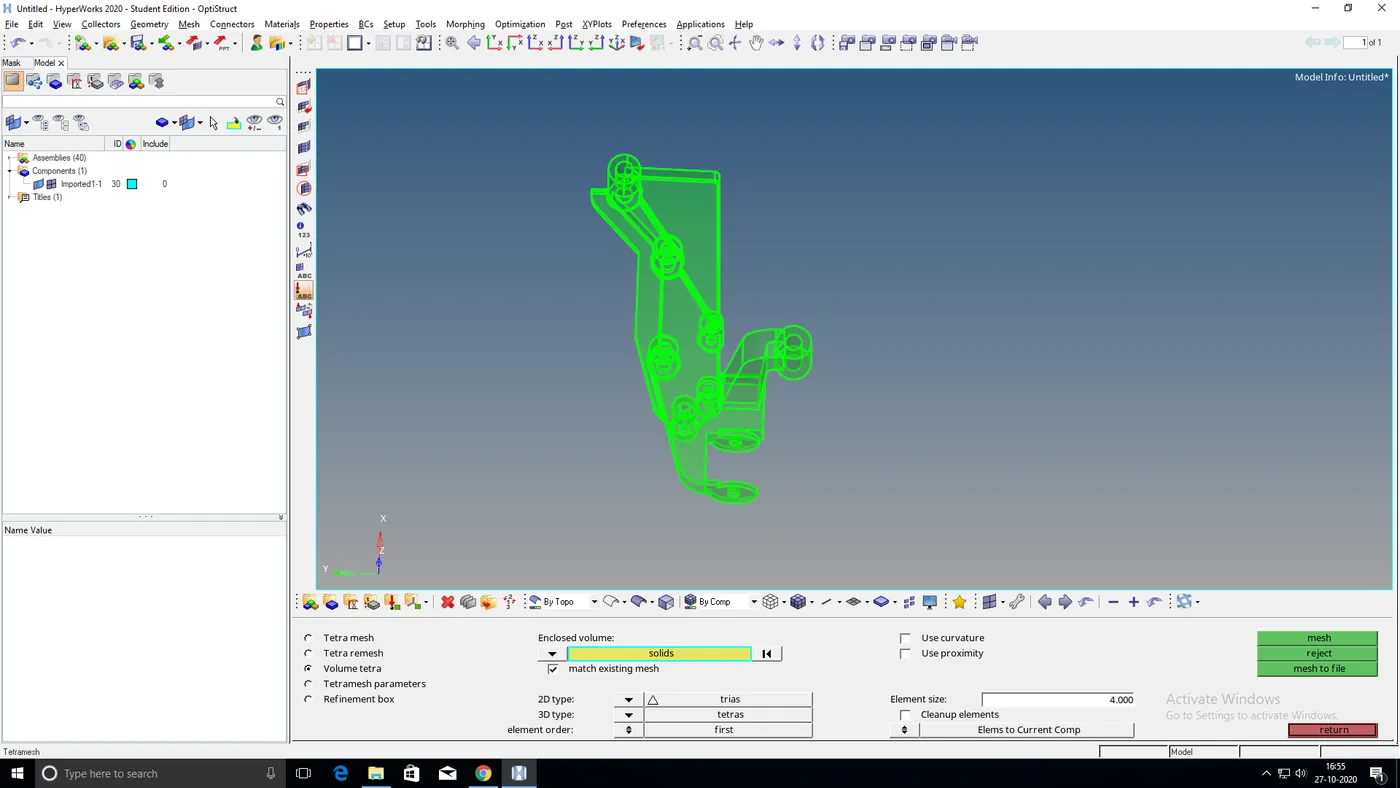
- Now check for the “Tet collapse” by going to “check elements’ under tool option and set the given value as 0.15.
- If any Tet collapse is found then clear the failed elements by remeshing them through “Tetra remesh” option.
- This operation needs to be performed on all the components and save it as an individual model.
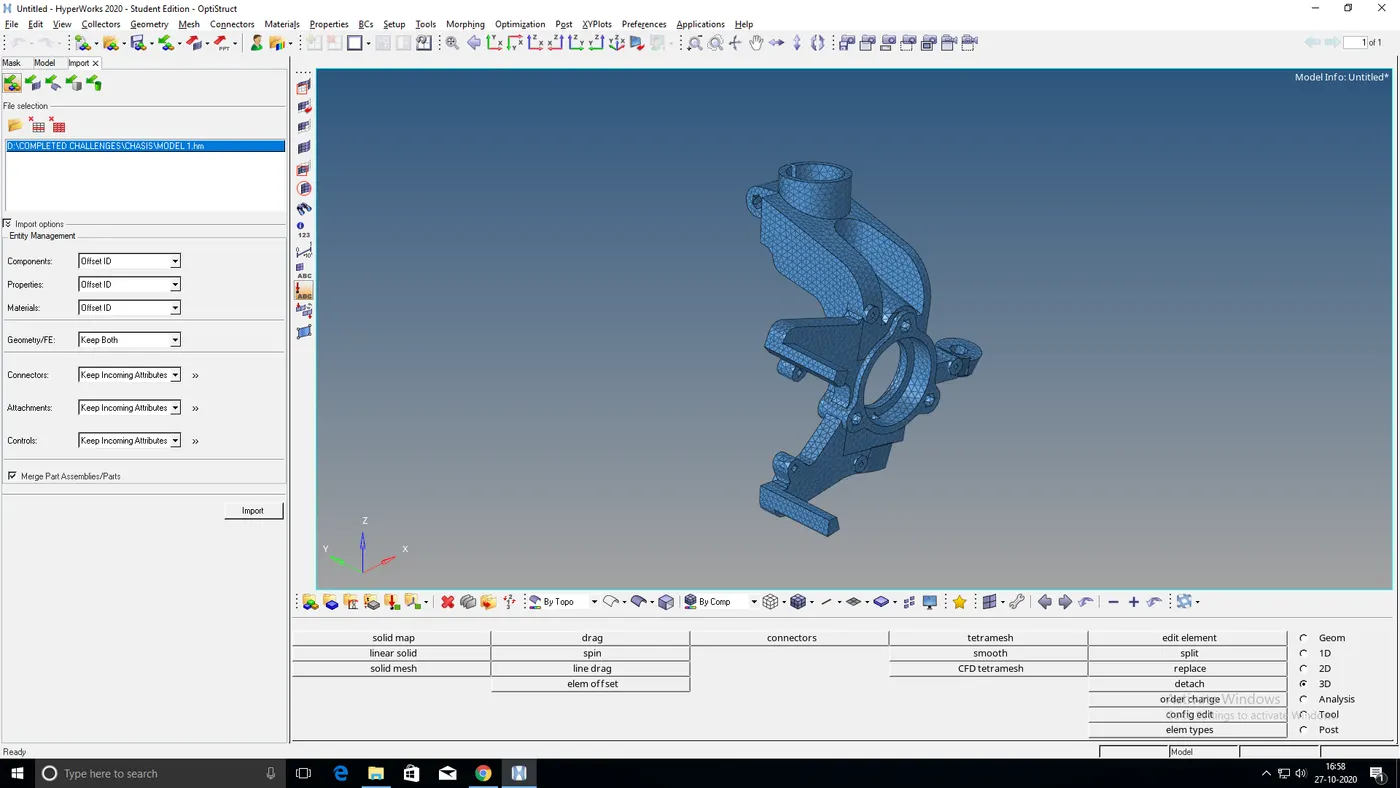
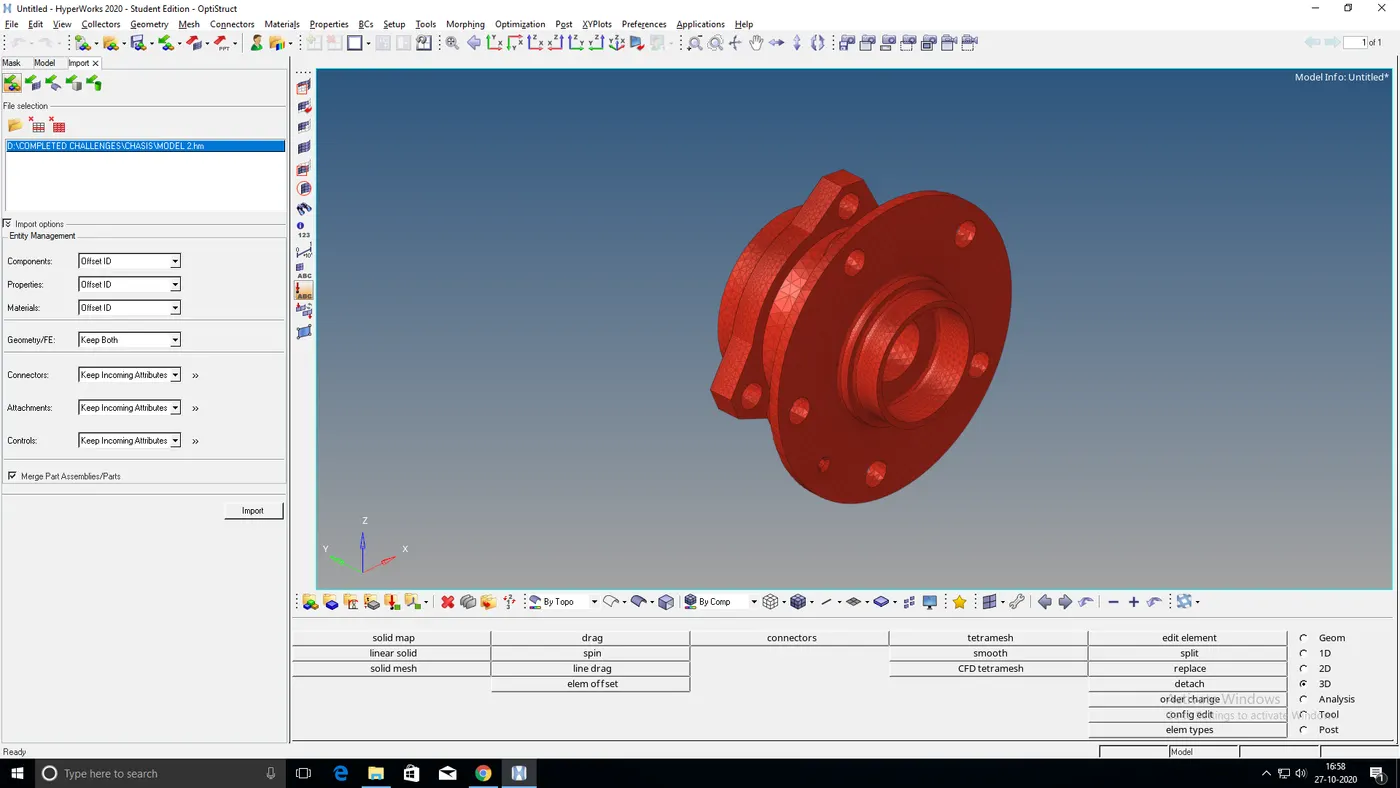
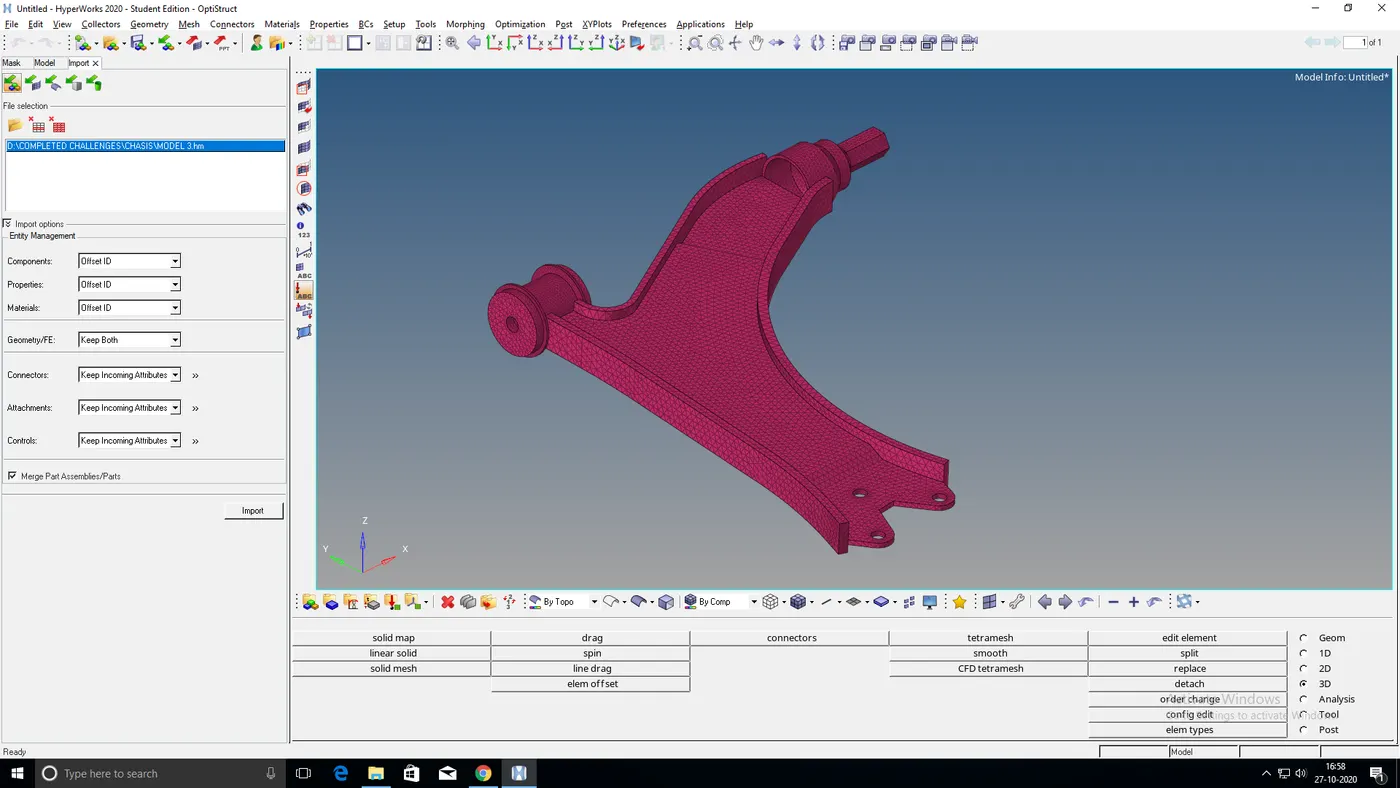
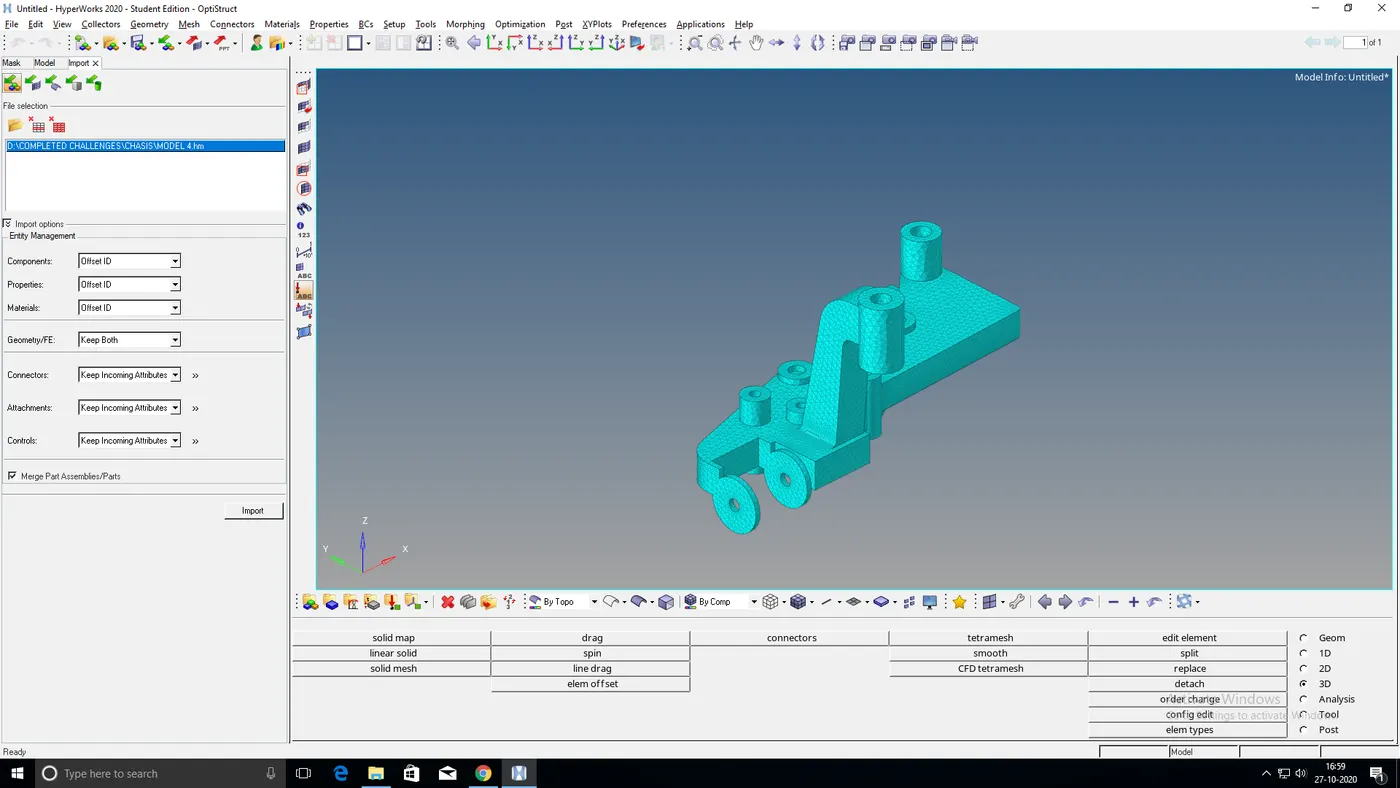
Final output:
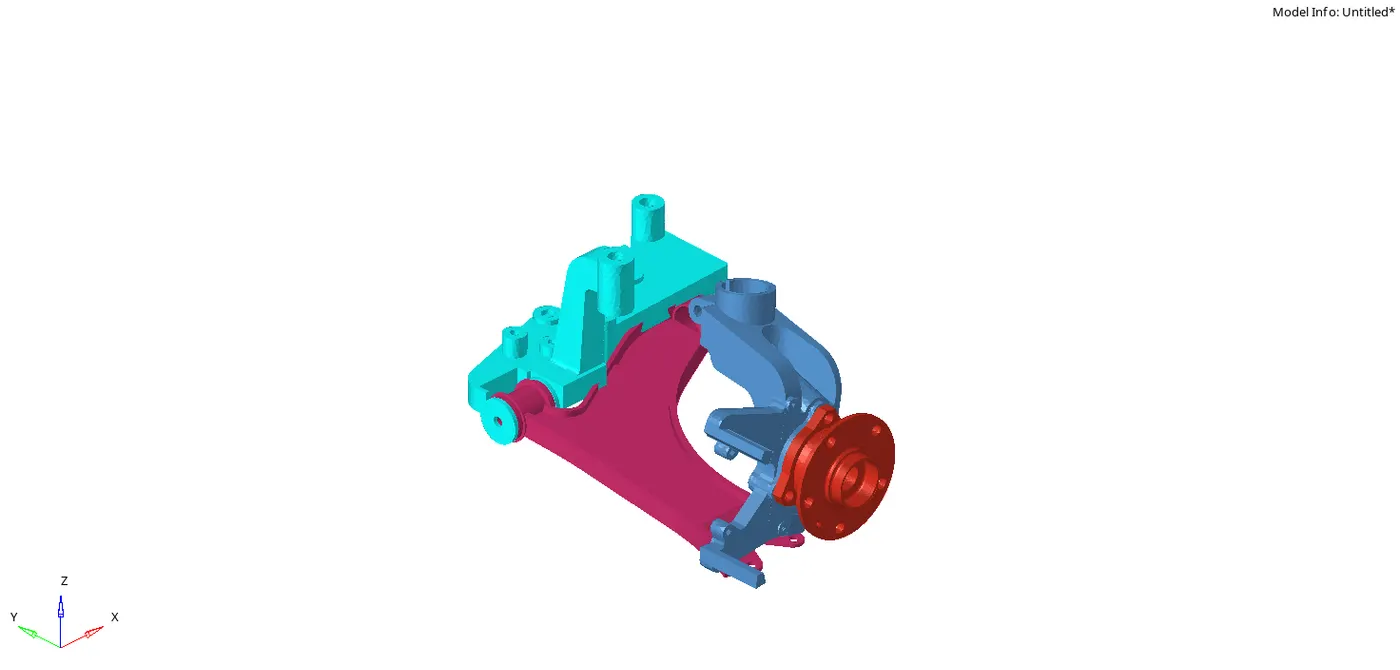
Result:
3D mesh have been successfully generated on the given component with zero failed elements.