Week 8 - Challenge 6 - Core & Cavity Design
Objective:- The main objective of this challenge is to design a Core and Cavity for a Switch Bezel in CATIA V5 with the help of a surface workbench.
We have already designed the Switch Bezel in an earlier challenge:
THE PART BODY:
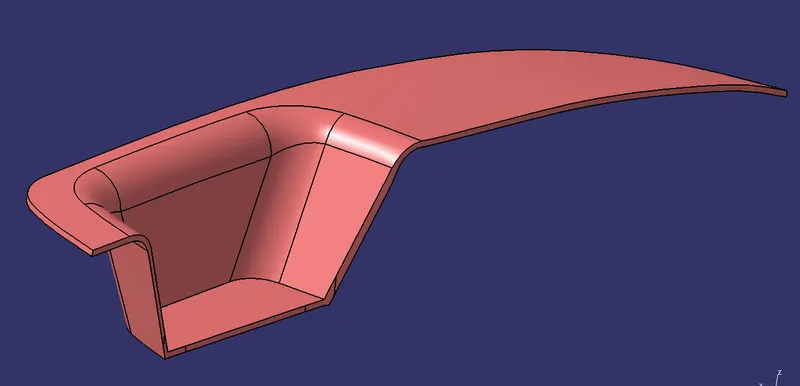
We will eventually design the Core and Cavity that the Injection Molding Machine will use to manufacture this plastic component.
TOOLING AXIS Creation:
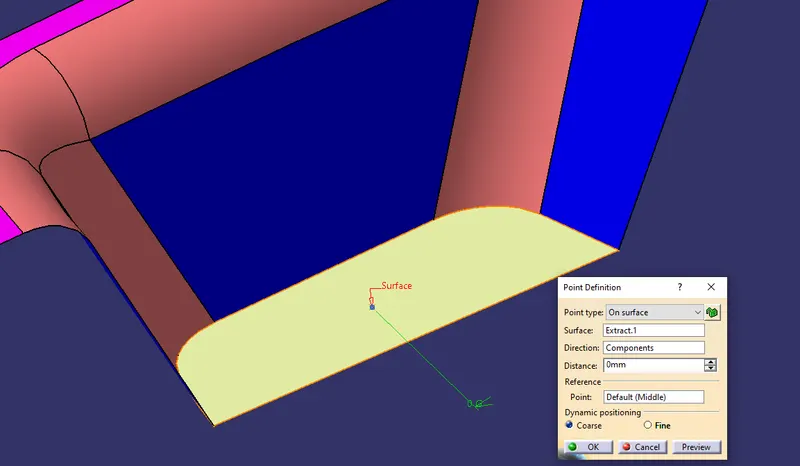
- A Reference Point is created along with the Surface at zero and a new Axis system is created using the point.
- The X Direction along with the Class A and Y directions along with the Class A was used to create the Tooling direction.
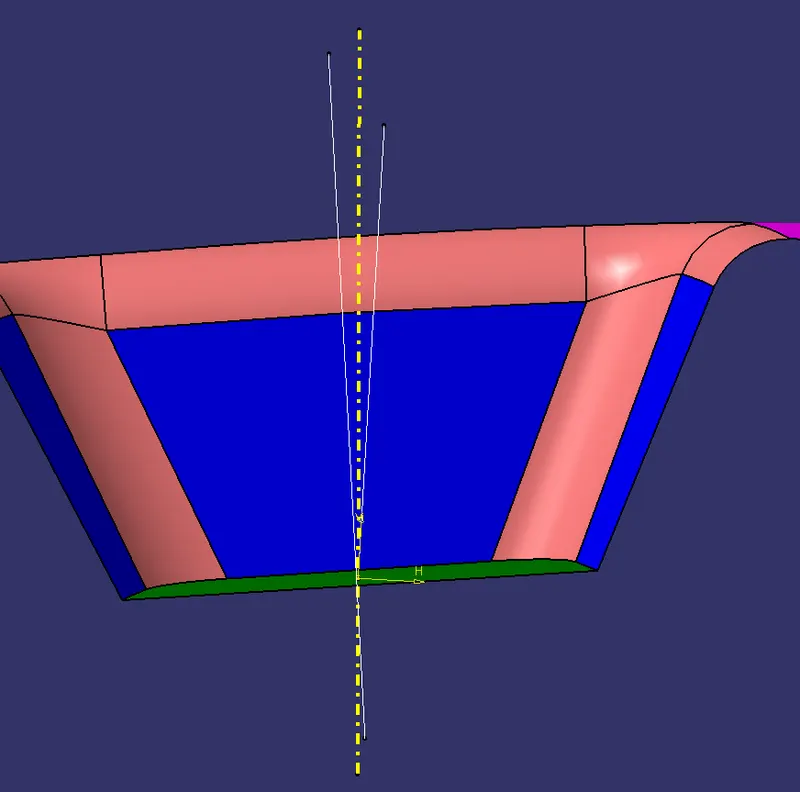
- Finally, the Tooling axis is created by bisecting the two lines and it is published. Class A Surface as input using surface operation commands Class B is developed.
- The tooling Axis determines the direction of the Class C boundary swept with draft direction.
- When viewing from the tooling direction normal all the parts that are drafted should be visible so it gives a rough idea to determine product manufacturing in Injection molding.
POINT PLACEMENT:
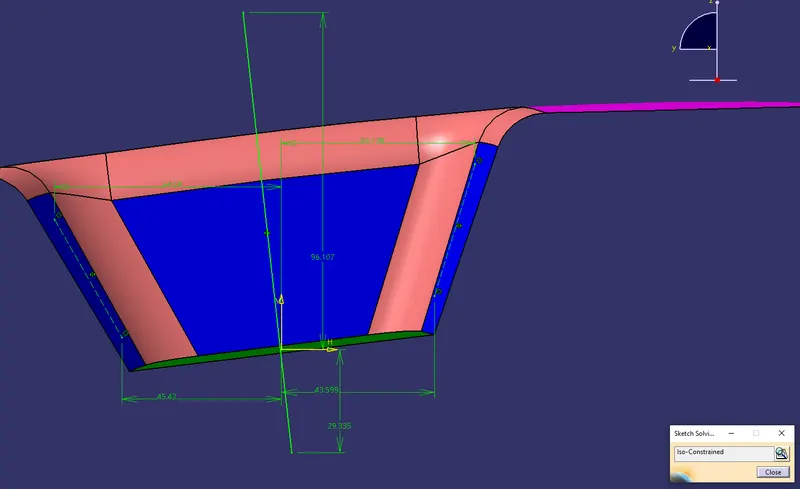
BISECTOR TOOLING AXIS along Y-Direction:
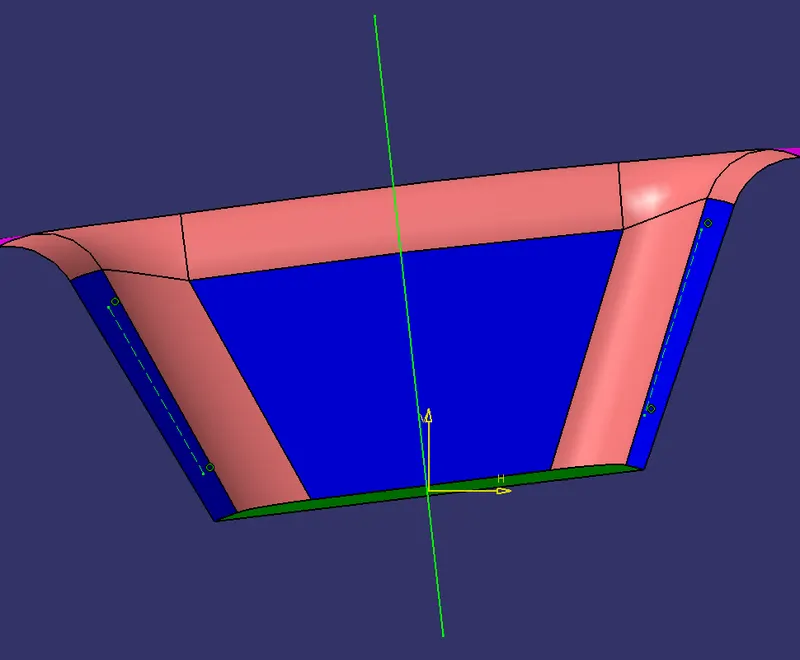
- ISO-CONSTRAIN SKETCH:
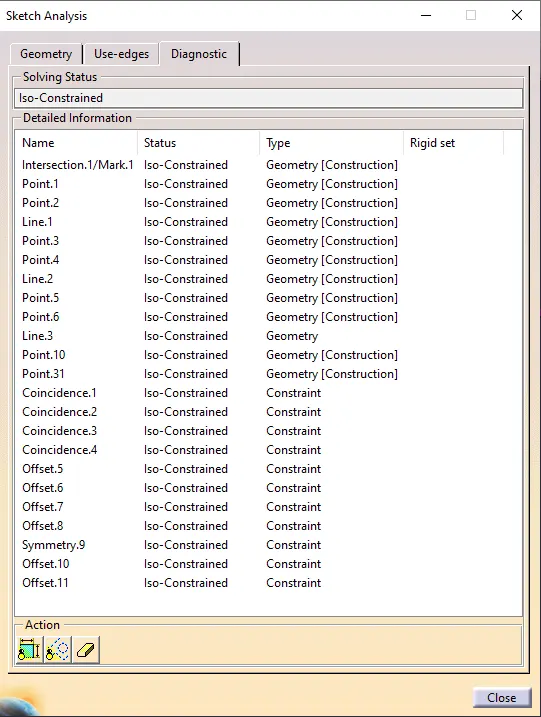
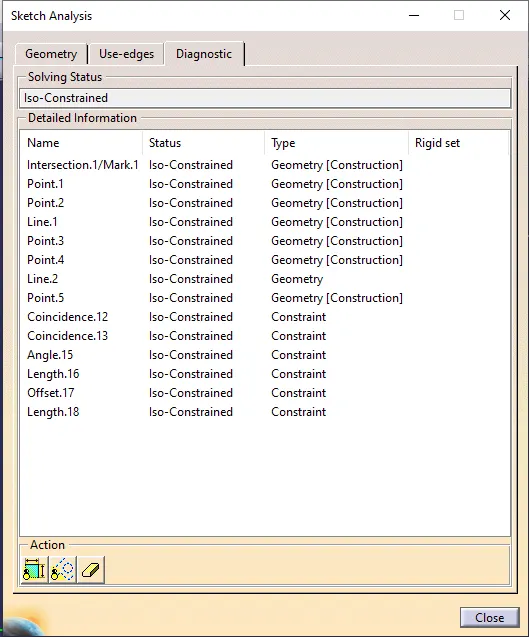
- SKETCH ANALYSIS:
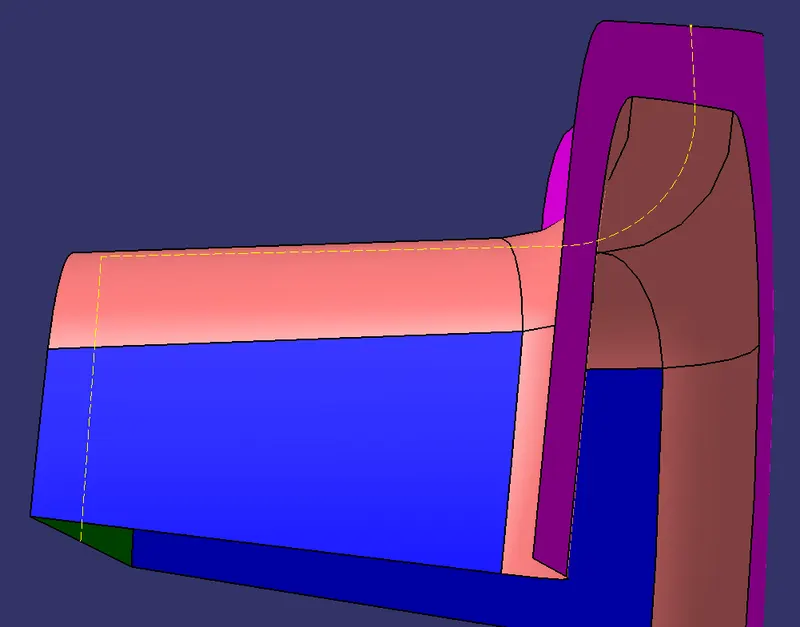
INTERSECTION CURVE along X-Direction:
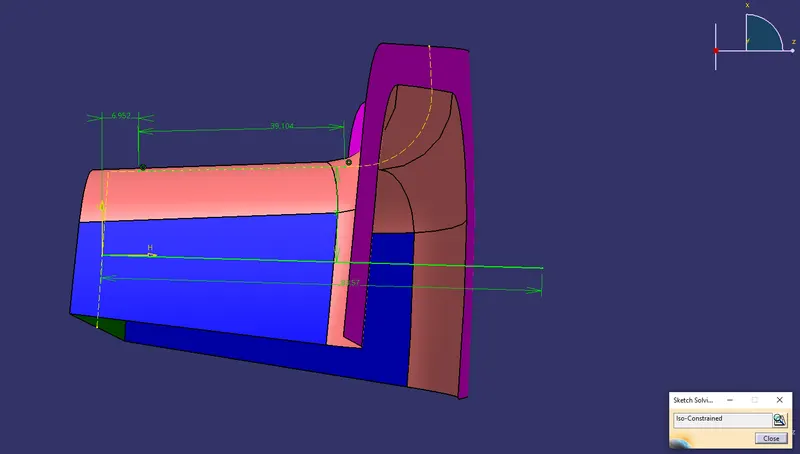
BISECTOR TOOLING AXIS along X-Direction:
- ISO-CONSTRAIN SKETCH:
- SKETCH ANALYSIS:
TOOLING AXIS using BISECTING LINE option:
Draft Analysis:-
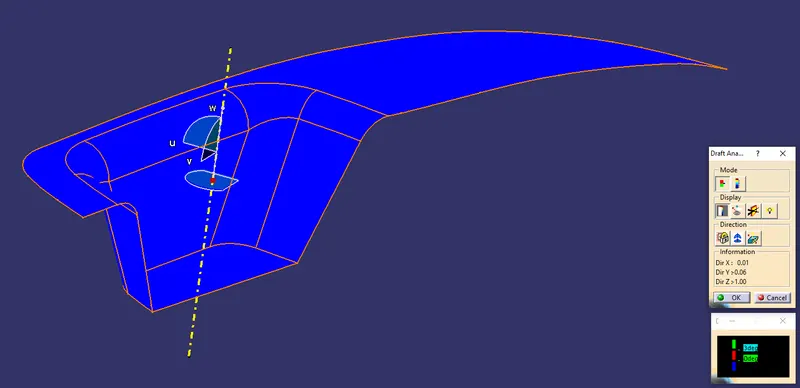
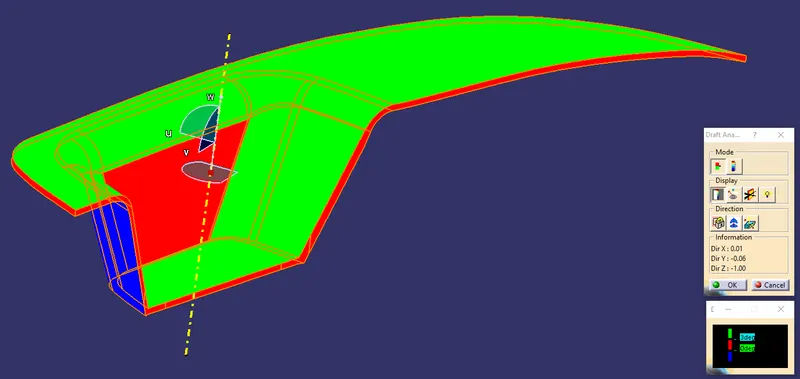
Draft analysis helps to detect an angle of a component. it will be easily removed. In CATIA a draft analysis is performed based on color rain identify zones Using a draft and by using a draft analysis we can verify the taper angle.
Examine angle change with a face as well as look at what timeline and injection surface in parts
A draft analysis helps to give a proper draft angle
Draft angle describes the amount of taper of mold perpendicular to the party line
The minimum draft angle is required 3 degrees.
PROCEDURE TO CREATE THE CORE BLOCK:
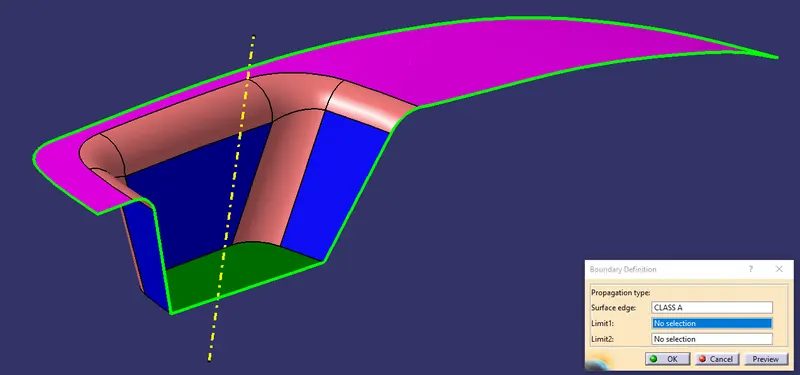
First, we'll create a boundary along the edge of our Class A Surface as shown below:
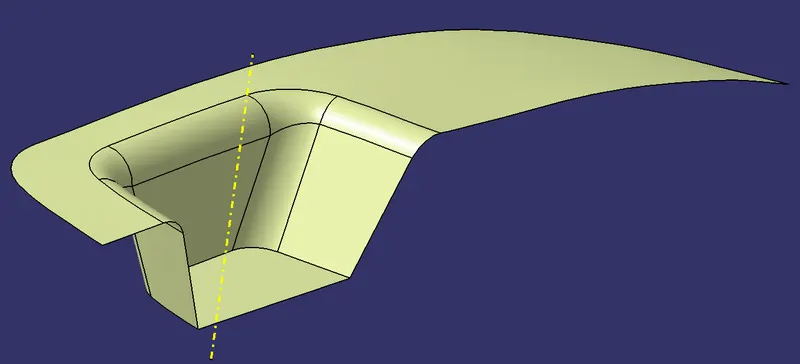
Then, we'll extrapolate it as shown below:
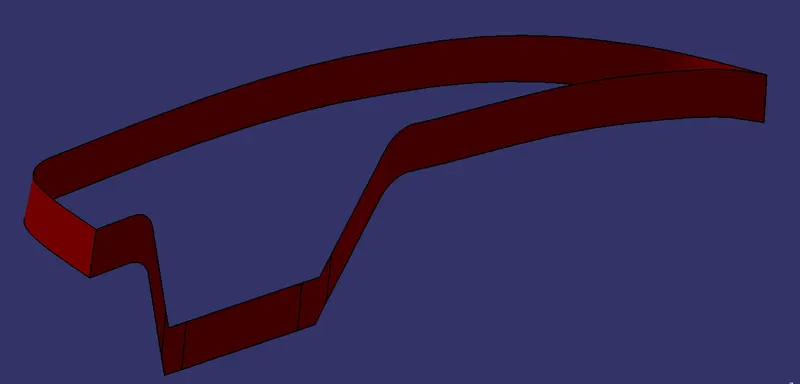
Now, we'll use the Class C Surface to Trim it with our extrapolated Class A Surface but before doing that we'll create an intersection between them to check if a trim operation is feasible between them as shown below:
Initial Class C Surface:
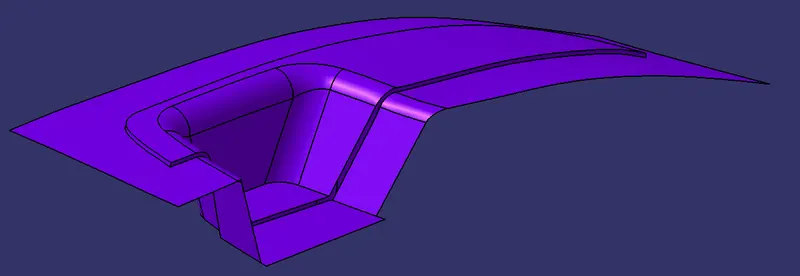
Now, we're going to cut it with the CLASS B SURFACE, along with CLASS A and CLASS C SURFACE as shown below:
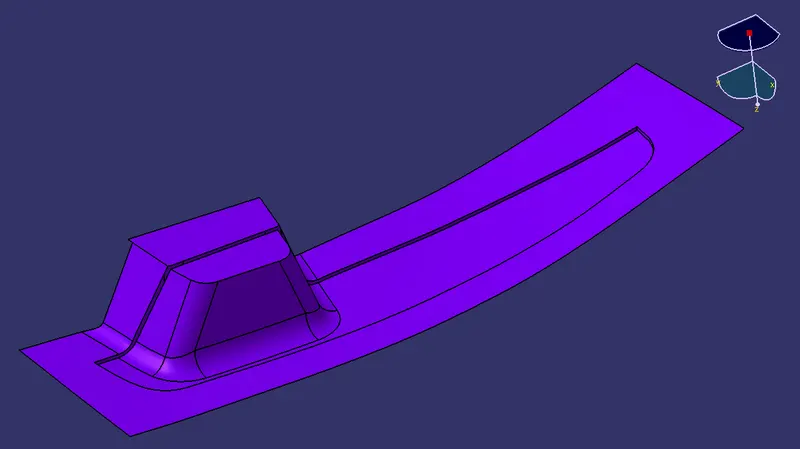
We'll create the Parting Line and the Parting Surface:
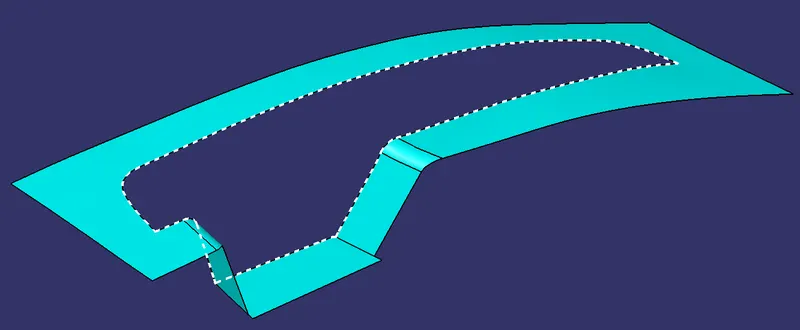
Parting Line: We'll create an intersection between the Trimmed Surface shown above and the Class B Surface. The parting line is where the two halves of the mold meet around the parameter of the part. All parting lines need to seal properly when the mold is clamped in a molding machine. It exists outside the component as shown below:

Parting Surface: A parting surface is a separable contact surface that separates the mold to remove the product and the congealed material from the pouring system. The parting surfaces provide support to the mold during the injection process and help to distribute the molten plastic evenly. It is important to design the parting line and parting face carefully to minimize potential defects in the molded part.
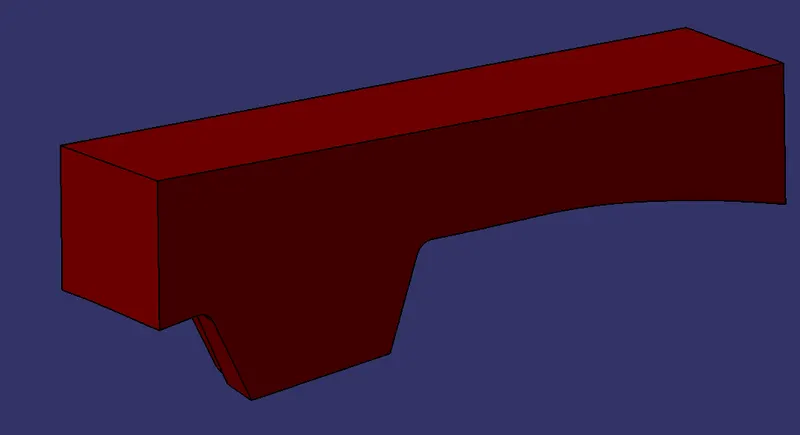
Now, we'll create a sketch for the Core Block's walls as shown below:
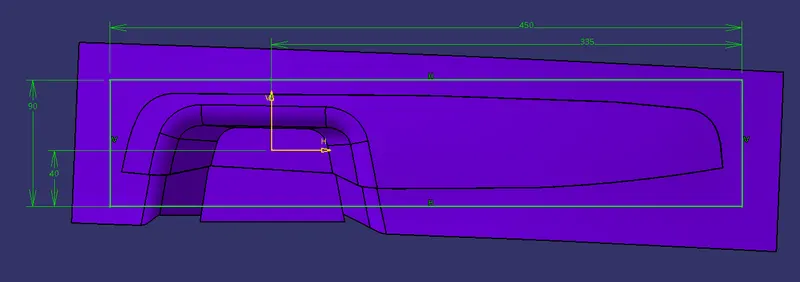
Then, we'll use the extrude command to extrude the sketch with respect to the Main Tooling Axis as shown below:
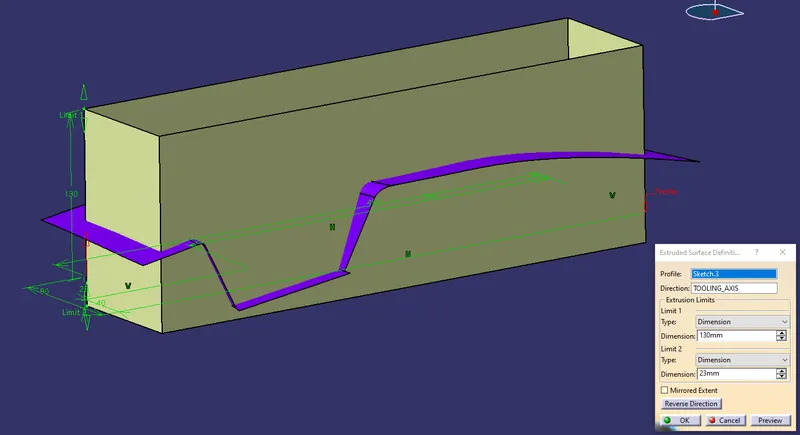
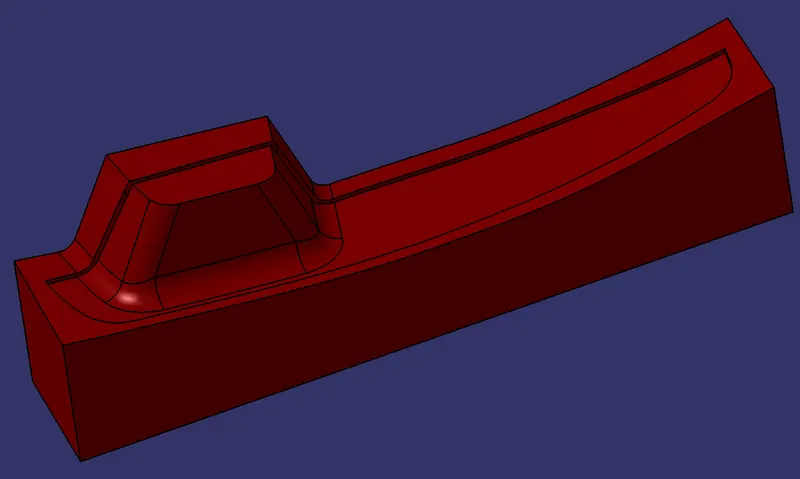
Finally, we will close the surface body and we'll move on to the Park Workbench by using the Closed Surface Command from the Surface-based Features Toolbar, we'll create a solid body for the Core Block:
PROCEDURE TO CREATE THE CAVITY BLOCK:
For the Cavity Block, we'll perform the Extrude Operation once again using the same sketch we used earlier to create the walls for the Core Block with respect to the Main Tooling Axis as shown below:
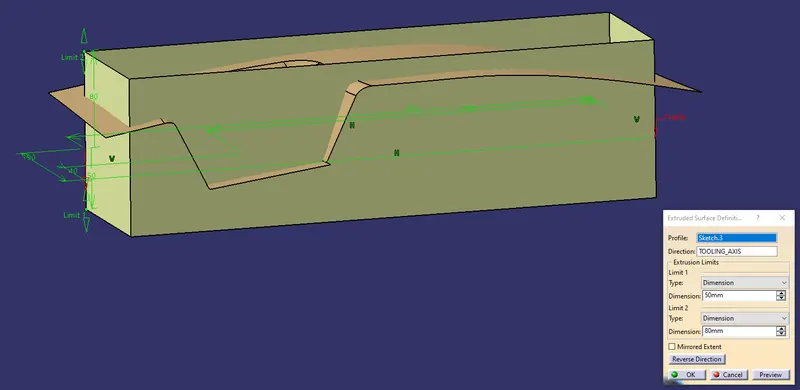
To exclude the region for the component, we're going to trim it with the Class B Surface as shown below:
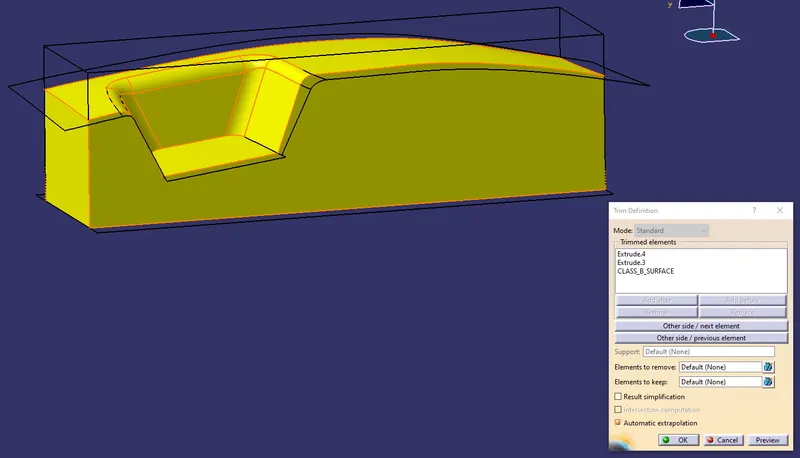
Again, we will close the surface body and we'll move on to the Park Workbench by using the Closed Surface Command from the Surface-based Features Toolbar, we'll create a solid body for the Cavity Block:
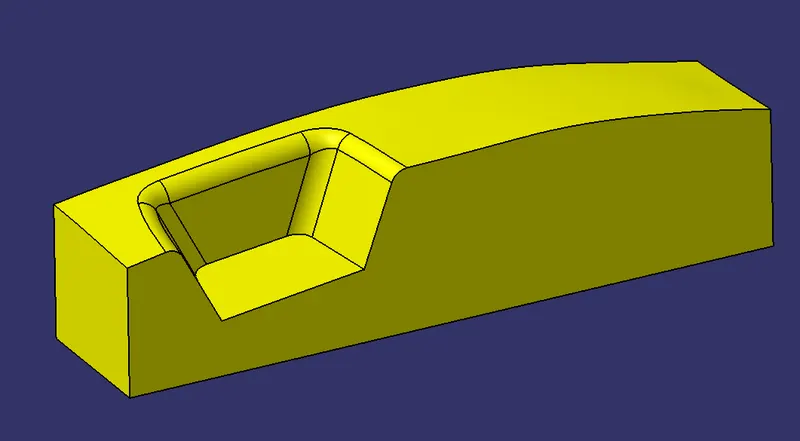
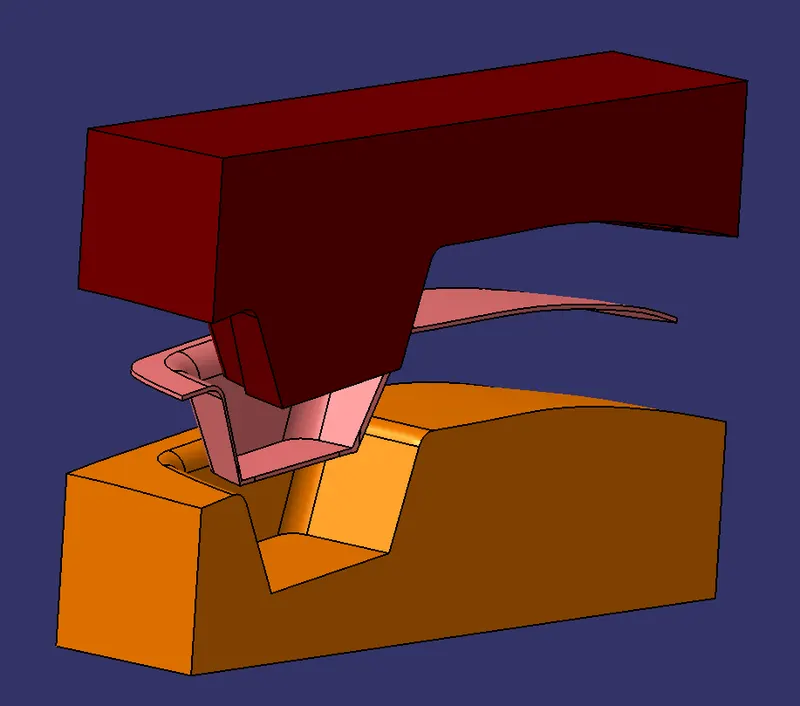
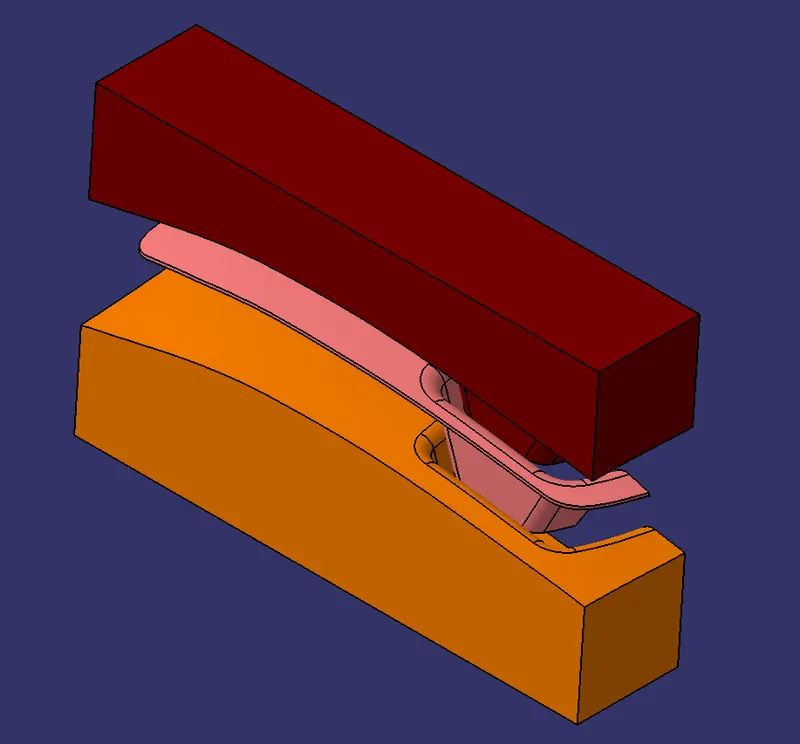
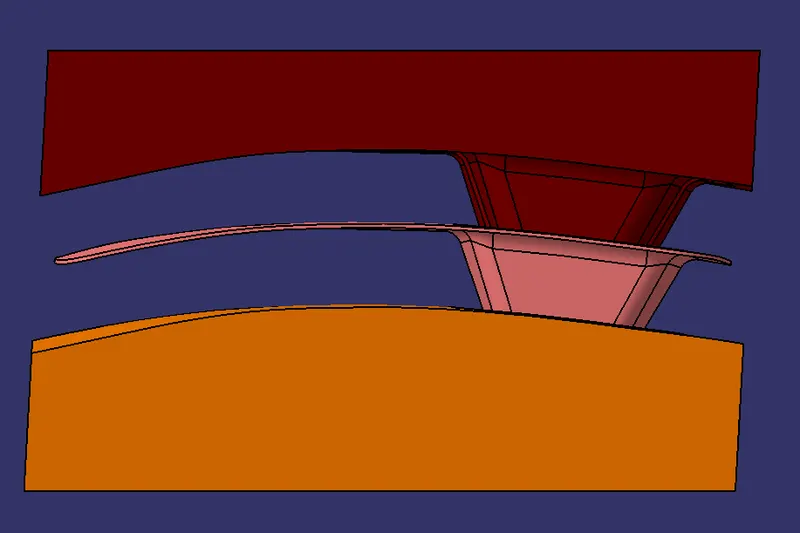
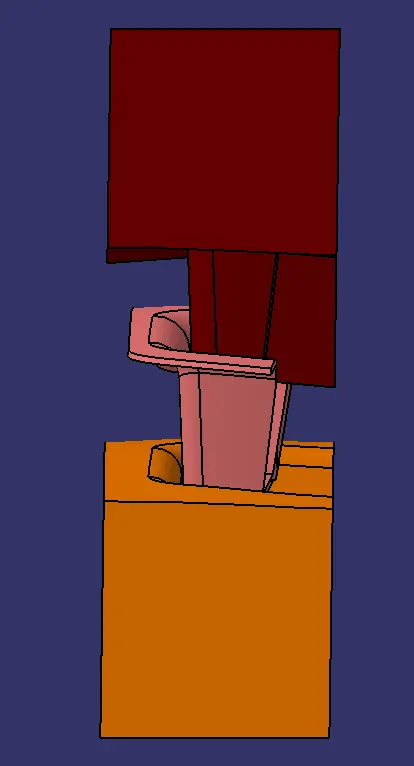
Finally, we'll use the Translation Command from the Transformation Features Toolbar to translate both Core and Cavity Block 50mm in the opposite direction while the solid plastic component stays in the middle as shown below:
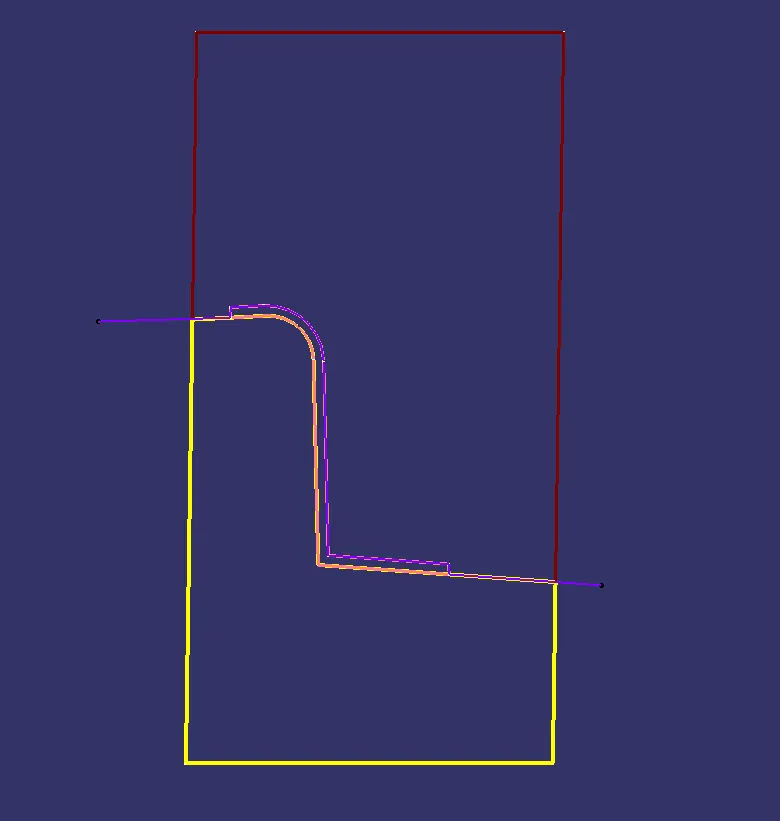
We'll create an intersection between these surfaces to understand the relation between them better.
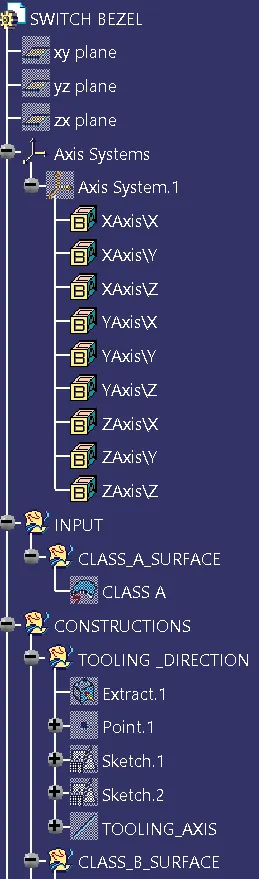
TREE STRUCTURE:
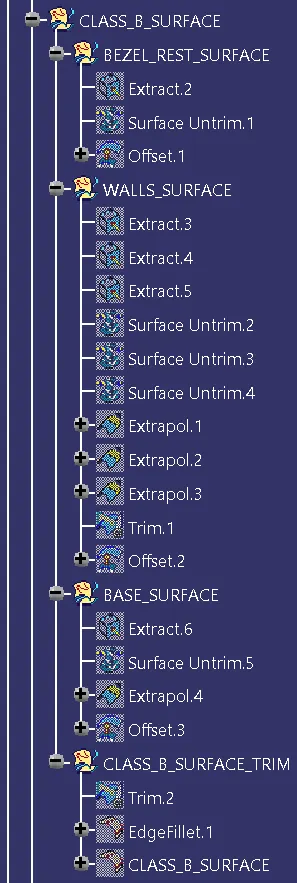
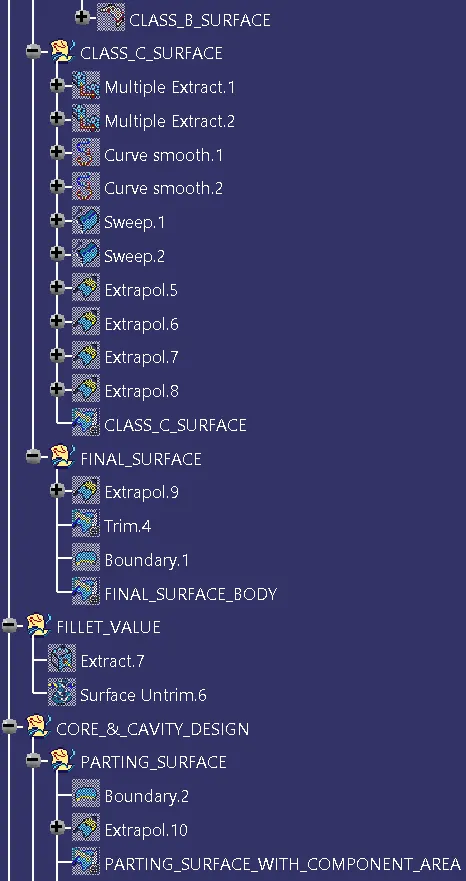
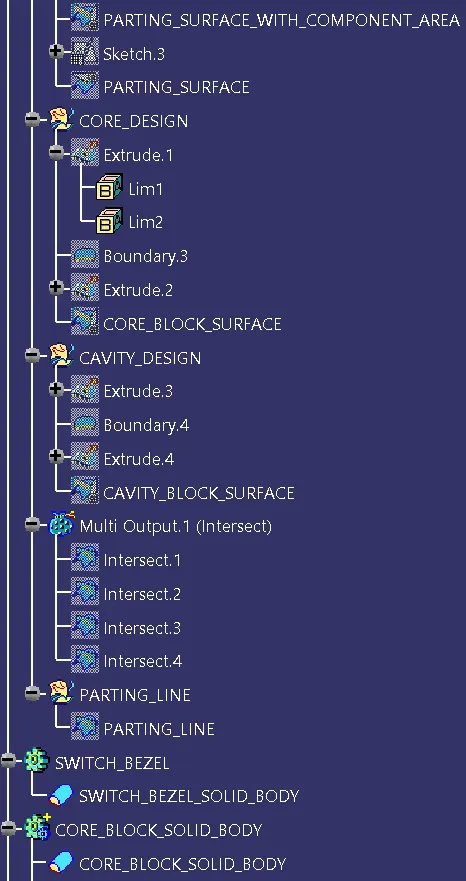
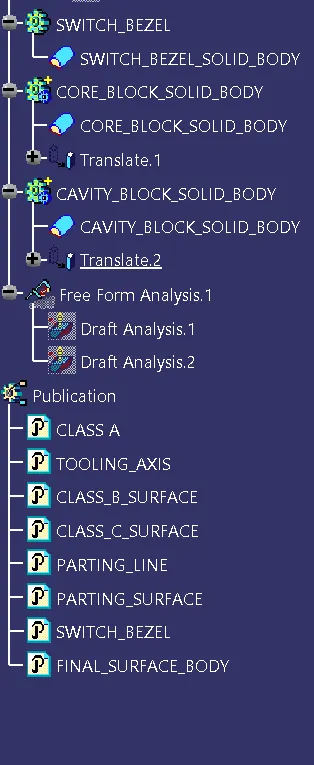
ISOMETRIC VIEW:
FRONT VIEW:
SIDE VIEW:
TOP VIEW: