Creating tetramesh for Chassis, Crank and Housing Model as per the given criteria in Hypermesh
OBJECTIVE:
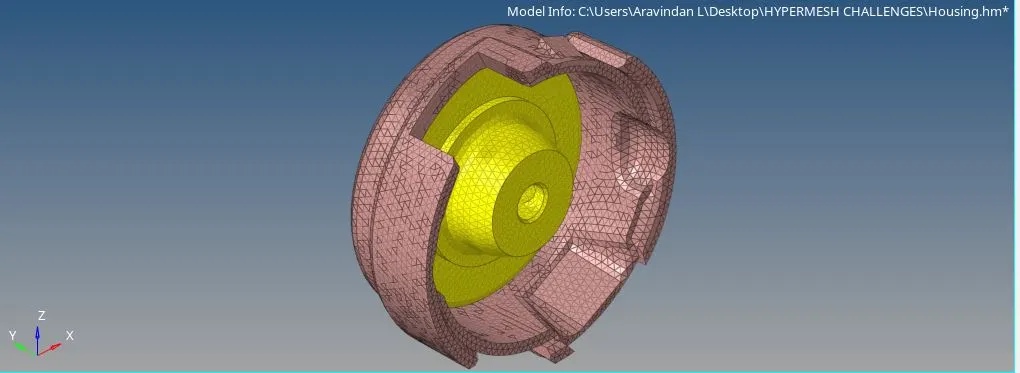
1. To create the tetramesh for housing model using the criteria given below
Target Element Size: 5mm
Mini element size: 2mm
Max element size: 7mm
Tet collapse: 0.15
2. To create tetramesh for chassis and crank housing using the criteria given below.
Target Element Size: 6mm
Mini element size: 2mm
Max element size: 7mm
Tet collapse: 0.15
PROCEDURE:
1. First of all go to Import Solver Deck > lmport Geometry > File type > Choose File > Import. The geometry is imported.
housing
F11 > filter surf > Lines > to fill the gapes.
F11 > Toggles edges > by changing the tolerance value to fill the gapes / Suppresse some Line which are below the target element size.
F11 > Split Surf-line > To delete and recreate a new line.
Geom > Surfaces > Spline/Filler or Ruler or Skin these option are used to cleanup free and non manifold edges.
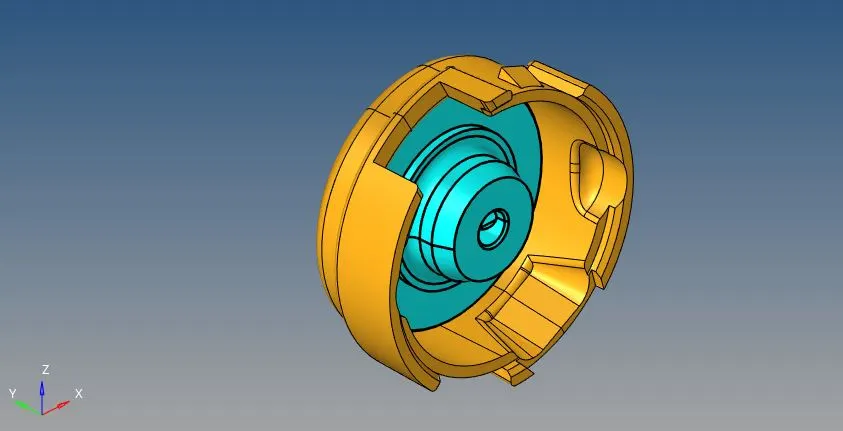
5. After the Cleaning up the geometry, Go to 2d > Automesh > surfs > Displayed > Element size: 5mm > Mesh type: mixed > Mesh.
6. Check the mesh flow. And then remesh the improper mesh area.
7. F10 > Quality Criteria > Enter the Given Criteria.
8. Some elements can fail in this Quality criteria, They can be rectified by using some options.
Tool > Check elems > Save Failed.
Tool > Mask > elems > Retrieve > Mask > Reverse. ( Only the failed elements will be shown in the display )
F12 > elems > Select elements > Mesh ( Some failed elements can be removed by remeshing them )
9. 3D > Tetramesh > comps > mesh.
10. Again F10 > Quality Criteria > 3D > tet collapse , If the elements fails then follow step 8 again or Go to Tetra remesh > 3d elems select elems > remesh.
11. And then again check elements in the given Quality criteria. If there is no elements failed then the components is perfectly meshed with the given criteria.
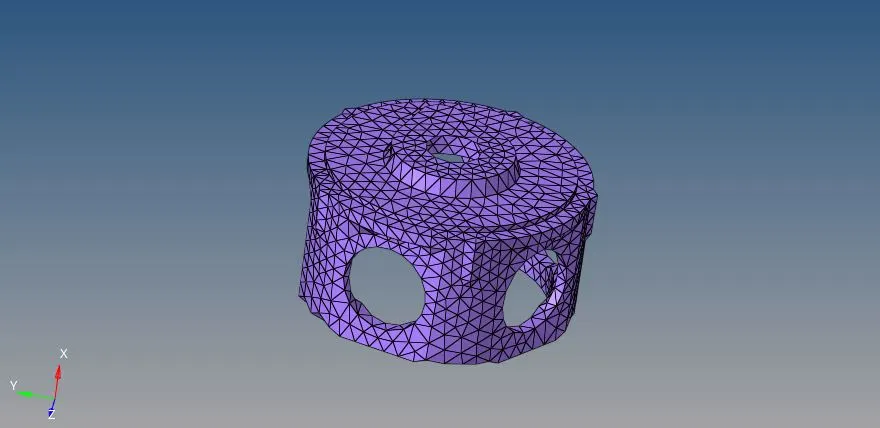
CRANK HOUSING
12. Go to Import Solver Deck > lmport Geometry > File type > Choose File > Import. The geometry is imported.
F11 > filter surf > Lines > to fill the gapes.
F11 > Toggles edges > by changing the tolerance value to fill the gapes / Suppresse some Line which are below the target element size.
F11 > Split Surf-line > To delete and recreate a new line.
Geom > Surfaces > Spline/Filler or Ruler or Skin these option are used to cleanup free and non manifold edges.
16. View > Browsers > Hypermesh > Utility > Geom/mesh > Mesh tool > Quick tetramesh > Select component > mesh type = trias only > Mesh.
17. F10 > Quality Criteria > 3D > tet collapse
Some elements can fail in this Quality criteria, They can be rectified by using some options.
Tool > Check elems > Save Failed.
Tool > Mask > elems > Retrieve > Mask > Reverse. ( Only the failed elements will be shown in the display )
3d > Tetra remesh > select component > remesh.
18. And then again check elements in the given Quality criteria. If there is no elements failed then the components is perfectly meshed with the given criteria.
CHASIS
19. Go to Import Solver Deck > lmport Geometry > File type > Choose File > Import. The geometry is imported.
23. To cleanup the Geometry use these options :
F11 > filter surf > Lines > to fill the gapes.
F11 > Toggles edges > by changing the tolerance value to fill the gapes / Suppresse some Line which are below the target element size.
F11 > Split Surf-line > To delete and recreate a new line.
Geom > Surfaces > Spline/Filler or Ruler or Skin these option are used to cleanup free and non manifold edges.
24. View > Browsers > Hypermesh > Utility > Geom/mesh > Mesh tool > Quick tetramesh > Select component > mesh type = trias only > Mesh.
25. F10 > Quality Criteria > 3D > tet collapse
Some elements can fail in this Quality criteria, They can be rectified by using some options.
Tool > Check elems > Save Failed.
Tool > Mask > elems > Retrieve > Mask > Reverse. ( Only the failed elements will be shown in the display )
3d > Tetra remesh > select component > remesh.
26. And then again check elements in the given Quality criteria. If there is no elements failed then the components is perfectly meshed with the given criteria.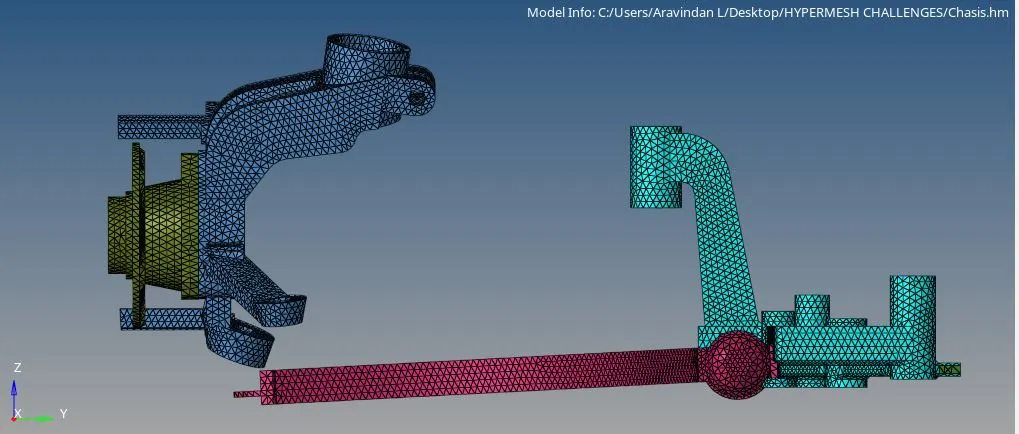
27. Tool > Reflect > elems > y direction and point B > Reflect.
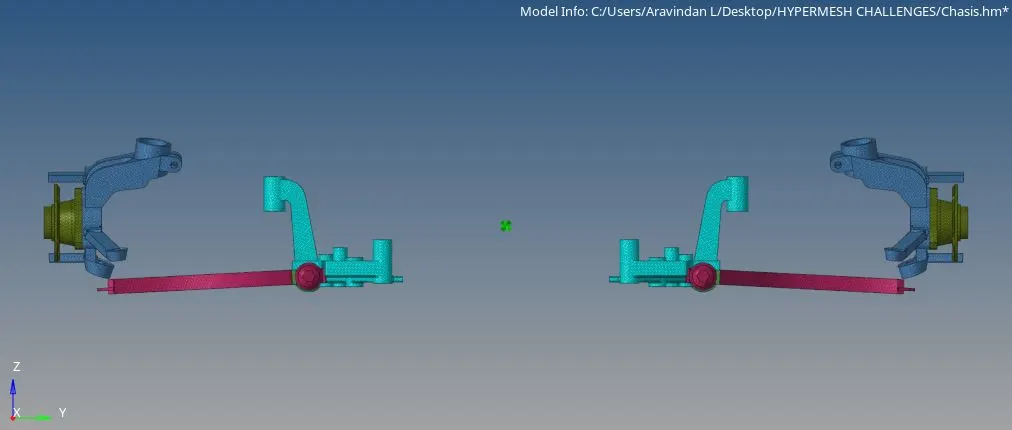
RESULT AND CONCLUSION:
Therefore, The Tetramesh has done for the given component by using the given Quality Criteria.