Week 8 - Challenge 2 - Switch Bezel Design
TOOLING AXIS MAKING
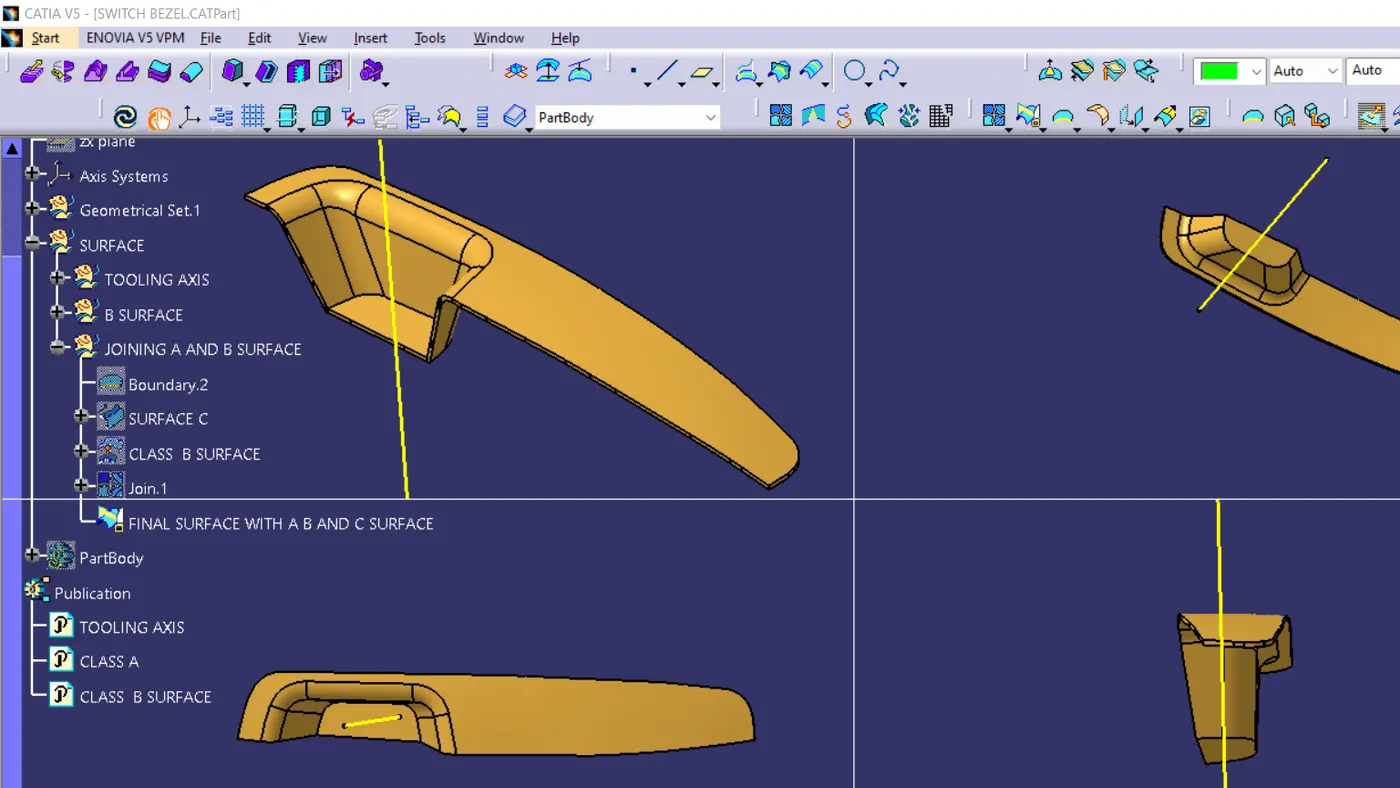
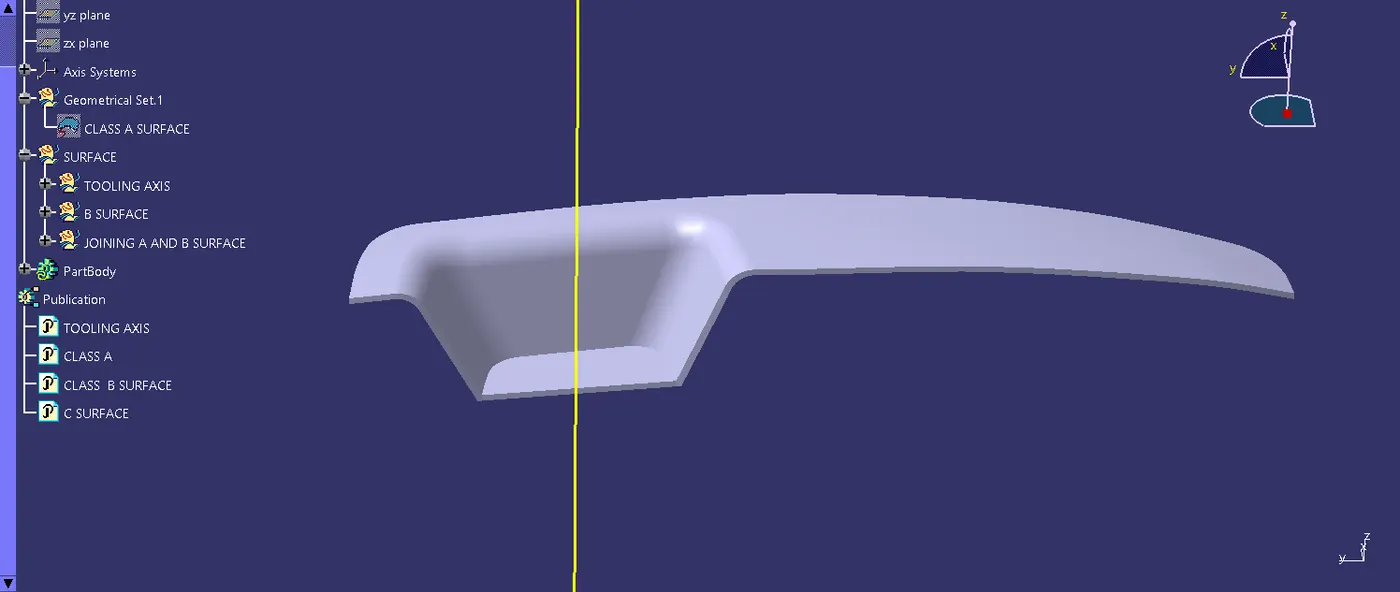
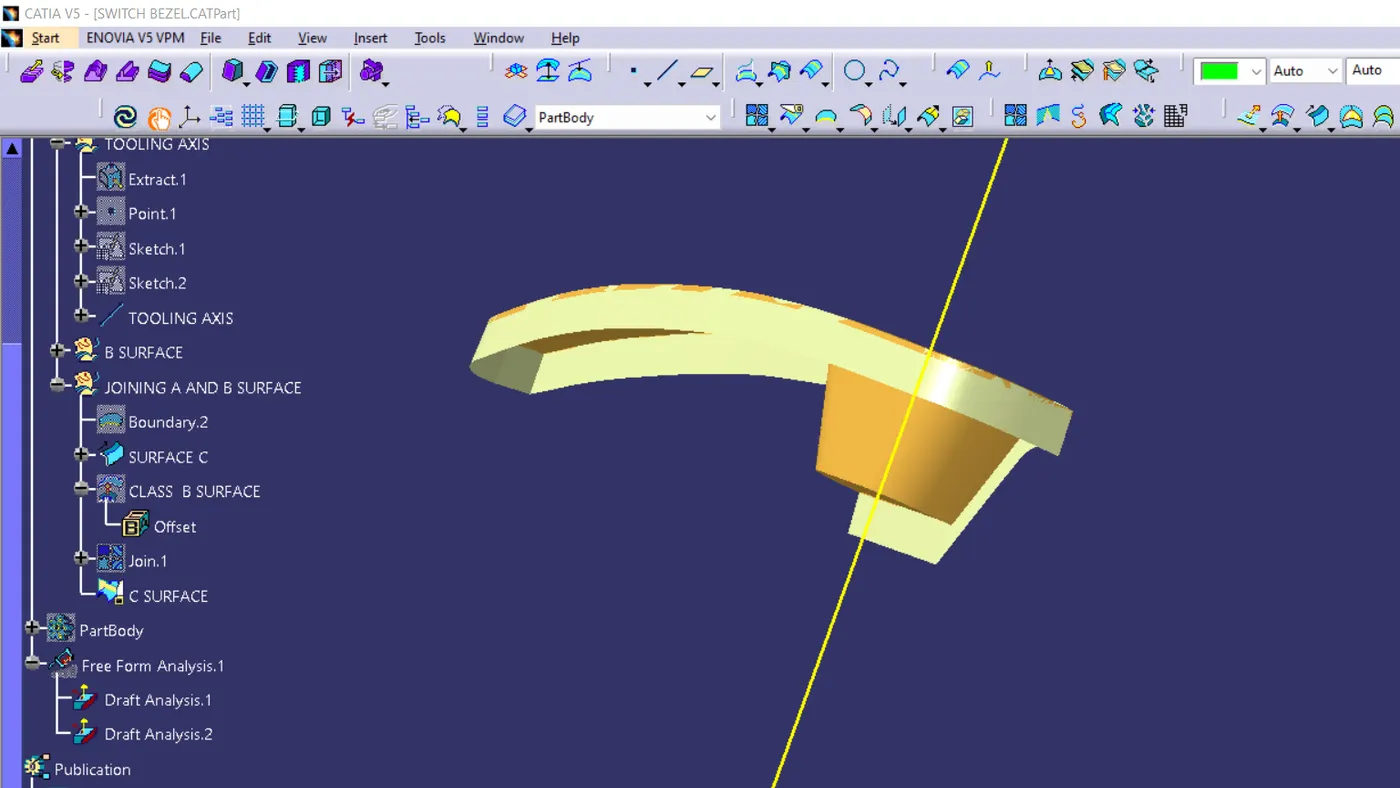
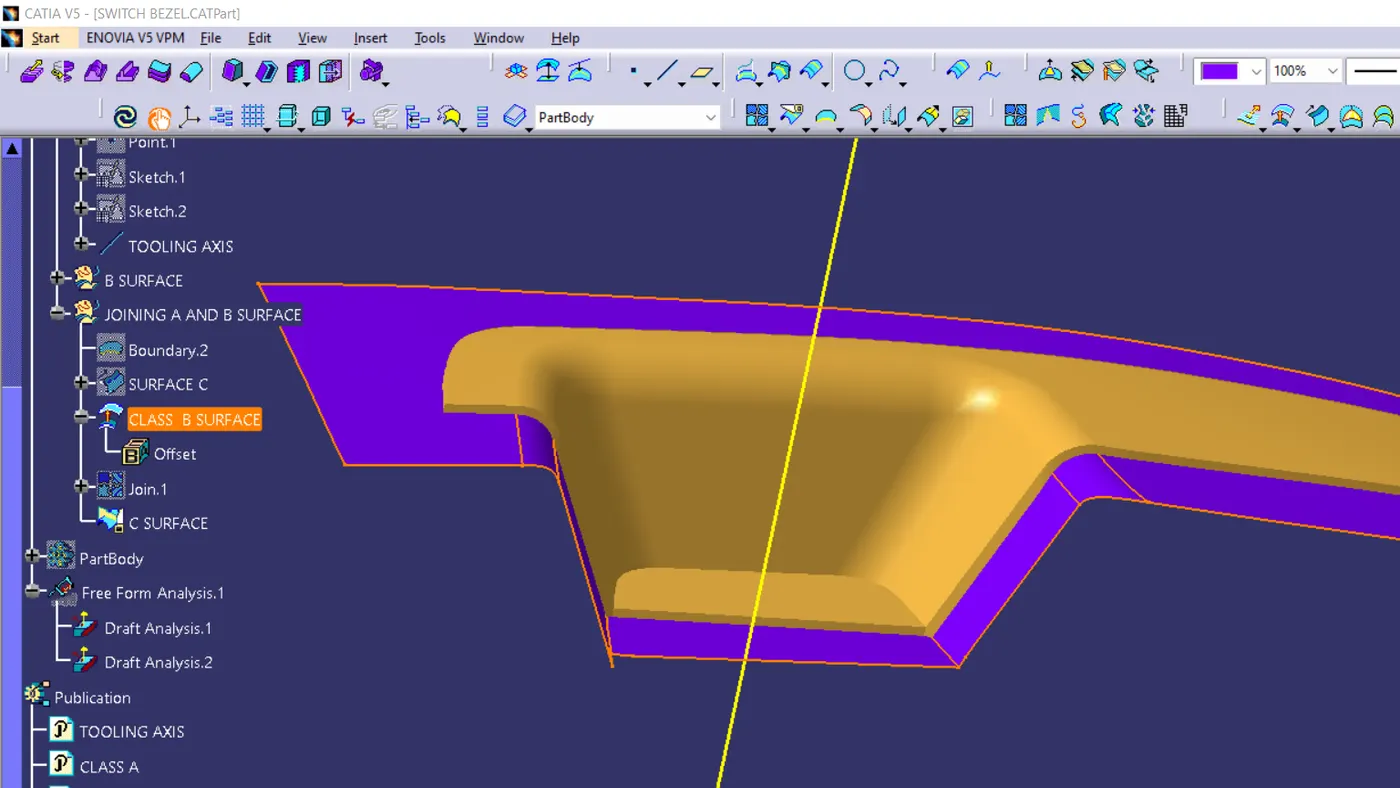
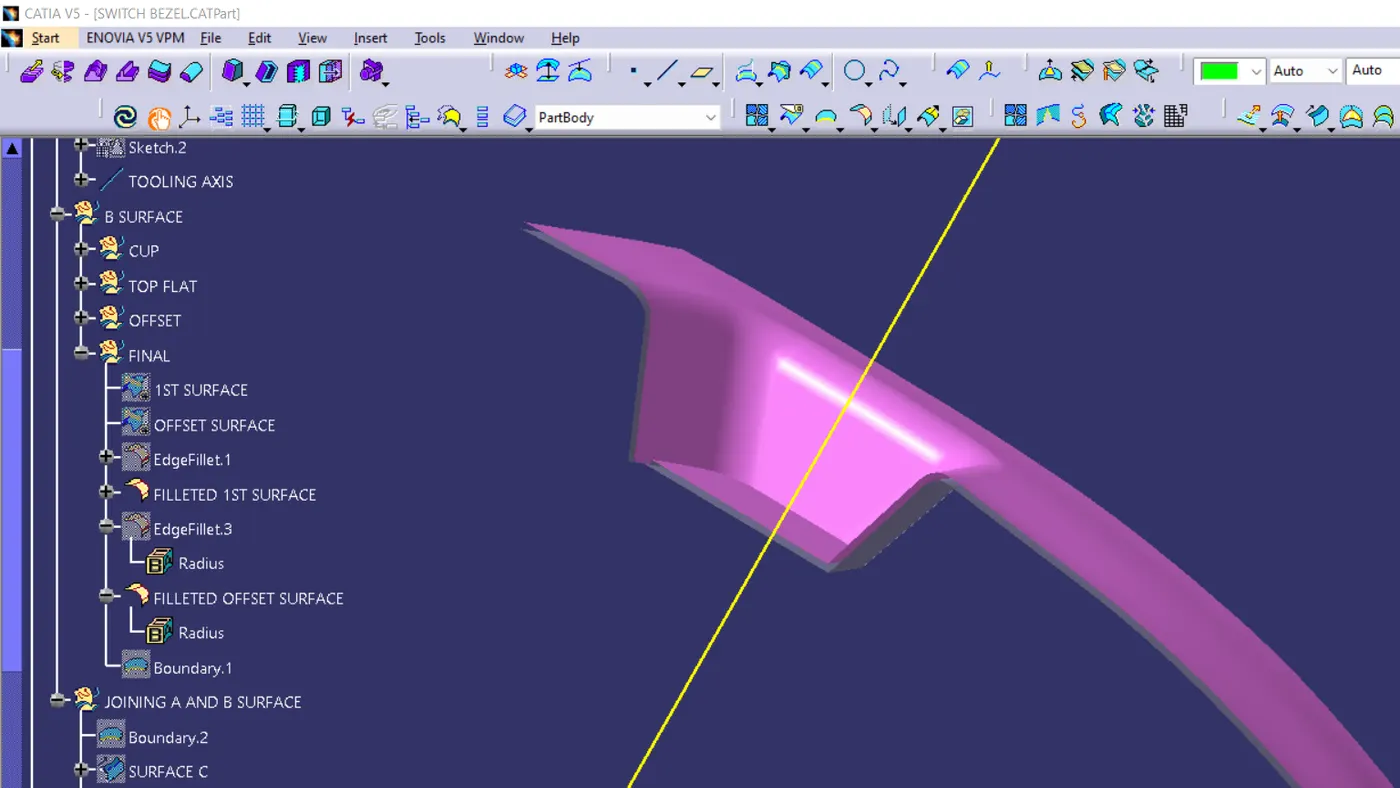
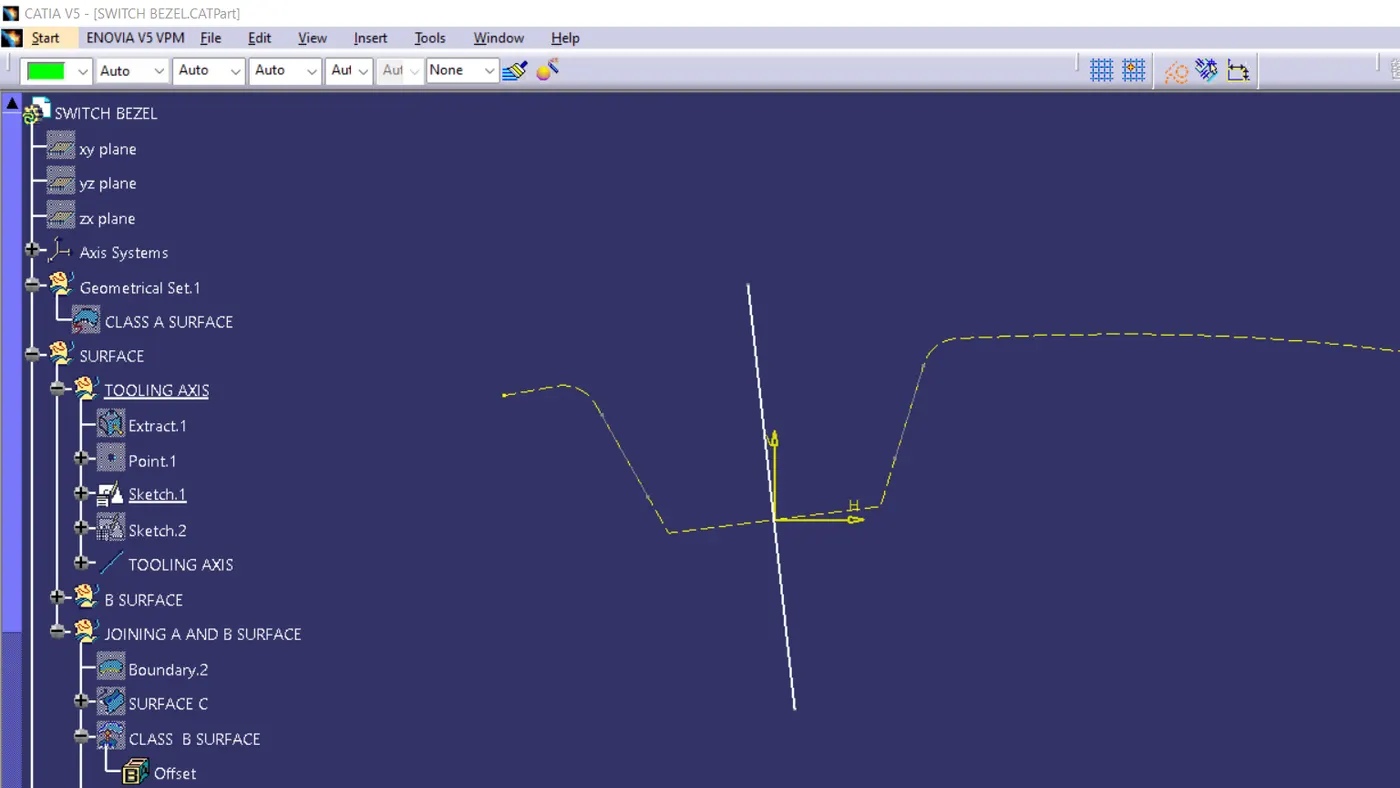
unless like a round shape or square shape we cannot find the center of this shape. so that first we take the long side for the intersection. also, we have to make sure all parts of the shape should be visible while tooling. there for taking the deepest plane on the shape ,. extract it - make a point in the center - make an axis using that point as an origin - create a positioned sketch using the y-z plane .take the intersection tool (intersect 3d elements. ) and take the shape as reference. now we get to the intersection along the y-z direction. make 2line through the intersection on both sides which is parallel to the tooling dummy axis. and bisect it with the point using(bisecting tool) .now get got the line of tooling axis in y-z direction.
same on the x-z plane .it would be good to get a cut section view by using a cut by sketch plane tool. do the same steps
after the intersection and make a line through the intersection which is parallel to the dummy line on one side, on the other side there is no line of the intersection, so make a line through the point. and make sure the angle between the line parallel to the dummy line and the line through the point is 3 degrees .now got the line of the tooling axis in the x-z axis
to get the exact tooling axis to bisect both the y-z plane line and x-z plane line
drafting analysis
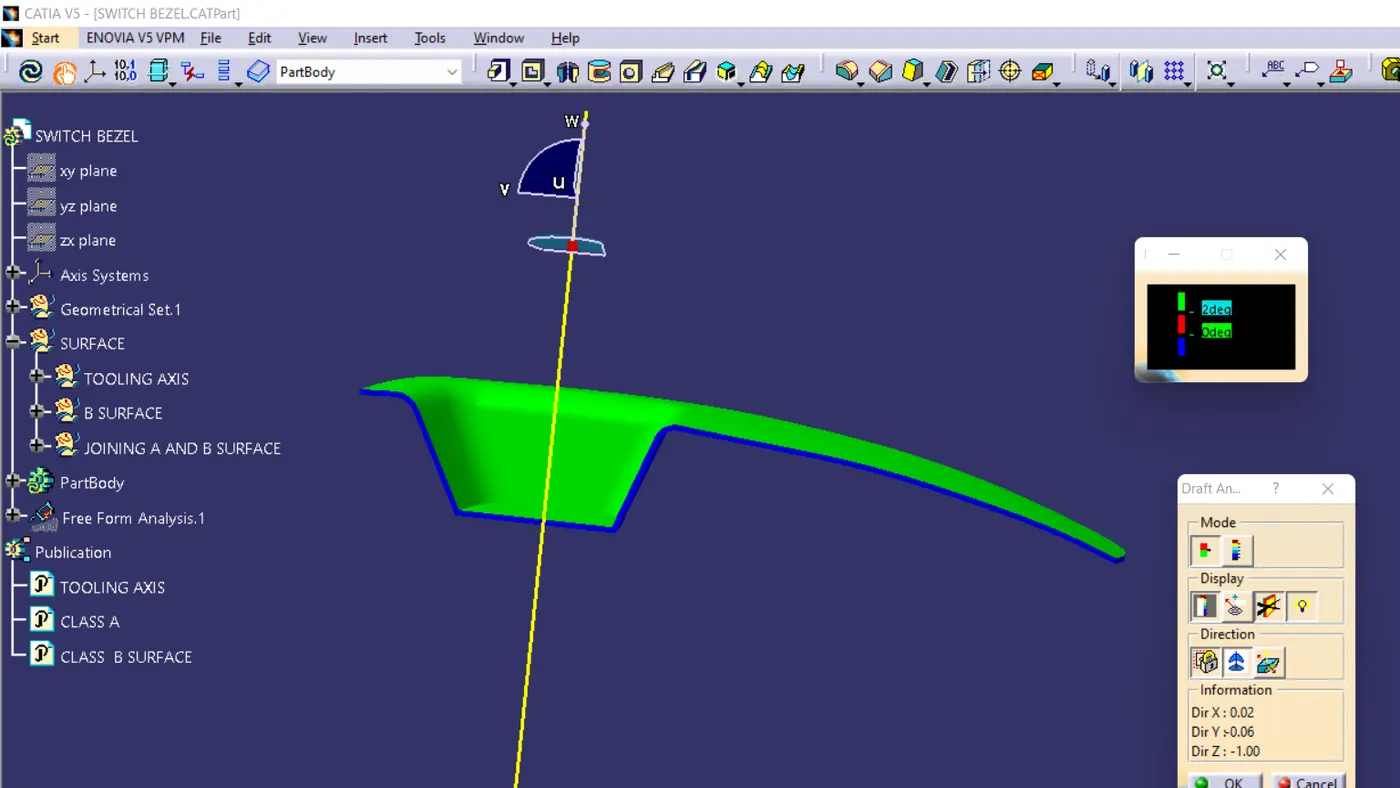
change the martial mode to the material- take the draft analysis-
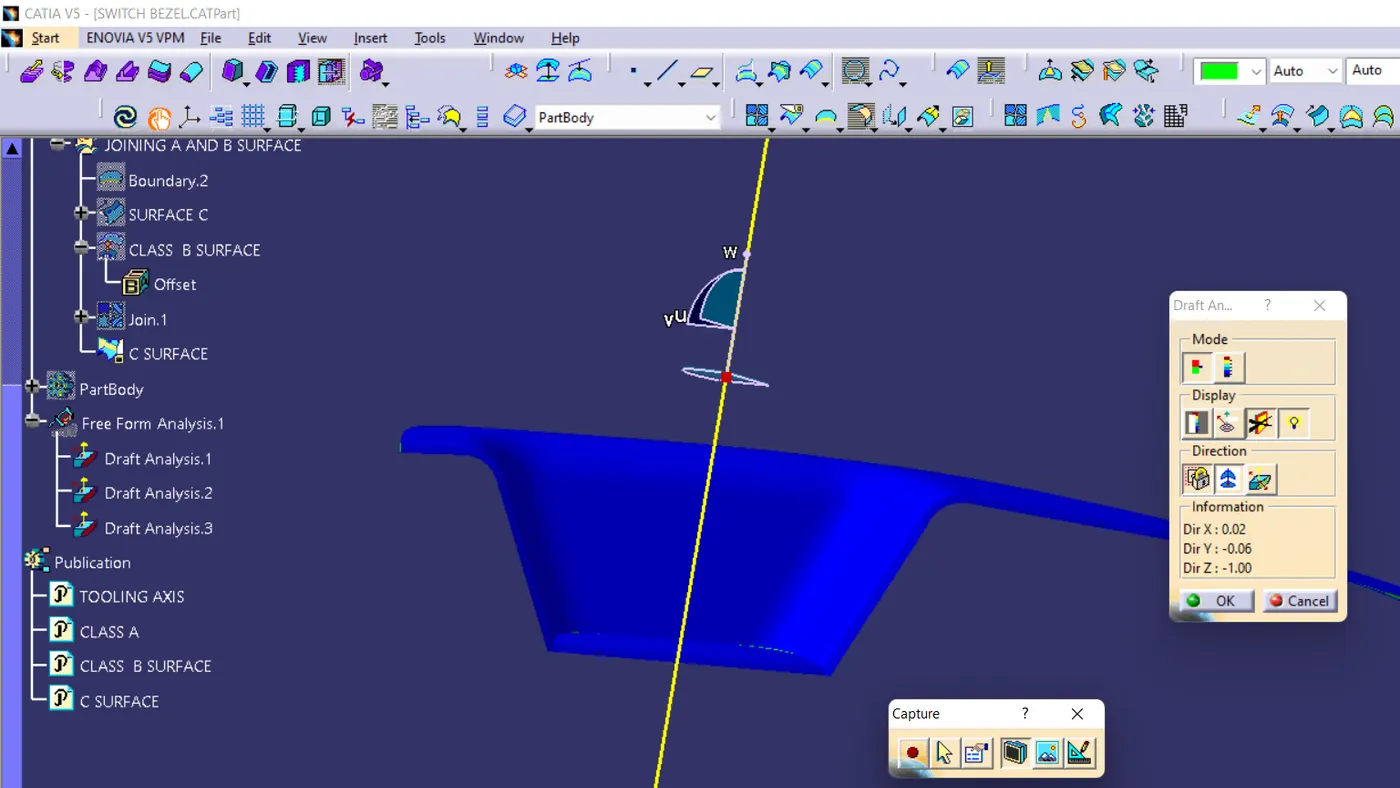
draft analysis is made by the analysis tool,after the part is created the martial shading is changed to material by using the customize using parameter - choose the material option -after that come back to the feature draft analysis - here select
the compass to change the direction of tooling. -after clicking the compass icon align with the tooling axis - locking it using a nearby option called lock . by now a red cross will appear at the mouse pointer and the color of the part will turn green. blue or red or green shows the draft is good and attained good value .red shows the neutral .blue shows negative