Week 8-Challenge
Objective :- 3D Meshing of HOUSING MODEL with given quality criteria
Elements sizes: Min- 2mm, Target- 5mm, Max- 7mm
Tet collapse: 0.15.
Create 3D tetramesh for Model -2 , Model -3 with 6mm element size.
Procedure :-
- Import the given cad model into Hypermesh
- The input CAD models are in .STP & .IGS Format , to import this files go to import geometry - select folder- click on import.
- Before going to perform Meshing , first we have to do GEOMETRY CLEANUP/TOPOLOGY CLEANUP
- After importing different cad files there will be a high chance for getting connectivity errors , duplicating surfaces , pin holes and some other errors so to avoid all these problems we will do geometry clenup.
- our element size is 5mm so fillets with <5 mm radius will be failure for quality , so we remove those fillets also all these are comes under geometry clenup stage.
- To do geometry clenup i used defeature , surface edit and quick edit tool bars
- in quick edit tool bar TOGGLE EDGE , REPLACE POINT , SPLIT SURF-NODE, ADD/REMOVE POINT these are the most used commands for topology cleanup.
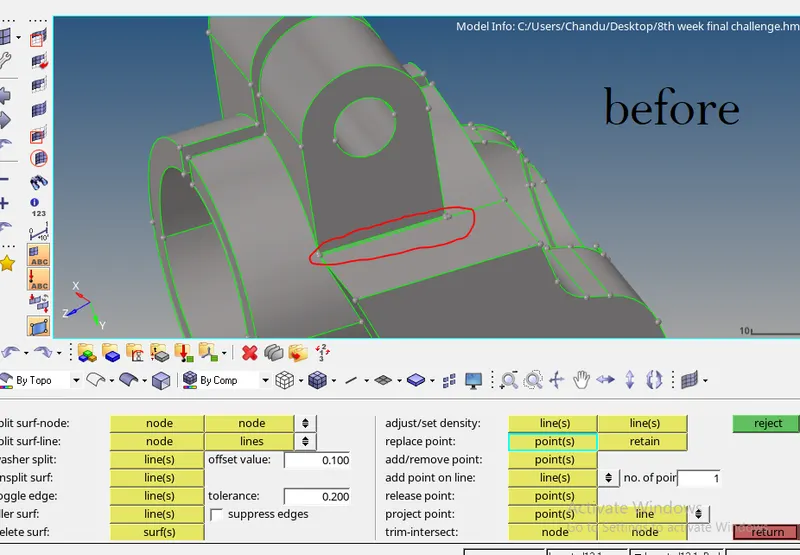
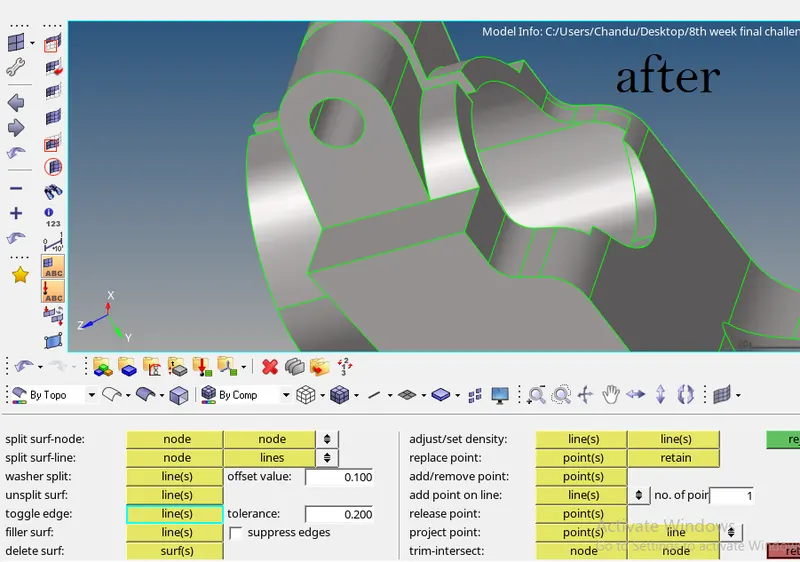
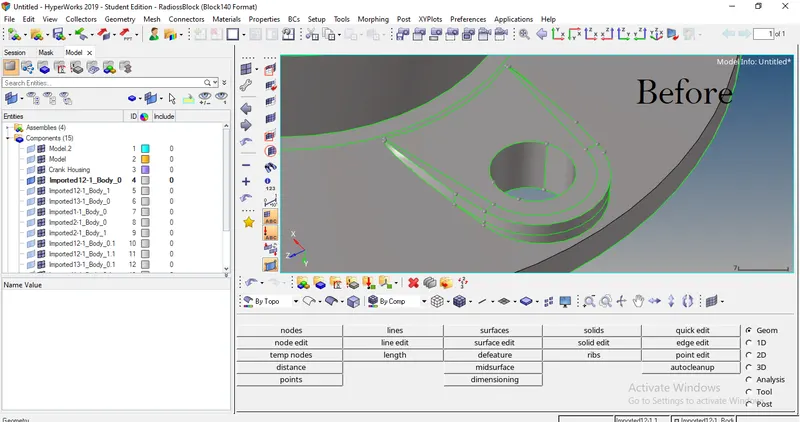
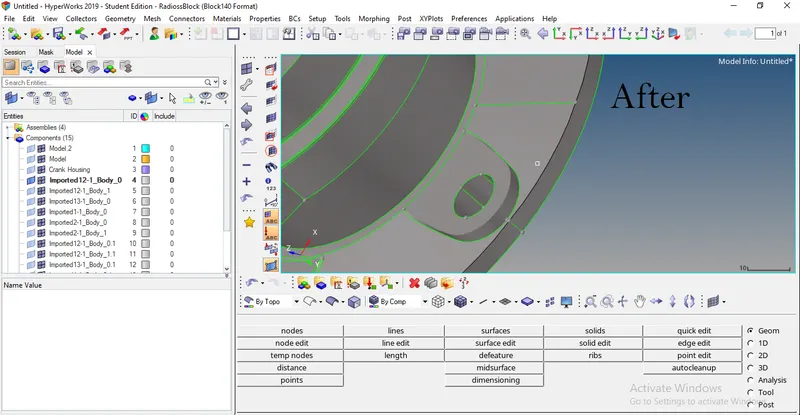
8. above pics are some of the examples of geometry clenup.
9. after completing geometry clenup we have to do 3D Meshing , there are two methods used to do 3d meshing
a) create a 2D mesh on geometry outer surface with given quality then convert into 3D mesh.
b) Direct 3D meshing on component using VOLUME TETRA command , for that go to 3D- Tetramesh- Volumetetra.
10. in the first method create a 2D tria shell elements on the housing model components using AUTOMESH with 5mm tria element .
11. after creating 2D mesh go for 2d quality check
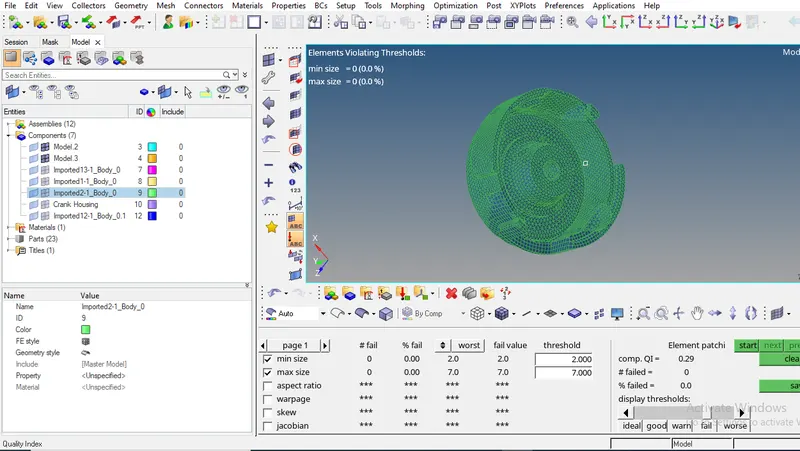
12. Clear all the failed 2D elements with the help of cleanup tools.
13. After clearing 2D quality check convert these 2D shell elements into 3D elements.
14. go to 3D- Tetramesh- Select all elements- click on mesh .
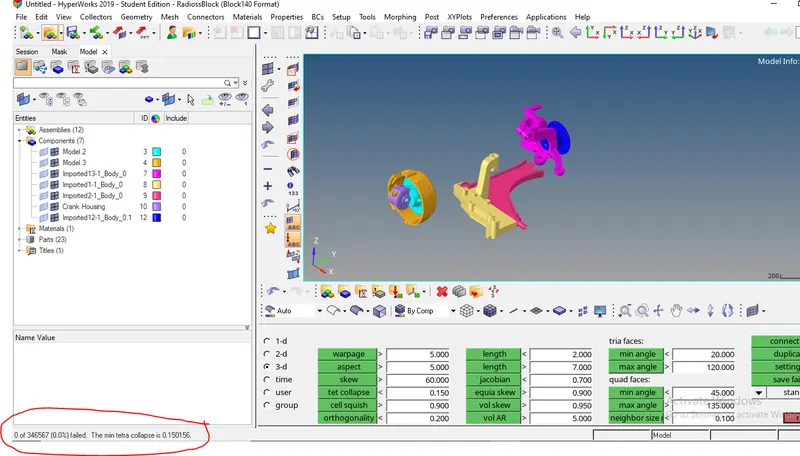
15. then check for Tet collapse , go to Tool - check elemets- 3D - Tet collapse.
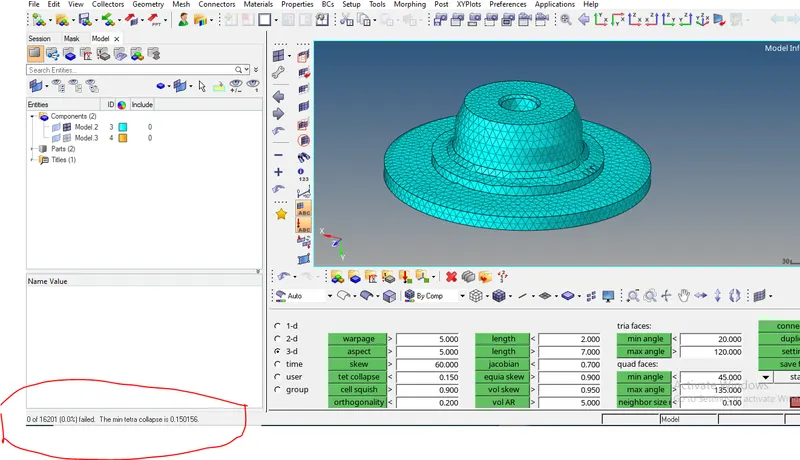
16. in the above pic it shows zero elements failing for tet collapse , it means our component clears the 3d quality check.
17. There is another method for 3d meshing that is direct 3d meshing, in this project we use TETRAS as element.
18. go to 3D- Tetramesh- Volumetetra , select surf/solid , we can give the parametrs for 3d tetra meshing in direct 3D command pannel for that go to 3D- Tetramesh- Tetra mesh parameters, give tet collapse > 0.15
19. after creating 3d mesh check for quality .
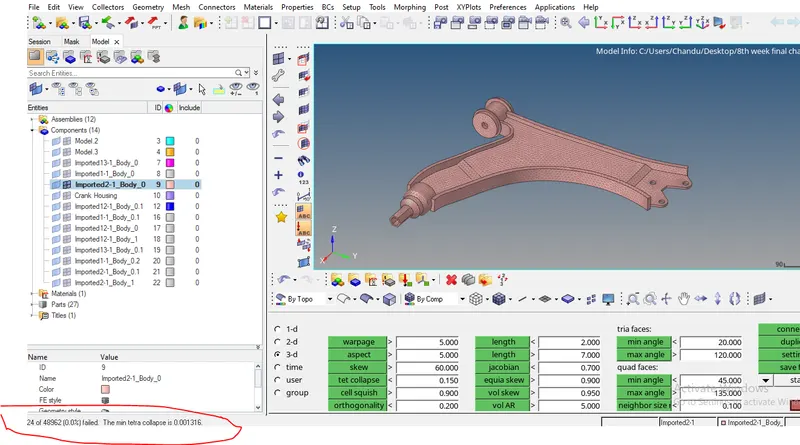
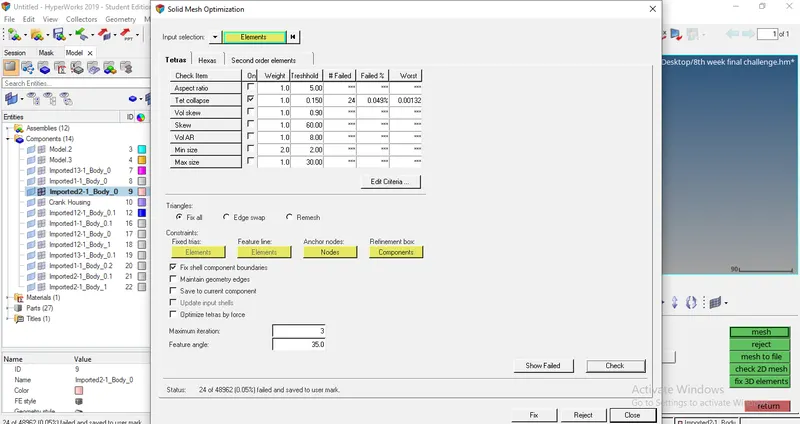
20. in the above pic it shows 24 elements are failing for tet collapse , we can clear these failed elements in both manual and automatic way.
21. Tet collapse is basically highet of tetra element , if an element fails for tet collapse it means highet of tetra element is low .
22. To clear this increase the highet of tetra element for that press F4 - two points - increase the highet , then the problem will solve.
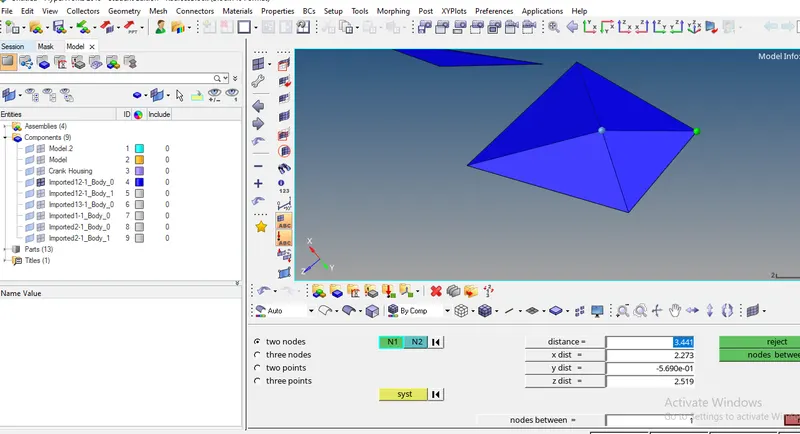
23. We can clear these failed elements in anotherway, go to 3D - Tetramesh - fix 3d elements , select failed elements and click on fix.
24. follow the same procedure to all components .
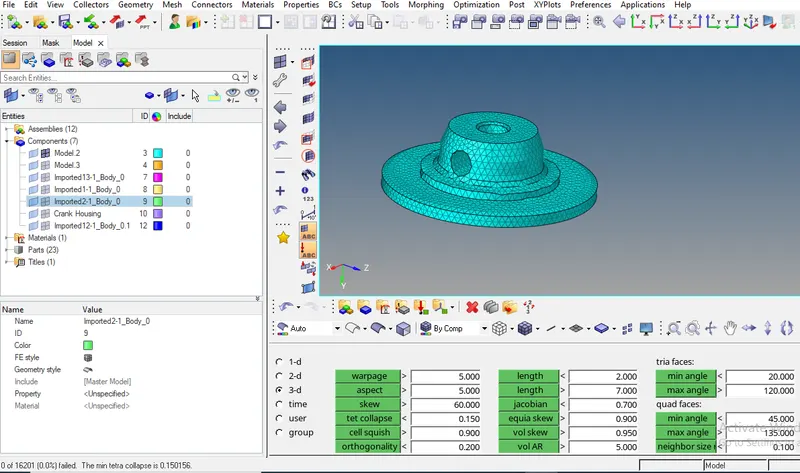
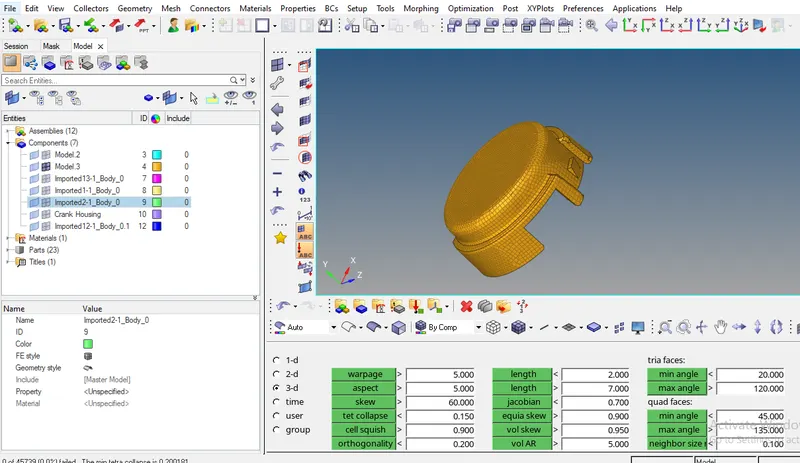
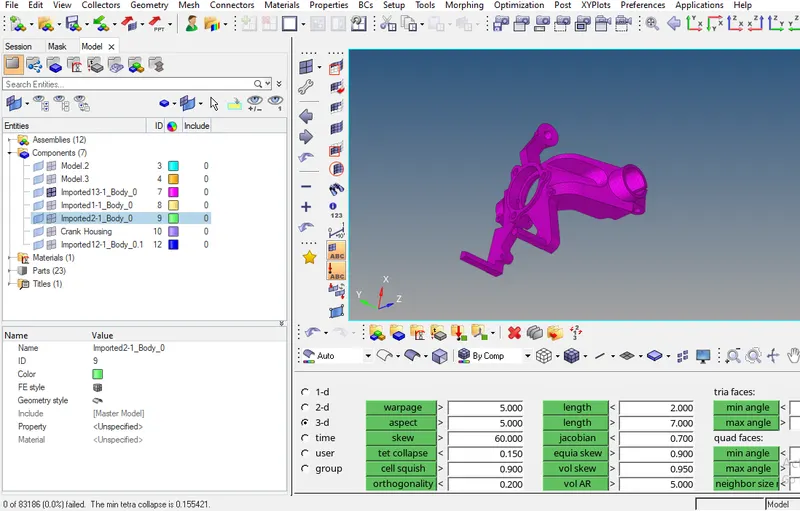
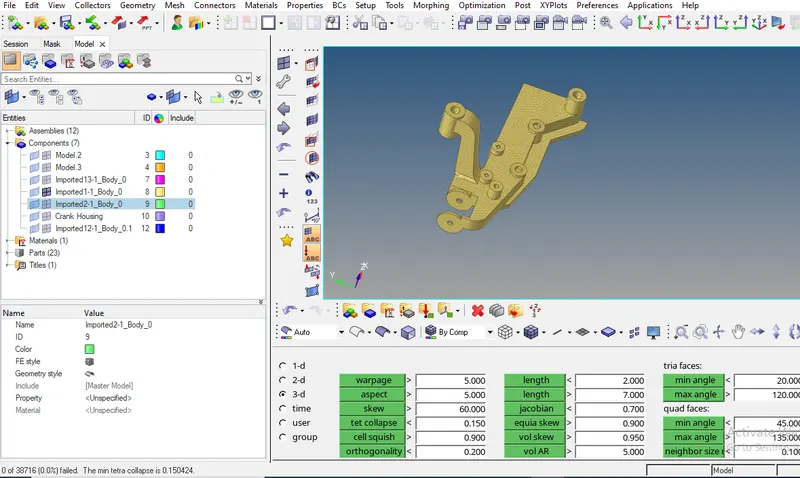
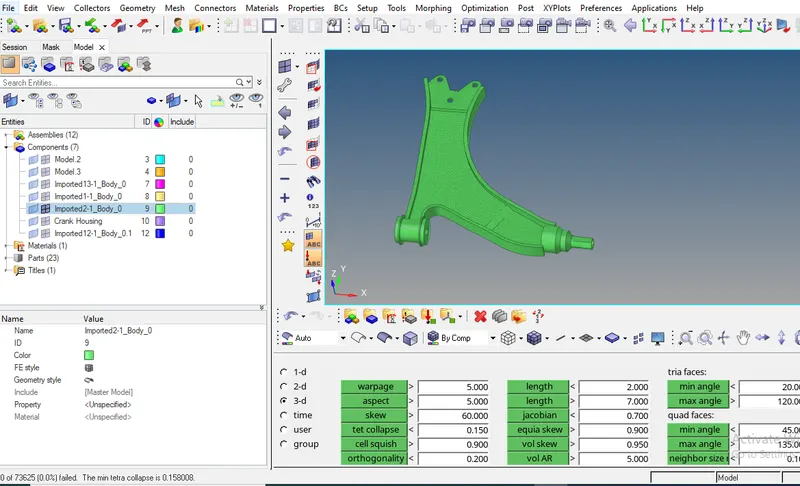
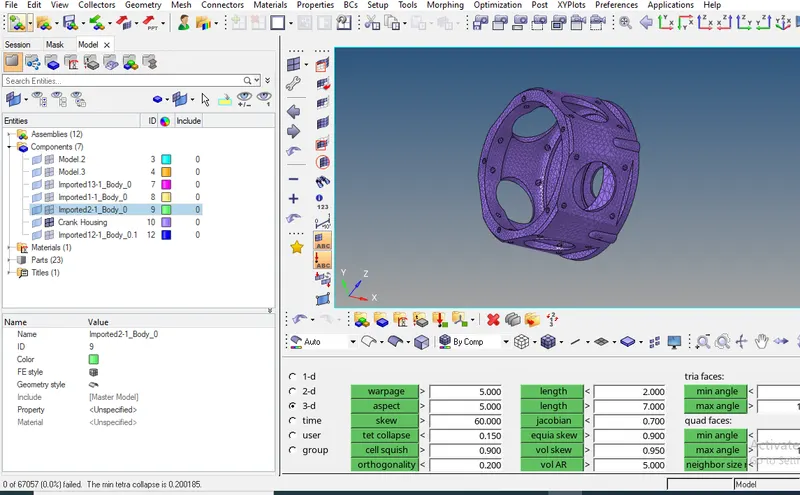
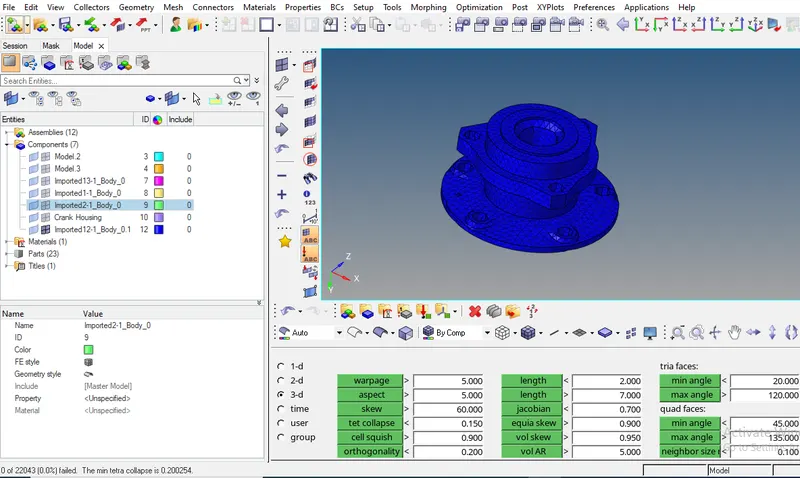
RESULT :-