Tetra Meshing
OBJECTIVE:
To provide a tetra mesh to the given component and clear all the elements for tet collapse
PRE-REQUISITES:
- A 3-D mesh is the structural build of a 3-D model consisting of polygons. 3D meshes use reference points in X, Y and Z axes to define shapes with height, width and depth.
- There are two types of 3-D meshing:
i) Tetra Meshing (with 3-D Tria Elements)
ii) Hexa Meshing (with 3-D Quad Elements)
- Tetra elements are preferred in the industry as it is easy to mesh a complex geometry.
- Tet collapse is one of the quality parameters, which will be checked while generating Tetrahedral elements.
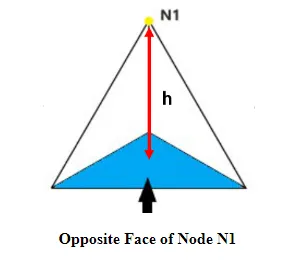
Tet collapse=Min of (h/√A) ÷ 1.24
where, “h” represents the Height, between the Node (N1) and the opposite face of the Triangle, “A” represents the Area of Opposite Face (area of the Triangle).
PROCEDURE:
I) Initial Setup:
- Select Radioss from the user interface menu.
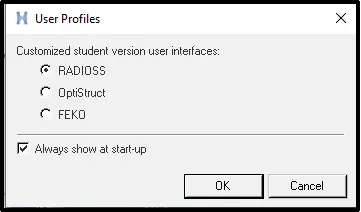
- Click on Import -> Import geometry -> Select the Required file.
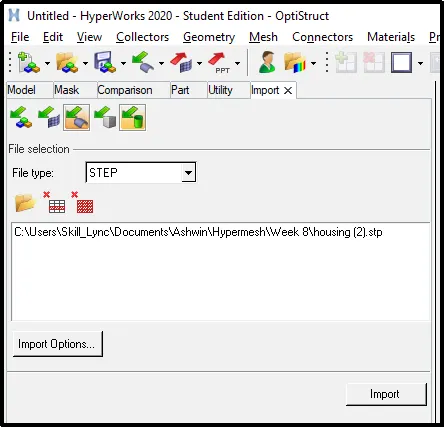
- Delete the solids from the model by clicking on Delete -> Solids -> All -> Delete Entities.

- The following models are obtained:
| SL NO. | Name | Model |
| 1 | Chassis | 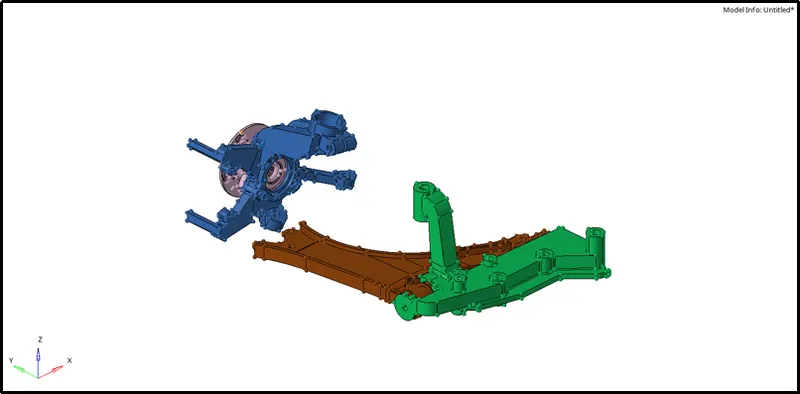 |
| 2 | Crank Housing | 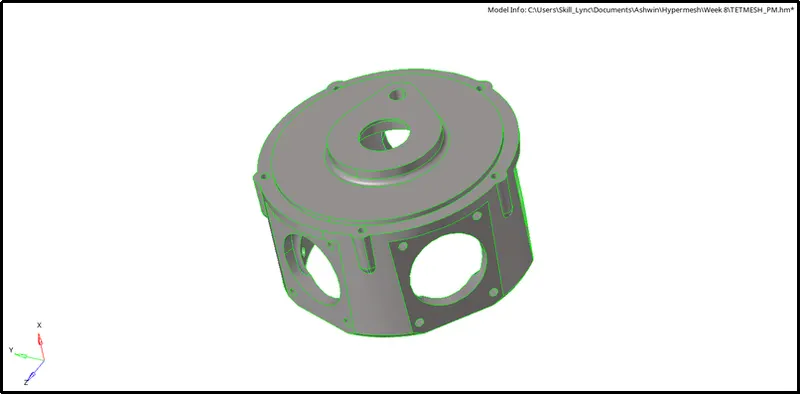 |
| 3 | Housing | 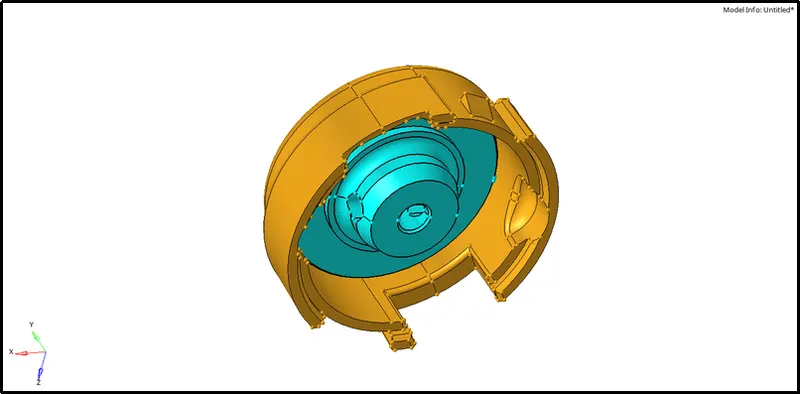 |
II) Meshing:
-
There are three methods to generate Tetra Meshing:
a) Conversion of 2D tria to Tetrahedral Elements:
i) This is one of the best methods to get a tetra mesh.
ii) First, we need to provide a 2-D mesh by clicking on 2-D -> Automesh -> Surface -> Select Surface -> Element size= 5 -> Mesh type= Trias -> Check Align and Size box under Flow -> Mesh.

[Note: Shortcut for Mesh tool is F12]
iii) After obtaining a 2-D mesh make sure all the elements are passing the quality criteria.
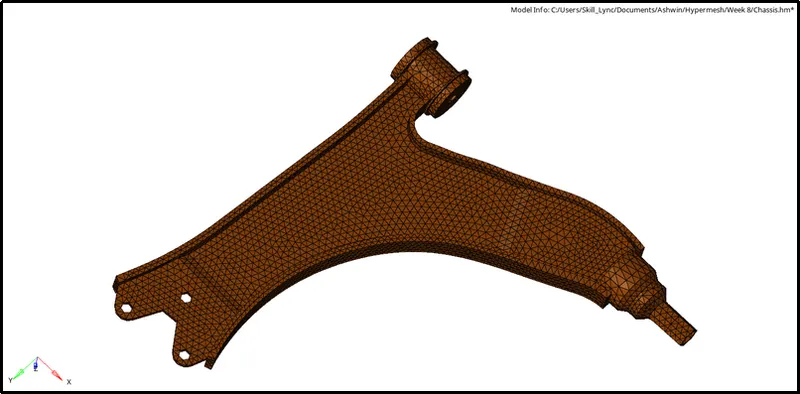
iv) Once the quality criterias are met click on 3-D -> Tetra mesh -> Elements -> Mesh.

v) Below image shows the tetra mesh:
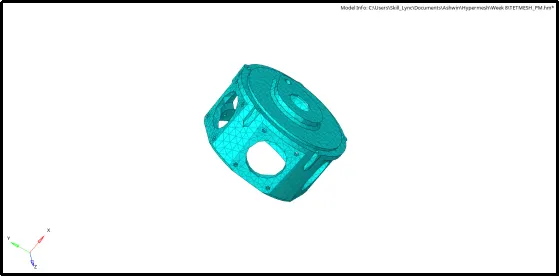
b) Quick Tetra Mesh:
i) This is one of the easiest methods to generate a tetra mesh.
ii) First, we need to click on View -> Utility -> Geom/Mesh -> Quick TetraMesh -> Select component -> Mesh size=6 -> Mesh type -> Trias -> Mesh.
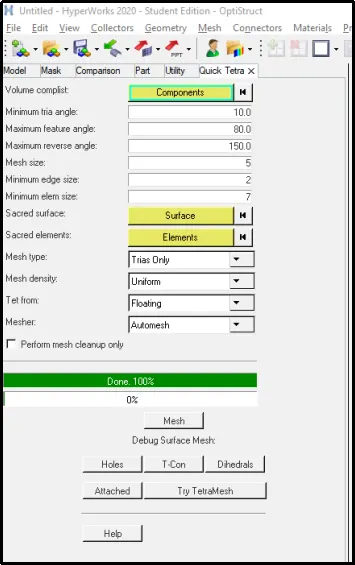
iii)The following image shows the tetra mesh:
c) Using the Volume Tetra Mesh:
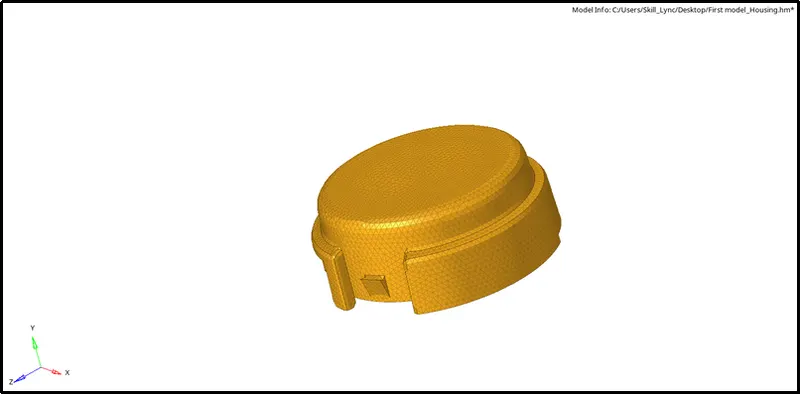
i) Click on 3-D -> Tetra mesh -> Volume Tetra -> Surface -> Check the 'Use Curvature' and 'Use Proximity ' boxes -> Mesh.

[Note: By Checking the 'Use Curvature' box we can get a good mesh around curved surfaces]
[Note: By Checking the 'Use Proximity' box we can get the same minimum element size around curved surfaces ]
ii) The following image shows the tetra mesh:
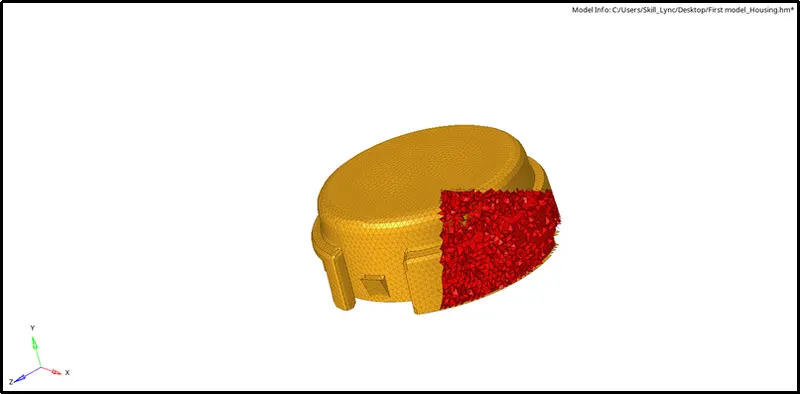
iii) To be sure about getting a tetra mesh, we can mask a few elements and check.
iv) To do so, click on Tool -> Mask -> Elements -> Select a few elements -> Mask.

[Note: Shortcut for Mask tool is F5]
v) The below image shows a successful tetra mesh:
III) Clearing Tet Collapse:
- There are three methods we can use to clear Tet Collapse:
a) Translate tool:
i) Find out all the elements that are failing for tet collapse.
ii) To do so, click on Tool -> Check elements -> 3-D -> Tet Collapse= 0.15 -> Save failed.

iii) To display only the failing elements click on Tool -> Mask -> Retrieve -> Mask -> Reverse All.
iv) Click on Tool -> Translate -> Select Node -> Select N1, N2 and N3 (based on direction the selected node needs to move) -> Magnitude=0.1 -> Translate +/ Translate-.

b) Distance tool:
i) Find out all the elements that are failing for tet collapse.
ii) To do so, click on Tool -> Check elements -> 3-D -> Tet Collapse= 0.15 -> Save failed.
iii) To display only the failing elements click on Tool -> Mask -> Retrieve -> Mask -> Reverse All.
iv) Click on Geom -> Distance -> Two Nodes -> Increase or Decrease distance by entering a value in the box.

[Note: Shortcut for Distance tool is F4]
c) Tetra Remesh:
i) We have to first enter tet collapse value by clicking on 3-D -> Tetra mesh -> Tetra mesh Parameters -> Tet Collapse= 0.15 -> Min Tetra size = 2.

ii) Now click on 3-D -> Tetra mesh -> Tetra remesh -> Select all the elements -> Remesh.

- The following table shows all the components passing for Tet Collapse:
| SL NO. | Name | Before | After |
| 1. | Chassis |  |
 |
| 2. | Crank Housing |  |
 |
| 3. | Housing |  |
 |
RESULT:
- Generated a tetra mesh using various methods.
- Cleared Tet Collapse for all failing elements.
CONCLUSION:
- Studied about different types of 3-D meshing.
- Learnt different ways to generate Tetra Mesh.
- Learnt different ways to clear Tet Collapse.