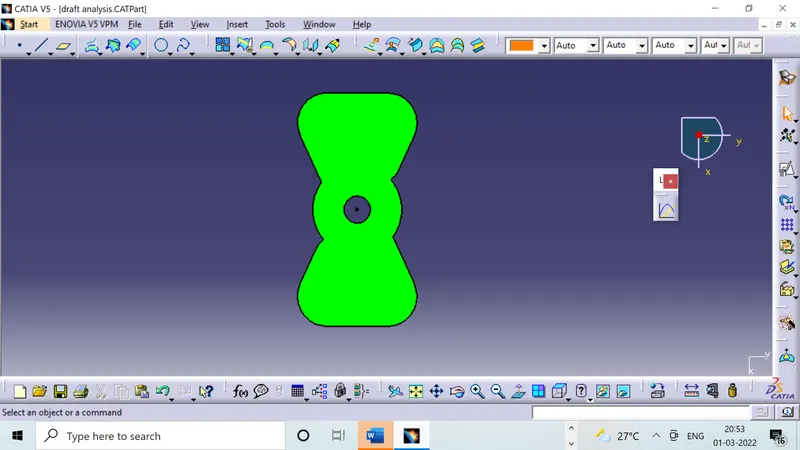
Week 8 - Challenge 1 - Draft Analysis on a Fan Cover
DRAFT ANALYSIS ON FAN COVER
In this particular challenge the draft analyis of fan cover is done in the CATIA Software , the input for performing the analyis is the CLASS A surface and as a product designer the creation of the tooling axis and draft analysis is required to be done on the CLASS A surface.
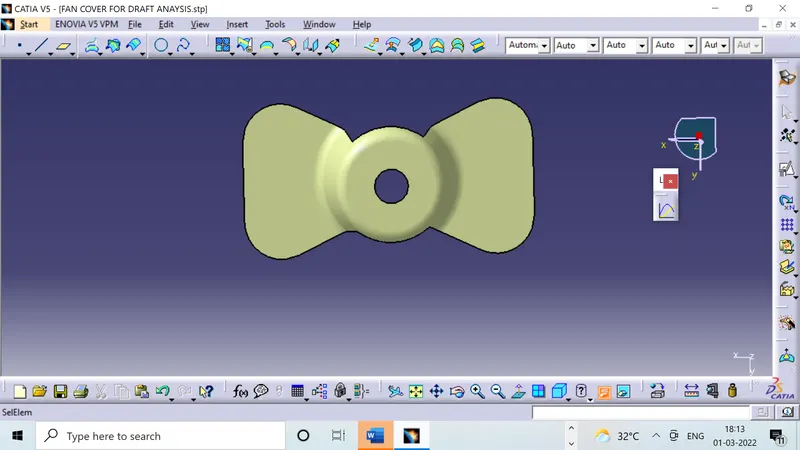
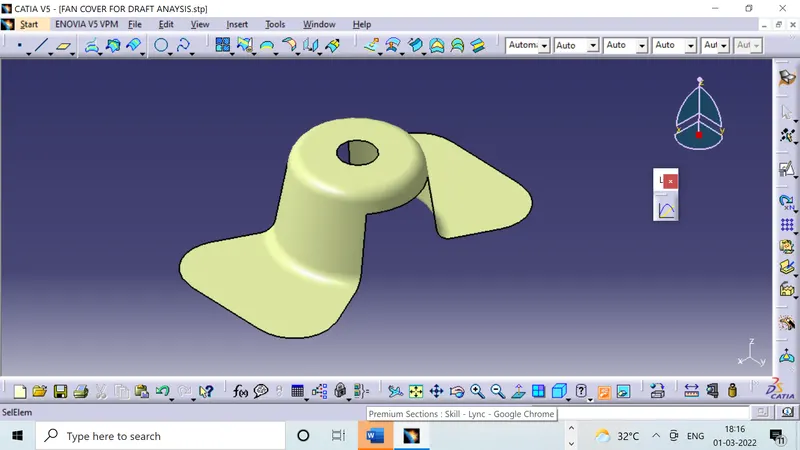
- CLASS A SURFACEThe class A surface is the surface created from the concept sketch in the software called AutoDesk ALIAS, the class A surface is basically the styling surface and it is used as reference by the product designer to design the component with the help of tooling axis and draft analysis, here we have fan cover as a class A surface.
2. EVALUATING CLASS A
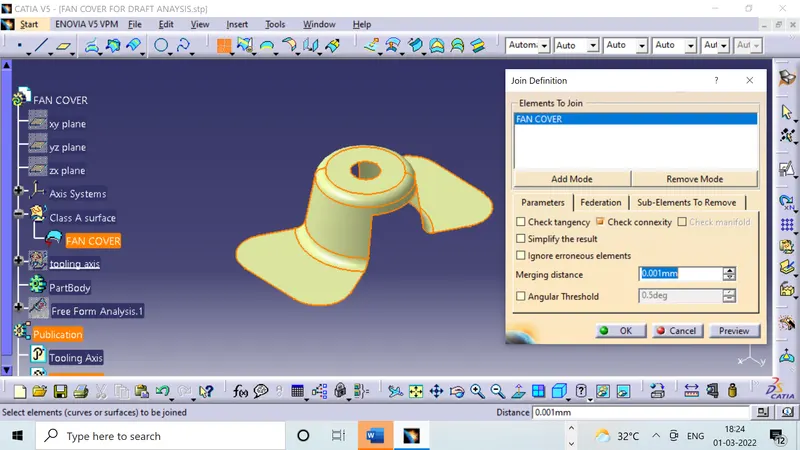
After receiving the class A surface the next step is to affirm about the closeness of the class A surface means make sure the class A surface is closed properly and there is no open surface which will hinder the analysis procedure in subsequent processes.In catia you can acknowledge this by using the Join and Boundary command .
3 . TOOLING AXIS CREATION
Tooling axis plays important role in plastic product manufacturing and designing, this axis decides the direction in which mould is going to work while production of the component.
The main focus while deciding the tooling axis is clearing the component in the moulding in the same axis with the minimum use of the side core for producing the component, the side core usually adds up to the cost of the component.
For the particular component X,Y and Z can be the possible direction for the tooling axis.
You must specify the axis system for creating the point and axis reference which will be related to the vehicle zero.
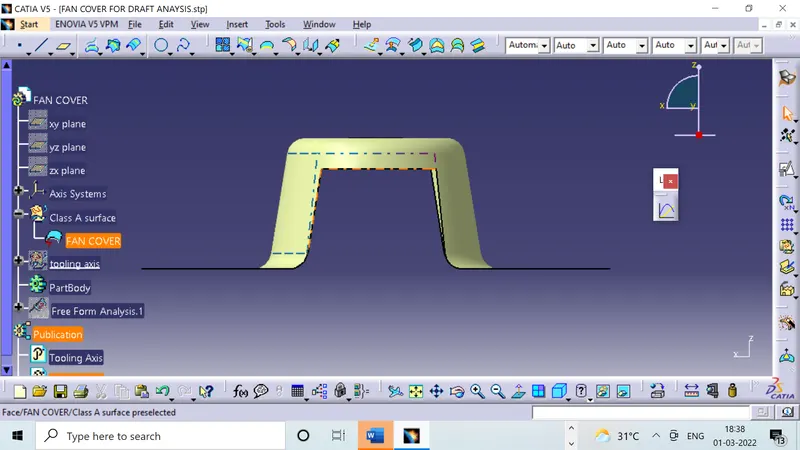
a) Y DIRECTION POSSIBILITY
When you study the component for Y axis as tooling direction it is difficult to clear the centre hole and side core would be required while producing the component in this tooling axis.
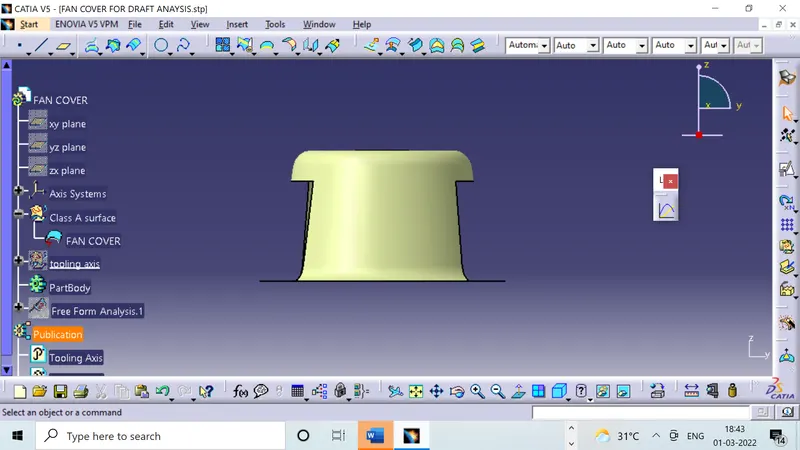
b) X-DIRECTION POSSIBILITY
When you study the component for X axis as tooling direction it is difficult to clear the centre hole and side core would be required while producing the component in this tooling axis and even there are slots which will not be going to clear in the main tooling.
c)Z- DIRECTION POSSIBILITY.
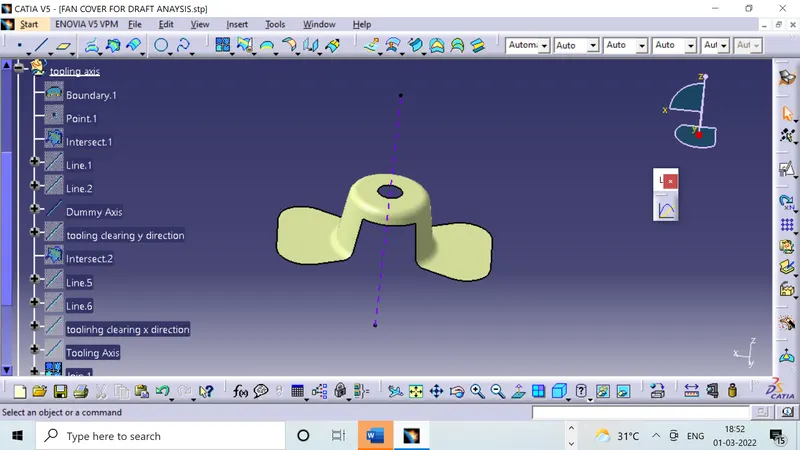
When you study the component for Z axis as tooling it is possible to clear the centre hole without side core and even slots will be cleared in the main tooling so we can assign the particular z axis as the dummy tooling axis till the further confirmation for clearing of the various parts of the same component in the XZ AND YZ planes.
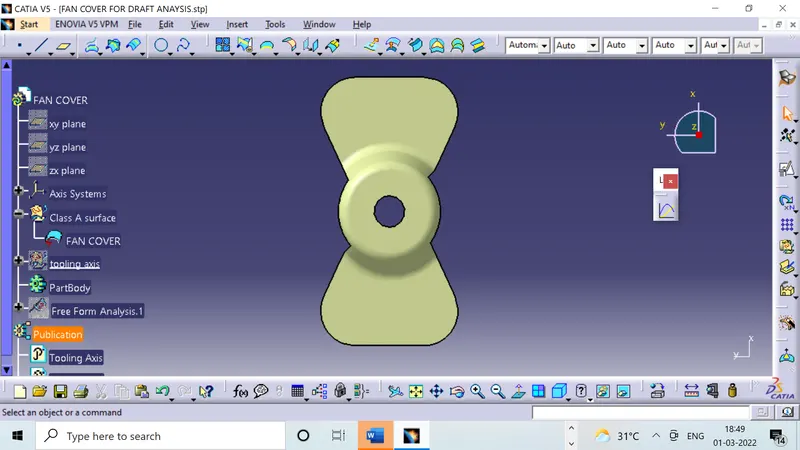
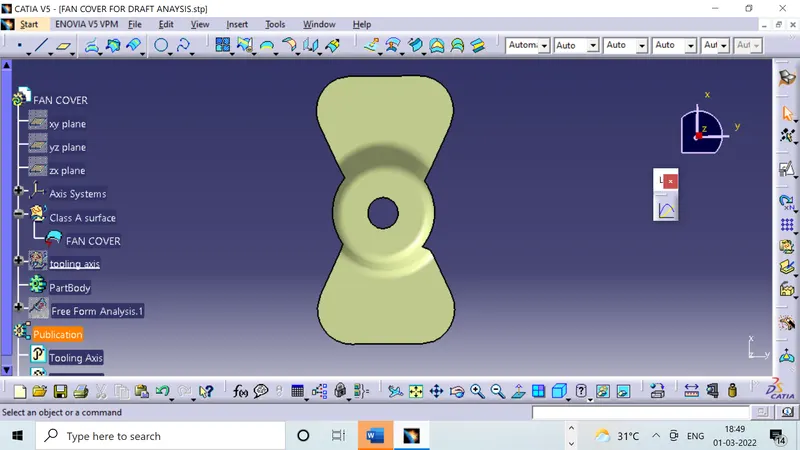
Z-AXIS AS DUMMY TOOLING AXIS we check the possible clearance of the component in XZ and YZ planes.
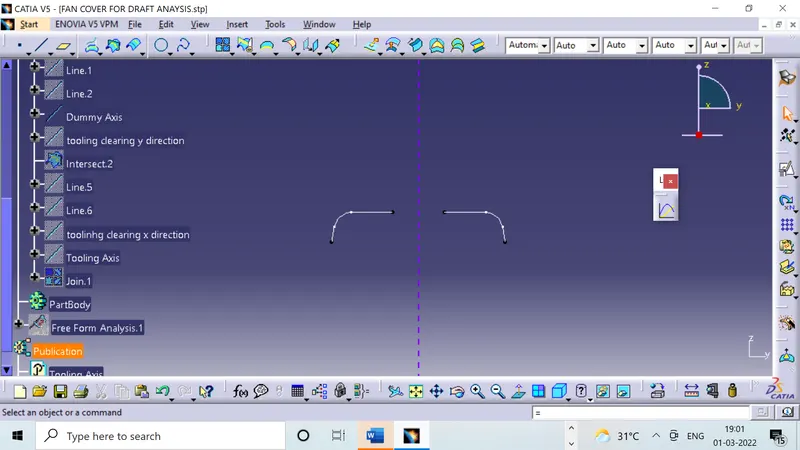
CLEARANCE IN ZX PLANE
Intersect the zx plane in the axis system with the class A surface to obtain the intersect sketch which needs to cleared in the zx plane. After getting the intersect try to analyse the dummy direction of tooling axis and the sketch, the sketch which is perpendicular to dummy tooling axis will be cleared in the tooling direction easily, one which are inclinded at an angle to the dummy tooling axis you need to find the zx tooling axis for that sketch of the component in zx plane.
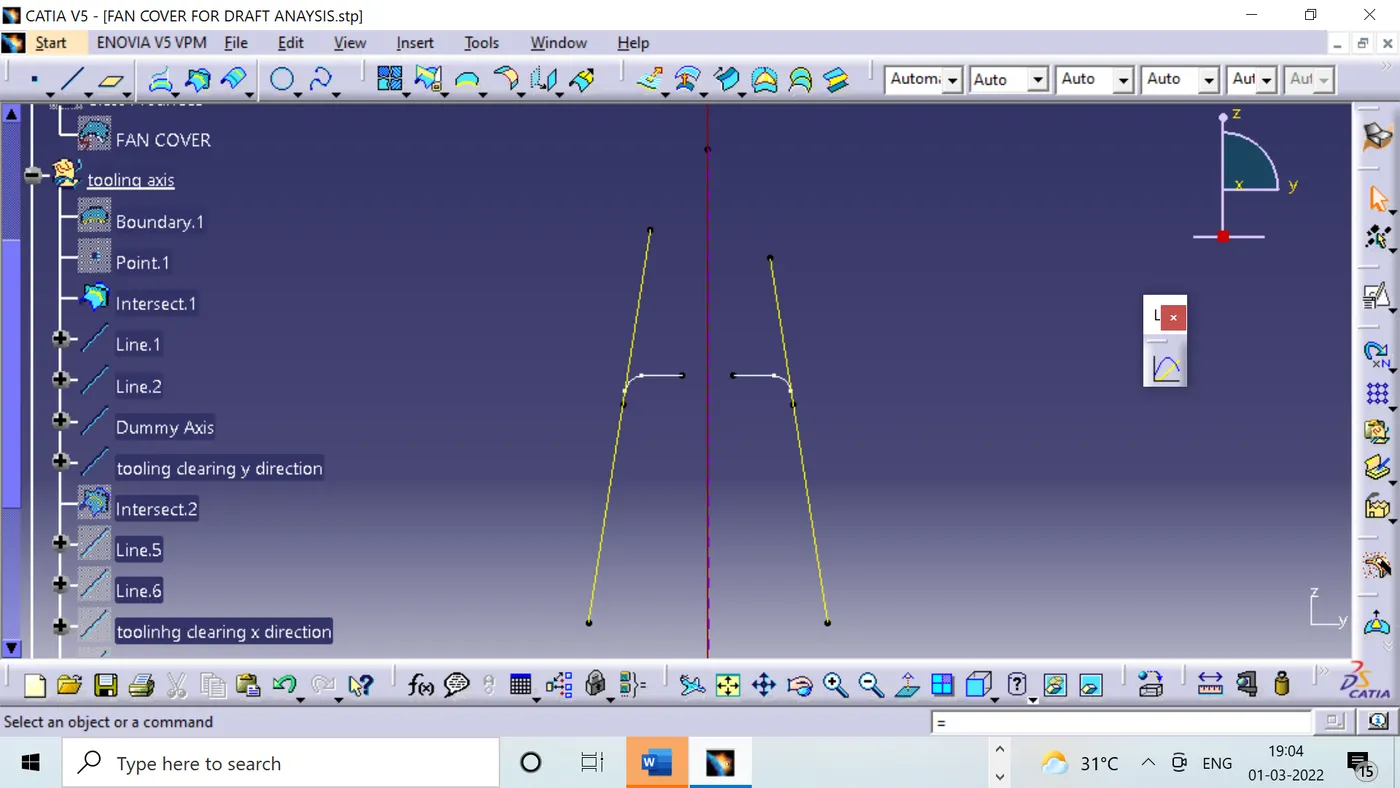
As you can see inclined sketch is symmetrical to the dummy axis all you need to do is extend the inclined sketch and generate the line and with the help of these lines and point bisect the lines to obtain the tooling axis in the zx plane.The brown olour line is the tooling axis in zx plane.
CLEARANCE IN YZ PLANE
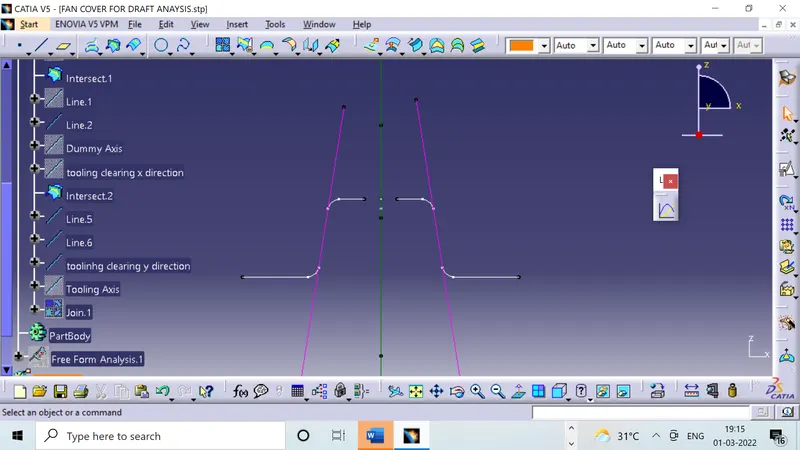
Intersect the YZ plane in the axis system with the class A surface to obtain the intersect sketch which needs to cleared in the zx plane. After getting the intersect try to analyse the dummy direction of tooling axis and the sketch, the sketch which is perpendicular to dummy tooling axis will be cleared in the tooling direction easily, one which are inclinded at an angle to the dummy tooling axis you need to find the zx tooling axis for that sketch of the component in yz plane.
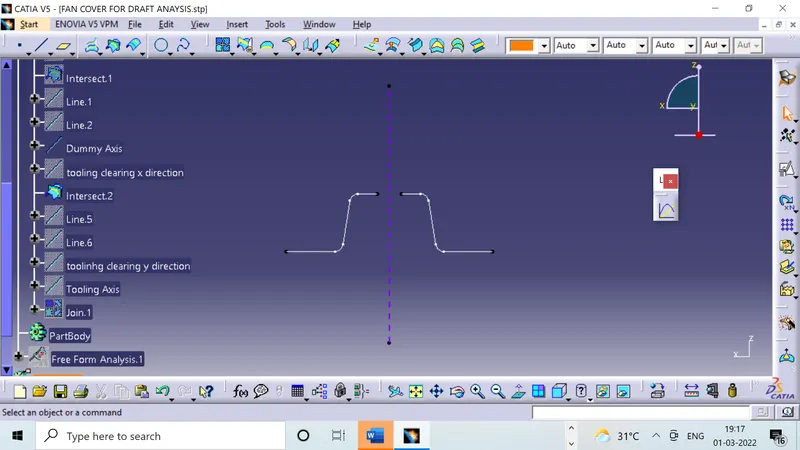
As you can see inclined sketch is symmetrical to the dummy axis all you need to do is extend the inclined sketch and generate the line and with the help of these lines and point bisect the lines to obtain the tooling axis in the yz plane.The PURPLE Colour line is the tooling axis in zx plane.
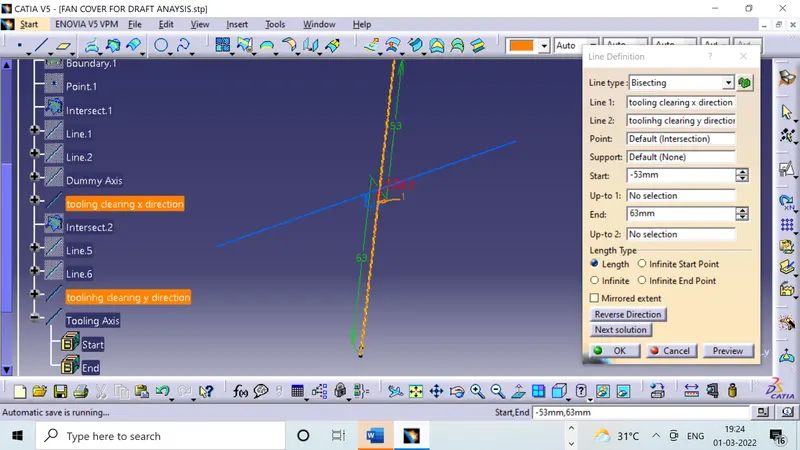
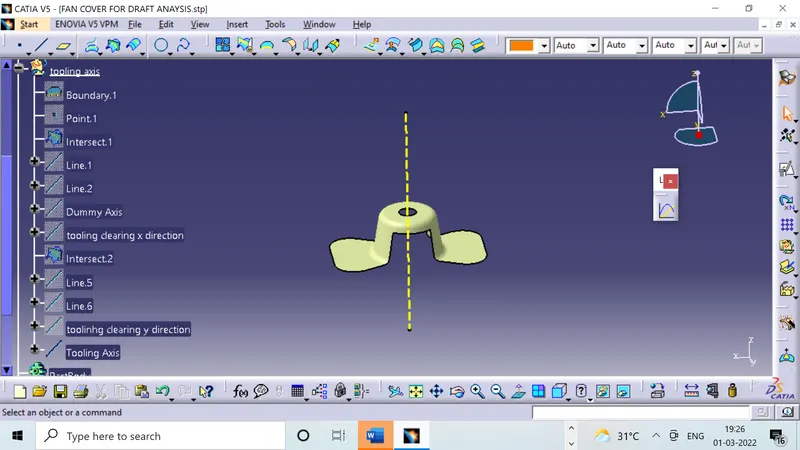
AFTER GETTING THE TOOLING AXIS IN BOTH THE ZX AND YZ PLANES BISECT THESE RESPECTIVE TOOLING AXIS TO GET THE MAIN TOOLING AXIS, THIS AXIS WILL BE USED FOR THE MOULDING DIRECTION AND CORE AND CAVITY WORKING , THE BISECTING METHOD IS USEFUL FOR THE SYMMETRICAL COMPONENTS TOOLING AXIS AND IT GIVES GENEROUS IDEA ABOUT THE CLEARING OF THE COMPONENT IN THE RESPECTIVE PLANES OF THE DUMMY TOOLING AXIS.
4.) PUBLICATION CREATION.
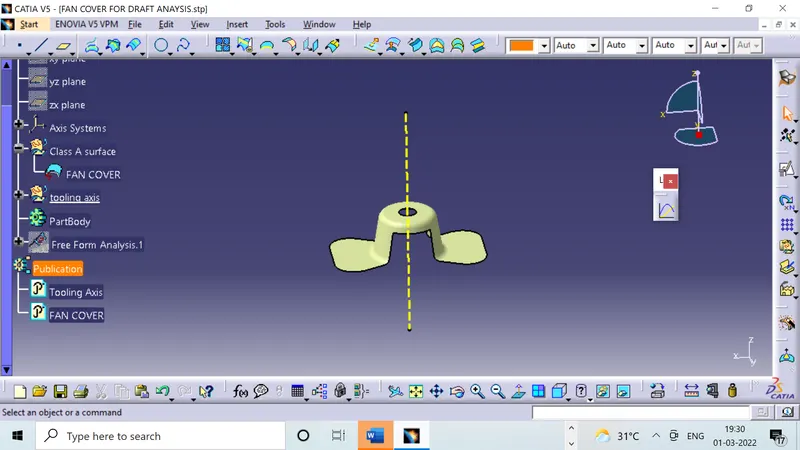
After the creation of the tooling axis one should insert the publication from the insert tool. the publication serves your time while working on the class A for the draft analysis as well as thickening of the component. you can directly select your tooling axis and class A SURFACE as and when required during working on the class A surface .
5. DRAFT ANALYSIS OF THE FAN COVER
The draft analysis is very important tool as it helps the user to analyse the draft at various surfaces , the draft analyzer in catia uses the colour codes for the identifiction of the draft. Each colour has its own meaning for minimum draft ,negative draft and under draft
KEY PROCESS:
- VISUALIZATIION MODE: In the visualization toolbar change the shading with edges to the customization view and make shading specification as material to avoid the predictable pop-ups.
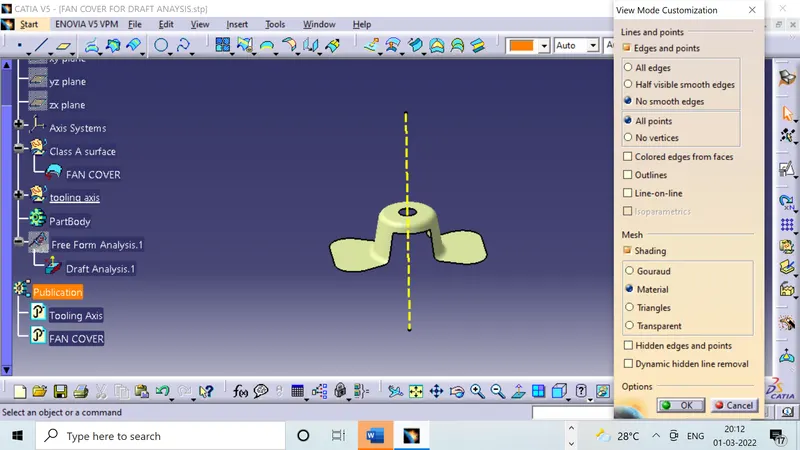
- DRAFT ANALYSIS TOOLBAR: Go to the insert workbench and click on analysis << feature based analysis , you will get into the draft analysis toolbar having one colour section toolbar for edits and values.
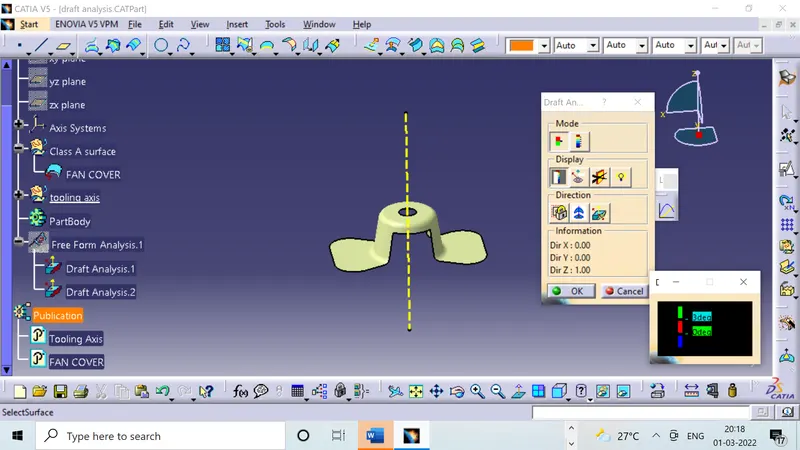
- MODES: The draft analyis toolbar provide two modes for analysis the draft , first is the quick analyis which basically has three colours for analyzing GREEN ,RED,AND BLUE on the other hand other option is the full analyis mode which enables few more detailing into the draft and is used in the complex components like instrument panel etc. In above challenge we have used the quick analysis mode for analysing draft here.
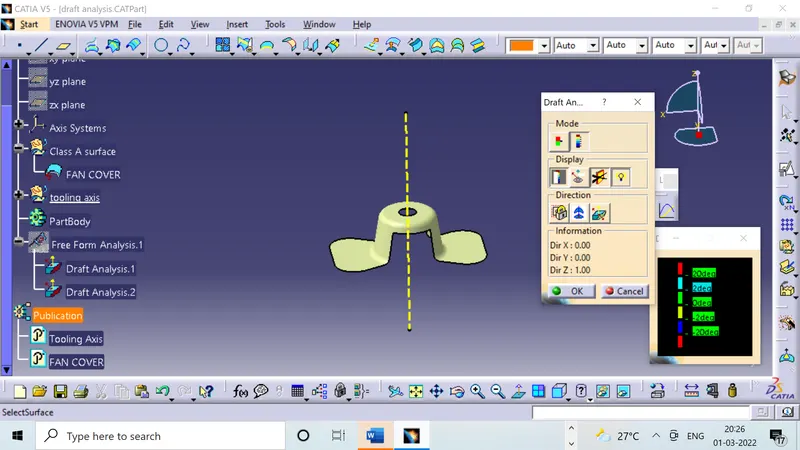
- After selecting the mode click on the compass in the direction section to set the compass aligned with the tooling axis and after the tooling axis and compass are aligned use the lock button to lock the compass movement.
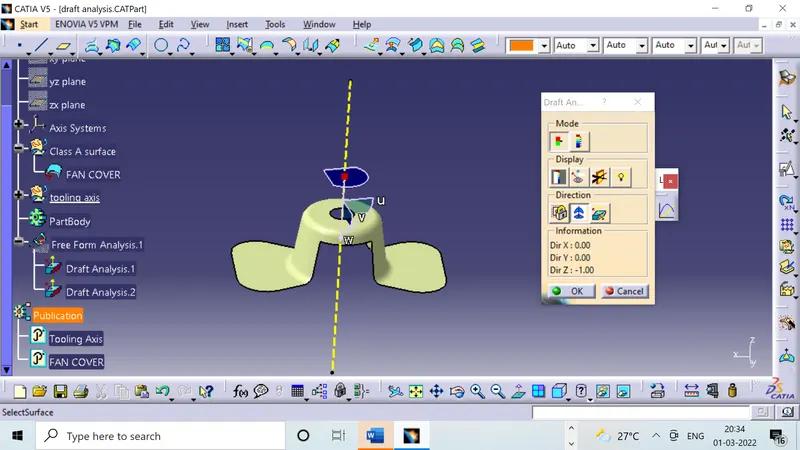
- After setting the compass along the tooling axis direction take the cursor on to the class A surface to analyze the surface, if the surface turns out be green fully it indicates draft value given is achieved throughout, we have given draft limit as 3 degrees minimum which is shown in colour code box (green colour)
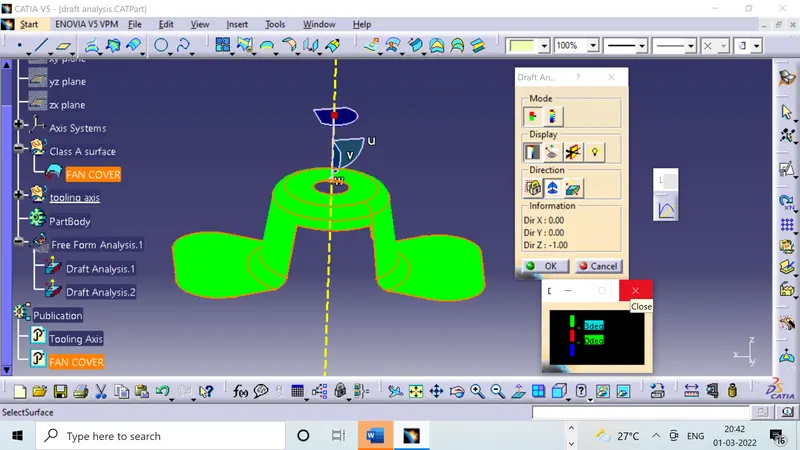
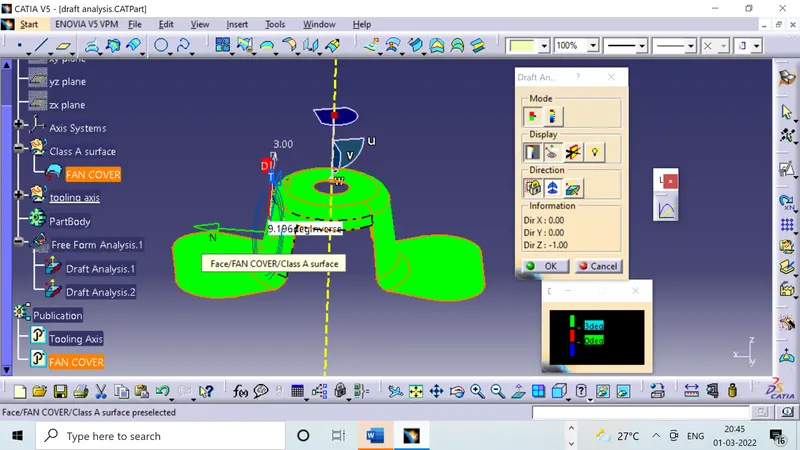
- To analyze the draft at various surfaces click on analyze under running point under display option of the draft analyzer, this point enables you to calculate the draft angle value at various surfaces.
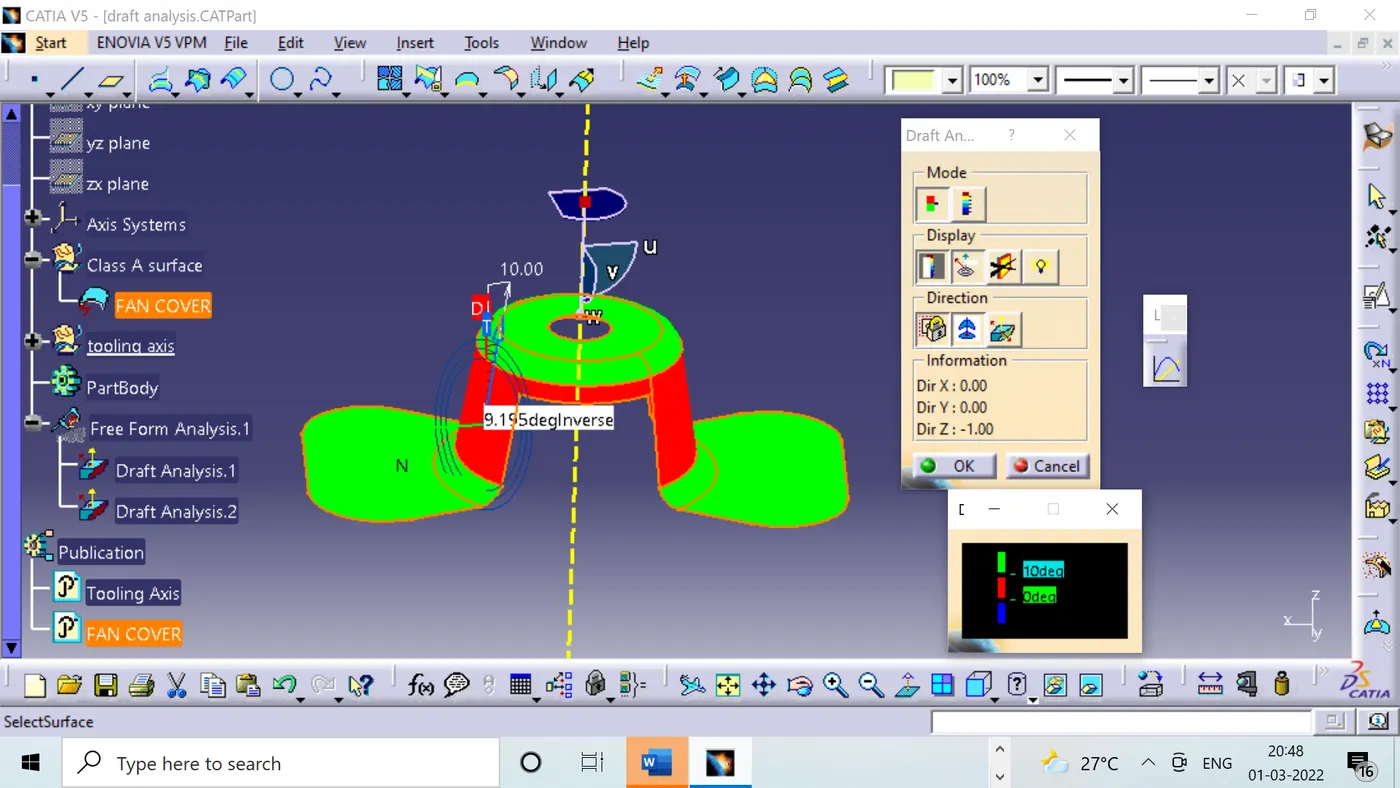
- Lets try for higher value for the minimum draft and get the analysis, this clearly shows that when the minimum draft is set to 10 value the surface with 9.9 value of draft gets red in colour indicating that this draft is not upto the designer expectations .
DRAFT IN VARIOUS VIEWS:
- ISOMETRIC VIEW
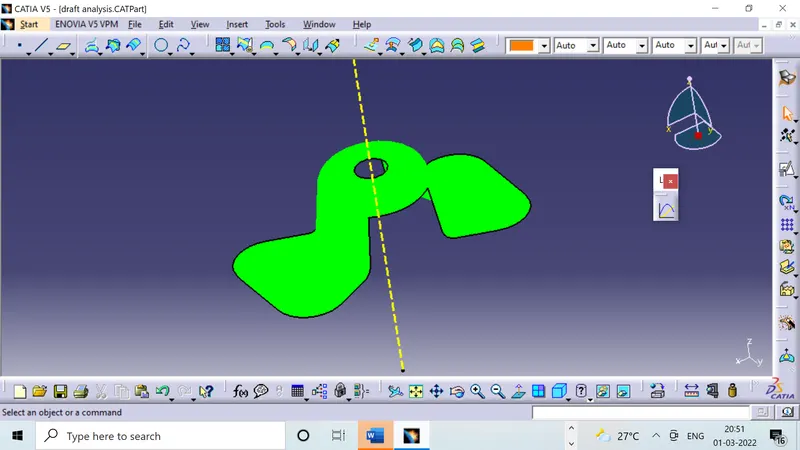
- FRONT VIEW
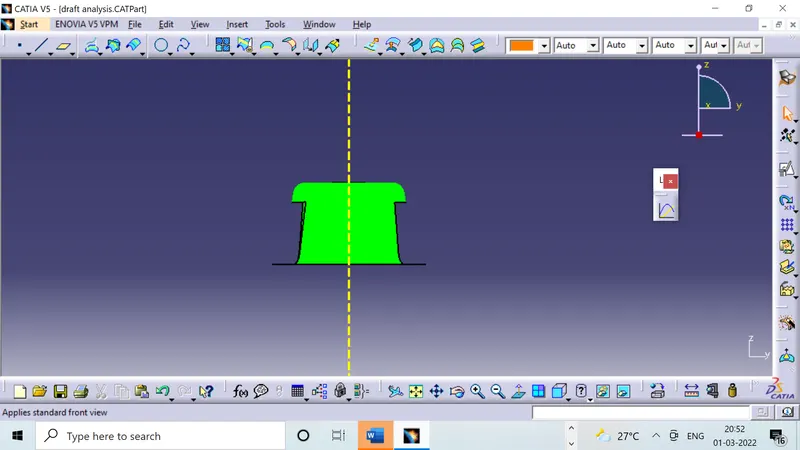
- LEFT SIDE
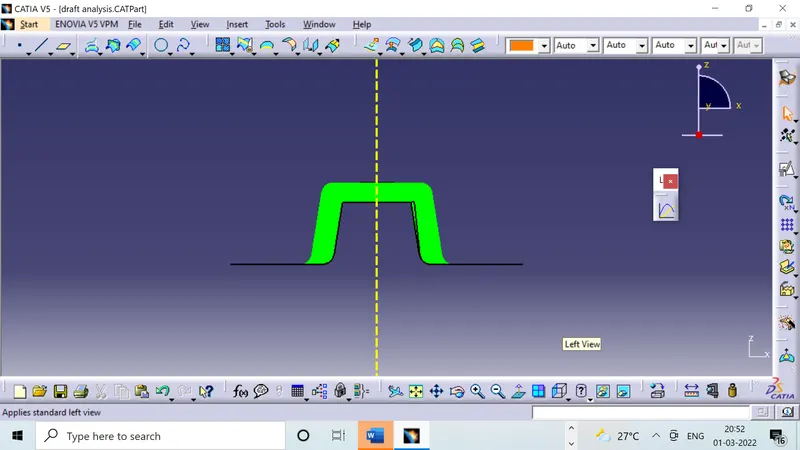
- RIGHT SIDE
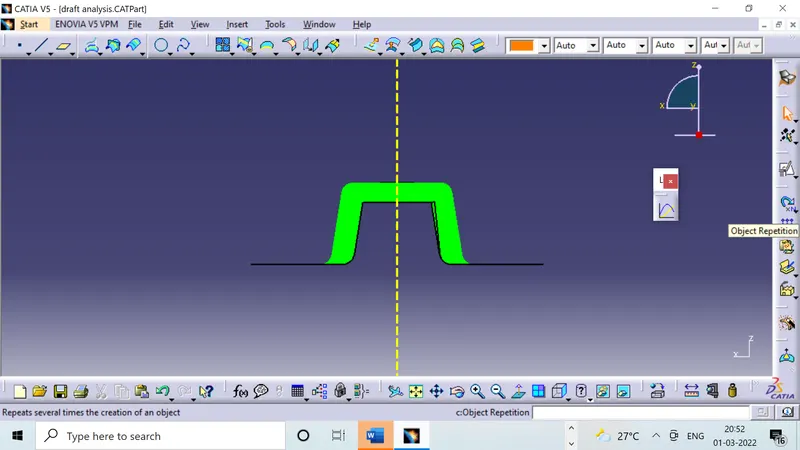
- TOP VIEW