Week 8 - Challenge 1 - Draft Analysis on a Fan Cover
\
AIM
Create the tooling axis for the given Fan cover model meeting the requirements of the draft angle and perform the Draft analysis on the model.
PROCEDURE
construction of xz axis
First step check the given fan cover modeling with the proper draft and analaysis
in with tool of join and disassemble
and then check the boundary weather left are are not after that joint the diagram with used the joint tool
the next step is find the where the axis is plane on the diagram
In my diagram i choose the top plane beacause the top only have the flat sufrace for the tooling axis so that i choose the top plane it make to easily place the axis
and then take the reference point on the top hole of centre by using point tool and placed the point after that choose the plane of xy axis
after setting the plane go to insert the create the geometrical set and applied of the sub tree
and the next step to set the axis centre point by using the tools of axis system and then intresection the diagram with using the xz referance and then intresectoina the diagram
after the intresectional is done going to 2d diagram and mark two corner of the digram
and extension the two point of the corner as show in the figure
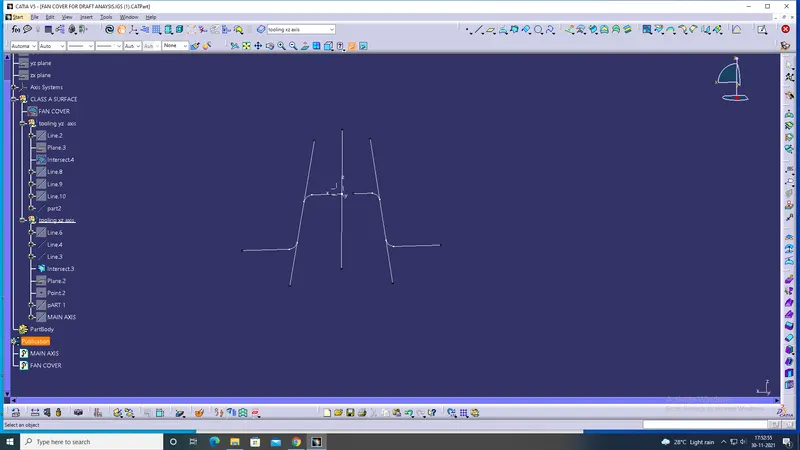
after the extension line create the bisector of those two line with the help of line
go to line tools and select the bisector option and click the two line and create the bisector
and the centre line of xz plane of tooling axis is created and then and the xz axis is finished
construction of yz axis
in this axis is directly similar to the construction is same what we done xz axis up to the last stage it self
here also we create the tooling axis for yz palne after the plane is create.now we want to bisector the tooling axis for xz and yz axis and we take that has a main tooling axis after that hide follwing axis and line and show the fan cover figure on the working are
DRAFT AND ANALYSIS
afte that we creating the main tooling axis for the fan cover diagram and then go to insert and go to analysis and clicl the feature draft analysis after that tool bar is open before that select the material in in the view bar and and select the customized view parametr and enable the material enable and then go to the feature draft analysis
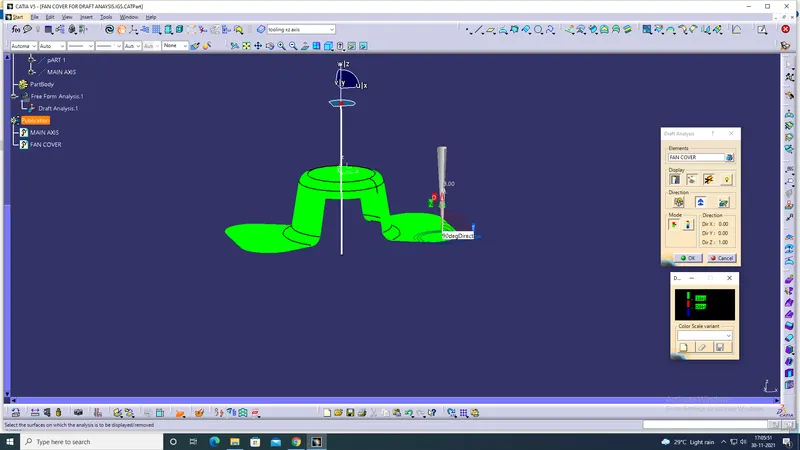
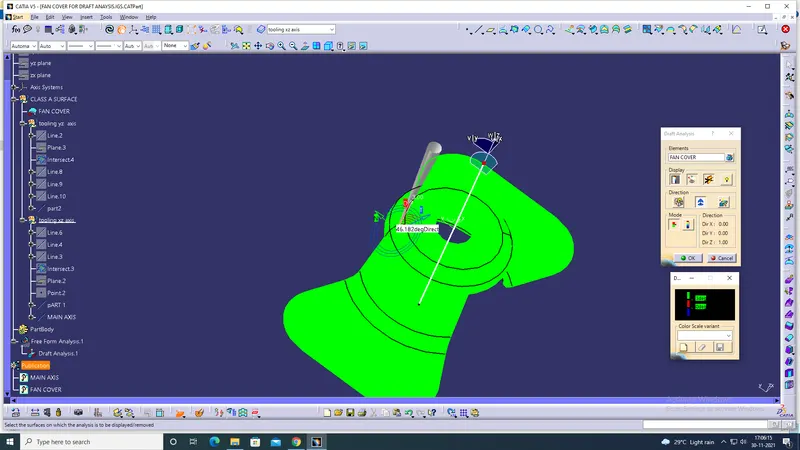
and drag the compass and placed on the top of the diagram and lock the compass
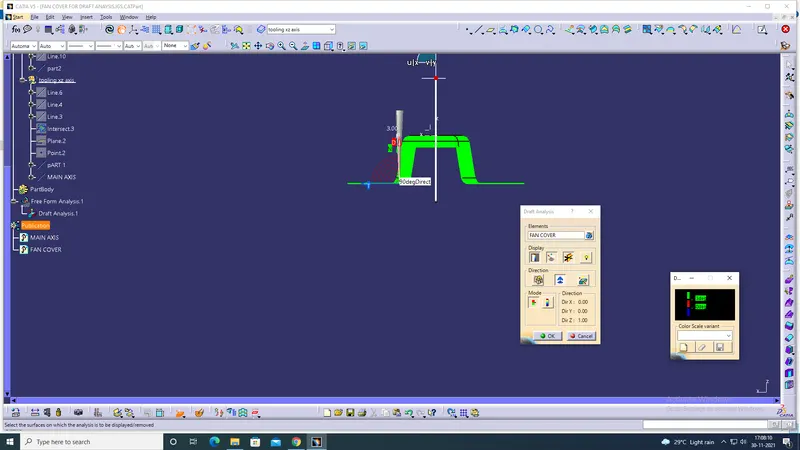
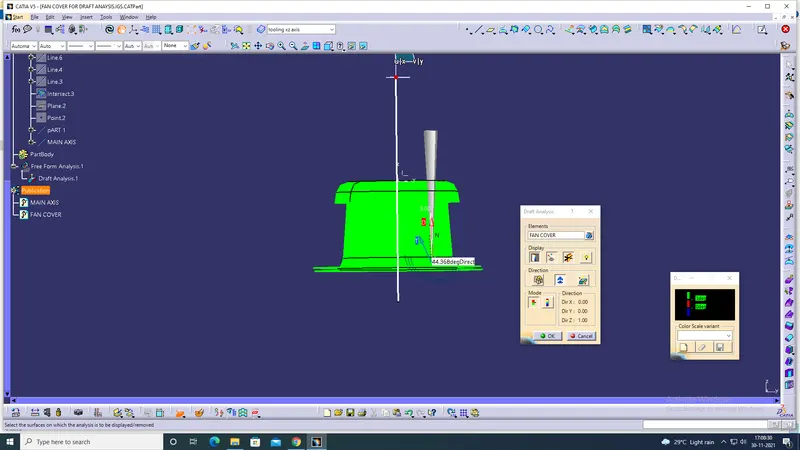
go the drafting analysis tool bar and click the analyses under the running point tools and the diagram click the diagram you got entire diagram get green colour .hence the analusis is complete with success fully as show in the figure
the diagram should like this with green colour and the the minimum draft degree should be 3 and more that 3 notice that also