Week 8-3D Tetra Meshing Challenge
AIM:
To perform the 3D Meshing on the given models.
OBJECTIVE:
- To perform tetra meshing of the models using different methods.
- To study the ways of optimizing the tetra mesh elements.
INTRODUCTION ON 3D MESHING:
Tetrahedral is a four- nodded solid element that can be generated through the tria element by creating a volume and also through the existing volume of the geometry. These elements are used where the geometry has high thickness and complexity. The below-attached image is a representation of a Tetra element. Tetra element will have 4 triangular faces with four nodes joining them together.
Methods for generating Tetra mesh:
There are three methods for generating tetra mesh.
- Conversion of 2D tria to Tetrahedral Elements, by using Tetra Mesh panel.
- Using the Volume Tetra Mesh panel.
- Using the Quick Tetra Mesh, from the Utility panel.
Tet Collapse:
Tet collapse is one of the quality parameters, which will be checked with the generated tetrahedral elements. It can be calculated by measuring the distance of a node from the opposite face, then each of the four values will be divided by the Square root of the opposite face's area. The minimum of four resulting values is then normalized by dividing it by 1.24.
Generally, tet collapse can be calculated by the formula = Min of (h/square root (A))/1.24;
where,
‘h’ represents the Height, between the Node (N1) and the opposite face of the Triangle.
‘A’ represents the Area of Opposite Face (area of the Triangle).
PROCEDURE:
Model 1:
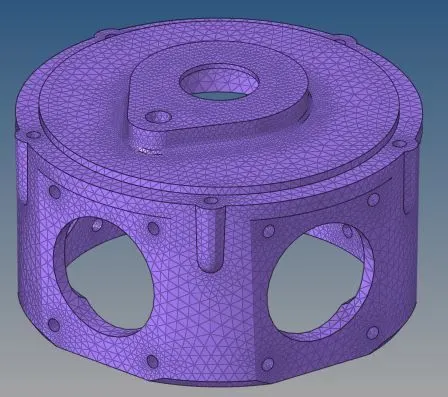
Since, the housing model has two component, both have to be meshed separately. So the same procedure is followed to create mesh on both the components.
- First, import the housing model into HyperWorks. Delete all the solids in the model after importing.
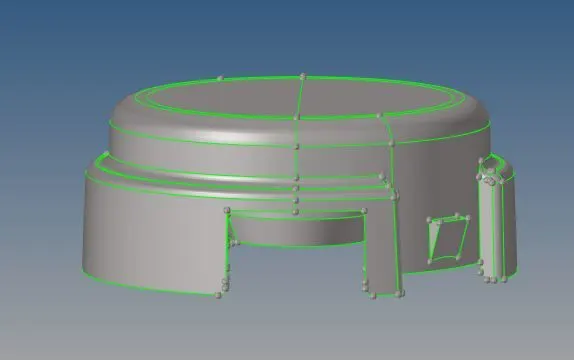
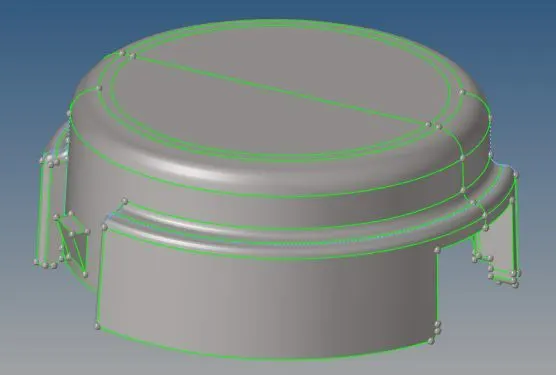
- Now, perform the geometry cleanup on the surfaces of both the components to reduce the risk of elements failing for the minimum length of 2. The max element length is 7.
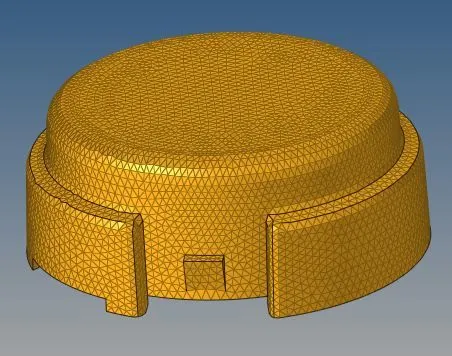
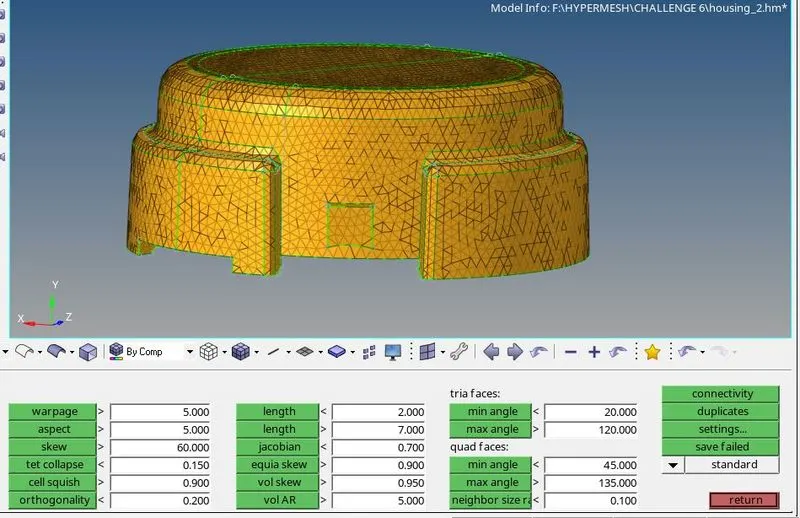
- Create 2D tria mesh using ‘automesh’ in ‘2D’ with element size as 5.Also, check for quality index and then, for minimum and maximum length.
- Now, create 3D tetra mesh, using ‘tetramesh’ in ‘3D’ panel, by selecting the shell elements.
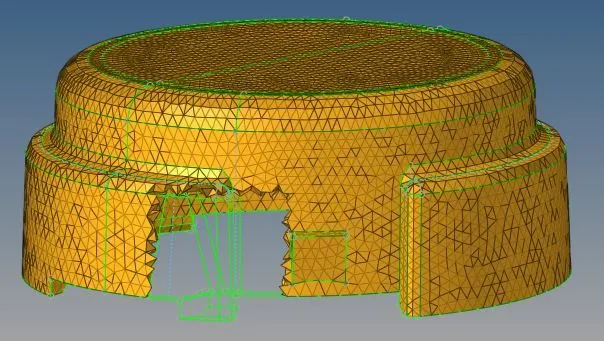
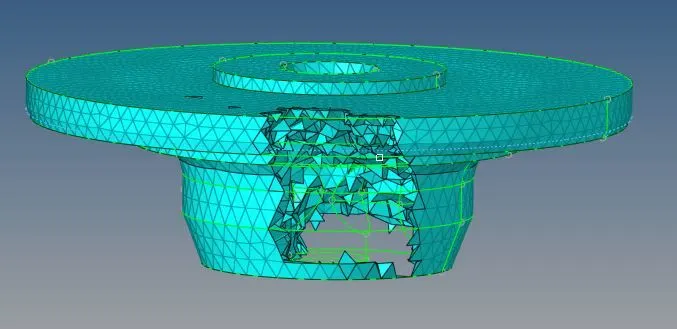
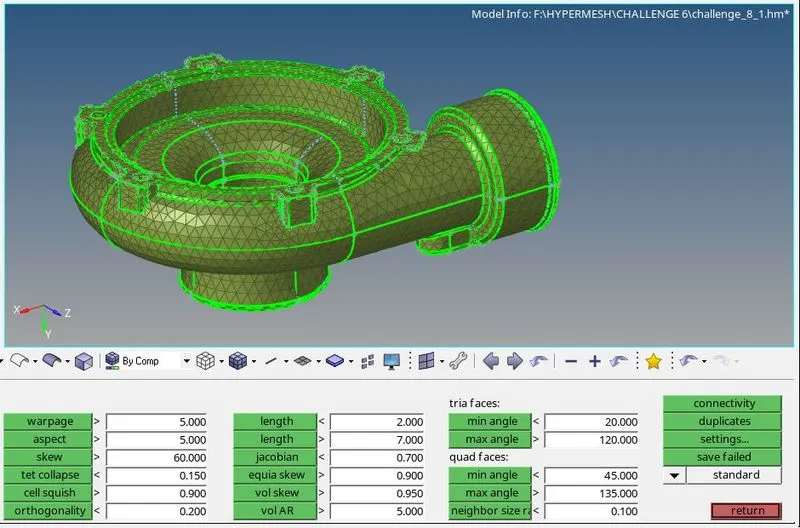
- Then, check for tet collapse of 0.15 and clear the elements failing by either remeshing or increasing the height manually.
Model 2:
- First, import the model into HyperWorks.
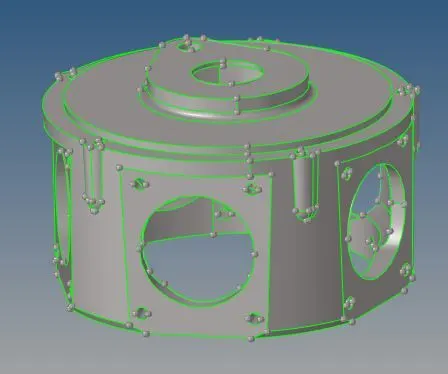
- Perform the geometry clean up. There are some free edges in the components which are toggled using ‘toggle edge’ option.
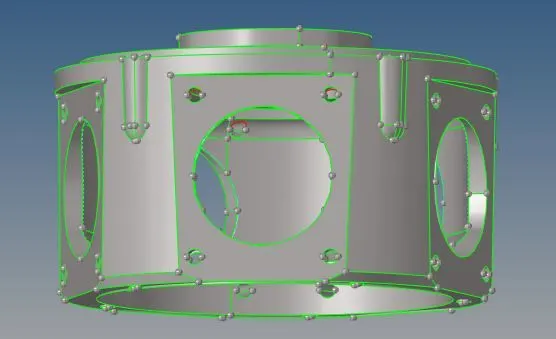
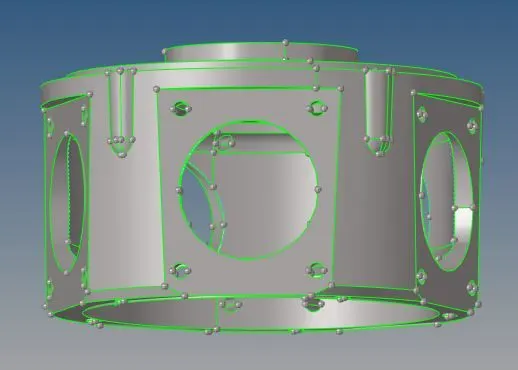
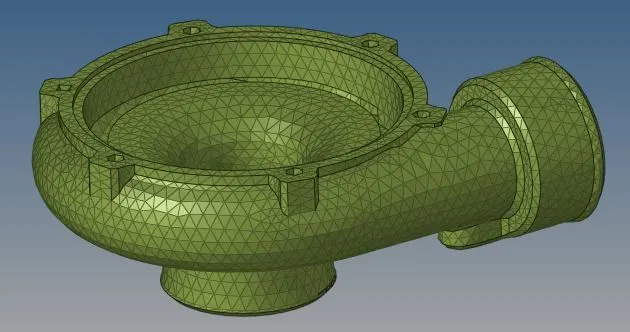
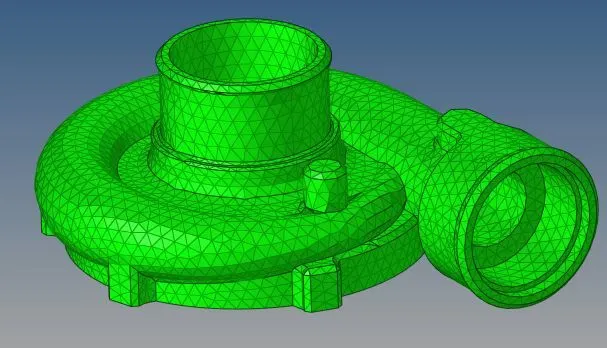
- For this model, volume tetra mesh is used. For that, go to 3D > tetramesh > volume tetra. Then the element size of 3 is given and surfaces are selected to create tetra mesh.
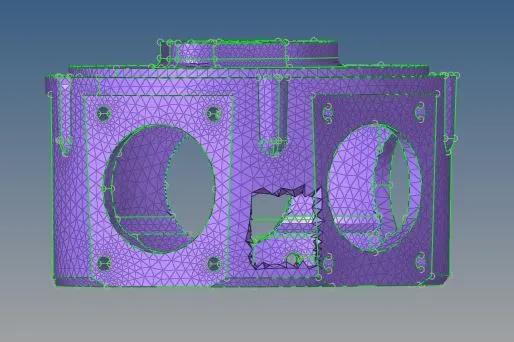
- Now, check for tet collapse of 0.15 and clear the elements failing by either remeshing or increasing the height manually.
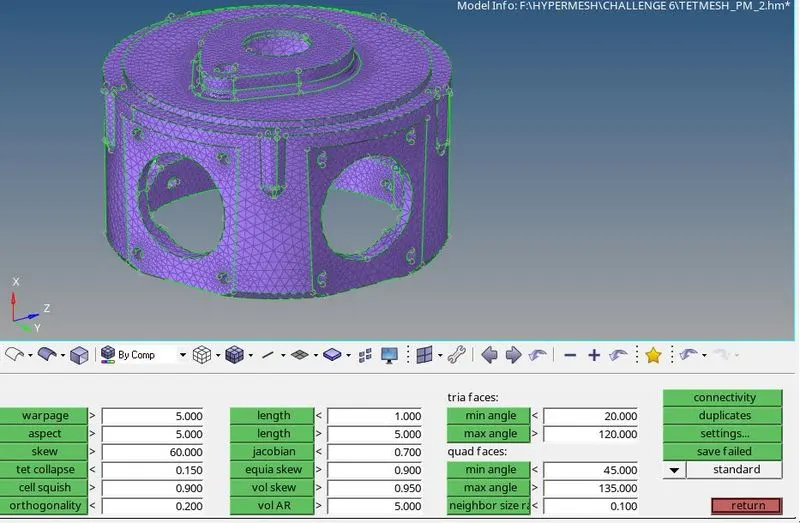
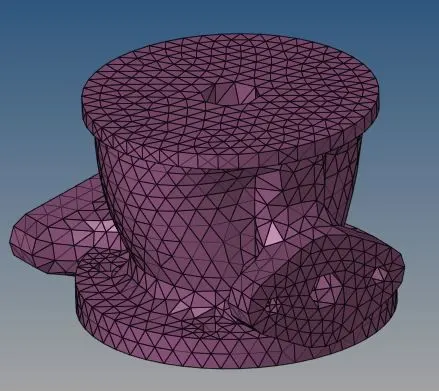
The model has four component, all of them have to be meshed separately. So the same procedure is followed to create mesh on all the components.
- First, import the model into HyperWork. Also, perform the geometry cleanup.
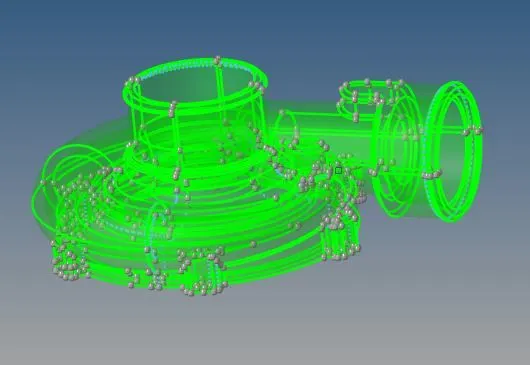
- For this model, quick tetra mesh is used. For that, go to view > Browser > Hypermesh > Utility > Geom/Mesh > Quick tetramesh. . Then the element size of 4 is given and component is selected to create tetra mesh.
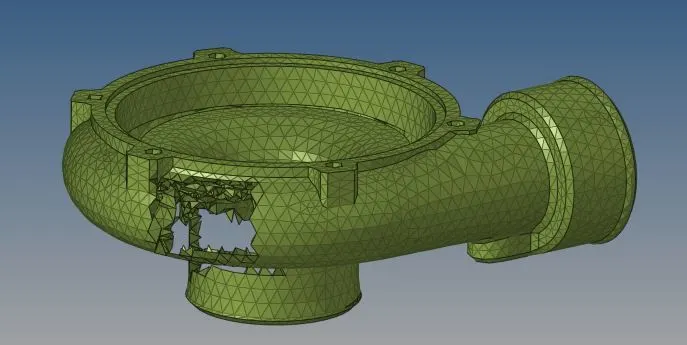
- Now, check for tet collapse of 0.15 and clear the elements failing by either remeshing or increasing the height manually.
- The elements are created in a different component named as ‘Quick_Tets’. The elements of each component are moved to the respected components using the tool “organize’.
RESULT:
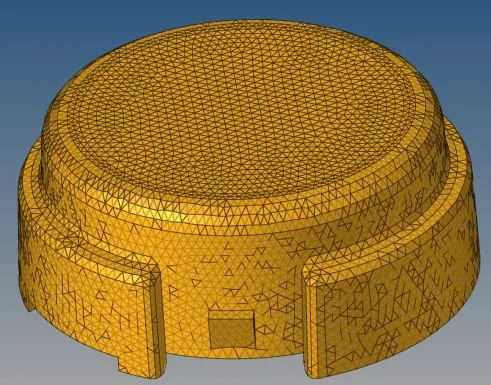
The images of the tetramesh created on the models are listed below.
Model 1:
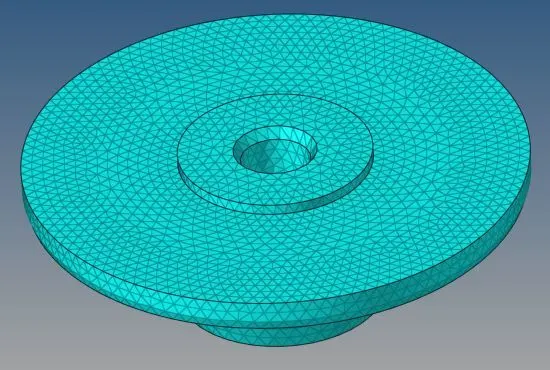
Model 2:
Model 3:
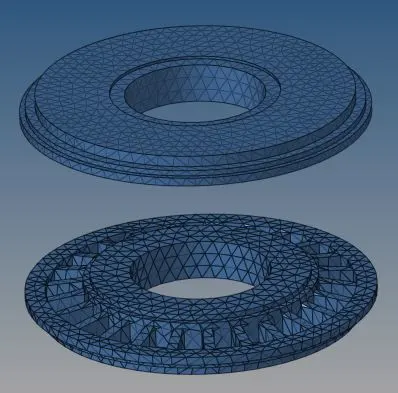
CONCLUSION:
- Tetra mesh are created for all the given components with the respected element size and given quality parameters.
- Better understanding of different methods for creating tetra mesh is achieved and also learned to clear tet collapse.