Week 8-3D Tetra Meshing Challenge
3D TETRAMESH CHALLENGE
AIM:
Create a Teramesh for the given component using three different method of tetramesh with the provided quality criteria and going to clear Tet collapse value.
GIVEN:
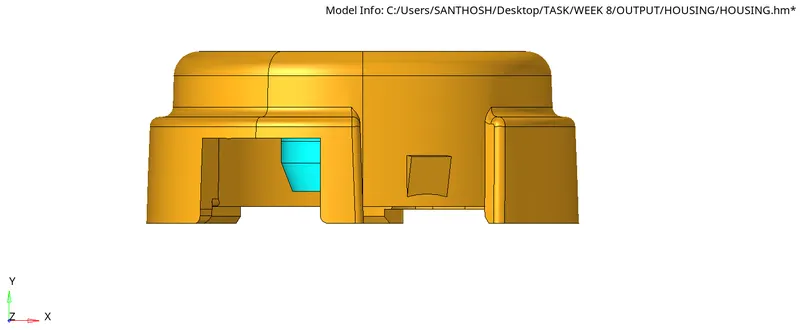
MODEL 1:
TetraMesh Generation Method: 2D to 3D Conversion
Elements sizes: Min- 2 Units, Target- 5 Units, Max- 7 Units
Tet collapse: 0.15
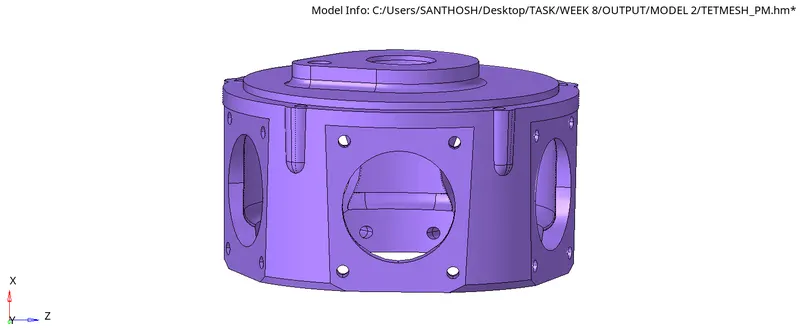
MODEL 2:
TetraMesh Generation Method: Quick Tetra Mesh/ Volume Tetra Mesh
Target Element size: 3 Units.
Tet Collapse: 0.15
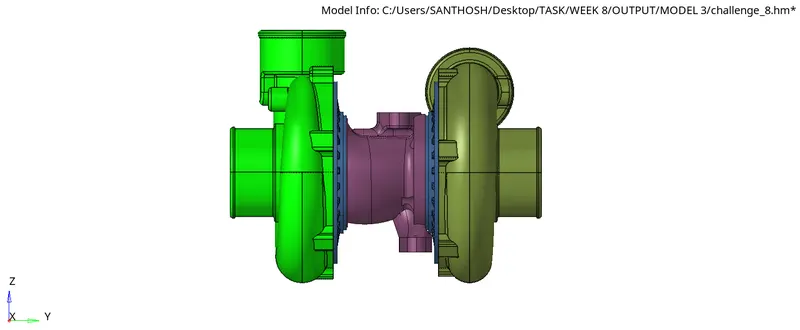
MODEL 3:
TetraMesh Generation Method: Quick Tetra Mesh/ Volume Tetra Mesh
Target Element size: 4 Units.
Tet Collapse: 0.15
PROCEDURE:
There are three methods to generate Tetra Meshing as mentioned below:
1.conversion of 2D tria to tetrahedral elements, by using Tetra Mesh panel
2.Using Quick tetra Mesh, from the utility panel
3.Using volume Tetra mesh panel
Note:Each model we are going to use these three method of Tetra mesh
MODEL 1:
First model has been divided into two components
Component 1:
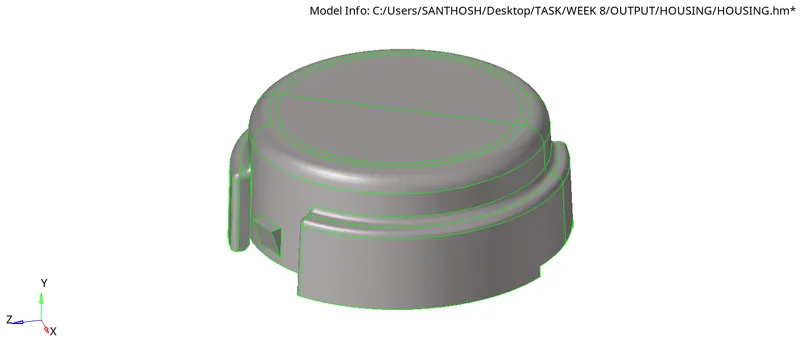
As our Minimum length is 2 units so we are going to check whether there is a surface less than 2mm and clear that area
Steps:
- Go to 2D mesh panel and select the surface to mesh
- choose tria in mesh type and element size as 5 units,mesh the component
- Go to tool and select check elems panel and check the min,max length failure
- Clear the failure by reconstruct that area,Now the model is ready to perform tetramesh
- Click on 3D panel and go to tetramesh,select the element and mesh
- once the tetra meshing was completed,mask a few elements to check the mesh generation
Component 2:
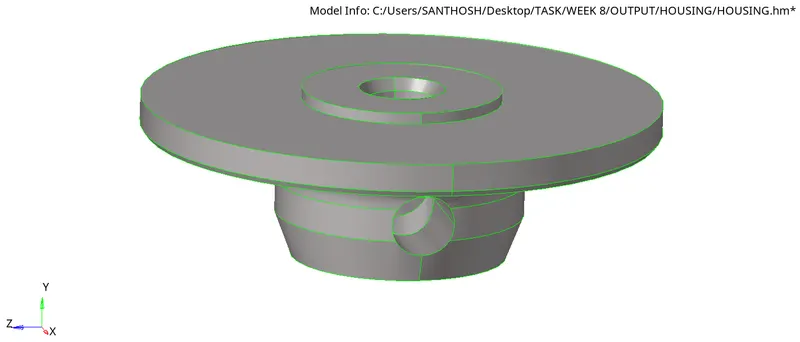
Note:Repeat the process for the component 2 as like as component 1
2D element clear for component 2:
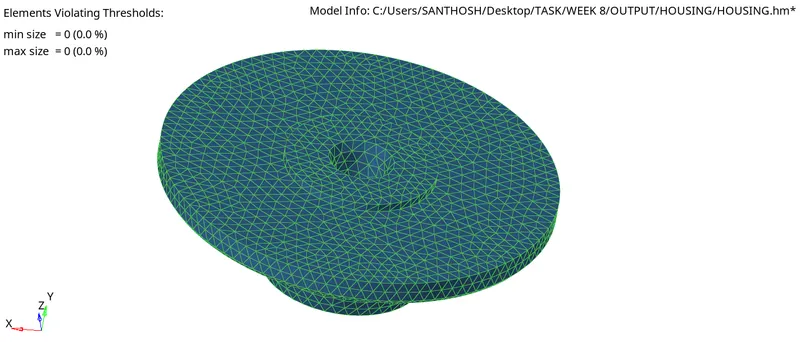
- To check the Tet collapse in both the component go to check elems in tool panel
- Select Tet collapse as valued as 0.150 and check the failure
- As there was no Tet collapse error so the components are finalized.
FINAL OUTPUT:
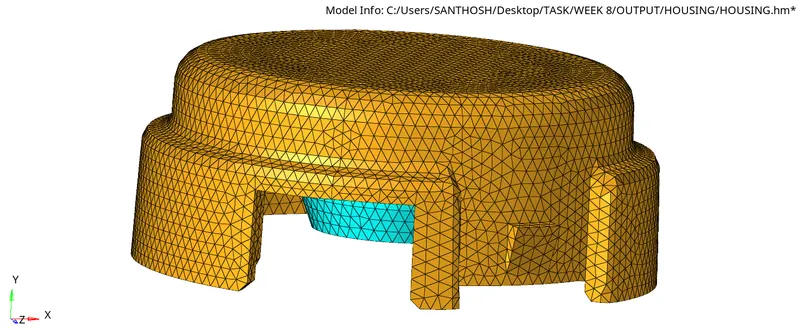
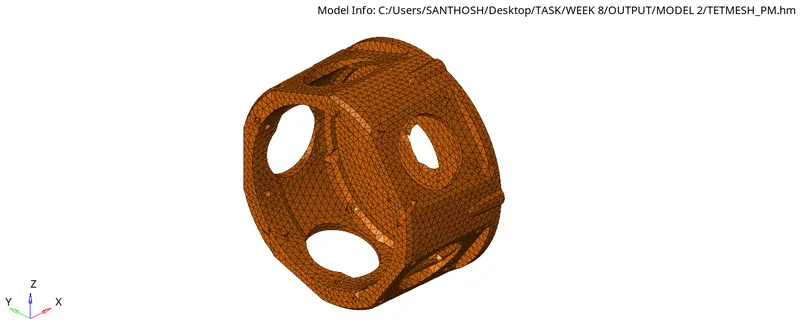
MODEL 2:
HERE we are using another method of tetra mesh : Generating tetra mesh by using "quick tetra mesh", from utility panel.
STEPS:
- Import the model and delete the solid part by selecting Delete_solid_delete entity
- Go to view_ browsers_Hypermesh_utility
- Select geo/mesh in solution and mesh tool as Quick tetramesh
- Below option will display change mesh size as 3 and mesh type as trias only
- Select the component and proceed the mesh
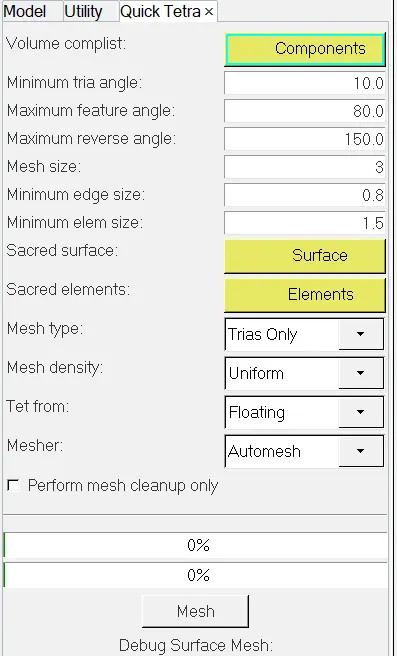
- To check the Tet collapse in the component go to check elems in tool panel
- Select Tet collapse as valued as 0.150 and check the failure
- To clear the failure go to tetramesh parameters in 3D_tetramesh panel

Note: Select fill voids,fix midnodes,smoothing and keep tet collapse as 0.150.
Then go to Tetra remesh and select the element and make free boundary face as remeshable and click on remesh to clear the tet collapse

FINAL OUTPUT:
MODEL 3:
model has been divided into four components as CASING,CASING2,CENTRAL HUB AND HUB.
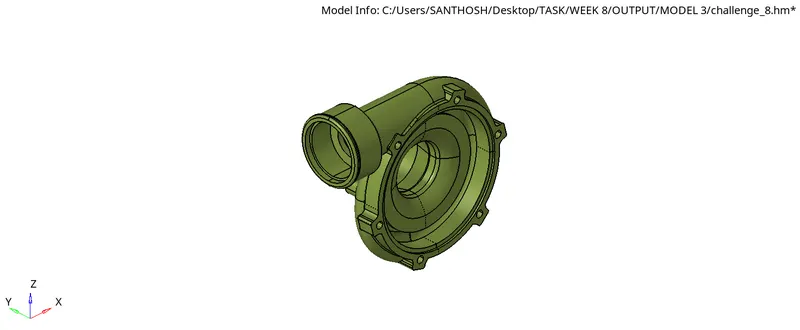
CASING AND CASING2:
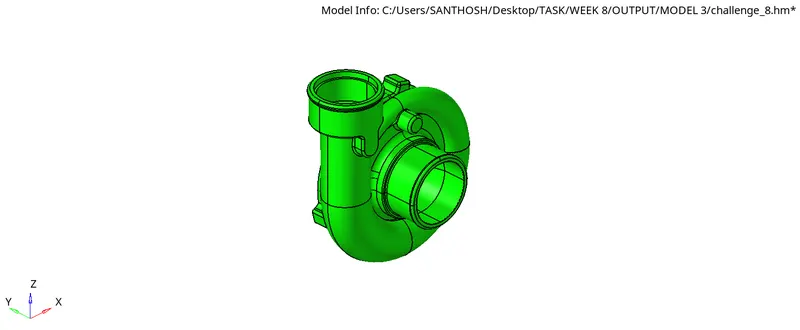
HERE we are using another method of tetra mesh : Generating tetra mesh by using the Volume tetra mesh panel
CASING:
CASING2:
STEPS:
- Import the model here BOTH casing and casing 2 are in solid so we can easily use volume tetre mesh
- Go to 3D panel select tetra mesh and click volume Tetra,keep element size as 4units

- Select the solid part and start mesh,the mesh has been generated
- To check the Tet collapse in the component go to check elems in tool panel
- Select Tet collapse as valued as 0.150 and check the failure
FAILED ELEMENT ARE BELOW:
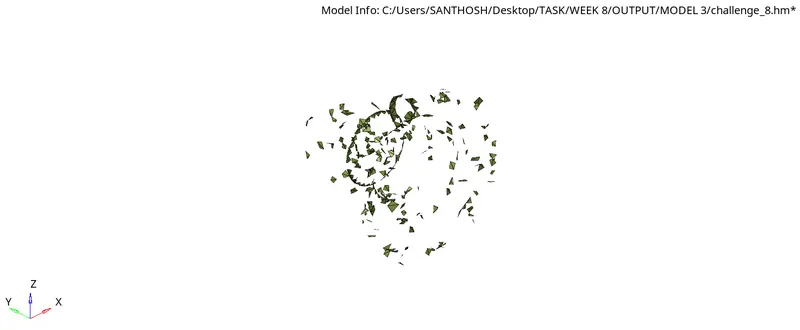
Note: To clear these failure do Tetra remesh like we have done in previous model.
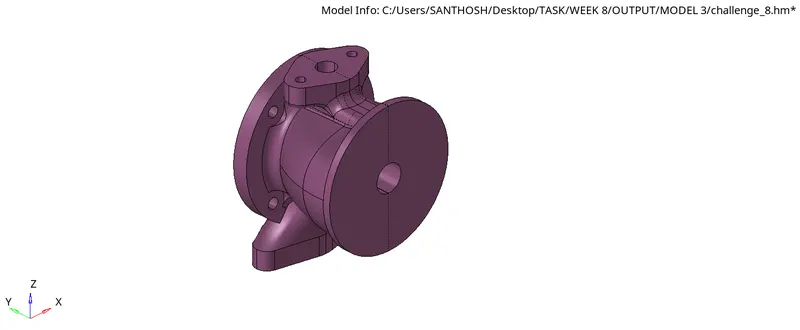
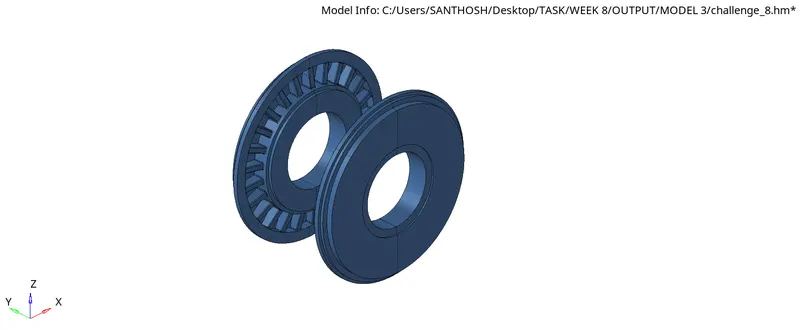
CENTRAL HUB AND HUB:
In this two component there is only surface so we can use Quick tetramesh and repeat the process as done in Model 2 as mention below:
- Go to view_ browsers_Hypermesh_utility
- Select geo/mesh in solution and mesh tool as Quick tetramesh
- Below option will display change mesh size as 4 and mesh type as trias only
- Select the component and proceed the mesh
CENTRAL HUB:
HUB:
- To check the Tet collapse in the component go to check elems in tool panel
- Select Tet collapse as valued as 0.150 and check the failure
- To check the Tet collapse in the component go to check elems in tool panel
- Select Tet collapse as valued as 0.150 and check the failure
- To clear the failure go to tetramesh parameters in 3D_tetramesh panel
Note: Select fill voids,fix midnodes,smoothing and keep tet collapse as 0.150.
Then go to Tetra remesh and select the element and make free boundary face as remeshable and click on remesh to clear the tet collapse
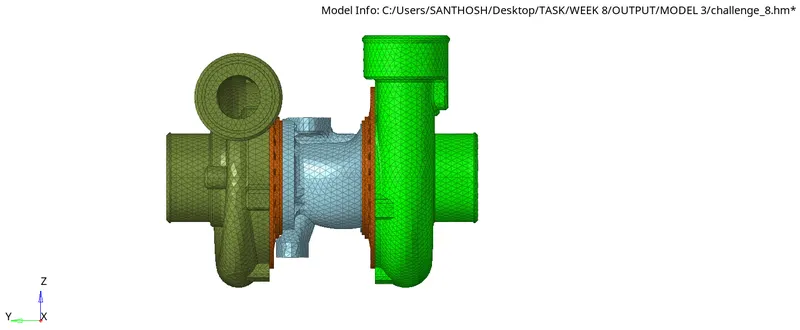
FINAL OUTPUT:
CONCLUSION:
The given three model has been generated to 3D Tetramesh with three different method as explained above and the failure of Tet collapse are cleared by remeshing the Tetra elements.