Week 8-3D Tetra Meshing Challenge
1.TetraMesh Generation Method:2D to 3D Conversion
Aim:
To Create a Teramesh for Housing component with the following quality criteria as
Elements sizes: Min- 2 Units, Target- 5 Units, Max- 7 Units
Tet collapse: 0.15.
Procedure:
1.Firstly import the model.
2.Select the import option on the toolbar menu and click on the imported geometry.
3.Click on the file sign,then it will be shown the model and then select it.
4.Click on the import button,then it will be shown on the graphic area.
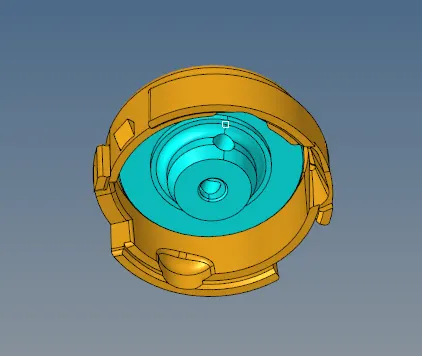
5.After importing the model,firstly autocleanup the model before meshing the components.
6.After the autocleanup process take any one of the component from the model and start the 2D automesh for that component.
7.In 2D meshing select the elements as tria and set the element size as 5mm and select the surfaces that we want to mesh and click on the mesh button,then it will be meshed.
8.After creating the mesh check the elements with the given quality criteria by clicking on the F10 shortcut button in the keyboard.
9.If the quality criteria is satisfied for the mesh then move on to the 3D mesh,If not satisfies it then go on with the element cleanup as we discussed in the earlier challenges.
10.After the quality criteria is satisfied,move on the 3D mesh to perform the tetramesh operation on the same component.
11.To perform the tetramesh,go to the 3D section in the main tool bar.
12.In 3D section,firstly go to the tetramesh option and open it.In that tetramesh,click on the tetramesh parameters and give the max size,min size and tet collapse values as mentioned above.

13.After the values has been assigned,now go to tetramesh select the elements which we have to perform the 3D tetramesh operation on the component and click on the mesh button to apply it.

14.After the 3D mesh have been completed,again check the quality criteria by clicking on the F10 shortcut button.If the quality criteria does not satisfied again try on remeshing the elements to get low tria failures.
15.After the completion of the 3D tetra meshing the components will be created as shown in the below figures.
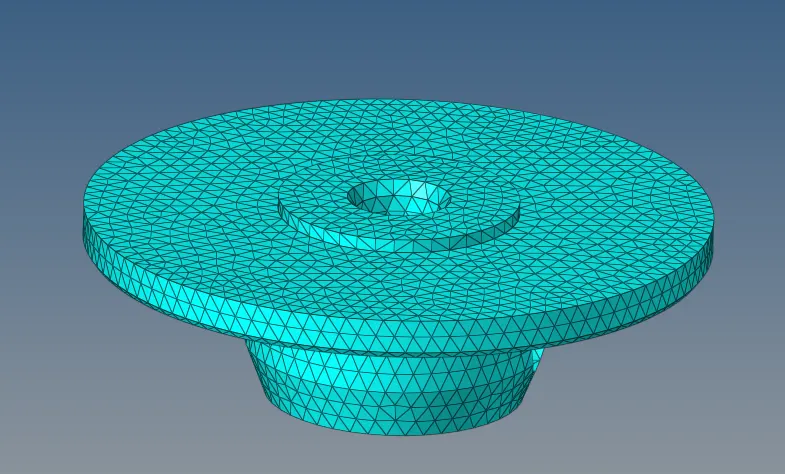
FIG.1
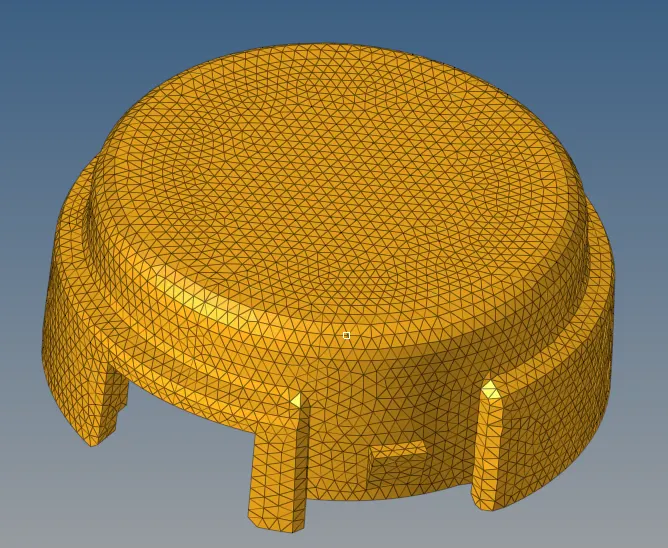
FIG.2
Result:
Thus,we have performed the 3D tetramesh on the given housing components by following the quality criteria.
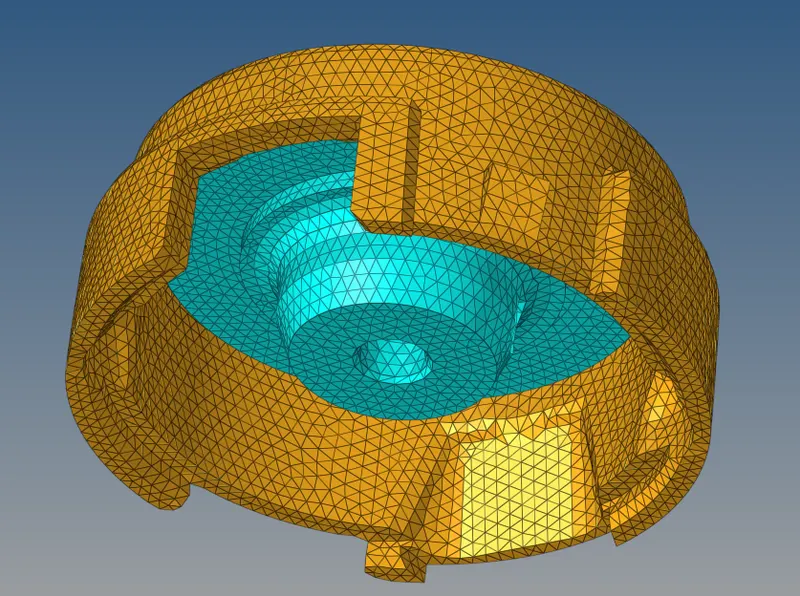
OUTPUT
2.TetraMesh Generation Method: Quick Tetra Mesh/ Volume Tetra Mesh
Aim:
To Create a Teramesh for the given component with the following quality criteria as
Elements sizes:Target- 3 Units
Tet collapse: 0.15.
Procedure:
1.Firstly import the model.
2.Select the import option on the toolbar menu and click on the imported geometry.
3.Click on the file sign,then it will be shown the model and then select it.
4.Click on the import button,then it will be shown on the graphic area.
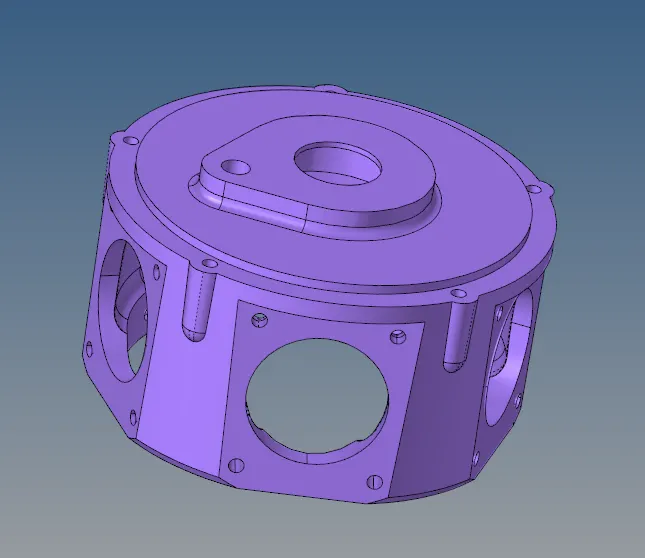
5.After importing the CAD model/geomentry just go on to the view option from the main menu bar.
6.From the view options go to Browsers and select Hyperworks.
7.In the hyperwork select the utility option to perform the quick tetramesh operation.
8.Then the utility bar is opened at the left side of the graphic area.
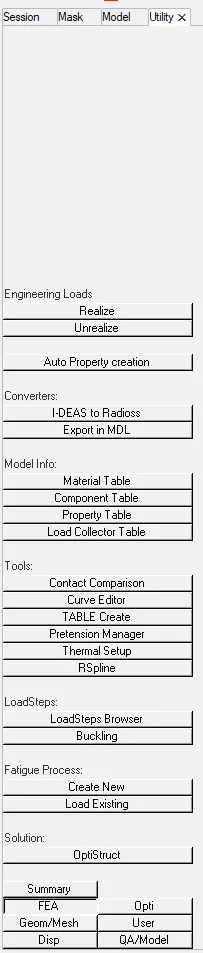
9.Then click on the Geom/Mesh button from the utility bar.
10.After clicking on the Geom/Mesh button another options will be displayed.In that options select the Quick tetramesh option from it.
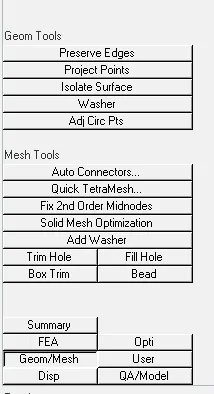
11.On clicking the quick tetramesh option another window is displayed.In that we have to give the component selection,tet coolapse and element size for the meshing purpose.
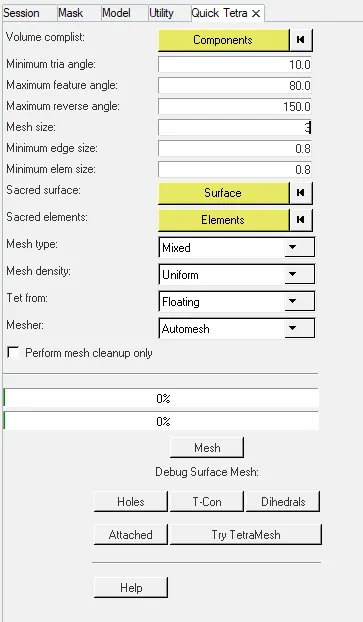
12.After giving the all required quality criteria in the above table,click on the mesh button.Then it will perform the quick tetramesh on the displayed componenet.
13.After the completion of the tetramesh,check the elements wheather there are satisfied by the given quality criteria or not.
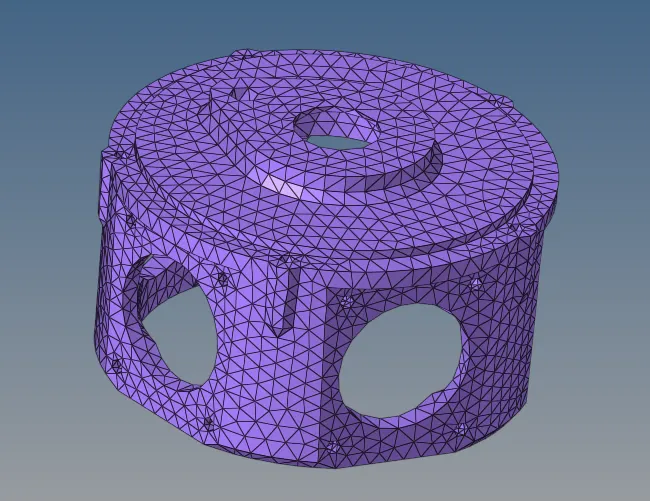
14.If all the quality criteria can be satisfied then the component is shown as in the below fig.
Result:
Thus,i performed Quick Tetra Mesh/ Volume Tetra Mesh on the given model/geomentry with the satisfactory quality criteria.
OUTPUT
3.TetraMesh Generation Method: Quick Tetra Mesh/ Volume Tetra Mesh
Aim:
To Create a Teramesh for the given component with the following quality criteria as
Elements sizes:Target- 4 Units
Tet collapse: 0.15.
Procedure:
1.Firstly import the model.
2.Select the import option on the toolbar menu and click on the imported geometry.
3.Click on the file sign,then it will be shown the model and then select it.
4.Click on the import button,then it will be shown on the graphic area.
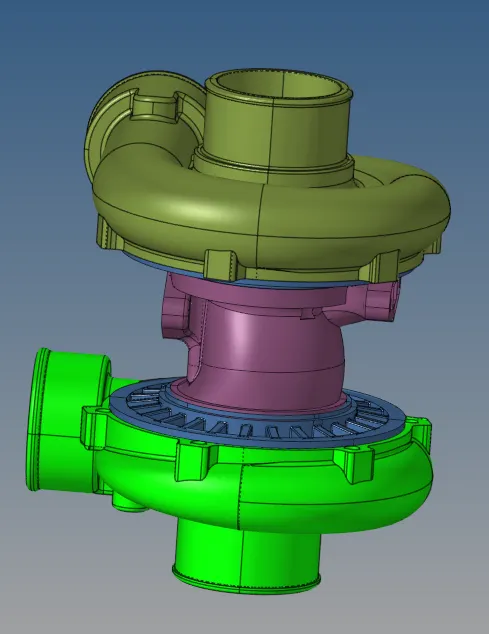
5.Take any one of the component from the model and start the 2D automesh for that component.
7.In 2D meshing select the elements as tria and set the element size as 4mm and select the surfaces that we want to mesh and click on the mesh button,then it will be meshed.
8.After creating the mesh check the elements with the given quality criteria by clicking on the F10 shortcut button in the keyboard.
9.If the quality criteria is satisfied for the mesh then move on to the 3D mesh,If not satisfies it then go on with the element cleanup as we discussed in the earlier challenges.
10.After the quality criteria is satisfied,move on the 3D mesh to perform the tetramesh operation on the same component.
11.To perform the tetramesh,go to the 3D section in the main tool bar.
12.In 3D section,firstly go to the tetramesh option and open it.In that tetramesh,click on the tetramesh parameters and give the element size and tet collapse values as mentioned above.
13.After the values has been assigned,now go to tetramesh select the elements which we have to perform the 3D tetramesh operation on the component and click on the mesh button to apply it.
14.After the 3D mesh have been completed,again check the quality criteria by clicking on the F10 shortcut button.If the quality criteria does not satisfied again try on remeshing the elements to get low tria failures.
15.After the completion of the 3D tetra meshing the components will be created as shown in the below figures.
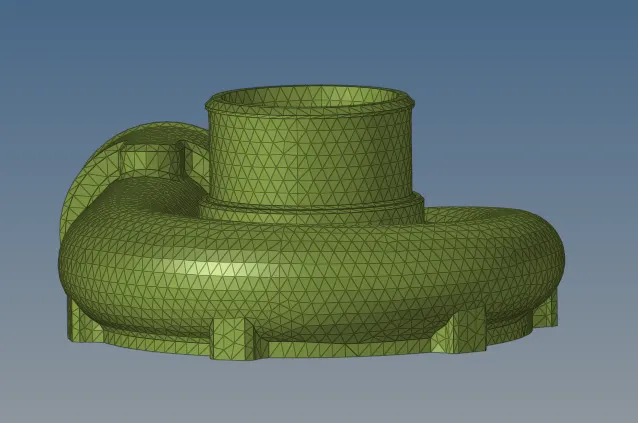
FIG.1. CASING 1
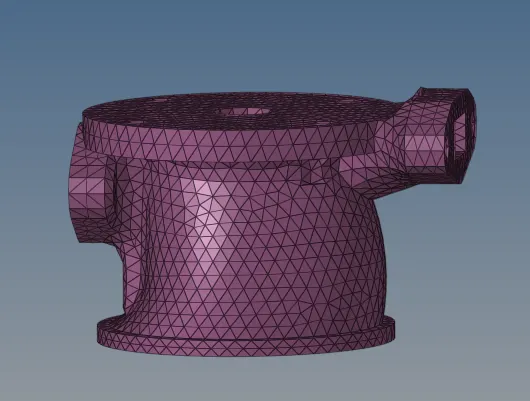
FIG.2. CENTRAL HUB
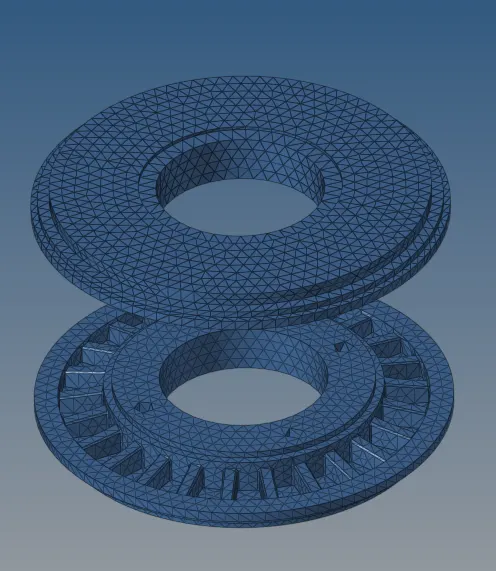
FIG.3.HUB
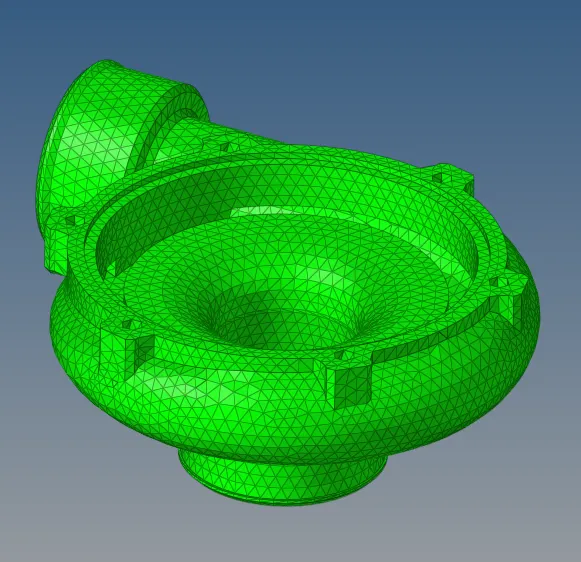
FIG.4. CASING 2
RESULT:
Thus,we have performed the 3D tetramesh on the given components by following the quality criteria.
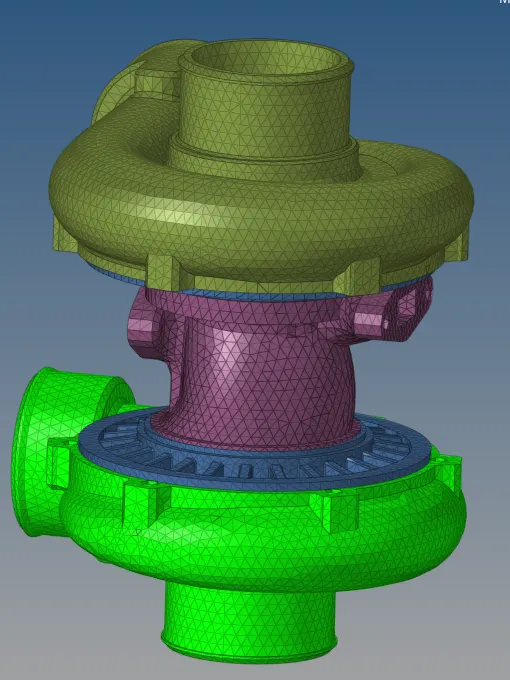
OUTPUT