Week 8-3D Tetra Meshing Challenge
Objective: To create a Tetramesh for Housing component with the following quality criteria
Method: 2D to 3D conversion tetramesh generation
Element Size Configuration:
Min Length: 2 Units, Target- 5 Units, Max Length: 7 Units
Tet collapse: 0.15
Model used: Housing Model
- Import the Model
- Click on  import solver deck icon andfurther click on
  import geometry icon.
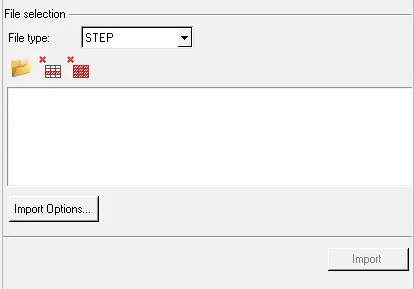
- From the file type click on STEP and click on file icon on the left. Finally the model is loaded into the workspace.
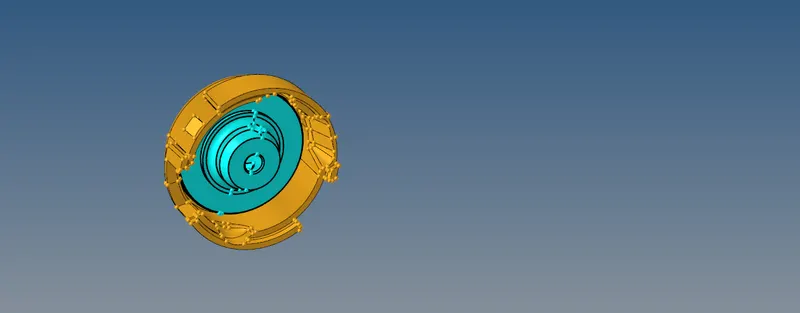
- Meshing the housing component.
- First delete the solid components.
- Keep the surface comonents and press F12 to go into mesh option.
- Change the target element size to 5mm and mesh type as Trias. Finally click on Mesh.
- Then proceed to 3D panel and look out for Tetra mesh
- In the tetra mesh option, look out for Tetramesh as the first option.
- Choose Float trias/quads tetramesh. Further select the component and finally click on mesh.
- Repeat the same procedure for the second component.
- The resultant mesh would look as follows:
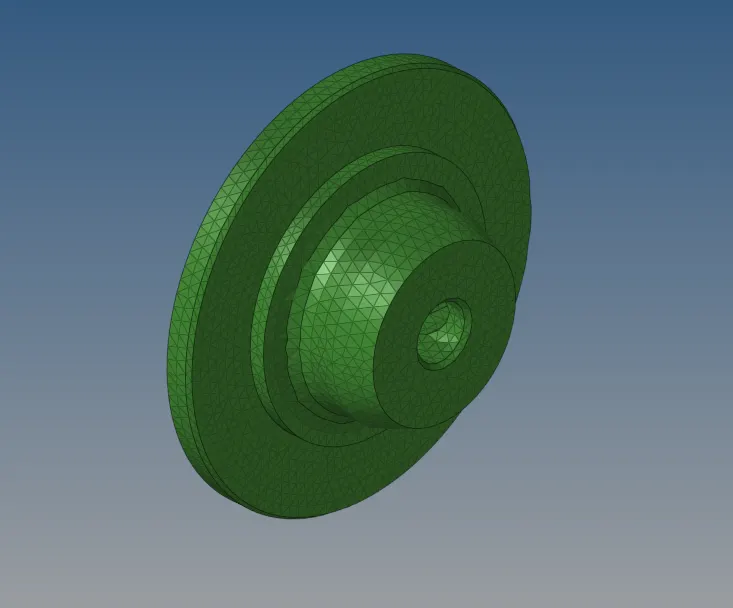
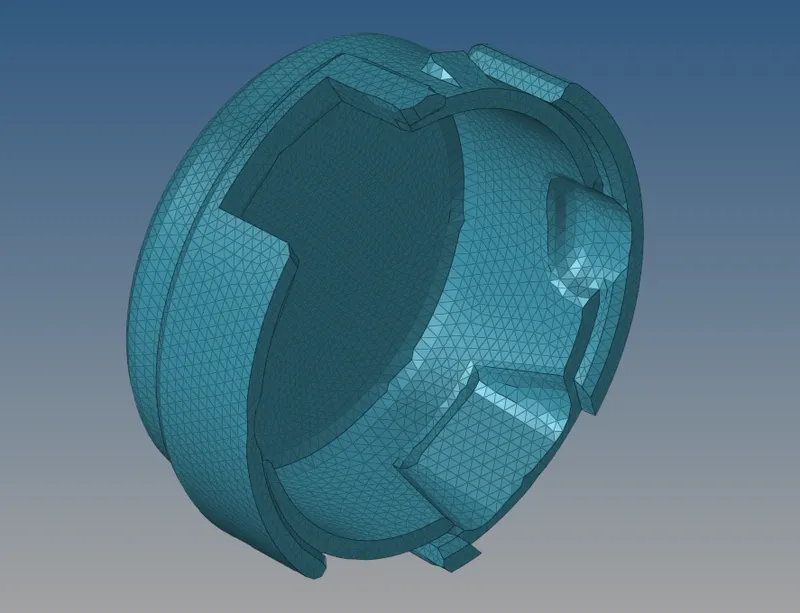
- Choosing the quality criteria
- Click on F10 and set the minimum element length, maximum element length and tet collapse by clicking on radio button next to 3D
- Alternatively, one can also modify the criteria file settings by clicking on Preferences-> Criteria File Settings and setting the required parameters as shown
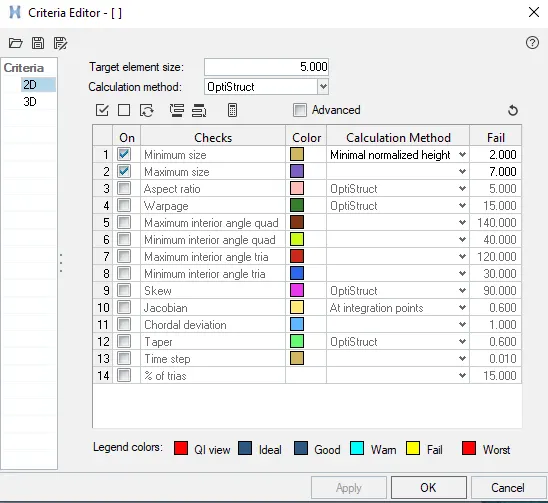
Finally we need to see that, the elements meshed in the component follow the element quality criteria.
--------------------------------------------------------------------------------------------------------------------------------------------------------------
Objective: To create a Tetramesh for the given model with the following quality criteria
Method: Quick Tetramesh/Volume Tetra Mesh
Element Size Configuration:
Target Element Size- 3 Units Tet collapse: 0.15
Model used: Model -2
- Import the Model
- Click on import solver deck icon andfurther click on import geometry icon.
- From the file type click on IGES and click on file icon on the left. Finally the model is loaded into the workspace.
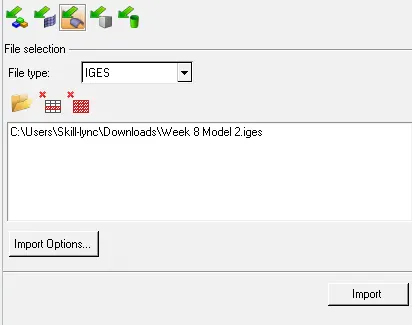
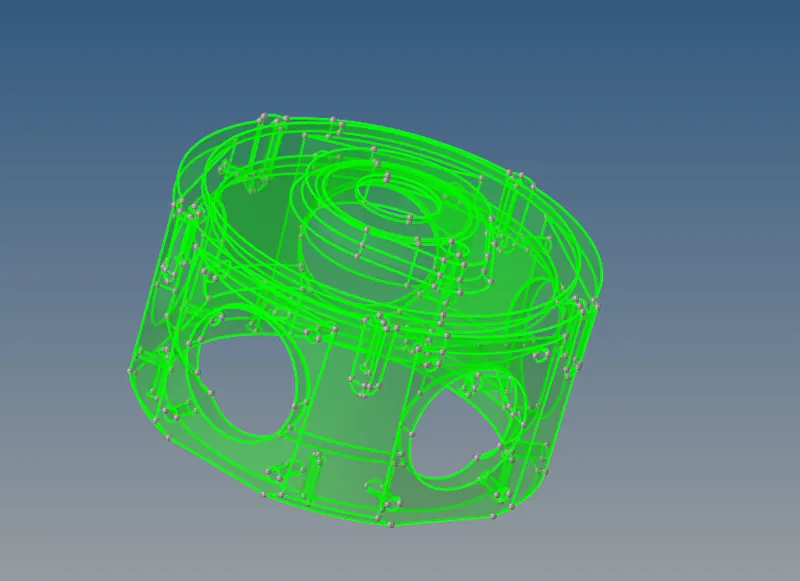
- Meshing the model.
- Click on 3D panel and look out for Tetra mesh.
- Select Volume tetra from the list of options. Select the Enclosed volume as Solids an select the solids displayed on the workspace.
- Keep 2D type as trias and 3D type as tetras. Set the element size as 3mm. Finally click on mesh. The component gets meshes as shown
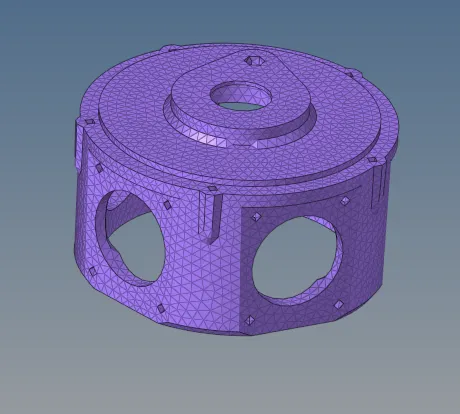
Perform the quality criteria checks by following the above procedures.
-----------------------------------------------------------------------------------------------------------------------------
Objective: To create a Tetramesh for the given assembly model with the following quality criteria
Method: Quick Tetramesh/Volume Tetra Mesh
Element Size Configuration:
Target Element Size- 4 Units Tet collapse: 0.15
The above procedure is followed for this case