Week 8-3D Tetra Meshing Challenge
Objective-
- Create a Teramesh for Housing component with the following quality criteria.
TetraMesh Generation Method: 2D to 3D Conversion
Elements sizes: Min- 2 Units, Target- 5 Units, Max- 7 Units
Tet collapse: 0.15
- For the given model, Create a 3D Tetramesh with the following quality criteria.
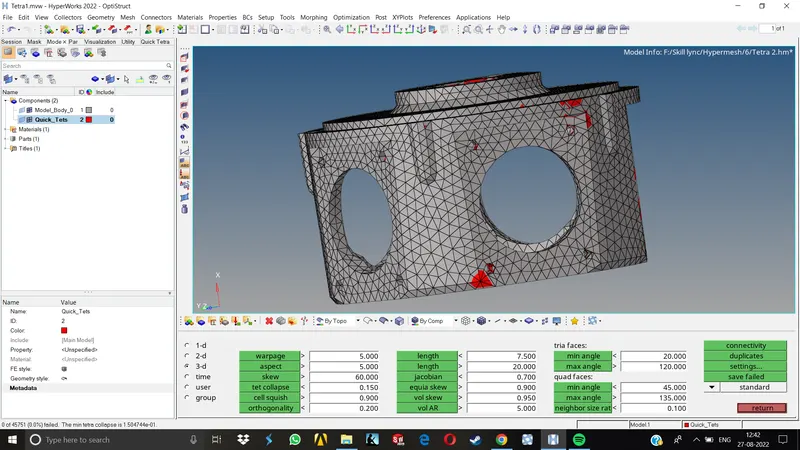
TetraMesh Generation Method: Quick Tetra Mesh/ Volume Tetra Mesh
Target Element size: 3 Units.
Tet Collapse: 0.15
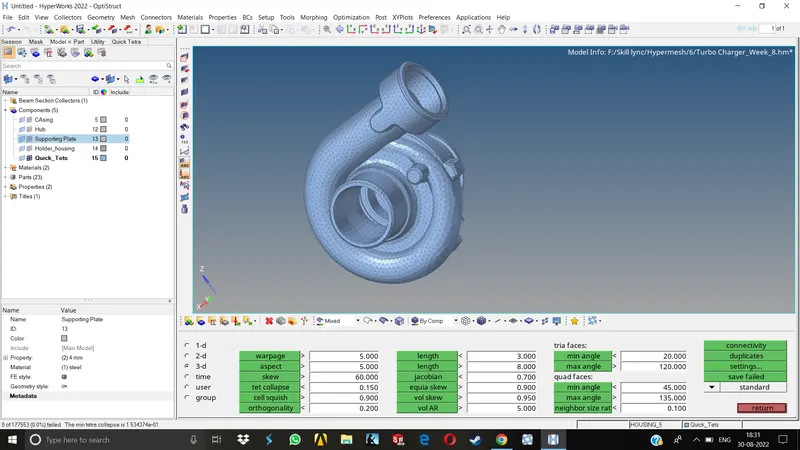
- For the given assembly model, Create a 3D Tetramesh with the following quality criteria.
TetraMesh Generation Method: Quick Tetra Mesh/ Volume Tetra Mesh
Target Element size: 4 Units.
Tet Collapse: 0.15
Procedure-
1.Import given model in Hypermesh & look for any geometrical erros.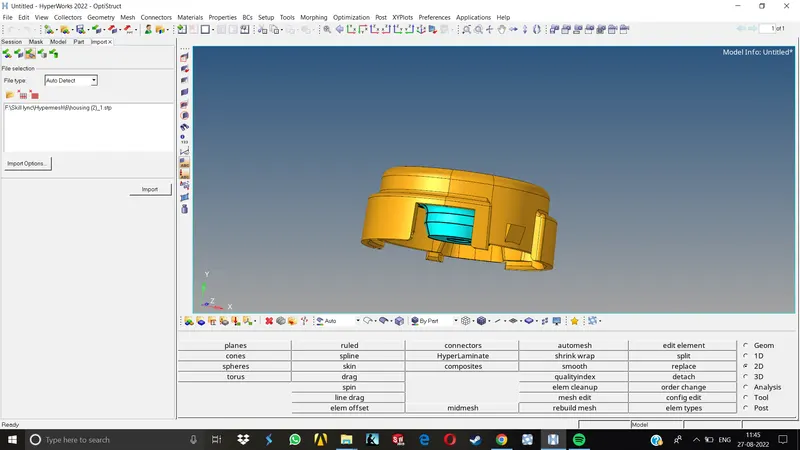
2.Perform manual defeaturing for the areas where the elements might fail for quality.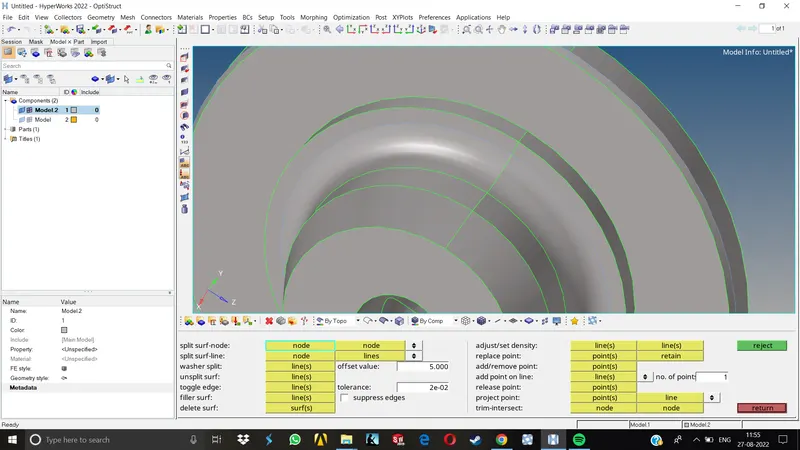
3.Remove the unnecessary fillets, toggle unwanted edges.
4.Now we can proceed for meshing the model with 2D tria elements.
5.Go to 2D>Automesh and give proper element size and type as trias only, as we need to later convert them to tetras.
6.Before going for tetramesh, we need to check whether any elements are failing for quality.Here the QC for 2D elements is only applicable for max and min length.Look for any failing elements here and resolve them if any.
7.Once we finalize the 2D tria mesh, we can now go for the 3D Tetra mesh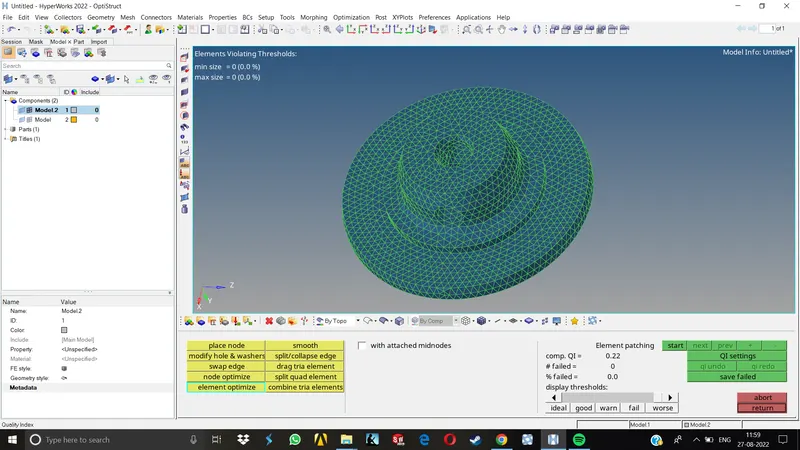
2D TO 3D COnversion
Go To 3D>Tetramesh and choose the elements which you want to convert into Tetras and hit mesh. 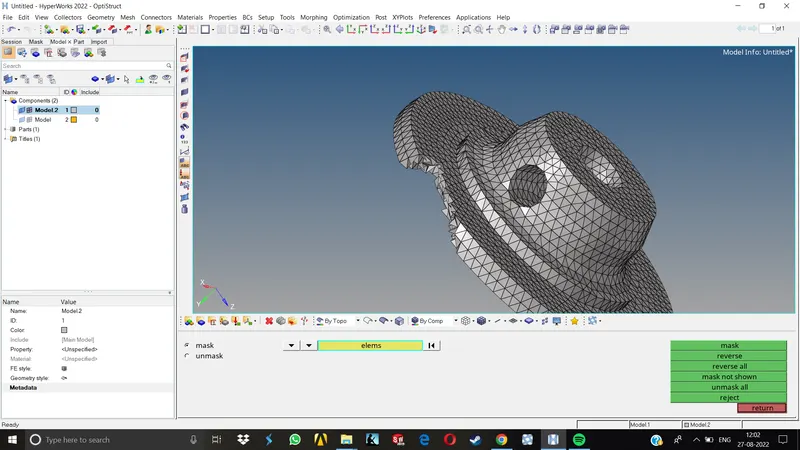
After tetramesh is complete, we can check for tet collapse by going to Tools>Check Elements>3D>Tet colapse and set the required parameter value and look for any errors that are existing. If not , our model is ready.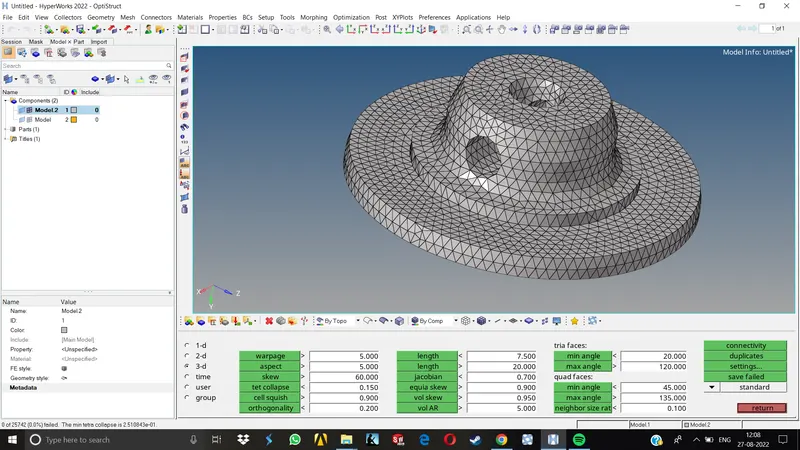
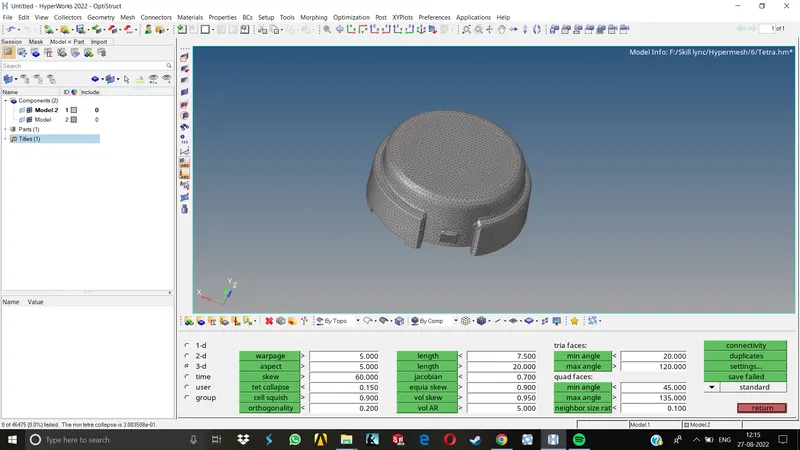
Volume Tetra Mesh
Go to 3D>Tetramesh>Volume Tetra, select the volume we need to mesh, select the 2d element type (Trias),select the 3D Elements as Tetras , give proper element size and hit mesh.
Here we do not need to mesh the component into 2D trias separately, In volume tetra menu it asks for both the 2D as well as 3D elements specifications and applies them simulteniously. So basically it saves some time.
Quick Tetra Mesh
For doing quick tetra mesh we need to first open the utility tab by going to View>Browsers>Hypermesh>Utilities Then, by going to the utilities tab, Under the optistruct menu, there is a tab called Geom/mesh, once we click that, Mesh tools menu will be visible and we can then choose the Quick tetra command from there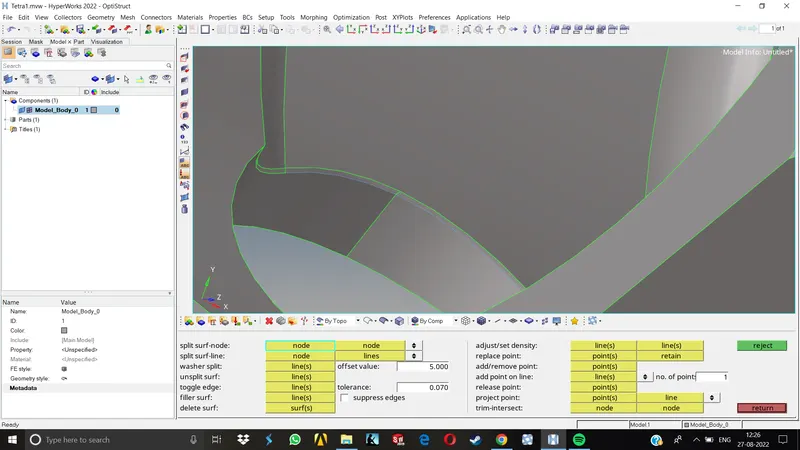
Once we click on quick tetramesh,we need to choose component on which we wish to mesh,provide the different parameters like Mesh size, min element size,mesh density,mesher etc. When we provide all this input, we can hit the Mesh button given below to start tetrameshing.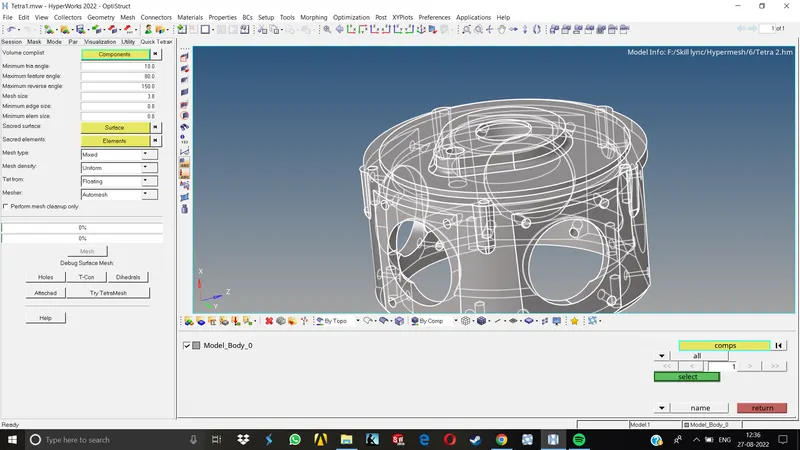
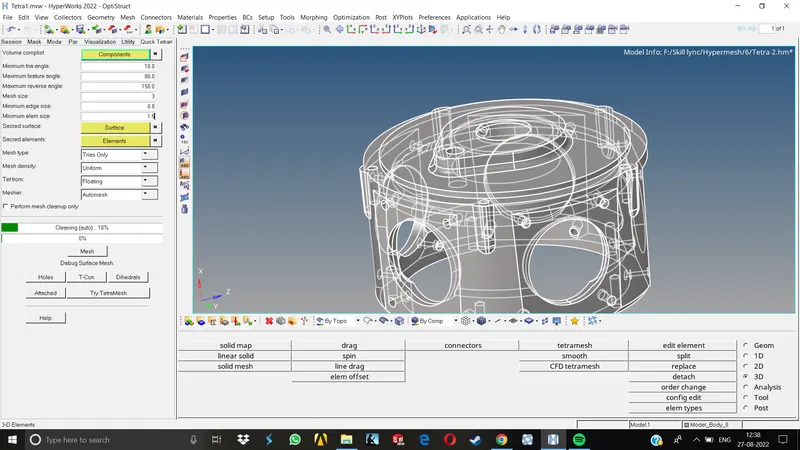
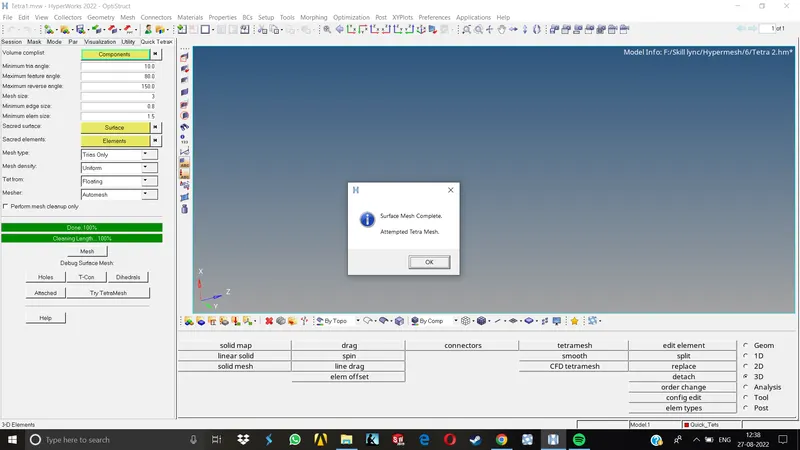
QUick tetra will produce a different components for 3D mesh. we do not need to give 2D mesh beforehand as we did in 2D to 3D conversion.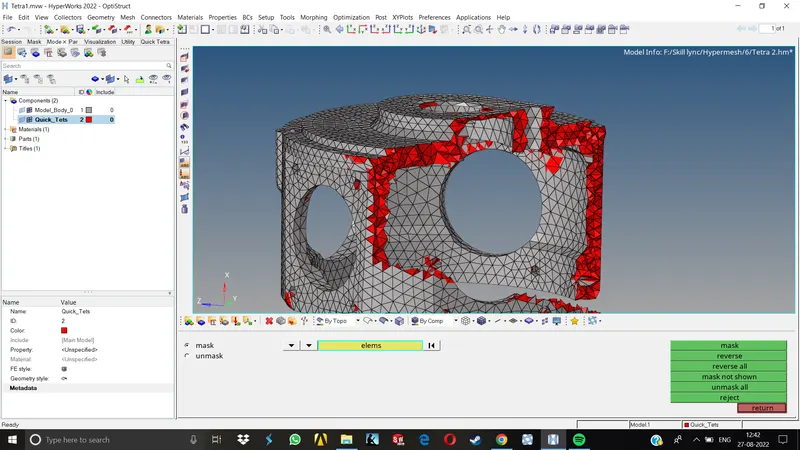
Once the 3D mesh is done, we need to check for the tet collapse according to the specified value. Go to Tools>Check Elements>3D>Tetcollapse & enter the value provided for it and look for failing elements. 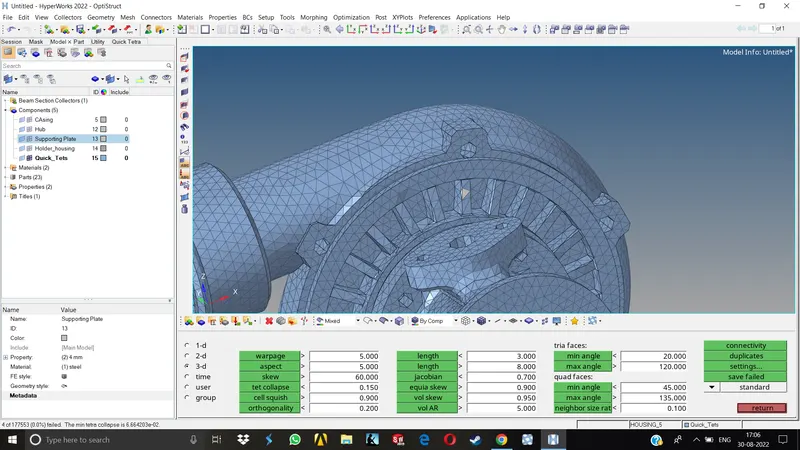
We can separate the failing elements by going to Save failed, then open mask menu >Elements >Retreive >Mask>Reverse. This will only show the failed elements. NOw we have to deal with the element failures manually & resolve them one by one by changing the distance of various nodes associated with these elements and setting a proper height for the tetra element.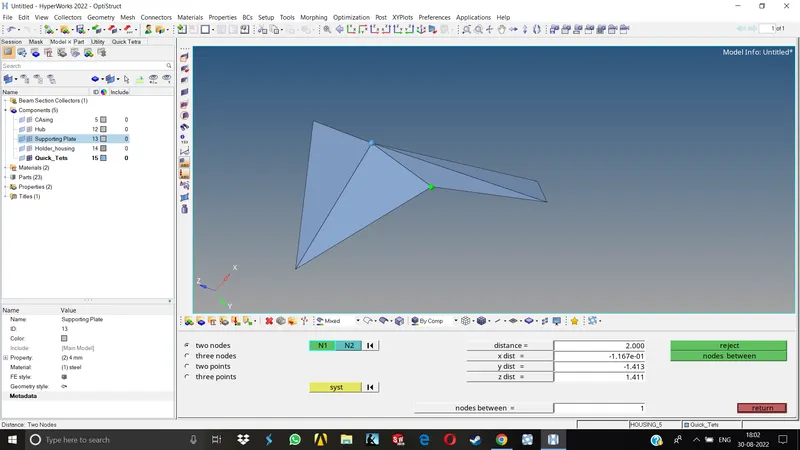
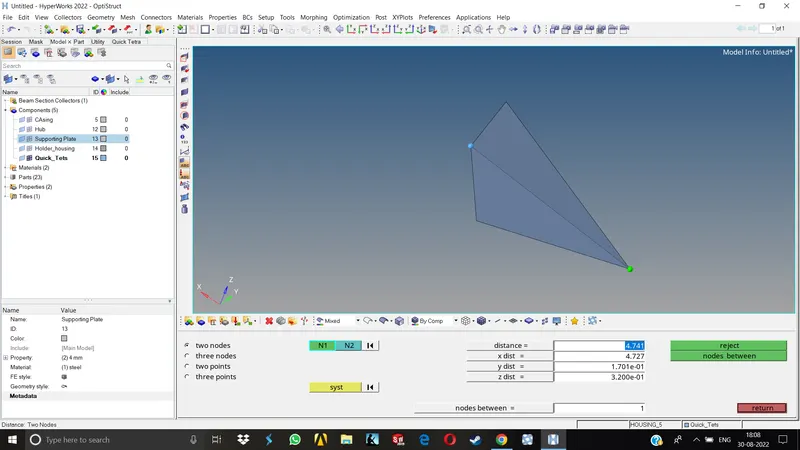
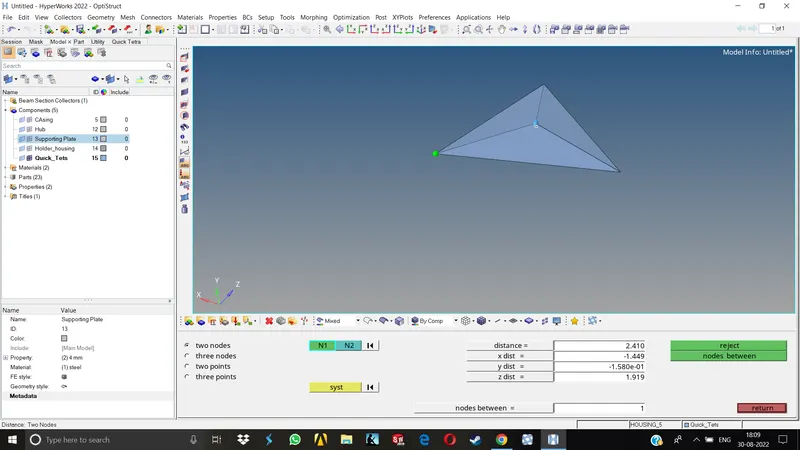
Once we do it for all the failed elements, our model is done.
Results:
In this challenge, we have learnt to apply 3D tetra mesh to given components by various methods. Like First meshing the given component in 2D Tria elements, Clearing the element failures for 2D, then converting them to 3D tetras. Secondly, Applying directl the volume mesh by slecting the volume of the given model and then providing with the inputs, & thirdly by Quick tetramesh.
We also learnt how to resolve the tet collapse erros manually.
Final Models: