Week 8-3D Tetra Meshing Challenge
Aim: To create 3D meshes for the models provided in the challenge according to the parameters mentioned.
Solution 1:
TetraMesh Generation Method: 2D to 3D Conversion
Elements sizes: Min- 2 Units, Target- 5 Units, Max- 7 Units
Tet collapse: 0.15
Procedure:
- Import the housing files by using import geometry.
- Remove any fillets that are less than 5mm by using the defeature command.
- Prepare the geometry by using replace point, toggle edge, split surface, etc. tools from the quick edit panel.
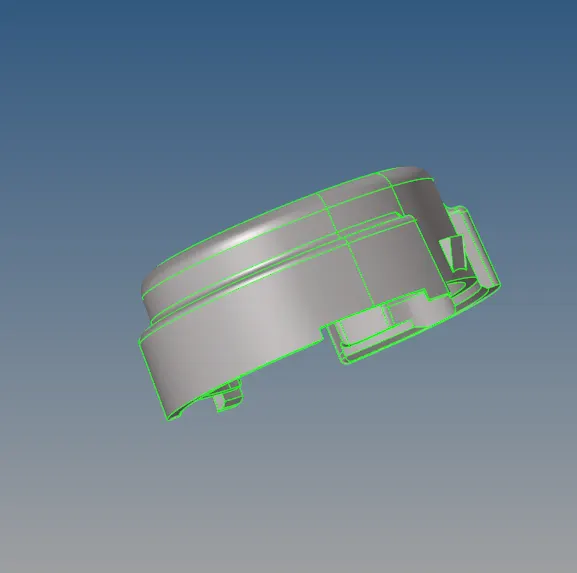
- The below image shows the model after geometry cleanup.
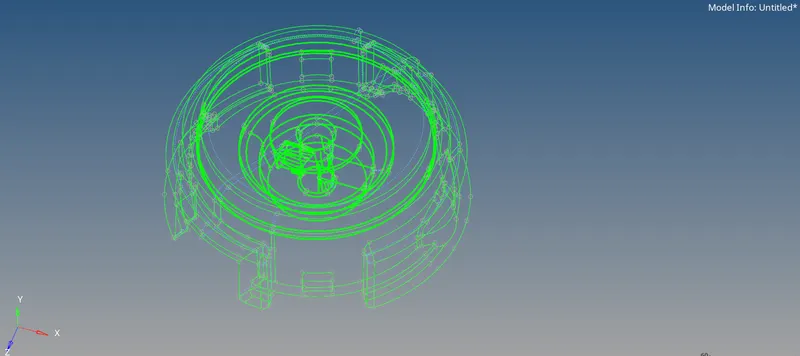
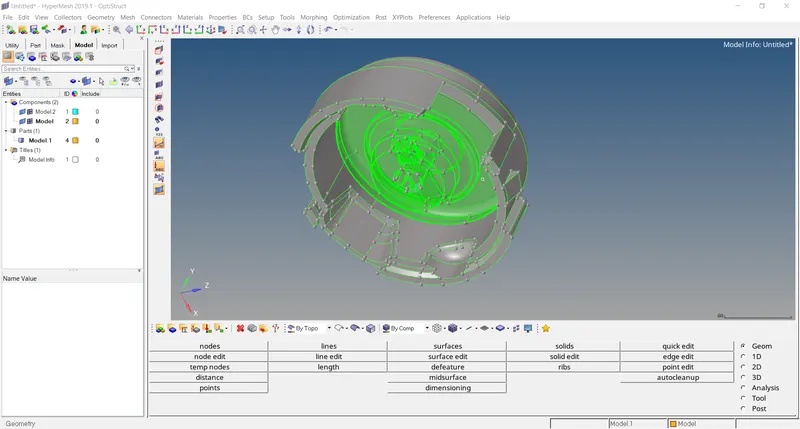
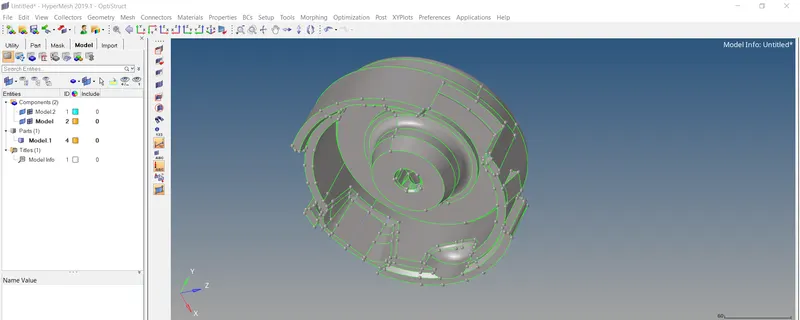
Topology cleanup for housing component:
- Click on the auto mesh panel from the 2D element page. Select the surface and put the elements type as tria.
- We set the target element length as 5 units and after meshing the surface and ensuring that no elements are failing for min and max element length, we proceed to convert the 2D tria elements to 3D tetra elements.
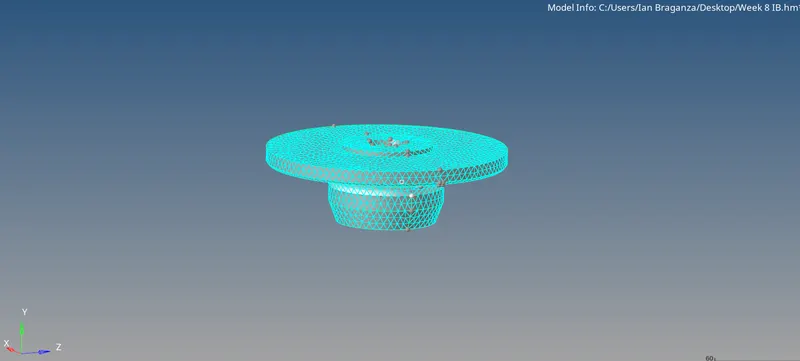
- Access the tetra mesh panel from the 3D page, and then click on the tetramesh subpanel.
- Select the element under fixed trias/quads to tetra mesh. Click on the mesh to generate the tetrahedral element.
- Use the check element panel and go to the 3D subpanel. Identify elements having a tet collapse value smaller than 0.15.
- Remesh the hubs displayed tetra elements to improve their tetra collapse. Under the tetra mesh parameters check the minimum tetra and maximum tetra elements length box.
- Another method to improve the tet collapse is by using the distance option. The elements that failed the tetra collapse check are saved in the user mark by clicking on save failed and can be retrieved in the mask panel using the extended selection menu. We can also increase the distance to improve the tet collapse value.
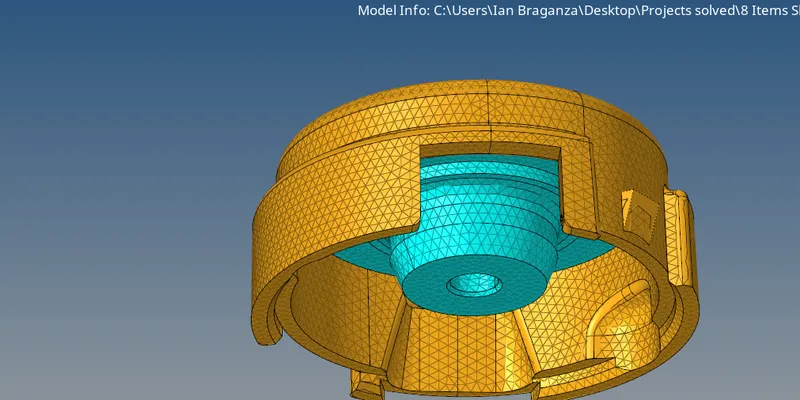
Solution 2:
TetraMesh Generation Method: Quick Tetra Mesh/ Volume Tetra Mesh
Target Element size: 3 Units.
Tet Collapse: 0.15
Procedure:
The same above procedure can be followed for this model.
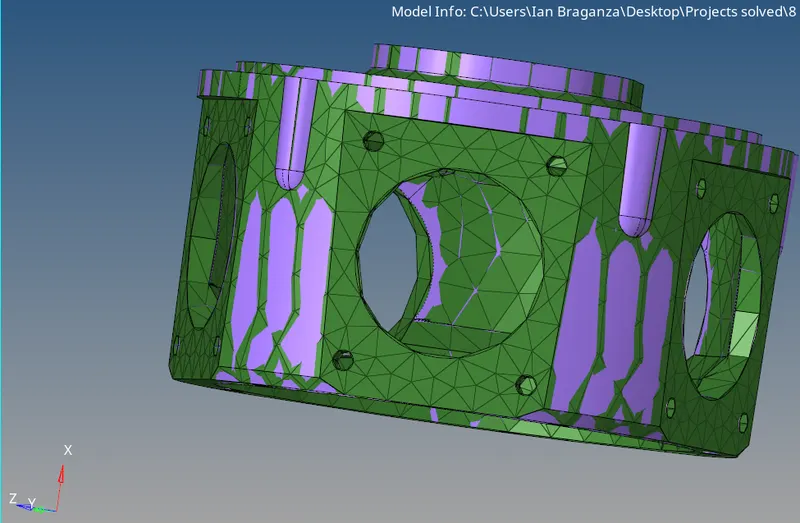
Solution 3:
TetraMesh Generation Method: Quick Tetra Mesh/ Volume Tetra Mesh
Target Element size: 4 Units.
Tet Collapse: 0.15
Procedure:
- Import the .hm file using the import tool option.
- Observe the topology of the geometry by using the visualization option. Make sure that there are no free edges.
- We can access the quick tetra menu under view>browser>hypermesh>utility. Go to tetra mesh under tools.
- Select the component and put trias only as mesh type .fill mesh size as 4 units. Click the mesh button to mesh the component.
- Use the check elements panel and go to the 3D subpanel. Identify, elements having a tet collapse value smaller than 0.15 and remesh the crank housing displayed tetra element to improve their tetra collapse. Under tetra parameters check the minimum tetra and max tetra element length box. We can use another method to improve the tet collapse by using the distance option.
- The elements that failed the tetra collapse check are saved in the user mark by clicking on save failed and can be retrieved in the mask panel using the extended selection menu.
- We can increase the distance to improve the tet collapse value.
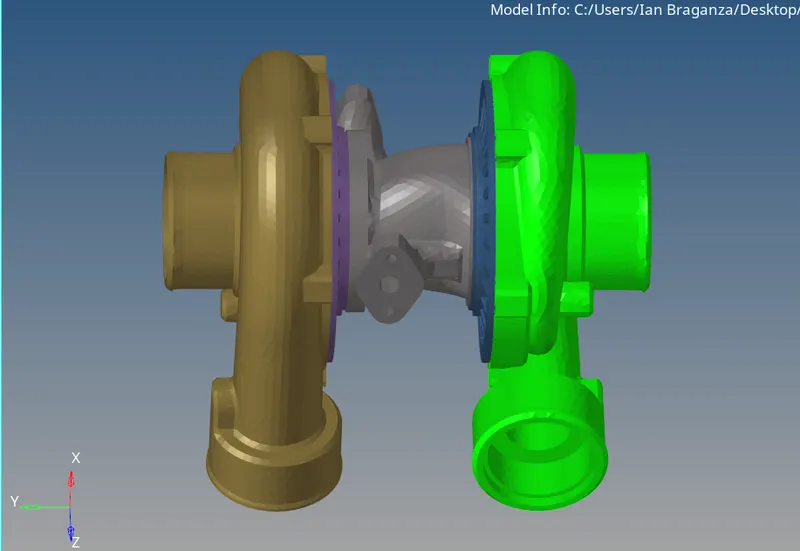
Conclusion:
The challenge was successfully completed.