Week 8-3D Tetra Meshing Challenge
WEEK-8 CHALLENGE
1ST QUESTION:
STEPS FOR 2D TO 3D CONVERSION TETRAMESH:
- Import the given geometry.
- Let’s set quality criteria first as given in challenge.
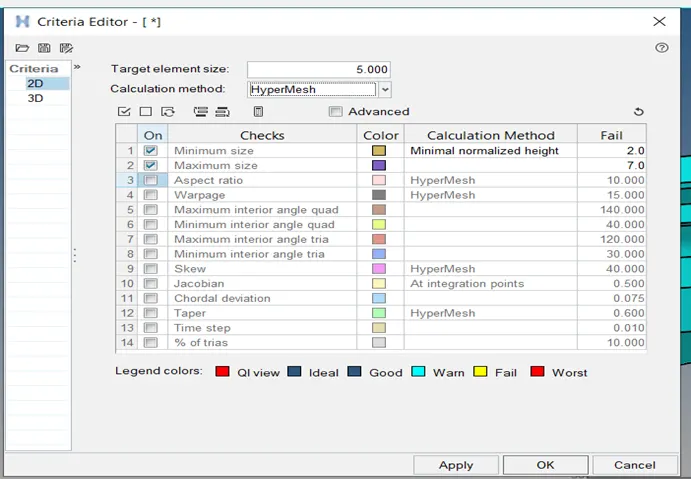
- Now, clean up the geometry as component 1 that is “model 2”, for that press F11-->toggle edge--> select edges which are unnecessary.
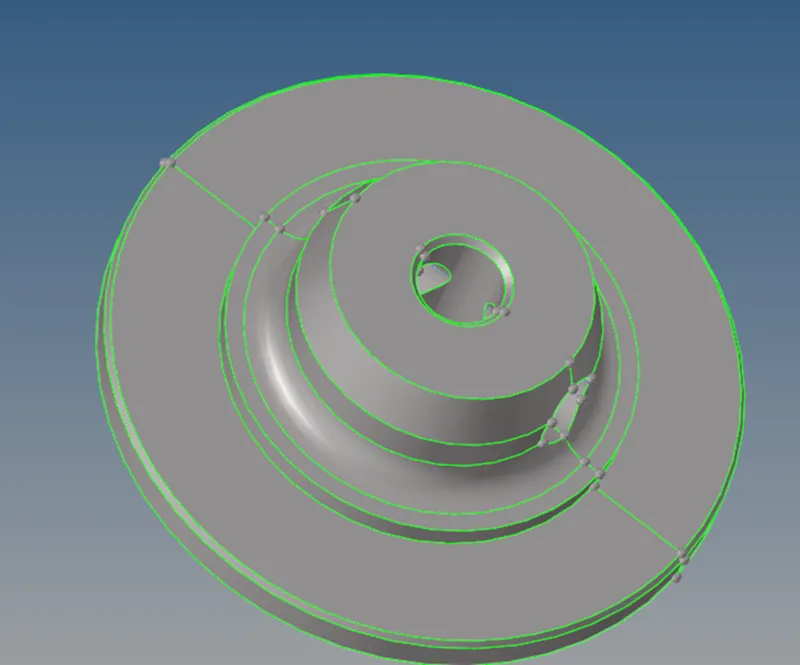
- It is a solid body, so let’s delete it first by pressing F2-->select solids-->press delete.
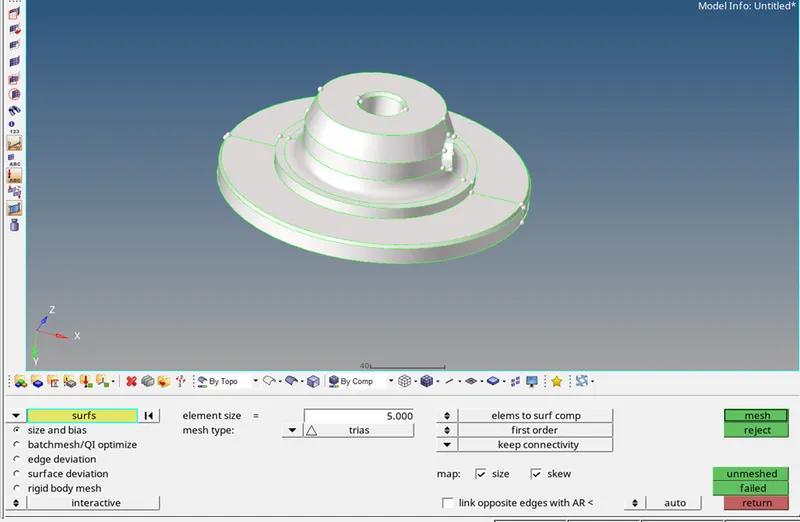
- Press F12 for 2Dmesh, enter element size as 5 units, select mesh type as trias only, select displayed surfaces and click on mesh.
- Check for quality criteria press F10, minimum length and maximum length in 2d criteria.
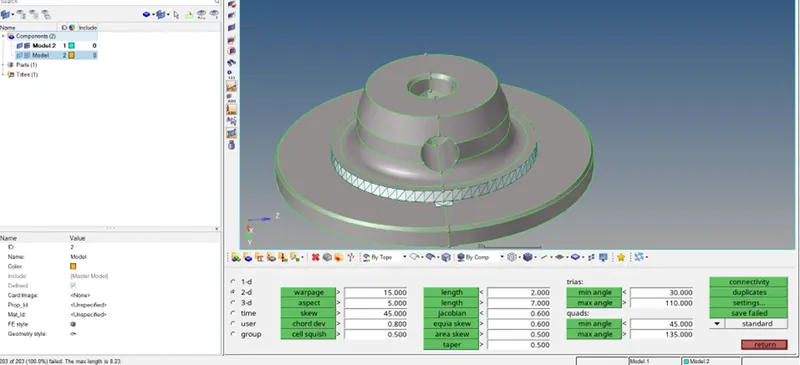
- As it shows 203 elements failed in maximum length criteria.
- So mask these elements and retrieve it to do remesh on these elements only.
- This attempt to resolve the mesh failed.
- So tried a different method by using symmetricity.
- And meshed it.
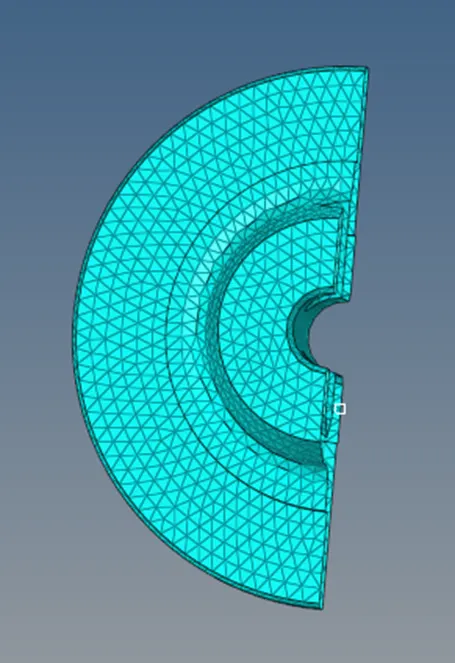
- The quality criteria is also fulfilled.
- Now use reflect from tools to mirror the elements and then find equivalence between adjacent elements.
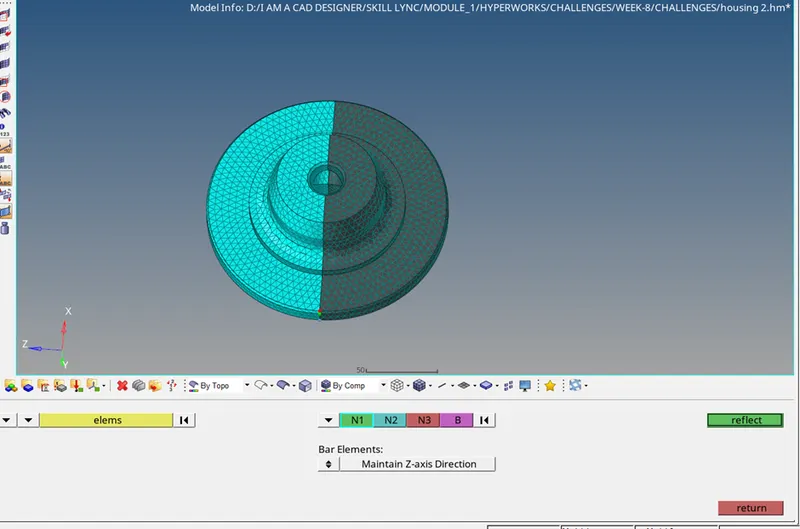
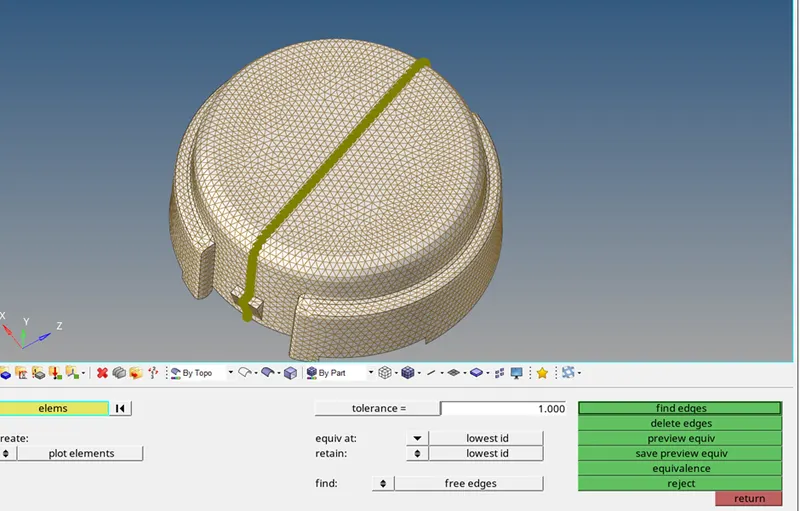
- Go to tools-->edges, select elements displayed and click preview and then click on equivalence.
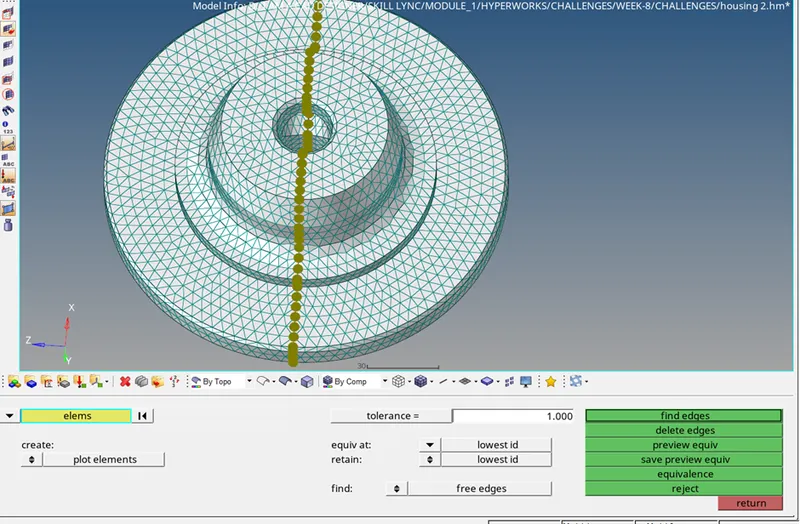
- Now 2d mesh is done with quality criteria been fulfilled.
- Now go to 3d panel-->tetramesh.
- Set tetramesh criteri as shown.

- Go to tetra mesh, select elements displayed and click on mesh.

- Mask some of the elements to see the 3d mesh has occurred or not.
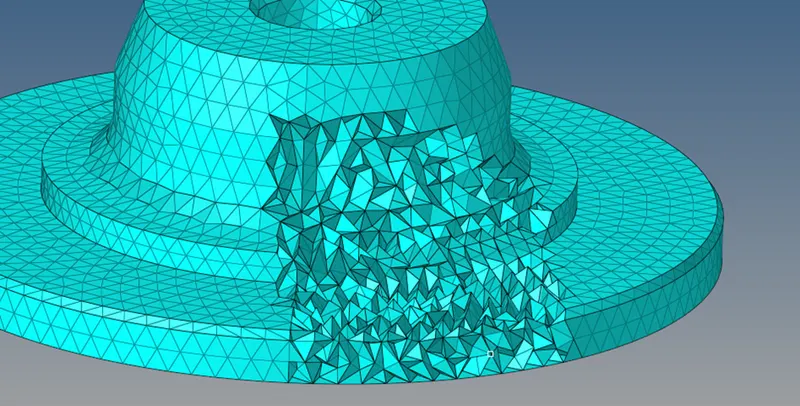
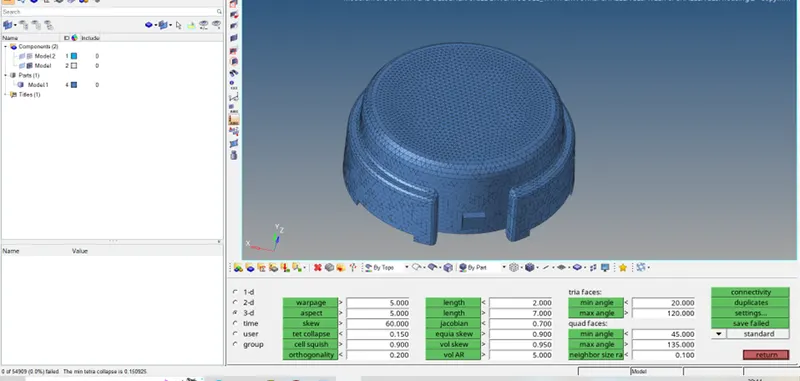
- Check for tet collapse, press F10 go to 3d panel and click on tet collapse with 0.15 criteria.

- As you can see, on the bottom left corner it shows “0 elements failed in tet collapse criteria”.
- So now we are good to go.
- Do same procedure for “model” component.
- Clean up the geometry by using cleanup tools, press F11 for that.
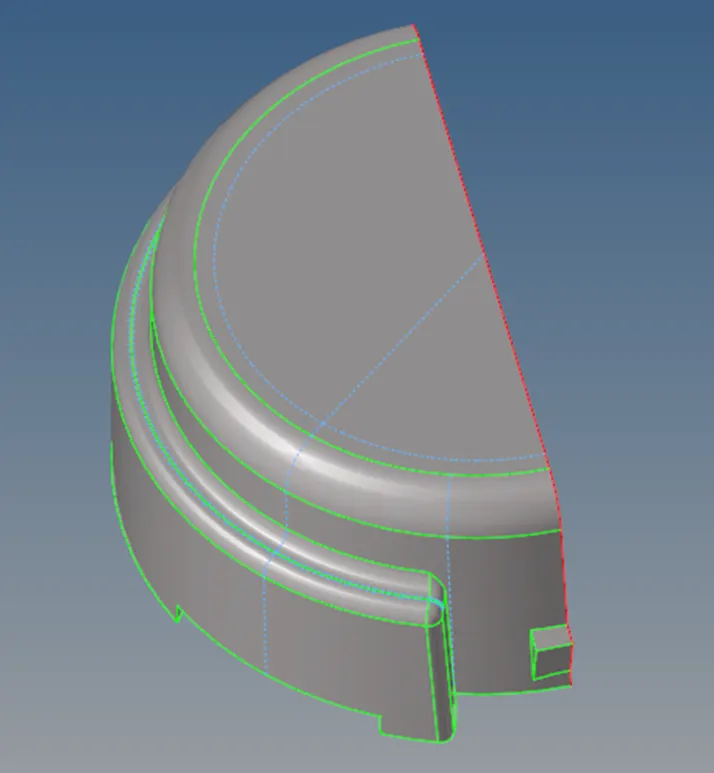
- 2D tria elements were generated.
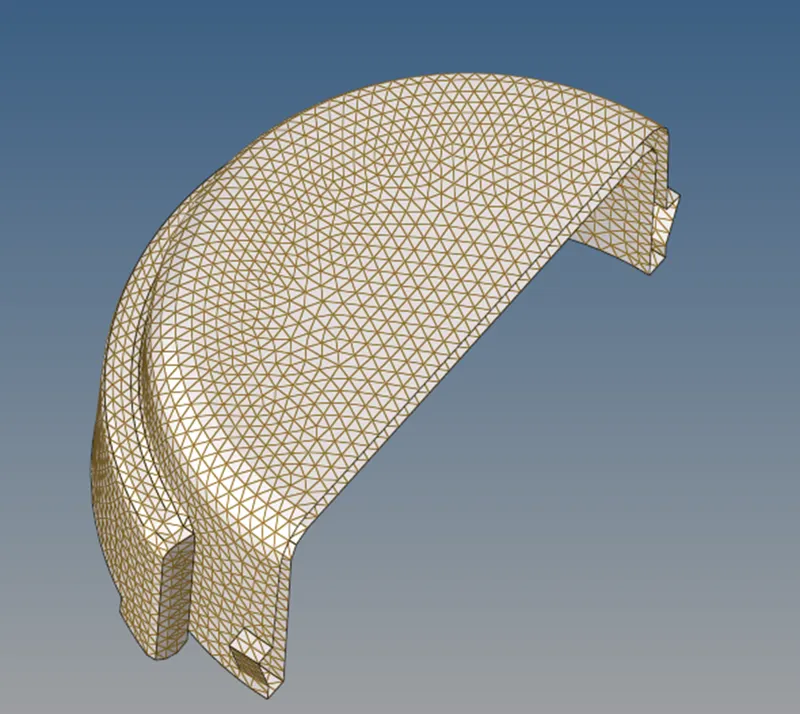
- Used reflect command to mirror elements found in tools.
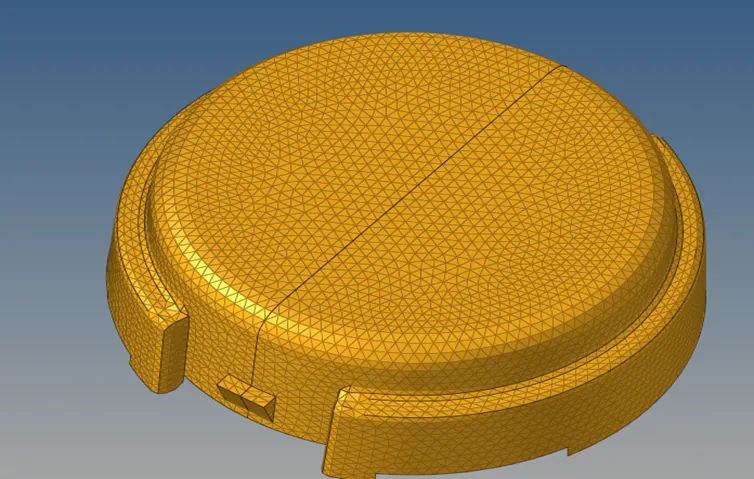
- Check for equivalence.
- Do tetramesh again.
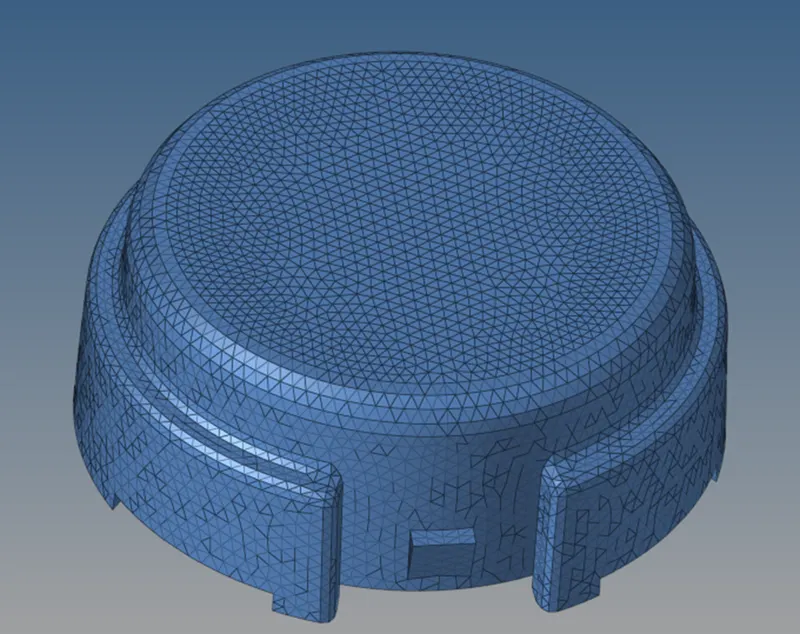
- Check for tet collapse.
2ND QUESTION:
STEPS FOR VOLUME TETRA MESH:
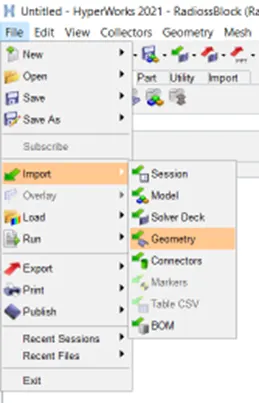
- Import the iges file. Go to file-->import-->geometry
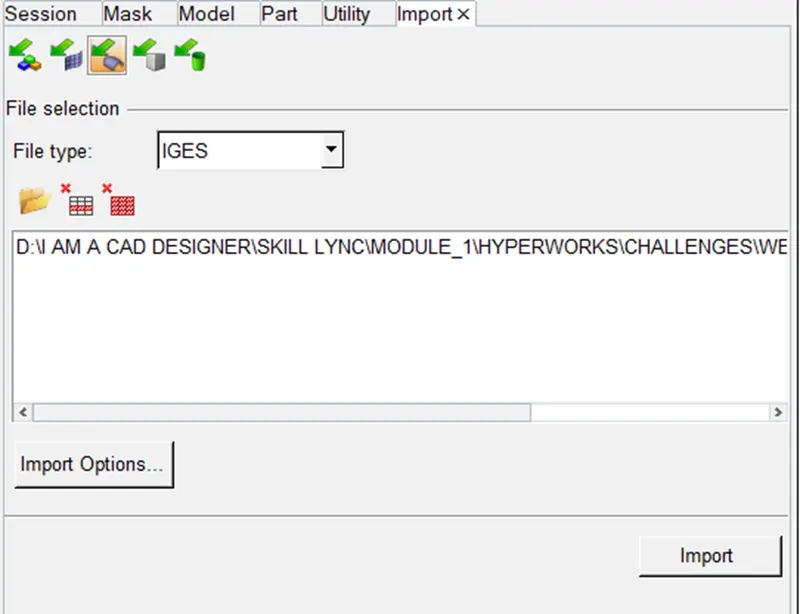
- Select file type as iges and browse the file and select it.
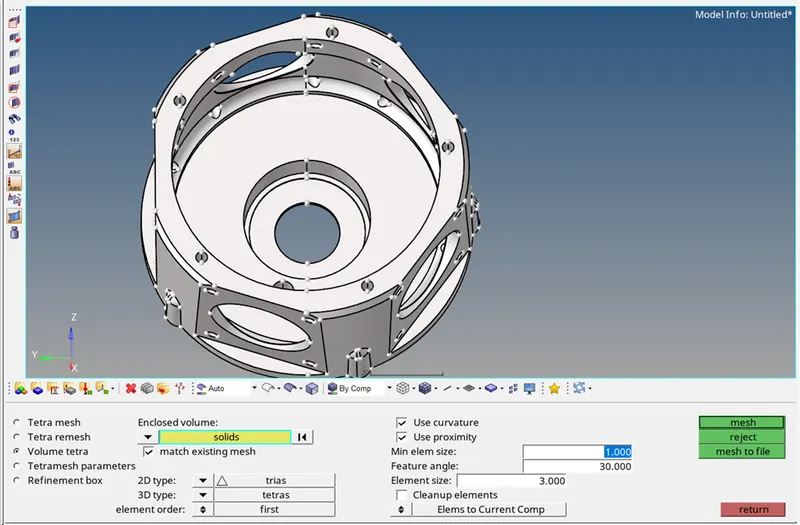
- 1st alternative: Go to 3d panel -->volume tetra--> set element size as 3--> select solids--> set 2d type and 3d type as trias and tetras, use curvature and proximity, lastly click on mesh.
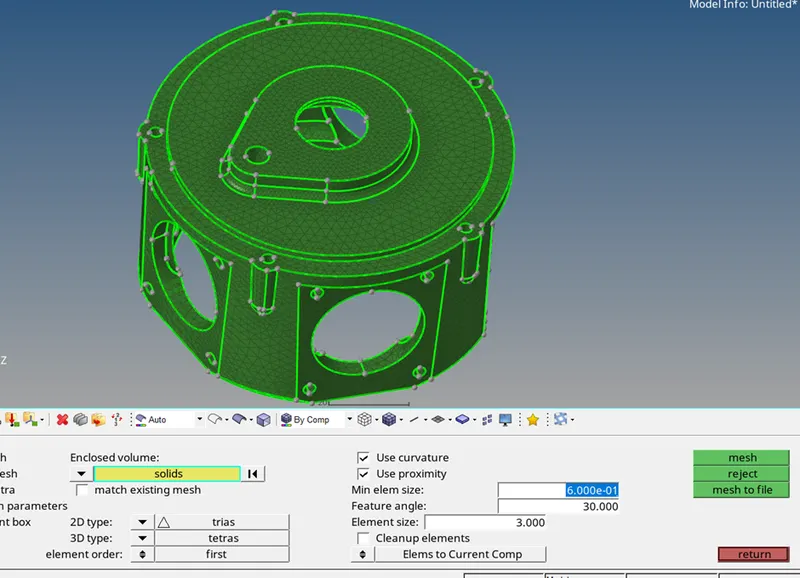
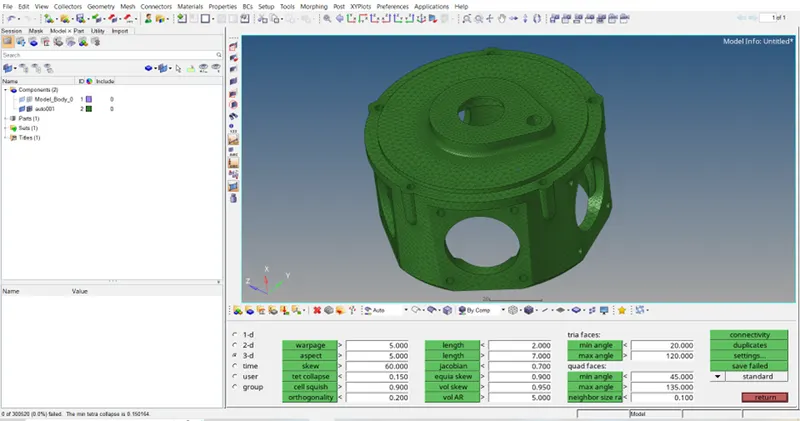
- Check for tet collapse.
3RD QUESTION:
STEPS FOR VOLUME TETRA MESH:
- Import model by using import option from toolbar.
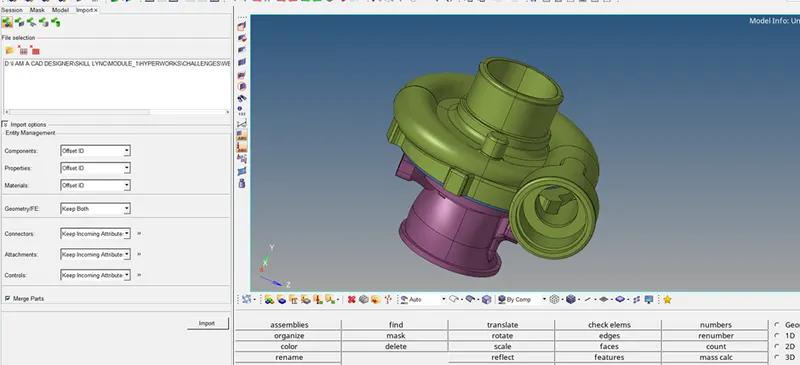
- As you can see, these components are already meshed when I received it.
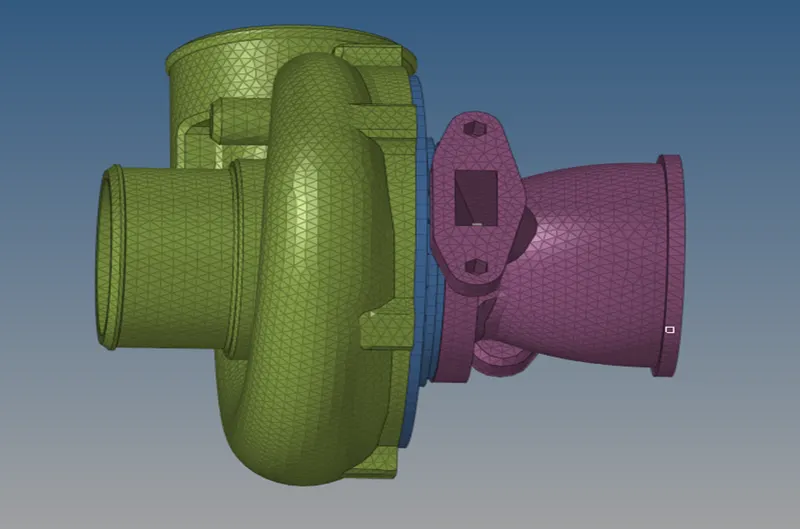
- After checking tet collapse for casing and hub component, it shows:
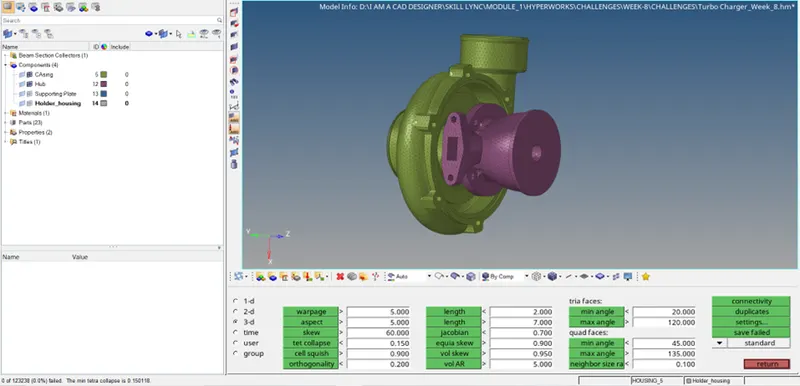
- And other two components are hexameshed, so let’s delete it by pressing F2.
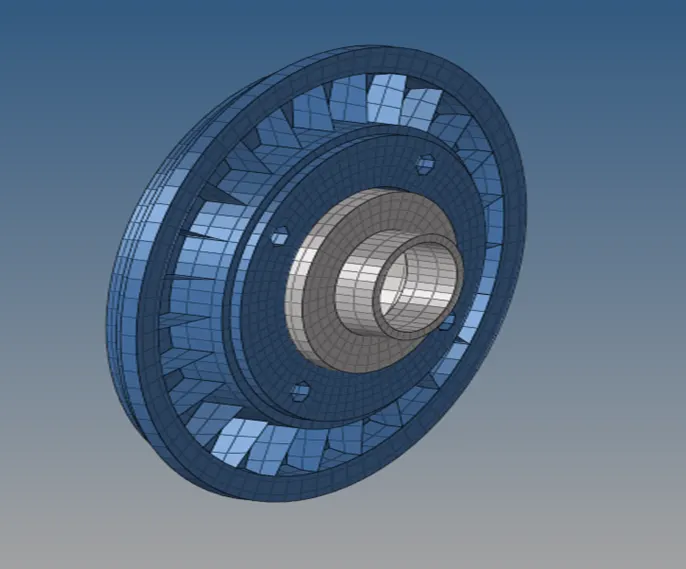
- Display supporting plates and make it as current component.
- Check if this component is solid or not by change auto mode to topo.
- As you can see its not a solid.
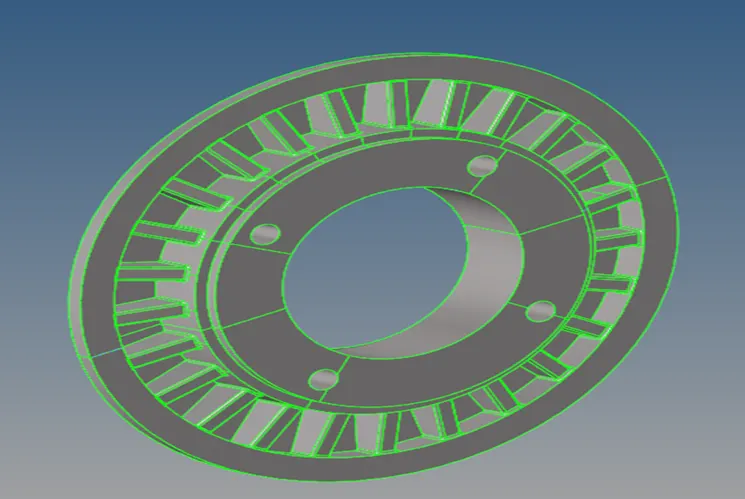
- So to convert it into solid go to geom-->solids-->select bounding surfaces-->select displayed surafces and click on create.

- This is your result.
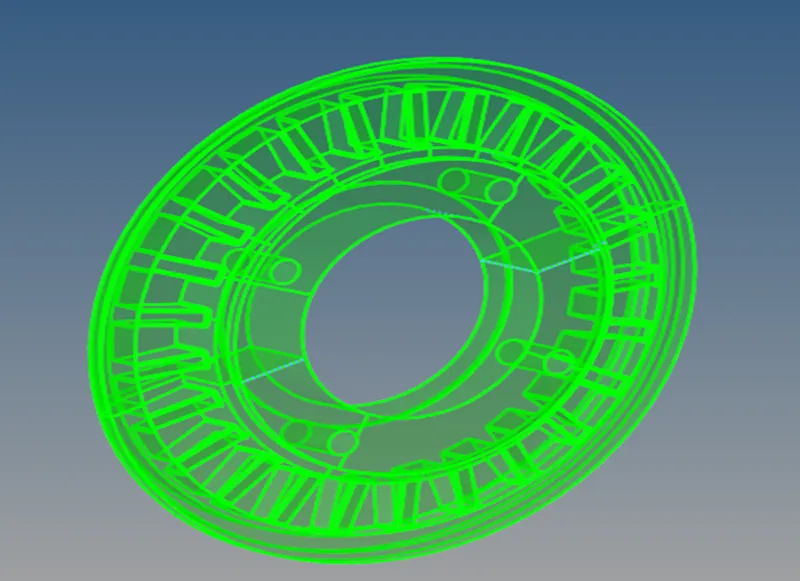
- There are two solids on screen, so merge them into one, by selecting solid edit from geom panel--> boolean-->select solid A and solid B, set paramters as shown and click calculate.

- Now go to 3D panel--> tetramesh-->volume tetra-->set element size as 4.

- Go to --> tetramesh parameters-->assign tet collapse value as 0.15.

- This is the result.
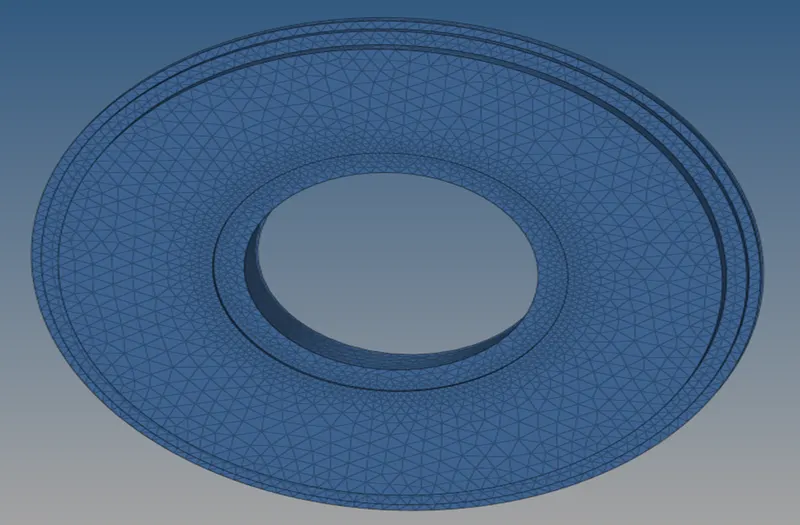
- Check for tet collapse.

- All good to go.
- Repeat this same procedure from step 4 for holder house component.
- After generating mesh, this is the result.
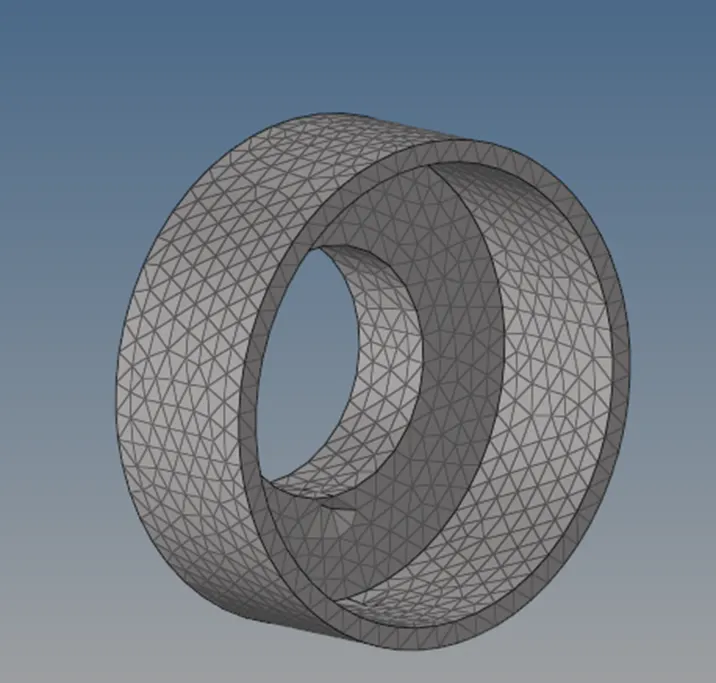
- Now check for tet collpase.

- It shows 3 elements failed.
- Save and retrieve it by using mask.
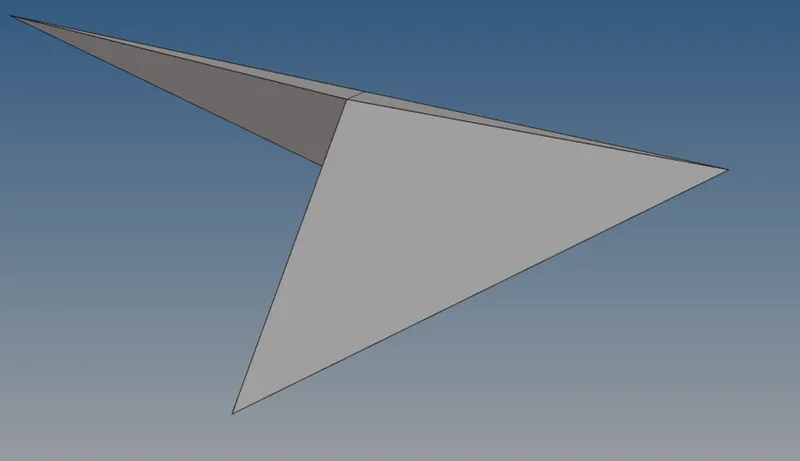
- Display adjacent elements.
- To resolve this, go to tetramesh again --> use tetra remesh-->select 3d elements and set free boundary paramter as remeshable

- Again checking for tet collapse.

- All done.