Week 8-3D Tetra Meshing Challenge
1. Create a Teramesh for Housing component with the following quality criteria.
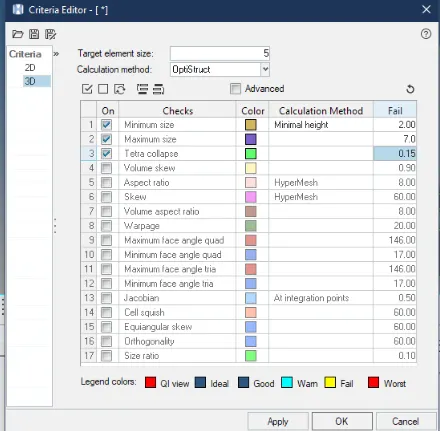
Elements sizes: Min- 2 Units, Target- 5 Units, Max- 7 Units
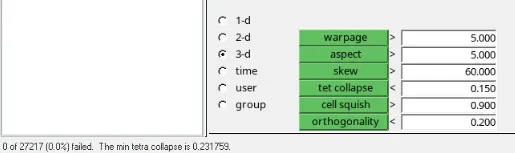
Tet collapse: 0.15
CAD model:
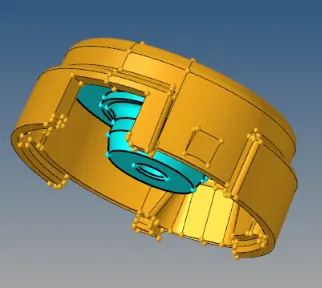
Procedure:
- Import the given CAD model of Housing component and switch to 'Topo' mode.
- Next, enter the given mesh criteria by going to criteria file settings and enter the given parameters:
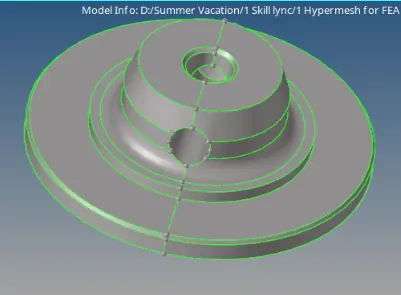
- Now, perform the geomtery cleanup and toggle the extra lines or small fillets that can cause variation in mesh as shown below:
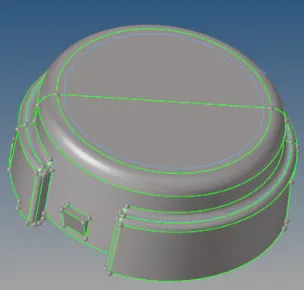
- In order to generate the 3D mesh, we first need to make the 2D tria mesh on the surface and then perform tetramesh operation. Go to '2D->Automesh' then select all the displayed surfaces and select 'trias' and give element size as 5 units.
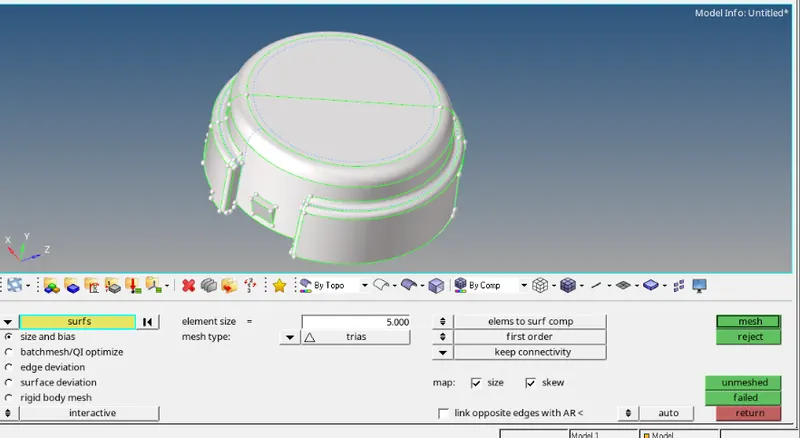 -->
-->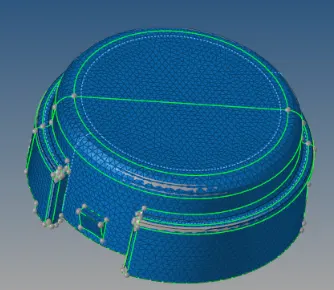
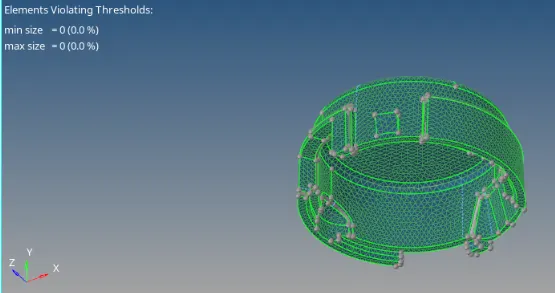
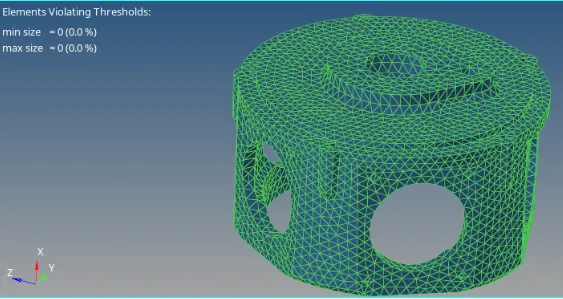
- Check the element quality of the 2D elements and perform required cleanup on the mesh by the help of cleanup tools such as 'smooth', 'element optimize', or by remeshing the failing area. Check for the minimum and maximum element size. The final 2D mesh is shown below:
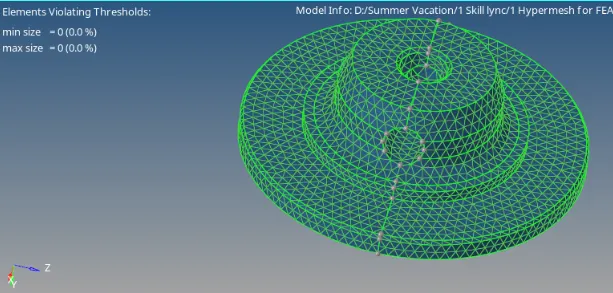
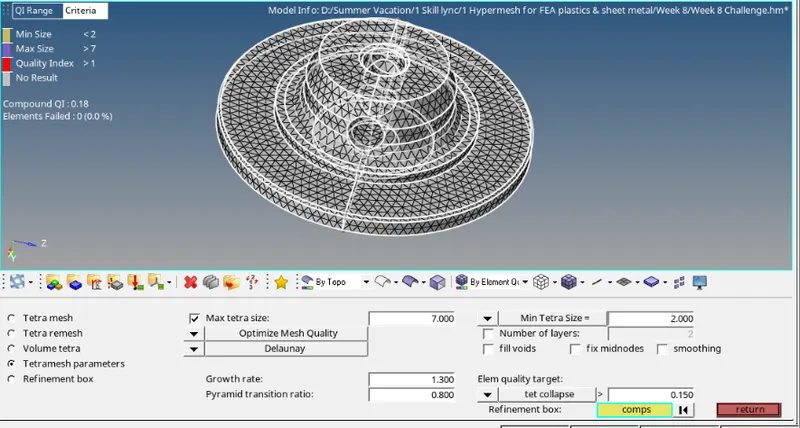
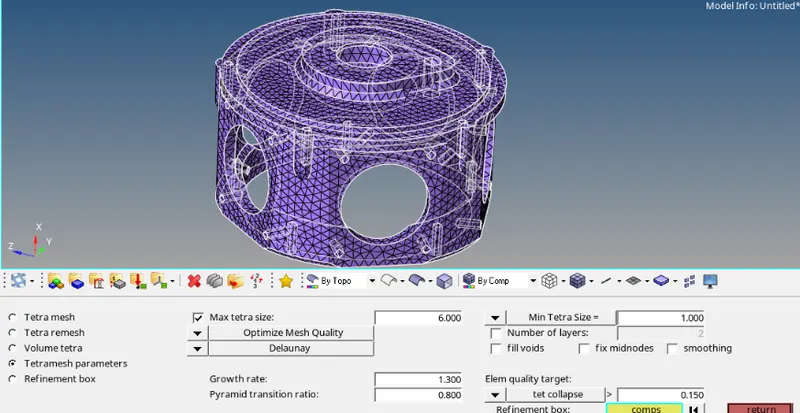
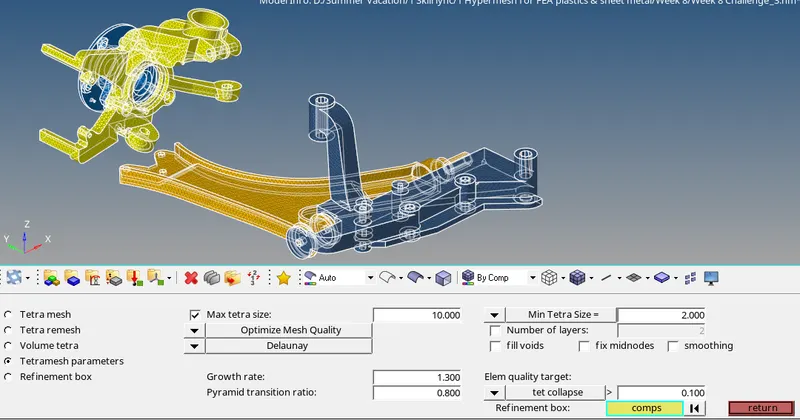
- Now, to convert this 2D mesh to 3D, Go to '3D->tetramesh->tetramesh paramters' and give the 3D meshing parameters (Max size=7; min size=2; tet collapse=0.15) as shown below:
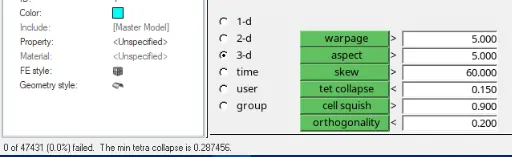
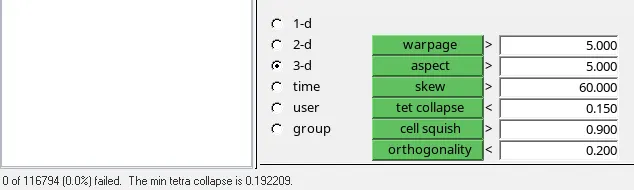
- After giving paramters, go to 'tetramesh' and select the component and create the 3D mesh. This will convert the 2D trias to 3D tetra elements. Finally, check the the tet collapse by going to 'Tools->check elements->3D->tet collapse'
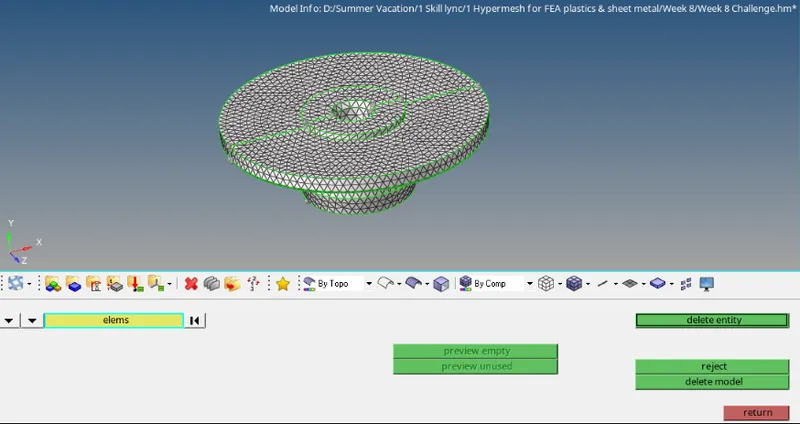
- Now the 2D elements created earlier should be deleted as they are no longer required. For this, go to 'Delete->elements->by config->tria3->displayed'. The 2D tria type is tria3 and hence all the trias will be selected. Now click on 'delete entity' to remove the 2D elements.
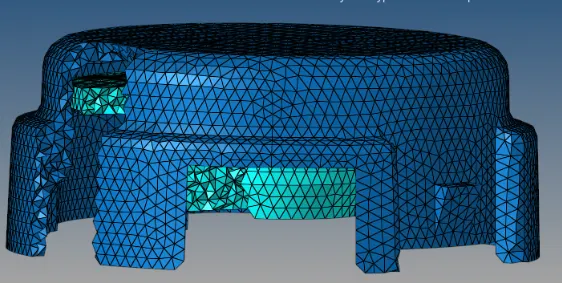
Result: The given model was successfully meshed with element size of 5 units with tet collapse as 0.15. Some of the elements were masked in order to view the inner 3D tetra elements:
2. For the given model, Create a 3D Tetramesh with the following quality criteria.
Target Element size: 3 Units.
Tet Collapse: 0.15
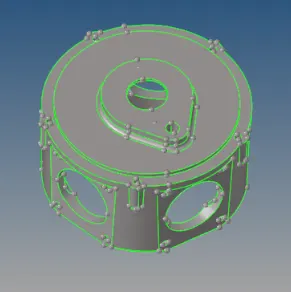
CAD model image:
Procedure:
The same procedure can be followed for this model as above. Just with the change in Target element size of 3 units.
 -->
--> 
--> 
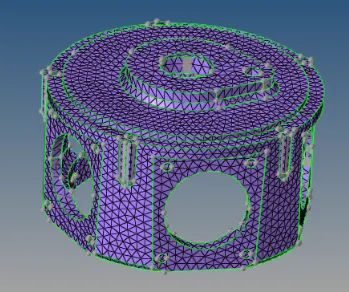
Final Model Image:
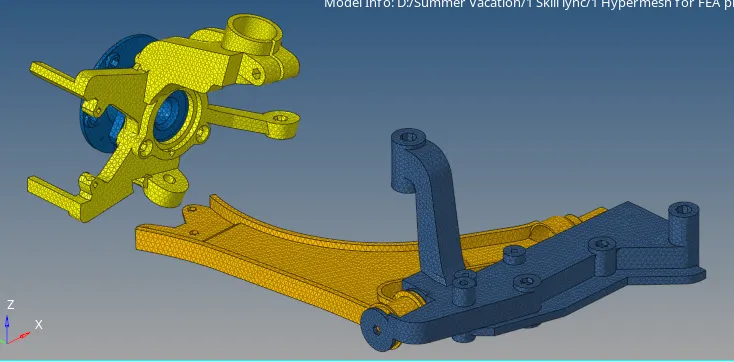
3. For the given assembly model, Create a 3D Tetramesh with the following quality criteria.
Target Element size: 6 Units.
Tet Collapse: 0.15
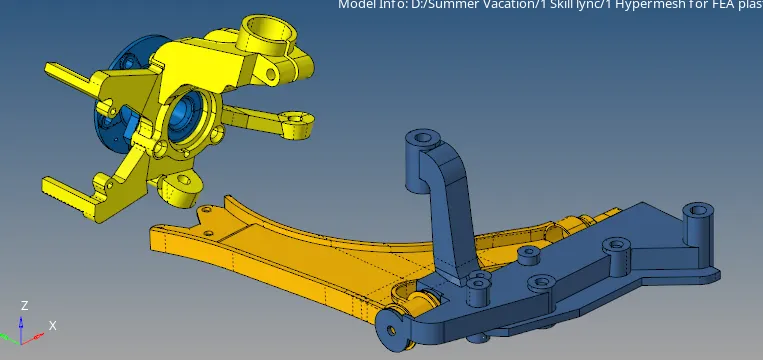
CAD Model Image:
Procedure:
The same procedure can be followed for this model as above. Just with the change in Target element size of 6 units.
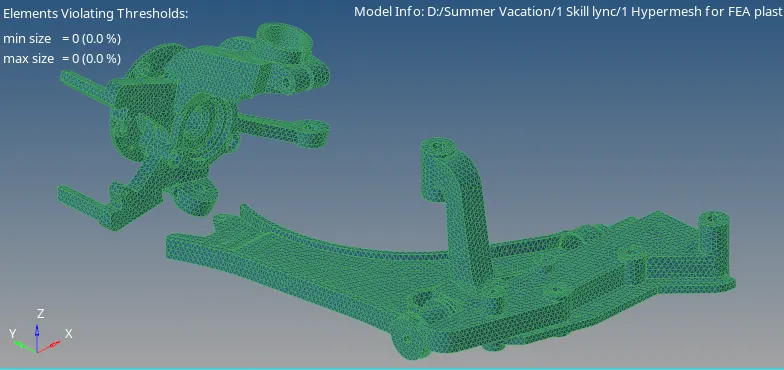
(Images are shown for all 4 components combined but procudure needs to be done on each component one-by-one)
 -->
-->
-->
Final Model Image: