Week 8-3D Tetra Meshing Challenge
CREATING TETRA ELEMENTS USING HYPERMESH
OBJECTIVES:- Use the standard teramesh method to mesh the given component as per the given quality criteria.
Quality Criteria:-
2D to 3D Conversion
Elements sizes: Min- 2 Units, Target- 5 Units, Max- 7 Units
Tet collapse: 0.15
Procedure:-
→ Import the housing.stp file using import option.
→ Go for geometry cleanup and ensure the given volume is fully closed
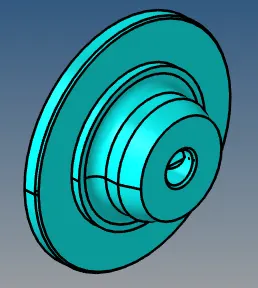
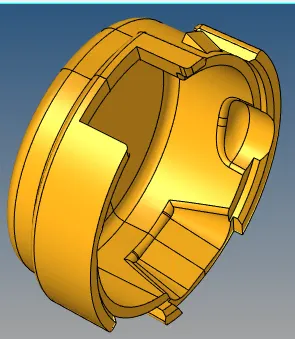
→Click on the auto mesh panel from the 2D element toolbar. Select the surface and choose mesh type as trias and hit on the mesh option. Select target element type as 5 units.
→ After meshing the surface as 2D trias and ensuring there is no quality failure then move on the 3D trias element by selecting tetramesh on a 3D panel
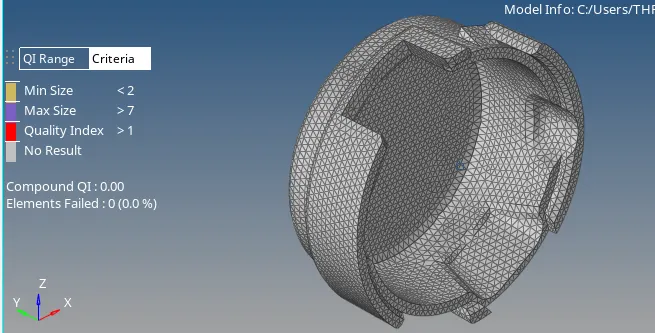
→ open the 3D panel click on the tetra mesh option, select the component and then go for mesh.
→ For checking the element quality go to the tool panel click on the check element option, fix the tet collapse value as 0.150 on the 3D panel, and check the element of the lower size of 0.150.
→ If the test collapse value is 0.0percent it is tolerable.
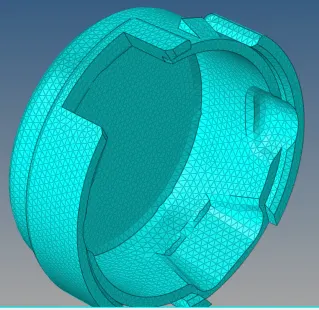
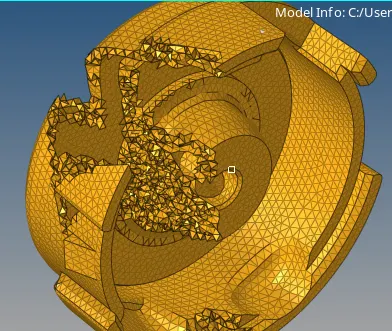
→ RESULT:
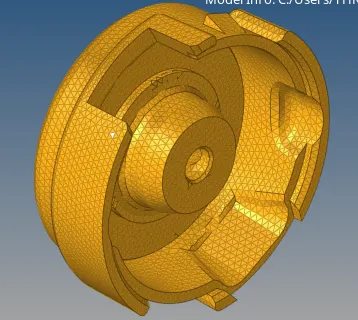
→ Conclusion:-
1. Learn how to generate tetramesh using 2D elements.
2. Gain experience to deal with tet collapse in tetra meshing.
----------------------------------------------------------------------------------------------------------------------------------------------------------------------------------------------------------------------------------------------------
MODEL-II
Objective:- To mesh the given model using the quick tetramesh method using given quality criteria.
Quality Criteria:- a. Target element size is 3 units. b. Tet collapse 0.150.
Procedure:-
→ Import the file using the import geometry option.
→ By selecting the"by topo option" visualize the geometry whether there are any free edges or not.
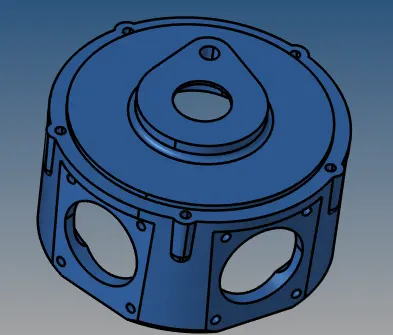
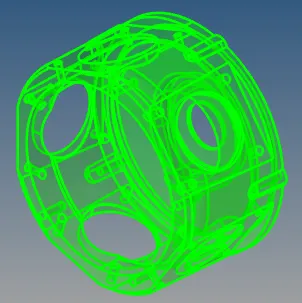
→ For activating the quick tetramesh go to View⇥ Browsers⇥Hypermesh⇥Utility⇥Geom/Mesh⇥Quick tetramesh.
→ Then select the component, fix the mesh size as 3 units, and mesh type trias only then ho for mesh.
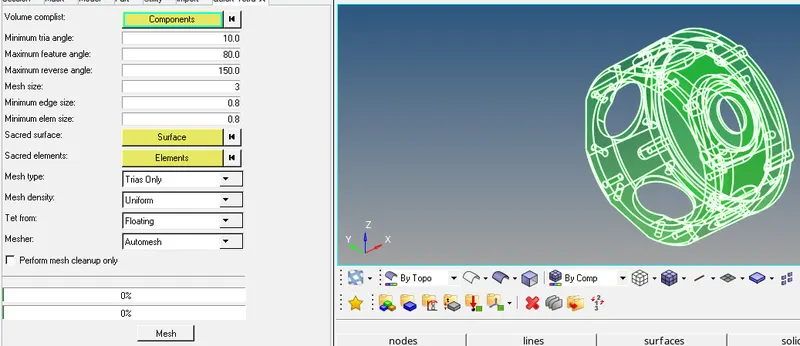
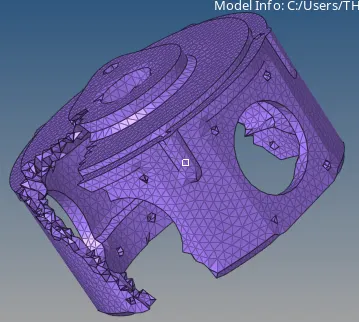
→ Check the tet collapse value and fix the height of the tetrahedral element which is lower than 0.150 with the help of remeshing tetra element by assigning the value in tetra parameter
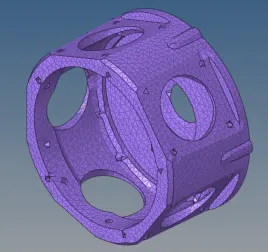
→ Final Image :
→ Conclusion:-
1. Get to know how to generate 3D elements using the quick tetra mesh method.
2. This method is less concerned about element quality.
----------------------------------------------------------------------------------------------------------------------------------------------------------------------------------------------------------------------------------------------------
MODEL-III
Objective:- To mesh the given component using Volumetric tetra and quick tetra mesh.
Quality criteria:- a. Target element size 4 units. b. tet collapse 0.150.
Procedure:-
→ Import the Geometry.
→ Visualize the given model using the By Topo mode option to check the free edges.
→ In this geometry there are 4 components, mesh each component separately using volumetric mesh and quick tetramesh method.
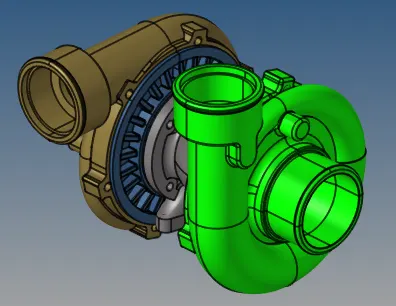
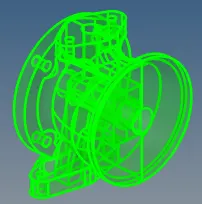
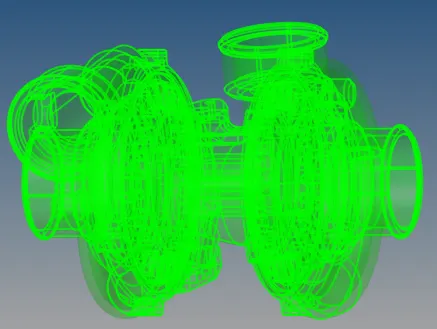
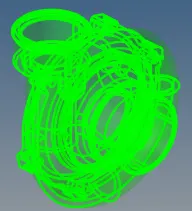
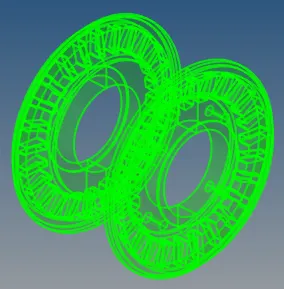
→ Go for geometry cleanup then we ll proceed for tetramesh.
→ For component 1,3,4 we will go for volumetric tetramesh by enabling volumetric tetramesh on the 3D panel.
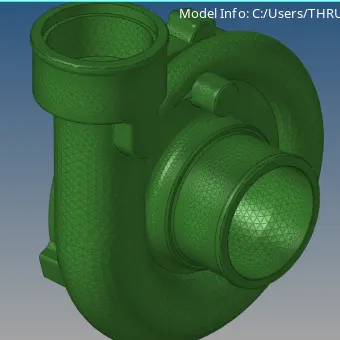
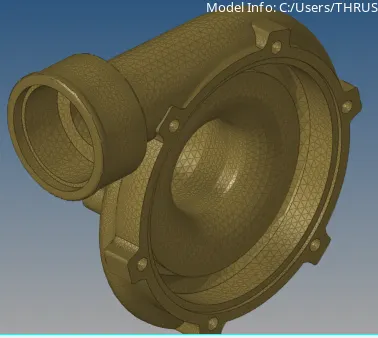
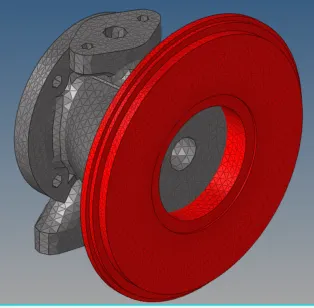
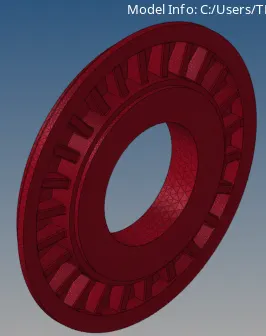
→ For component 2 we will go for a quick tetramesh.
→ Before proceeding for volume tetra assign the value in tetra parameter, like tet collapse as 0.150, tetra maximum, and minimum size.
→ In the volumetric tetra option tick on the option of proximity, curvature, cleanup elements and assign the target element size as 4 units.

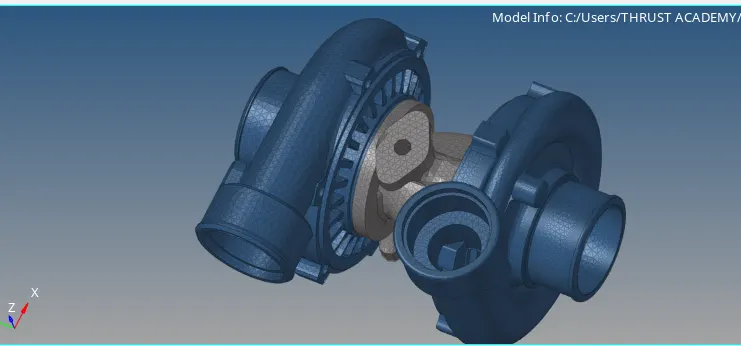
→ After meshing each component have to go for elements check, check the tet collapse, and improve the elements which are lower than 0.15.
→ By increasing the height of the tetrahedral or remeshing we can improve the tet collapse.
→ Result:-
→ Conclusion:-
1. Gain knowledge on volumetric tetramesh.