Week 8-3D Tetra Meshing Challenge
Objective: To generate tetra mesh by three method:
- By 2d to 3d conversion
- By quick tetramesh
- by volume tetramesh
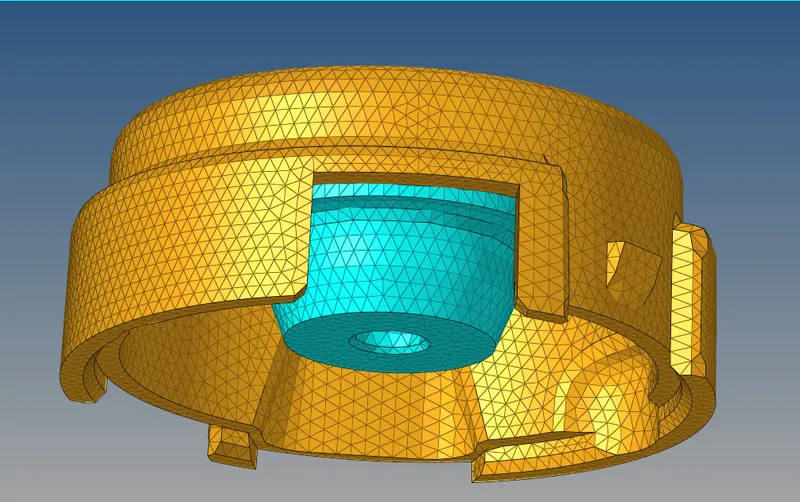
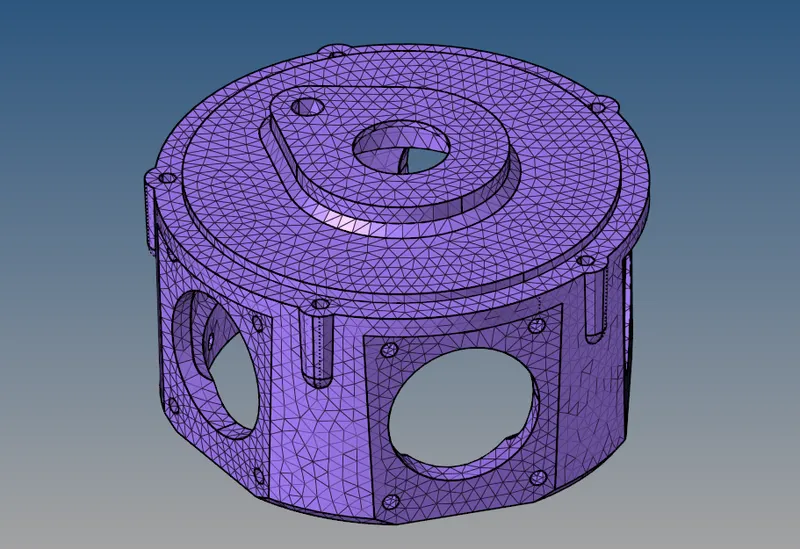
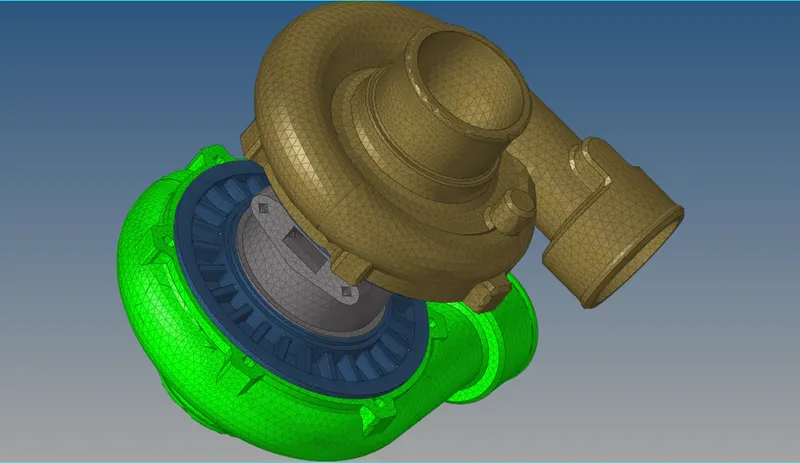
Cad model image:
- By 2d to 3d conversion
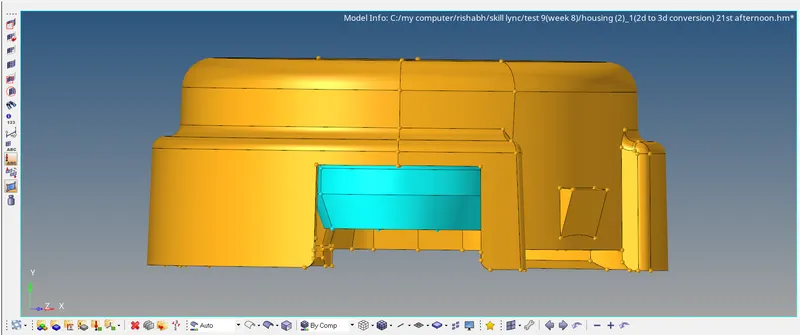
- By quick tetra mesh
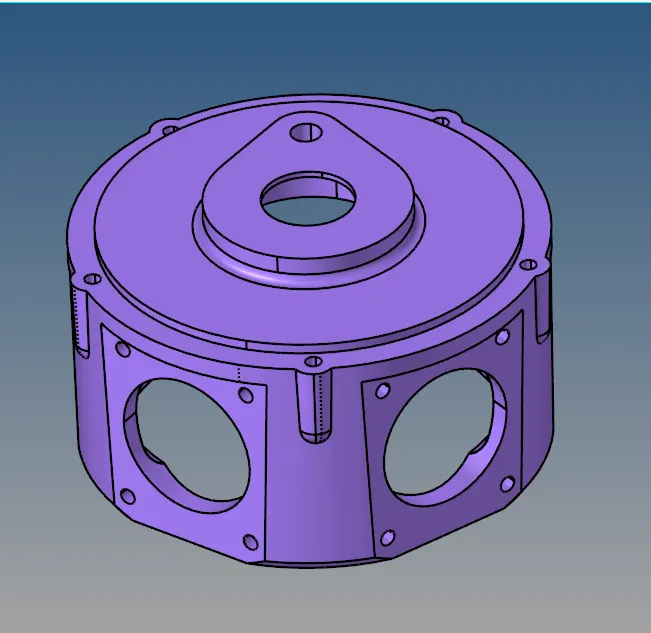
- By volume tetra
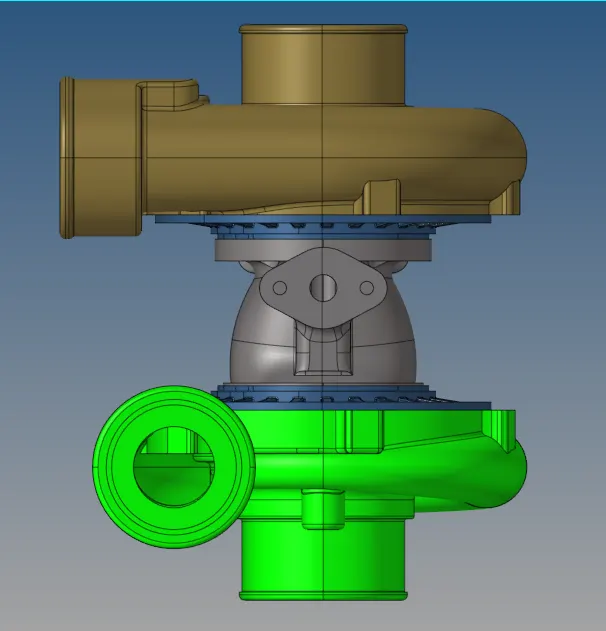
Procedure:
1. For 2d to 3d conversion
- For tetra meshing, it is very important to understand the geometry and cleaning up the geometry for getting a good quality mesh.
- We should defeature any unnecessary edges which would fail the minimum element length.
- And check for edges which would lead to failure of elements.
- After geometry cleanup, we should mesh the component in 2d with given target element length and then check for the minimum length of element which would also be given to us.
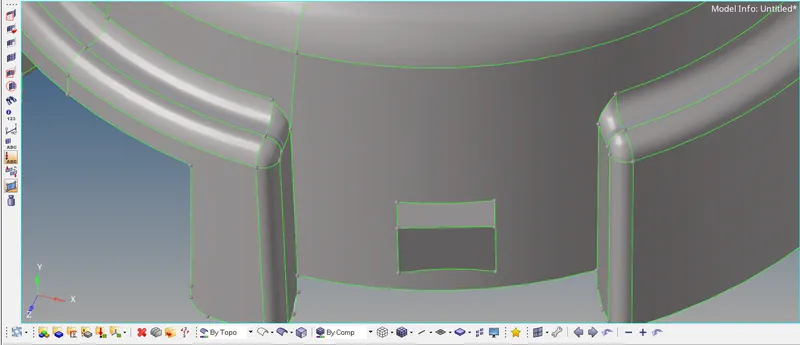
- Afterwards we check for minimum length of 2d elements and remove them by replacing nodes.
- Then we go to 3D, tetra mesh and there we will find a dropbox with elements and comp so we will select elements and mesh it to get a 3d tetra mesh.
- To check if we have a tetra mesh we can mask a small part from which we can see whats inside the volume.
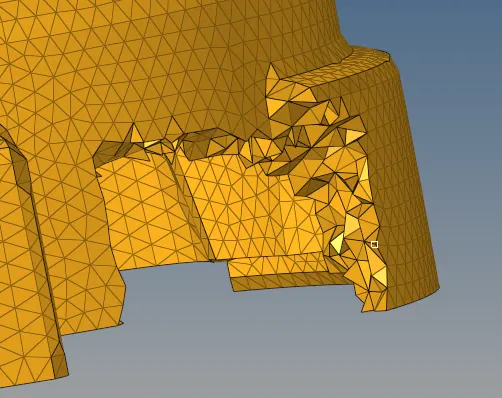
- Now we have a tetra mesh, the next step is to remove the tet collapse which means the height of the element is failing.
- This can be resolved by tetra remesh or by manually adjusting heights.
- Most of the time it is resolved by tetra remesh
- To check for tet collapse we should click f10 and go to 3D there we will find tet collapse.
- Now the tet collapse is fixed, our component has been completed.
2. By quick tetra mesh
- This is done to get a mesh done very quickly.
- To get this done, we should go to view in menu bar- browsers- hypermesh- utility.
- Then on geom/mesh.
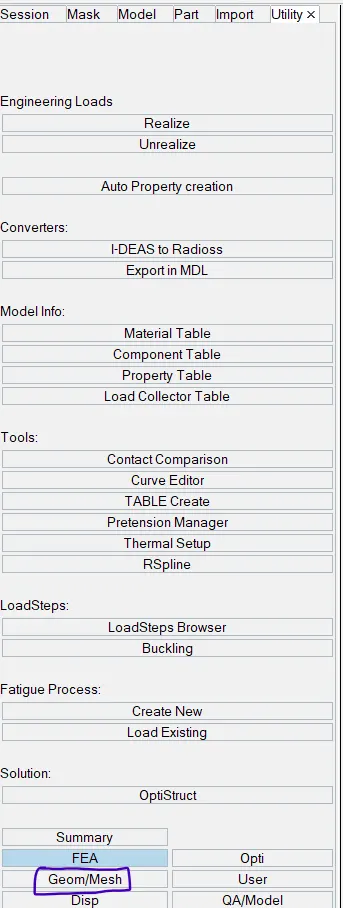
- Then on quick tetra mesh.
- Then click on components.
- Then select components from dropdown box.
- Then select mesh type and target element length.
- After that press mesh.
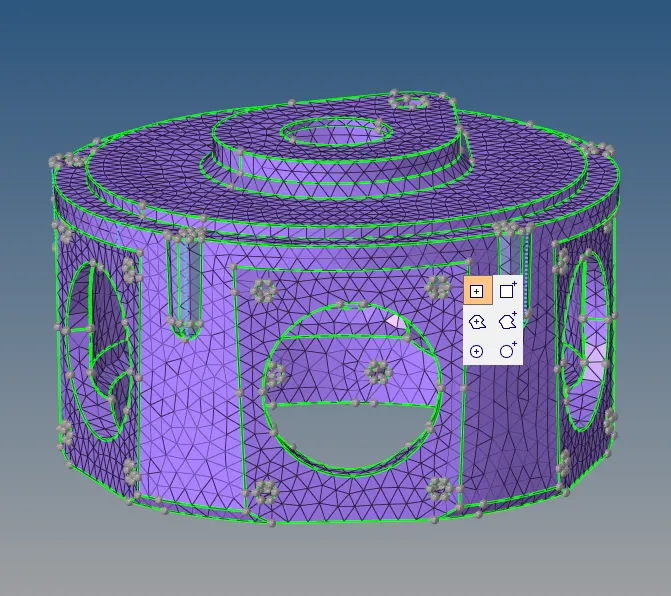
- This particular option performs all the necessary operations like geom cleanup, meshing in 2d then in 3d.
- Then should check for tet collapse and should remove tet collapse by remeshing and manual adjustments.
3. By volume tetra,
- This option lets us mesh in 3d directly from solids or surfaces.
- Directly go to 3d, then volume tetra, then select solid/ surface.
- We can use curvature or proximity to get proper mesh around curved surfaces.
- Then same steps are needed to be done.
- To check for tet collapse and remove it by tetra remsh or by manually eliminating.
- As the model in this is very big we should keep components in different collector folders as it will exceed student version node number.
- Here it took me the most time and effort to eliminate tet collapse.
- It took combinations of tetra remesh and manually changing length.
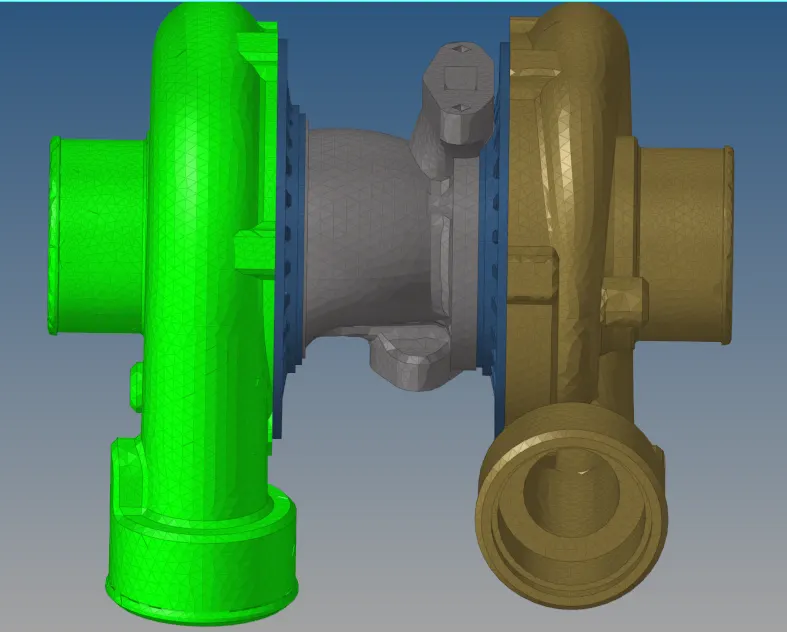
Result and final model: