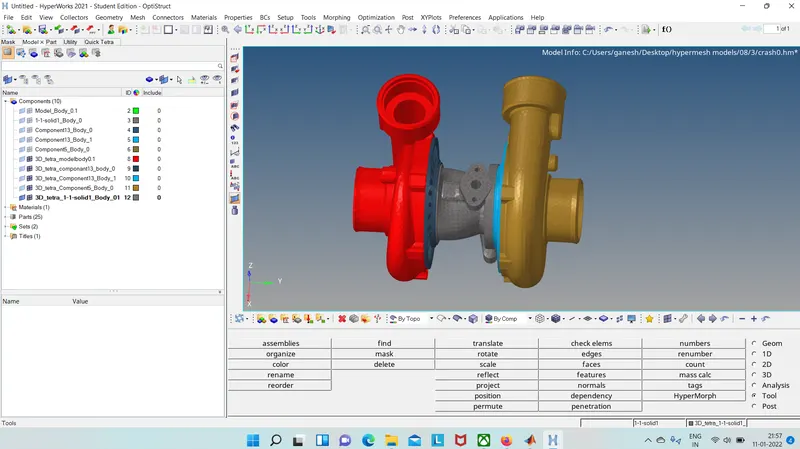
Week 8-3D Tetra Meshing Challenge
Objective :
- Creting the tetra mesh fir the given components with the provided Taget Element Size .
- Generated Tetra mesh shoul pass provided Quality criteria .
A] Method : 2D to 3D mesh Conversion :(Model 1)
( meshing of the housing component )
CAD Model :
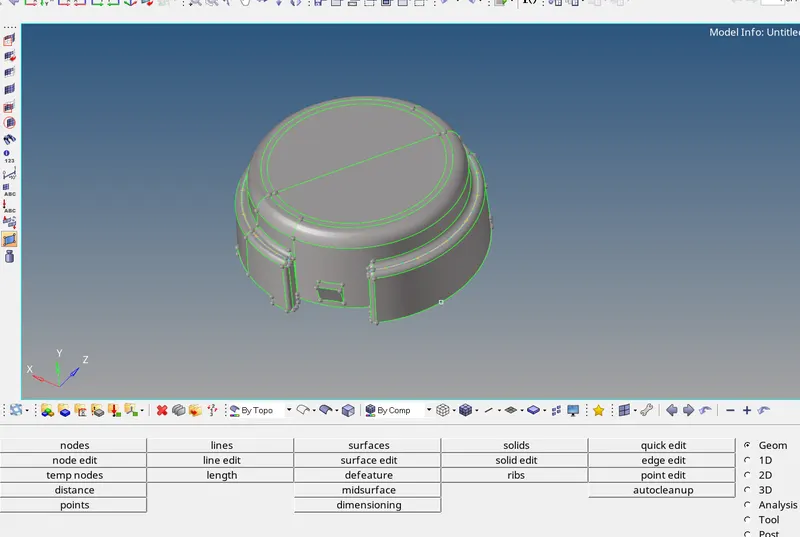
- This method is very useful for generating the 3D tetra mesh with Quality .
- Initially tghe file is impoterd , some Geomerty clean up is done on the surface using the surface tool and the Quike Edit Tool as well ,
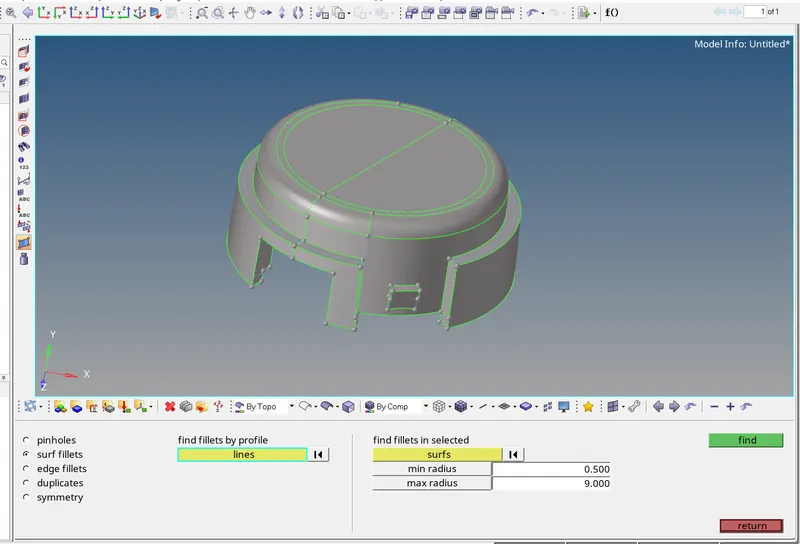
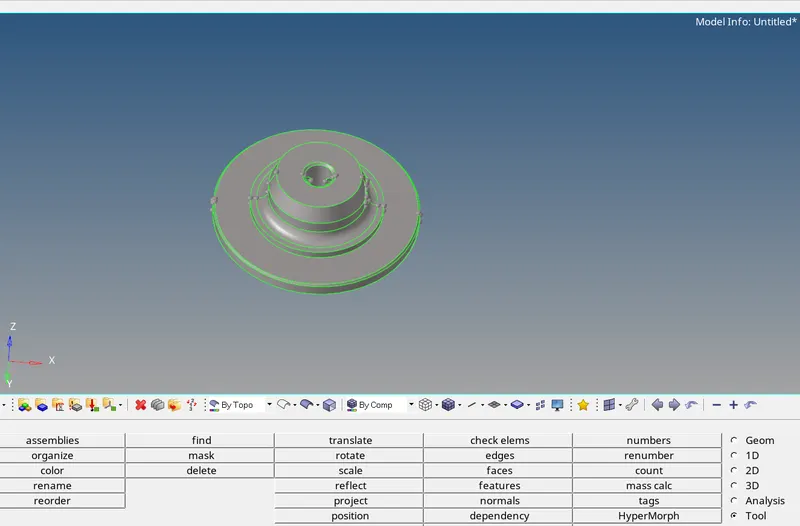
- After Doing some Geometry cleanup , Meshing is done with target Element Size of 5 units on the Housing Using the Automesh - 2D tool ,Meshing is done step by step for both the housing component as ,
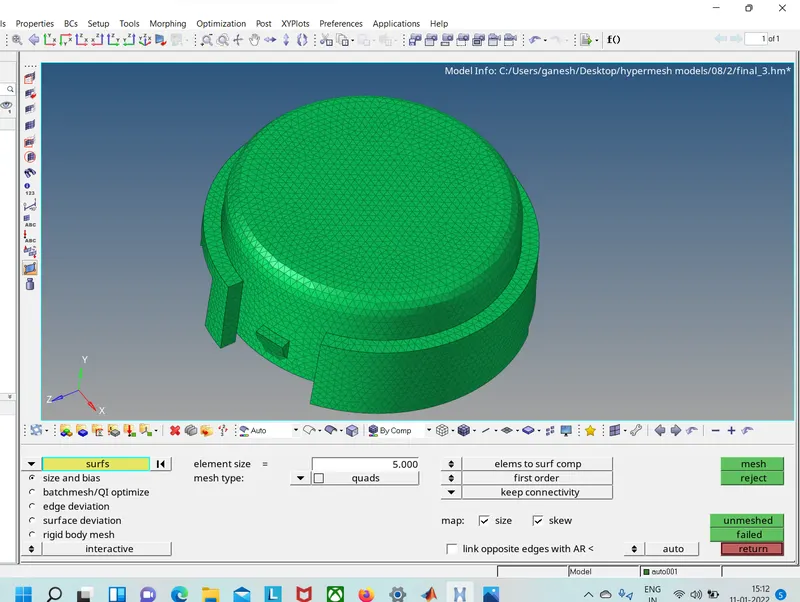
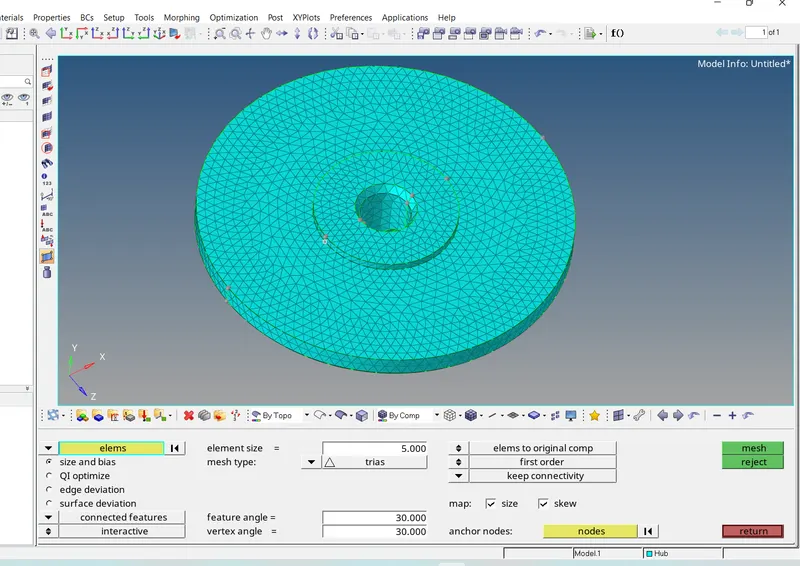
- The 2D shell Element can be seen below as,
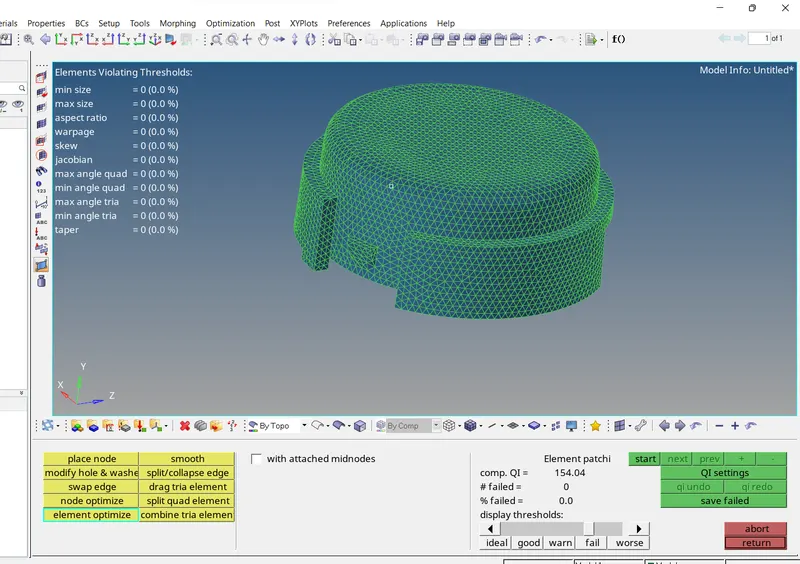
- The Quality Check can be seen below of thr 2D shell elements using the 2D - Qualityindex Tool as,
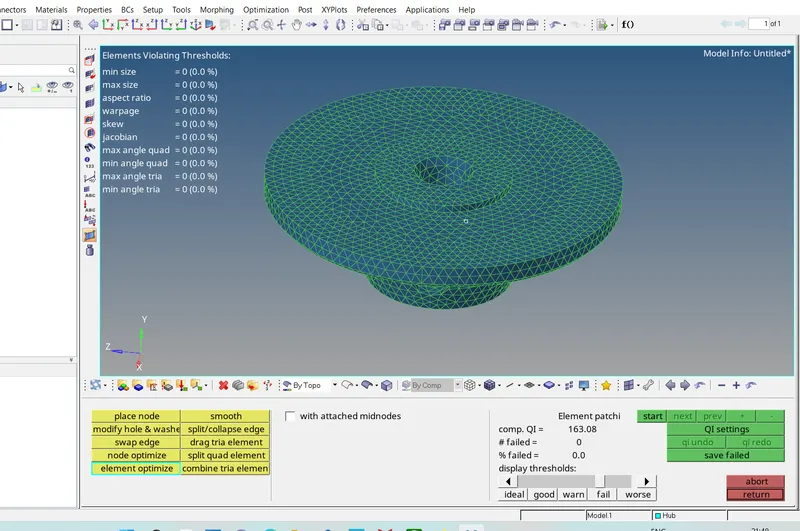
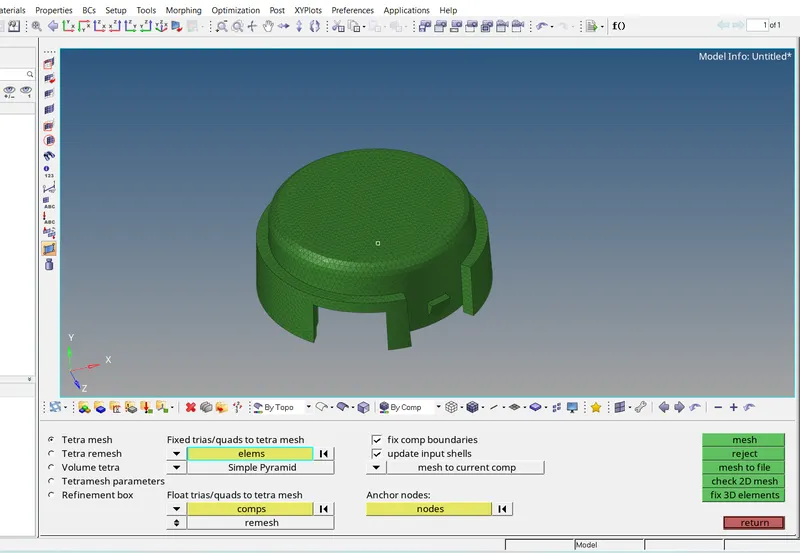
- Then For converting this 2D shell element into the 3D element , we use 3D - Tetra mesh Tool .
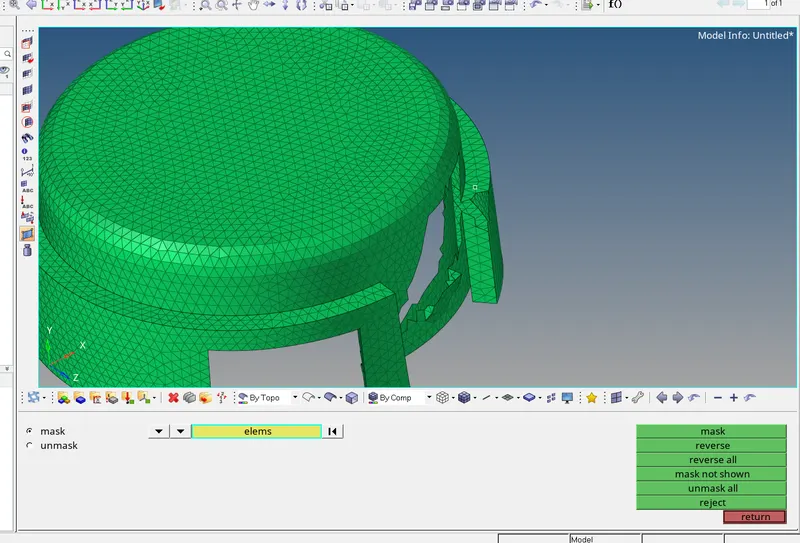
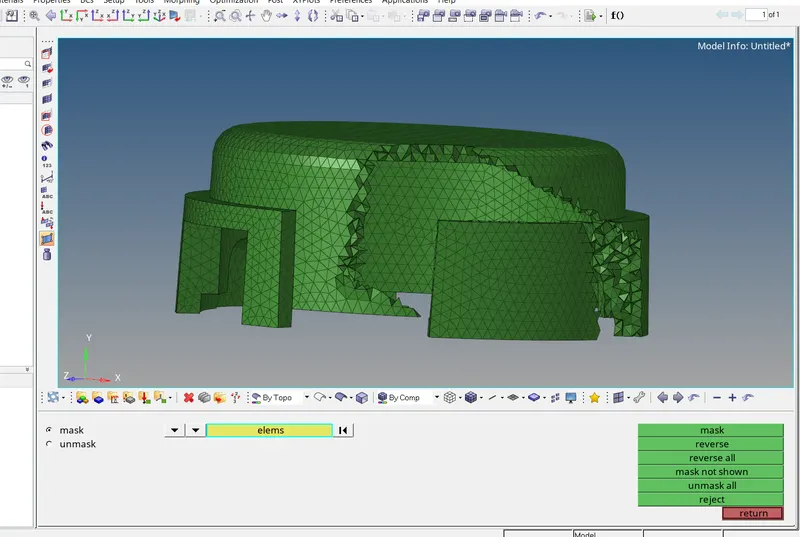
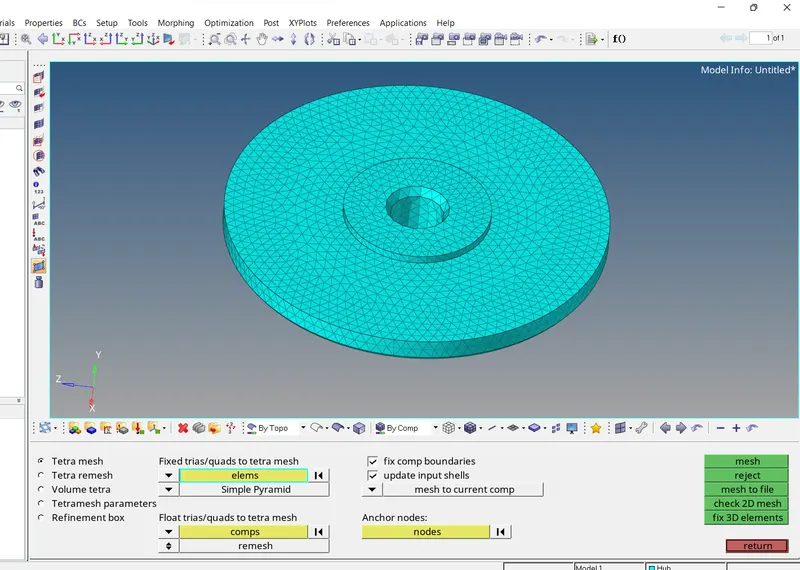
- 3D Generated mesh can be seen below by using the Tool - Mask Tool as ,
Results :
Housing :
Hub :
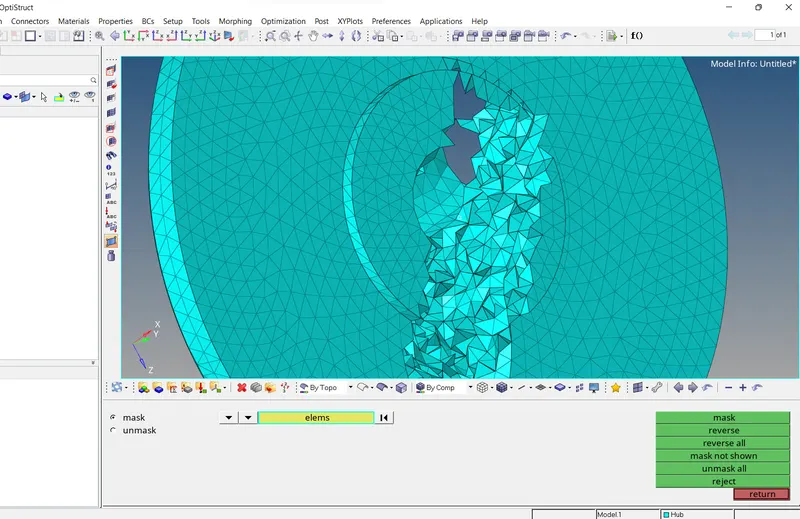
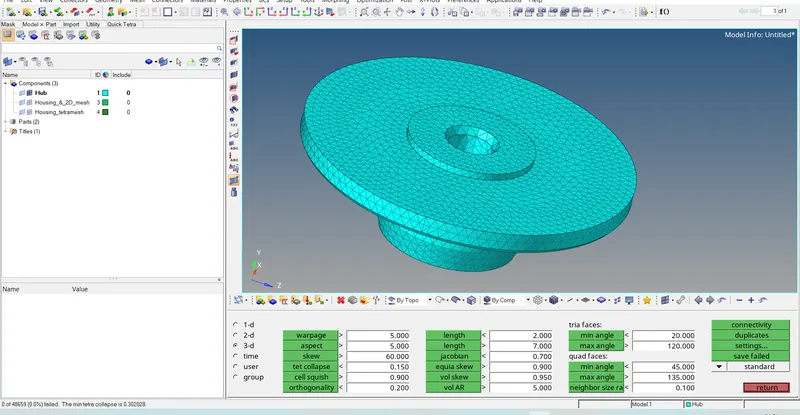
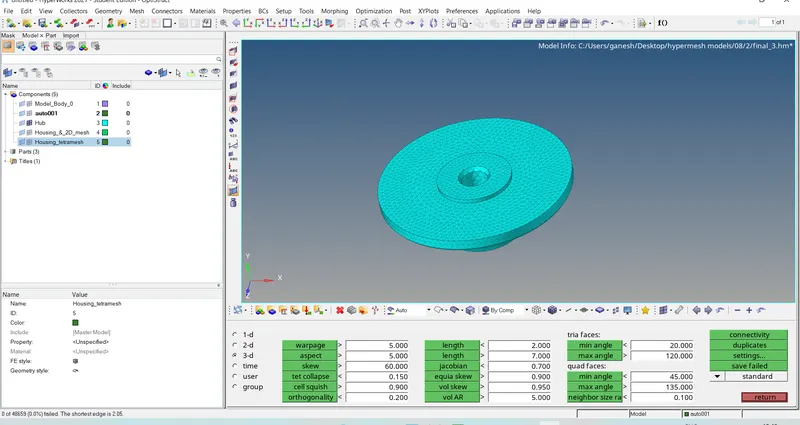
- After conversion of 2D elements into 3D elments , there were some Element failled for minimum length size , tet collaps which are corrected that failed elements by remeshing the that elements using the 3D - Tetra Remesh Tool or correcting the manually ,
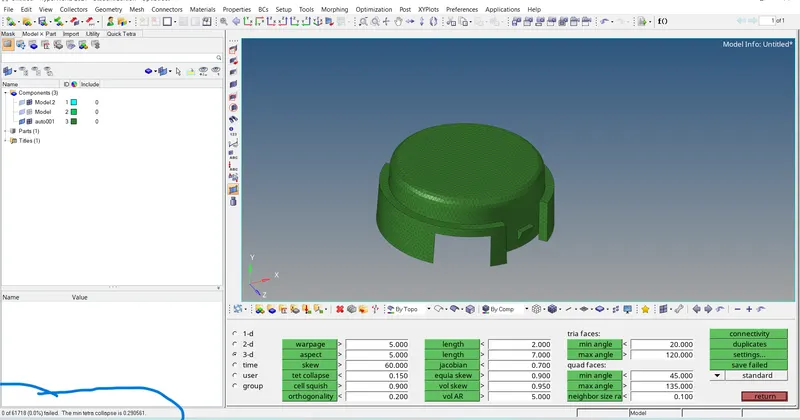
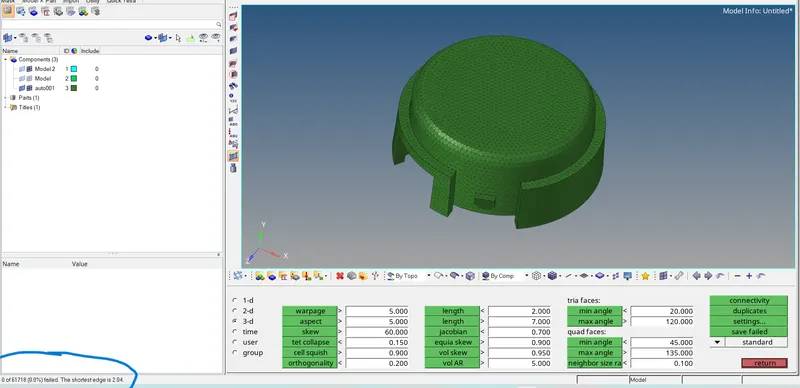
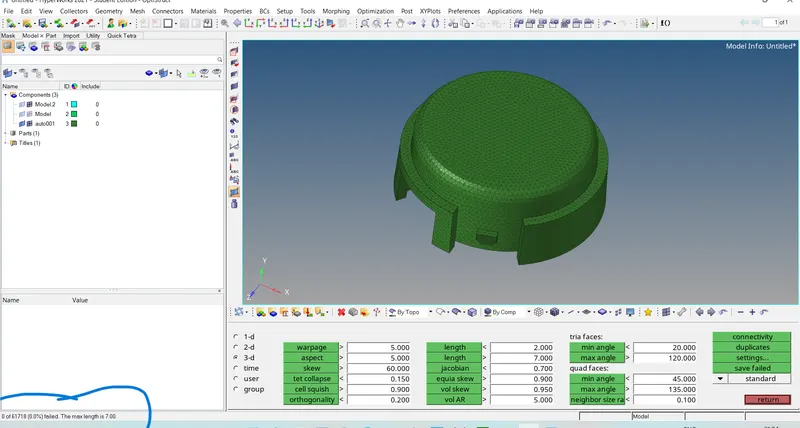
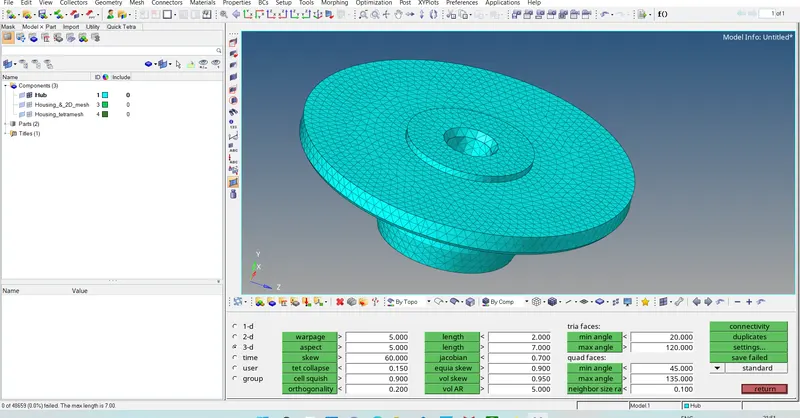
- The Resulted Element check after correcting the elements can be seen below as ,
Housing :
For Tetra collaps : For Sorthest edge :
For Max Length :
Hub :
For Tetra collaps : For Sorthest edge :
For Max Length :
B] Method : Quick Tetra / Volume Tetra Mesh :( Model 2 )
Quick method
CAD model :
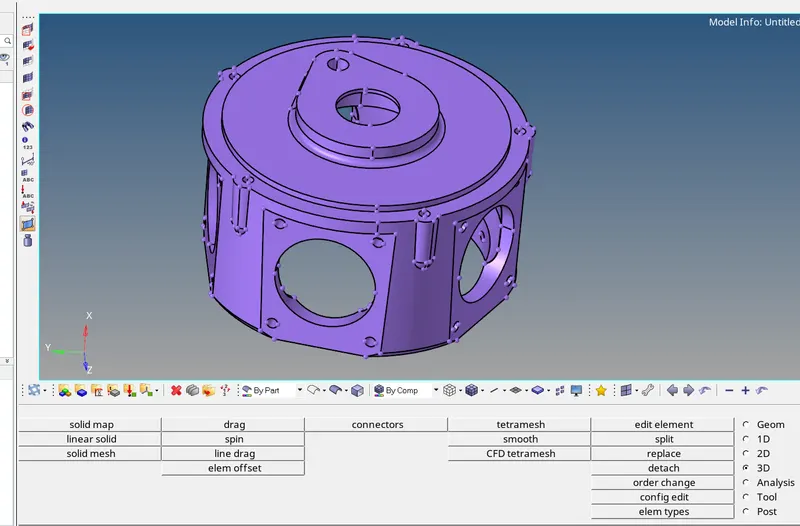
- Initially the file is imported and some Manual Geometry clean up is done .
- This Method is very usefull when we want just mesh compromising the quality of the mesh just little bit .
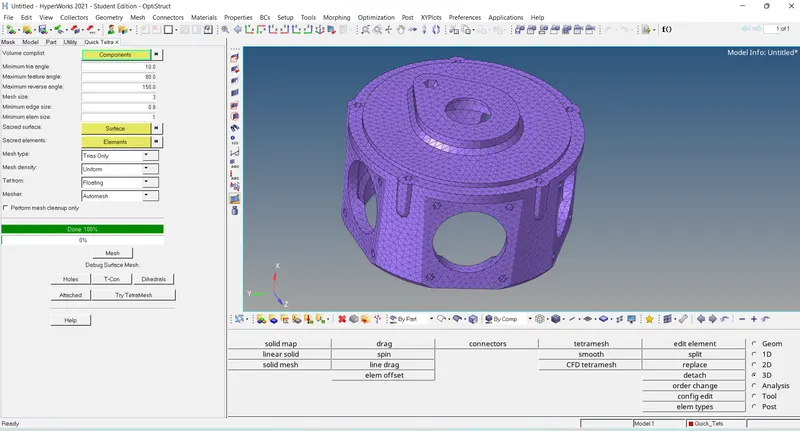
- For Meshing this component with Quick Tetra mesh , we have to View panel then browser - Hypermesh - Utility - Geom/Mesh - Quick tetra mesh tool .
- Then selecting the component and editing the element size 3 that we want , converting the element type to tria only and hitting the mesh bottun we got the Meshed component quickly .
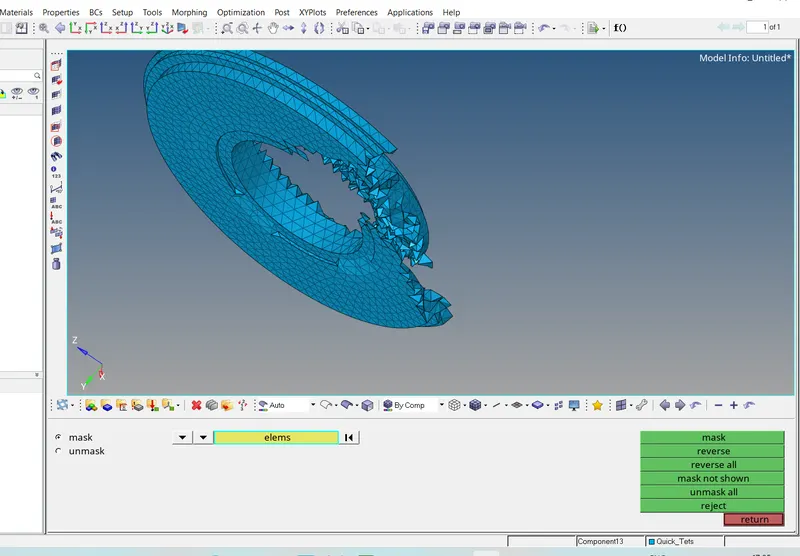
- The 3D meshed element can also be seen using the Tool - Mask - Elements Tool as,
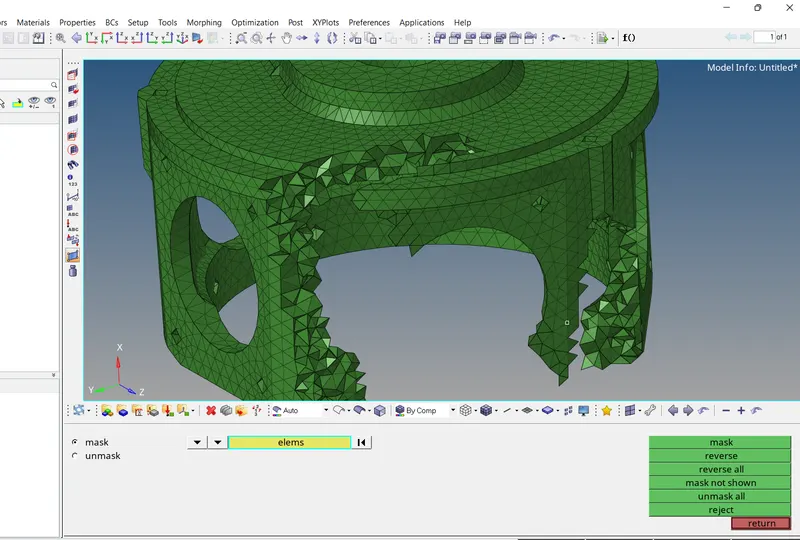
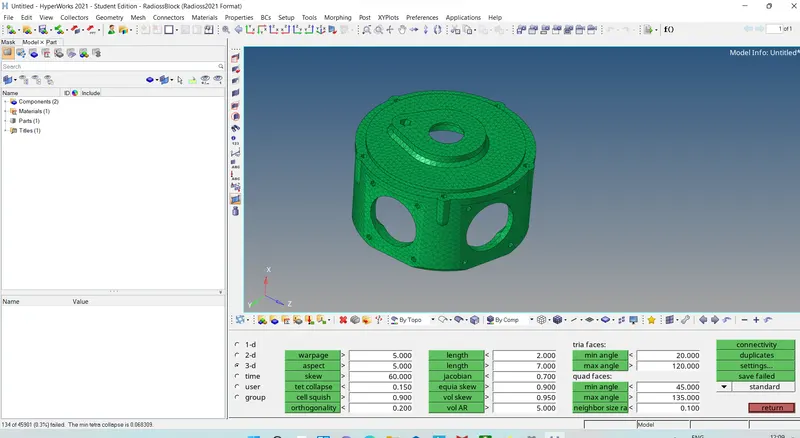
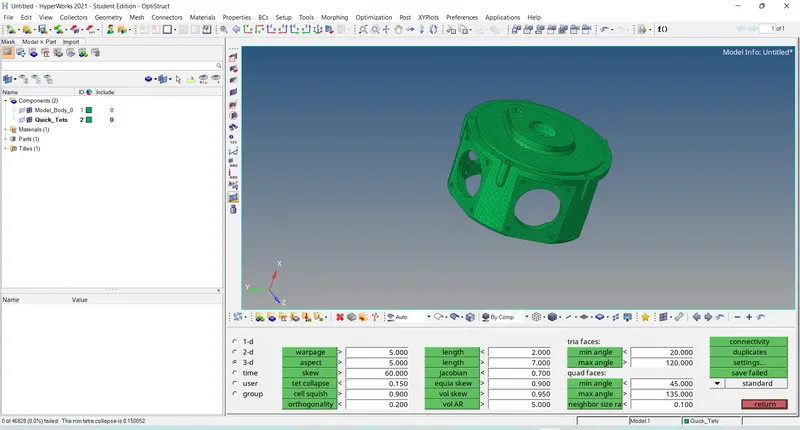
- Some elements ( 134) were failling for the our tet collaps ( 0.15 ) Quality Check , can be seen below , which are corrected remeshing the failled elments and some correcting manually as ,
Before : After :
Volume Method
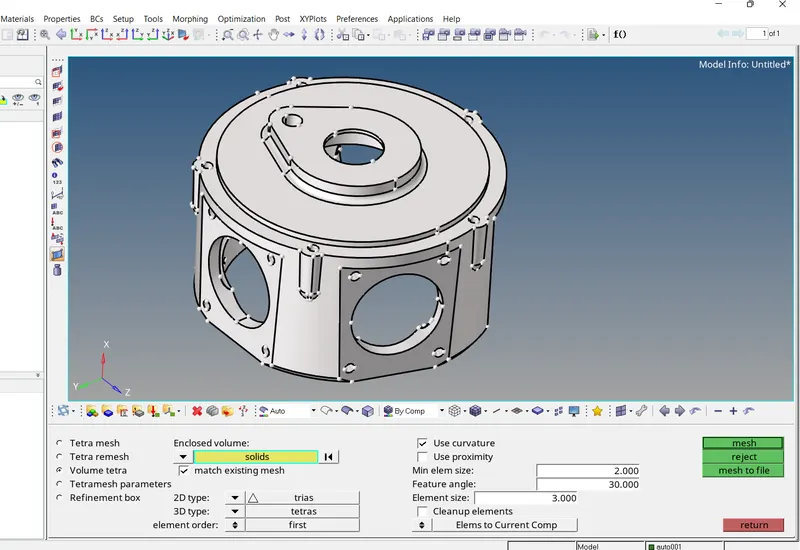
- 3D meshing can also done by Volume tetra mesh using the 3D - Volume mesh Tool ,
- Choosing the solid component and giving the Target element size componant is meshed as ,
- This Method is used very reraly as it gives 3D mesh with ver bad quality of mesh .
Result :
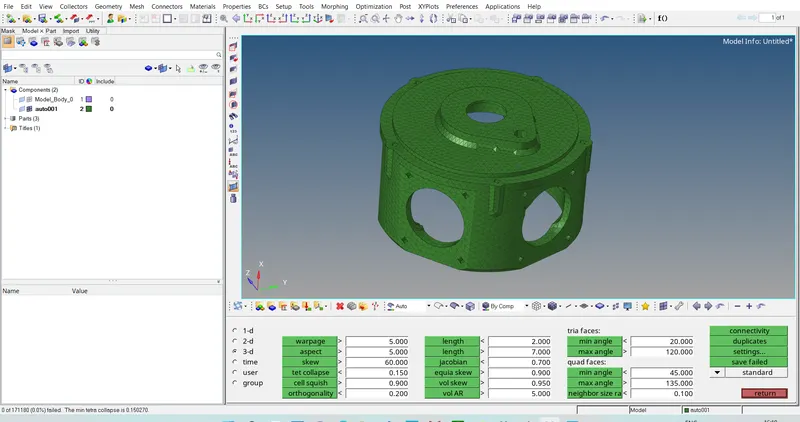
- The Quality check for the Meshed component for tet collaps can be seen below ,
- The Final meshed Component can seen below attached file .
C] Method : Quick Tetra / Volume Tetra Mesh : ( Model 3 )
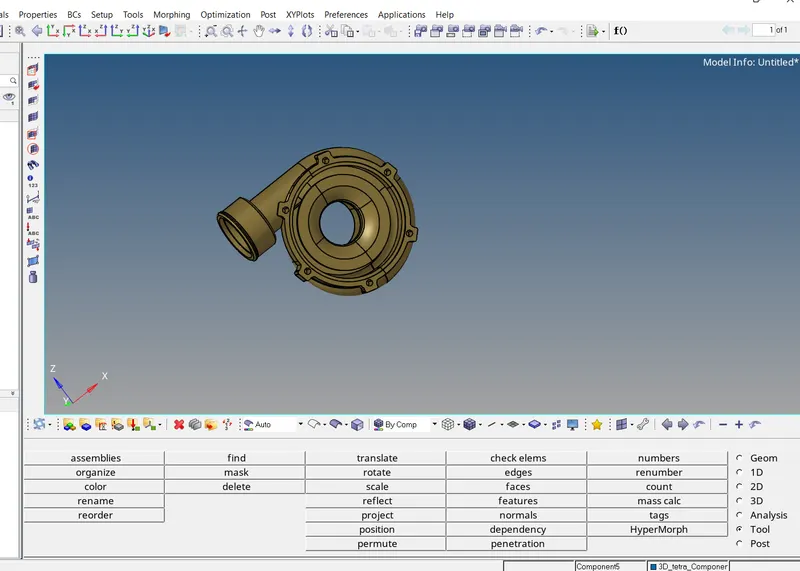
CAD Model :
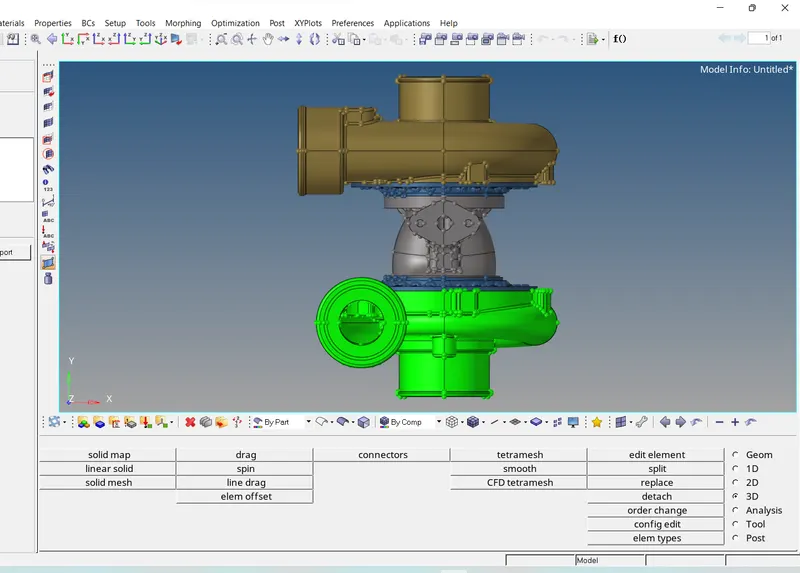
- Initially the CAD model is imported and some Manual geometry clean up is done .
- The Quick 3D meshing is done with Targeted Element size of the 4 units of every component seperatly using Quick Meshing Tool .
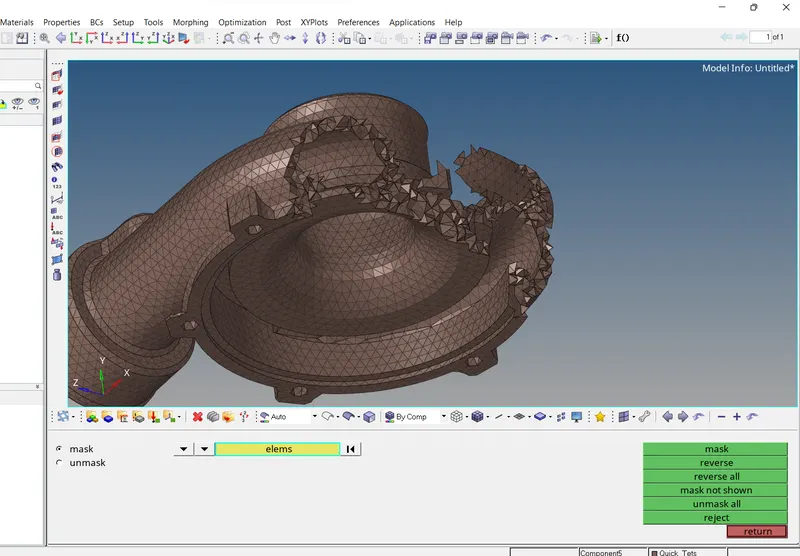
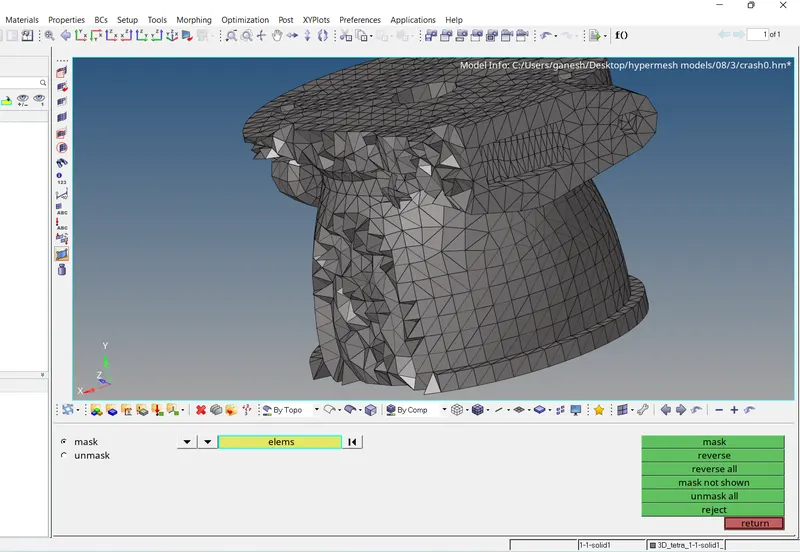
- 3D Quick meshing can be seen below as,
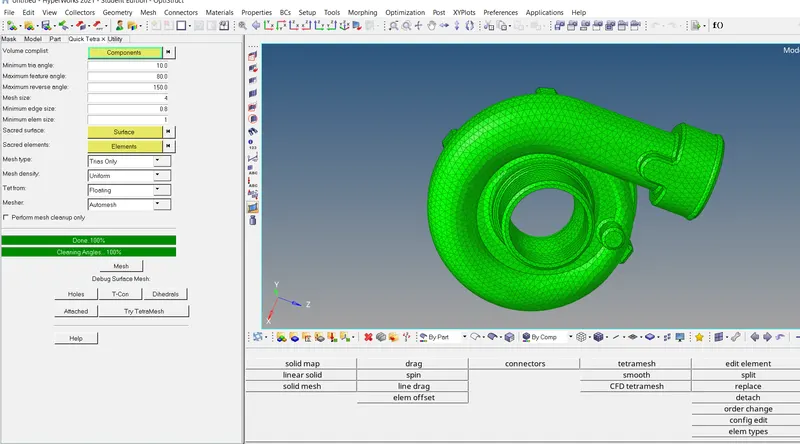
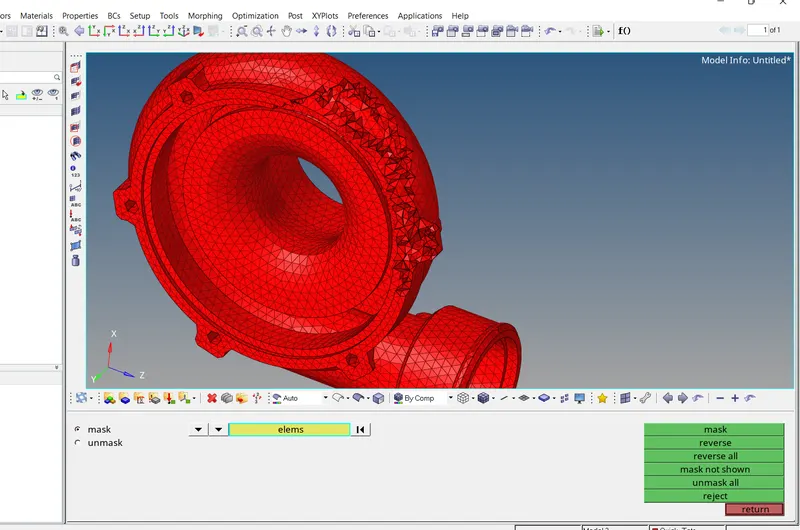
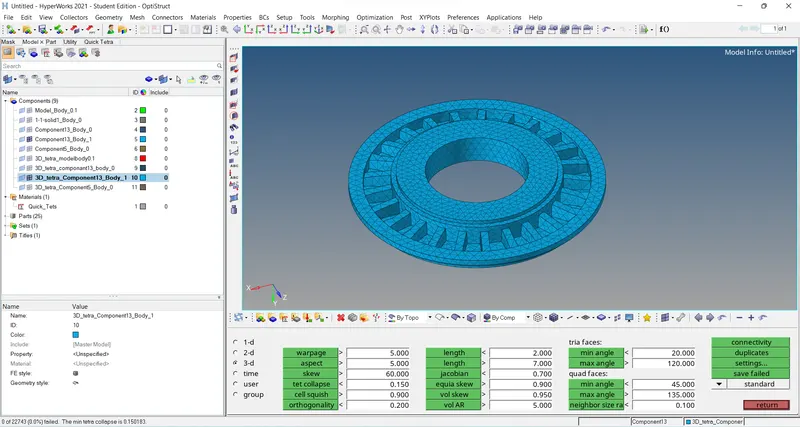
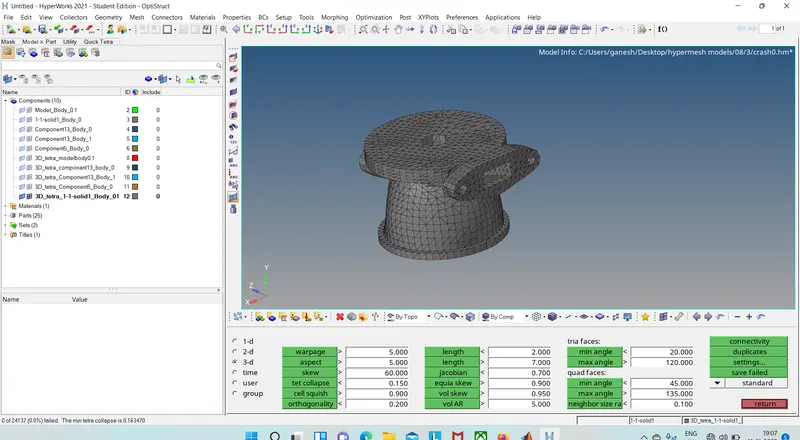
Quality check for tet Collaps of 0.15 :
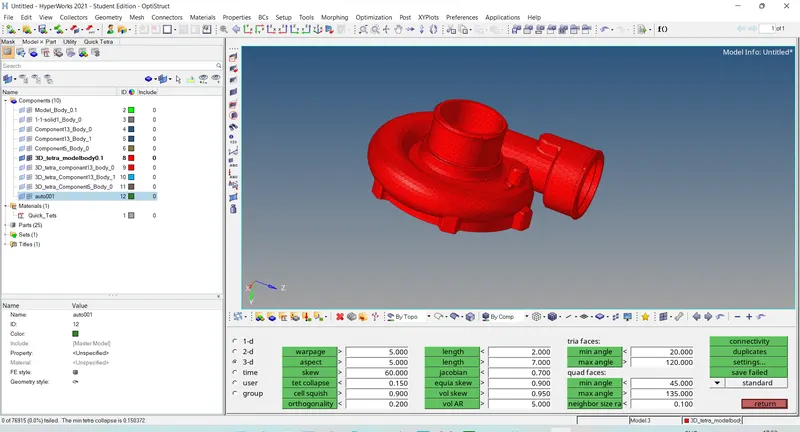
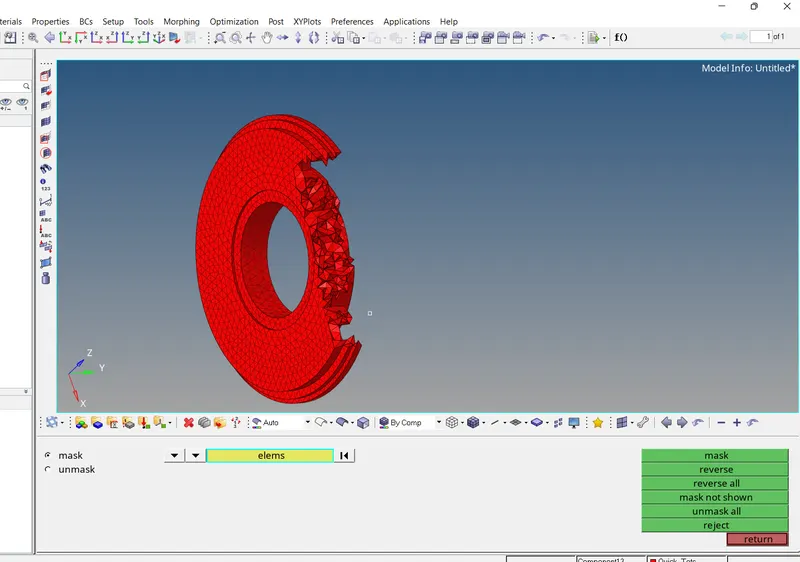
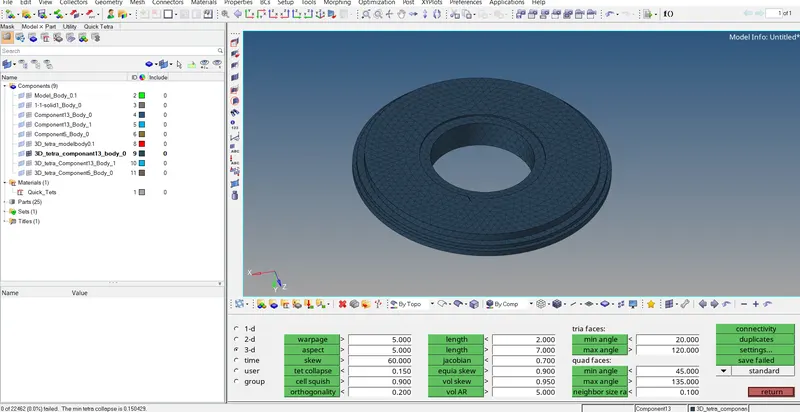
- The same way all the components are quick meshed and checked for tet collaps as,
Result :
The Final Quick Meshed Model with the Target Element size of 4 Units can be seen below and model file also is attached below .