Week 8-3D Tetra Meshing Challenge
MODEL 1:
AIM: To create a Teramesh for Housing component with the given quality criteria.
QUALITY CRITERIA :
TetraMesh Generation Method: Quick Tetra Mesh/ Volume Tetra Mesh
Target Element size: 3 Units.
Tet Collapse: 0.15.
PROCEDURE:
1. Import the geometry to the workspace and delete the solids present.
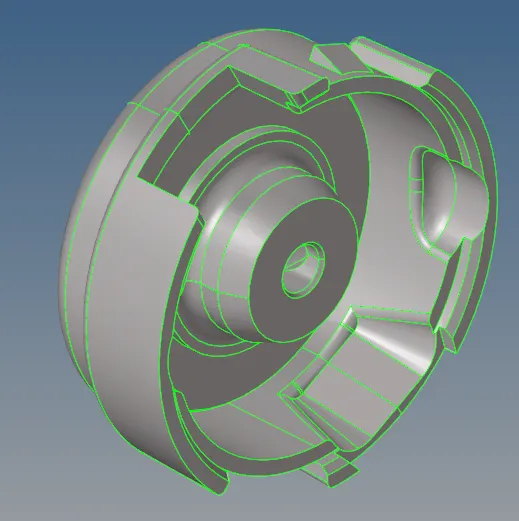
Fig: Geometry after deleting solids
command: F2>solids>displayed>delete
2. Enable a single part and perform 2D mesh.
command:2D>automesh>target length>trias>mesh.
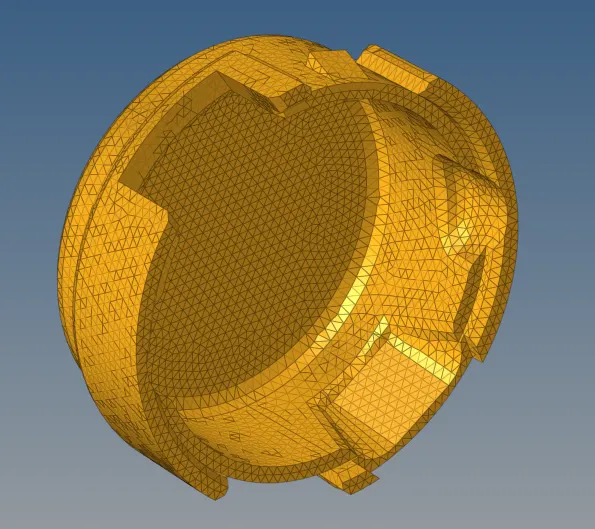
Fig: 2D mesh on geometry.
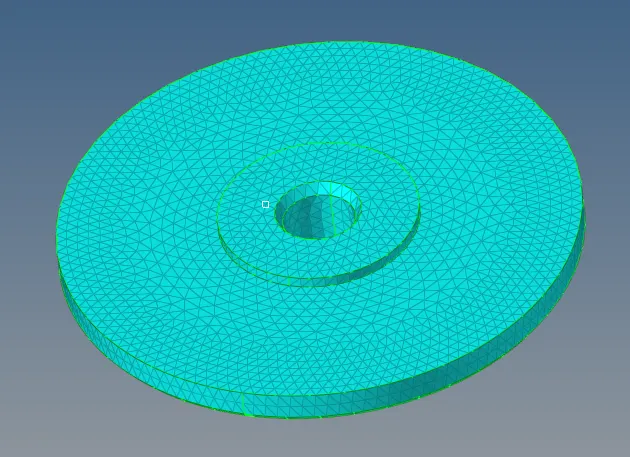
Fig: 2D mesh on geometry.
3. Convert the 2D mesh to 3D tetra mesh.
command:3D>Tetra mesh>elements>mesh.
4. Check for 3D elements whether 3D tetra mesh was created or not.
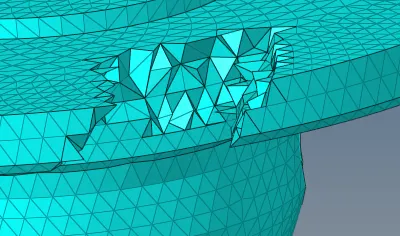
fig: check for 3D elements
5. Check for tetracollapse and other mesh quality checks.
6. Remesh the elements if any failures are present.
command:3D>tetramesh>tetramesh parameters>tetra remesh.
7. Save the final model.
MODEL 2:
AIM: To create a 3D Tetramesh with the following quality criteria.
QUALITY CRITERIA :
Target Element size: 3 Units.
Tet Collapse: 0.15
PROCEDURE:
1. Import the geometry to the workspace and delete the solids present.
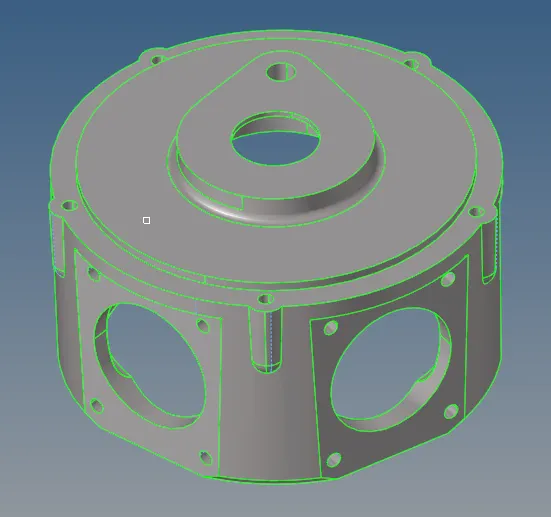
Fig: Geometry after deleting solids.
command: F2>solids>displayed>delete
2. Perform 2D mesh.
command:2D>automesh>target length>trias>mesh.
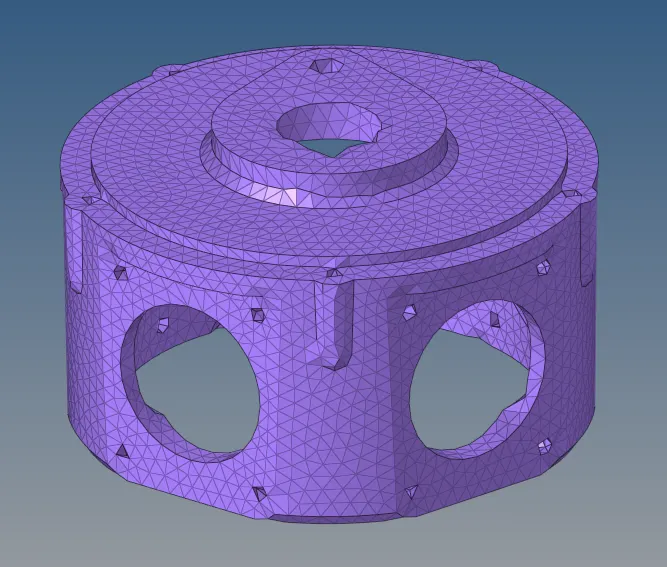
Fig: 2D mesh on geometry.
3. Convert the 2D mesh to 3D tetra mesh.
command:3D>Tetra mesh>elements>mesh.
4. Check for 3D elements whether 3D tetra mesh was created or not.
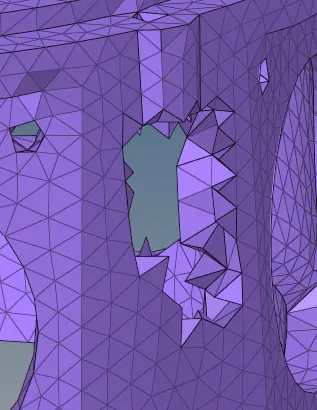
fig: check for 3D elements.
5. Check for tetracollapse and other mesh quality checks.
6. Remesh the elements if any failures are present.
command:3D>tetramesh>tetramesh parameters>tetra remesh.
7. Save the final model.
MODEL 3 :
AIM: Create a 3D Tetramesh with the following quality criteria for the given assembly model.
CRITERIA:
TetraMesh Generation Method: Quick Tetra Mesh/ Volume Tetra Mesh
Target Element size: 4 Units.
Tet Collapse: 0.15
PROCEDURE:
1. Import the geometry to the workspace and delete the solids present.
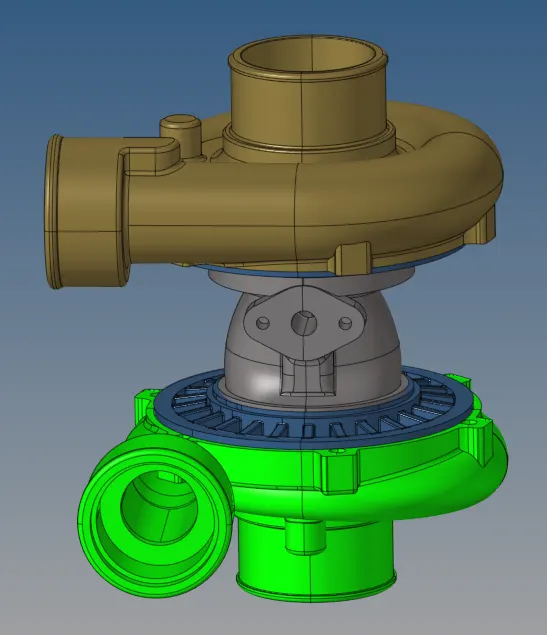
command: F2>solids>displayed>delete
2. Enable a single part and perform 2D mesh.
command:2D>automesh>target length>trias>mesh.
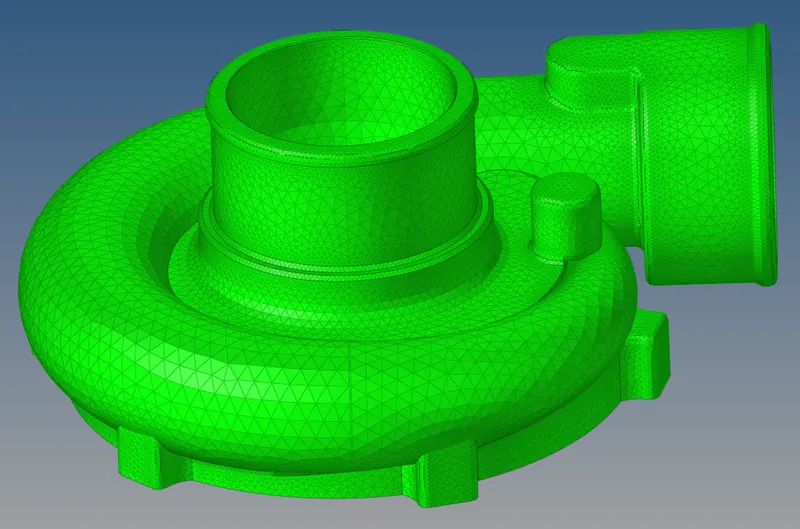
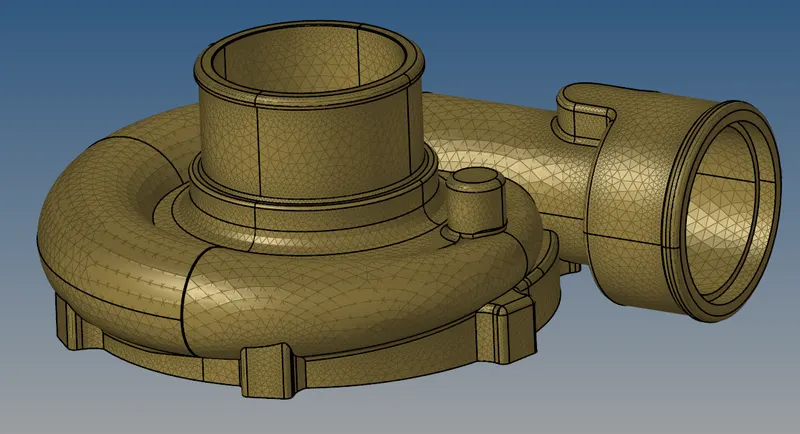
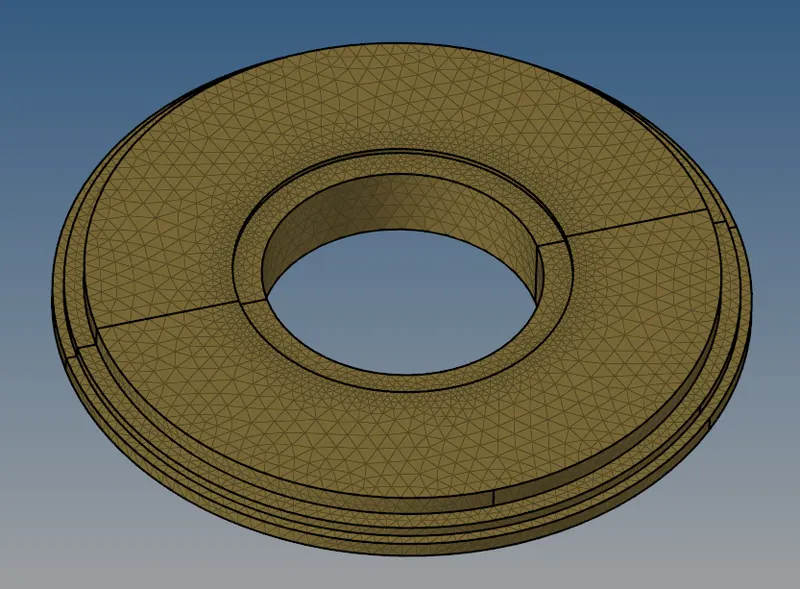
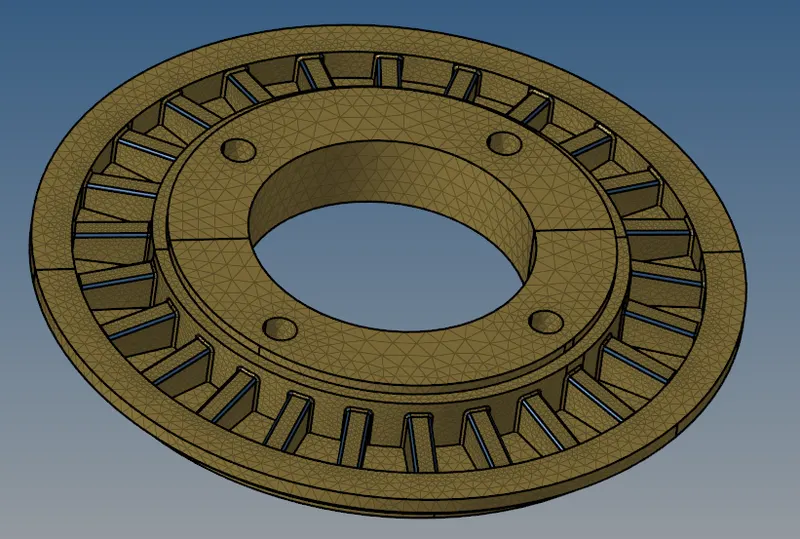
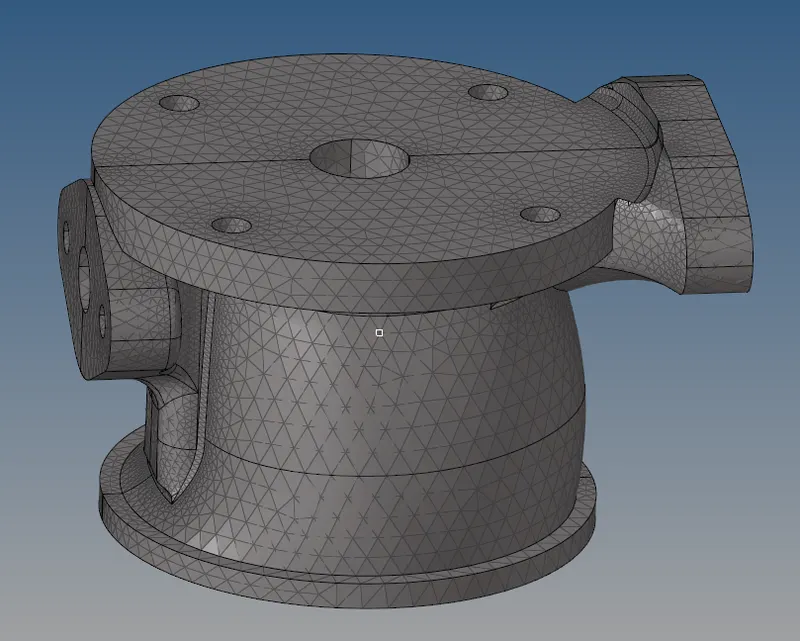
Fig: 2D mesh on geometry.
3. Convert the 2D mesh to 3D tetra mesh.
command:3D>Tetra mesh>elements>mesh.
4. Check for 3D elements whether 3D tetra mesh was created or not.
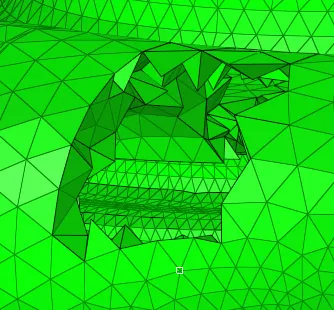
fig: check for 3D elements.
5. Check for tetracollapse and other mesh quality checks.
6. Remesh the elements if any failures are present.
command:3D>tetramesh>tetramesh parameters>tetra remesh.
7. Save the final model.
CONCLUSION:
In this model, we came to know how to perform 3D tetra mesh using various techniques and how to check and clear the elemental failures for tetra collapse.