Week 8-3D Tetra Meshing Challenge
1. Create a Teramesh for Housing component with the following quality criteria.
TetraMesh Generation Method:- 2D to 3D conversion
Min element size:- 2 Units
Max element size:- 7 Units
Target element size:- 5 Units
Tet collapse:- 0.15
Objective:-
The main objecctive is to creat the tetramesh using the 2D to 3D conversion method by using the target element size as 5 units and by following the quality criteria which is min and max element size as 2 and 7 units and Tet collapse value as 0.15.
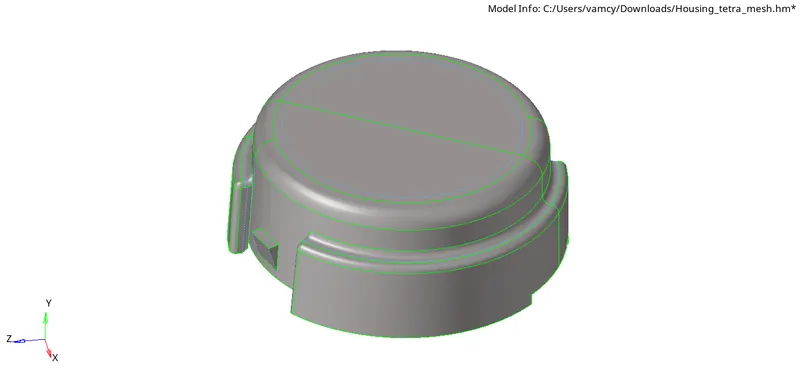
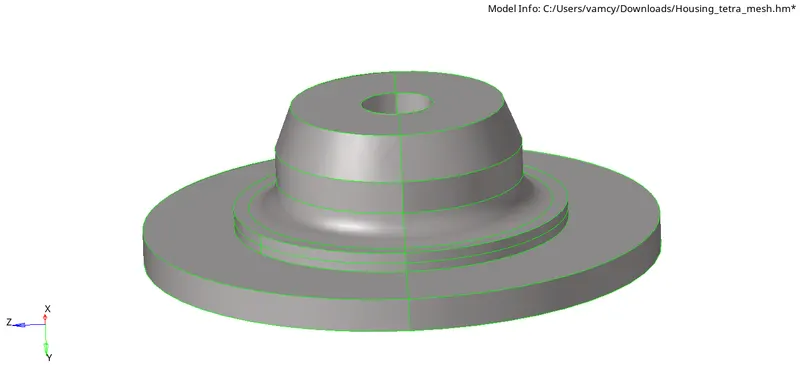
CAD Model images:-
Procedure:-
1. Importing the model:- Import the model in to the hypermesh by clicking on File<Import<Geometry
2. Deleting the Solids:- As we are performing 2D to 3D conversion we need to remove the solids from the model.
3. Topology cleanup:- To avoid the elements to fail for Min element and Tet collapse we need toggle unwanted lines in the model.
4. 2D Meshing:- To convert 2D to 3D tetramesh we need to first mesh the components with 2D mesh using only trias and target element size as 5 units.
2D<automesh
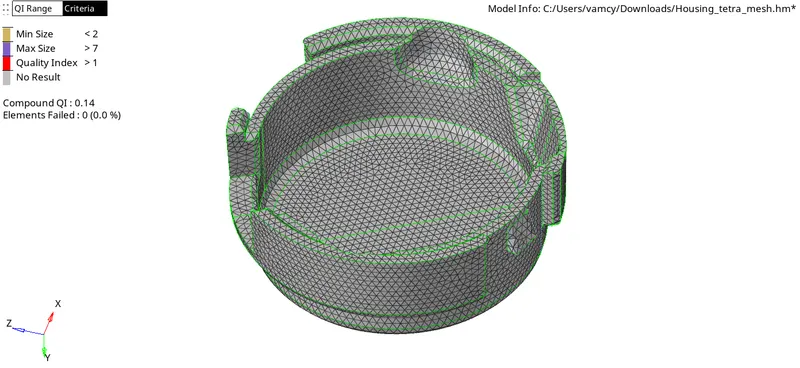
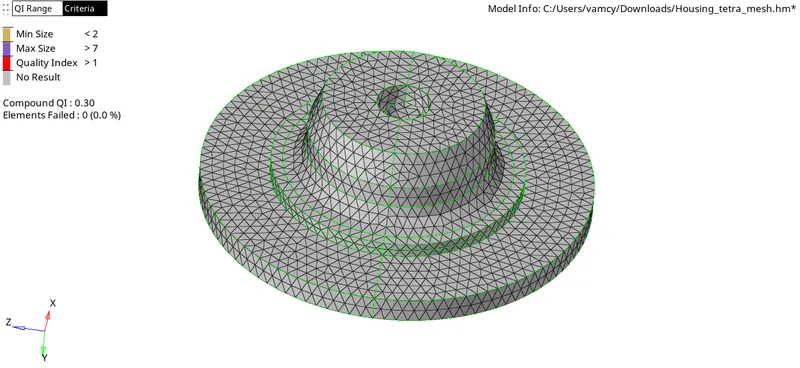
Check the elements which are failed and remove the failed elements.
5. 3D Meshing:- To convert 2D to 3D tetra elements go to 3D<Tetramesh
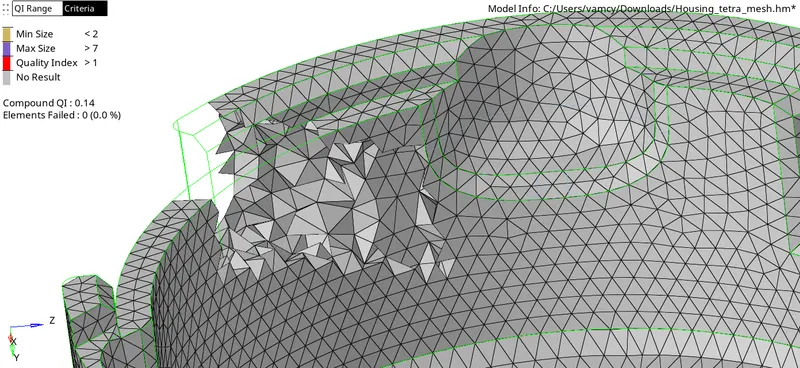
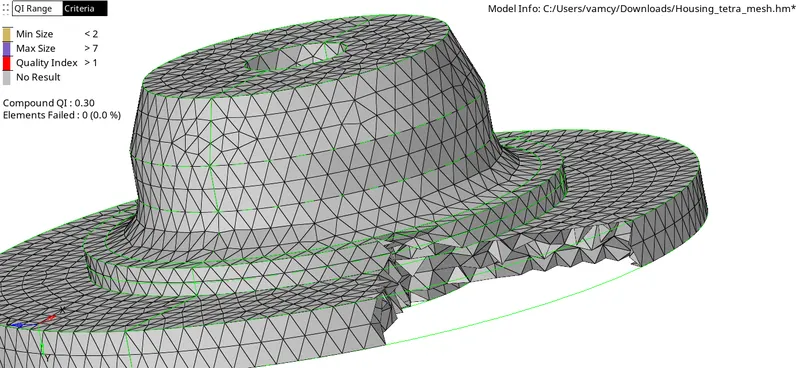
Check for the elements which are failed for tet collapse if found try to remove them.
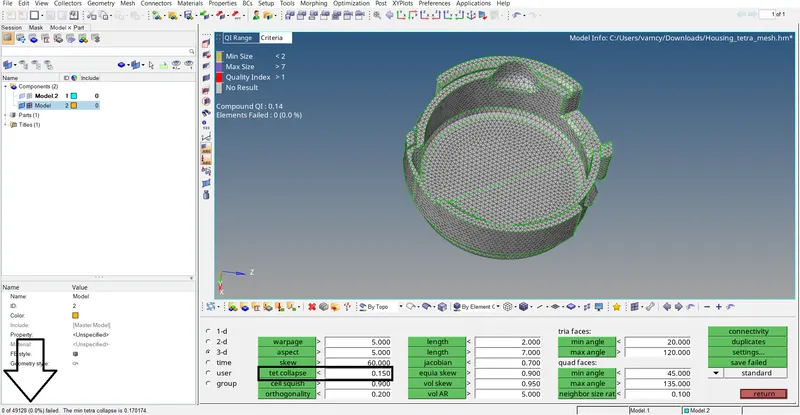
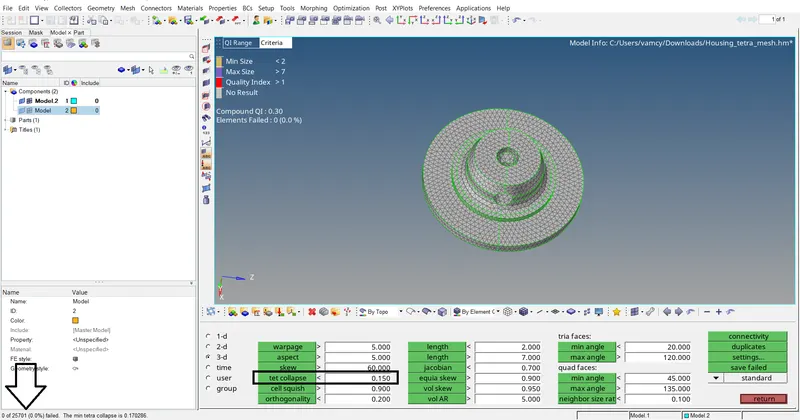
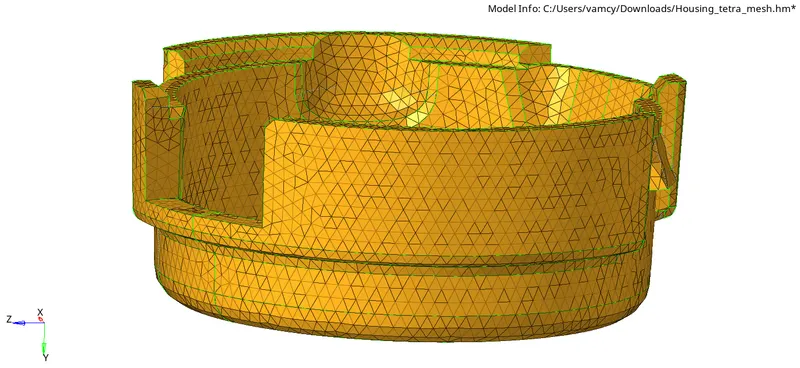
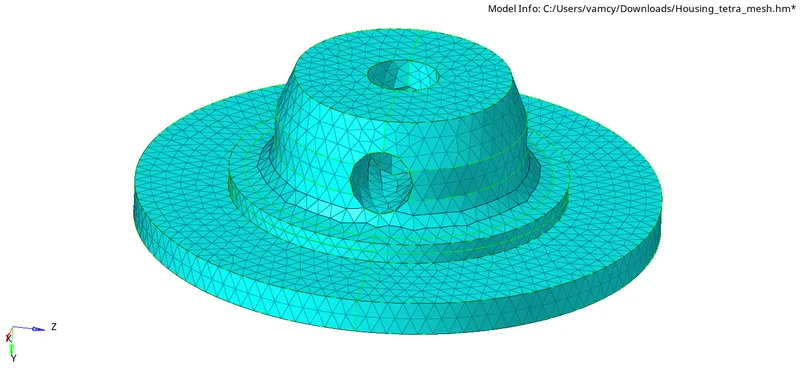
Result:- Hence the creation of Tetramesh using 2D to 3D conversion method of Housing component with the following quality criteria is obtained.
Final model images:-
2. For the given model, Create a 3D Tetramesh with the following quality criteria.
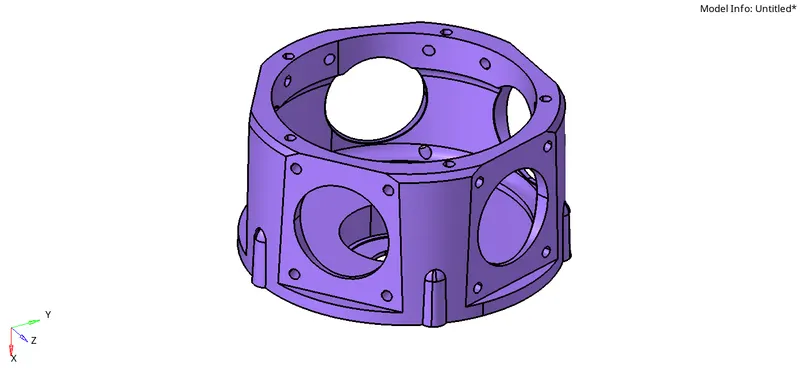
TetraMesh Generation Method:- Quick Tetra Mesh/ Volume Tetra Mesh
Target element size:- 3 Units.
Tet collapse:- 0.15
Objective:-
The main objecctive is to creat the tetramesh using the Quick Tetra Mesh/ Volume Tetra Mesh method and by using the target element size as 3 units and by following the quality criteria which is Tet collapse value as 0.15.
CAD Model image:-
Procedure:-
1. Importing the model:- Import the model in to the hypermesh by clicking on File<Import<Geometry
2. Topology cleanup:- To avoid the elements to fail for Min element and Tet collapse we need toggle unwanted lines in the model.
3. Quick Tetramesh:-
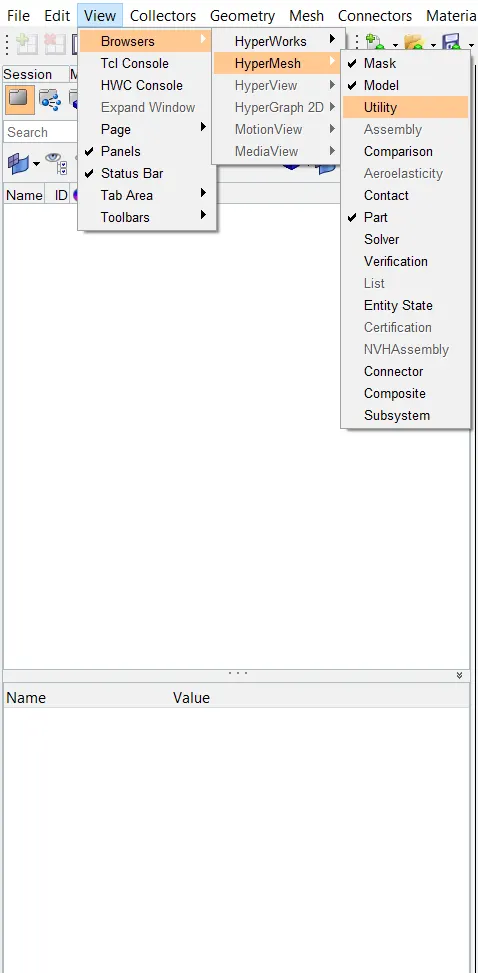
- To perform Quick Tetramesh first go to View<Browsers<Hypermesh<Utility<Geom/Mesh
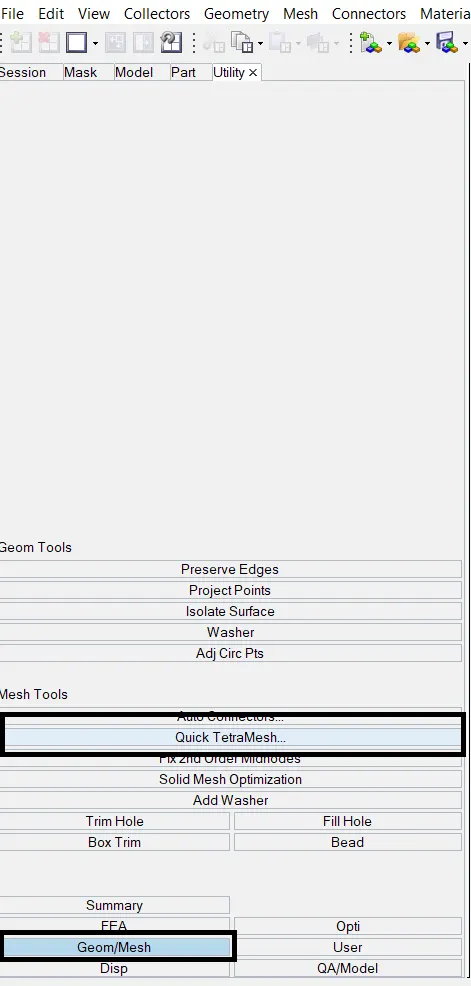
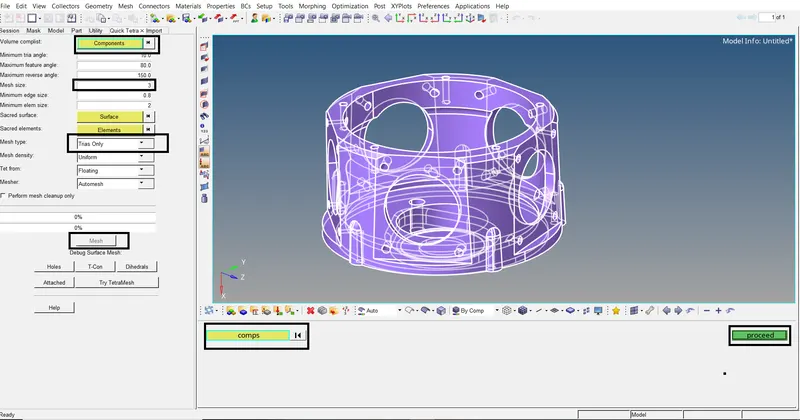
- Select the component and click on proceed and select Mesh size as 3 units and Mesh type as Trias only and click on Mesh.
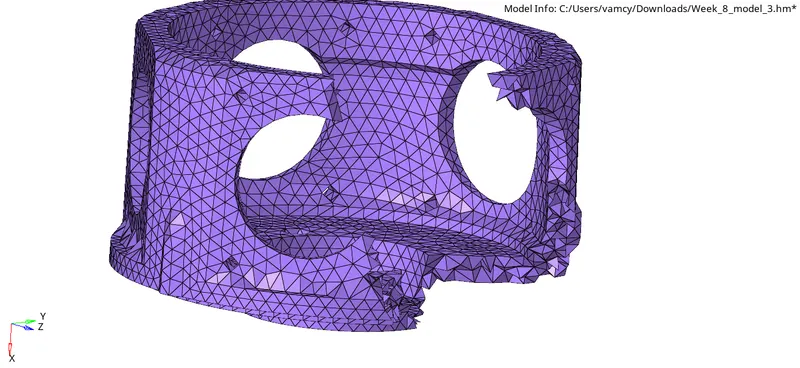
- Check for the elements which are failed for tet collapse if found try to remove them.
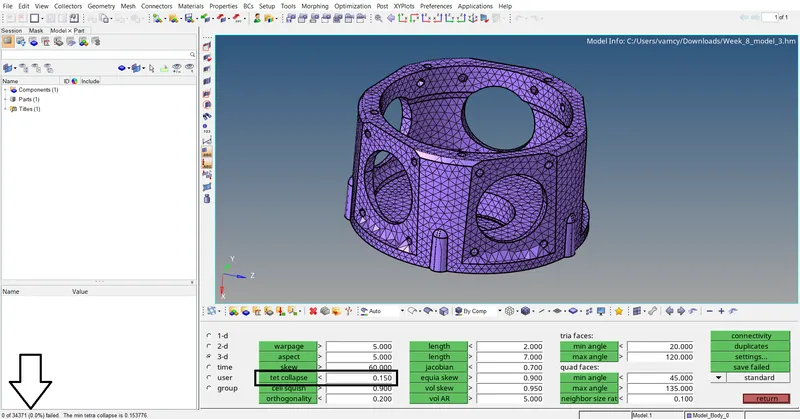
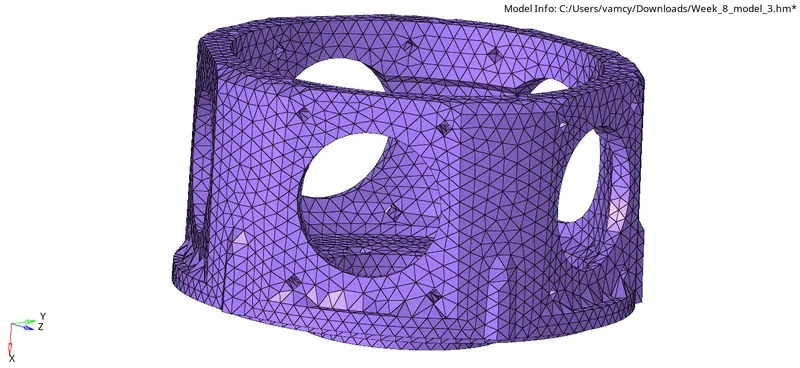
Result:- Hence the creation of Tetramesh using Quick Tetramesh method and by using the target element size as 3 units and following Quality Criteria has been obtained.
Final model images:-
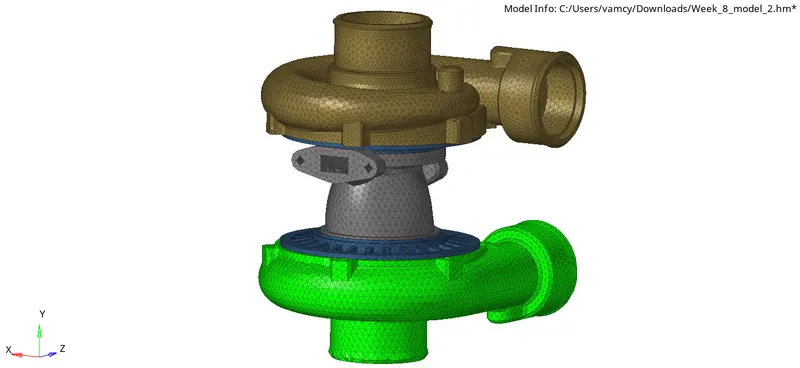
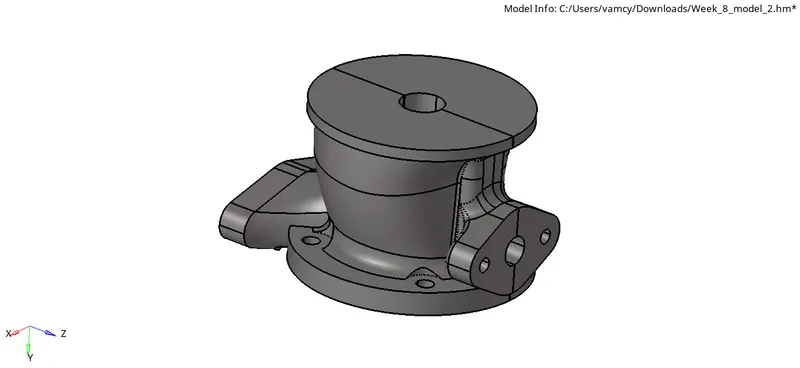
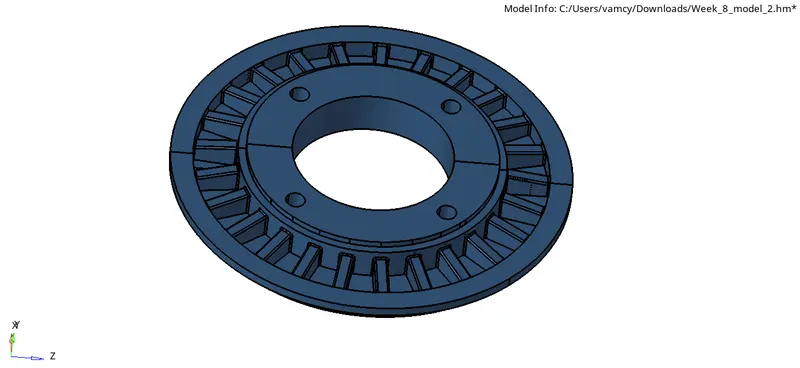
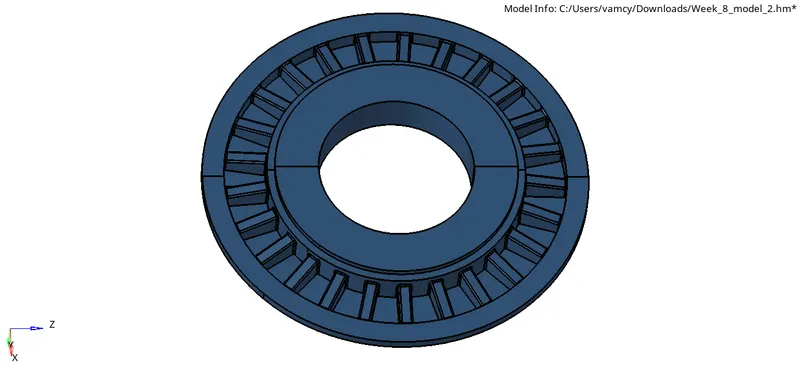
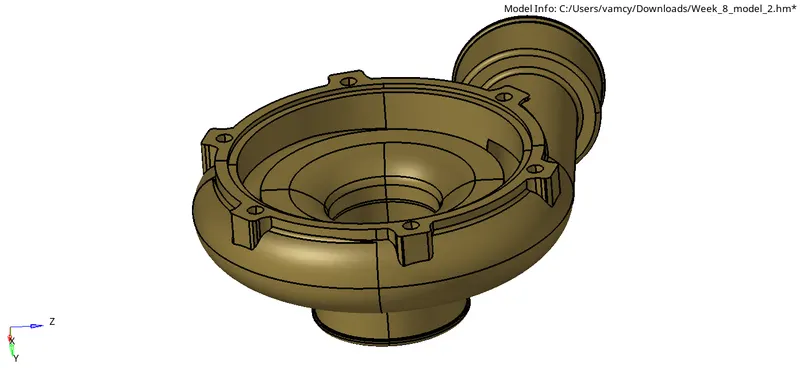
3. For the given assembly model, Create a 3D Tetramesh with the following quality criteria.
TetraMesh Generation Method:- Quick Tetra Mesh/ Volume Tetra Mesh
Target element size:- 4 Units.
Tet collapse:- 0.15
Objective:-
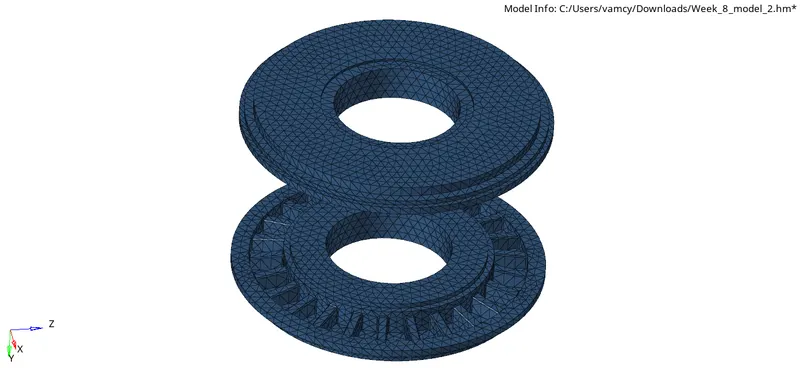
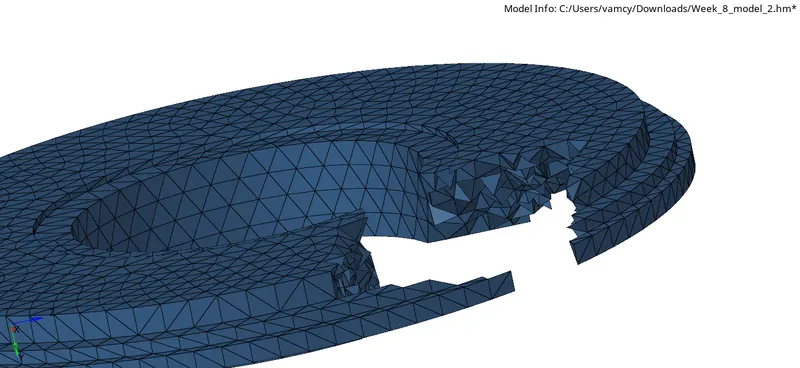
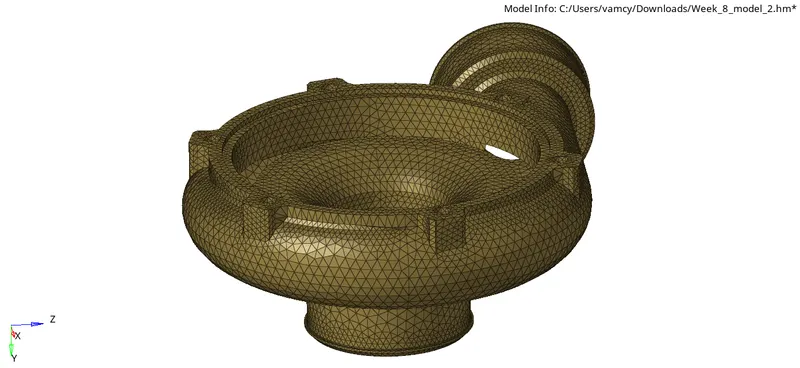
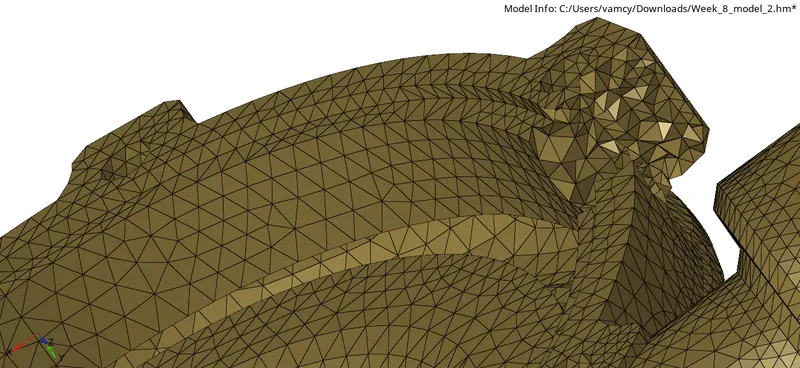
The main objecctive is to creat the tetramesh using the Quick Tetra Mesh/ Volume Tetra Mesh method and by using the target element size as 4 units and by following the quality criteria which is Tet collapse value as 0.15.
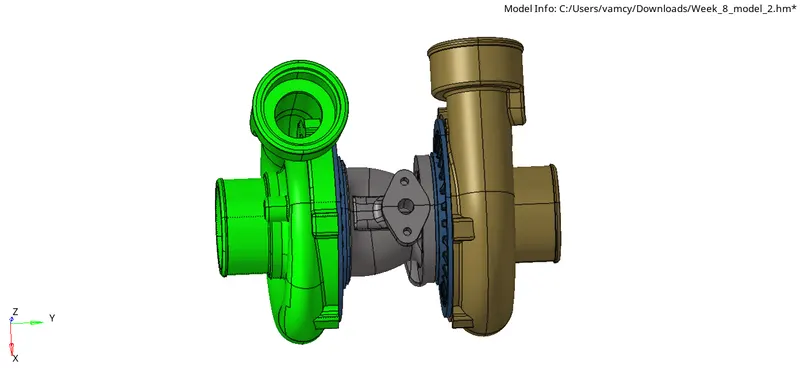
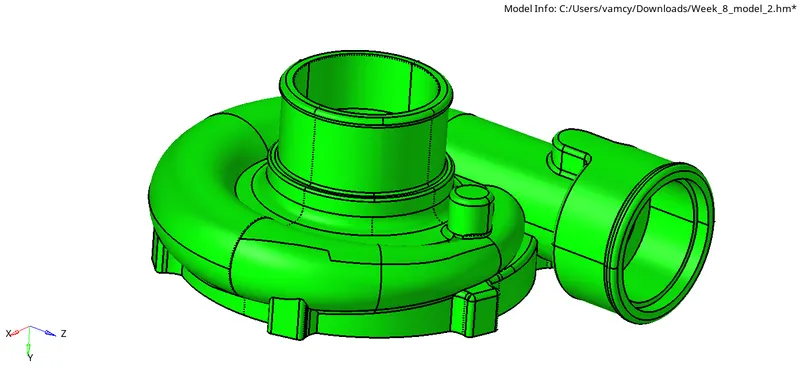
CAD Model images:-
Procedure:-
1. Importing the model:- Import the model in to the hypermesh by clicking on File<Import<Geometry
2. Topology cleanup:- To avoid the elements to fail for Min element and Tet collapse we need toggle unwanted lines in the model.
3. Volume Tetramesh:- To perform volume tetramesh goto 3D<Tetramesh
We can also get a good quality of mesh by using curvature and proximity and we can also use tetramesh perameters to increase quality of mesh.
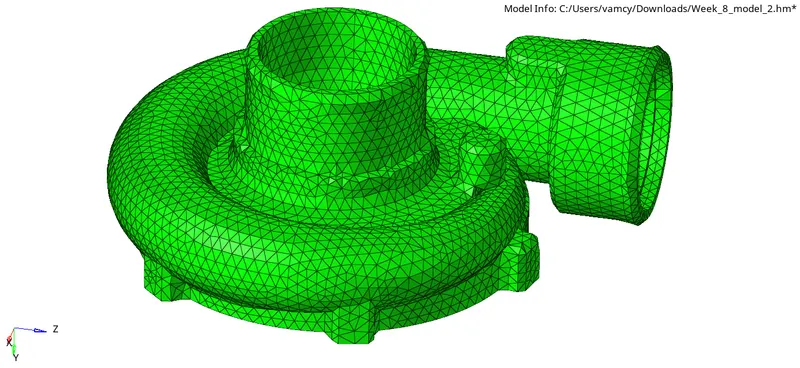
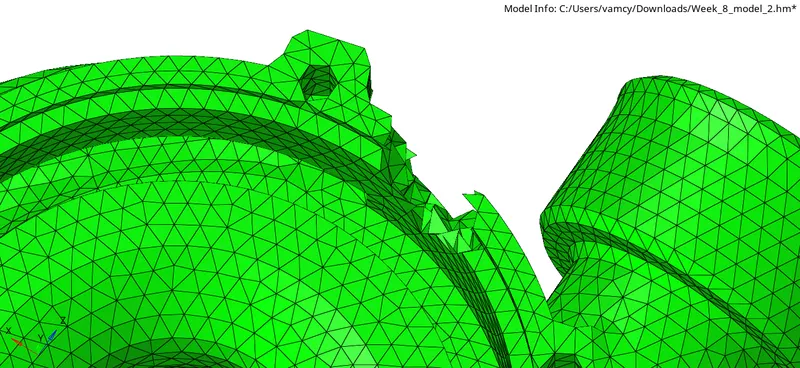
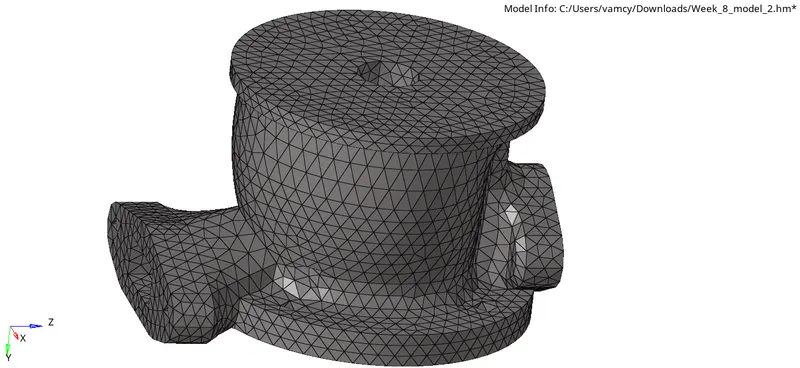
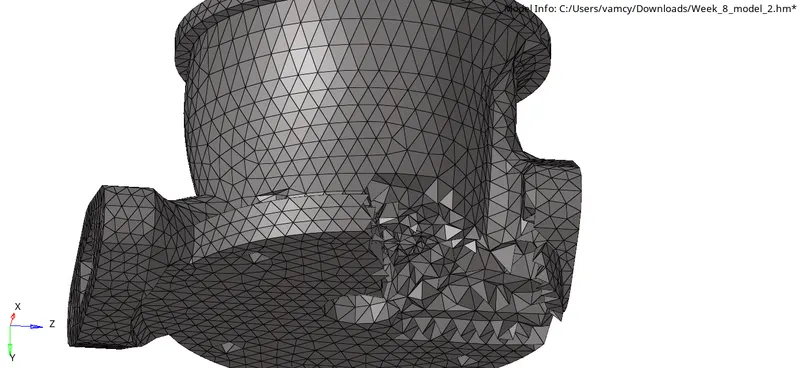
- Check for the elements which are failed for tet collapse if found try to remove them.
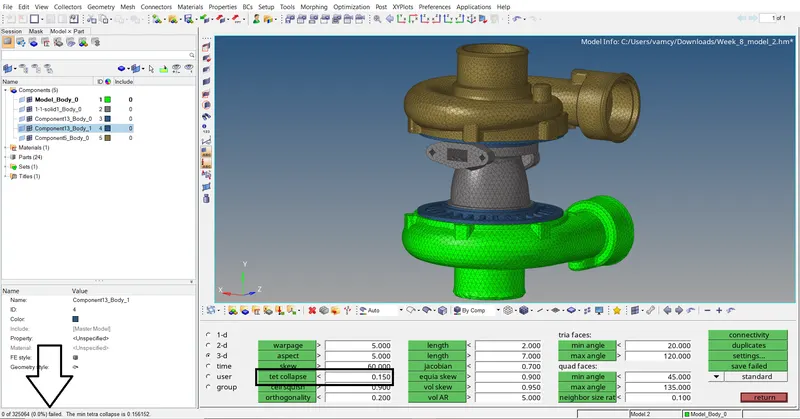
Result:- Hence the creation of Tetramesh using Volume Tetramesh method and by using the target element size as 4 units and following Quality Criteria has been obtained.
Final model images:-