Week 12:Project 2-Meshing of Rear Wheel Holder challenge
Question
Follow the below-mentioned quality criteria, mesh the given rear wheel holder component and assign thickness to it with a Target Element Length = 5 Units
| S.N | Quality Criteria | Value |
| 1 | Aspect Ratio | 5 |
| 2 | Skewness | 45 |
| 3 | Warping | 15 |
| 4 | Taper | 0.5 |
| 5 | Min. Length | 2 Units |
| 6 | Max. Length | 8 Units |
| 7 | Min angle Quad | 45 |
| 8 | Max angle Quad | 135 |
| 9 | Min angle Tria | 20 |
| 10 | Max angle Tria | 120 |
| 11 | Tria % | 10 |
OBJECTIVE:-
The Aim is to Extract Midsurface of the given Rear Wheel Holder Geometrey and Meshing of the model using Hypermesh by considering the Quality Criteria given below and Generating mesh on the given component with low tria concentration and proper mesh flow.
Target Element Length=5 Units
Quality Criteria:-
| S.N | Quality Criteria | Value |
| 1 | Aspect Ratio | 5 |
| 2 | Skewness | 45 |
| 3 | Warping | 15 |
| 4 | Taper | 0.5 |
| 5 | Min. Length | 2 Units |
| 6 | Max. Length | 8 Units |
| 7 | Min angle Quad | 45 |
| 8 | Max angle Quad | 135 |
| 9 | Min angle Tria | 20 |
| 10 | Max angle Tria | 120 |
| 11 | Tria % | 10 |
CAD Model Images:-
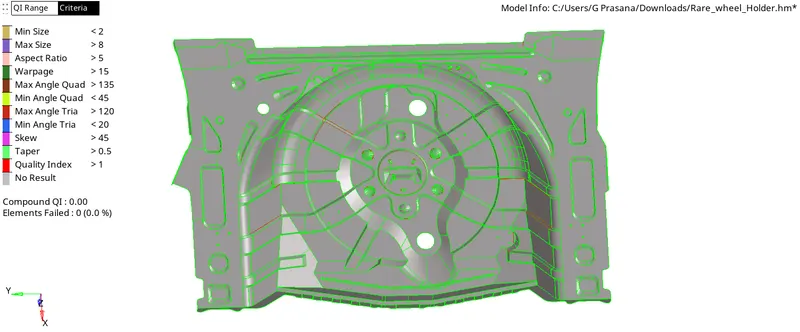
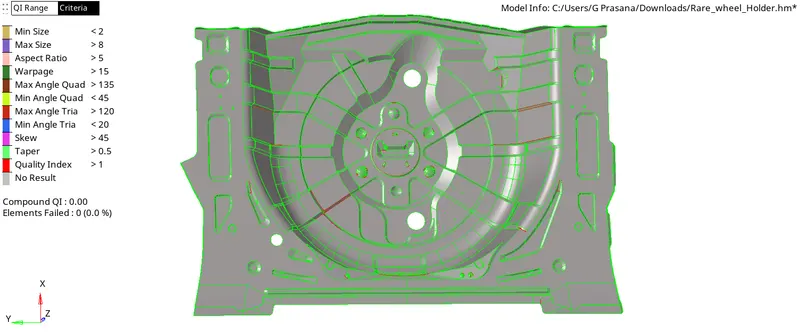
Procedure:-
- Importing the Model
- Extraction of Midsurface
- Topology Cleanup
- Assiging the Properties
- Generating the mesh with in the given Quality criteria
1. Importing Model:-
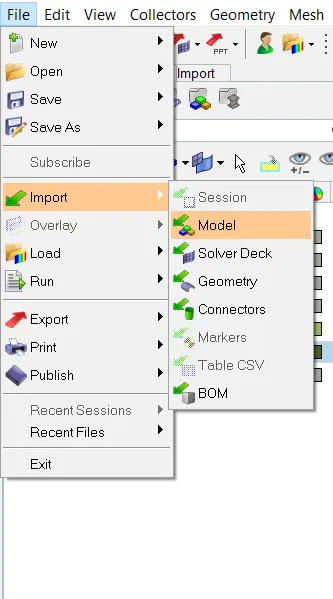
- At first we need to Import the Model File>>Import>>Model>>Select the model>>Import.
2. Extraction of Midsurface:-
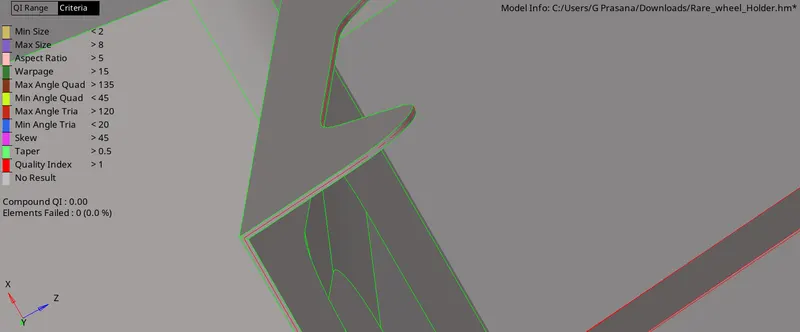
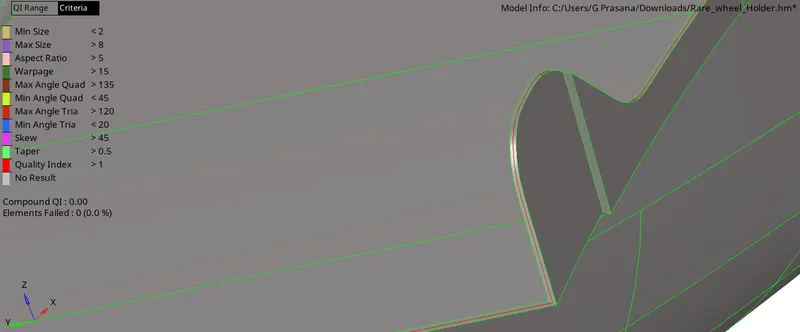
- We need to Extract the Midsurface for Rear wheel holder by using manual Midsurfacing method.
- Geometry>>Surface edit>>offset>>Select the Surfaces by face>>Enter the offset value>>Check the Vector normal direction>>offset.
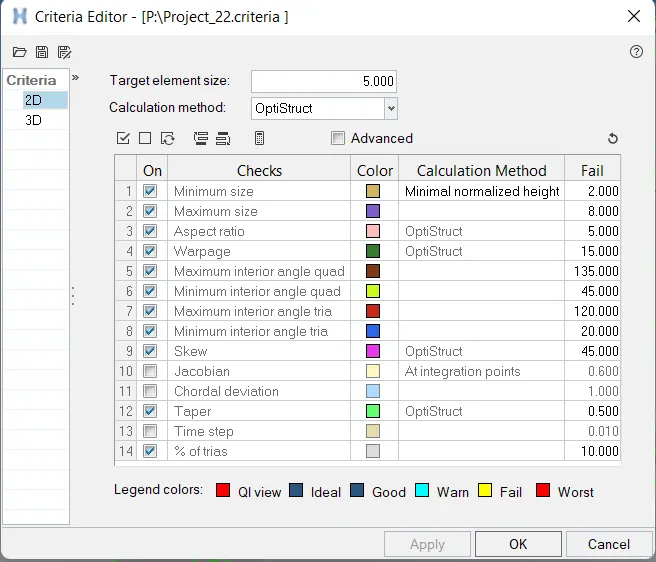
- Now go to the autocleanup and give target element size as 5 and edit criteria and give the element Quality criteria values then click on apply.

3. Topology cleanup:-
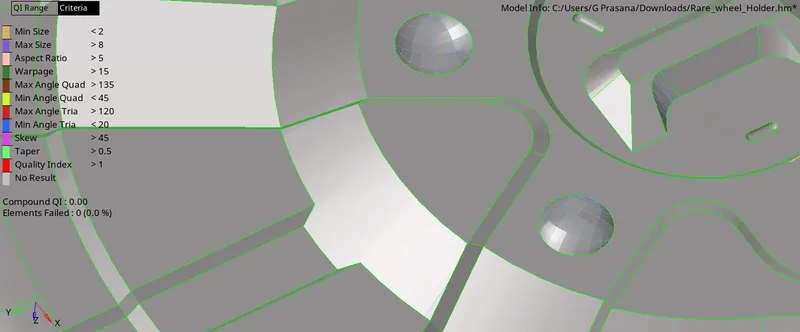
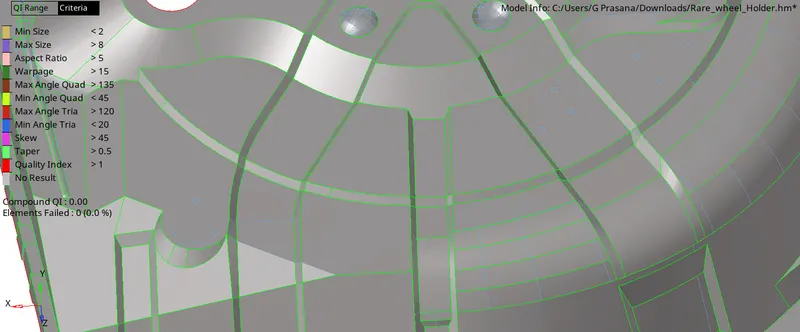
- After Extraction of the Midsurface Hypermesh may give some Missing Surfaces,Needle faces,Triple cons We need to check if there are any errors if found rectified Immediately by using Quick edit tools.
4. Assiging the Properties:-
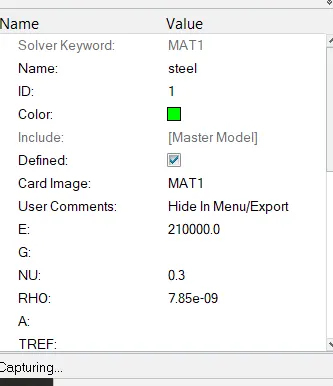
- To assign a properties like material and thickness we need to creat the material first and name it as Steel and give the Values of like Youngs Modulus,Poisons ratio,Density...etc.
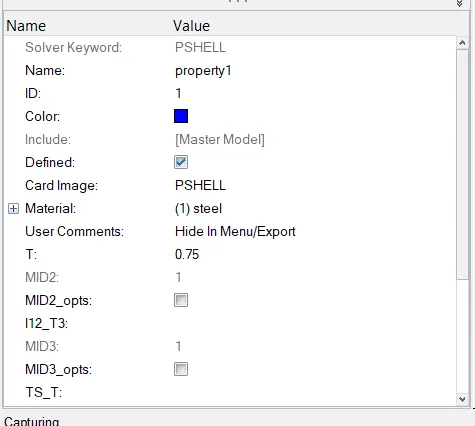
- Then We need to create the property give the card image as PSHELL and material as Steel and Assign the Thickness value as 0.75 Units.
- Now Right click on the Midsurface then go to assign and assign the above properties to it.
5. Generating the mesh with in the given Quality criteria:-
- Before generating the mesh divide Geometry in to Rectangles to get a proper mesh flow.
- To generate mesh go to 2D>>automesh>>Element size=5>>mesh type Mixed>>Select the surface>>mesh.
- To get a proper flow edit the mesh by selecting the elements and click on mesh.
- If any element is failing for Quality criteriia Then we can use the cleanup tools in qualityindex and we can use translate tool on some areas.
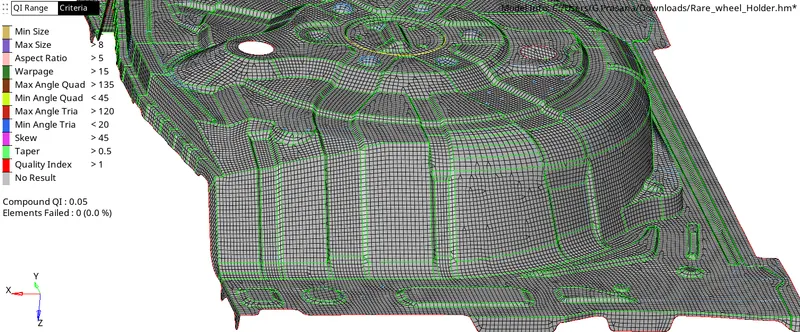
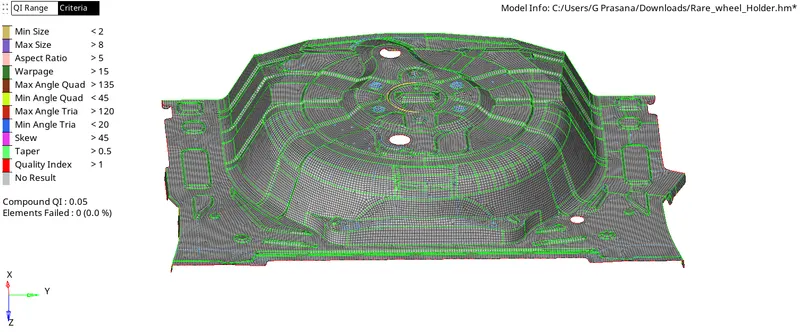
Results:-
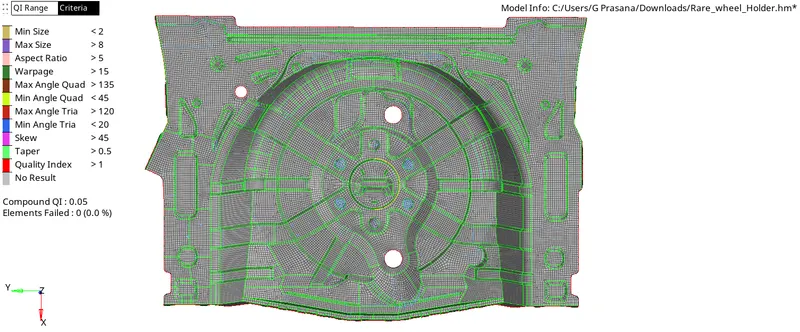
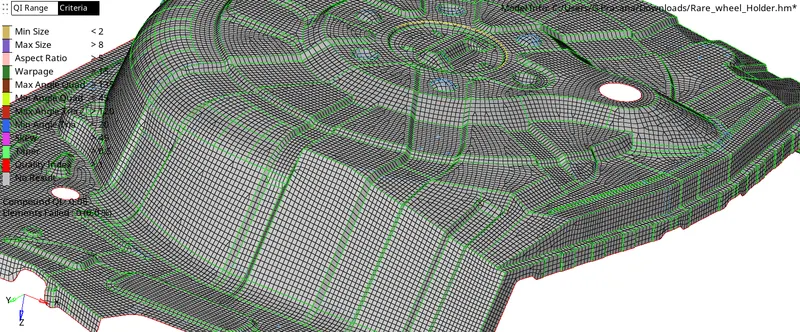
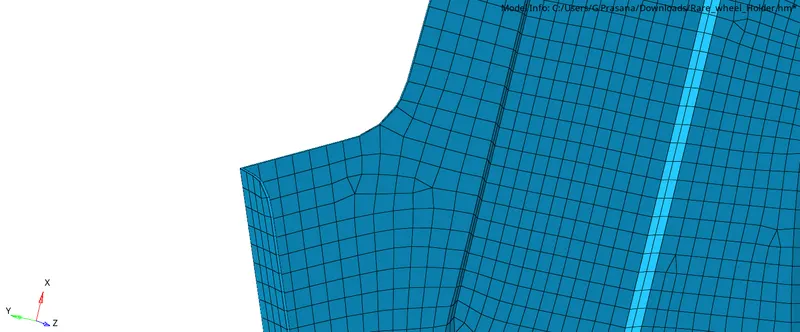
Hence Extraction of Midsurface of the Given Rear wheel holder and Meshing of the model considering the Quality Criteria and Generating mesh on the given component with low tria concentration and proper mesh flow is obtained.
Final model Images:-
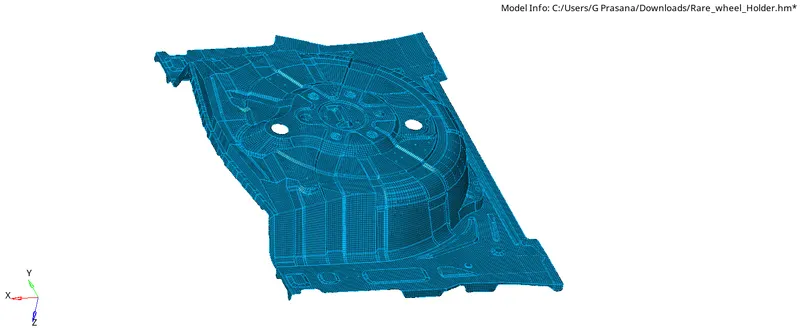
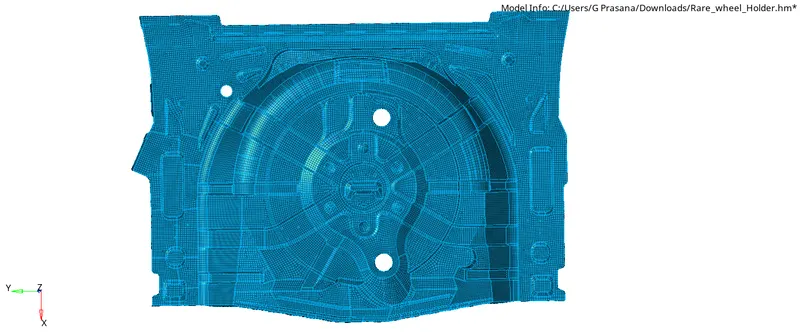
2D Detailed element Representation:-
Conclusion:-
- Learned how to Extract Midsurface.
- Learned how to Generate a mesh according to quality criteria.
- Learned how to optimize the mesh flow