Week- 6 - Solid meshing
Objective:
To mesh the given rear view mirror assembly using 3d tetra mesh by given quality criteria and fix all the errors while meshing.
Quality criteria:
shell elements:
|
S.No |
Quality Criteria |
Value |
|
1 |
Target/Average length |
1 |
|
2 |
Minimum Length |
0.5 |
|
3 |
Maximum Length |
2 |
Solid Elements:
|
S.No |
Quality Criteria |
Value |
|
1 |
Tet collapse |
0.2 |
Procedure:
- First import the given cad model.
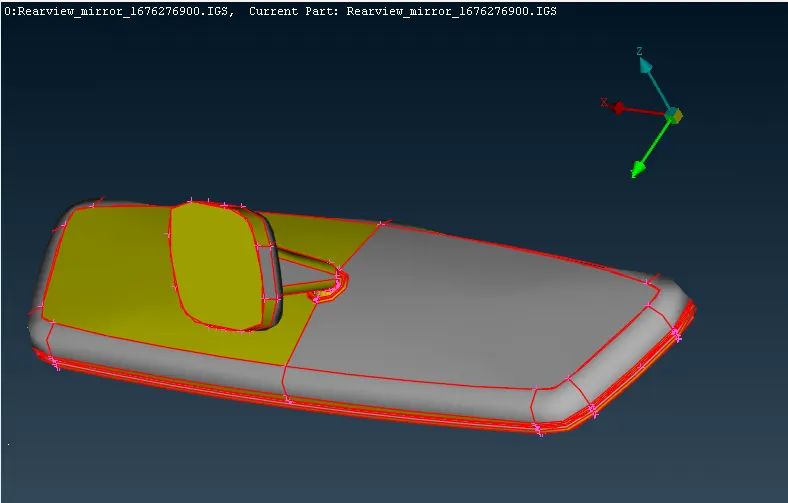
Do the toto tool from toto frame to form a close geometry.
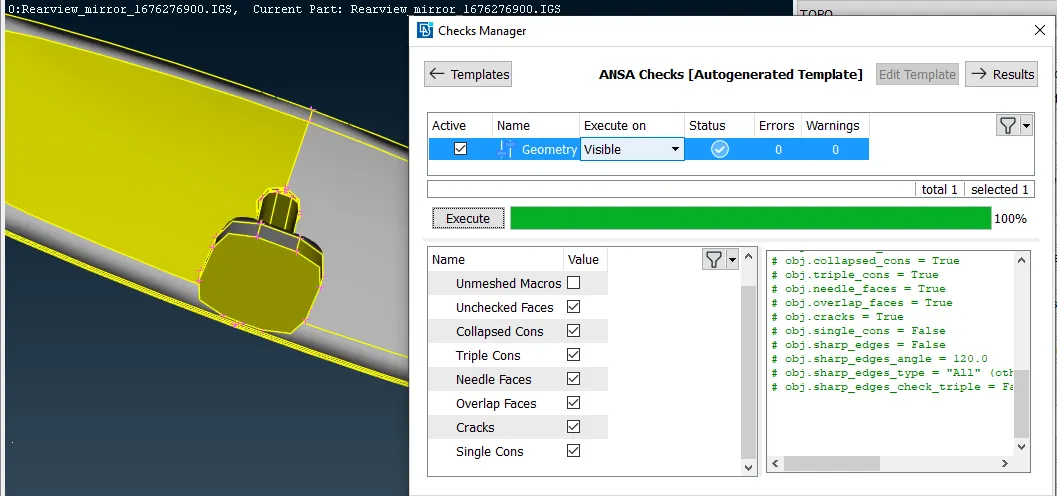
After that do and check geometry (with check on box of single cons) for cofirm the there should be
no cracks and single cons. if found some error fix using ANSA algoritham.
as shown below image.
The above given geometry is assembly of four component.
There are four component.
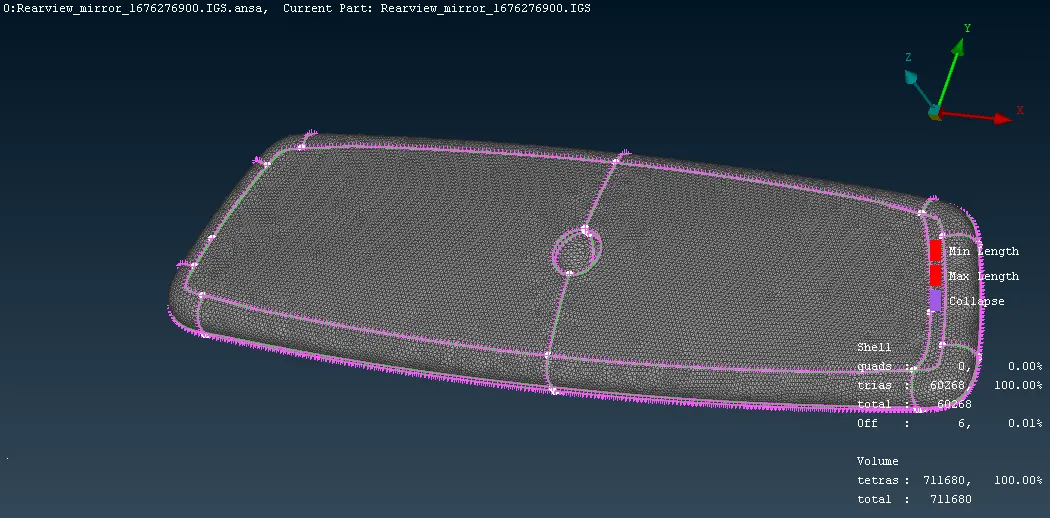
comp 1
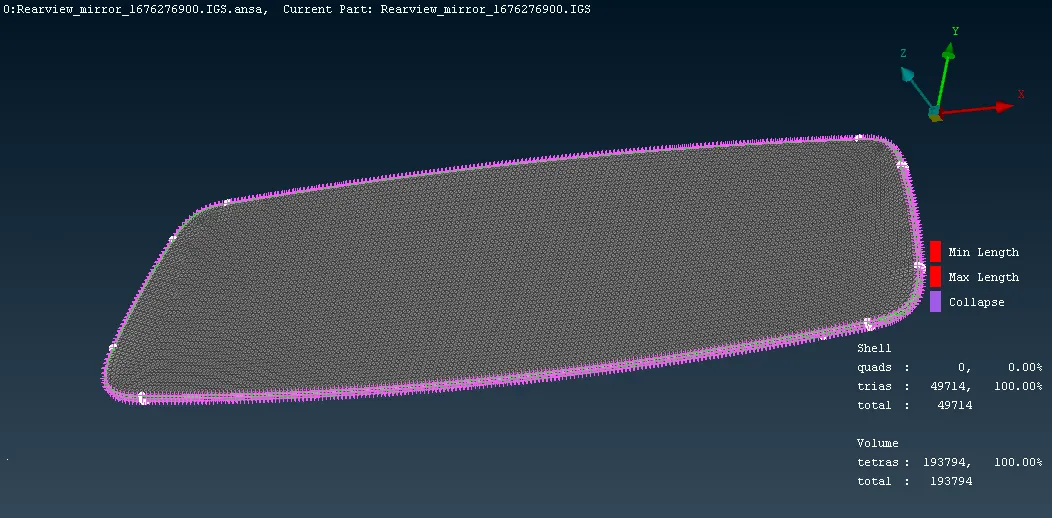
comp 2
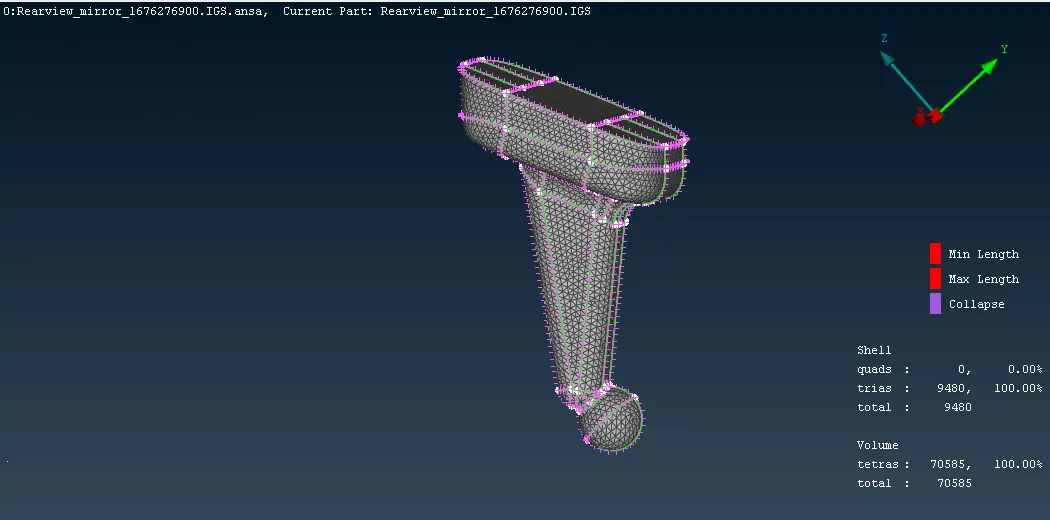
comp 3
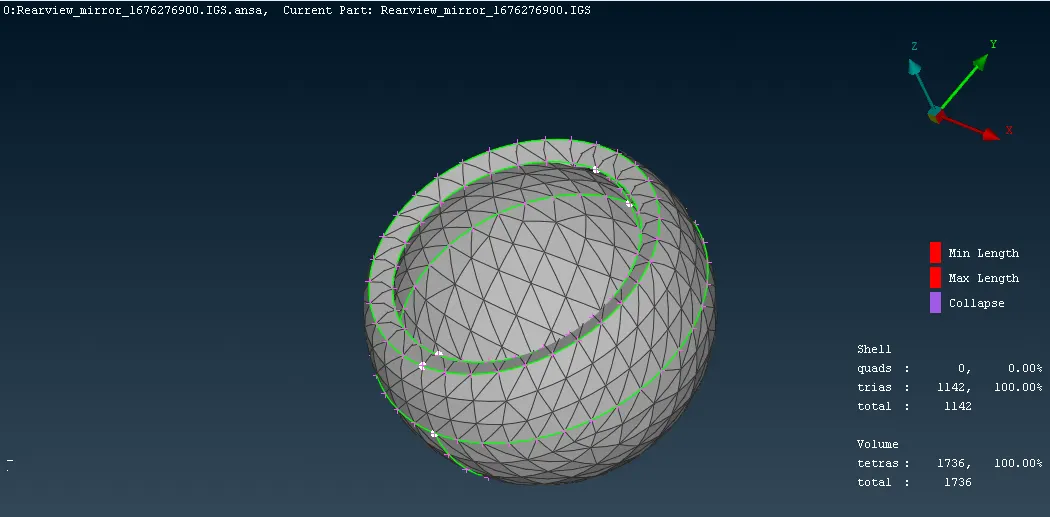
comp 4
Now we have do perimeter by using lenth tool from the mesh frame.(mesh-perimeter-length)
assign the Length 1mm for perimeter and macros for the finer resolution of the component
it will be use for achieve target mesh length while meshing to component.
After that we go the meshing process assign the given quality criteria for the 2d shell element by using Quality criteria tool (F11), mesh parameter assign target length as 1 mm min length 0.5 mm and max length 2 mm.
Select quality criteria tab and assin max, min length only for shell mesh in shell module and solid module assign tet collapse as 0.2 mm
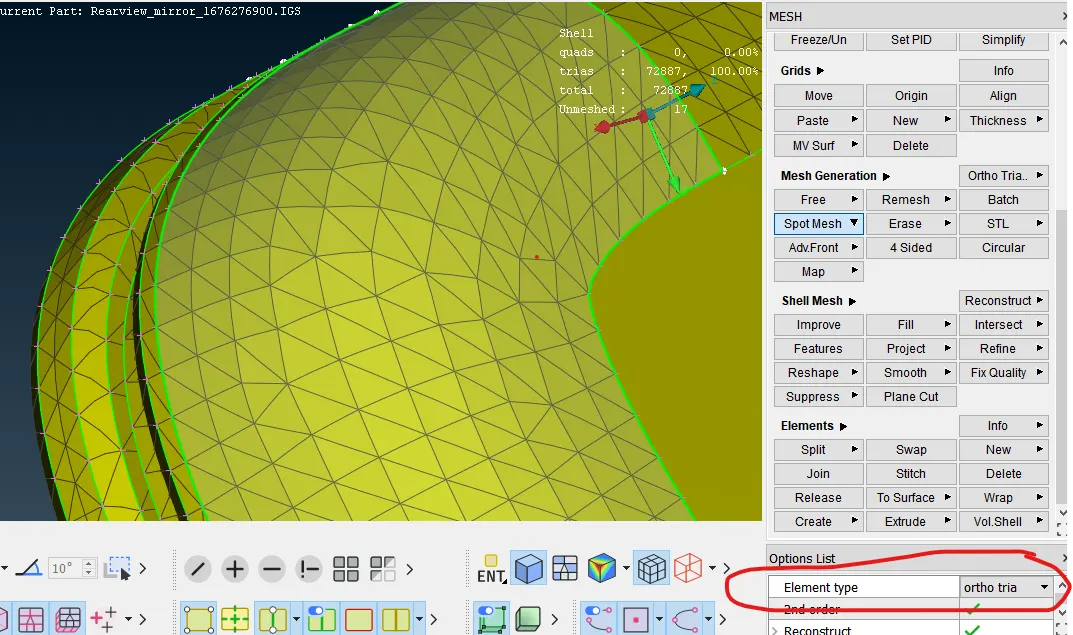
Now we should have to mesh the component with help of tool spot mesh of mesh generation from mesh panel, for the critical area we mesh using ortho tria and surface mesh by tria as shown in image.
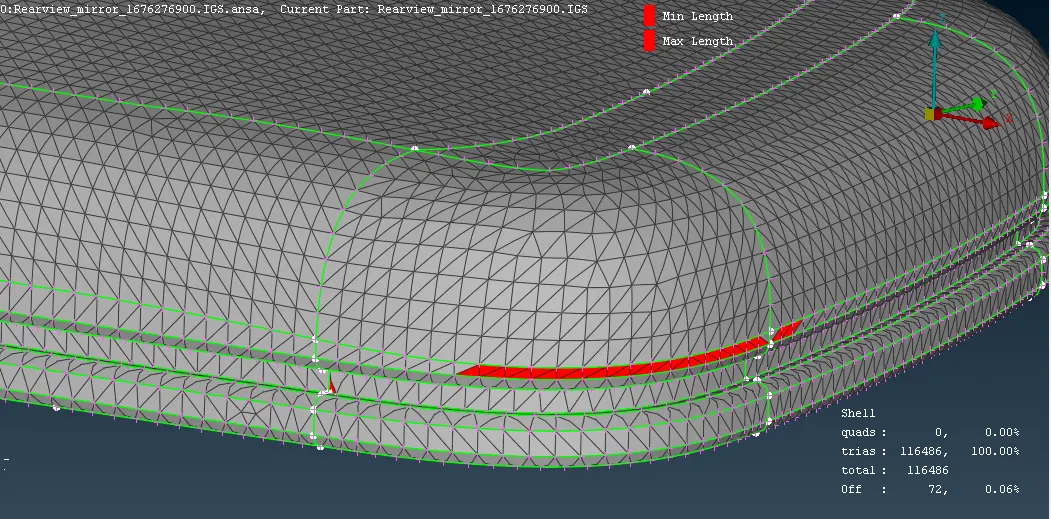
Then check the mesh and quality criteria for 2d shell mesh. there are some element failing for min length.
we can elimaniate by suppress using cut tool or reconstruct.
now we have to assign volume for convert tetra mesh element from 2d shell element to 3d Tetra mesh element. we use tool define from volume tab of Volume mesh frame and go throught detect on visible.
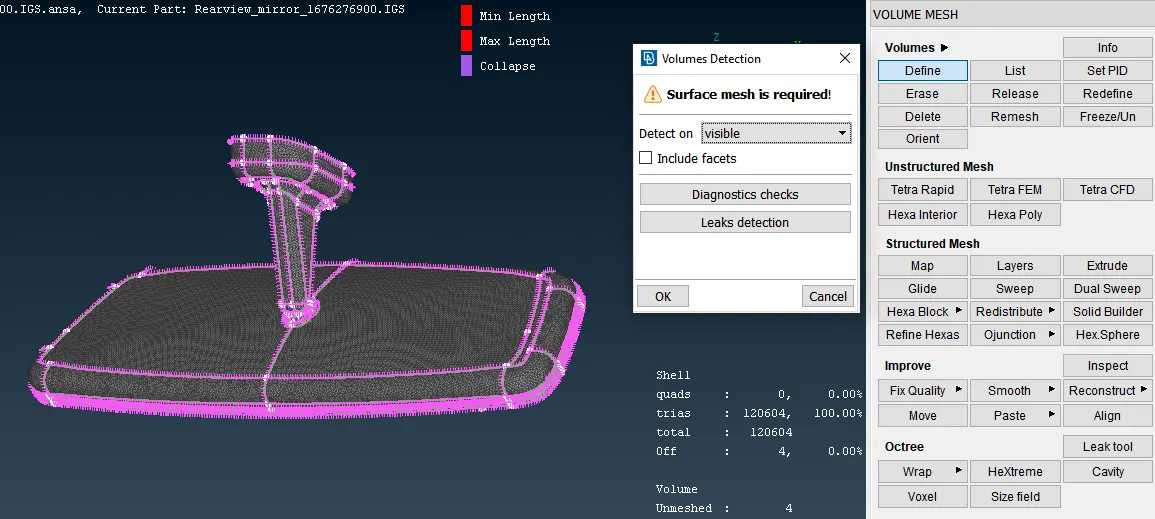
volume mesh
Now we should define the volume for the shell using volume mesh volumes-define-manual.
after that go throught the list tool from volume.
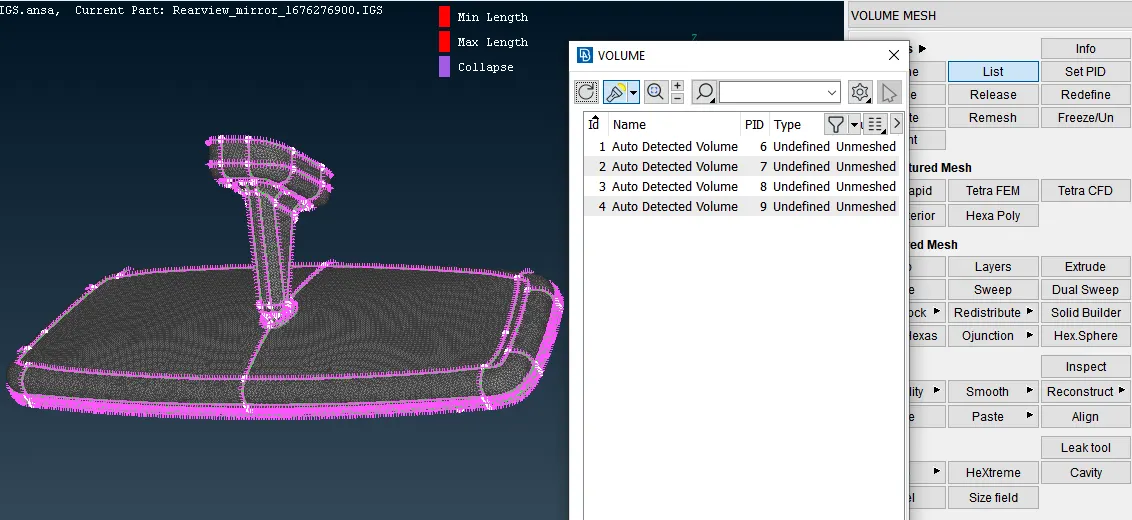
Tetra volume list
This geometry still not assigned the volume tetra mesh so we can use Remash from right mouse click
To all 4 components of geometry. We can see the below image.
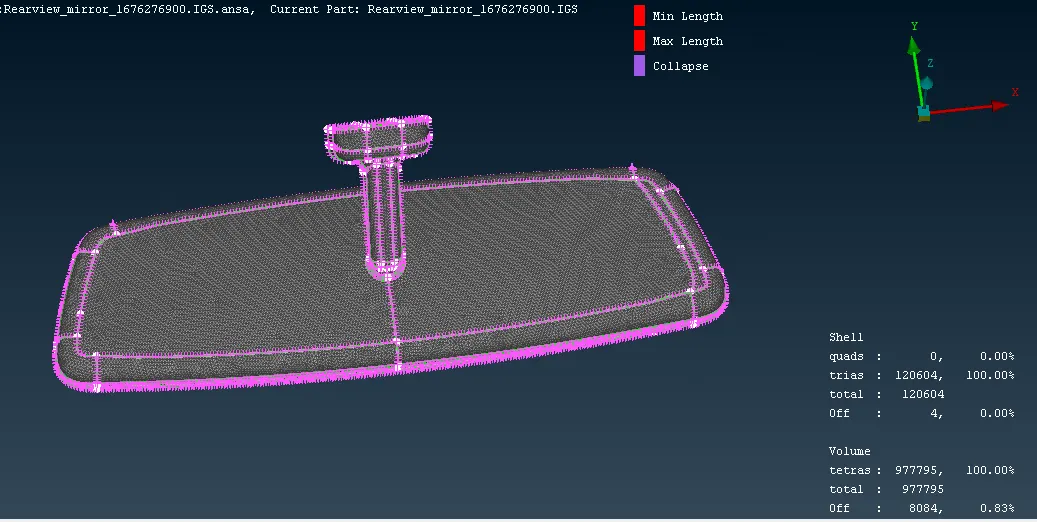
after volume remash
Now to convert unstructure we can use two methods of using different algorithm.
So we go through tetra rapid method tetra volume mesh element.
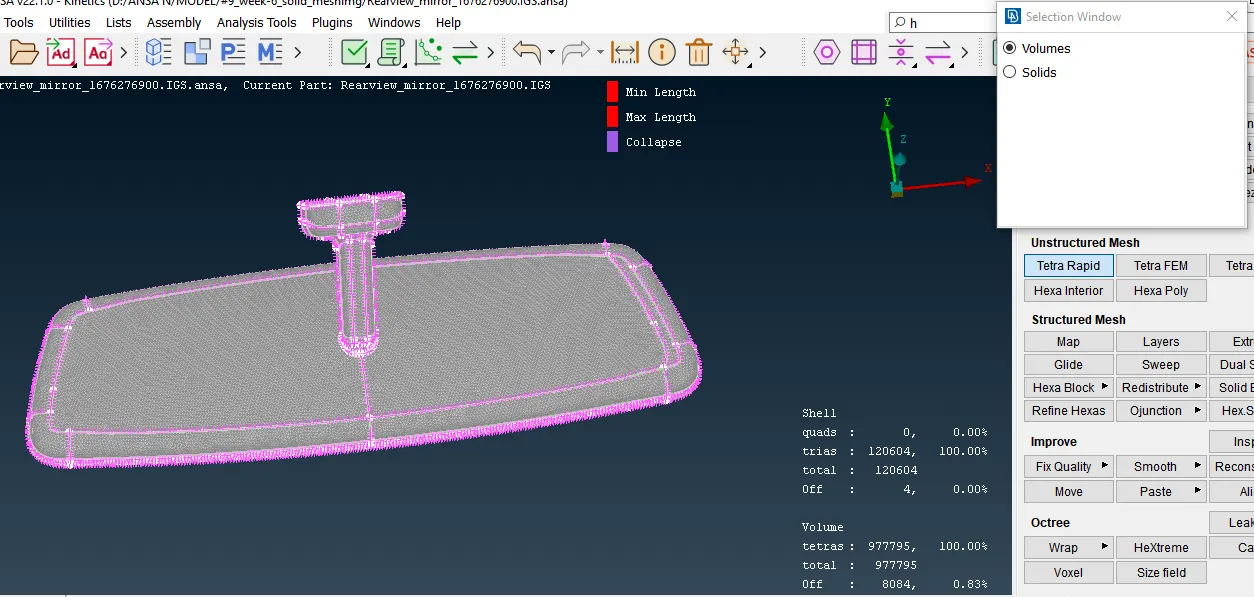
tetrac rapid
We can see the volume of tetra mesh by off geometry and FE mode .
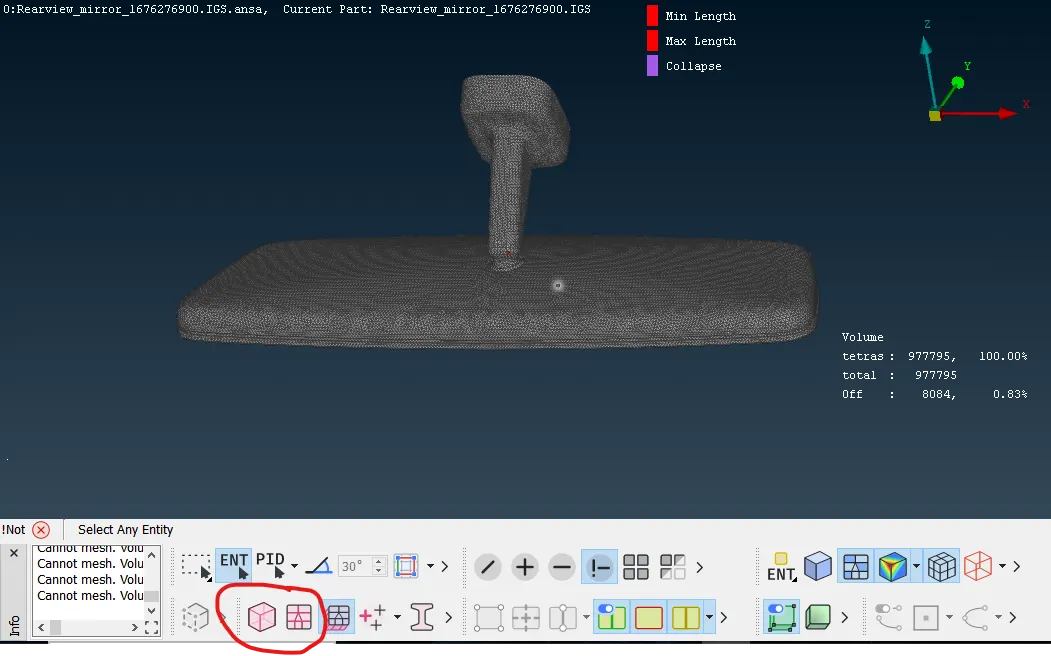
Volume Tetra Mesh
We can see the clear unstructural Tetra mesh element by taking cut section of geometry.
We clearly seen that two layer from surface are in well structure mesh form and other than are
Unstructure form.
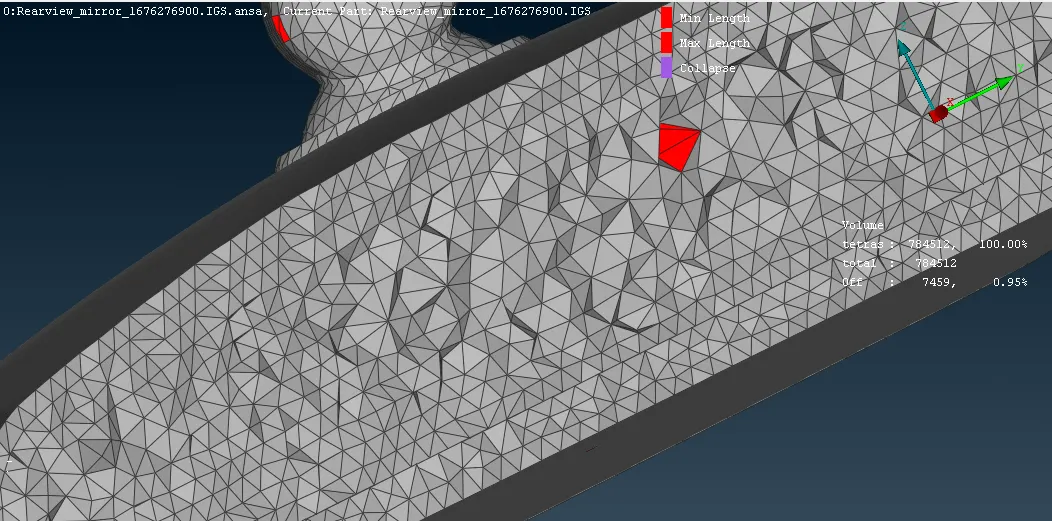
check structure of tetra mesh
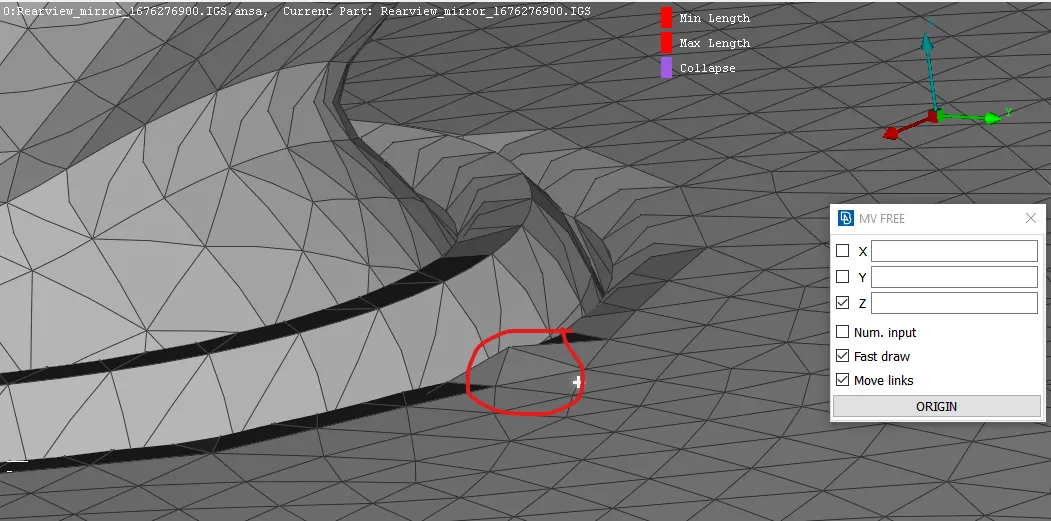
clear quality of tetra element and there should no kinks and dips. if any found then we have to remove
by using tool MV FREE select the select to direction of X Y Z and clear the kinks and dips.
below showing the volume tetra element mesh component with no falling element.
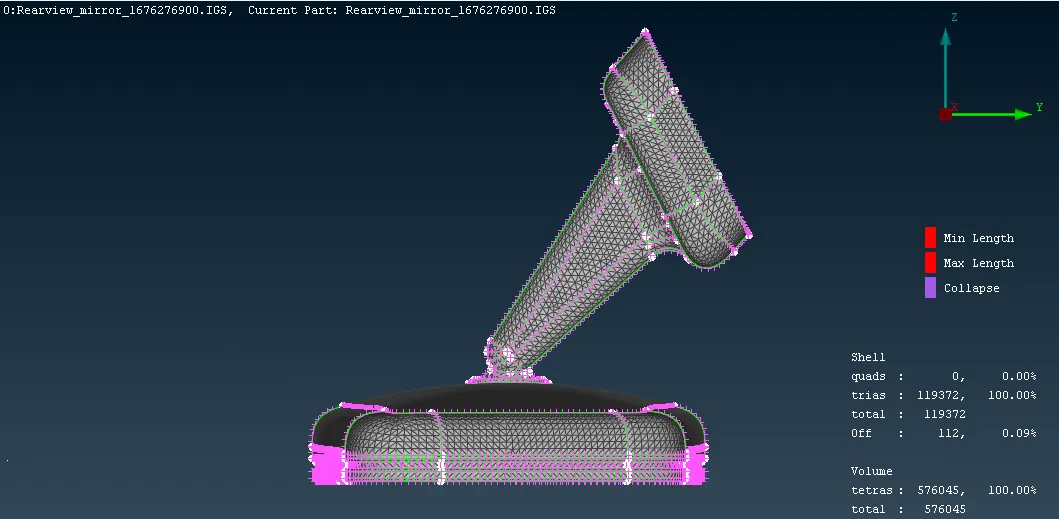
Volume Tetra mesh assembly.
LEARNING OUTCOME.
1) Learn about how mesh to solid component 2D shell element by using Tria and Ortho Trias mesh.
2) How to change and assign Volume Tetra mesh from Tria element.
3) learn how to cleared quality criteria failling element of Tet Collapse.
CONCLUSION
The given 2d shell component of Rearvie merror has succesully execute the tria, Tetra element and assign volume tetra mesh element and clear all tet collpase falling element.
Please find the file from the below attached link, i am not able to attached the file due to file size above 20 MB.
https://drive.google.com/open?id=1-0jjLBsWNcBbOWrNp7JpZO3um1-OD9JD&usp=drive_fs.