Week 6- Challenge
OBJECTIVE:
To mesh the given component and assign thickness using the below mentioned quality criteria.
- Target element length: 5mm
- Aspect ratio: 5
- Skewness: 45
- warping: 15
- taper: 0.5
- min. length: 2mm
- max. length: 8mm
- min angle quad: 45
- max. angle quad: 135
- min. angle tria: 20
- max. angle tria: 120
- tria%: 10
CAD MODEL:
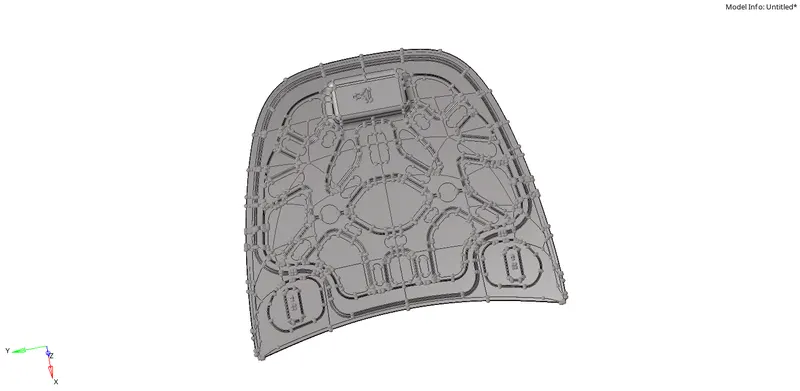
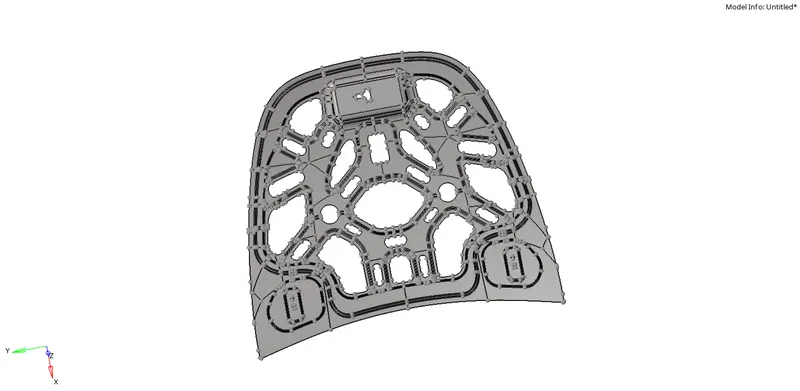
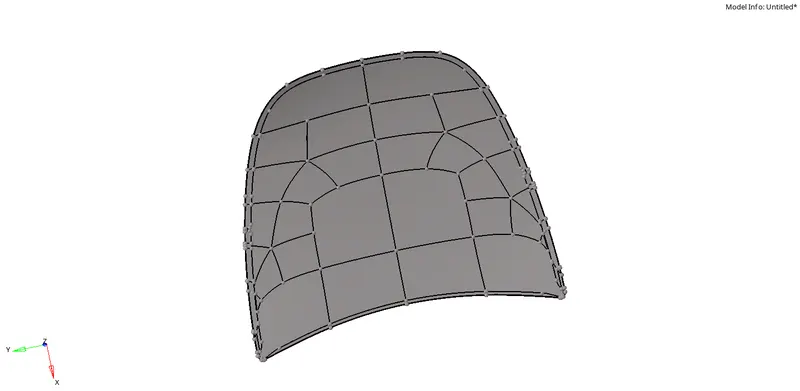
HOOD.
- Inner extract body
- Outer extract body
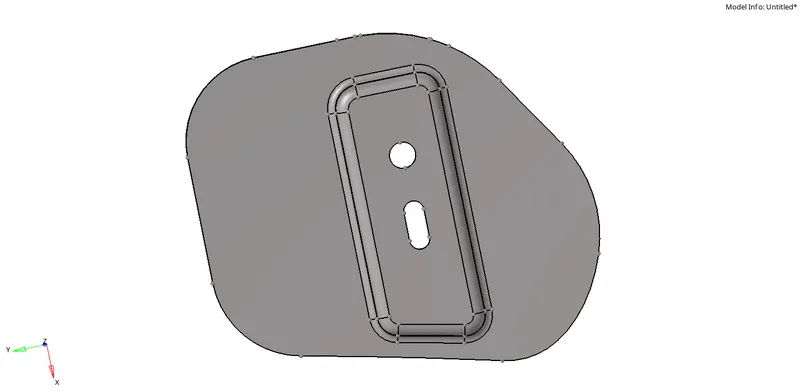
- Hinge reinforcement extract body 1
- Hinge reinforcement extract body 2
- Latch reinforcement extract body 1
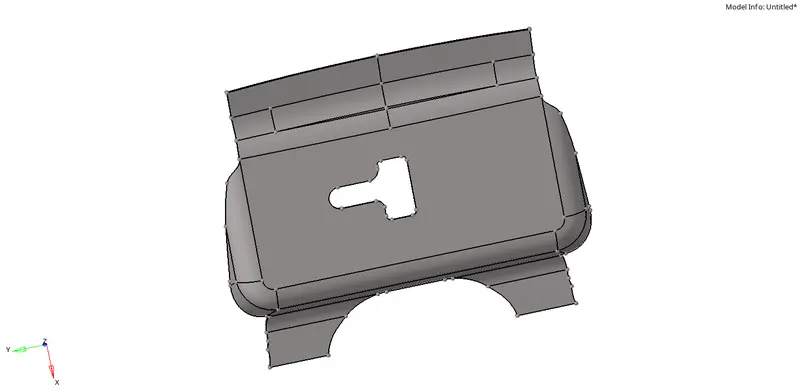
PROCEDURE:
- First delete the solids by selecting solids from delete option and go with delete entity.
- Use auto midsurface option from extract midsurface tool to extract the midsurface seperately for each parts.
- Then do the geometry cleanup for each parts seperately.
- For the geometry cleanup, use quick edit tool in geometry menu and the unwanted lines can be toggled using toggle edges option and the lines can also be created according to our easiness to mesh using split surface node and split surface lines option.
- We can also use filler surface option to fill the surface which had been removed from the model.
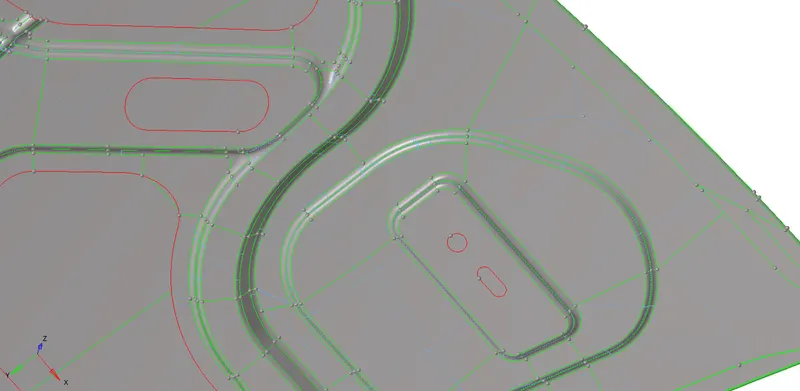
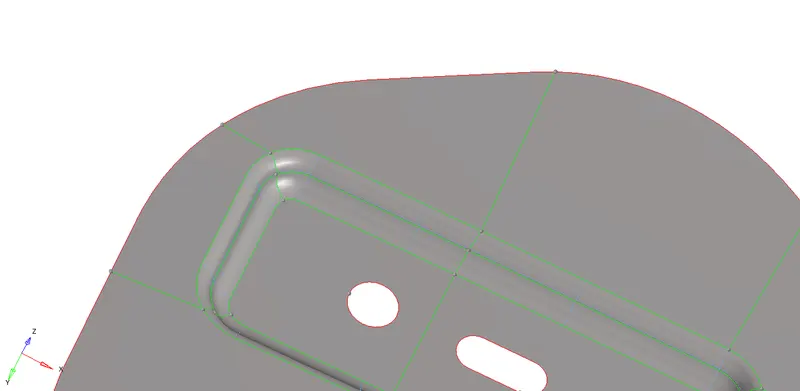
- Half of the inner and outer extract body can be deleted as they are symmetrical at both sides.
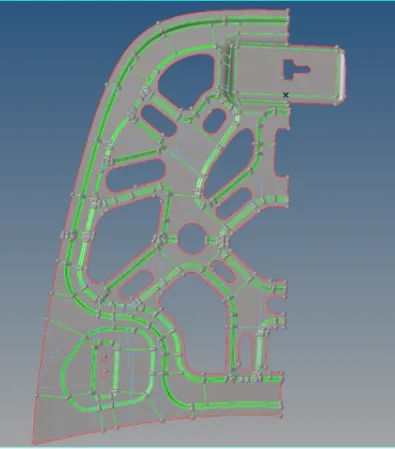
- One half of the model can be used for geometry cleanup and meshing.
- The other half can be deleted by selecting the surfaces which is not rquired and then by clicking on the delete entity option.
- Before meshing make sure that the quality criteria is assigned as given and element size is 5 mm.
- For assigning the quality criteria, this can be done by clicking on the criteria file settings from the preferences tool on the top portion of the screen.
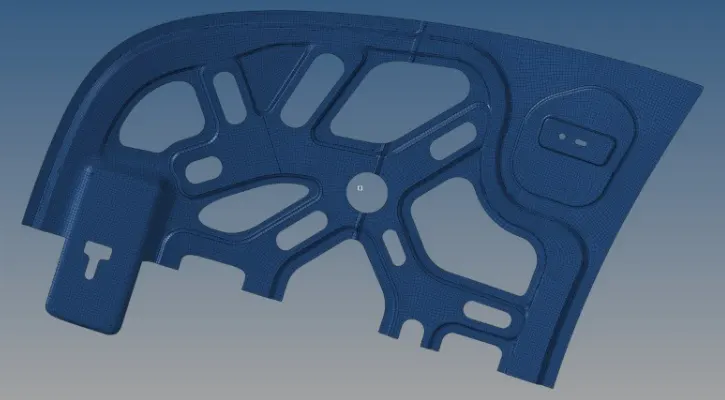
- Mesh the complete area and make sure that the trias and errors are reduced.
- Meshing can be done by selecting surfaces one by one.
- Go to 2D tool followed by automesh option, select the surface and click on mesh by assigning the required element size.
- Trias can be reduced by draging and swaping the edges and also merging the opposite lying trias.
- We should also check for rotaional quad and this can be cleared by splitting the quad element and draging the trias.
- These smoothing and draging of trias can be done from quality index option.
- After meshing is finished, duplicate the other half of outer and inner body and also duplicate the elements.
- For this, go to reflect option from tool and select on the all elements that is requred to be duplicated and assign a base point and check for the axis direction.Also dont forget to click on the duplicate option in elements. Same method can also be used for duplicating the surface.
- Then equivalence the elements and toggle away the free edges.
- The free edges can be cleared by replacing the nodes using replace option from 2D tool.
- Assign the thickness of the parent component to the meshed midsurface in order to get a clear component with with zero errors and thickness.
FINAL MODEL:
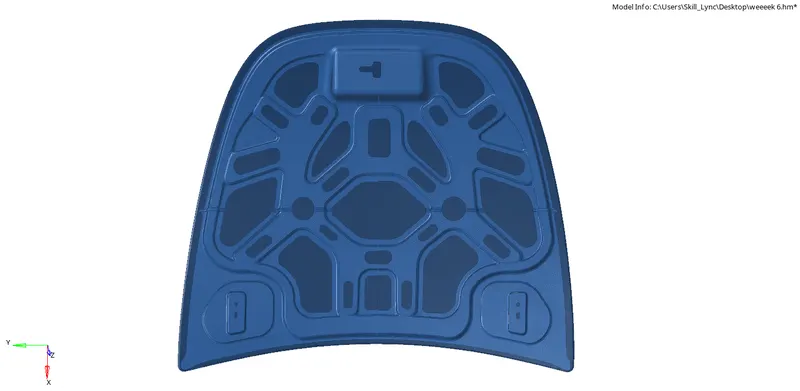
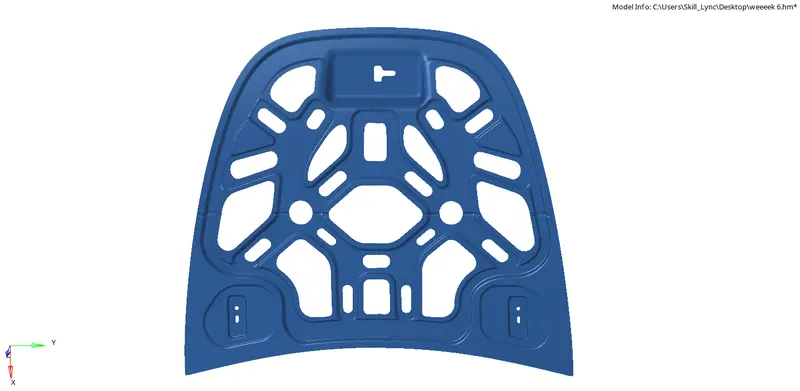
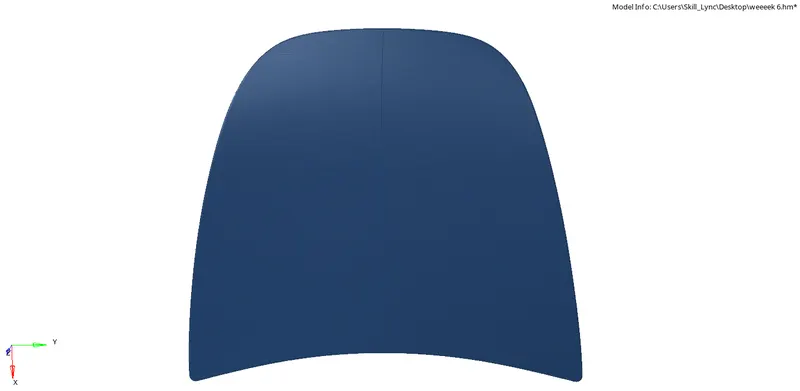
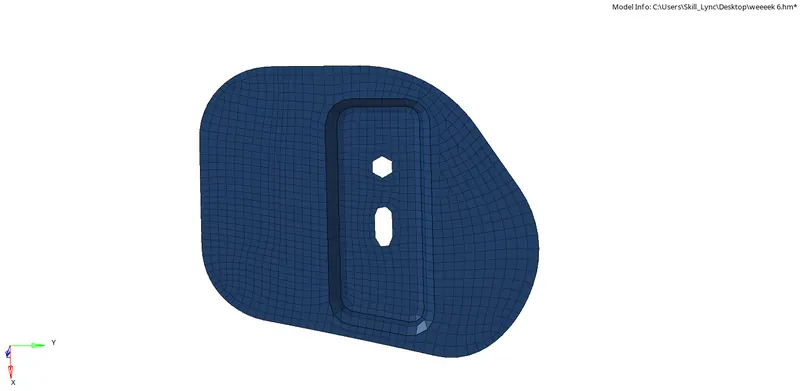
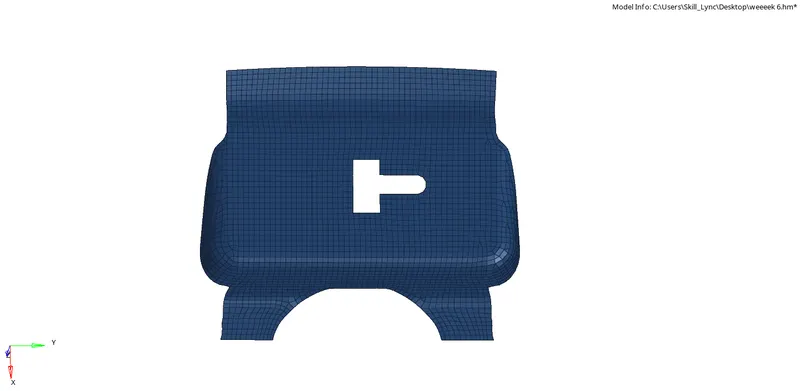
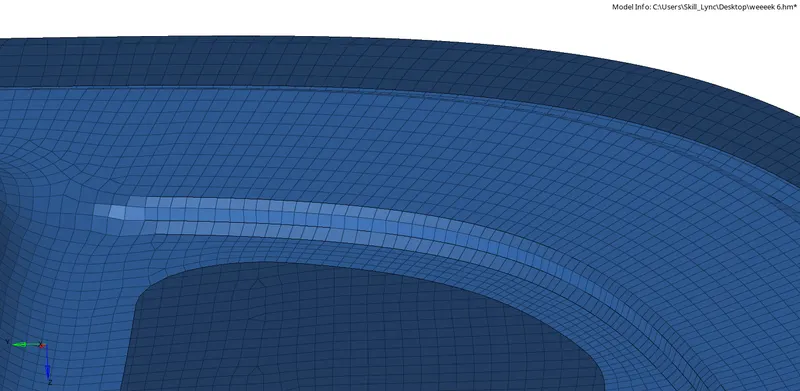
CONCLUSION:
The given component has been meshed succesfully with above given quality criterias.