Week 6-3D Tetra Meshing Challenge
3D Tetra Meshing
Aim: To create 3D tetra Mesh for the following
To Create a Teramesh for Housing component with the following quality criteria.
TetraMesh Generation Method: 2D to 3D Conversion
Elements sizes: Min- 2 Units, Target- 5 Units, Max- 7 Units
Tet collapse: 0.15
2. For the given model2, Create a 3D Tetramesh with the following quality criteria.
TetraMesh Generation Method: Quick Tetra Mesh/ Volume Tetra Mesh
Target Element size: 3 Units, Tet Collapse: 0.15
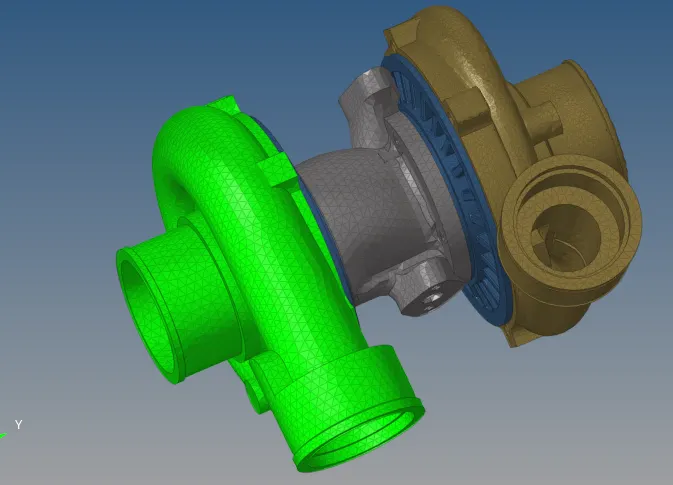
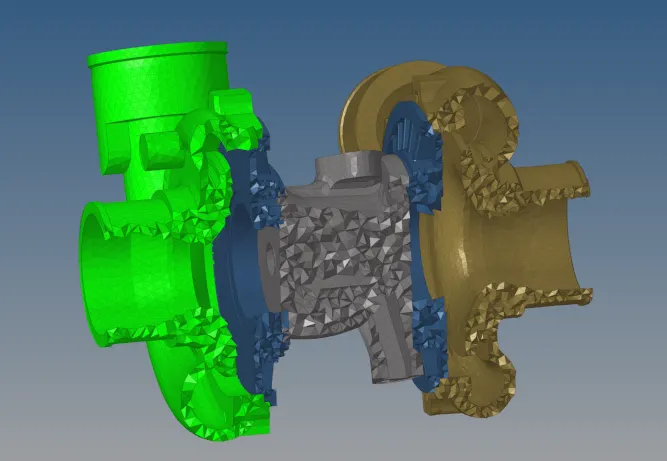
3. For the given assembly model3, create a 3D Tetramesh with the following quality criteria.
TetraMesh Generation Method: Quick Tetra Mesh/ Volume Tetra Mesh
Target Element size: 4 Units,Tet Collapse: 0.15
Procedure :
Model1: 2D to3D conversion
- To import the CAD geometry into Hypermesh
- The file format will be in .IGES format or .step format
File > Import > Import Model > File type > Open File > Import File
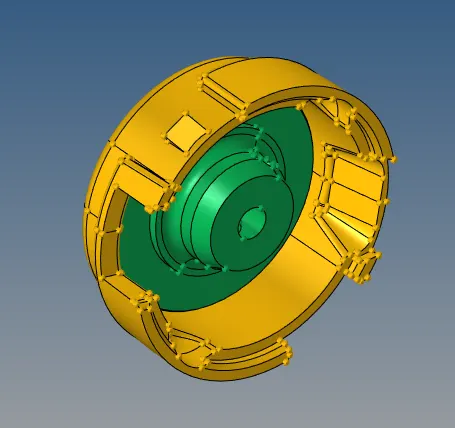
- Next switch to topo mode and check for solid in the component or not, if exists delete the solids by using delete option or F2
- Delete [F2] >> Solids >> Delete solids
- Check for geometrical errors like free edges, unwanted points, damaged surface on the geometry, if any fix the errors
- Now start meshing the housing model ,go for 2D automesh, enter the element size as 4 units and choose the element type as trias and now select all the surfaces and then hit mesh. Then check for the quality criteria of the 2D element,if any resolve for it
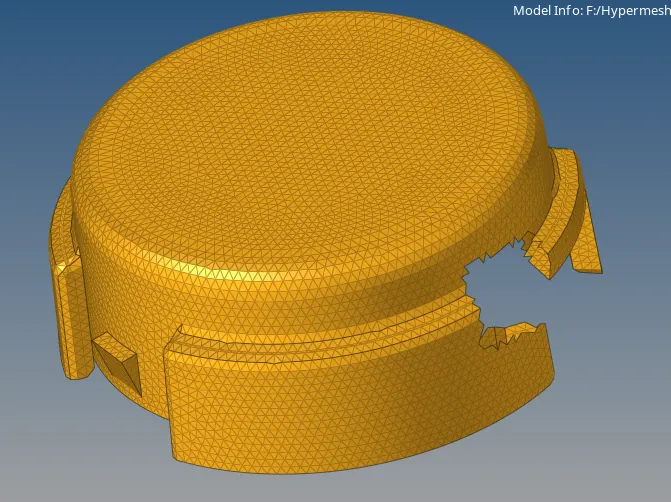
- Now go for 3D >>tetramesh>> select the 2D element mesh>>mesh, 3D tetra elements will be created as shown below
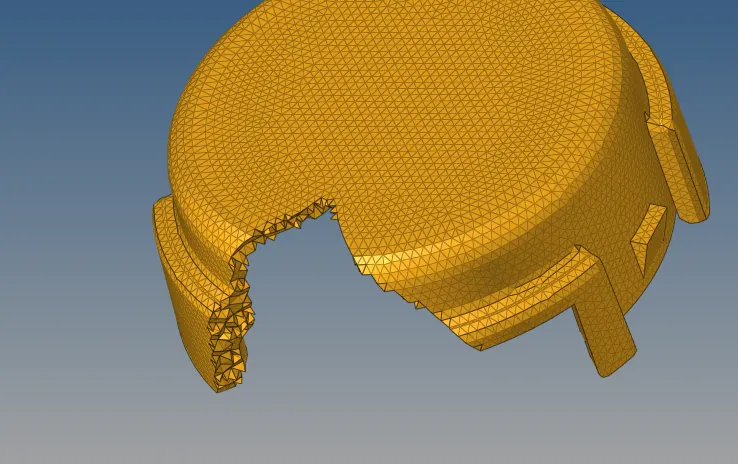
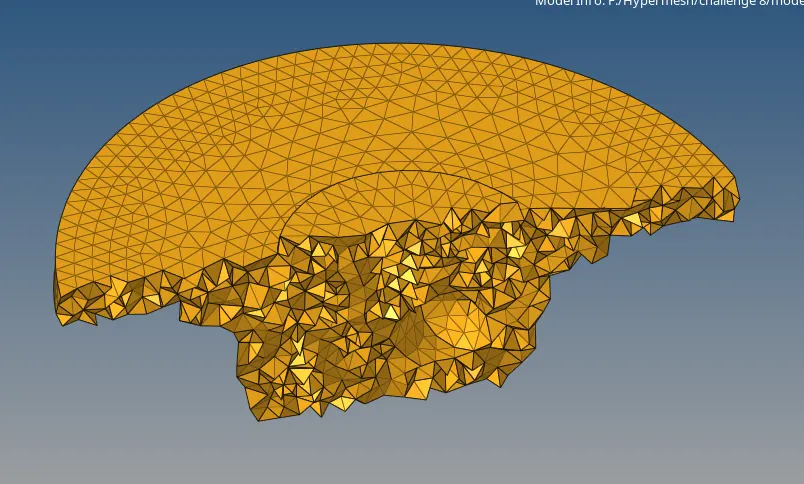
- After tetramesh ,check for the tet collapse ,if any error occurs increase the height of the tetra, so that it can be resolved
tool>>check elems>>3D>>tet collapse
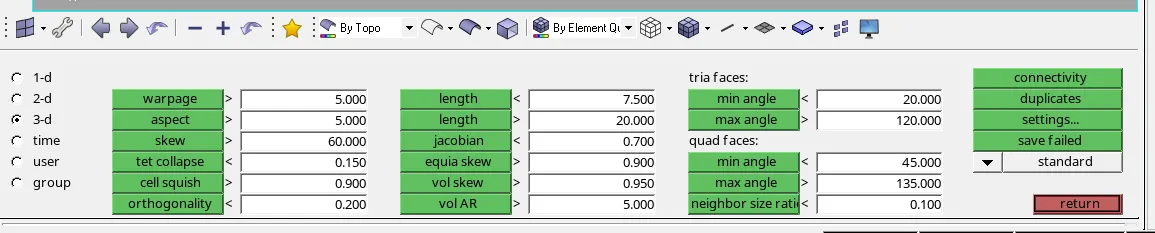
Final Model
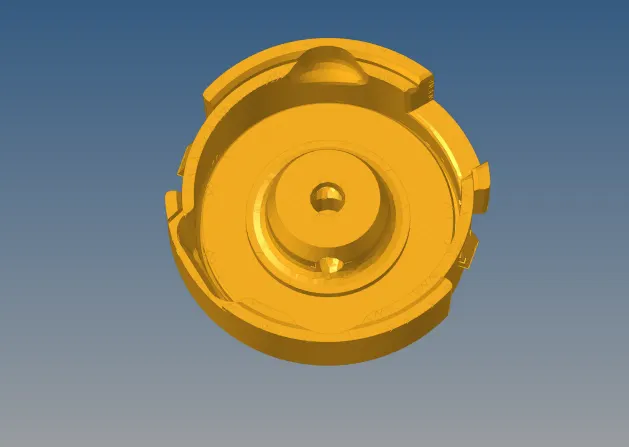
Model 2: Quick tetra mesh /Volume tetra mesh
- To import the CAD geometry into Hypermesh
- The file format will be in .IGES format or .step format
File > Import > Import Model > File type > Open File > Import File
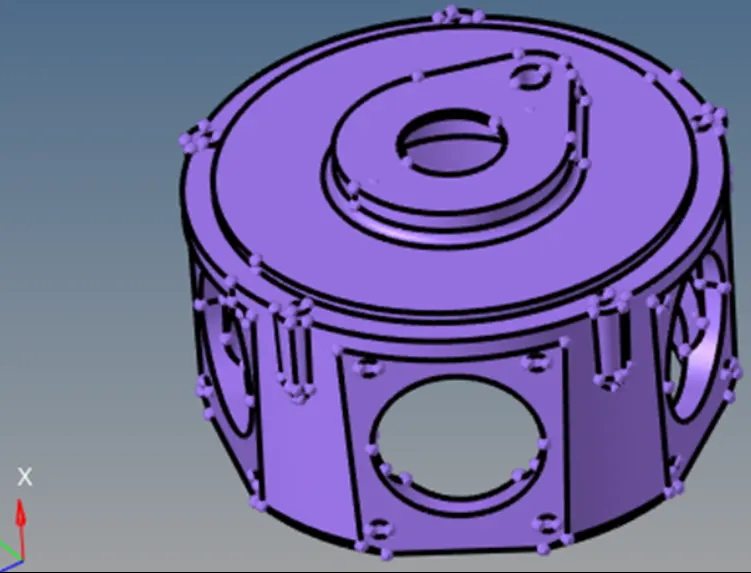
- Next switch to topo mode and check for solid in the component or not, if exists delete the solids by using delete option or F2
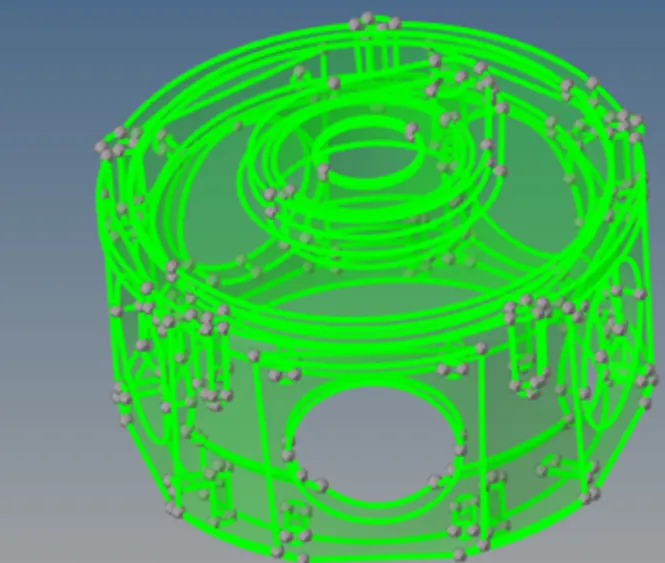
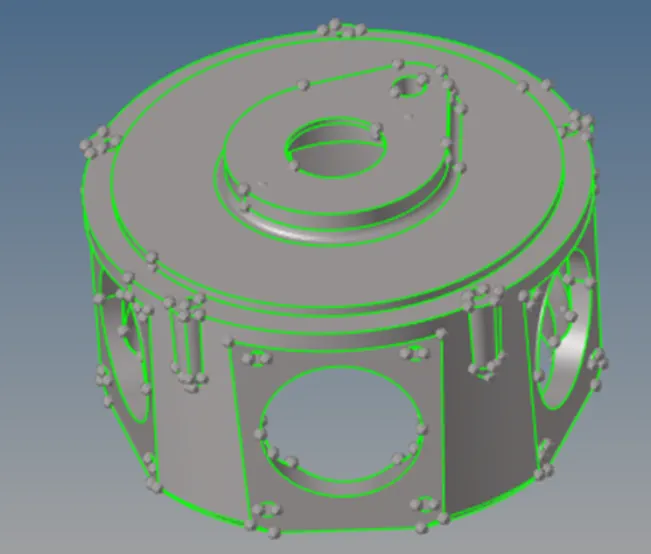
- Check for geometrical errors like free edges, unwanted points, damaged surface on the geometry, if any fix the errors
- Next remove the filets which falls below our minimum length 2 by using defeature option

Quick tetra mesh
- For doing quick tetra mesh, firstly open the utility tab by going to view>>browser>>hypermesh>>utility>>optistruct>>geom/mesh>>quicktetra
- Next select the component to be meshed ,enter the minimum element size and mesh type as trias and hit mesh to start tetra meshing
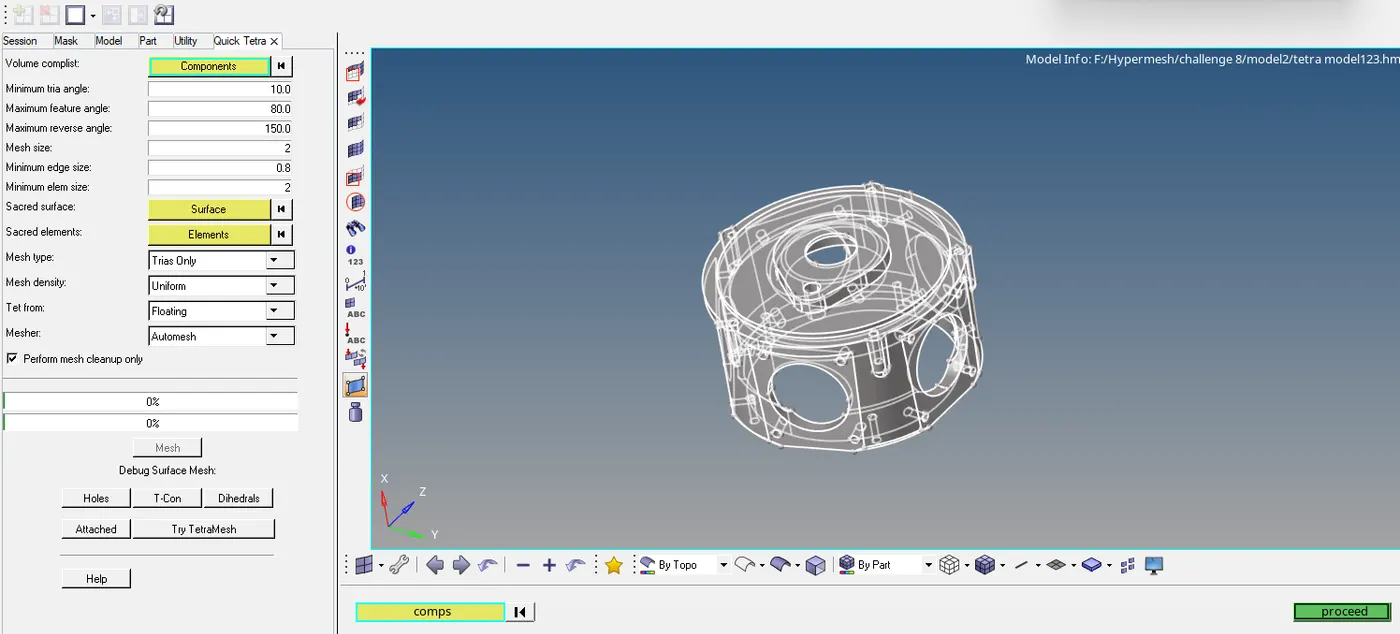
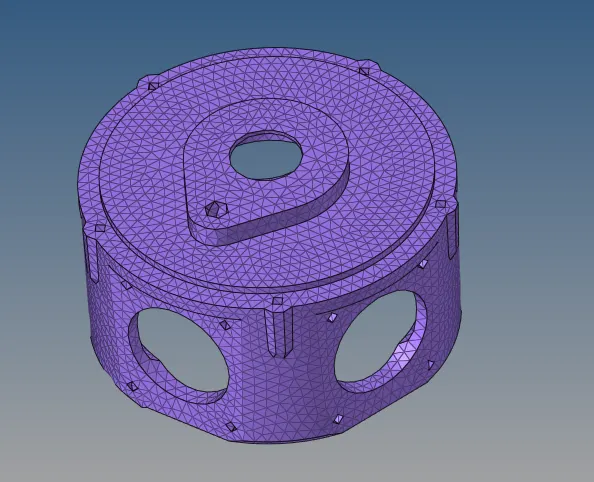
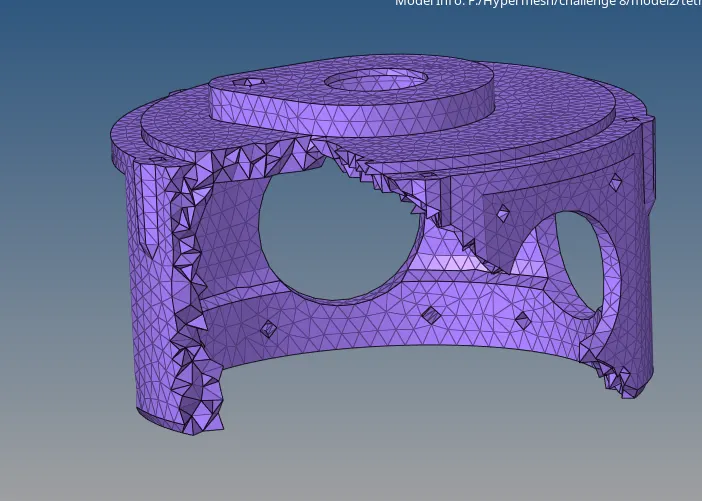
- Once 3D tetra element is created ,check for the tet collapse according to the given value,go to tools>>check elems>>3D>>tet collapse and enter the given value and check for failing elements

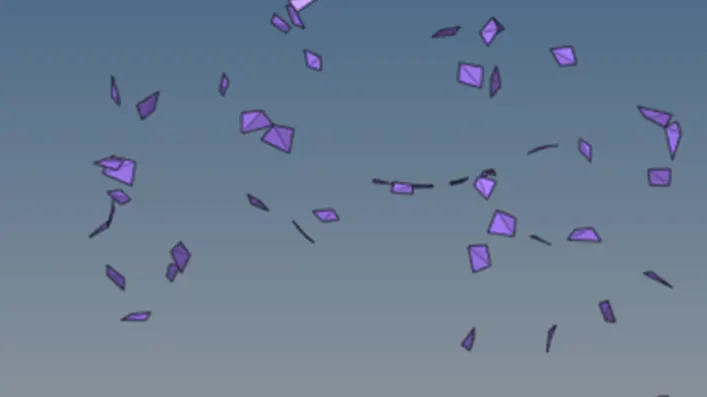
- Now save the failed elements and press F5 or go to mask menu>>elem>>retrieve>>mask>>reverse
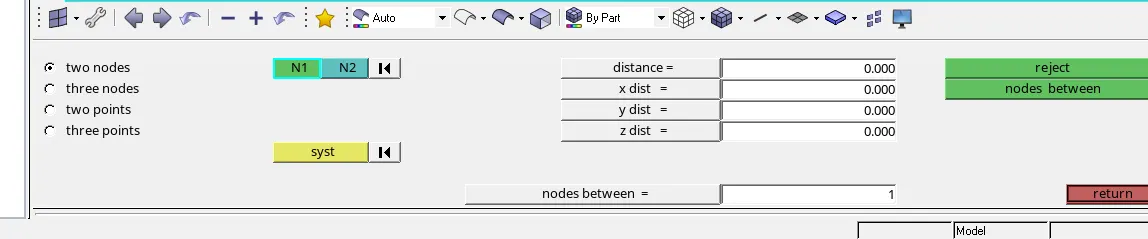
- Fix the failed elements manually by pressing F4 using distance option, select the two node option and correct the failed elements
geom>>distance>>two nodes and reduce or increase the distance between the nodes
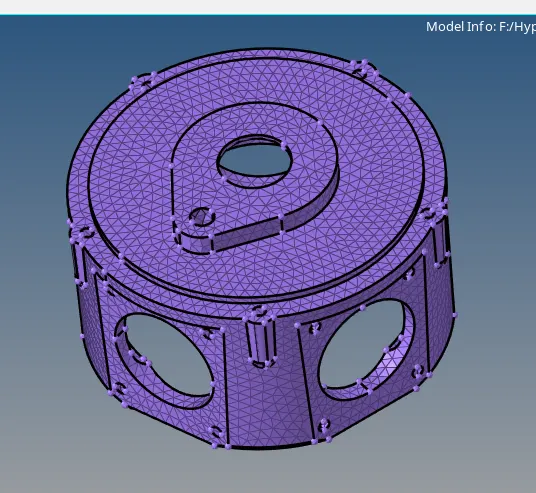
- Resolve for the tet collapse and the failed elements will be zero and the model is ready
Final Model
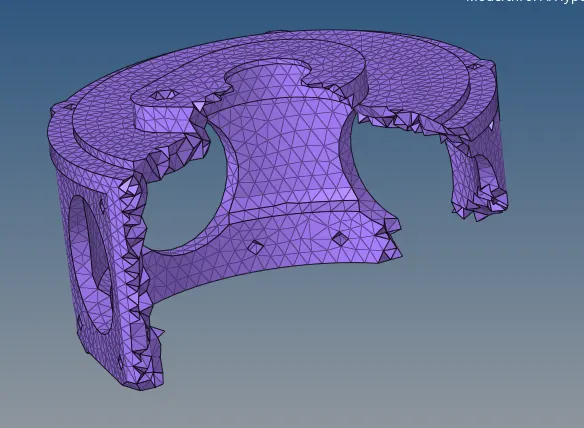
Model 3: Volume tetra mesh
- Firstly import the CDA model to hypermesh
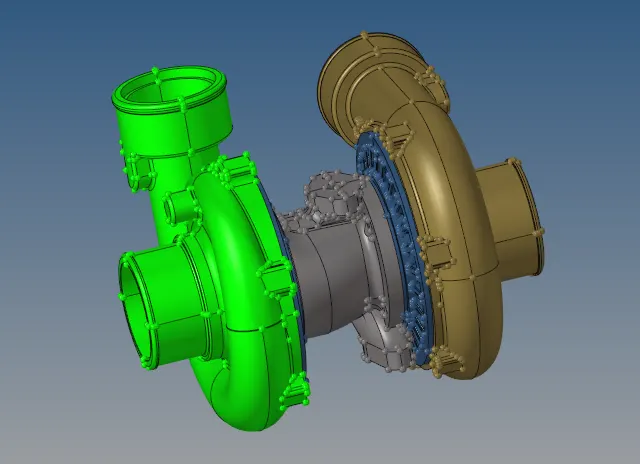
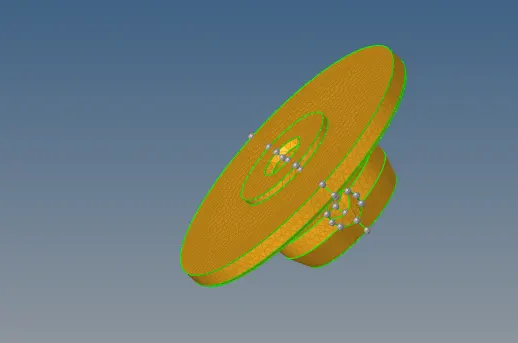
- Creating 3D tetra mesh on the solids, firstly assign the values in the tetramesh parameters and then mesh the component one by one using volume tetramesh
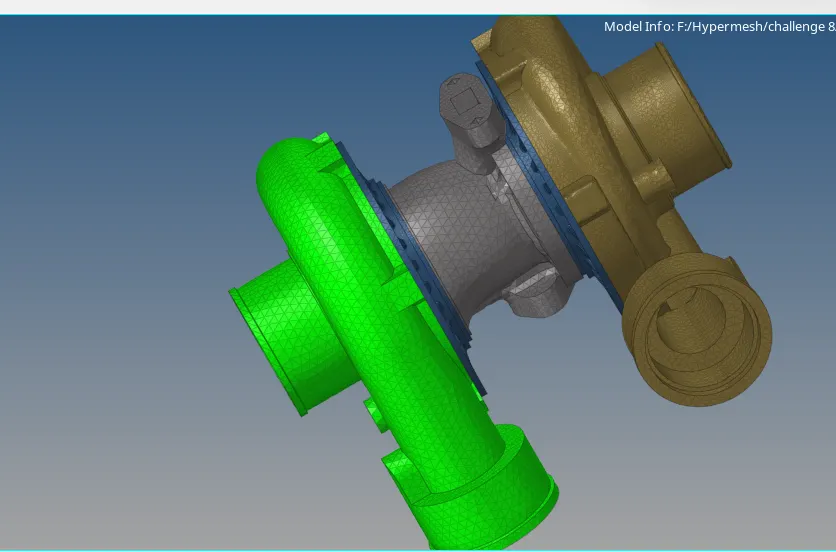
- Once 3D tetra element is created ,check for the tet collapse according to the given value,go to tools>>check elems>>3D>>tet collapse and enter the given value and check for failing elements
- Now save the failed elements and press F5 or go to mask menu>>elem>>retrieve>>mask>>reverse
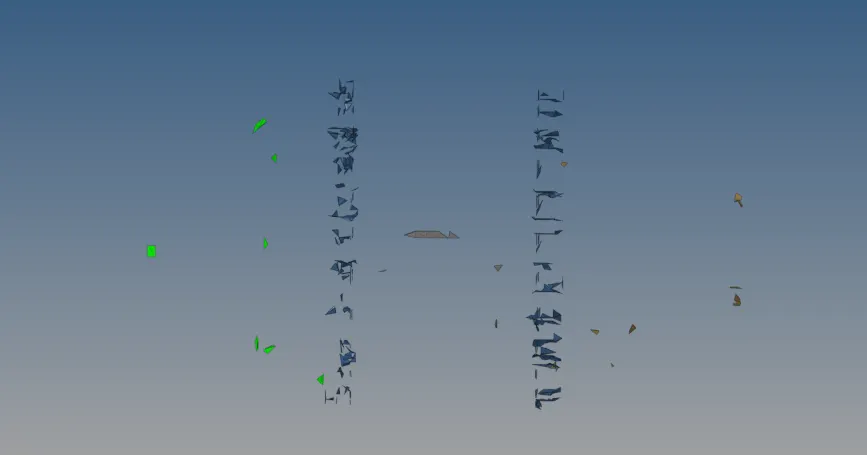
Clear tet collapse
- Fix the failed elements manually by pressing F4 using distance option, select the two node option and correct the failed elements
geom>>distance>>two nodes and reduce or increase the distance between the nodes
- Resolve for the tet collapse and the model is ready
Final Model
Learning outcome:
- Learnt to mesh and convert 2D element to the 3D tetra elements
- Learnt to mesh 3D tetra elements using volume tetramesh
- Learnt to mesh 3D tetra elements using quick tetramesh
Conclusion:
- Obtained 3D tetramesh using the 2D to 3D trai conversion method.
- Obtained 3D tetramesh using the Quick tetra
- Obtained 3D tetramesh using the Volume tetra