Week 6-3D Tetra Meshing Challenge
Objectice:
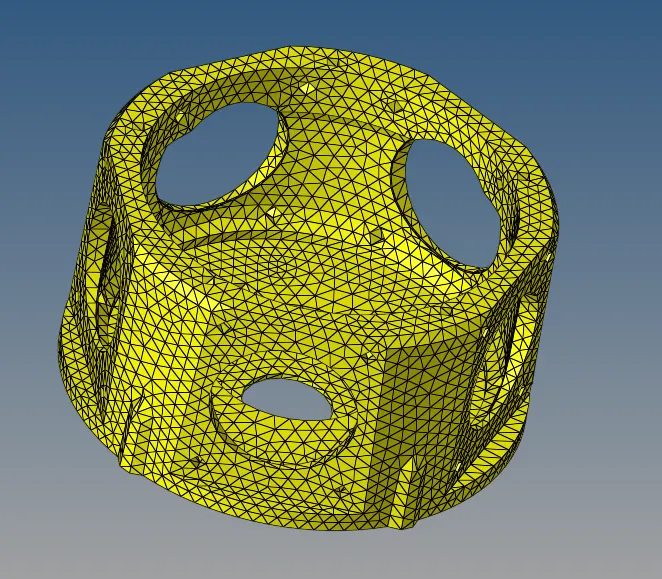
- For the given MODEL 1, Create a Teramesh for Housing component with the following quality criteria.
TetraMesh Generation Method: 2D to 3D Conversion
Elements sizes: Min- 2 Units, Target- 5 Units, Max- 7 Units
Tet collapse: 0.15
- For the given MODEL 2, Create a 3D Tetramesh with the following quality criteria.
TetraMesh Generation Method: Quick Tetra Mesh/ Volume Tetra Mesh
Target Element size: 3 Units.
Tet Collapse: 0.15
- For the given assembly MODEL 3, Create a 3D Tetramesh with the following quality criteria.
TetraMesh Generation Method: Quick Tetra Mesh/ Volume Tetra Mesh
Target Element size: 4 Units.
Tet Collapse: 0.15
Procedure:
Model 1: (2D to 3D)
Cad Model Image:
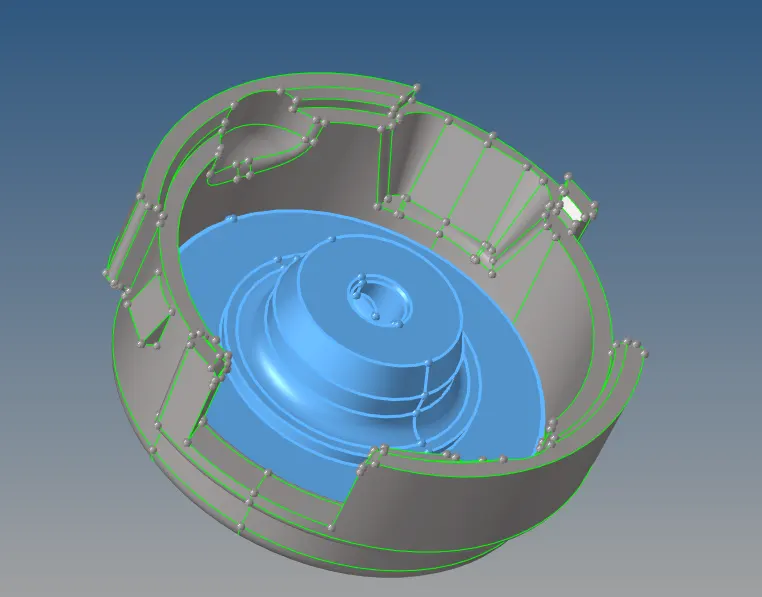
1. Import the model. Only show the Housing Component and hide other somponent.
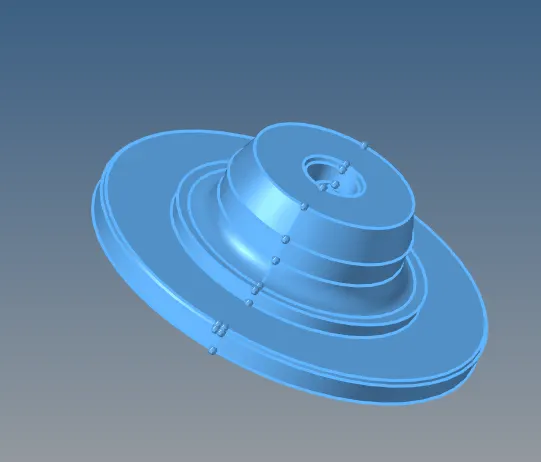
2. Delete the solid part. For this
Go to Delete >> solids >> select displayed solid >> delete entity >> return
Now we have only surfaces
Go to Topology Mode
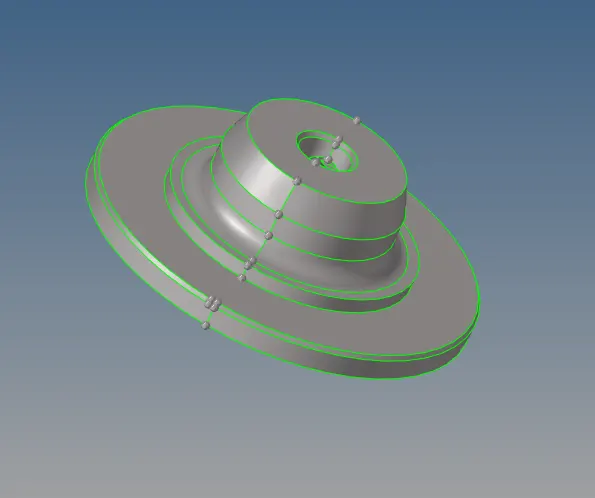
3. Since min size of mesh is 2 mm , we will check if there is any surface/fillet less than 2mm and reduce fillet. but here no surface is 2mm
so we will move on.
4. Now Check for 'Geometry Cleanup'. Remove Red line if any. Or any other surface error.
5. Now Mesh with 2D tetra. For this
Go to >> Automesh>> select displayed surface >> Give element size 5 mm >> Mesh Type = trias >> click on mesh >> return

6. Now check for min length quality. For This
Go to Tools >> Check Elements >> min length = 2 >> click on min length

If there is any min length (less than 2 mm) correct that.
7. Now for Tetra Mesh
Go to 3D >> tetramesh >> Tetra Mesh >> elems >> select displayed elements >> click on mesh
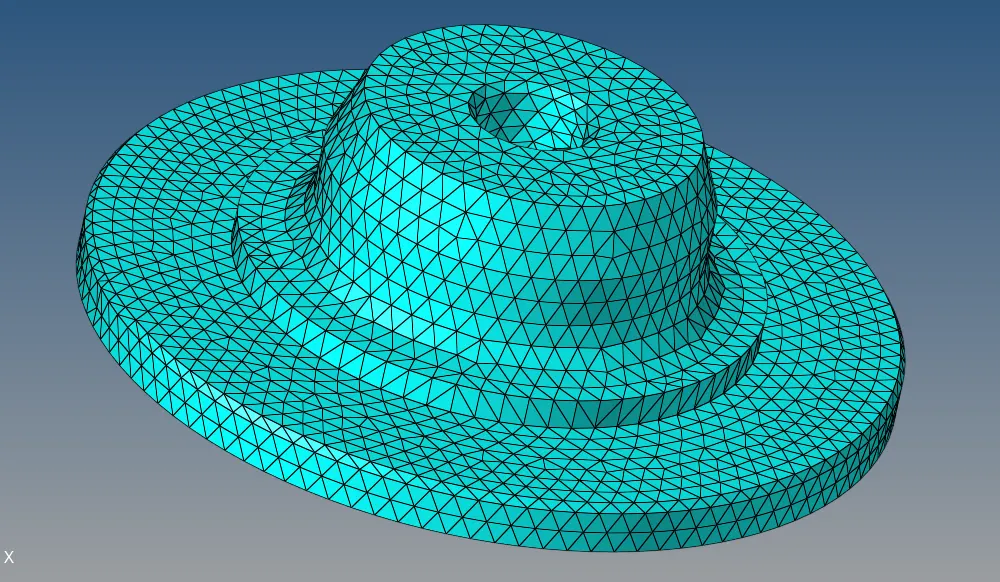
Mask few elements to check wheather 3D tetra mesh is created or not.
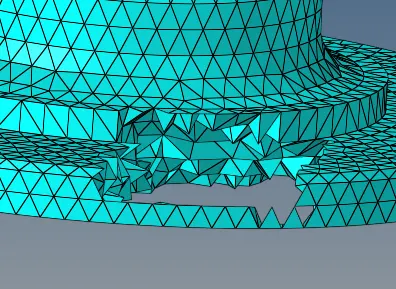
8. Now check 3D mesh quality. For this
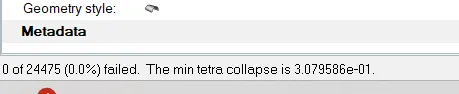
Go to Tool >> check elems >> 3D >> tet collapse = 0.15

If there is any failure in tet collapse than correct them. Here no elements failed in tet collapse.
Concusion:
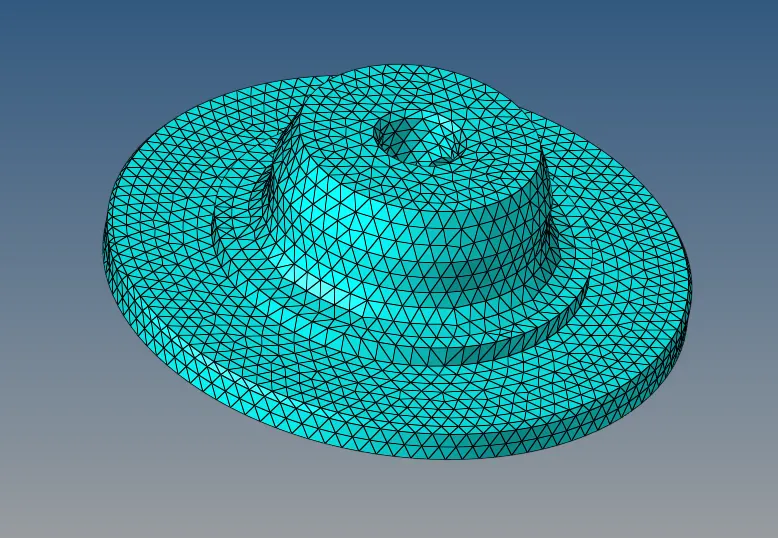
Thus we have succesfully created 2D mesh and then 3D tetra mesh on given Model.
Final Model Image :
Model 2: (Volume Tetrtamesh)
Cad Model Image
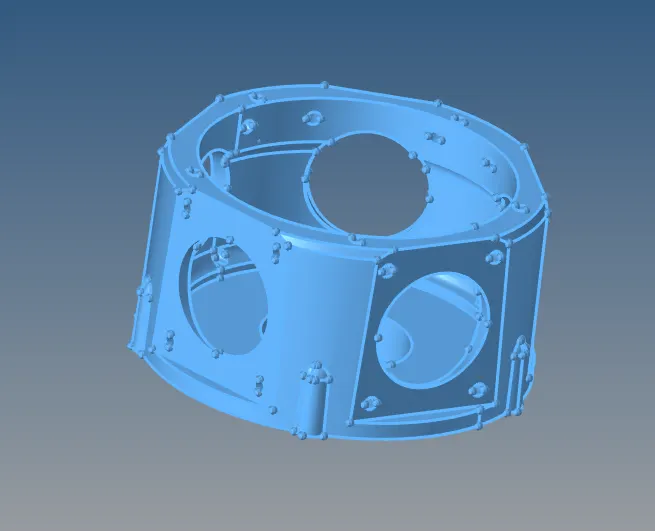
1. Import the model. Go to 3D >> tetramesh >> Volume tetra >> Select the solid >> 2D type as Tria >> 3D type as tetras >> Element size 3mm >> click on mesh

2. Mesh will be look like this.
Conclusion
We have cretaed 3D tetra mesh driectly from solid using volume tetra.
Model 3: (Using Quick Tetra)
Cad Model Image
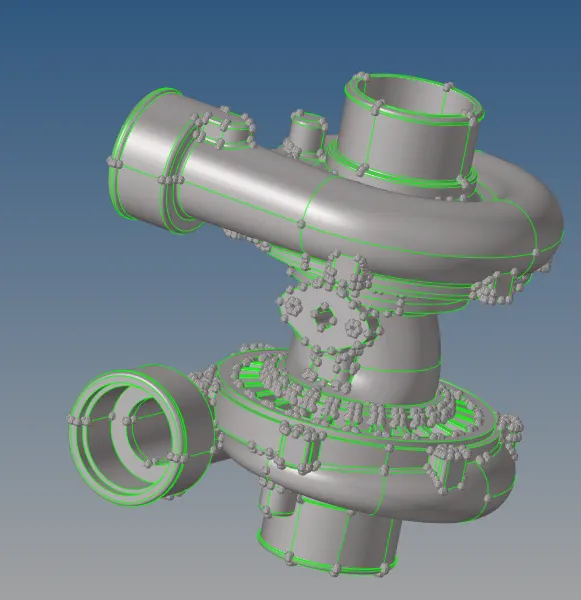
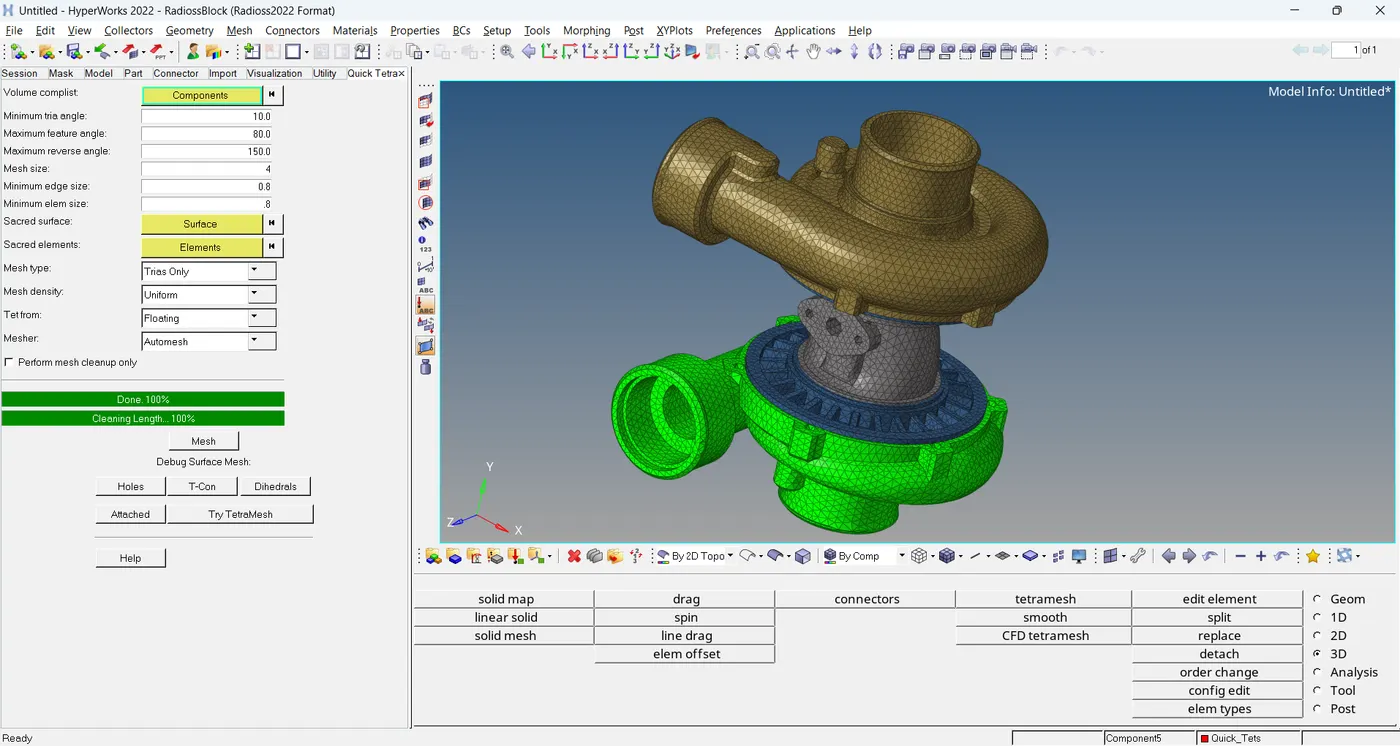
1. Import the model. Delete the solid. Go to Utility >>Gem/Mesh>> Tetra mesh >> Select component >> give mesh size 4 >> mes type = Trias Only >> click on mesh
Final Image
Link for the Model 3
Final Conclusion:
Thus we have meshed all 3 models.