Week 6-3D Tetra Meshing Challenge
v MODEL 1: HOUSING COMPONENT
Aim: 3D Tetra Mesh the provided Housing Component as per
mention Quality Criteria.
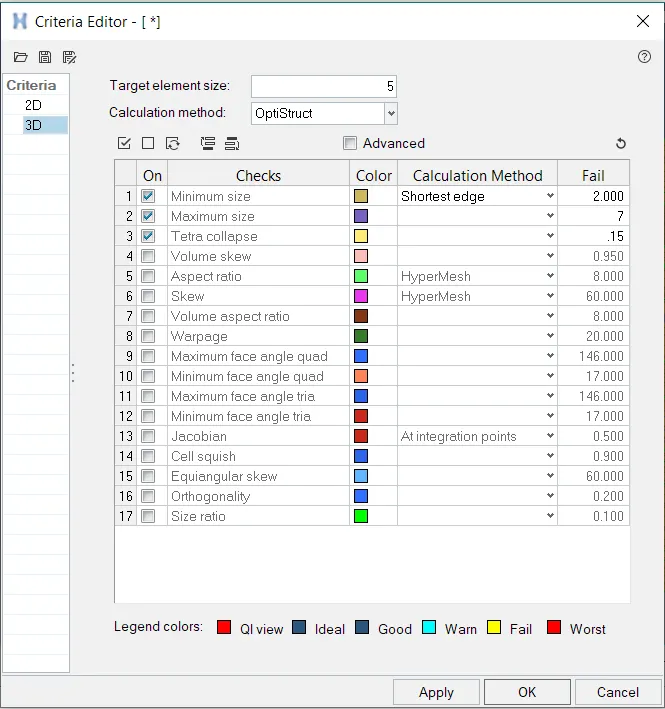
· Elements sizes: Min- 2 Units, Target- 5 Units, Max- 7 Units
· Tet collapse: 0.15
Given model:
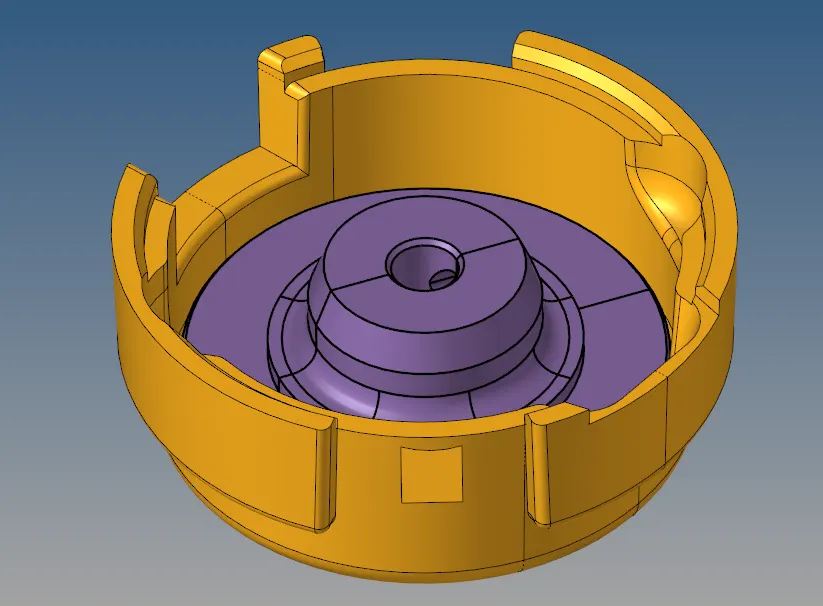
Objective:
1. Geometrically clean the model and making sure no deformities of surface are present.
2. Generating mesh on component surface using Tria-element criteria.
3. Converting 2D Tria-elements into 3D Tetra-elements.
4. Carry out the quality check of the generated elements.
Procedure:
1. First of all, geometric clean the model after we import it, since there might be some distortion or error in the model. Toggle all the unnecessary boundaries.
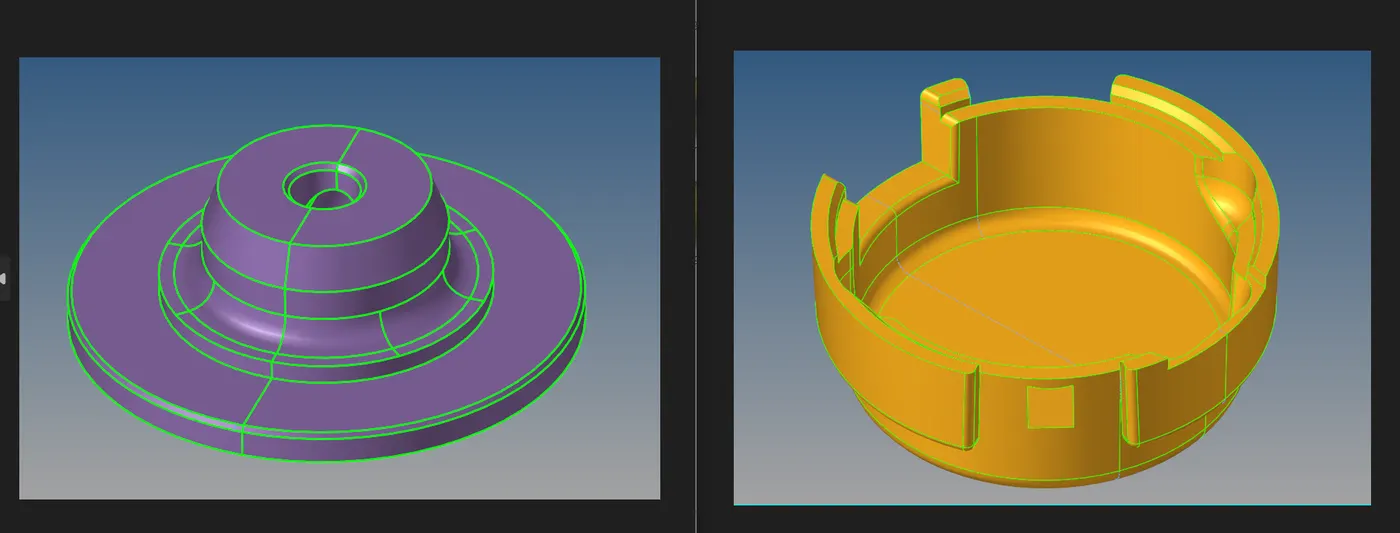
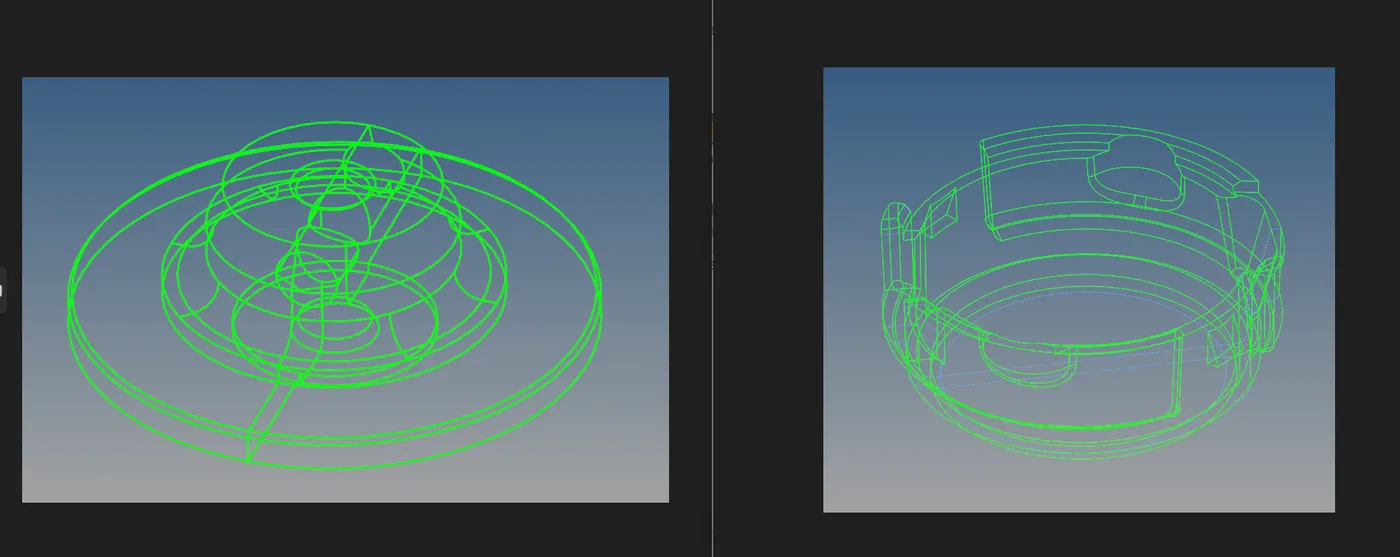
2. Now set the quality criteria for the meshing process as provided in the question, using Criteria file setting in Preference Tab.
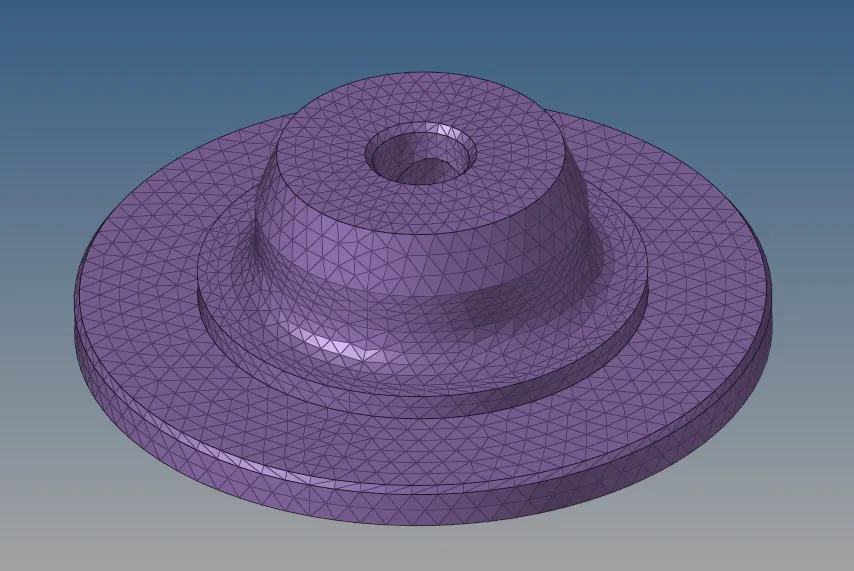
3. Now mesh the surface using Auto-mesh command in 2D tab. In this change the element type Tria and element size to 5 mm, also ticked the Align & Size option for better mesh flow. For a better mesh flow try to mesh the surface step by step instead of in one go. After meshing the component should look somewhat like this:
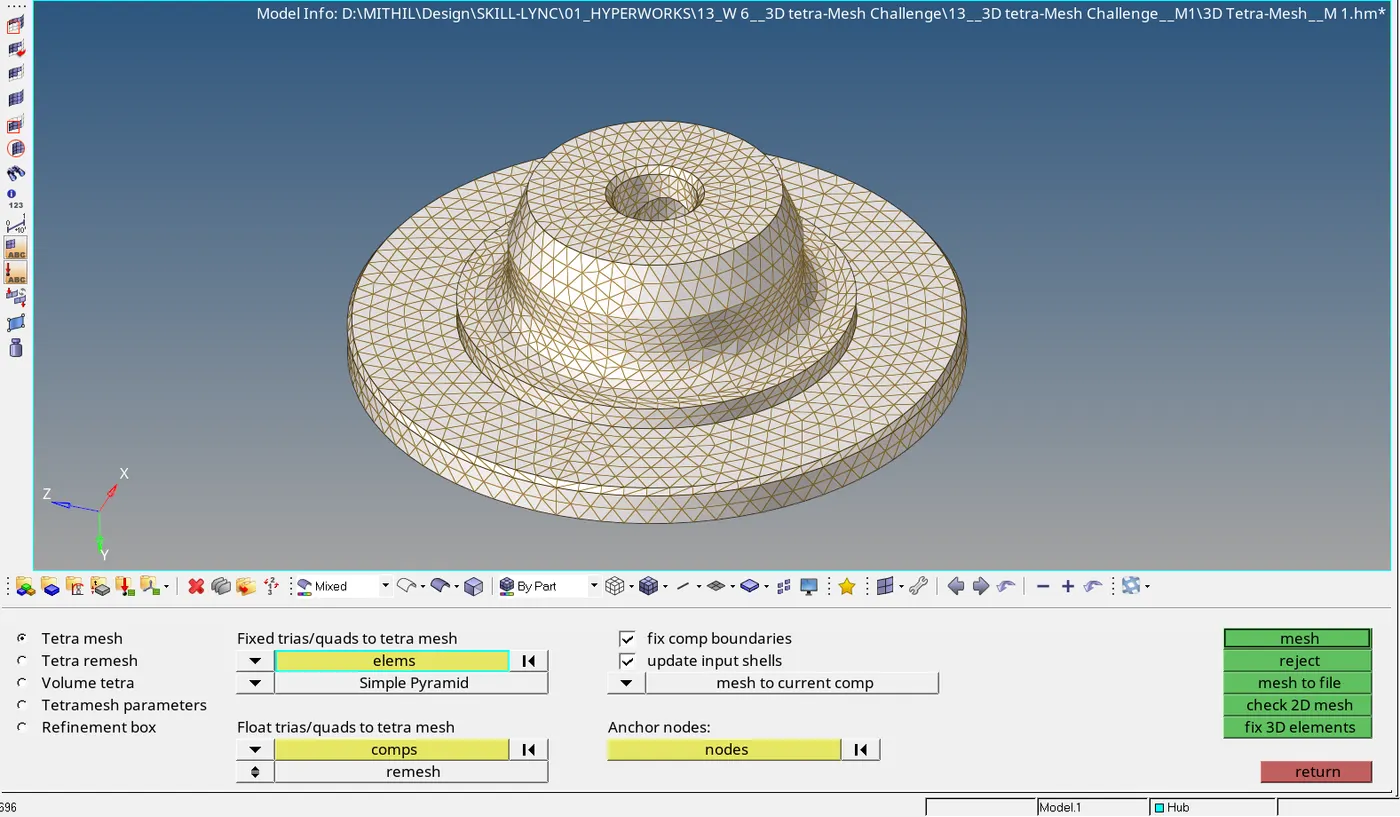
4. After 2D mesh go to Terta-mesh command in 3D tab. Select Tetramesh then select the elements and then mesh the component.
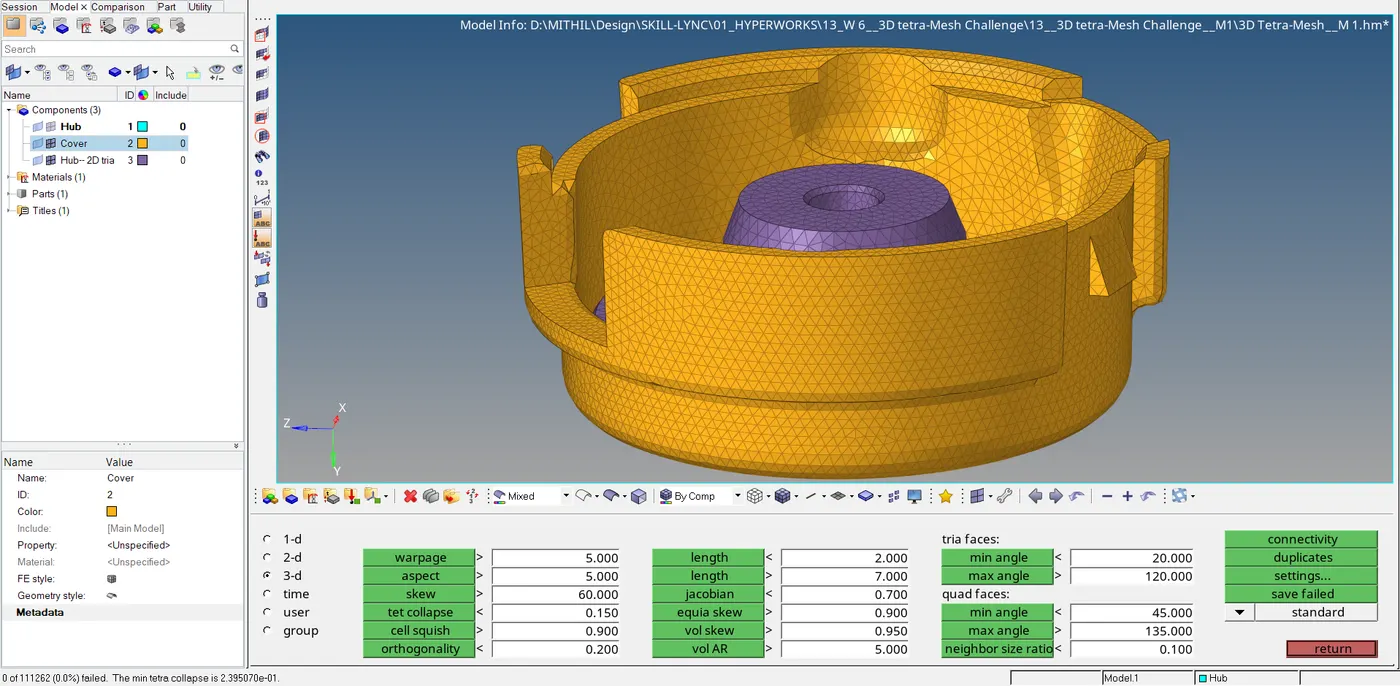
5. Next is to check for fail elements as per Quality criteria using Quality check command in 2D tab as shown below:
v MODEL 2:
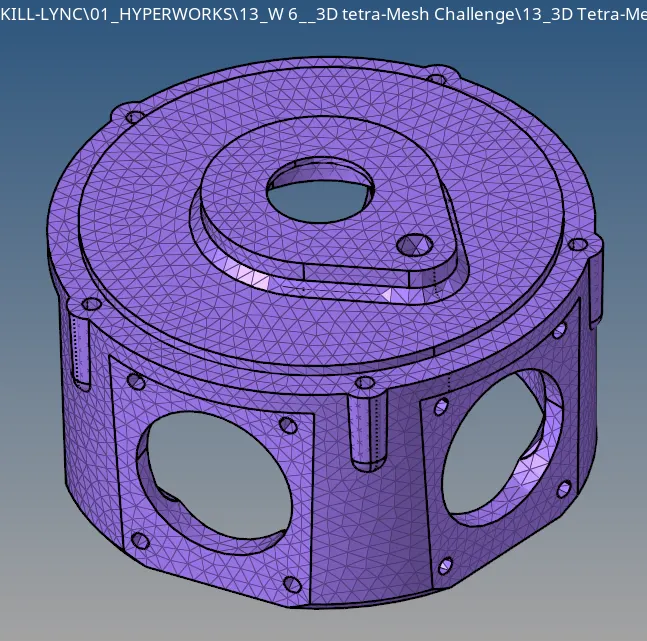
Aim: 3D Tetra Mesh the provided Component as per mention Quality Criteria.
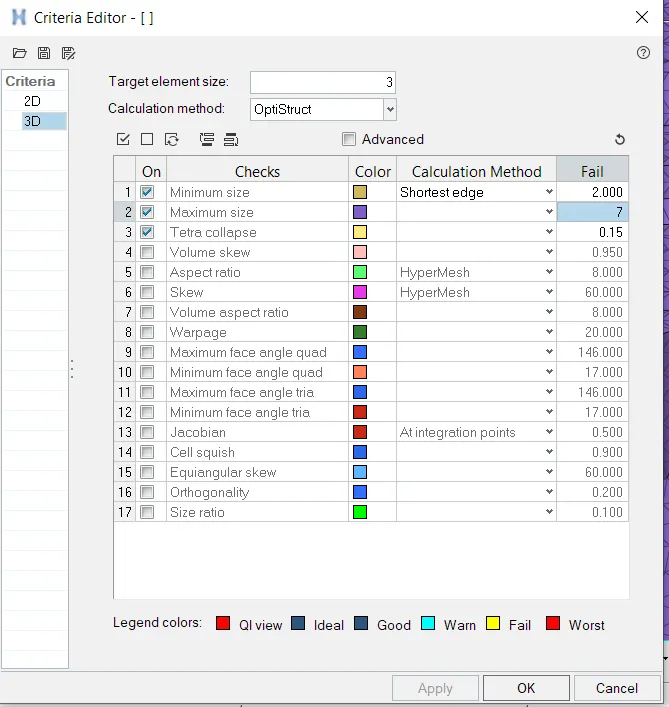
· Elements sizes: 3 Units
· Tet collapse: 0.15
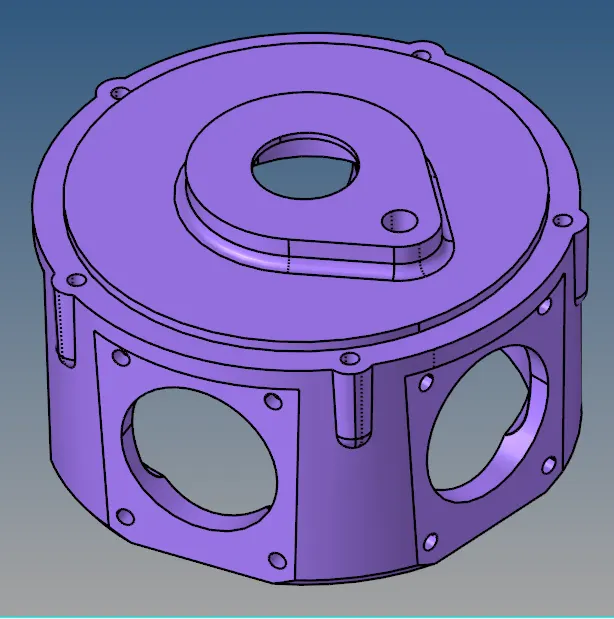
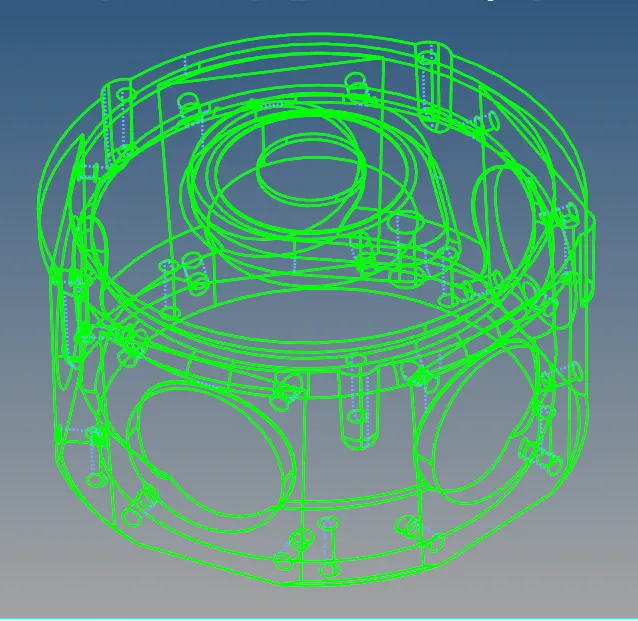
Given model:
Objective:
1. Geometrically clean the model and making sure no deformities of surface are present.
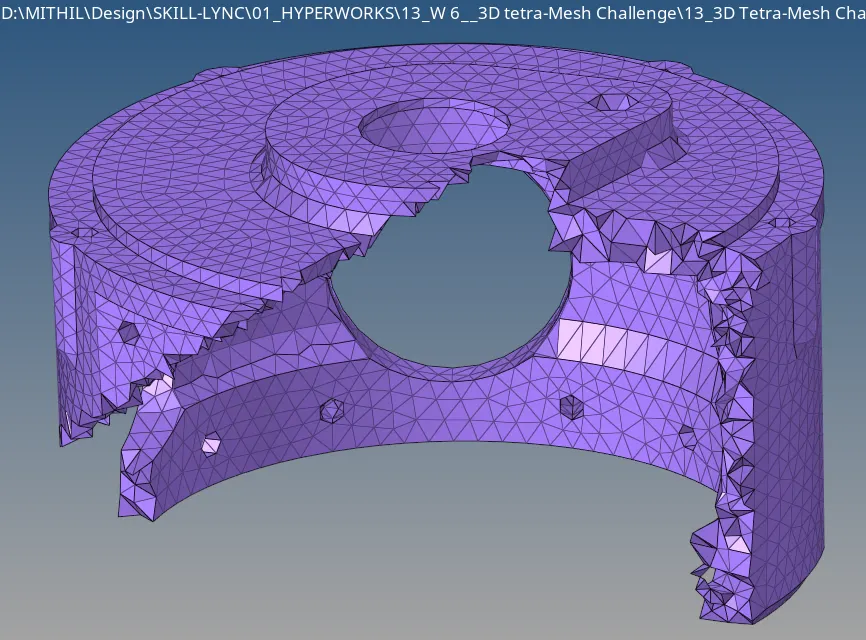
2. Generating 3D Tetra mesh using Quick Tetra mesh method.
Procedure:
1. First of all, geometric clean the model after we import it, since there might be some distortion or error in the model. Toggle all the unnecessary boundaries.
2. Now set the quality criteria for the meshing process as provided in the question, using Criteria file setting in Preference Tab.
3. Now go to View à Browser à Hypermesh à Utility (Turn on).
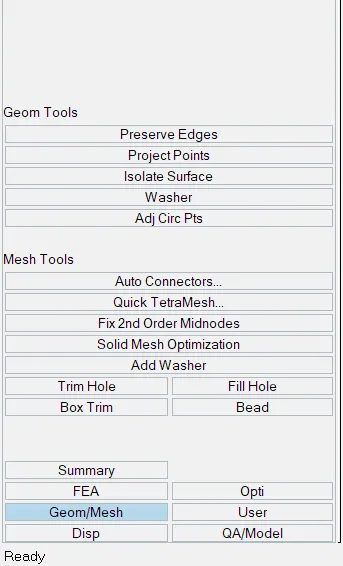
4. Go to Geom/Mesh à Quick Tetra Mesh and provided all the requires criteria.
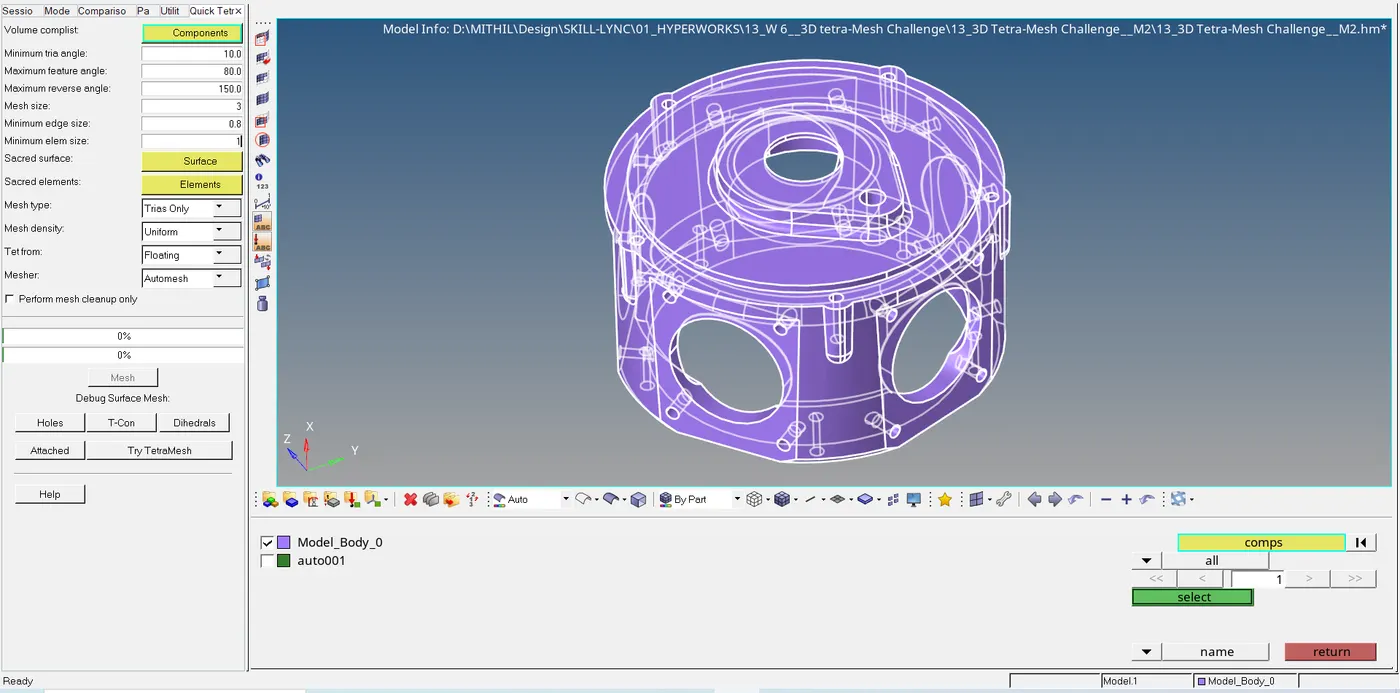
5. Following is the 3D Tetra-mesh component as required:
v MODEL 3:
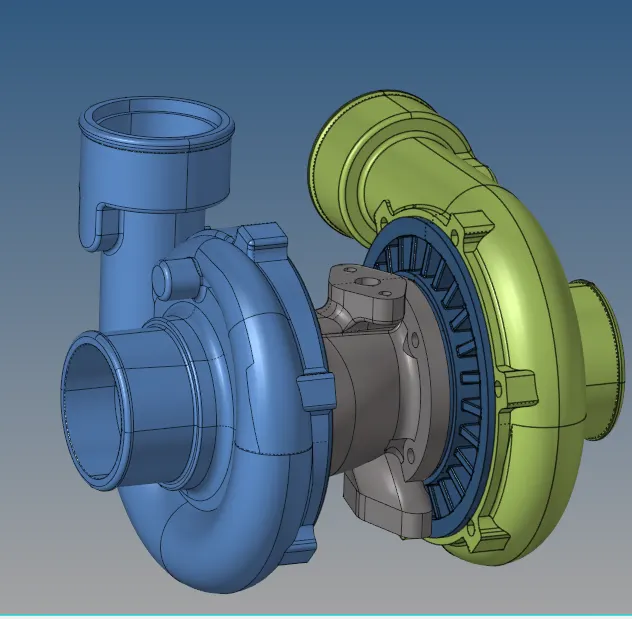
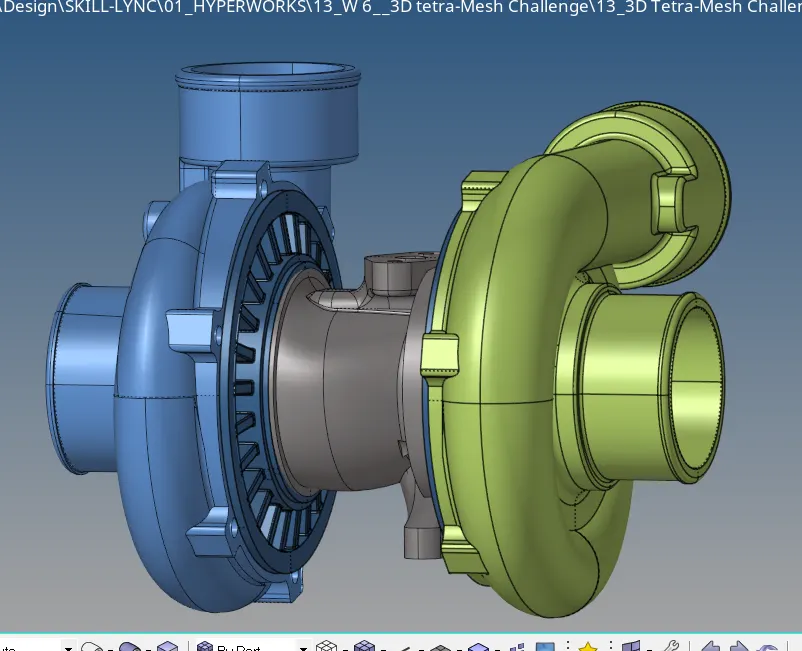
Aim: 3D Tetra Mesh the provided Component as per mention Quality Criteria.
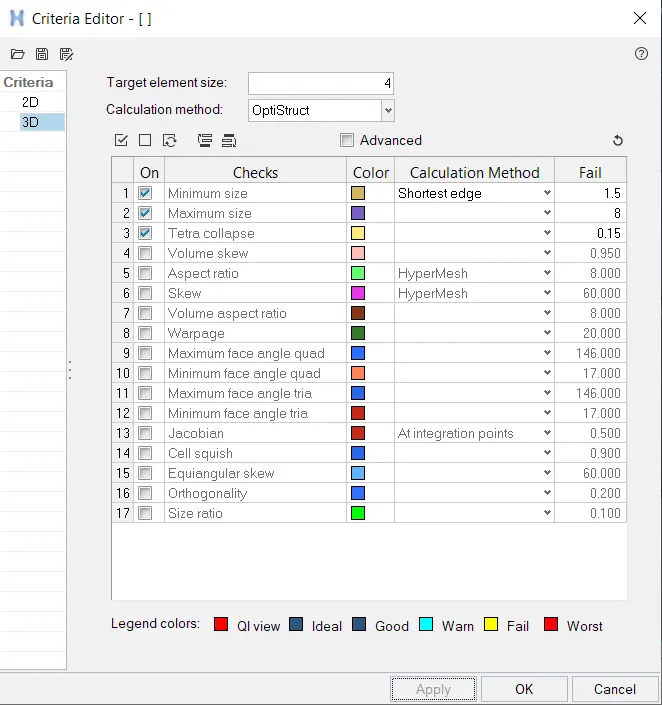
· Elements sizes: 4 Units
· Tet collapse: 0.15
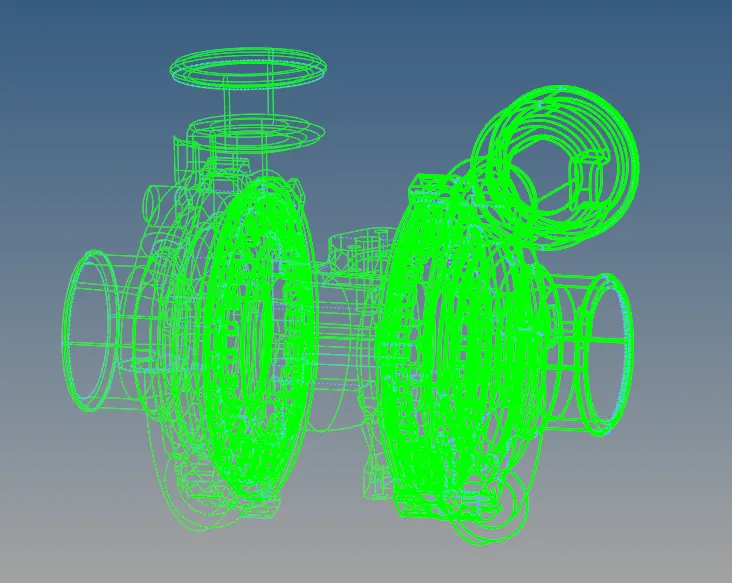
Given model:
Objective:
1. Geometrically clean the model and making sure no deformities of surface are present.
2. Generating 3D Tetra mesh using Quick Tetra mesh method.
Procedure:
1. First of all, geometric clean the model after we import it, since there might be some distortion or error in the model. Toggle all the unnecessary boundaries.
2. Now set the quality criteria for the meshing process as provided in the question, using Criteria file setting in Preference Tab.
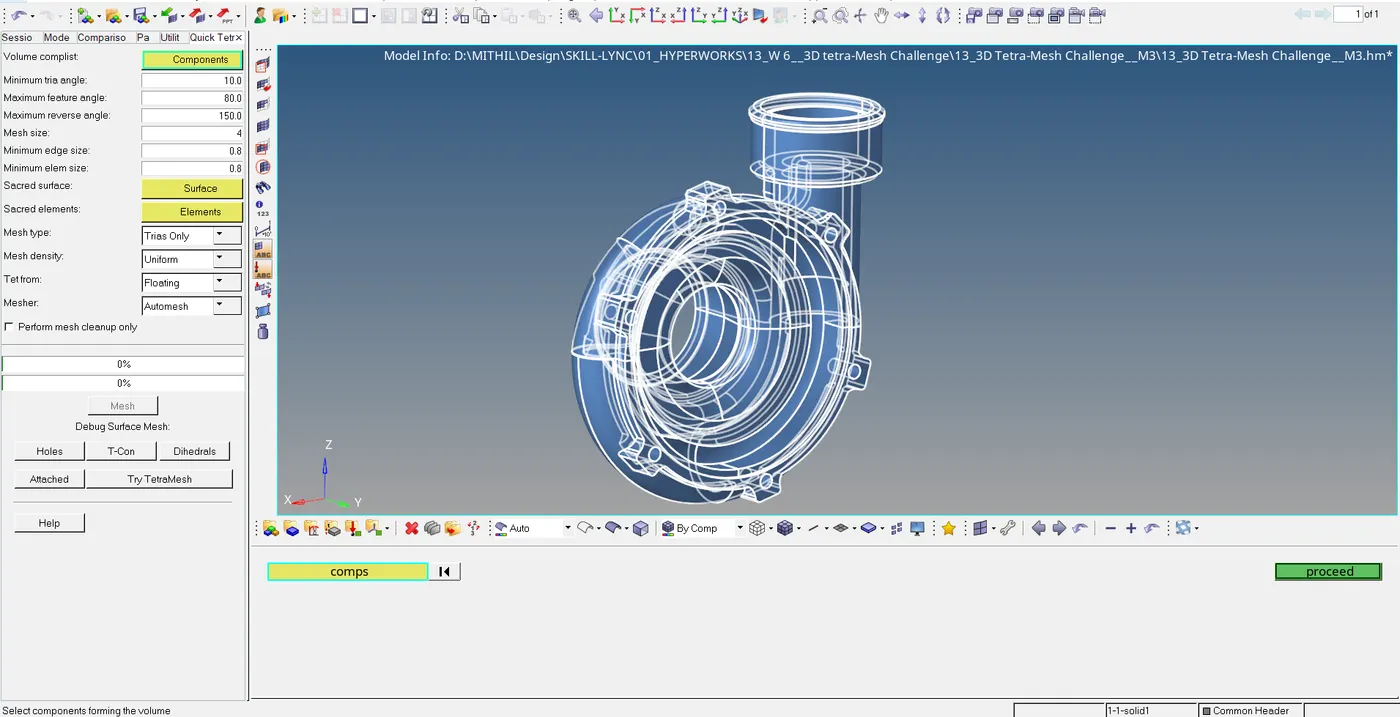
3. Now go to View à Browser à Hypermesh à Utility (Turn on).
\
4. Go to Geom/Mesh à Quick Tetra Mesh and provided all the requires criteria.
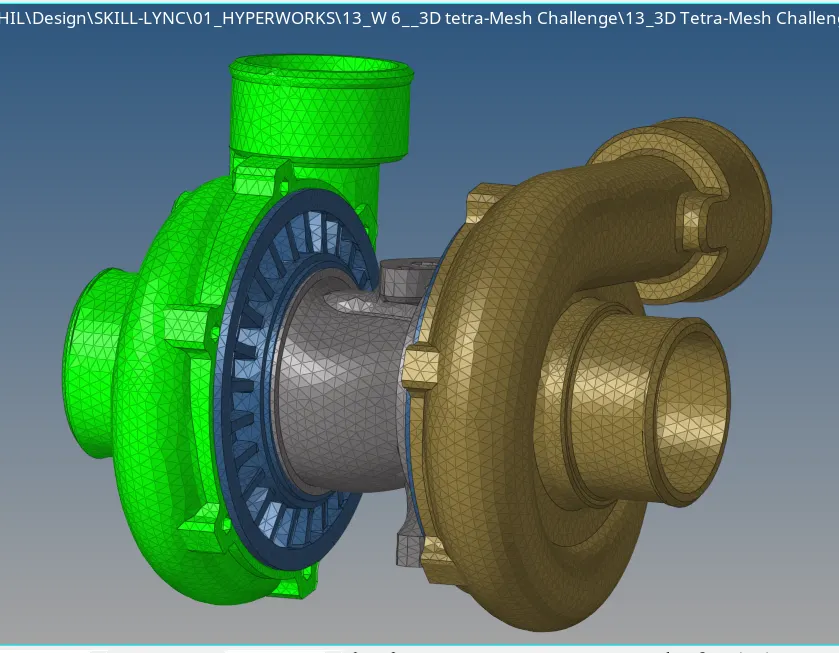
5. Following is the 3D Tetra-mesh component as required:
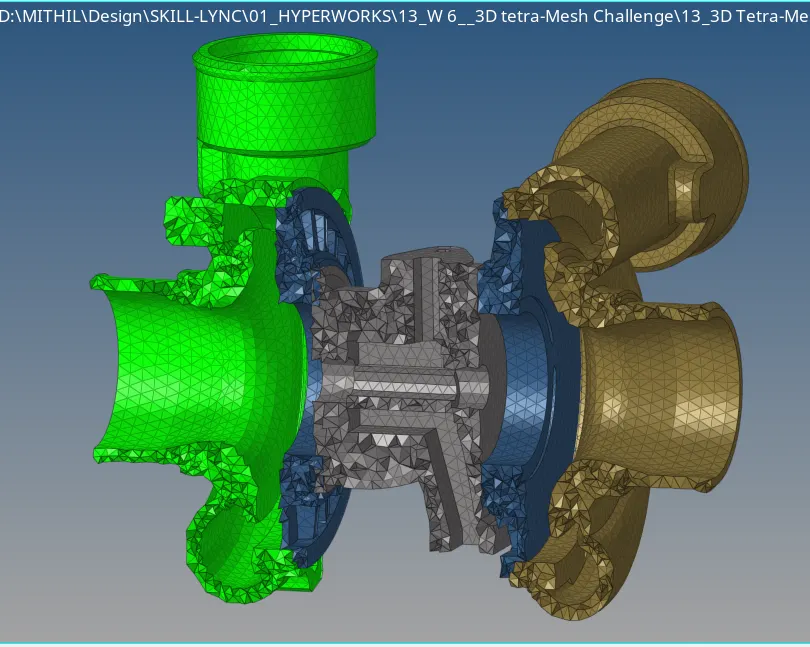
[NOTE: THE FILE OF MODEL 3 IS IN THE LINK IN NOTE-PAD DOCUMENT, SINCE THE SIZE OF THE FILE WAS > 20 MB.]
Conclusion: This project helped me to understand how to 3D Tetra Mesh any component. Generally there are two methods:
i. In this method we first need to generate 2D Tria Mesh and then go for 3D Tetra Mesh. This way we can generate more accurate quality of Mesh as per our requirement.
ii. If the quality of the mesh is not a concern then we can go for 2nd method i.e. of Quick Tetra Mesh, but the quality of the generated mesh will be lower.