Week 6-3D Tetra Meshing Challenge
Objective:
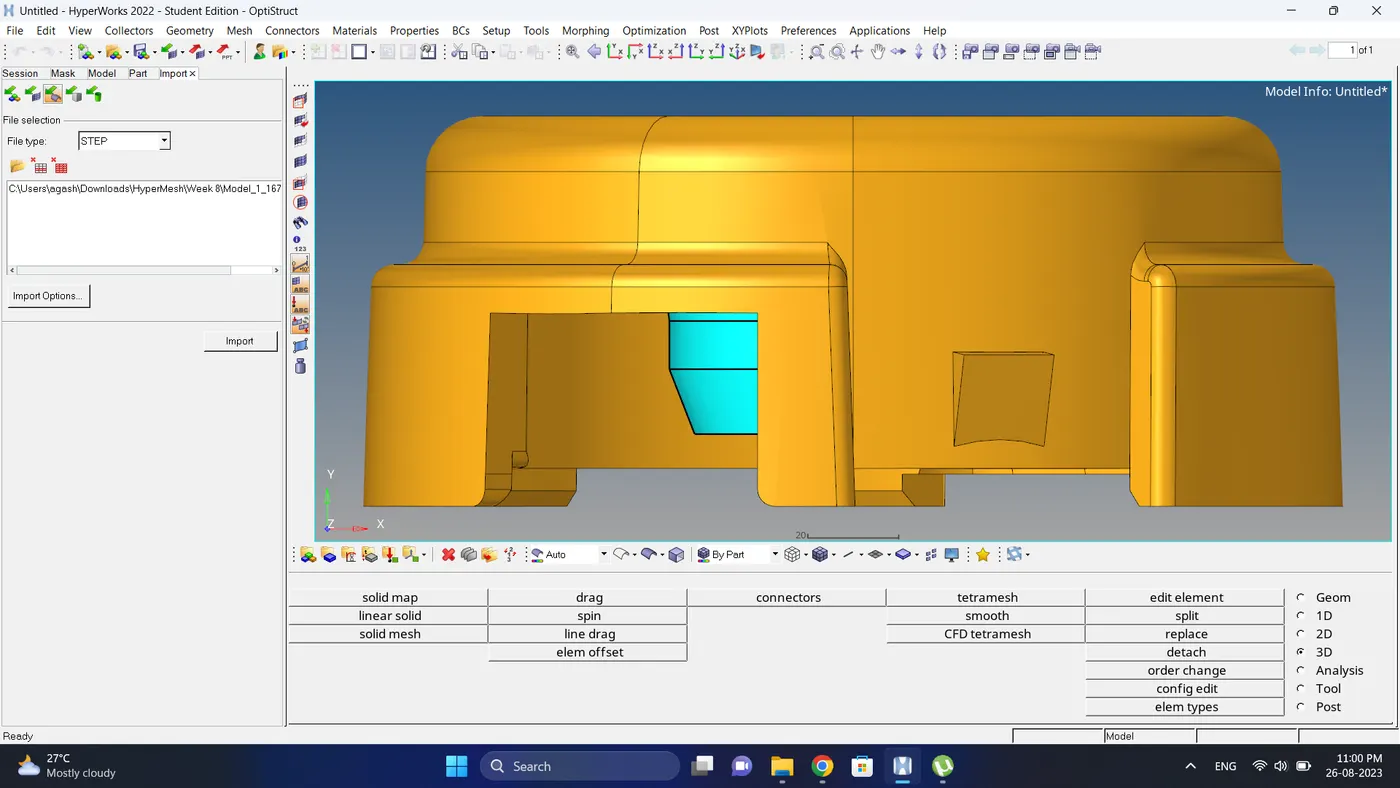
- For the given MODEL 1, Create a Teramesh for Housing component with the following quality criteria.
TetraMesh Generation Method: 2D to 3D Conversion
Elements sizes: Min- 2 Units, Target- 5 Units, Max- 7 Units
Tet collapse: 0.15
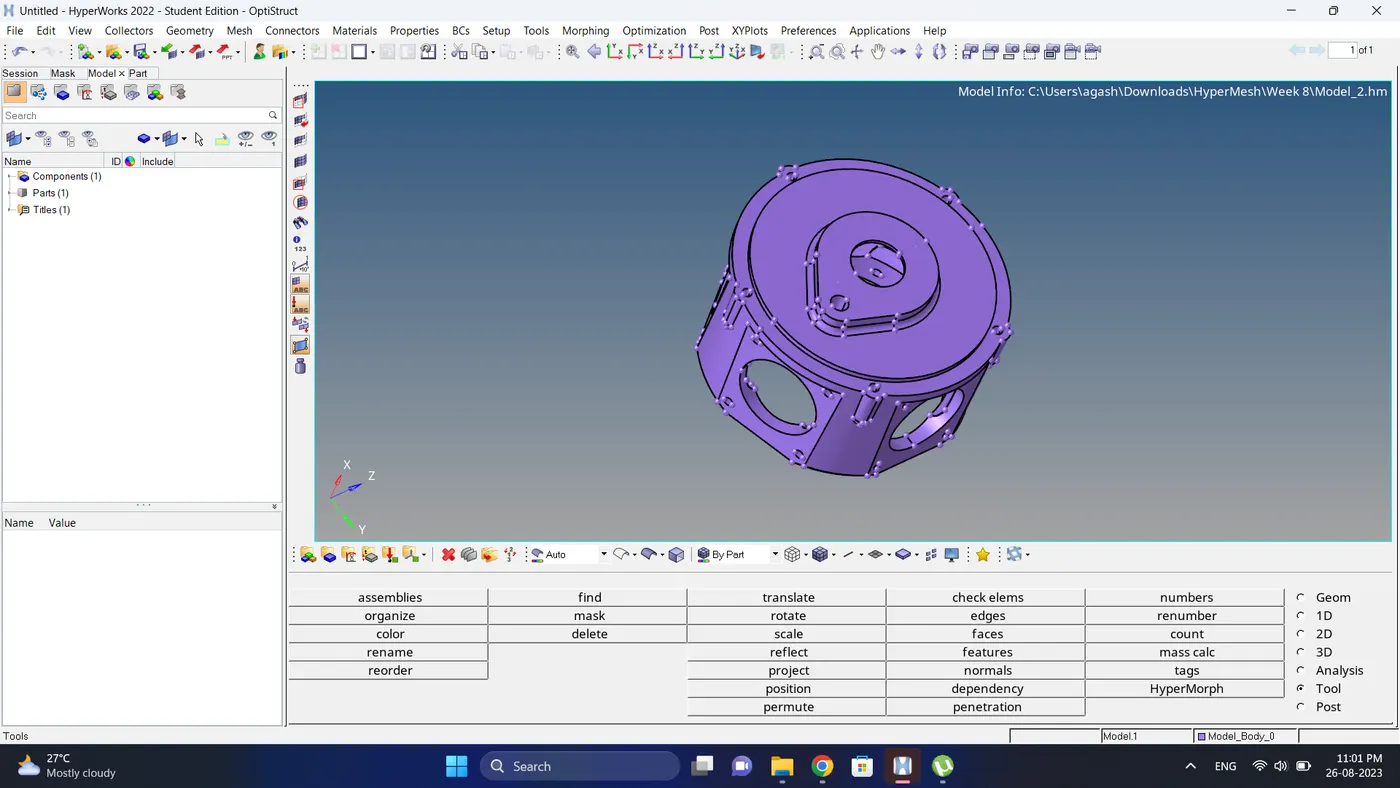
- For the given MODEL 2, Create a 3D Tetramesh with the following quality criteria.
TetraMesh Generation Method: Quick Tetra Mesh/ Volume Tetra Mesh
Target Element size: 3 Units.
Tet Collapse: 0.15
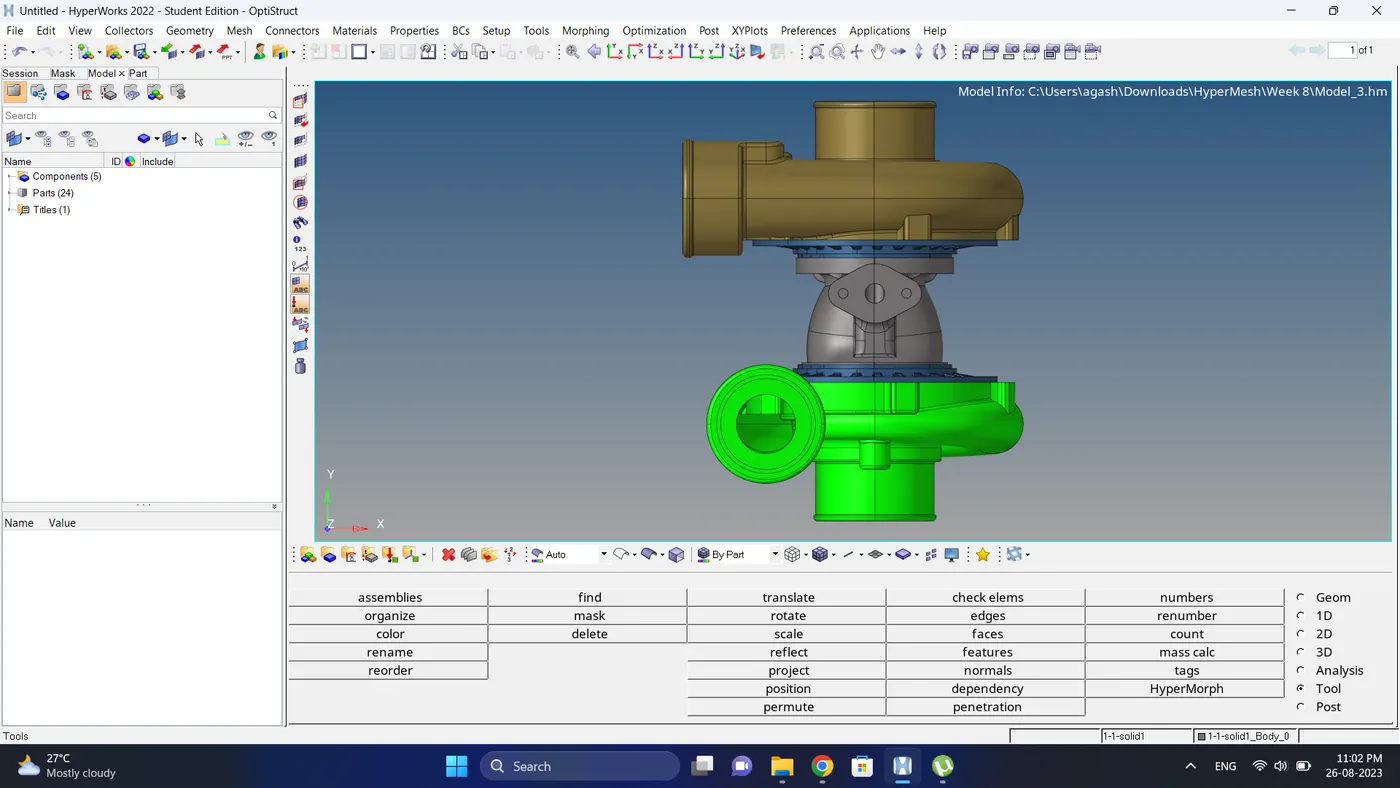
- For the given assembly MODEL 3, Create a 3D Tetramesh with the following quality criteria.
TetraMesh Generation Method: Quick Tetra Mesh/ Volume Tetra Mesh
Target Element size: 4 Units.
Tet Collapse: 0.15
Initial Cad Model Image:
Model 1
Model 2
Model 3
Procedure:
Model 1
1. Import the Model
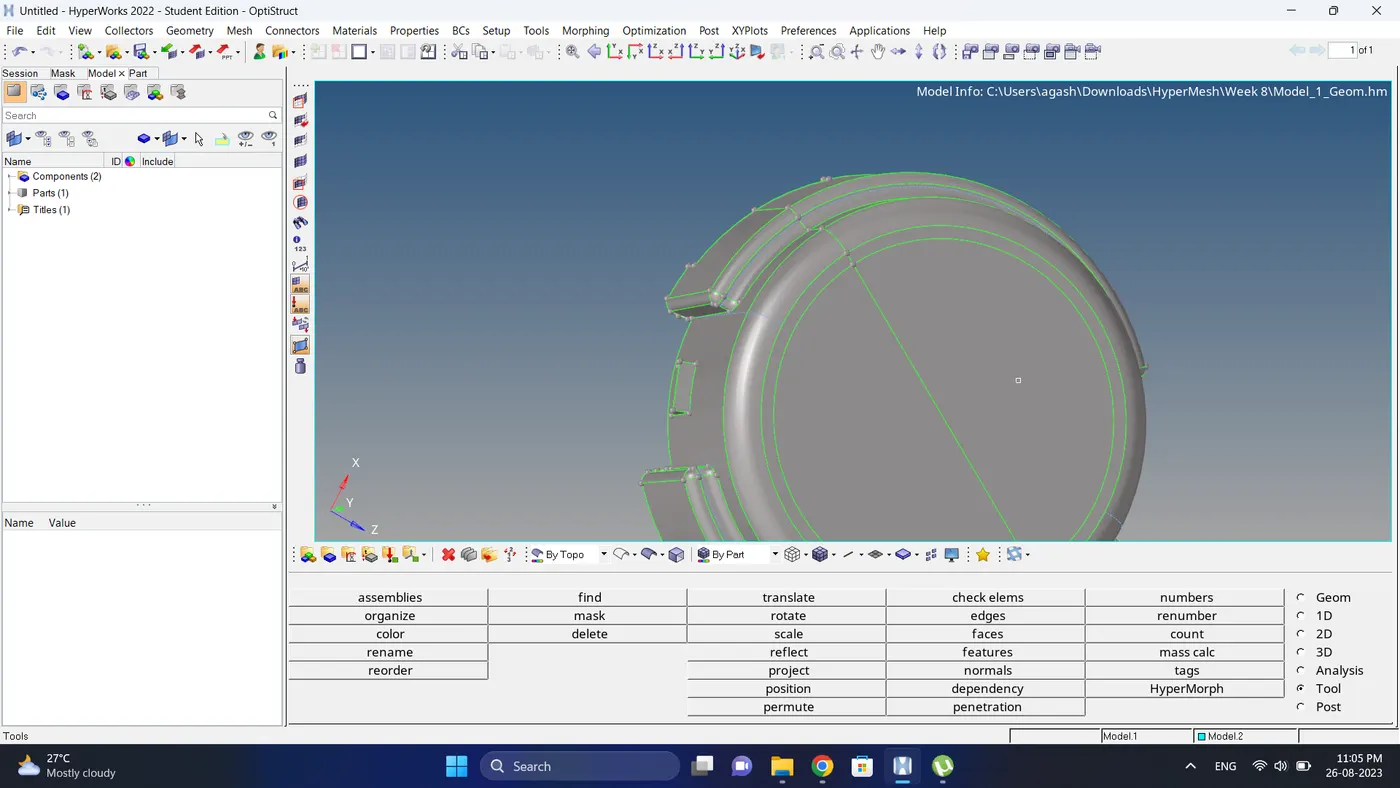
2. Check the Surface and do a geometry cleanup for 'model' component.
3. Input the quality criteria for 2d elements.
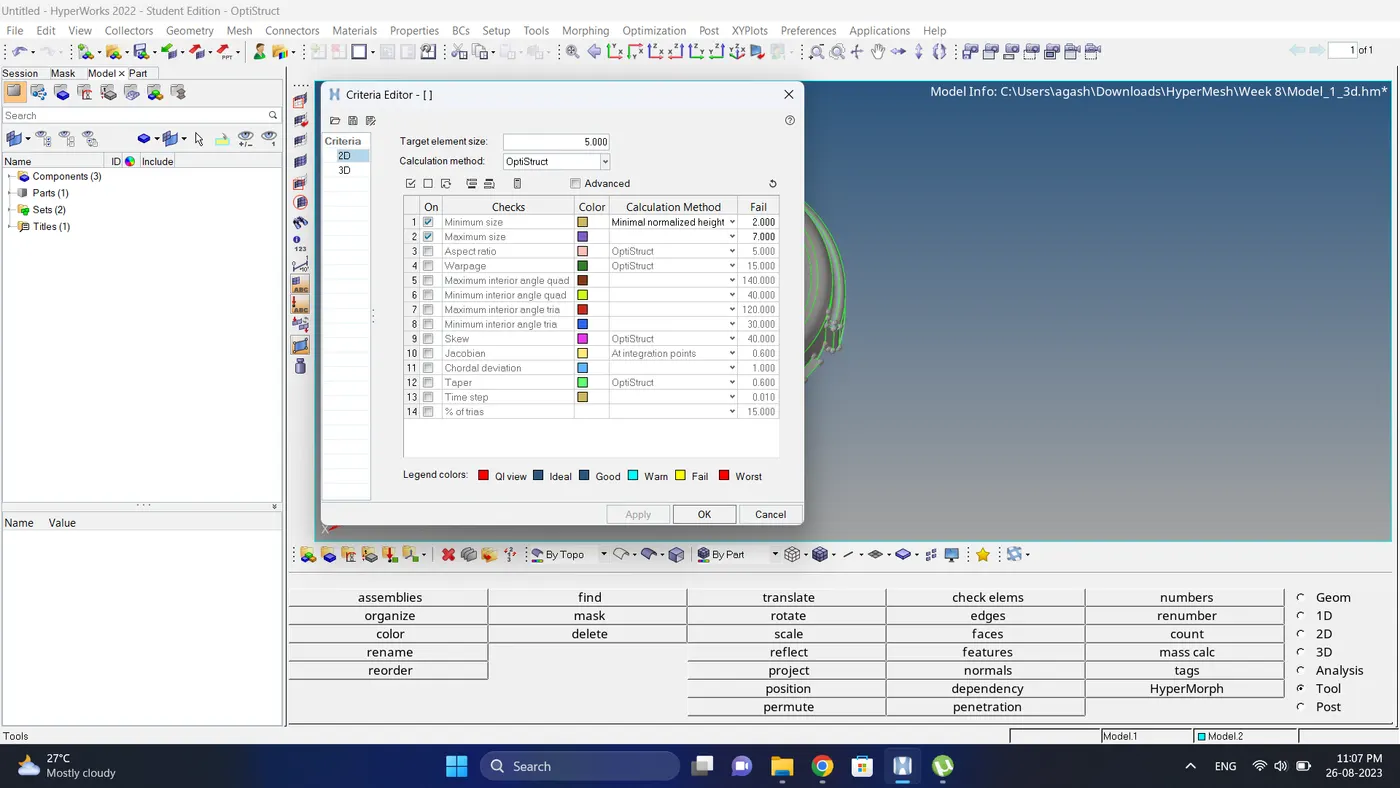
4. Mesh the model with 2d element.
Note: For flat region mesh with Trias element and for curvature region mesh with R-trias elements.
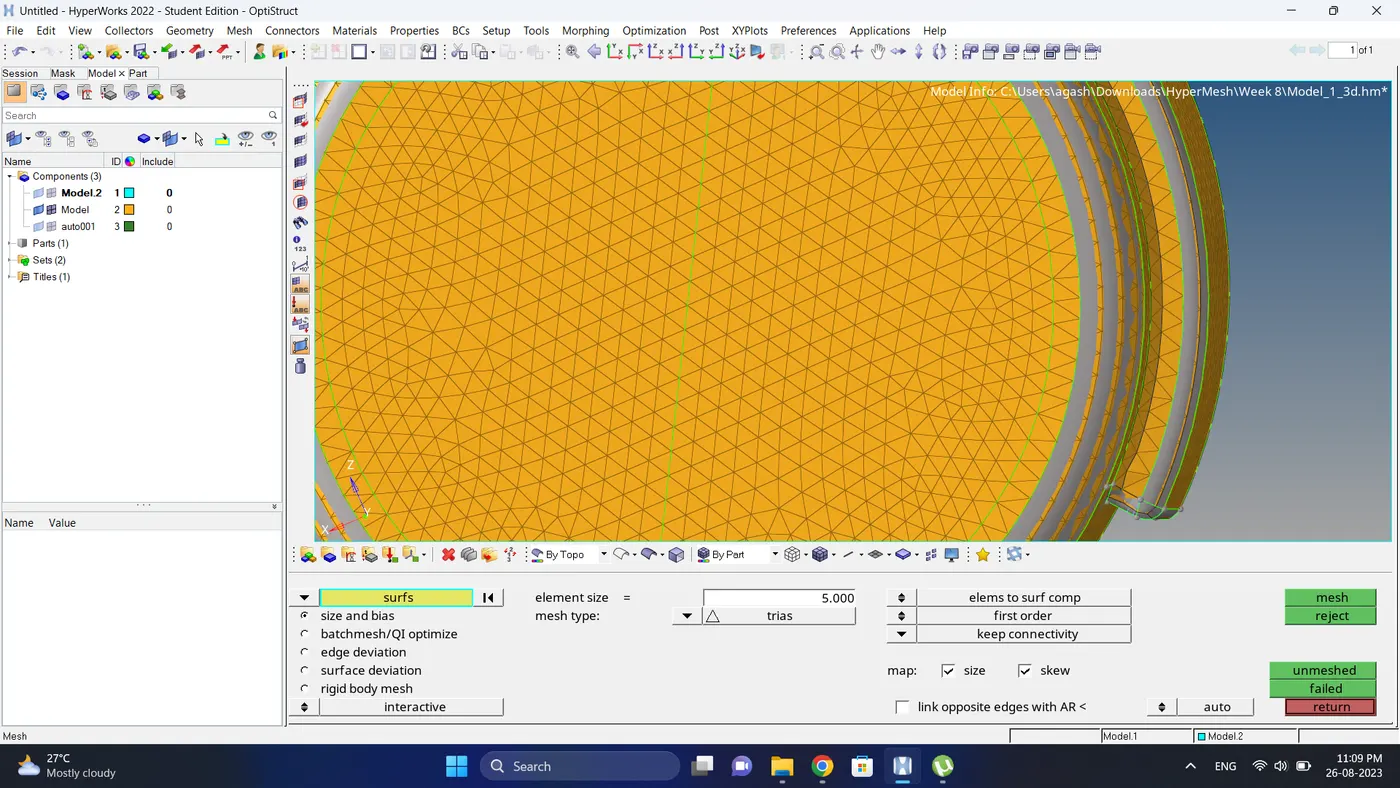
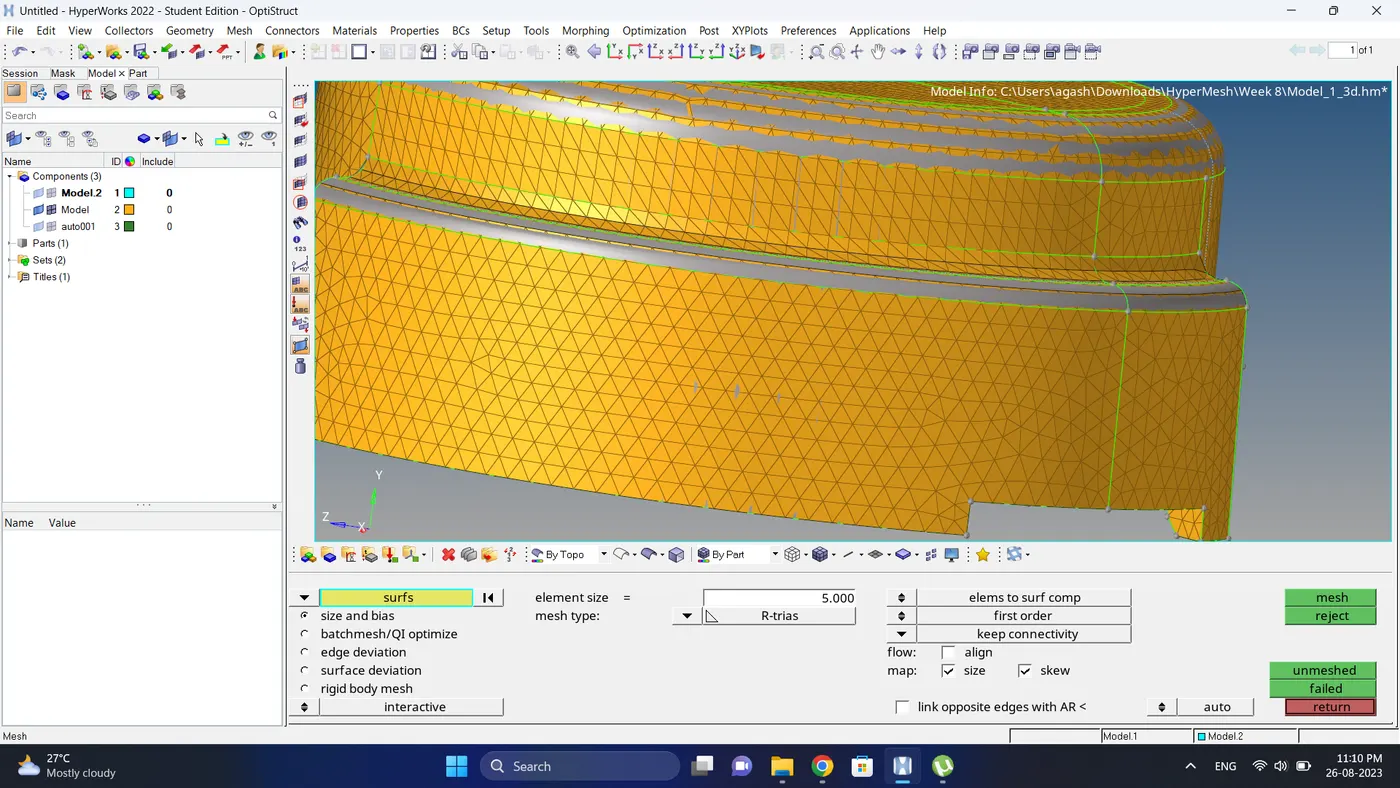
5. Check for the 2d element failure. If there are element failing fix them.
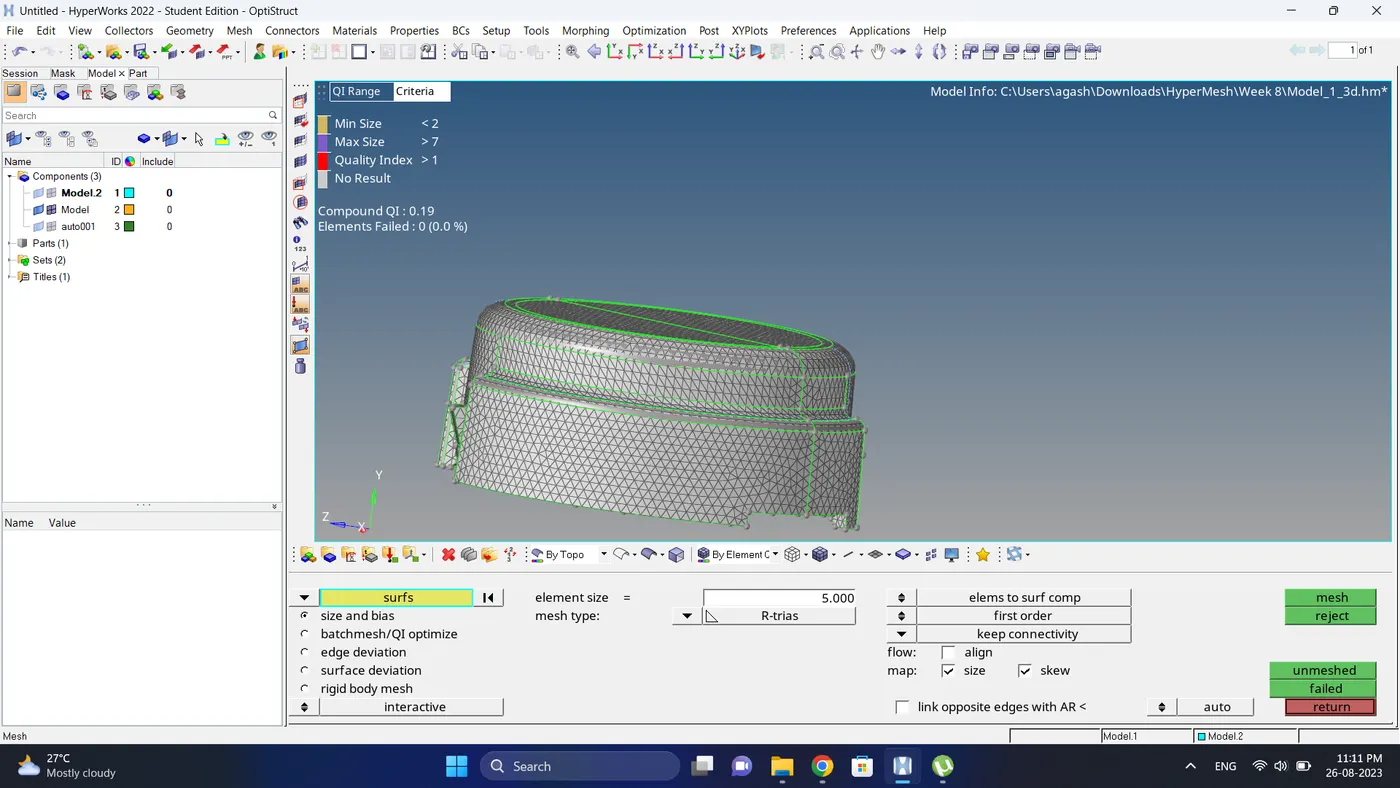
6. Check for the free edges and duplicate elements.
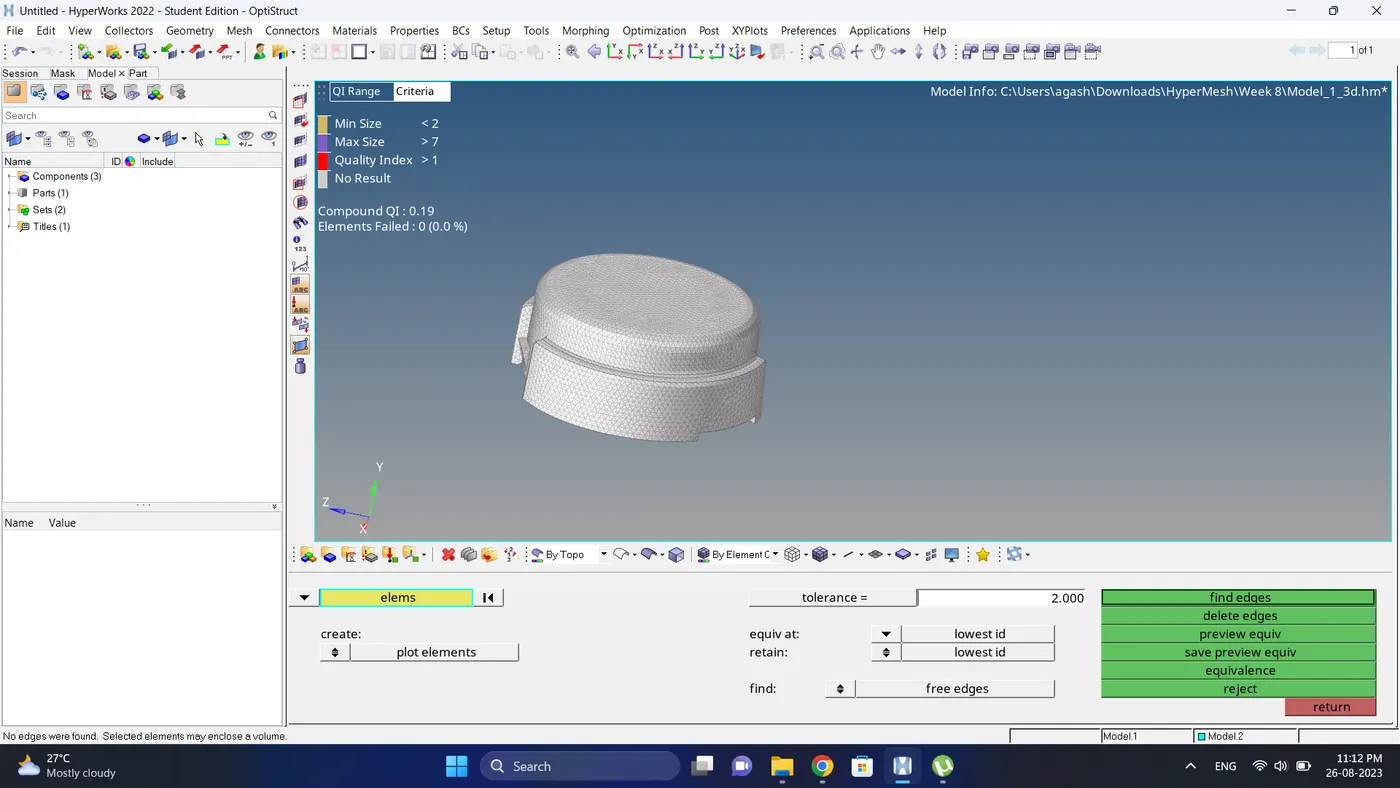
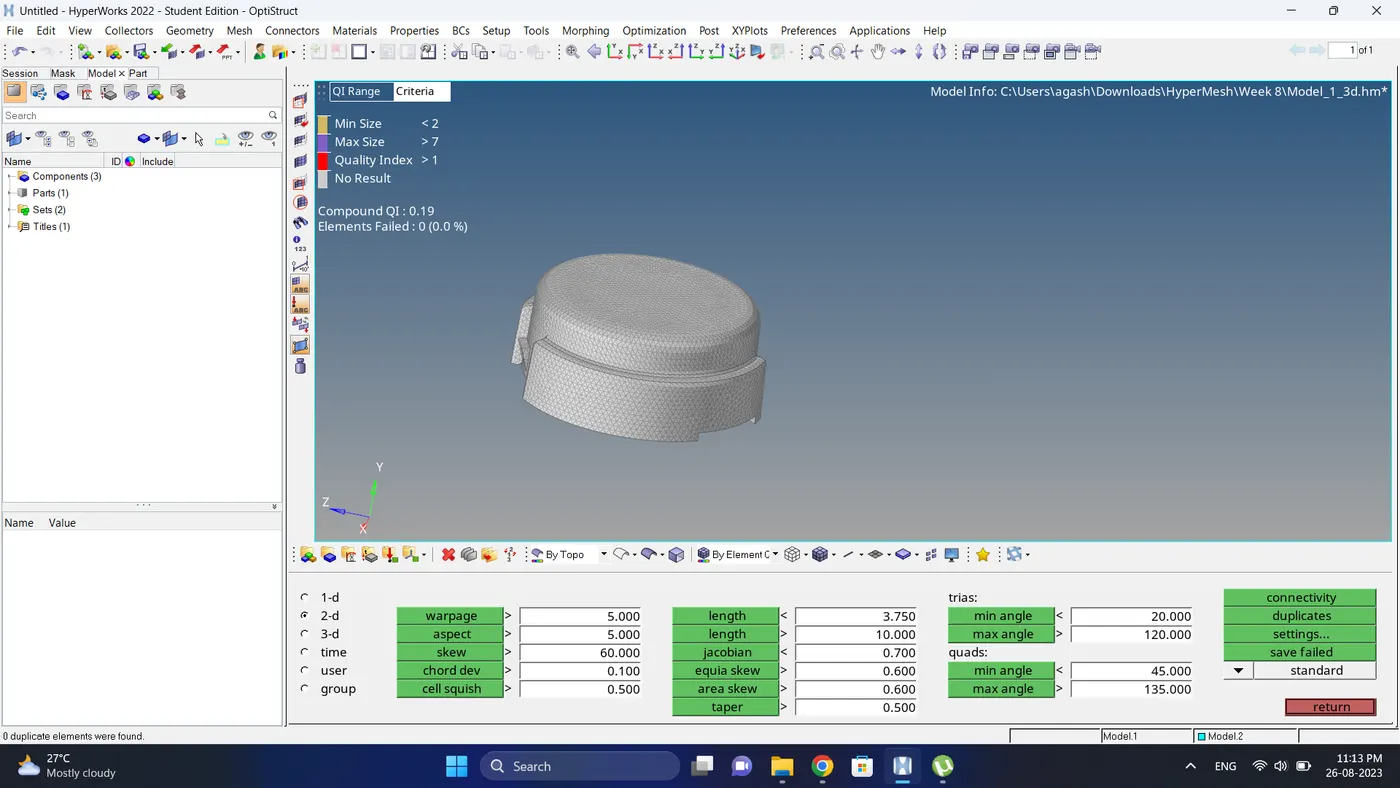
7. After that go to 3D - Tetra mesh, select elements and click on mesh to create Tetra mesh.
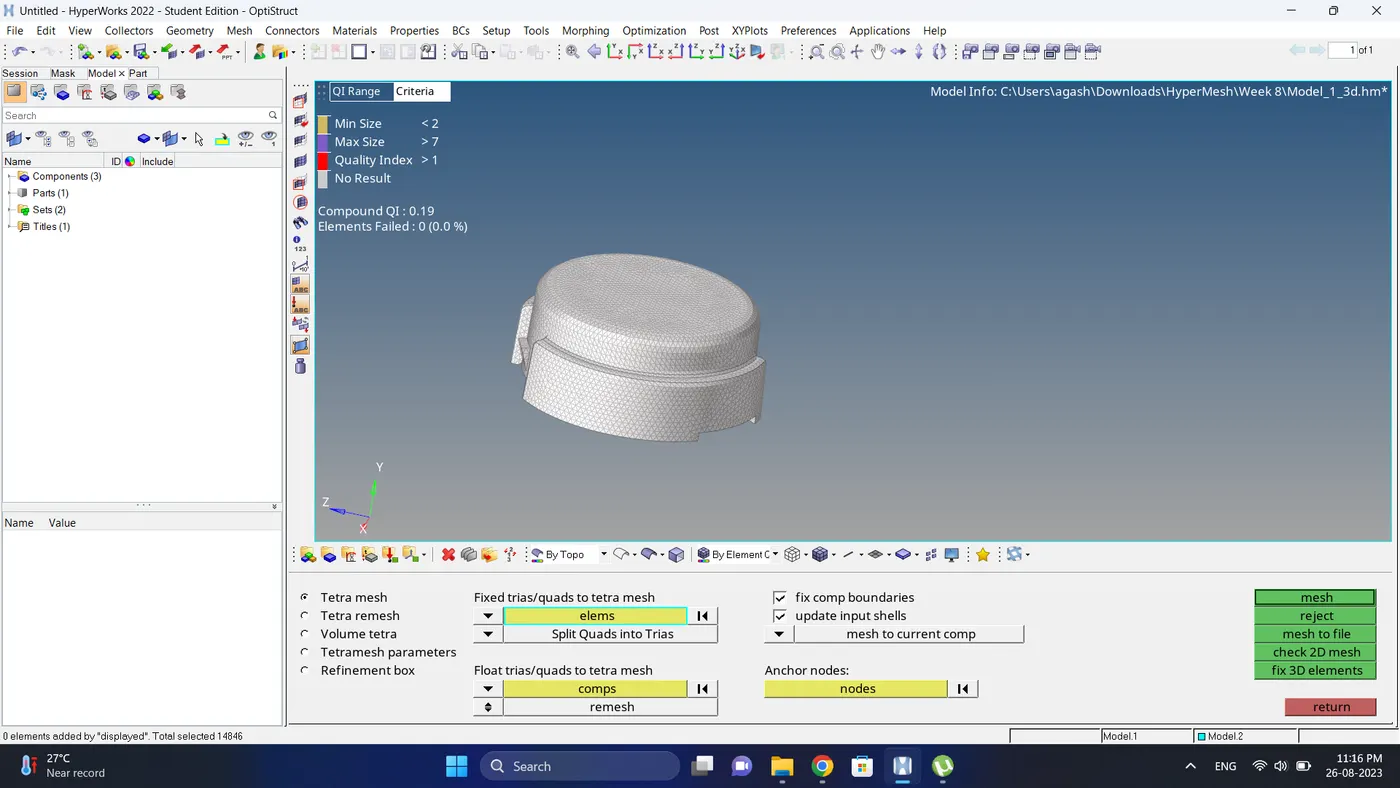
8. After tetra mesh is generated it will be in a different component id rename it.
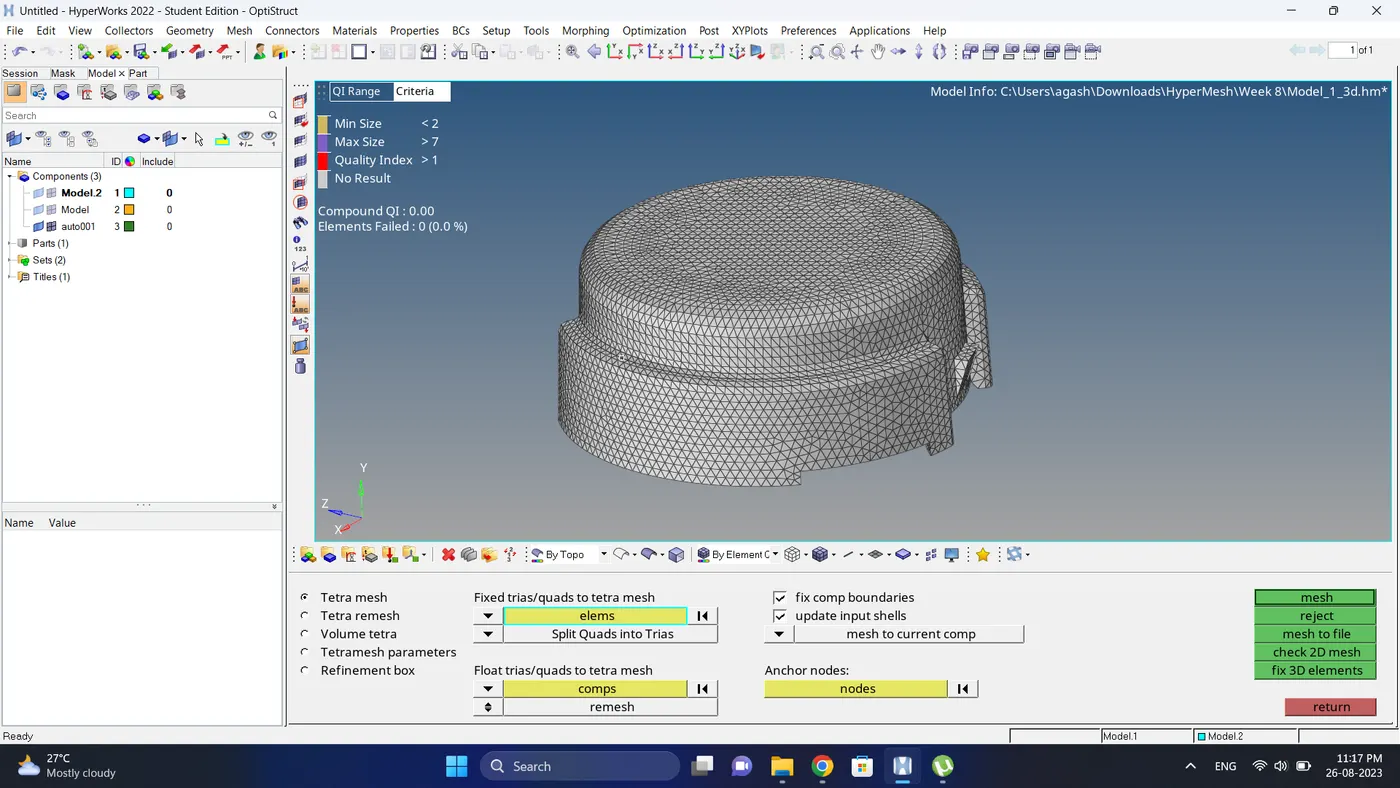
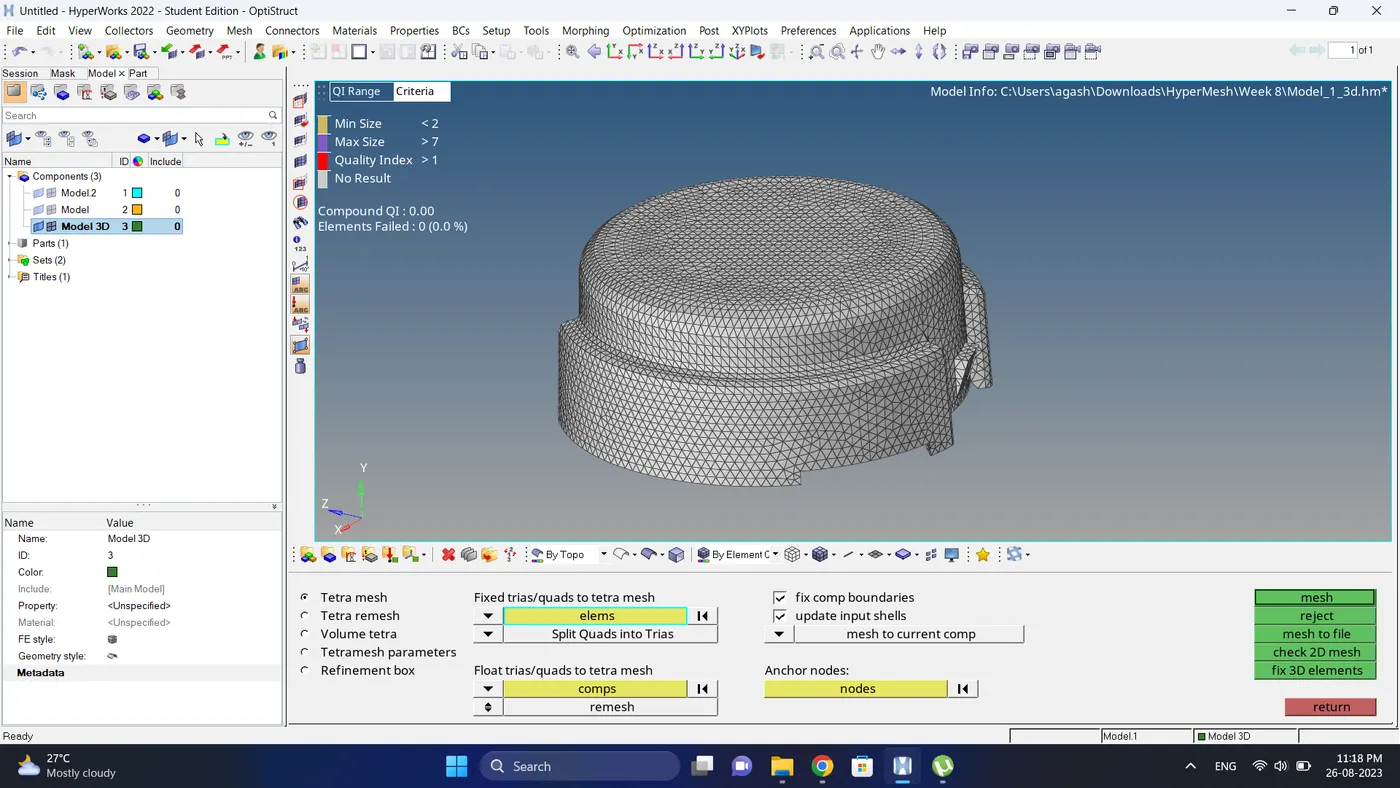
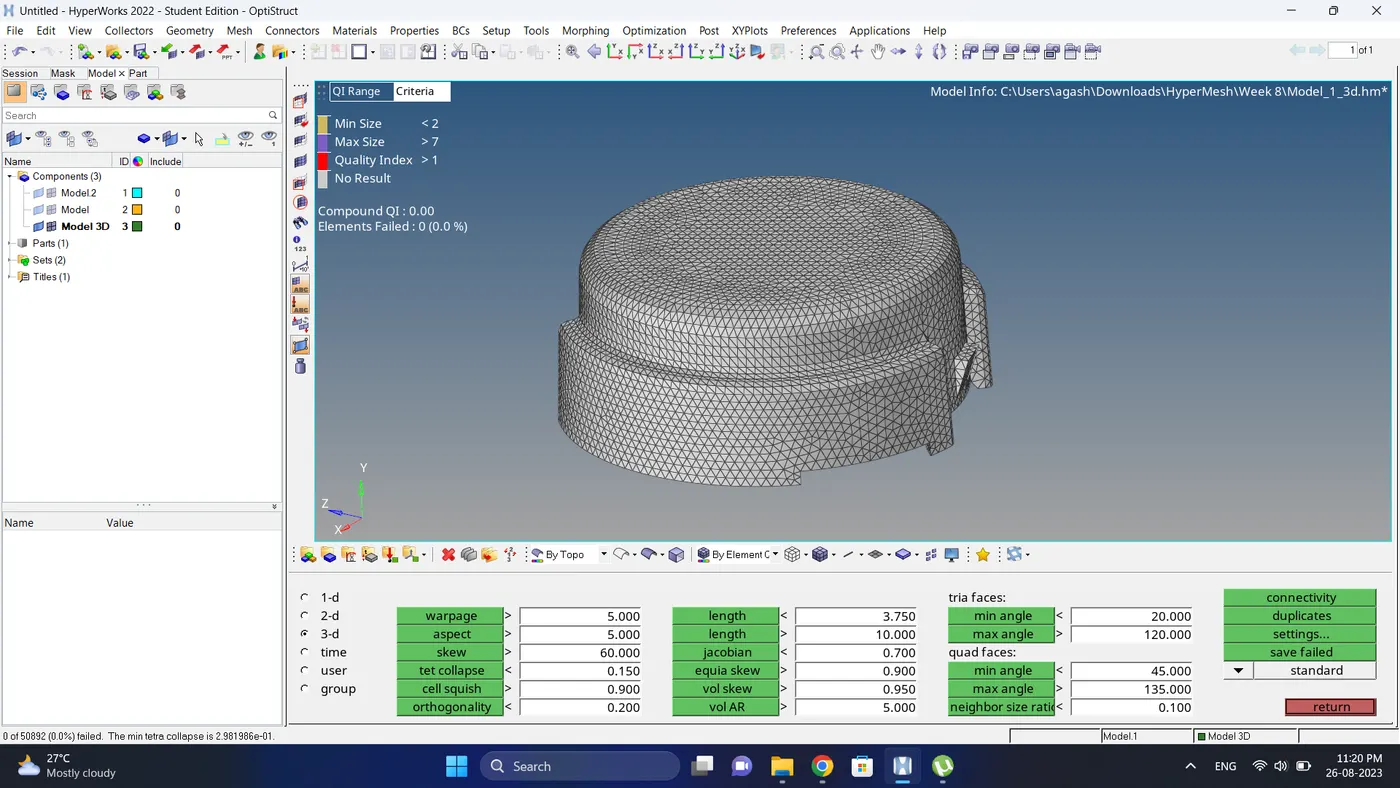
9. Check for the 3d element failure for tet collapse.
If there are element failing fix the quality.
10. For the model 2 firstly delete the solid and repeat same steps.
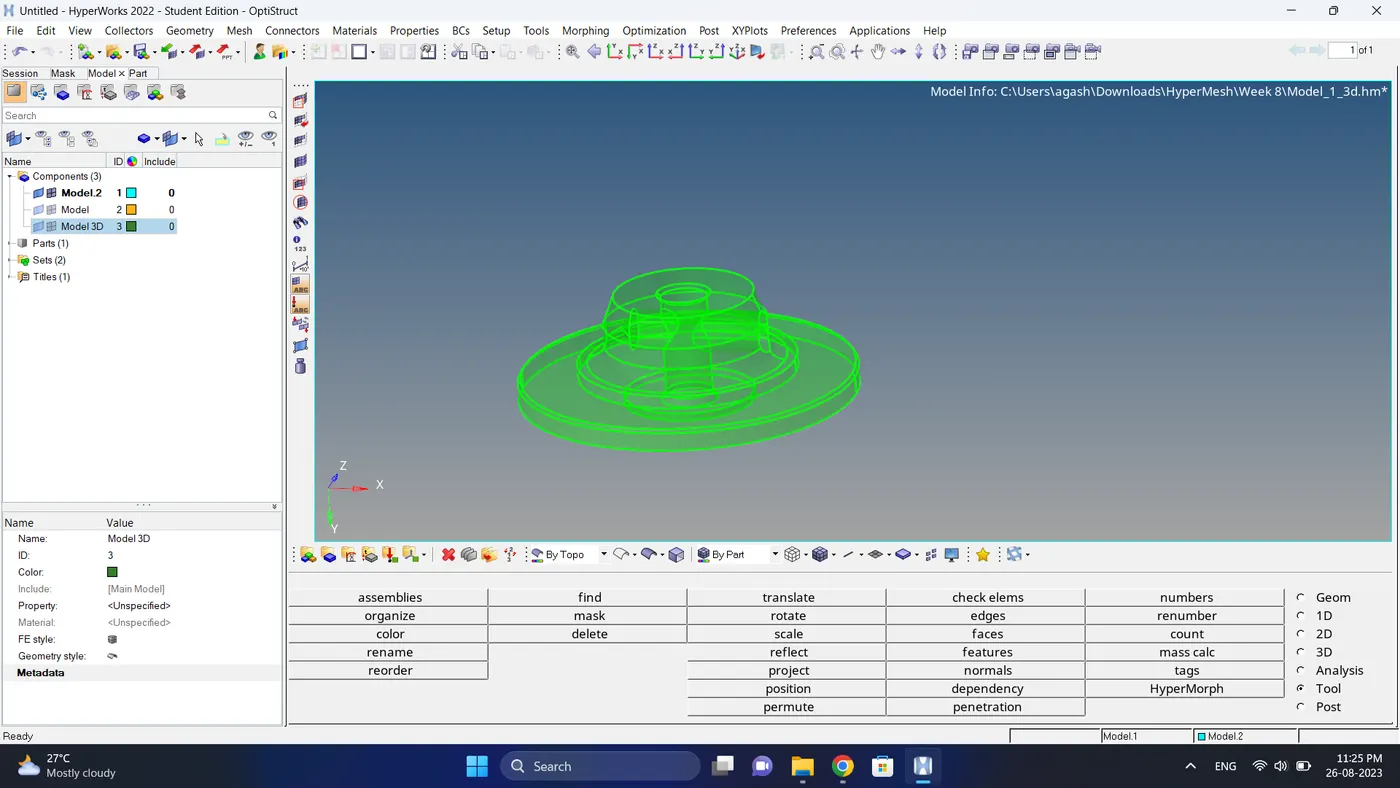
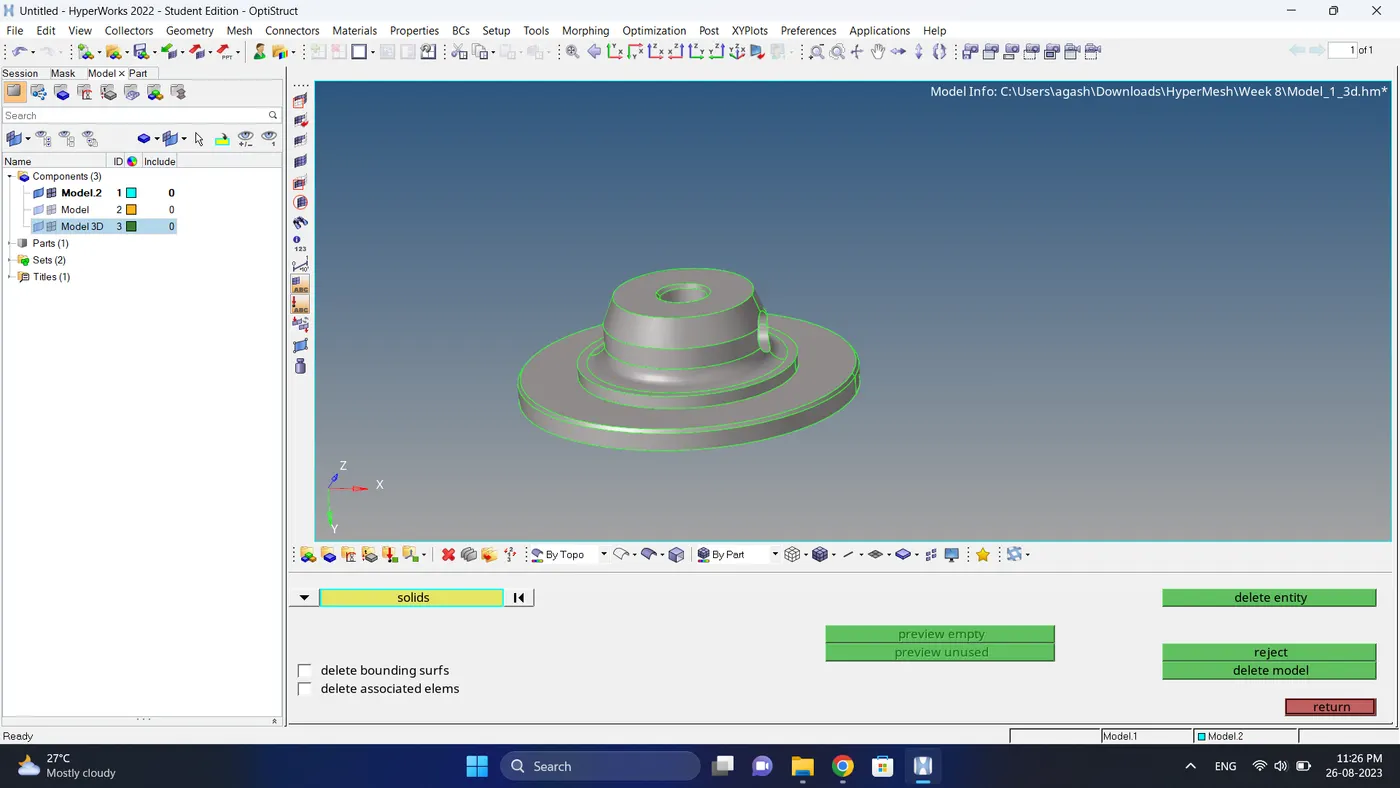
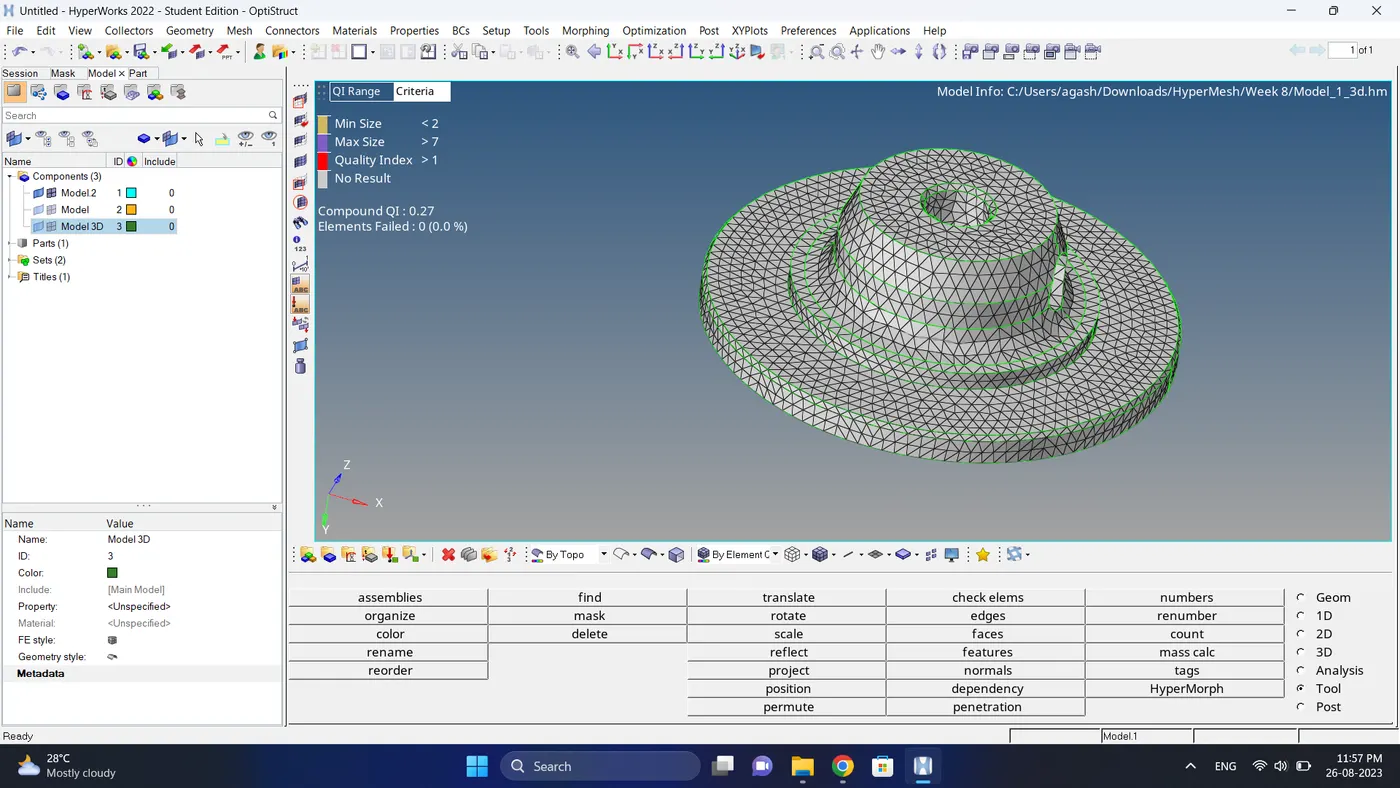
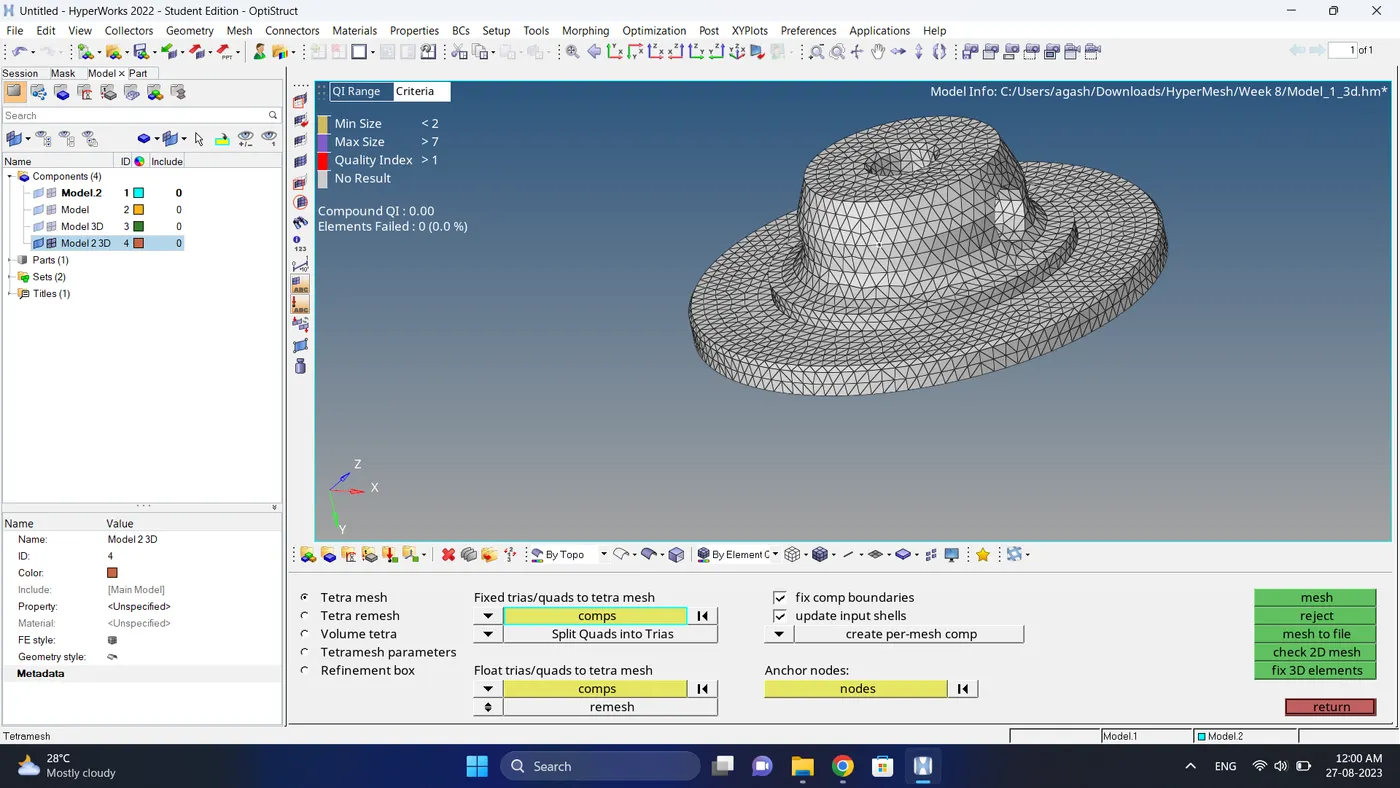
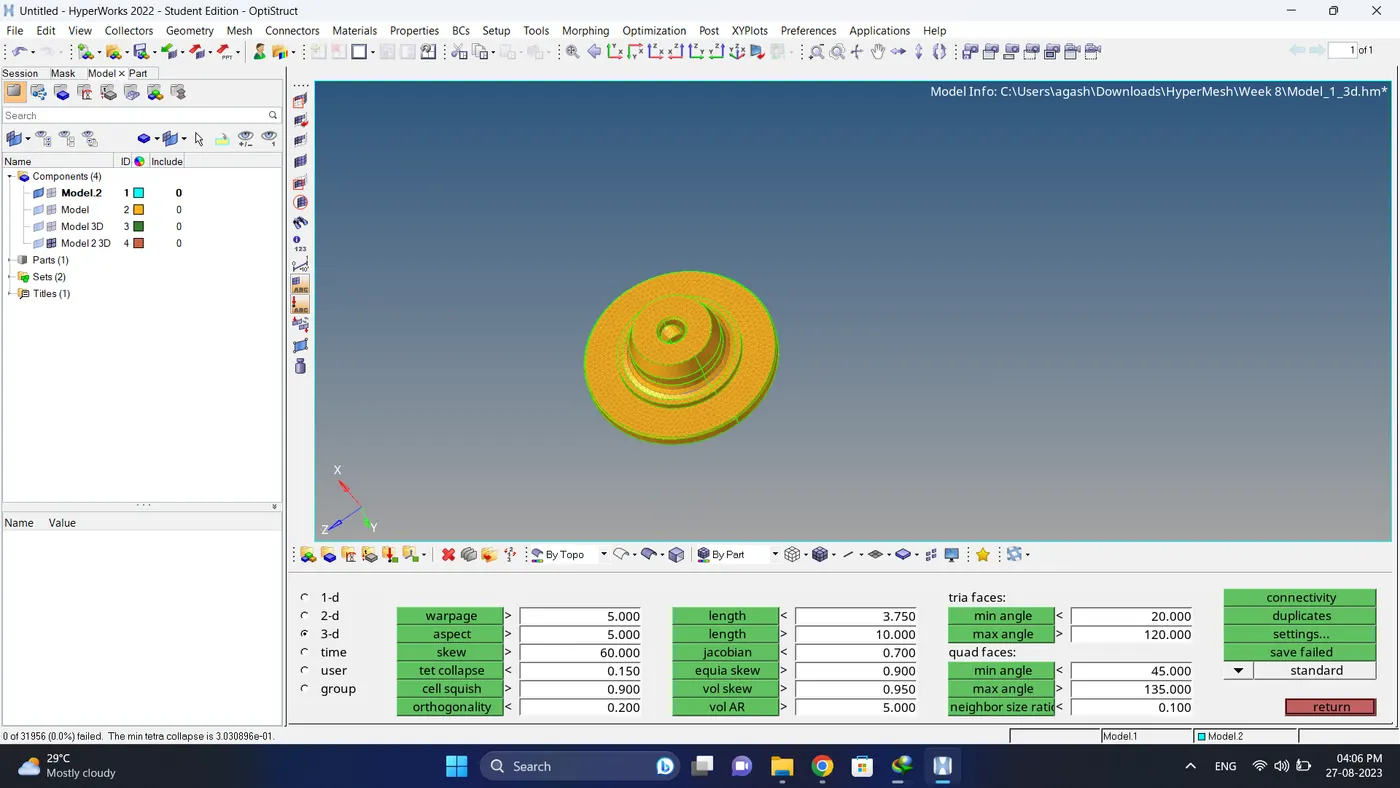
11. Do the final check for the free edges in between and duplicate elements. If there are any problem fix them.
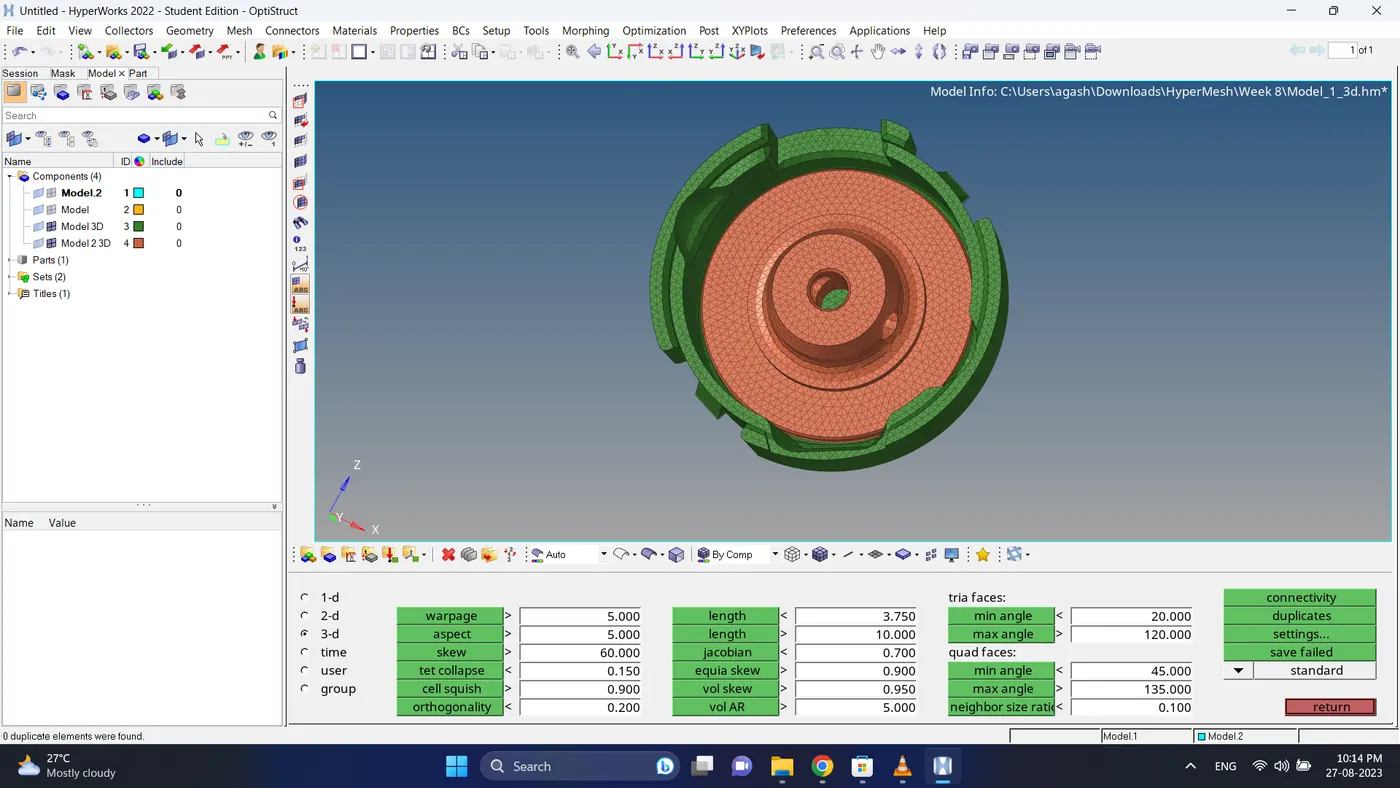
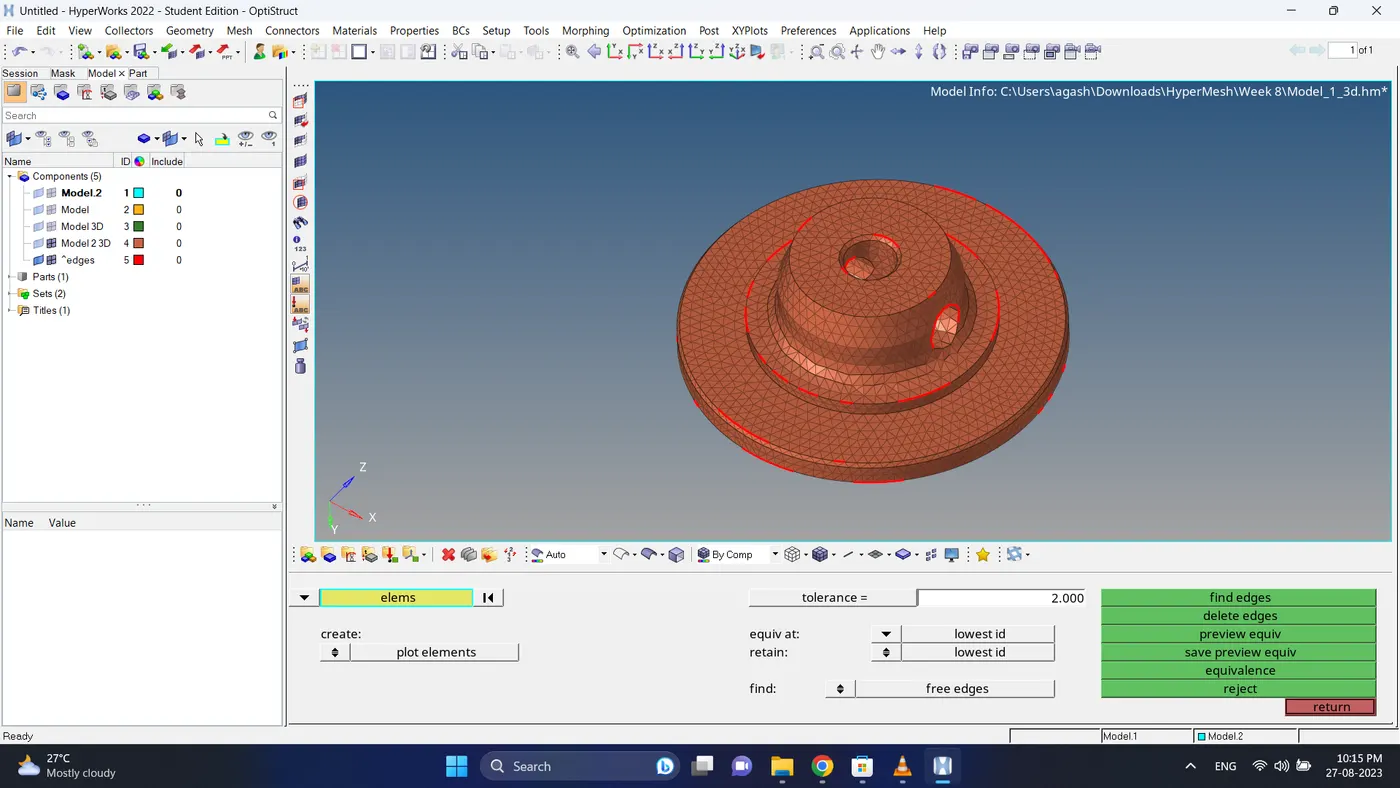
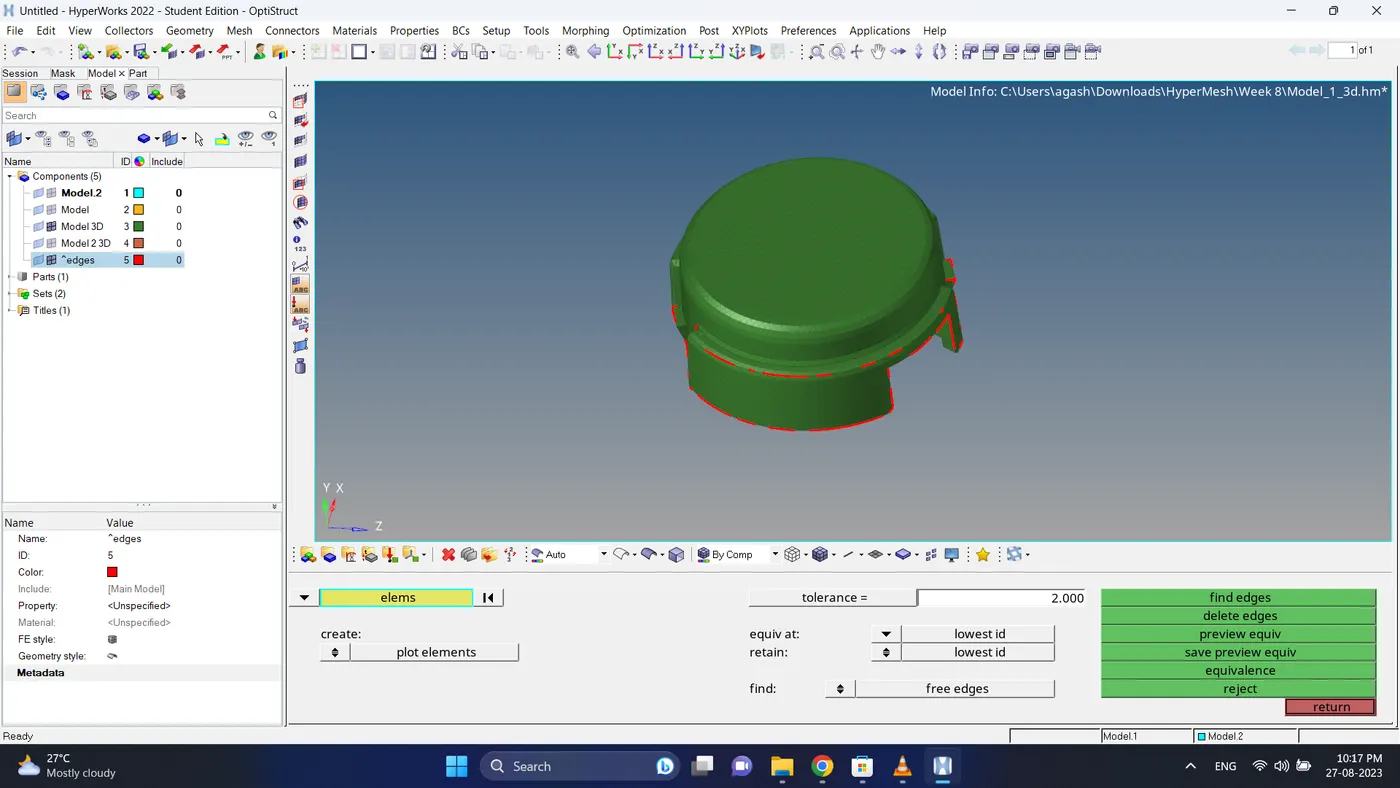
12. Do the final check and 3d meshing for the model 1 is complete using 2d to 3d Conversion method.
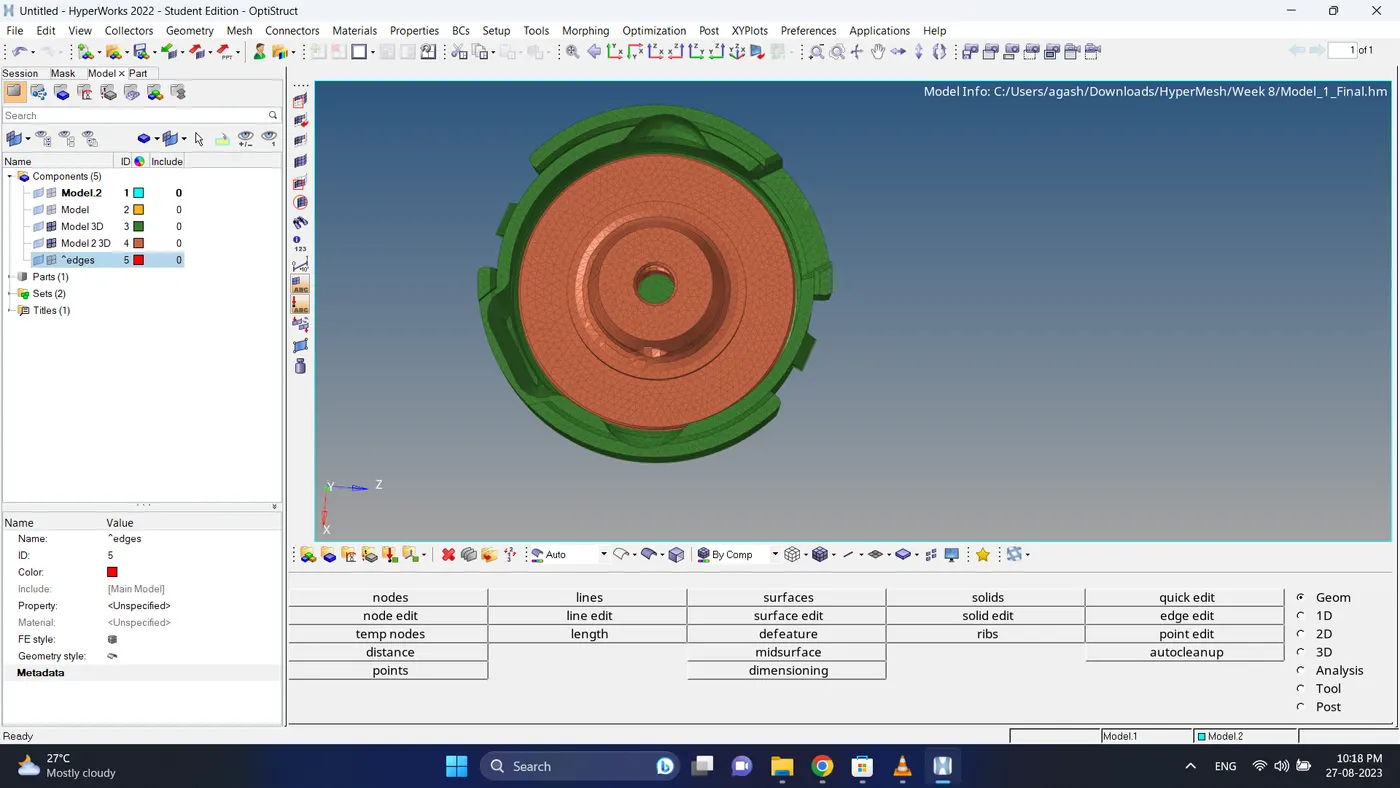
Model 2
1. Import the model.
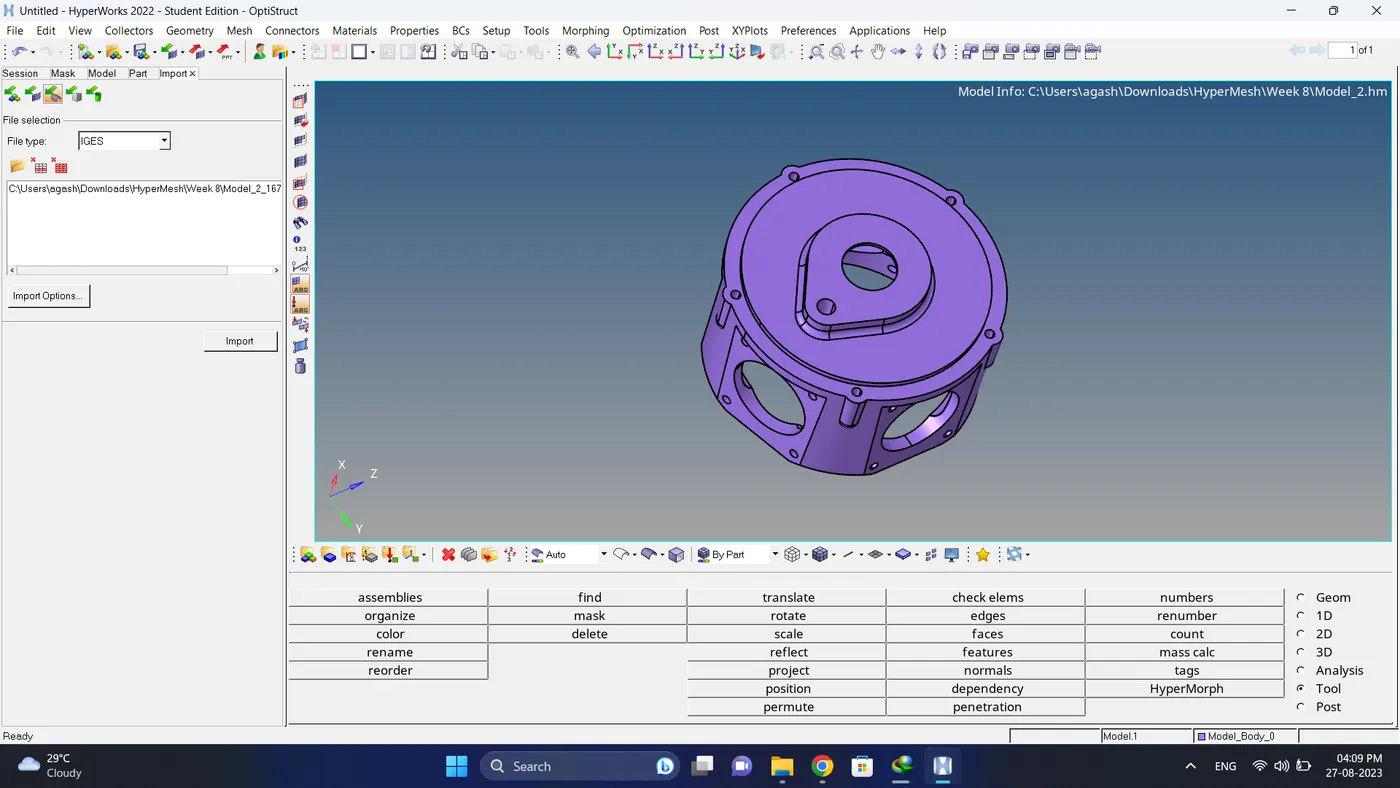
2. Go to 3d - tetramesh - tetramesh parameters, give element quality target tet collapse 0.15.
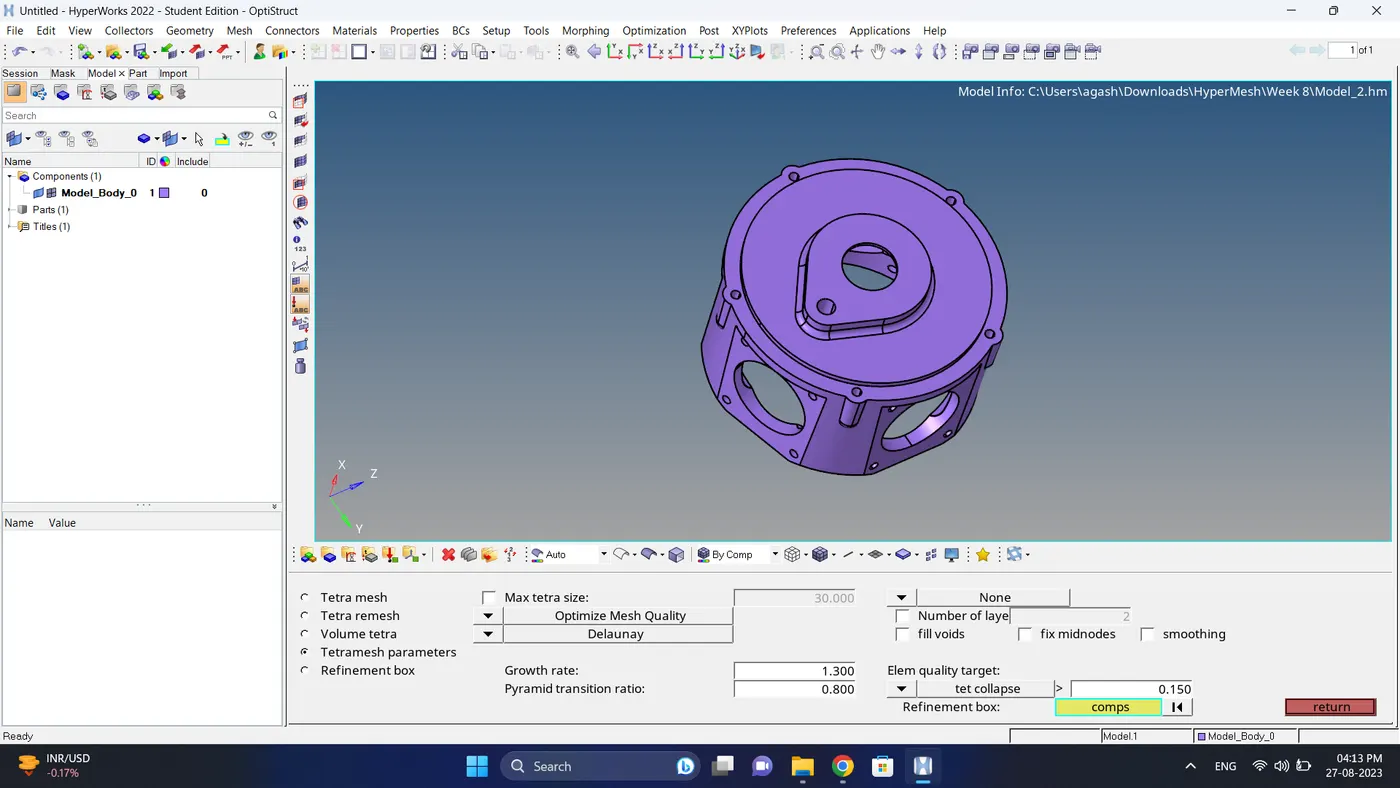
3. Go to 3d - tetramesh - volume tetra, select solid & give element size and click mesh.
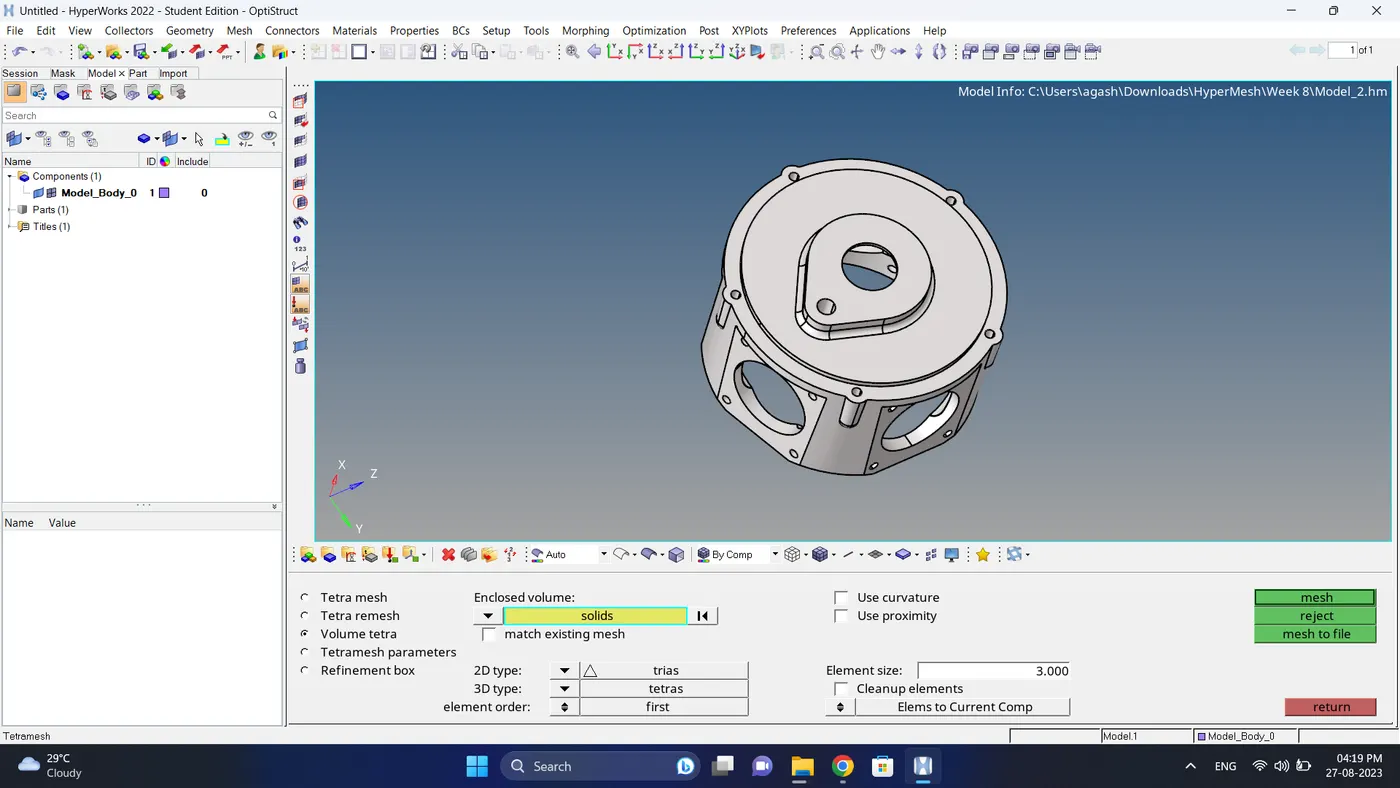
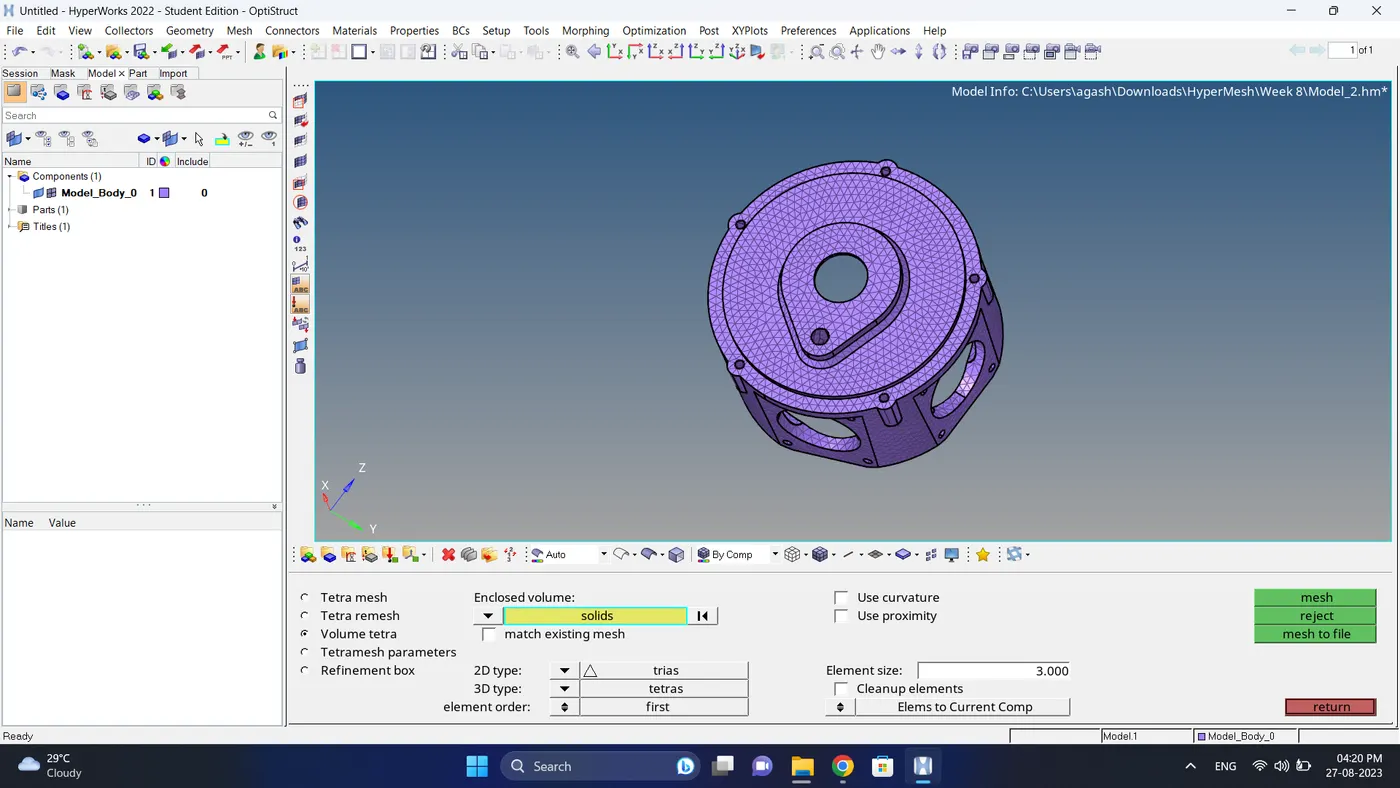
4. Go to tool - check elems, check for the tet collapse.
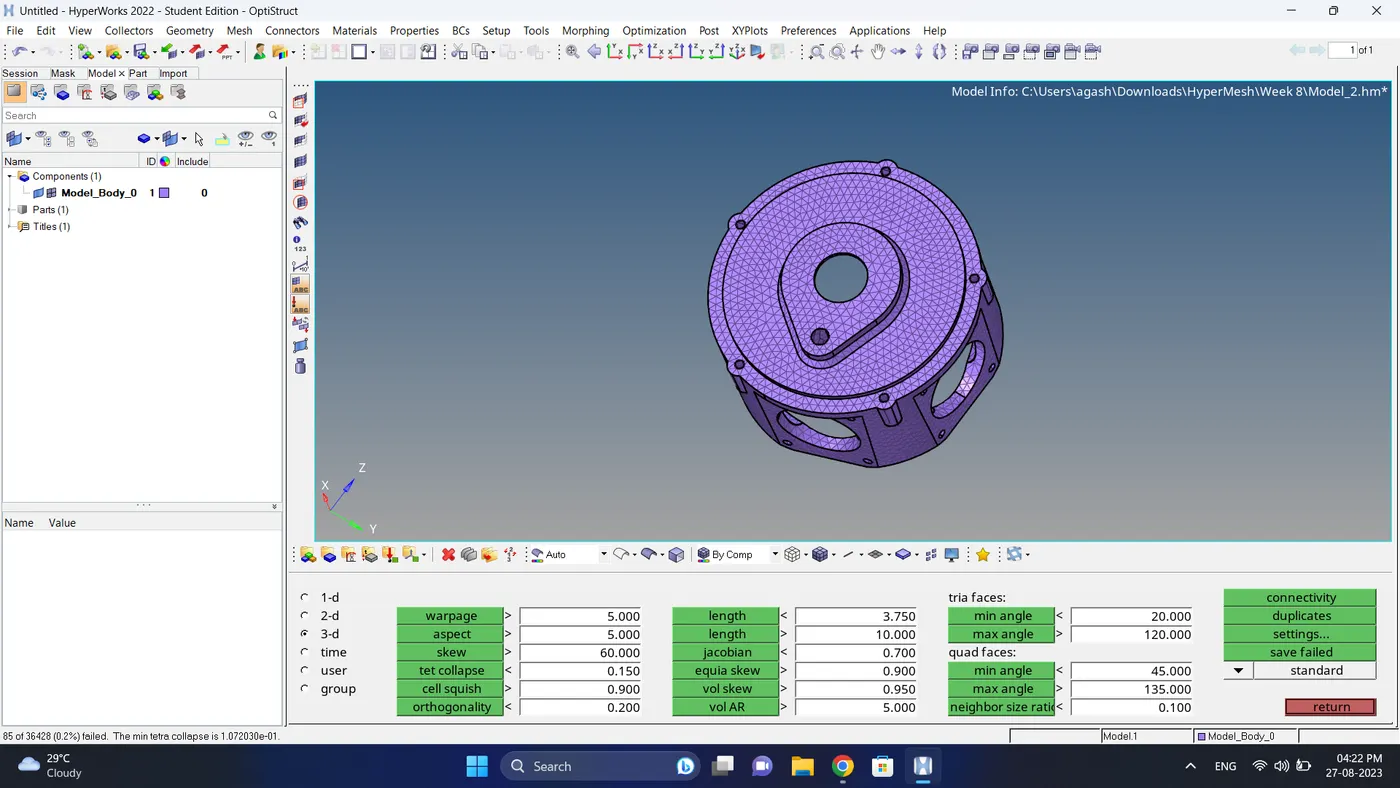
5. Go to 3d - tetramesh - tertra remesh, select element and fix the quality.
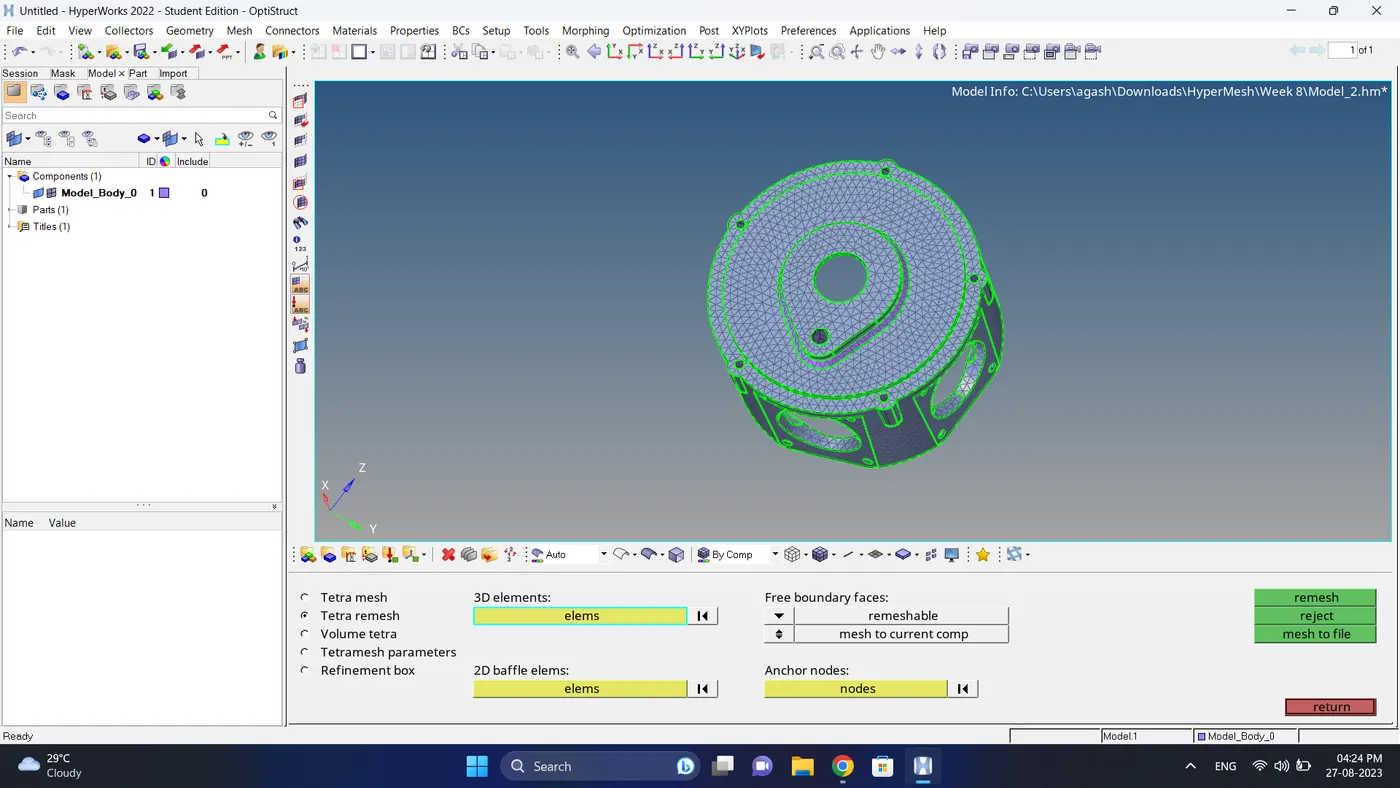
6. Again check for tet collapse element failure.
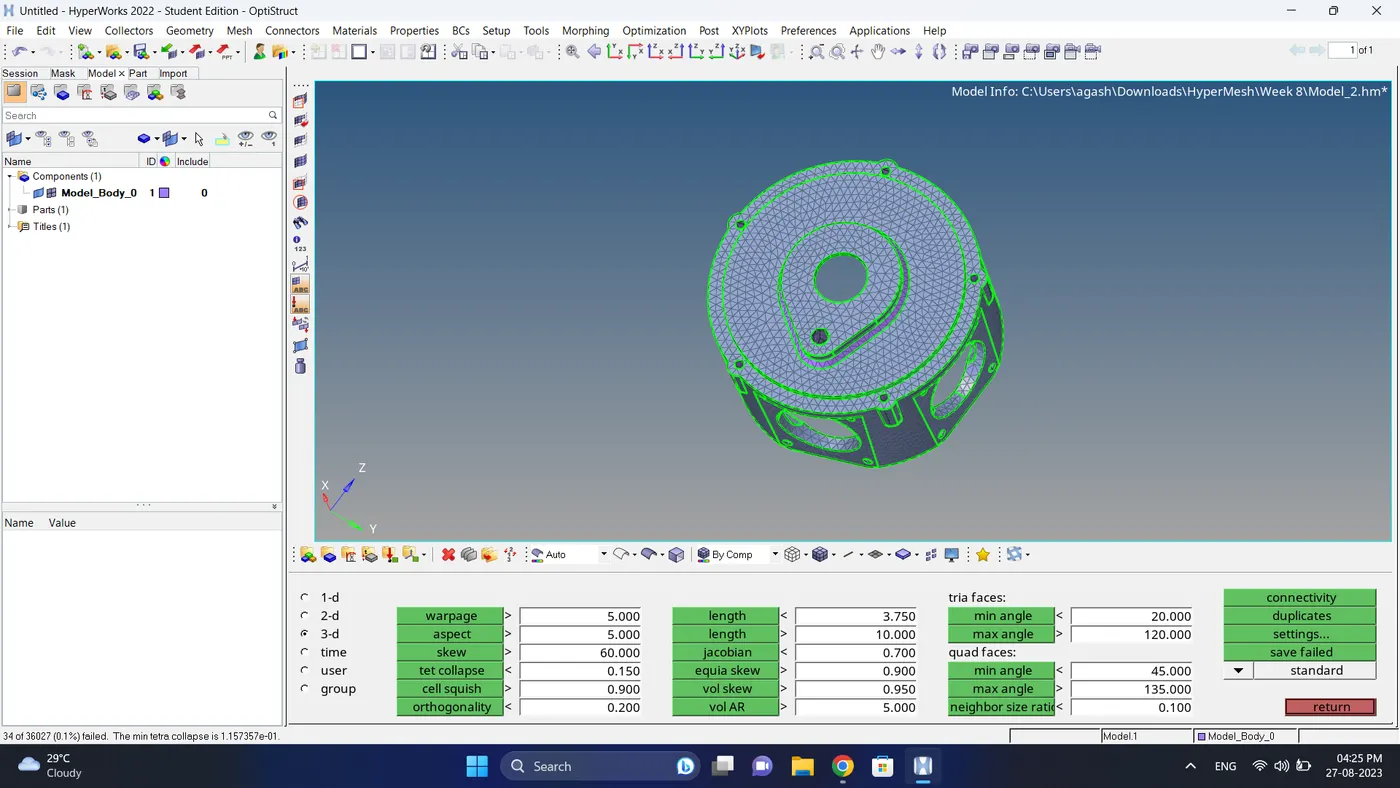
7. For the remaining 3d element failure fix it manually.
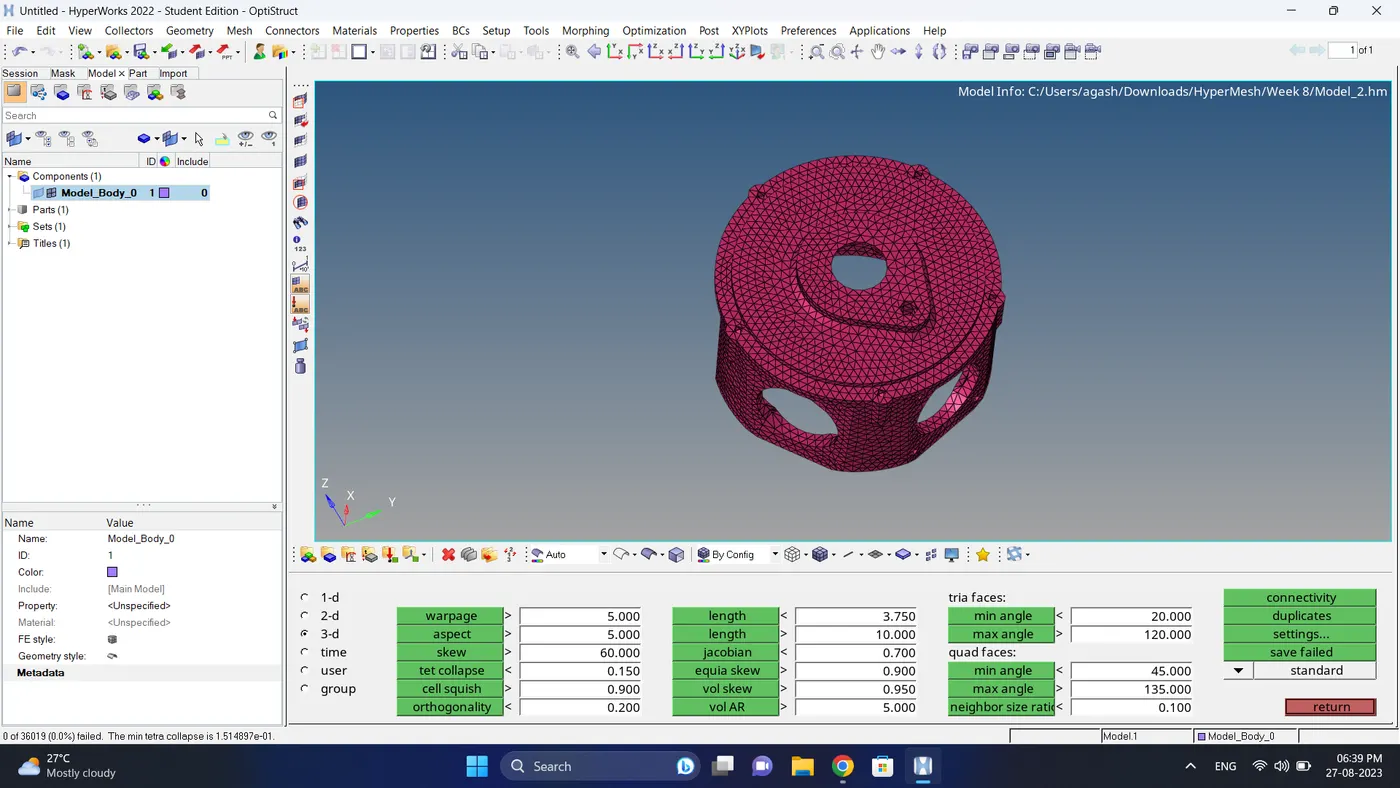
8. Do the final check for the free edges in between and duplicate elements. If there are any problem fix them.
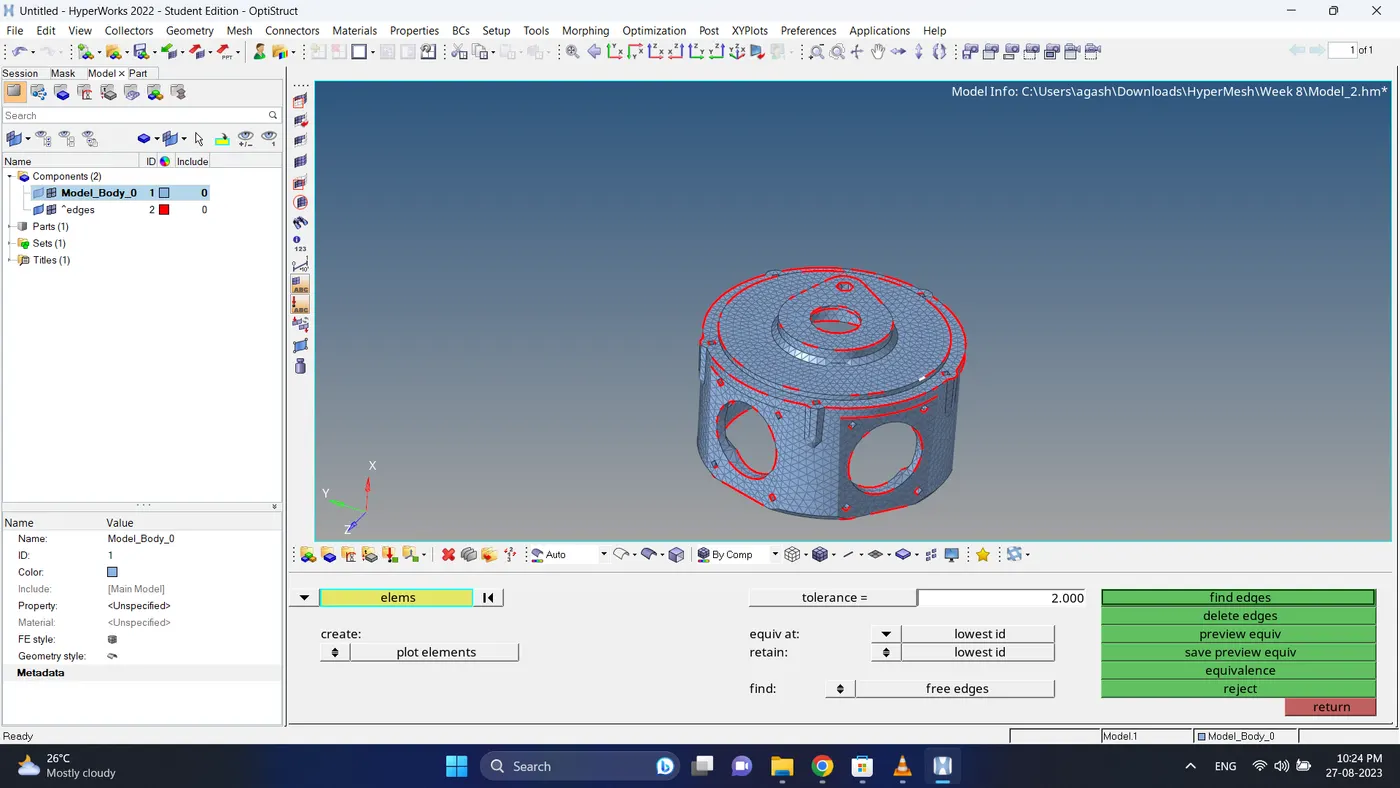
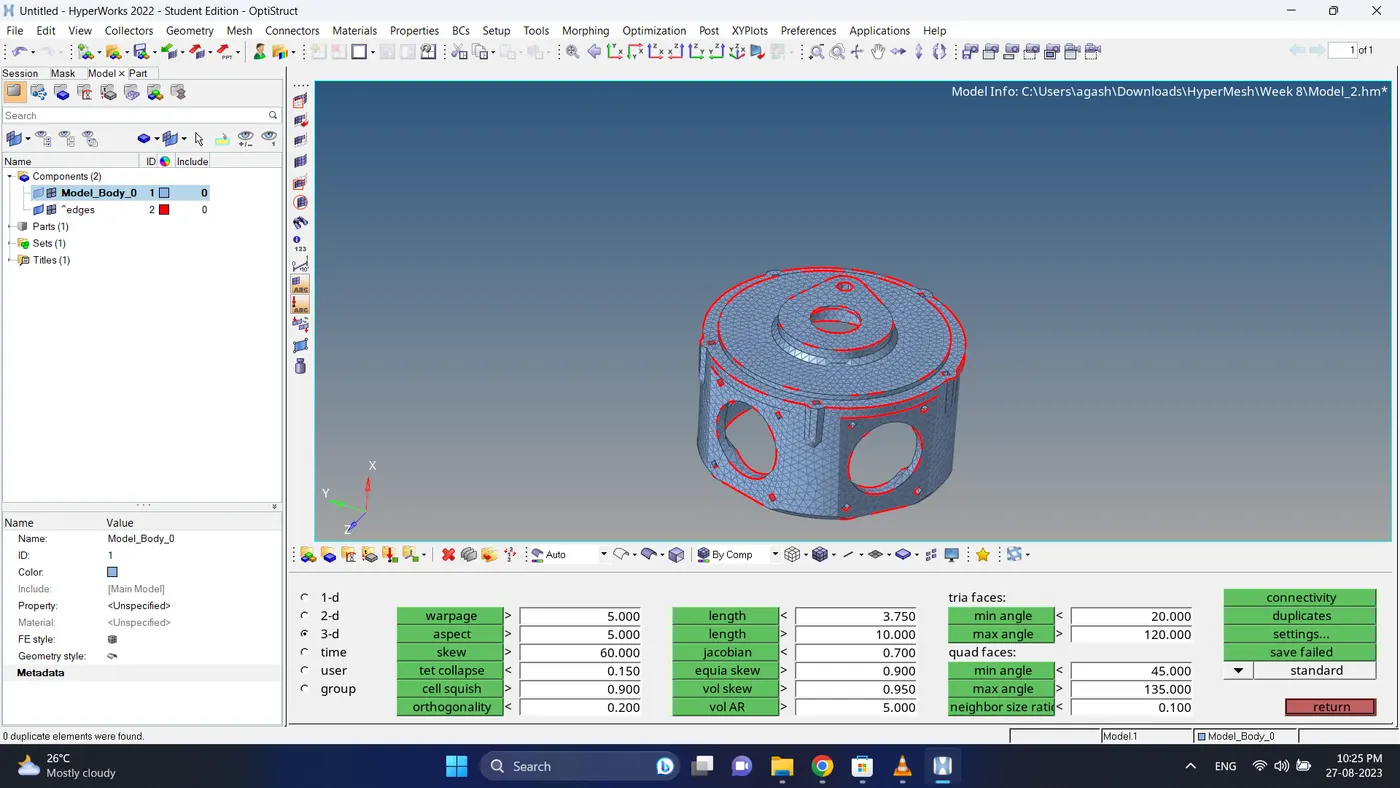
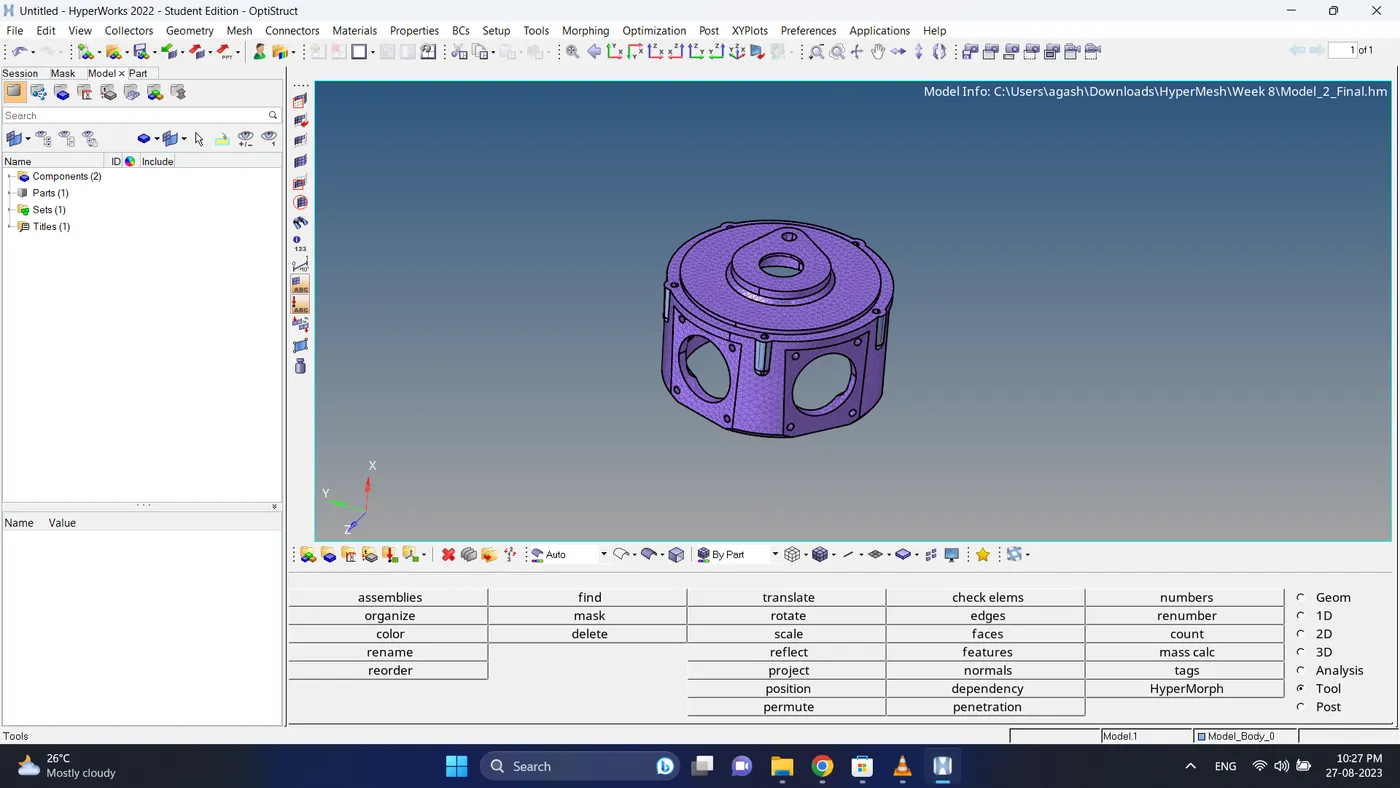
9. Do the final check and 3d meshing for the model 2 is complete using volume tetra mesh method.
Model 3
1. Import the model
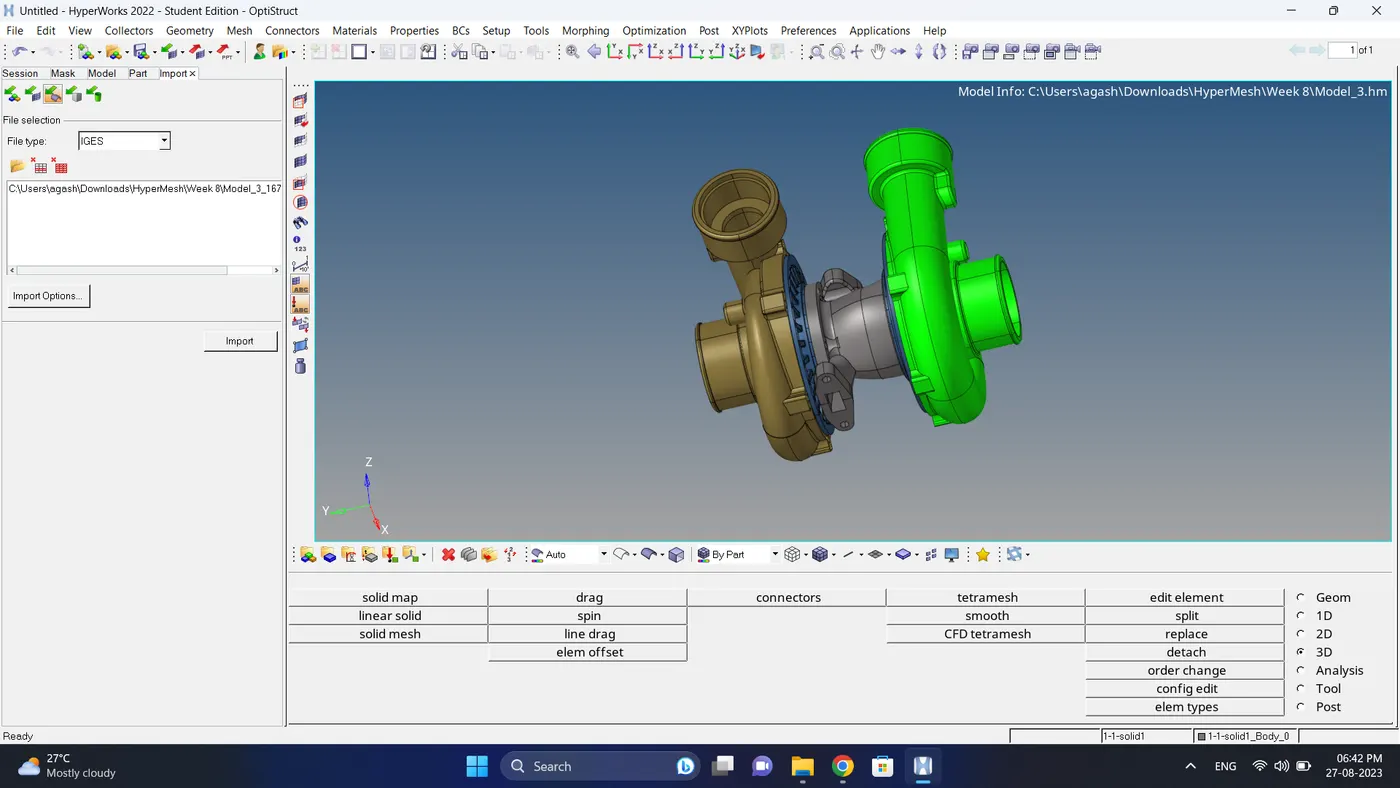
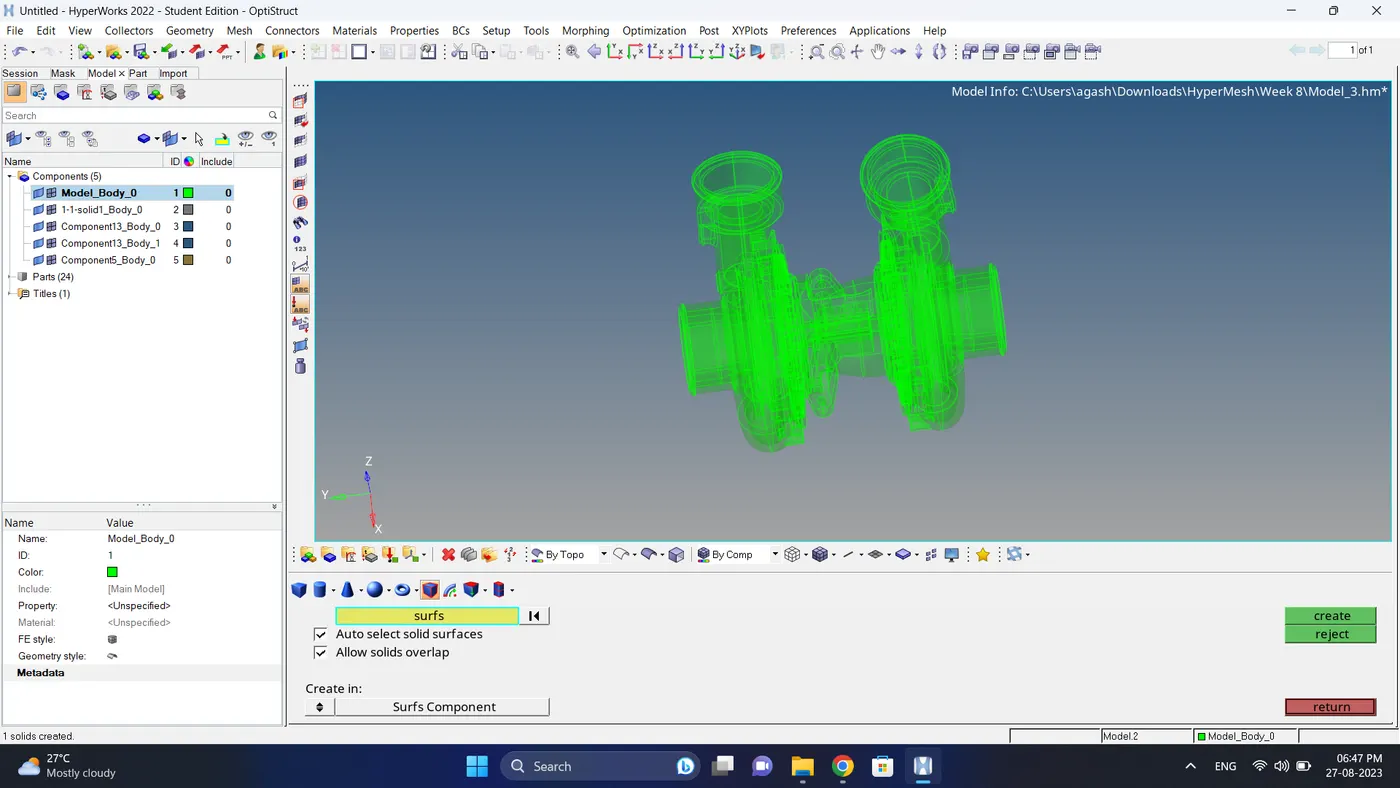
2. See if all the components are solid if some are not solid go to geometry - solids - bounding surfaces, select surface and click create.
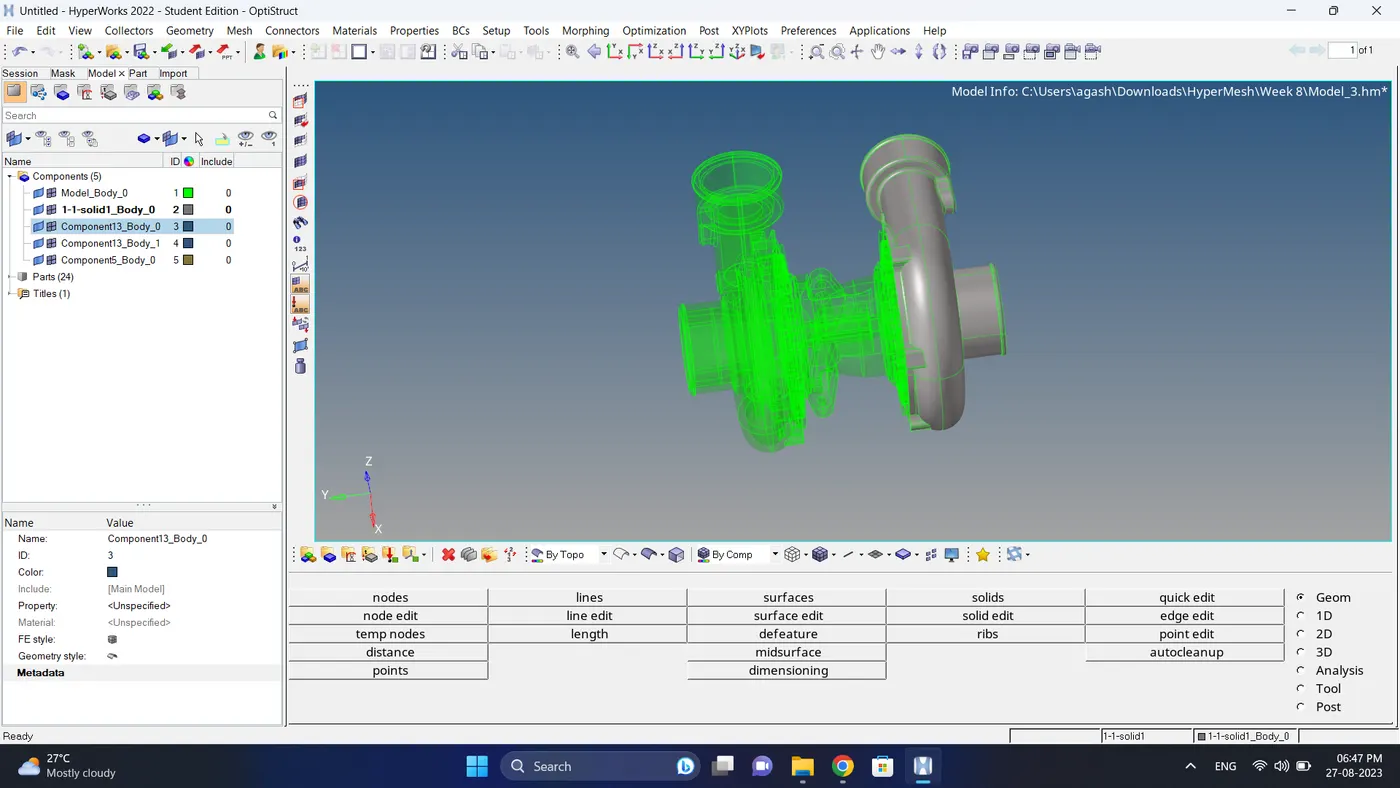
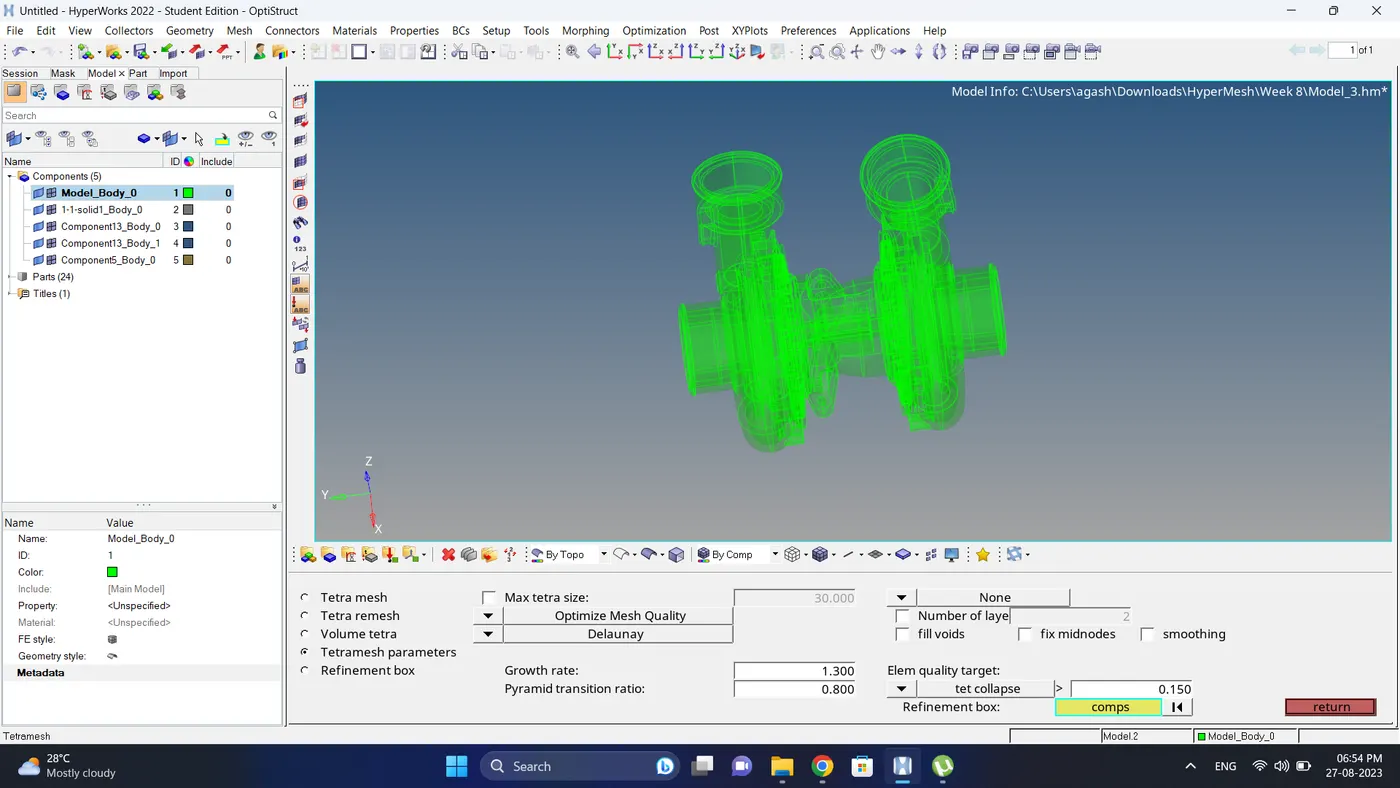
3. Go to 3d - tetramesh - tetramesh parameters, give element quality target tet collapse 0.15.
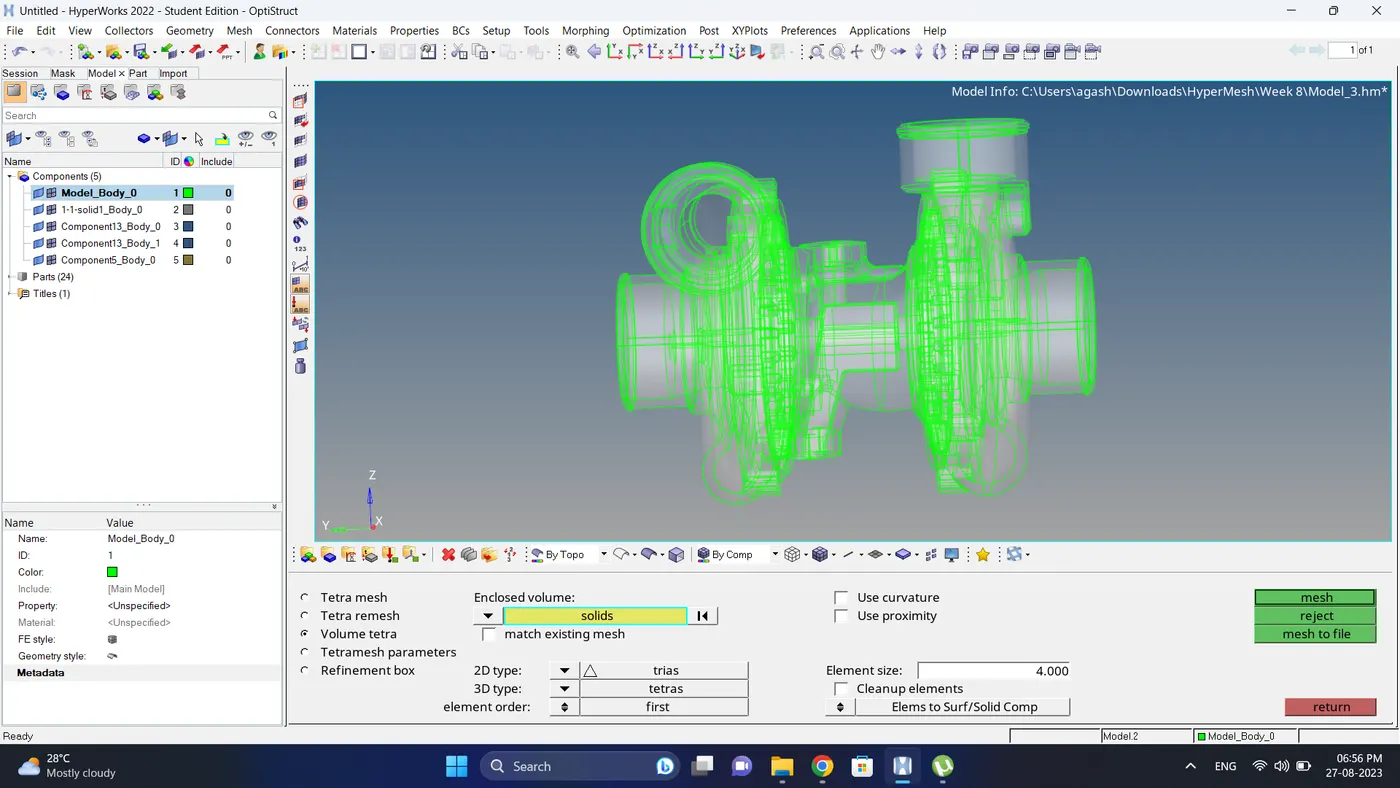
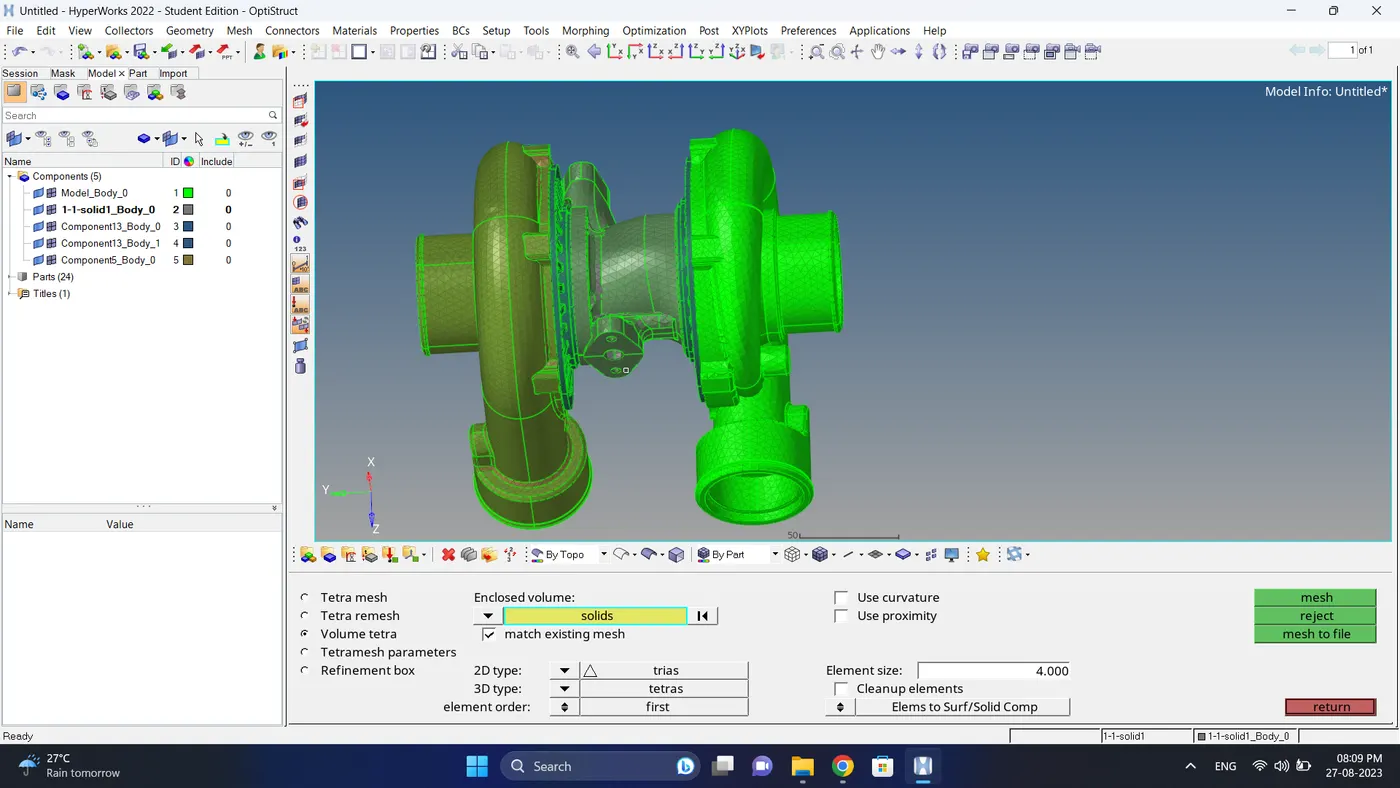
4. Go to 3d - tetramesh - volume tetra, select solid & give element size and click mesh.
5. Go to tool - check elems, check for the tet collapse.
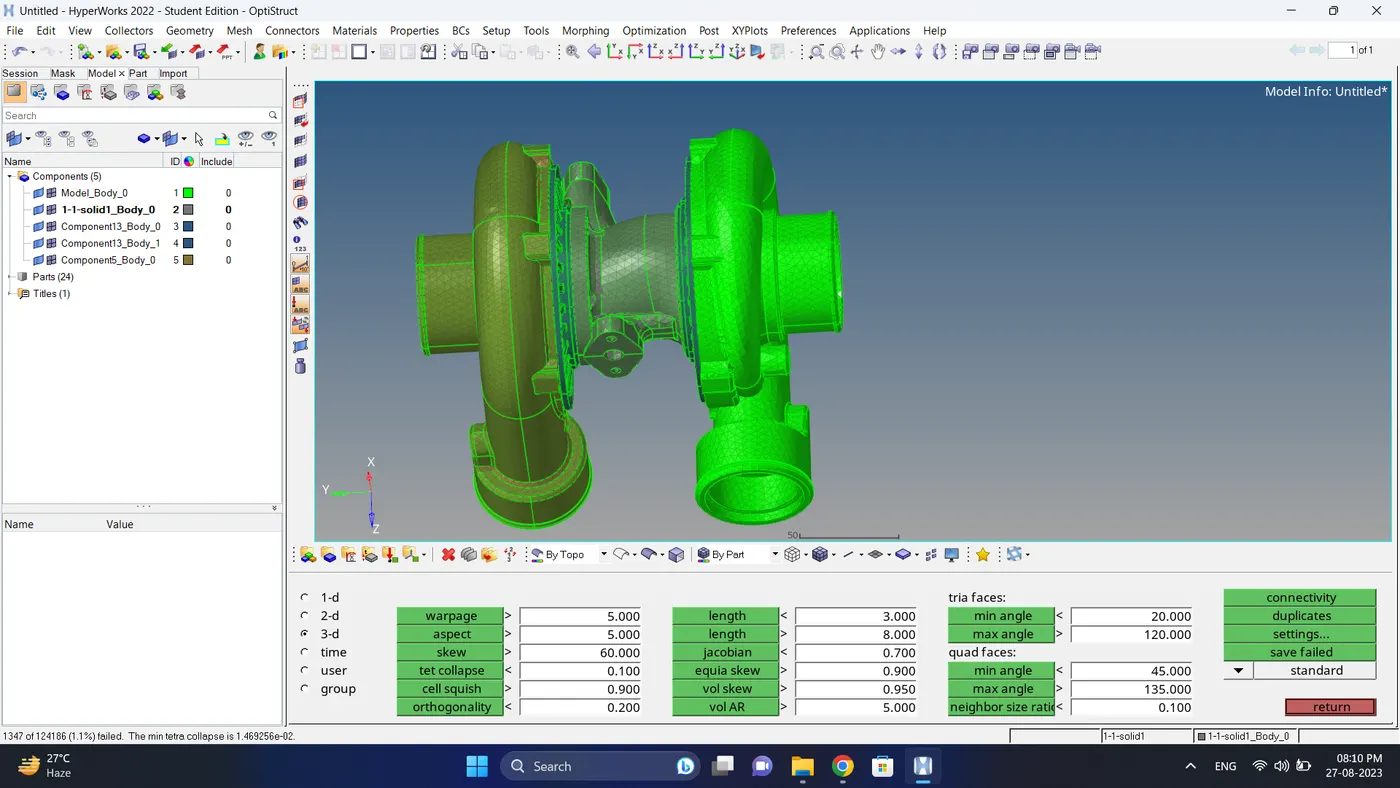
6. Go to 3d - tetramesh - tertra remesh, select element and fix the quality.
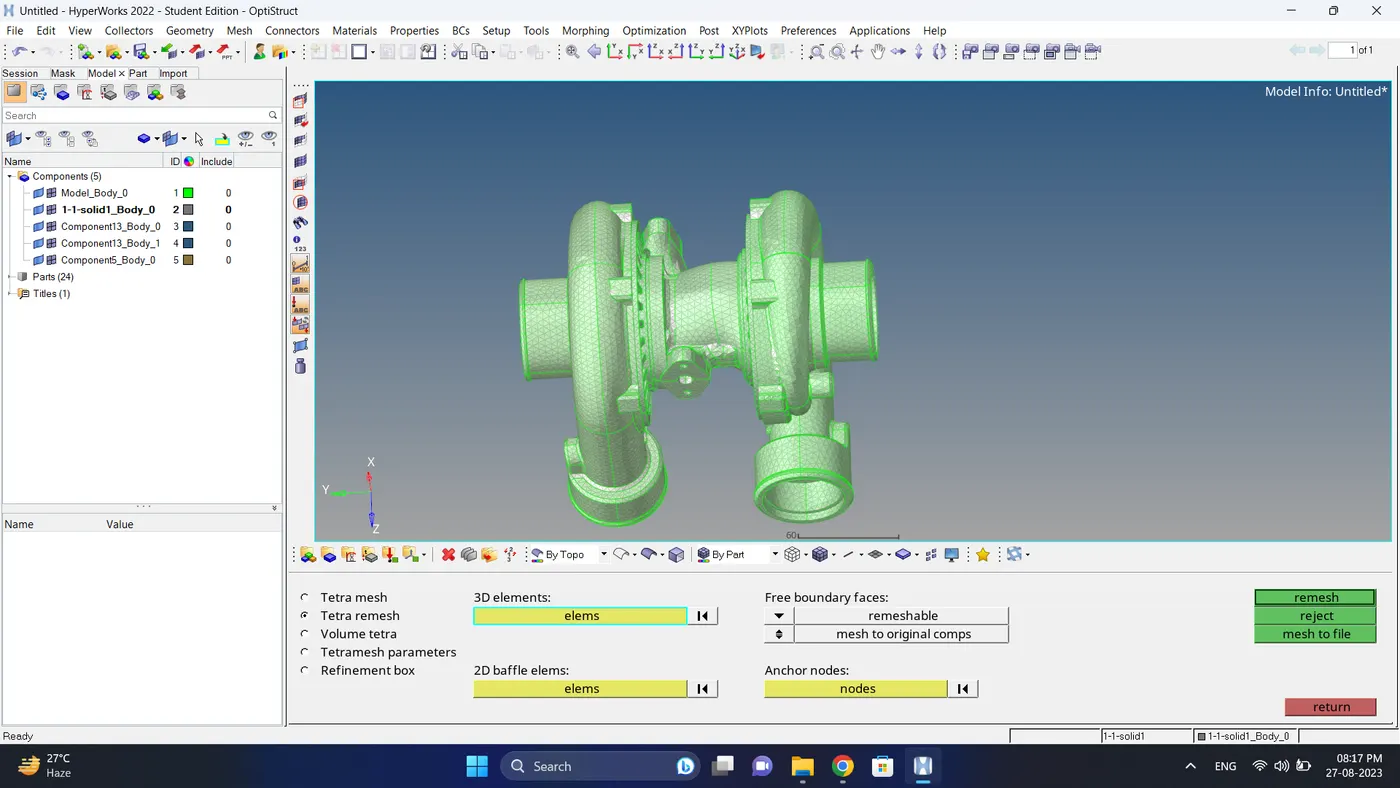
7. Again check for tet collapse element failure.
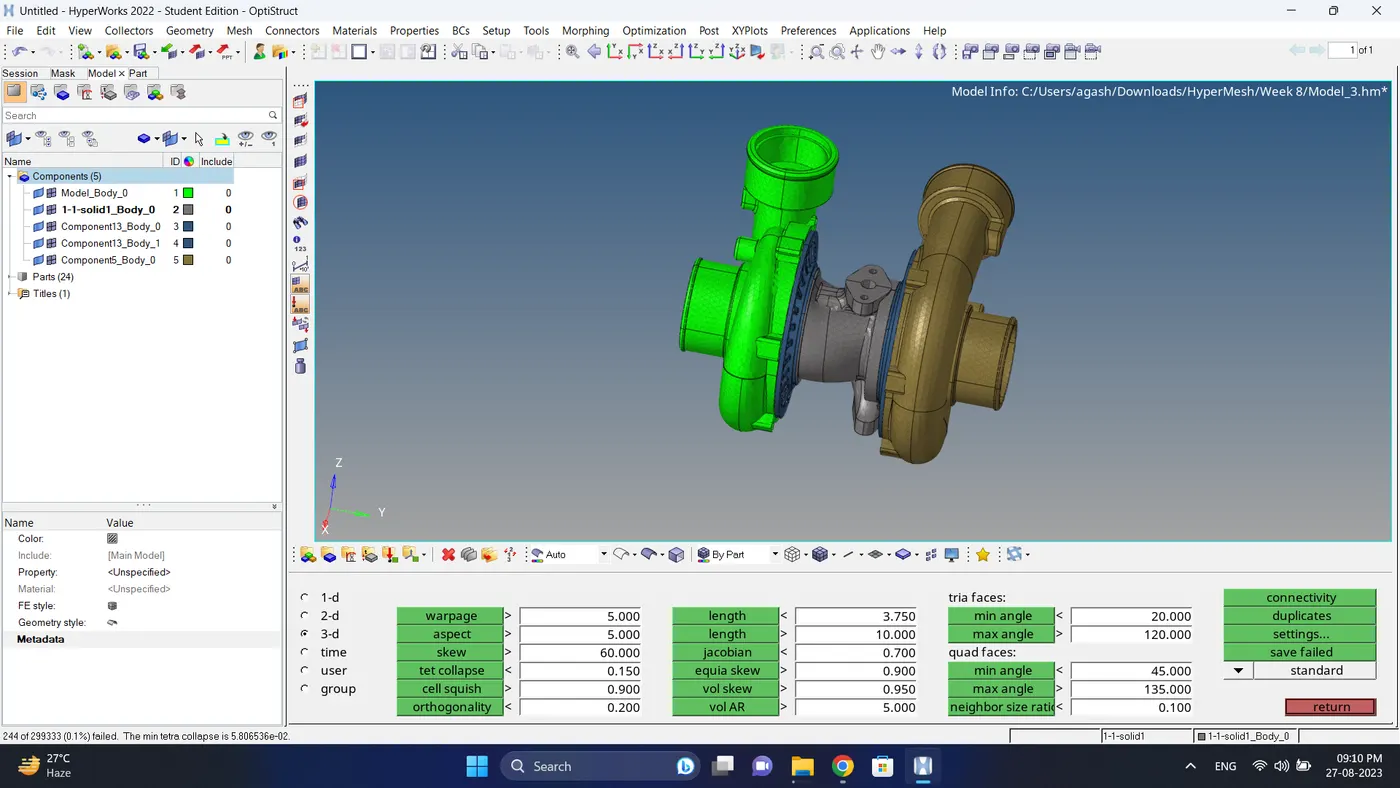
8. For the remaining element failure fix it manually.
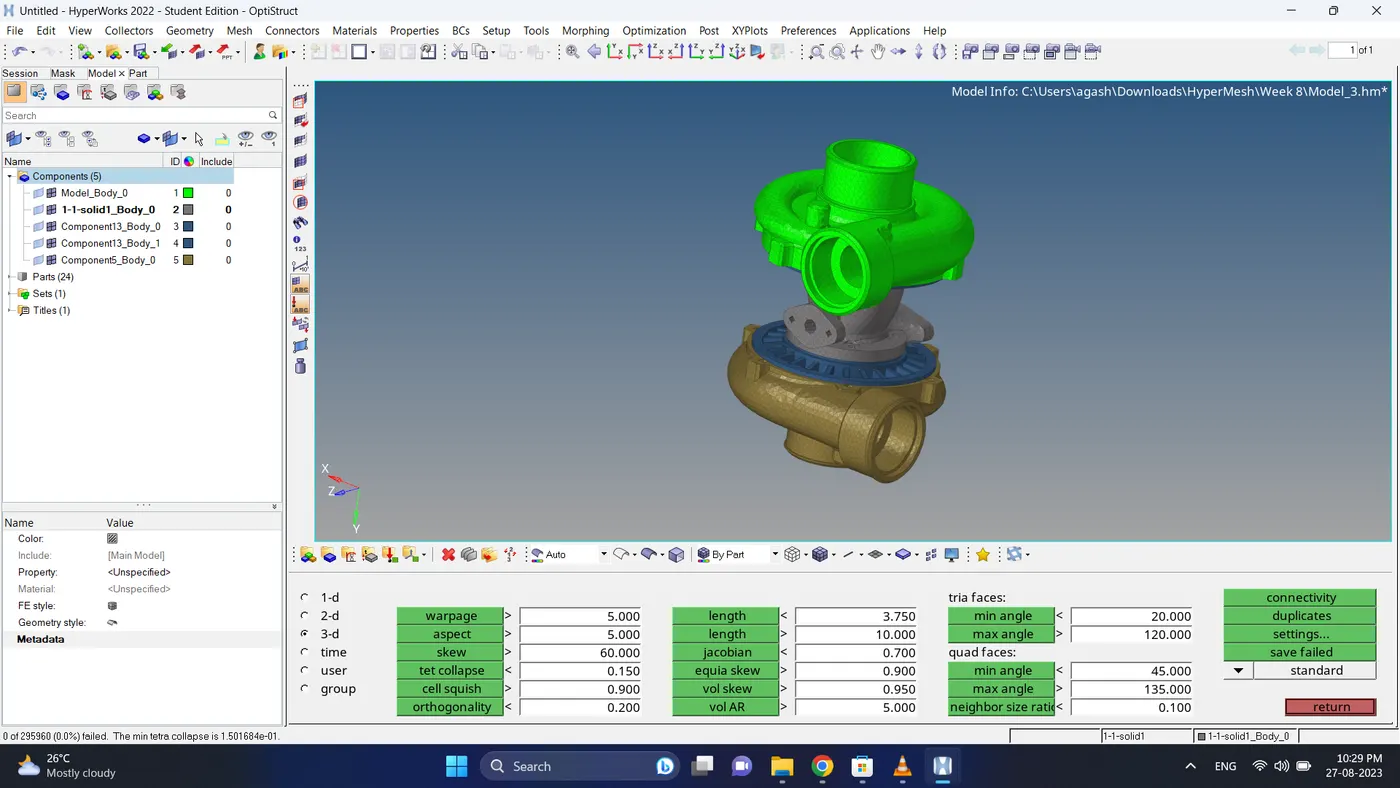
9. Do the final check for the free edges in between and duplicate elements. If there are any problem fix them.
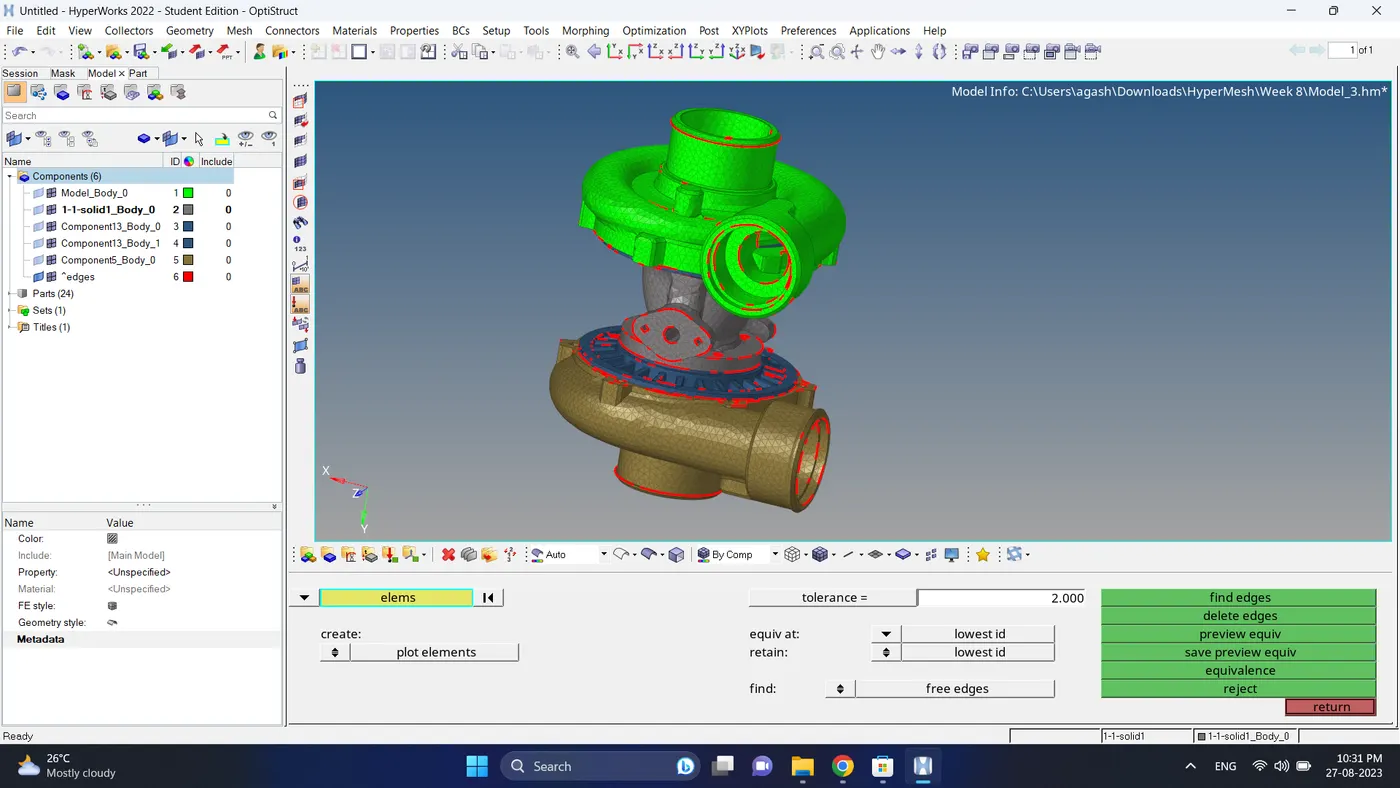
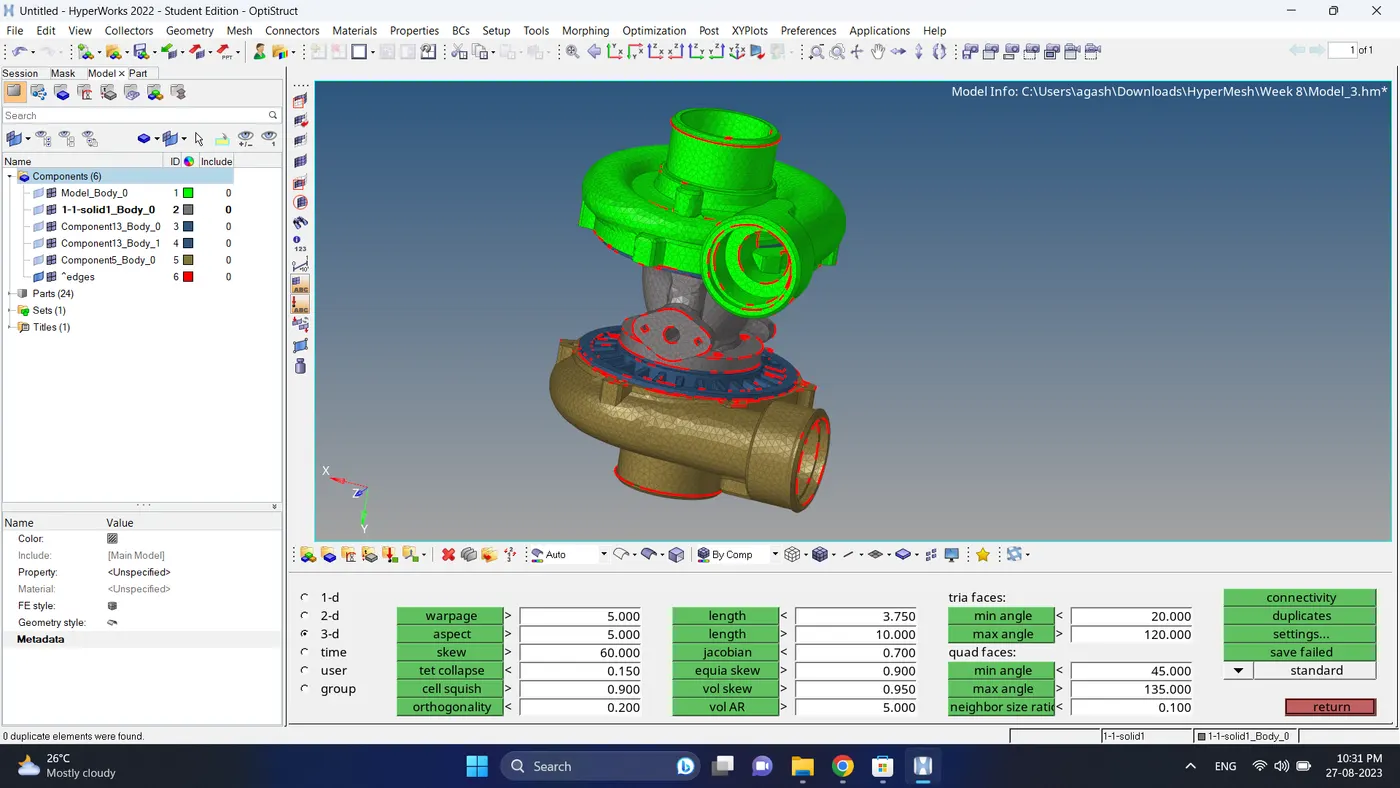
10. Do the final check and 3d meshing for the model 3 is complete using volume tetra mesh method.
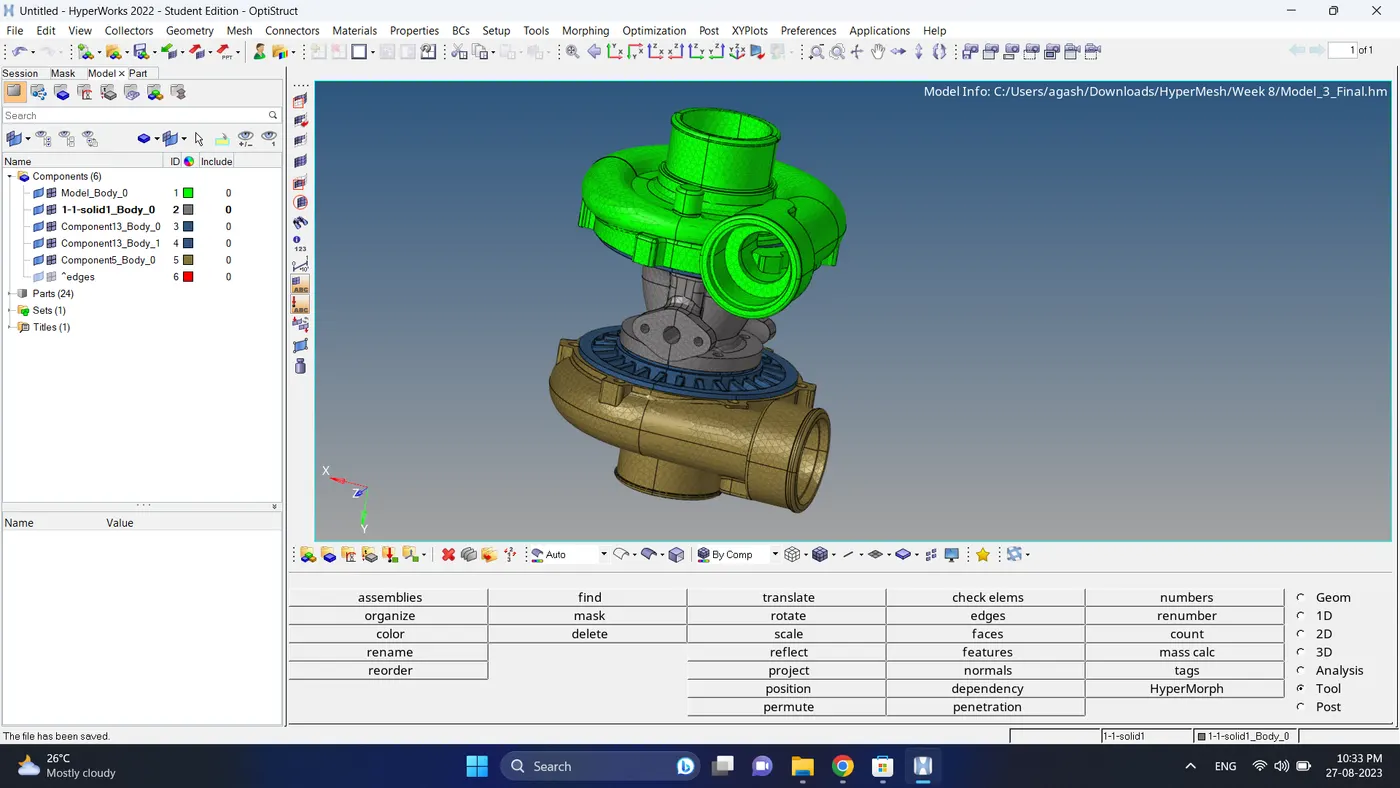
Final Model Image:
Model 1
Model 2
Model 3
Result:
Creating a Tetra mesh on the 3 different model is done successfully as per the given quality criteria and meshing method.