Week 3 - 2D meshing for Sheet metal
Aim: To Perform 2D mesh of the given Hood Component.
Objective: For the given Hood model, Take the mid surface for all the components after checking the geometrical errors and mesh the mid surface with the given element Quality criteria.
|
S.No |
Quality Criteria |
Value |
|
1 |
Target/Average length |
5 |
|
2 |
Minimum Length |
2 |
|
3 |
Maximum Length |
7 |
|
4 |
Aspect |
3 |
|
5 |
Warpage |
15 |
|
6 |
Skewness |
45 |
|
7 |
Jacobian |
0.7 |
|
8 |
Minimum Quad Angle |
45 |
|
9 |
Maximum Quad Angle |
135 |
|
10 |
Minimum Tria Angle |
30 |
|
11 |
Maximum Tria Angle |
120 |
|
10 |
Tria Percentage |
15 |
Procedure:
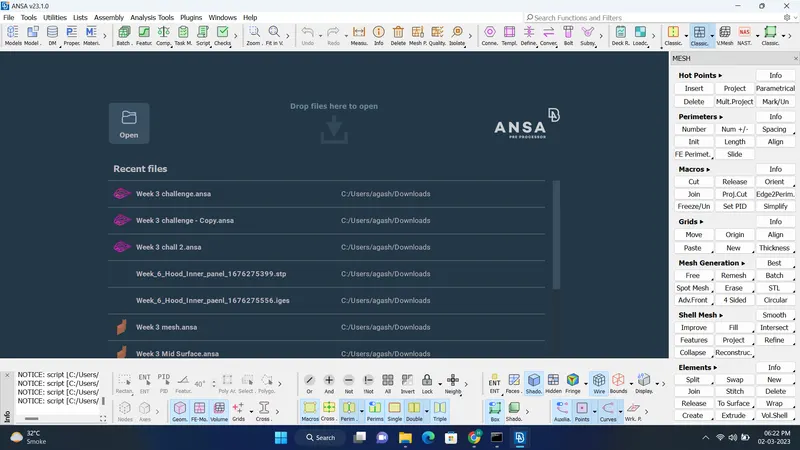
1) Open the cad Model in ANSA using Open option in file
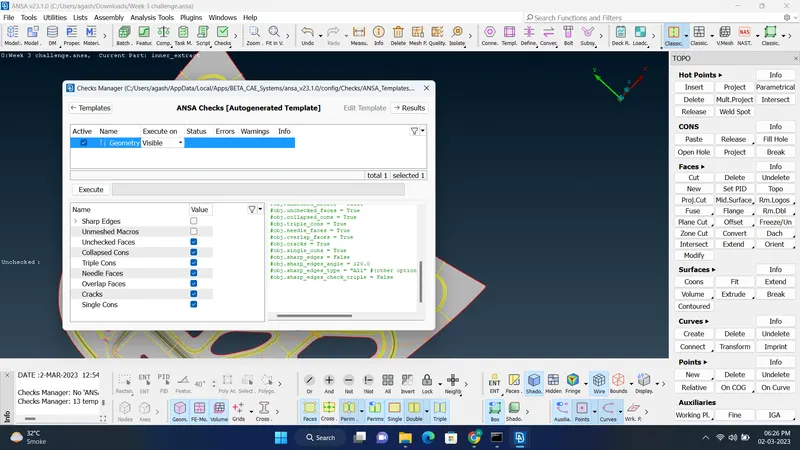
2) After Opening Check for Geometry Cleaning by clicking Check then Geometry and Tick the option of single cons and other as shown in below image and click on execute.
3) After Executing the error in geometry will be shown as below, Try to fix with Auto Fix.
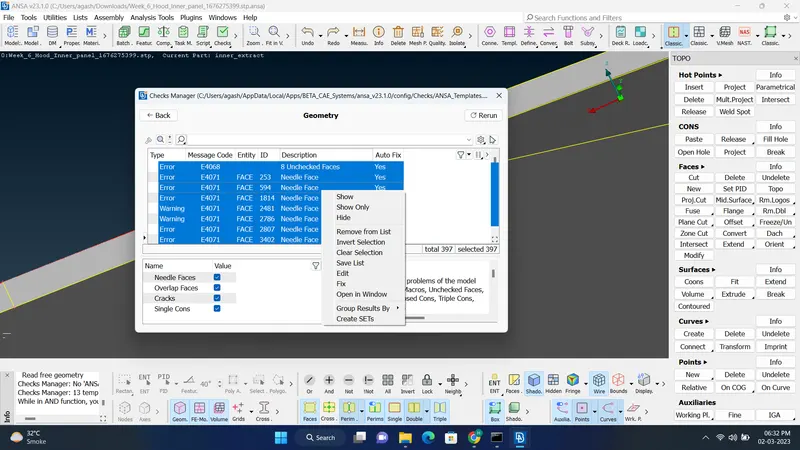
4) Sometime Auto Fix will not fix all errors then we have to fix it manually. By using option show only by clicking on error.
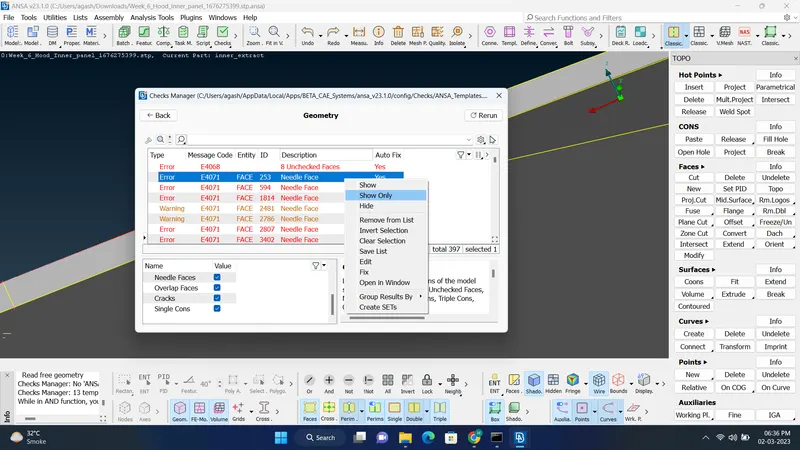
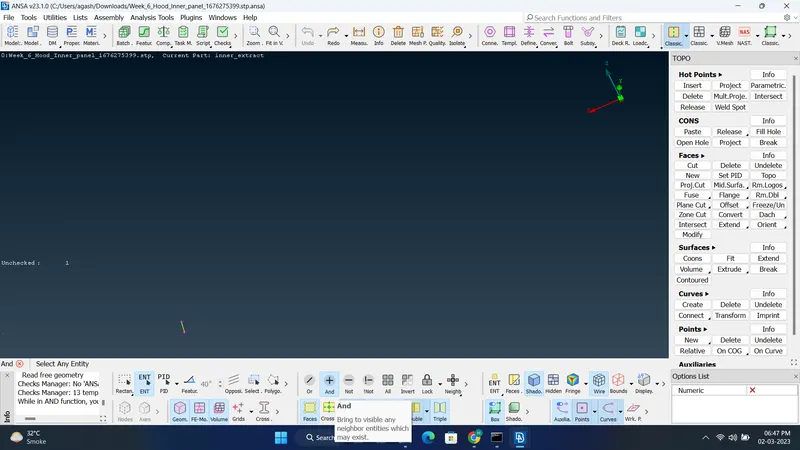
5) After clicking show only use option 'And' to visible nearby surfaces and After that try solving error if two surfaces are not joint single con is showing use 'Topo' to join the surfaces, if there is a crack/ needle error showing try deleting the surface using 'Delete' option in Faces, if there is Triple con error showing try deleting the extra surface using 'Delete' in Faces and Delete the extra Hot point in the geometry using 'Delete' option in Hot Points and other errors in geometry check.
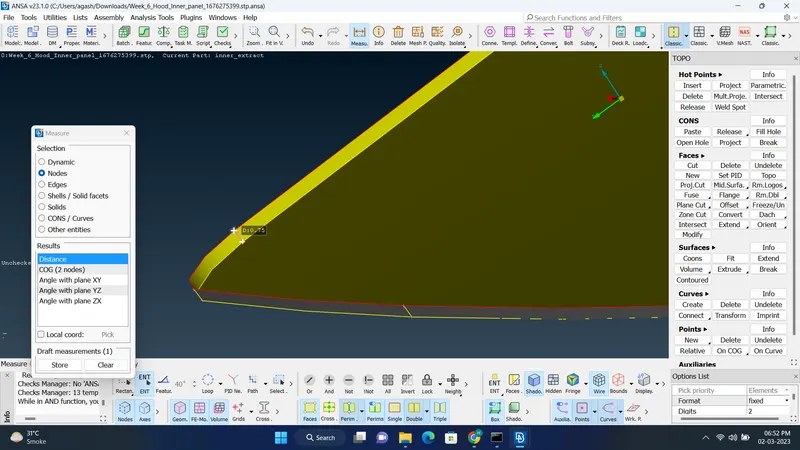
6) After Geometry cleanup use measure option to measure the thickness of component using 'Measure' option
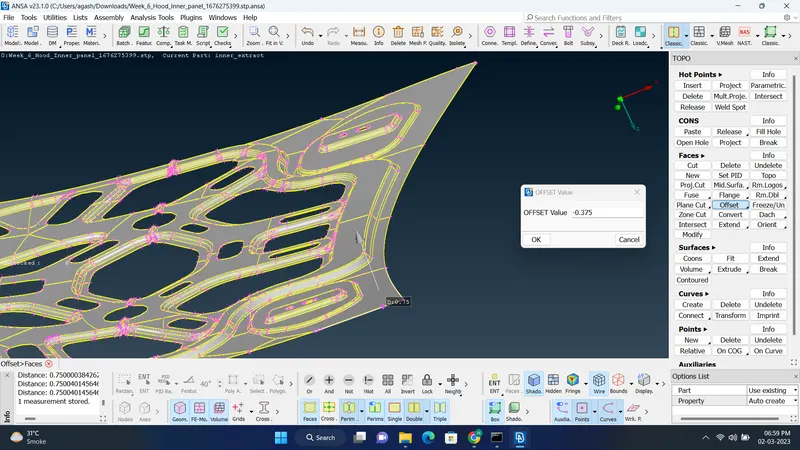
7) After measuring thickness click on 'Ofset' option in Faces, then click on one face, after clicking look for the direction of Arrow if the arrow is going in outward direction from face selected, type '-' while giving ofset value, take offset value half of the total thickness of component as shown below and in option list choose the 'Auto Create' in property' , click 'no' to delete original faces.click on Ok to create mid surface and click 'no' to delete original faces.
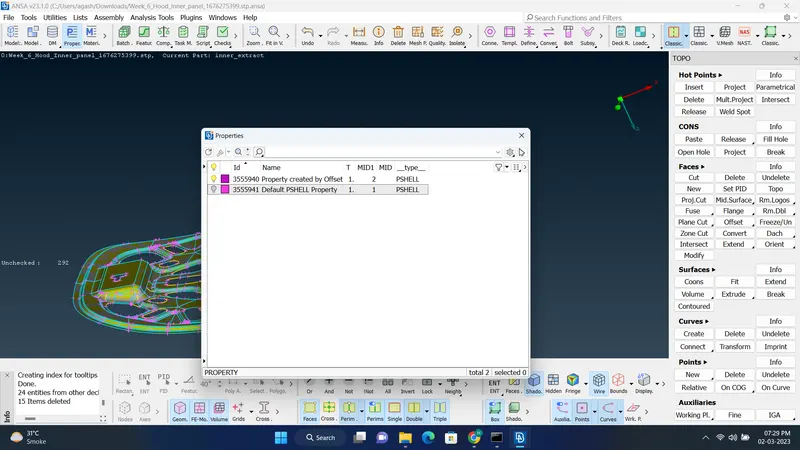
8) After creating mid surface open 'Properties' by ctrl+p and turn off visibility of parent geometry and turn on only offset geometry.
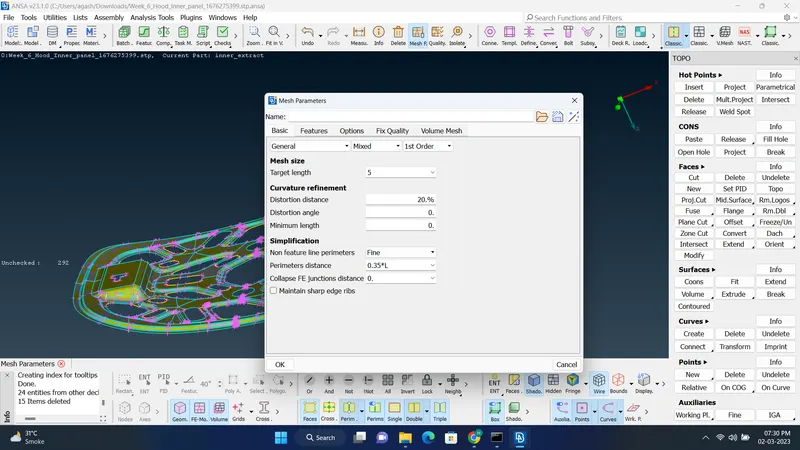
9) Give 'Target lenght' in Mesh Parameters as given and click ok
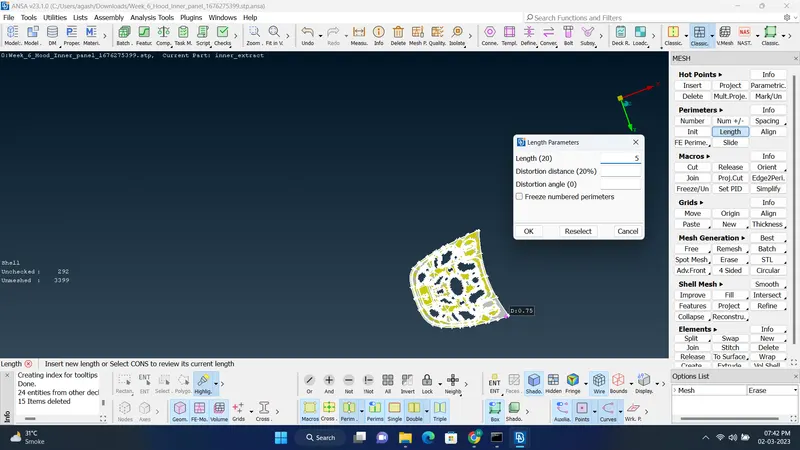
10) Click on Classic Mesh, Select 'Length' in perimeters, tick perimeters, select whole geometry and press middle mouse click to comfirm, type length as given and click ok.
11) Mesh geometry using 'Best' option in Mesh Generation, select whole geometry and press middle mouse to mesh the surface.
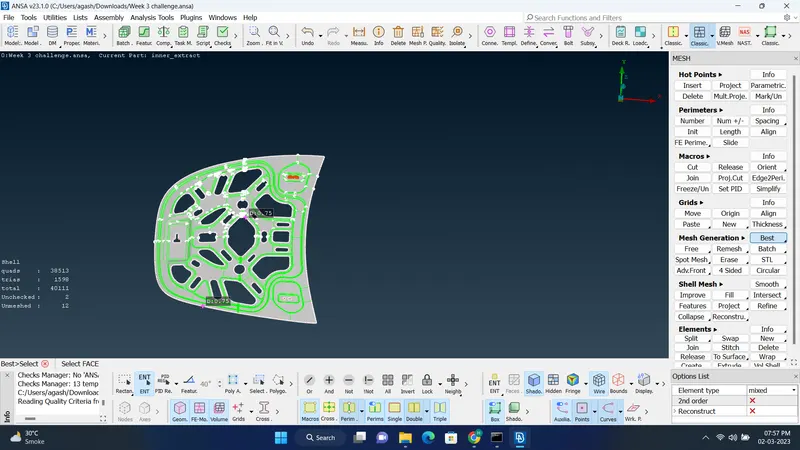
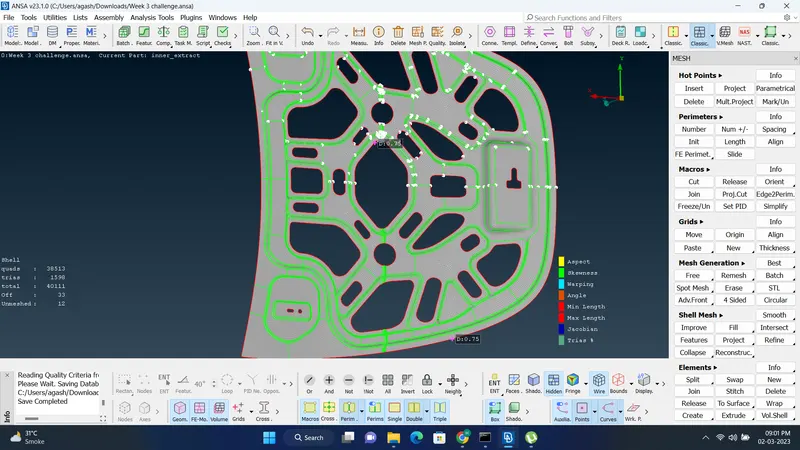
12) Click on 'Hidden' option to see quality criteria on surface, if the surface are failing the colour of in which quality criteria its failing, if it failing we have to sometime use 'Join','Cut' cons ,'Delete' the face and recreate new face, sometimes create new Cons using 'Cut' for better mesh flow and 'Reconstruct' or 'Smooth' option. if the surface is not Failing on Quality Criteria the Surafce is ready as shown Below. We have to also reduce the Trios to Minimum for better result.