Week- 5 - Solid meshing
Report
AIM:
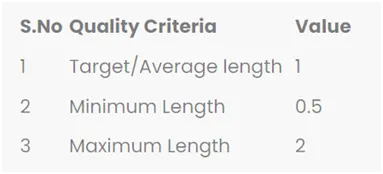
For the given Rear view mirror component, check for the geometrical errors and mesh the Surfaces with the given 2D element Quality criterias given below.
2D Quality Criteria:
Use tetra elements to mesh the Volumes defined in the model and check for the below quality after Volume meshing
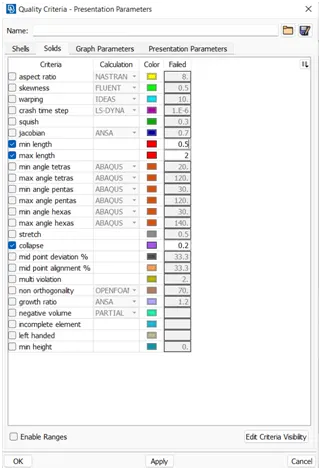
3D Quality Criteria:
Procedure:
following step to be done for meshing the given Hood Model.
1] Import:
import the geometry in the .stl,.STEP,.IGES format. (File > Open > Choose the File) and hit on open.
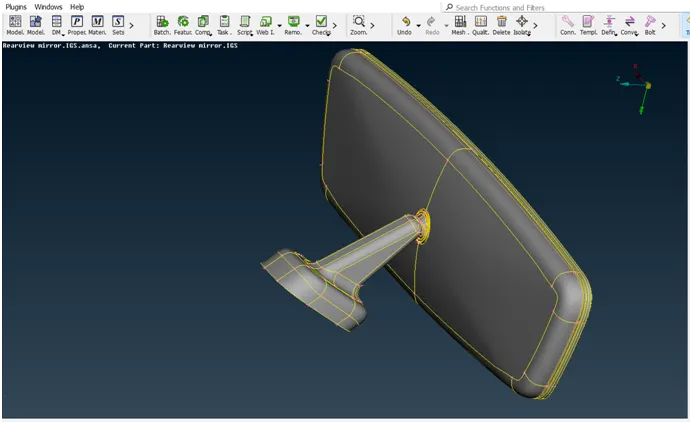
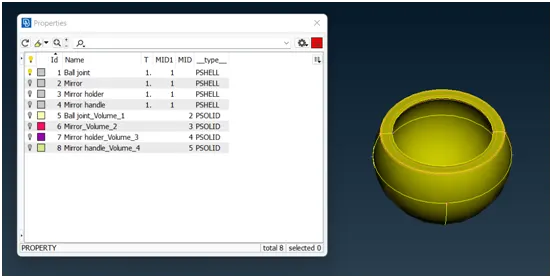
select 1 property ID:
first select the ball joint property Id, do the 2D and 3D meshing for this property ID.then select other property ID and do the same proedure.here i show the procedure for 1st part ID Ball Joint...
2] Cons resolution:
changing the distance between the nodes(mesh length) from preset value to required value,this will help us to understand the actual shape/ geometry of imported cad model.make sure before meshing this length should be change again to the targeted element length.(mesh module>perimeter>length>1)perimeter2)macros)
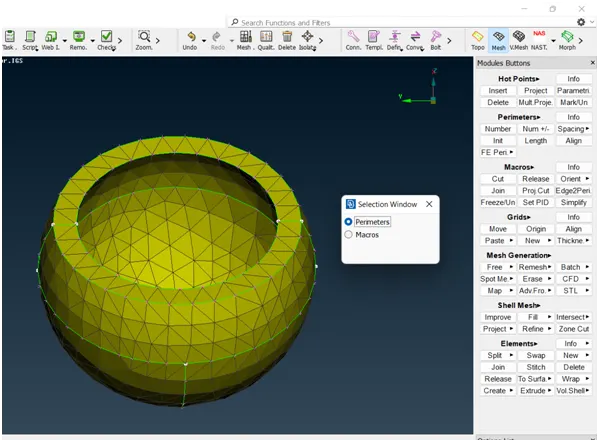
fig 1] before cons resolution:
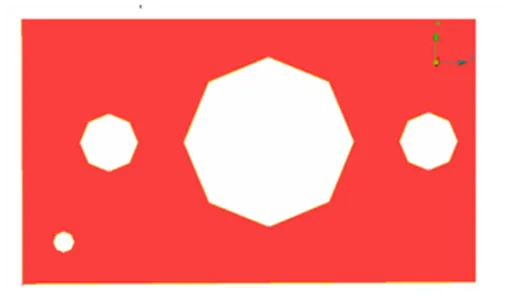
fig 2] after cons resolution:

3] Topo option:
- If the imported file it doesn’t have any connectivity between the Surfaces.To get the connectivity between the surfaces we have to use the Topo option.(TOPO Module> Faces > Topo).
- first we check the any single cons are present in the geometry so in focus menu deselect the double cons and press shit+ctrl.
- if any double cons present then use the (TOPO Module> Faces > Topo).
4] orientations:
- We have to Orient the Surfaces to make sure all the surfaces are in one normal direction.(TOPO Module> Faces > Orient)
5] Checking the geometrical errors:
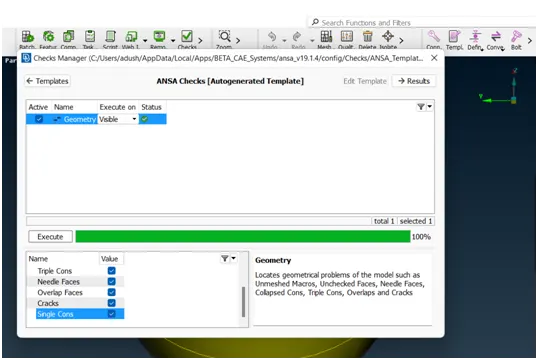
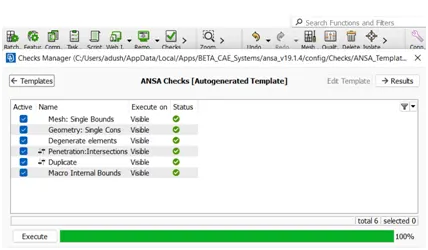
- after the orientations done the we need to check the geometrical error. for that go to (check manager>geometry>execute)
6] Clearing the geometry errors:
if any geometry error is pop out then select the all error and then right click on error and fix them.
7] Check the thickness of the components.
- If the thickness is less than 5 or 6mm then we have to extract the midsurface.
- If the thickness is more than 5 or 6mm then no need to extract the midsurface.
for cheching the thickness of model (isolate>mesure>nodes) or create short cut key for measure option.here is thickness is greater then the 6 mm so we go for solid meshing...
8] Providing the Target element length:
changing the distance between the nodes(mesh length) from preset value to required value,make sure before meshing this length should be change again to the targeted element length.(mesh module>perimeter>length>1)perimeter2)macros)
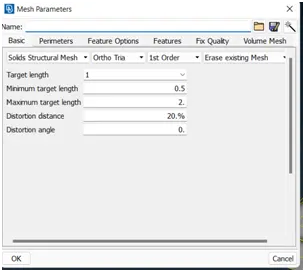
10] Providing the Mesh Parameters.
based on the given data we provide the target element length is 1mm,minmum target length is 0.5 mm,and maximum target length is 2mm etc...
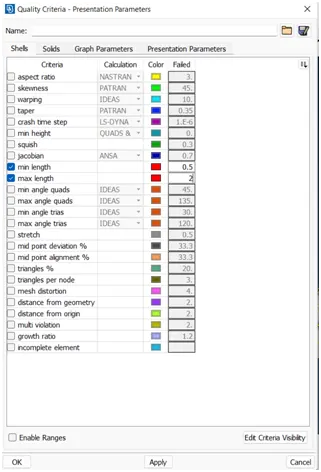
11] Providing 2D Quality criteria to the models:
based on the given data we provide the Quality criteria to the models.
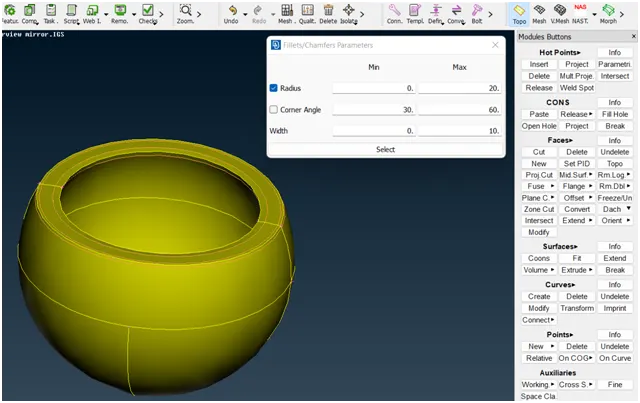
12] Geometry cleanup:
for geometry cleanup i use some feature likes:
1] topo module>faces>Datch
2] topo module>faces>cut
3] topo module>cons>release
4] topo module>hot points>insert/delete
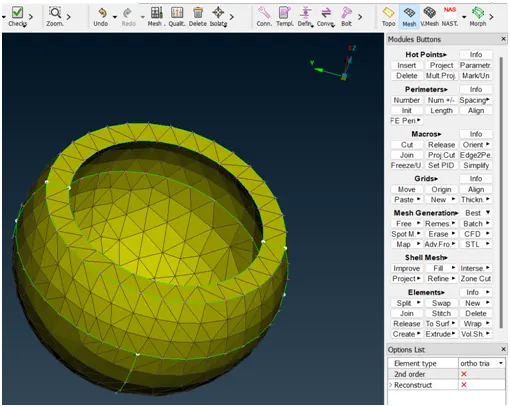
13] Generating the 2D Mesh:
for creating the mesh we use the lot of command but i explain some of them.
creating the mesh: (mesh module>mesh generation>best)
- for curved surface: (option list> element type>ortho tria)
- for plane surface: (option list> element type> tria)
smothning the mesh:(mesh module>shell mesh>smooth)
reconstruct the mesh:(mesh module>shell mesh>reconst)
improve the quality of mesh:(mesh module>elements>split/swap/join/stich)
insert or delete hot points:(mesh module>hot points>insert/delete)
to increae or decrease elements number:(mesh module>perimeters>NUM+/-)
to cut or join the face:(mesh module>macro>cut/join)
to delete the mesh:(mesh module >mesh generation>erase)
14] pre- volume check and volume defination:
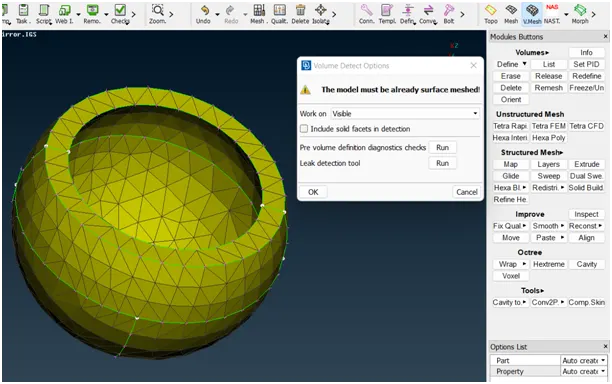
here i define the pre-volume check and create the seperate volume property for each part/property (v.mesh>volumes>define>auto detect>visible>run)
15] Providing 3D Quality criteria to the models:
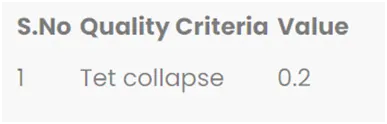
based on the given quality criteria i put the correspomding value in quality criteria.(quality criteria>solid>put data>apply>ok)
16] Generating the 3D Mesh:
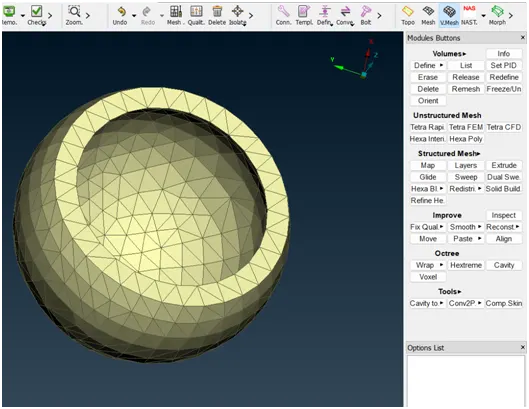
for generating the 3D mesh i use the below process:(volume mesh>unstructured mesh>tetra rapid>volume>select geometry).and doing some changes in option list.
1] Ball Joint:
2] Mirror:
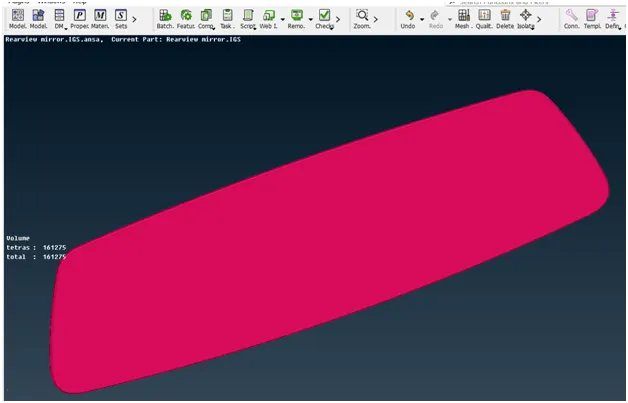
3]Mirror Holder:
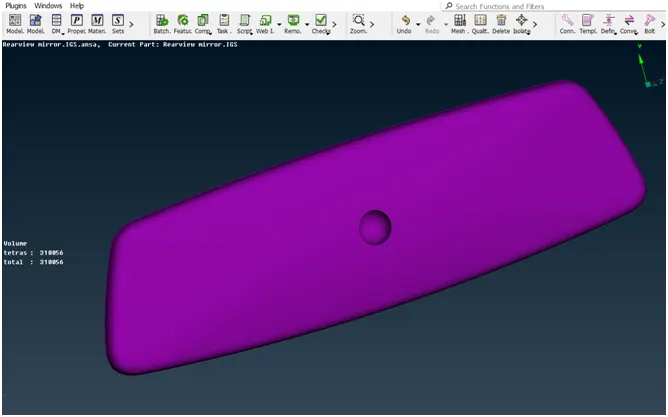
4] Mirror Handle:
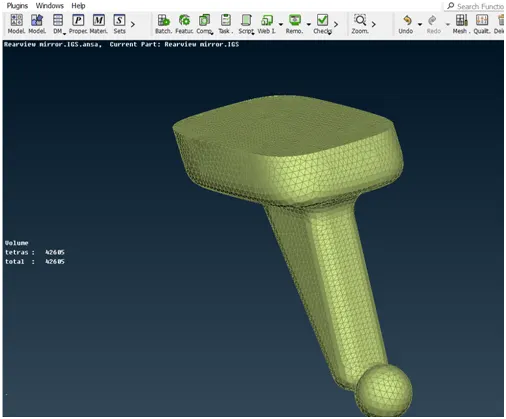
17] quality check for tetra collapse:
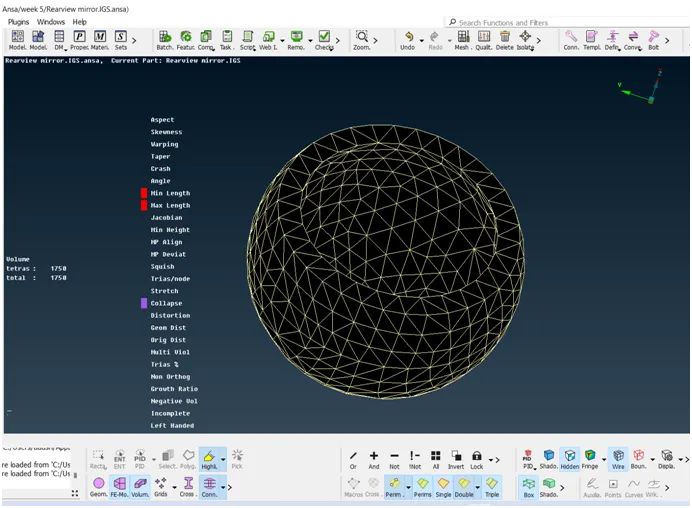
1] Ball joint:
here is total tetras are 1758 elements and no OFF elements in this property ID.
2] Mirror:
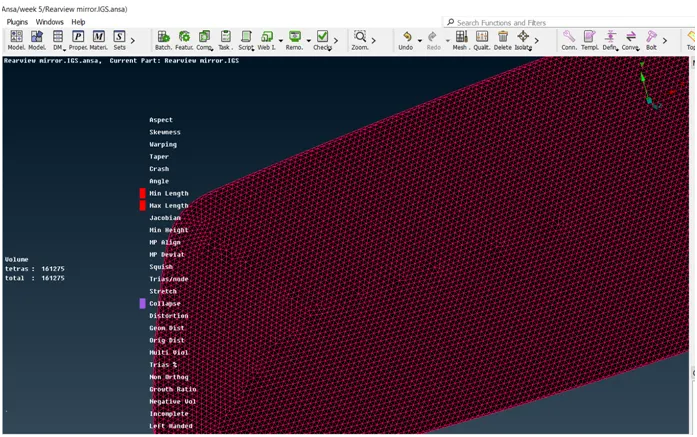
here is total tetras are 161275 elements and no OFF elements in this property ID.