Week 4- Challenge
Objective: To extract mid-surface and create 1D elements on the given component with given cross-section and Degree of Freedom.
Component: Bracket
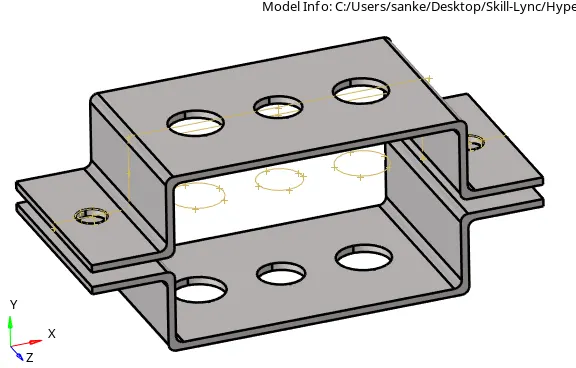
Procedure:
1). Mid-Surface Generation
There are two ways to extract the mid-surface: Auto and Manual.
For auto-extraction, there are 4 options available which are below:
a). Offset+Planes+Sweeps:
On the radius portion, the mid-surface continuity is disturbed when using this option.
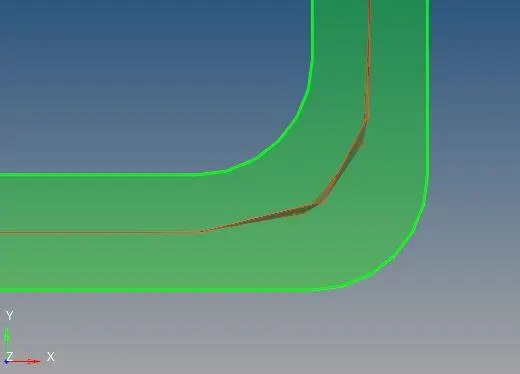
b). Offset+Planes:
By using this option mid-surface is not generated on the radius portion as expected. The different surface pattern is generated on the various radius portions.
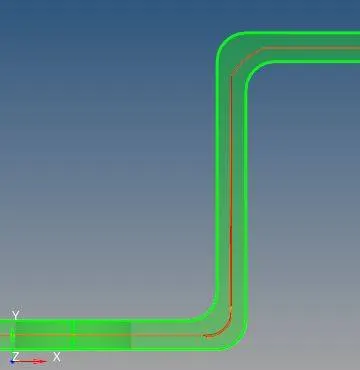
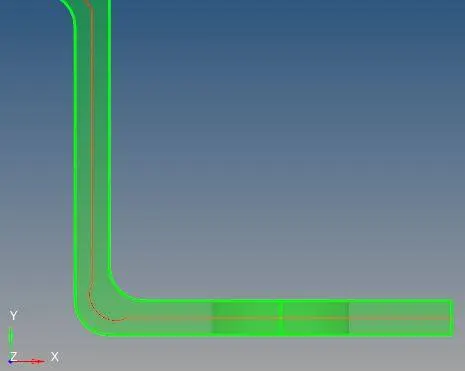
c). Offset:
By using this option mid-surface is well created but on the radius portion surface, continuity is disturbed.
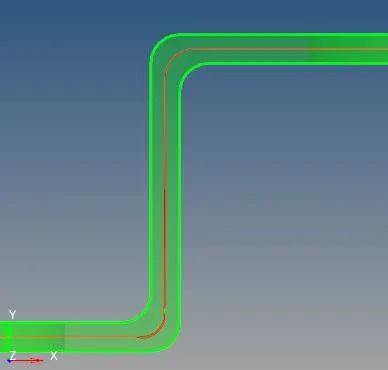
d). Skin Offset:
This is the best option to create mid-surface using the auto option. By using this option well-structured mid-surface is created and not any surface disturbed on the radius portions.
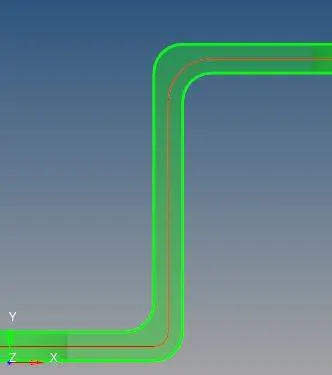
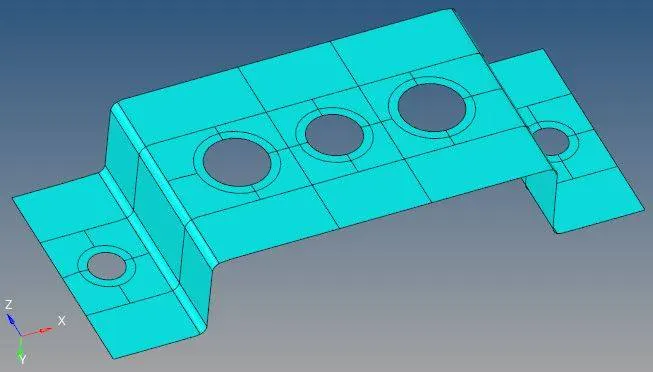
This is the final mid-surface which was created using auto-extraction (skin offset).
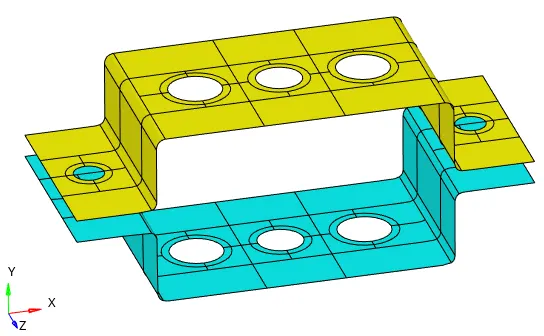
2). Mesh Generation:
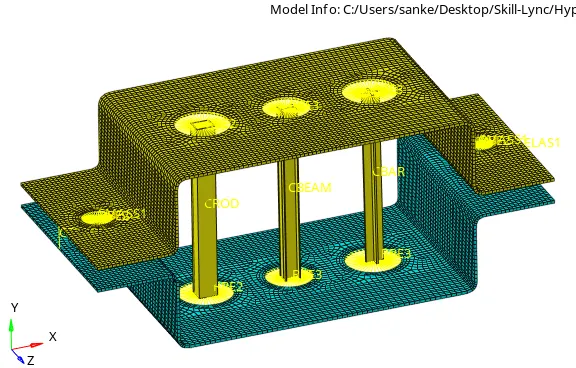
I split the surface into various portions for ease to create the quade mesh and also used washer split near the hole to make the perfect quade mesh around the hole. Also, split the radius portion to making more elements on the radius edge (min 4 elements).
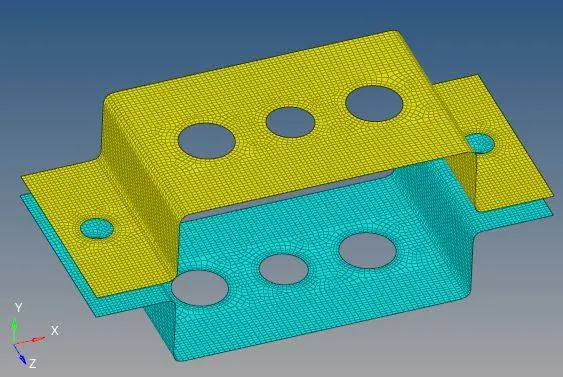
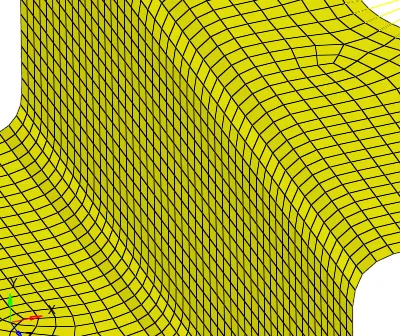
By using 2D mesh, mesh created on the mid surface. We can see on the radius portion element flow is very good (as expected).
3). Creating RBE2 and RBE3 element:
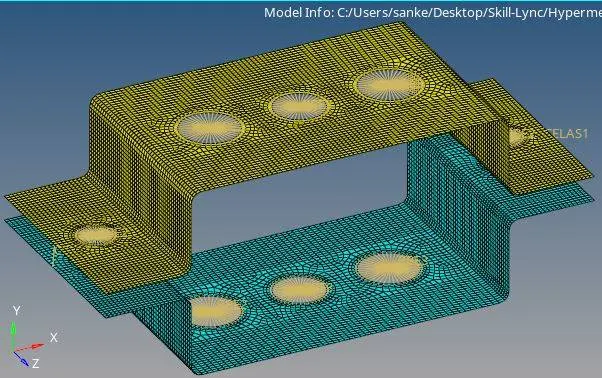
By using the calculate node and node path selection option we can create RBE2 and RBE3 elements.
Create mass on the RBE2 element just simply selecting the RBE2 node using CMASS1 element.
For spring element select the one node from the upper bracket and from the lower bracket with using CELAS1 element.
4). Create Material, Cross-sections & Properties:
Material: Select the steel material using MAT1 solver card. It is used for sheet metal parts.
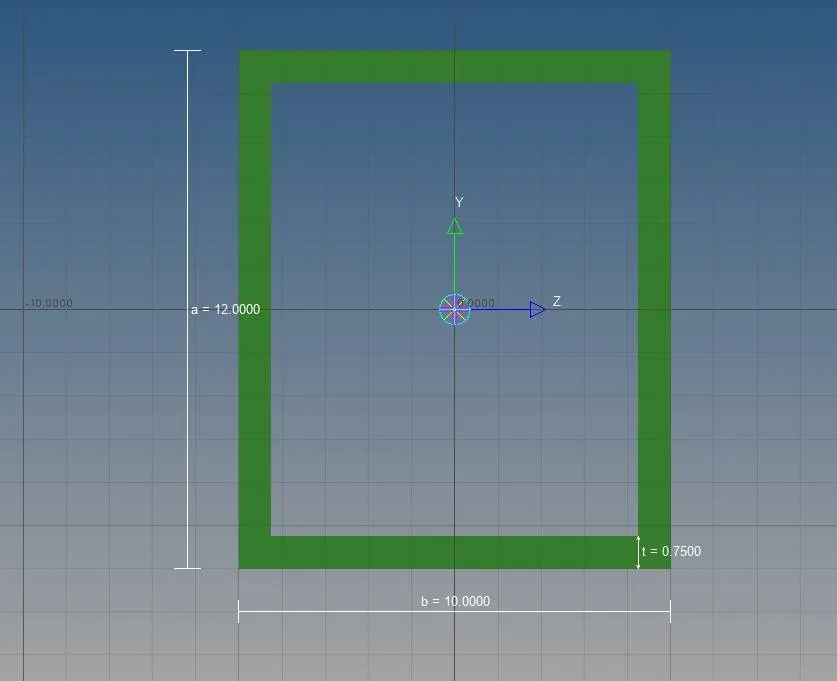
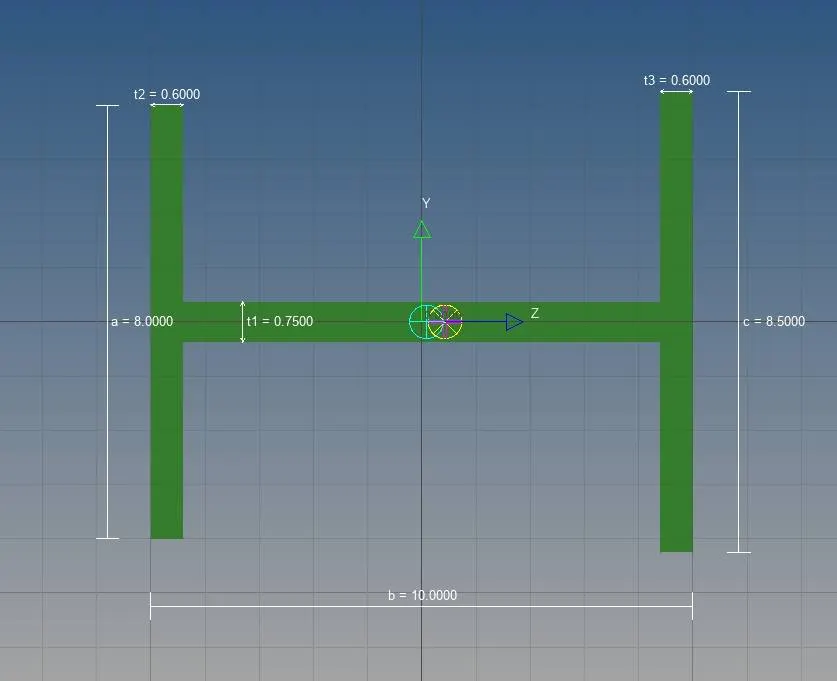
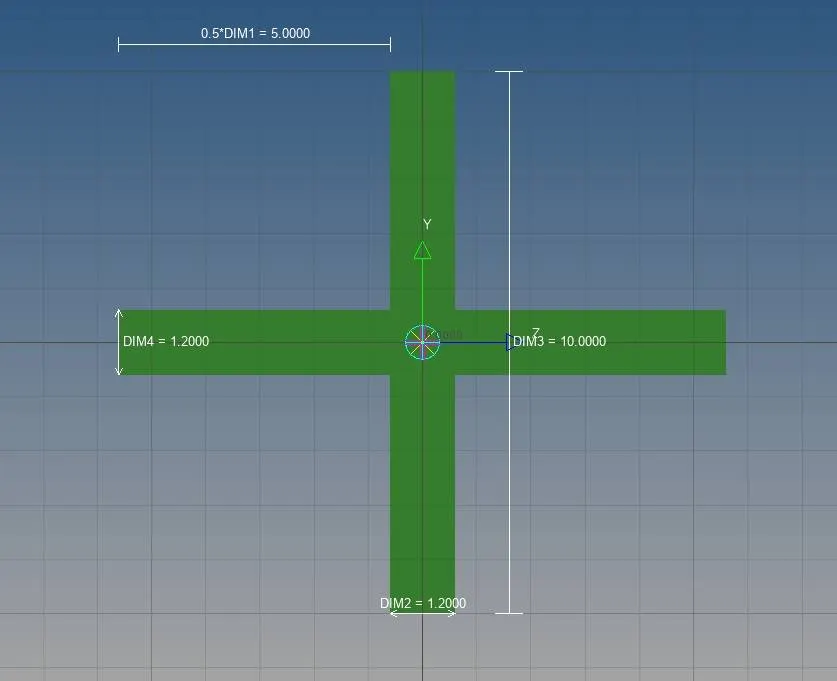
Cross-Sections: HyperBeam contains various types of standard cross-sections. Here, we are using Box rod, I-section beam and Crossbar.
Box rod cross-section:
I-Beam Cross-section:
Crossbar Cross-section:
Property:
Create properties for each cross-section and link with it. Create material for bracket and link to bracket property.
5). Create 1D elements:
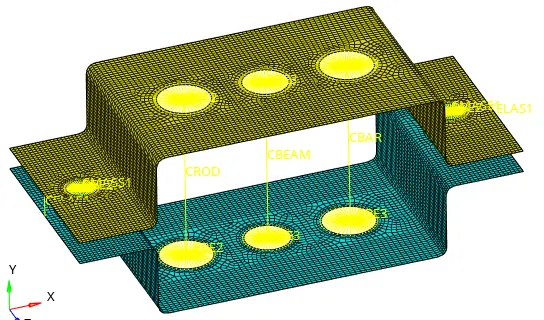
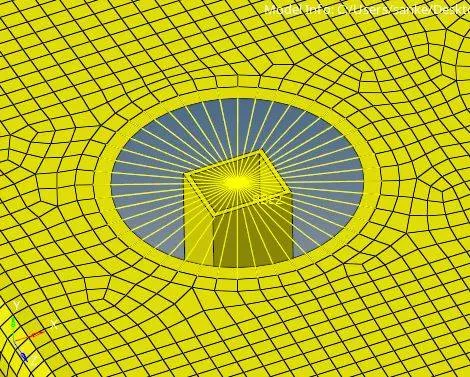
a). Create a rod element using rod option. Select the CROD element type and assign box rod property.
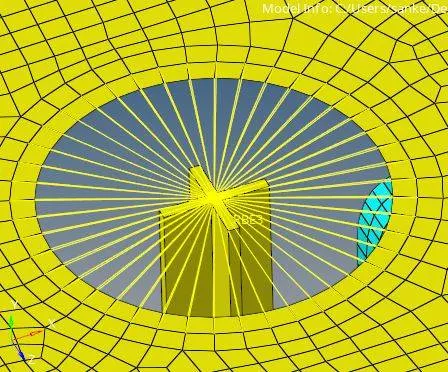
b). Create a bar element using bar option. Select the CBAR element type and assign cross-bar property.
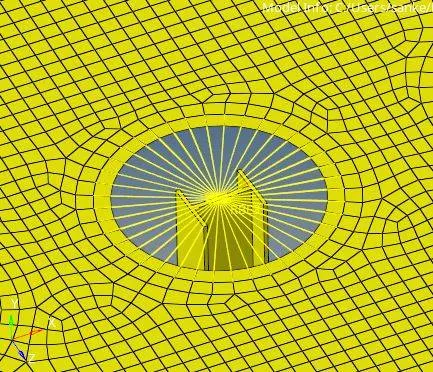
c). Create a beam element using bar option. Select the CBEAM element type and assign I-Beam property.
Box Rod element:
I-Beam element:
Cross-bar element:
1D Detailed Element Representation:
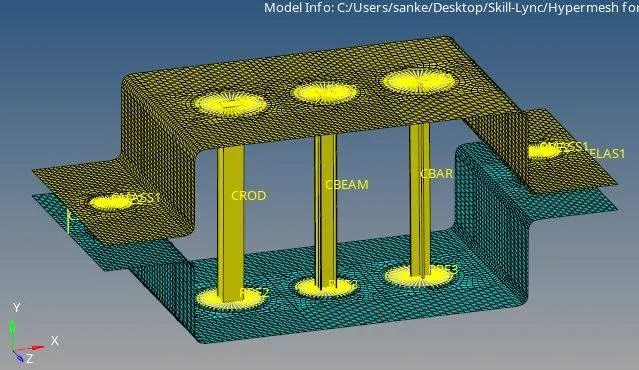
Final Design with 1D & 2D Detailed Element Representation