Week - 4 - 2D meshing for Plastic components
Aim: For the given Plastic Bottle Cap model, check for the geometrical errors, take the mid surface by suitable mid surfacing techniques and mesh the same with the given element Quality criteria.
Procedure:
1) Import the model from File>Open>select the CAD File>open. Then the cad file will be opened in the ANSA.
2) Perform a topological clean-up of the model, from the TOPO Module and use the necessary options. Check the topological errors by the use of the check manager in ANSA by navigating to Check Manager>Geometry>Execute. Rectify the issues that show up if any are present.
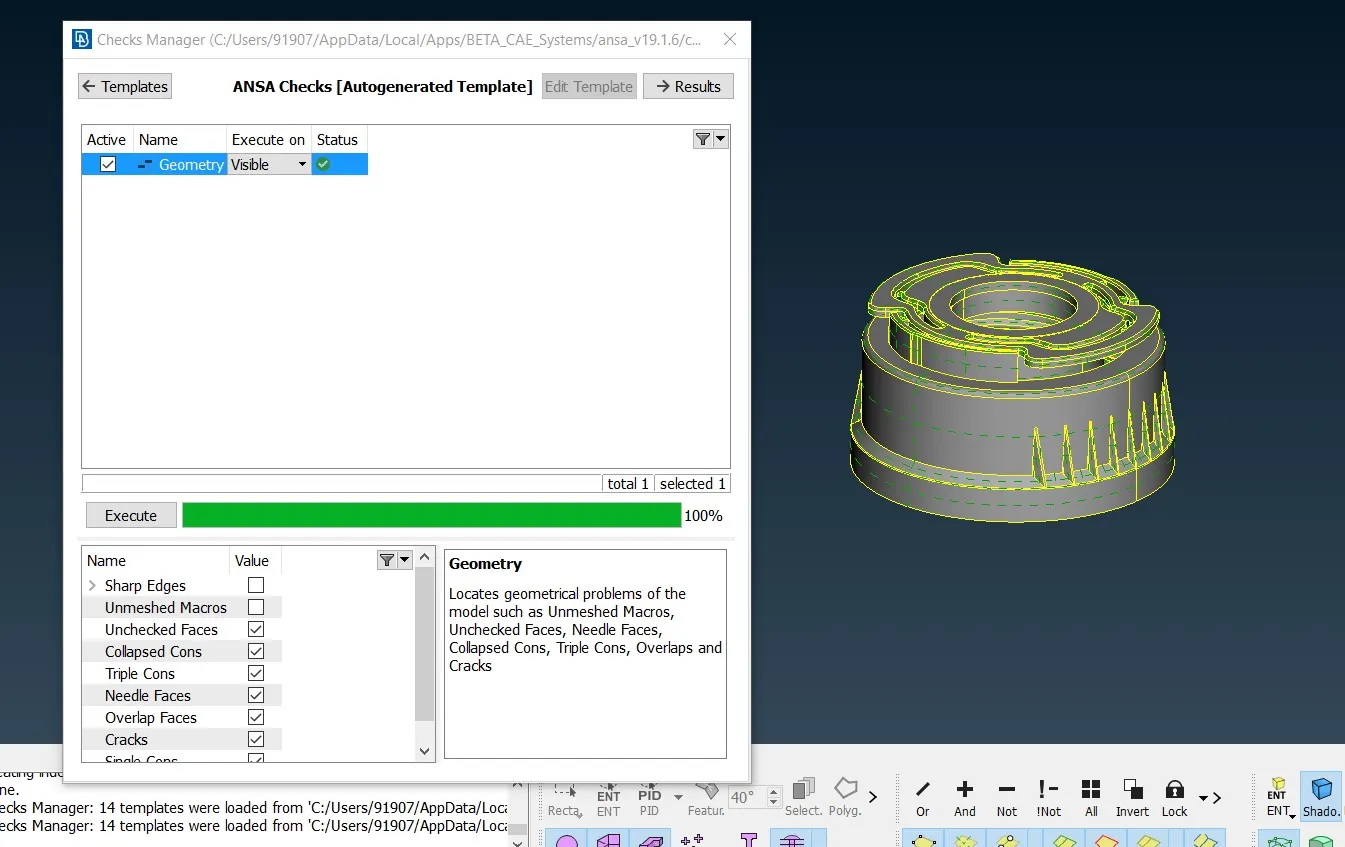
Fig. 1 Screensnip of Geometry cleanup
3) Take the midsurface of the plastic component in parts since the thickness varies throughout the part. The thickness of the bottle cap needs to be measured across various sections. We first take the midsurface from the bottom of the cap from FACE>MIDDLE>Select the surfaces>click on the middle mouse button. In some places, the middle curve needs to be created by using the cons. For taking Midsurface navigate to Curves>Middle>select one con>middle click>select second con. Then click on the middle mouse button>This gives us the middle curve of the selected cons.
4) Since most of the features in this model like ribs, trapezoidal wedges, etc. are symmetric and arranged at a particular angular offset in the model, we need to extract midsurface of the features and use the Rotate option to arrange the midsurface at the exact place if the midsurface of each feature is extracted manually. Therefore, we need to extract the midsurface of the feature>Select the transform>Copy>Select the extracted midsurface of the feature>Choose the option Rotate>Assign the Angle correctly>Choose a normal axis using two points>click on the middle mouse button. This gives us the midsurface of similar features arranged at their correct places in the model.
5)To extract points at the centre we can make use of the COG option in points. Navigate to POINTS>COG>CIRCLE. Then choose a circle. This will produce a point on the exact centre of the circle.
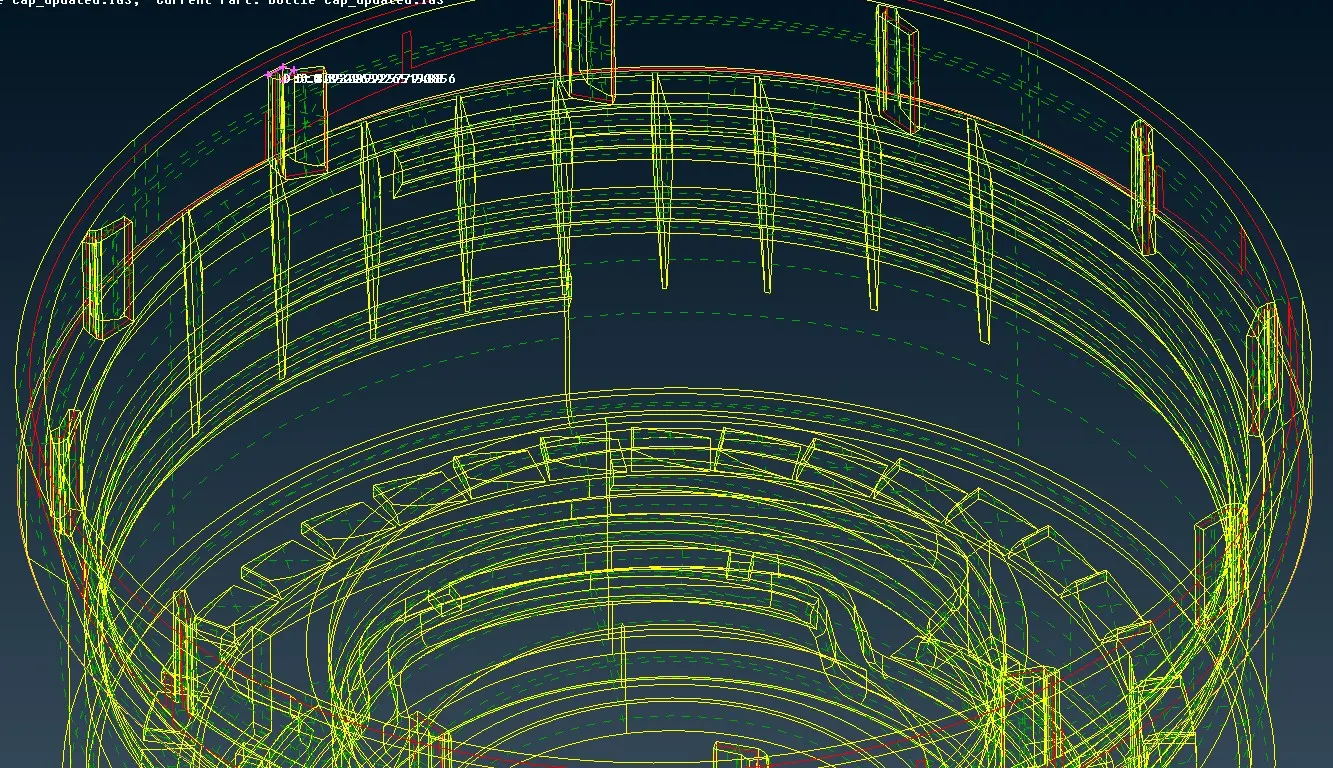
Fig. 2 Screensnip of wireframe view after rotation
After the midsurface of every surface is taken, some connectivity issues are visible. To solve the connectivity between the surfaces, we need to make use of the extended option. Navigate to FACES>EXTEND>SELECT THE CON OF THE FACE WE NEED TO EXTEND>SELECT THE SURFACE TO WHICH WE NEED TO EXTEND THE SELECTED CONE>MIDDLE CLICK.
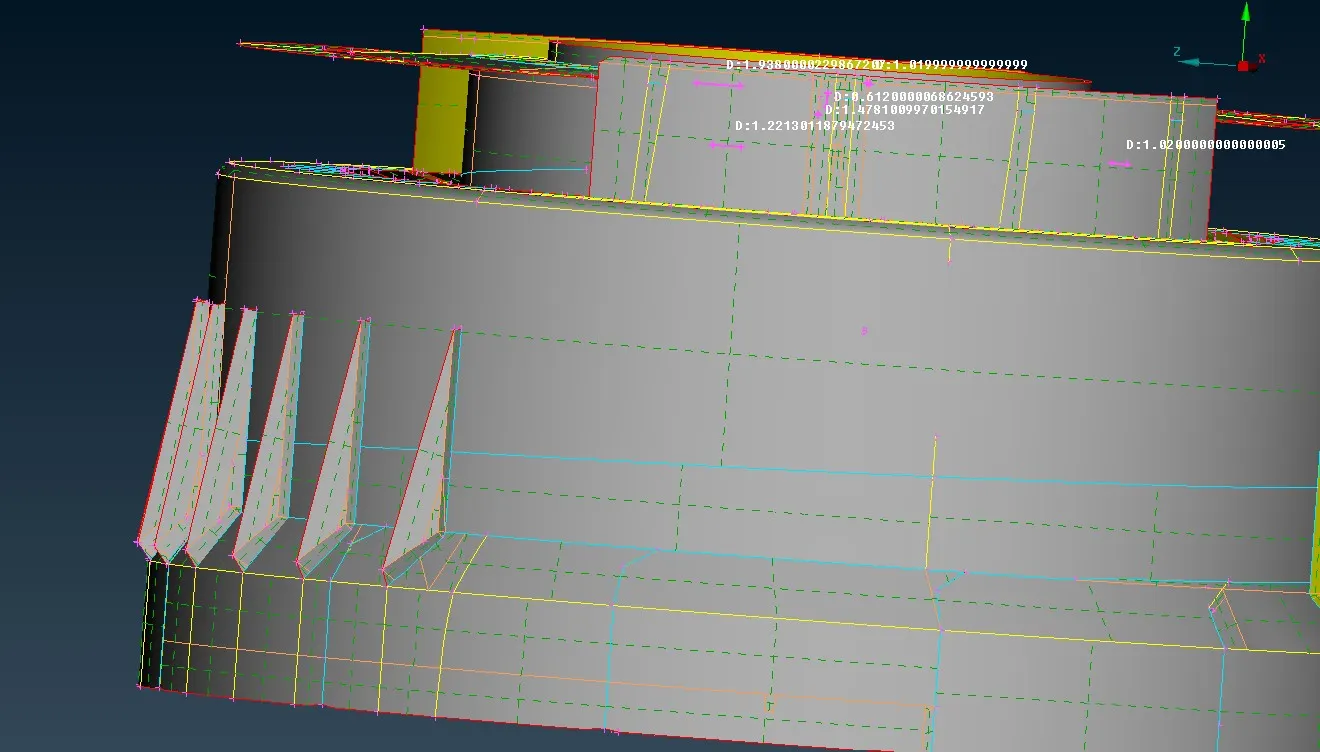
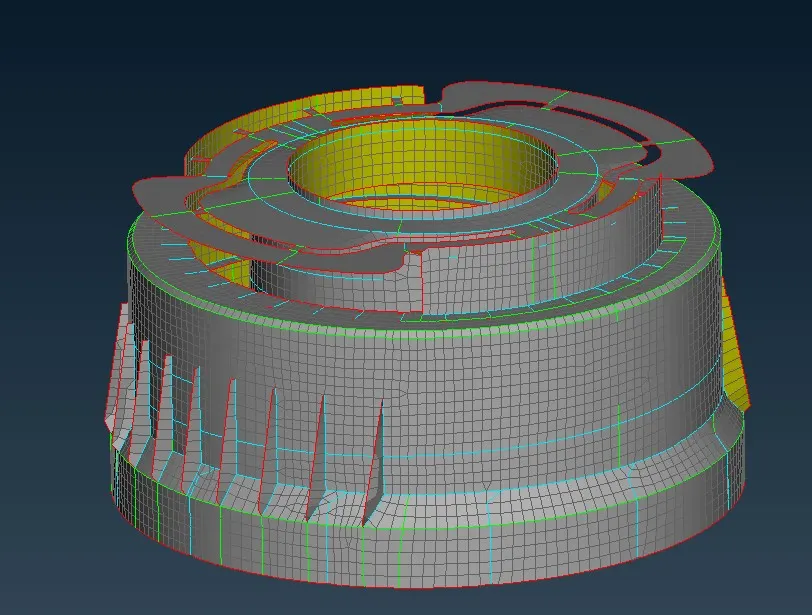
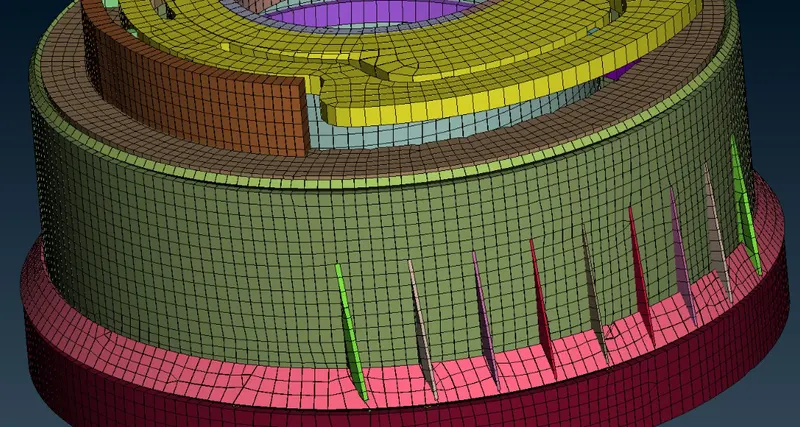
Screensnip of the completely meshed model in entity mode
Results:
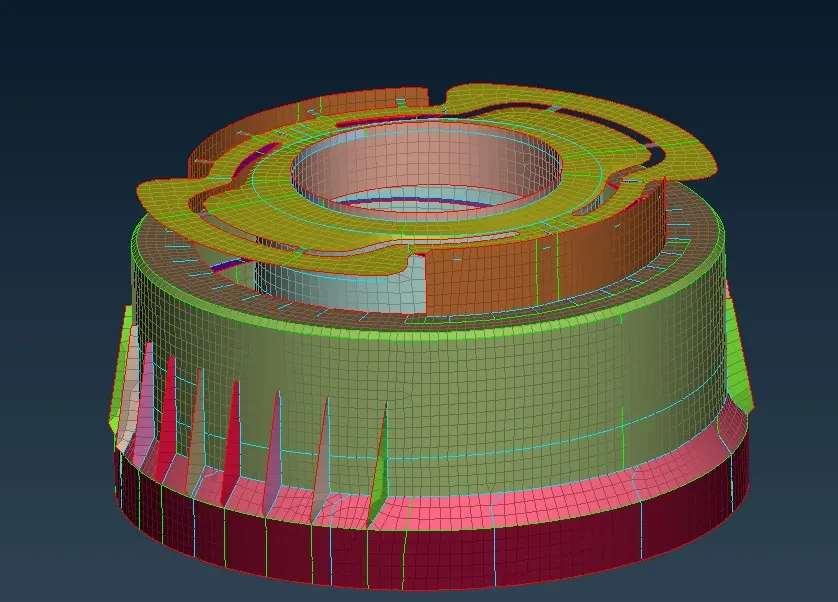
Meshed model in the property ID View
Conclusion:
The challenge was successfully completed as per the given requirement.