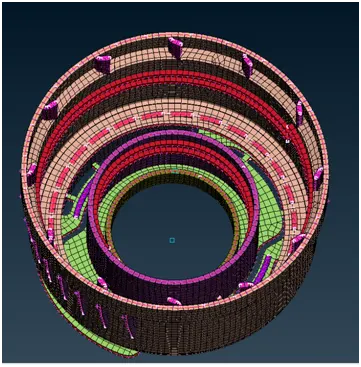
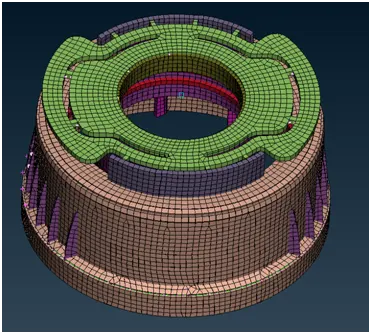
Week - 4 - 2D meshing for Plastic components
Report
AIM:
For the given Plastic Bottle Cap model, check for the geometrical errors and take the mid surface by suitable mid surfacing techniques. PID and Thickness assignment has to be done for all the mid surfaces. Mesh the same with given element Quality criteria.
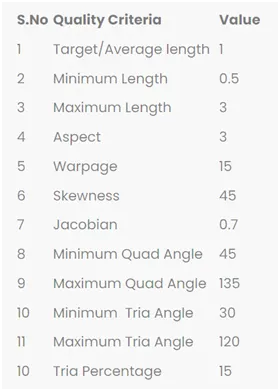
Quality criteria:
Procedure:
following step to be done for meshing the given Plastic Bottle Cap model.
1] Import:
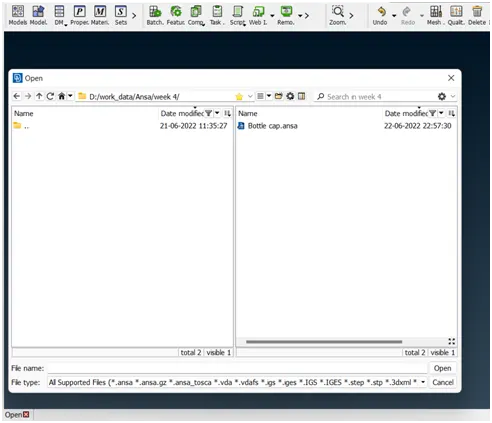
import the geometry in the .stl,.STEP,.IGES format. (File > Open > Choose the File) and hit on open.
2] Cons resolution:
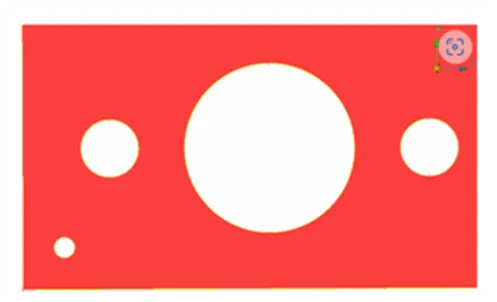
changing the distance between the nodes(mesh length) from preset value to required value,this will help us to understand the actual shape/ geometry of imported cad model.make sure before meshing this length should be change again to the targeted element length.(mesh module>perimeter>length>1)perimeter2)macros)
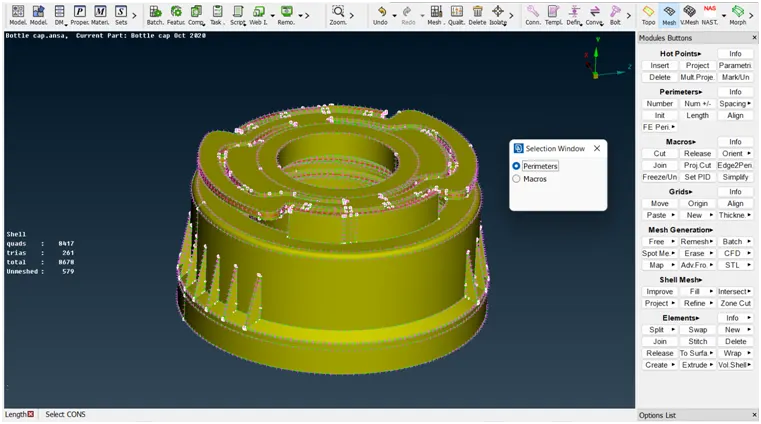
fig 1] before cons resolution:
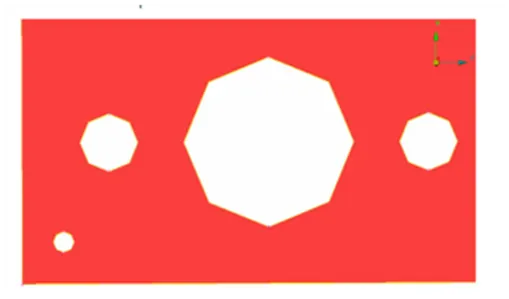
fig 2] after cons resolution:
3] Topo option:
- If the imported file it doesn’t have any connectivity between the Surfaces.To get the connectivity between the surfaces we have to use the Topo option.(TOPO Module> Faces > Topo).
- first we check the any single cons are present in the geometry so in focus menu deselect the double cons and press shit+ctrl.
- if any double cons present then use the (TOPO Module> Faces > Topo).
4] orientations:
- We have to Orient the Surfaces to make sure all the surfaces are in one normal direction.(TOPO Module> Faces > Orient)
5] Checking the geometrical errors:
after the orientations done the we need to check the geometrical error. for that go to (check manager>geometry>execute)
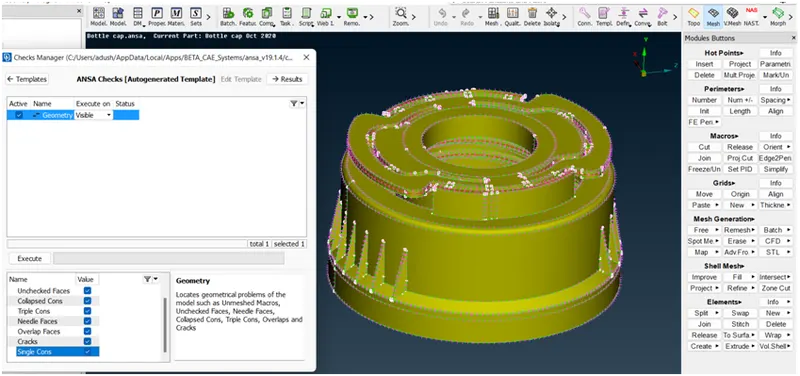
6] Clearing the geometry errors:
if any geometry error is pop out then select the all error and then right click on error and fix them.
7] Check the thickness of the components.
- If the thickness is less than 5 or 6mm then we have to extract the midsurface.
- If the thickness is more than 5 or 6mm then no need to extract the midsurface.
for cheching the thickness of model (isolate>mesure>nodes) or create short cut key for measure option.
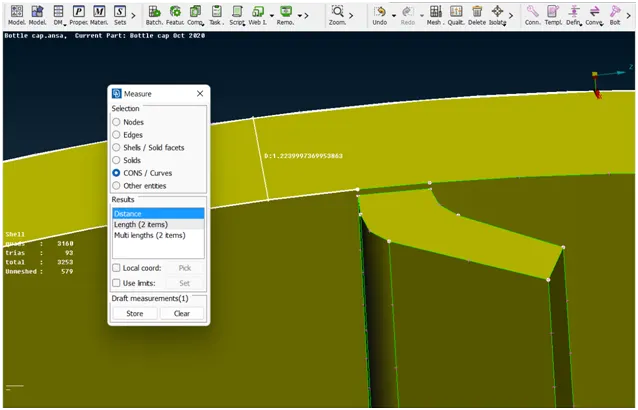
8] Creating the Midsurface:
- For Extracting the midsurface we will be using the Middle single, Multi and Mid curve methods for varying thickness surfaces.
1] (topo module>faces>middle>single/multi)
2] (topo module>curve>middle)
- While USing the Middle multi and Middle single check the options list and uncheck the unnecessary things.
- For uniform surfaces we will use the offset option.
1] (topo module>faces>offset)
- We have to make sure the extracted mid surfaces are connected to each other.
1] (topo module>faces>extend)
2] (topo module>faces>intersect)
3] (topo module>faces>cut)
4] (topo module>faces>new)
5] (topo module>faces>delete)
6] (topo module>hot points>insert/delete)
- For Connecting the Mid surfaces which were extracted we use the Extend and Intersect options.
1] (topo module>faces>extend)
2] (topo module>faces>intersect)
A] mid surface for Teeth:
for creating the mid surface for teeth i use the middle command(faces module)
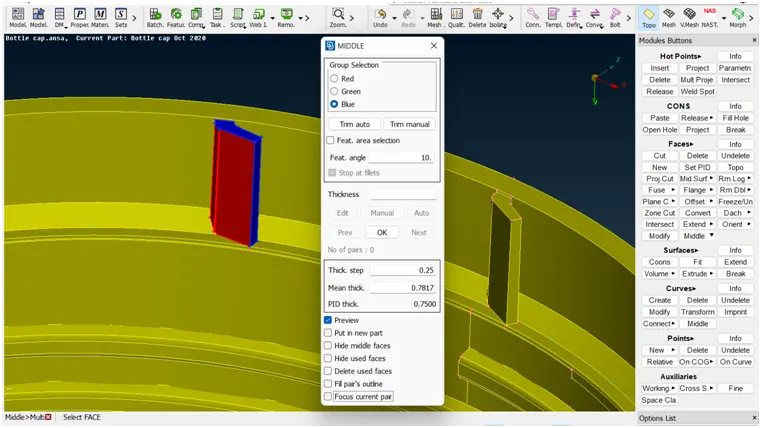
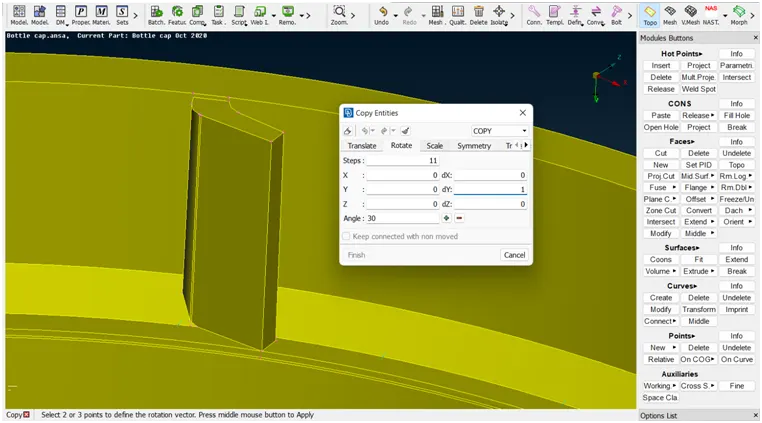
after creating the one teeth we need to create no.of teeth on the circumference of cap so we use the rotate command.
(utility>transform>copy>select entities>rotate)
B] mid surface for Threads:
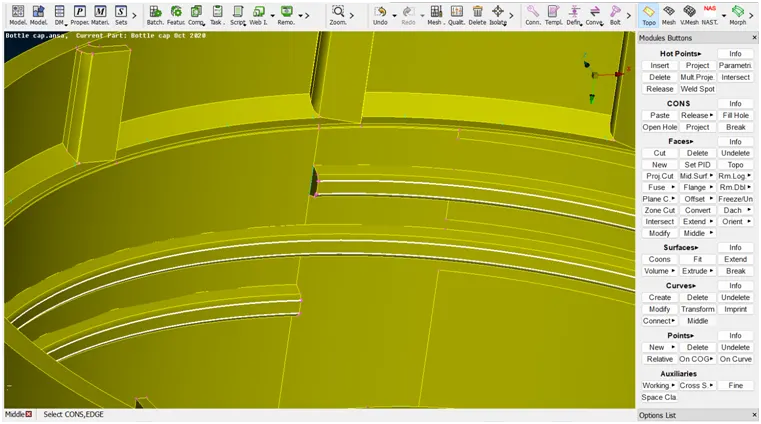
for creating the mid surface for threads i use the middle command
1](topo module>curve>middle)
2](topo module>cons>project)
3](topo module>faces>new)
C] mid surface for Teeth:
in that teeth we use offset command and then offseted mid surface is rotate on surface.
(topo module>faces>offset)
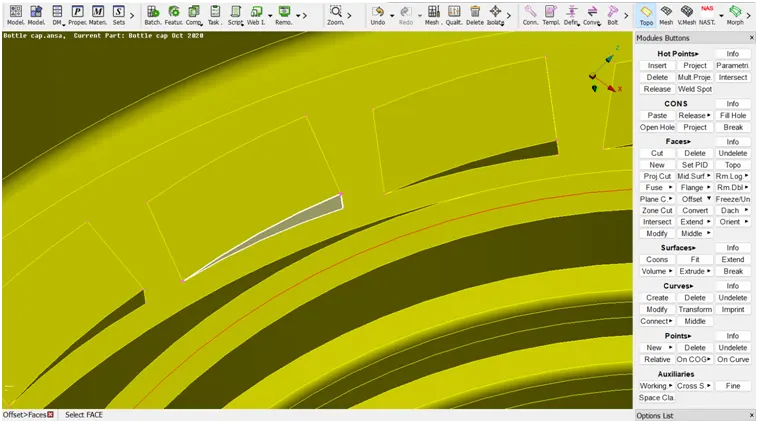
after creating the one mid surface for teeth then we need to create no.of teeth on the circumference of cap so we use the rotate command.
- (utility>transform>copy>select entities>rotate)
9] Setting a new pid for the newly created midsurface:
creating the new PID for every different thickness part so that we use set PID command
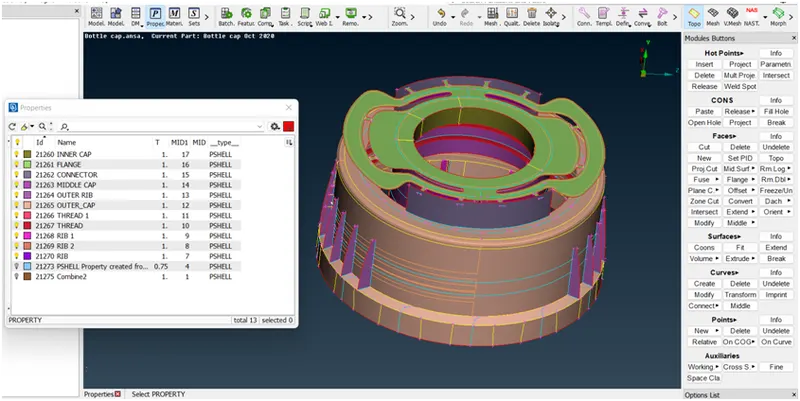
10] Providing the Target element length:
Providing the Target element length by using the length option in the mesh module.
11] providing mesh parameters and quality criteria:
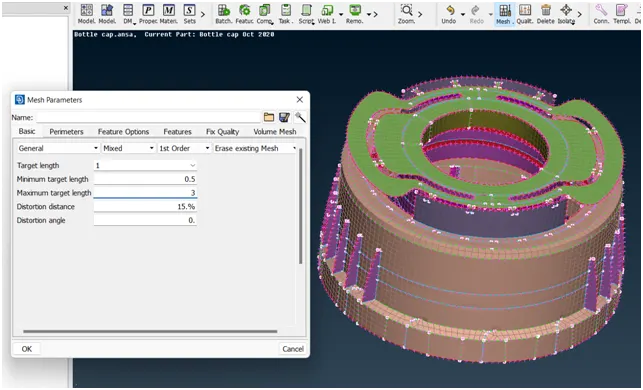
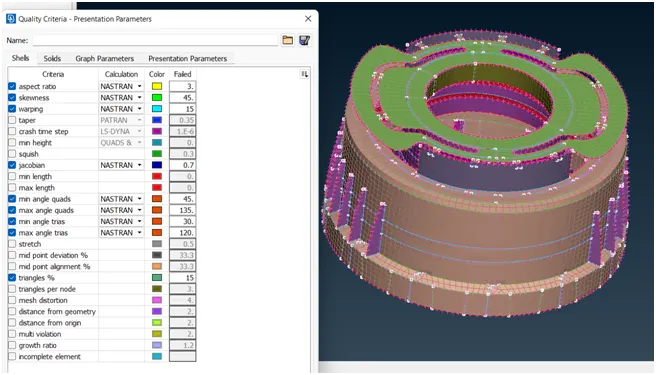
12] Generating the Mesh:
for creating the mesh we use the lot of command but i explain some of them.
- creating the mesh: (mesh module>mesh generation>best)
- smothning the mesh:(mesh module>shell mesh>smooth)
- reconstruct the mesh:(mesh module>shell mesh>reconst)
- improve the quality of mesh:(mesh module>elements>split/swap/join/stich)
- insert or delete hot points:(mesh module>hot points>insert/delete)
- to increae or decrease elements number:(mesh module>perimeters>NUM+/-)
- to cut or join the face:(mesh module>macro>cut/join)
- to delete the mesh:(mesh module >mesh generation>erase)
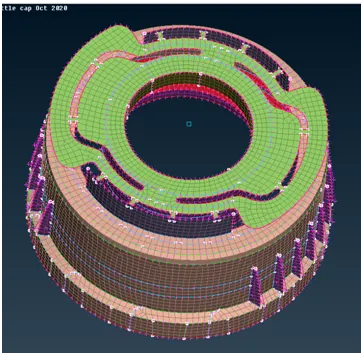
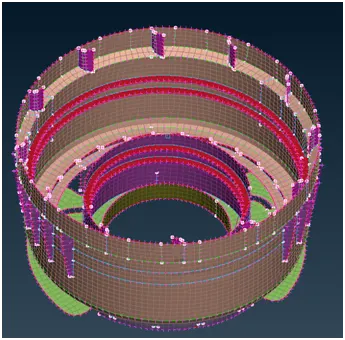
13] checking for quality criteria:
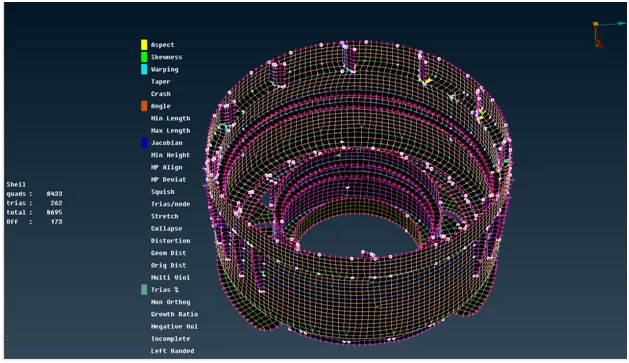
in this model total 8695 mesh elements are exist and in that 8433 are quads elements and 262 are trias elements but 173 are OFF elemets
14] Assign proper thickness to midsurface and compare the same with Parent geometry:
for Assign proper thickness to midsurface (quality criteria>presentation parameters> draw shell as solid)
parent geometry:
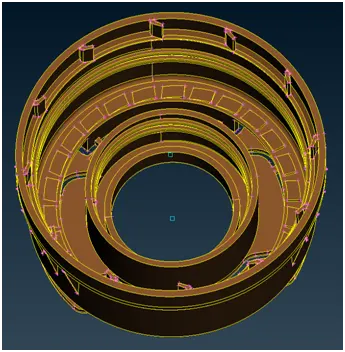
after giving the thickness to mid-surface: