Week 4-1D Element Creation Challenge
objective:-
creating midsurface and 1D elements to the given model, with given units and dof's and cross-section.
procudure explantion:
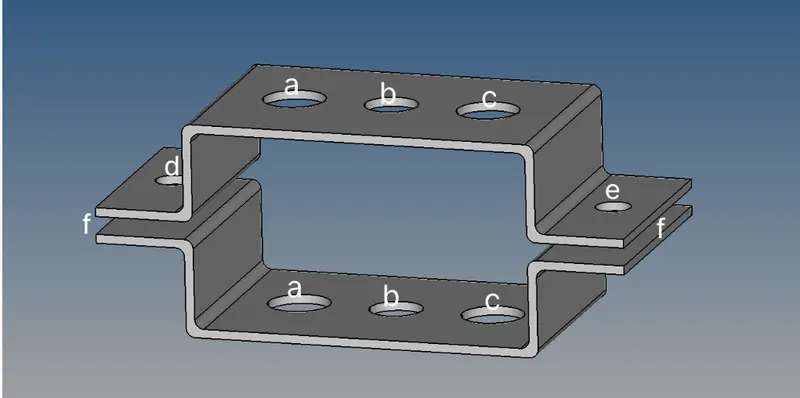
the given model is as below;
- open hypermesh, import the given model by using import option present in the tool bar
- first select the solids of the model and delete those solids by using delete option
- i have hiden the wireframe option also
- now by using midsurface option in the geometry panel
- create the midsurface uisng offset+plane +sweep option
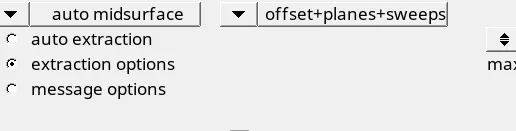
- after creating the midsurface we can hide the original surface
- create the washer split by using quick edit =>washer split. by seleting the hole lines and by giving the offset value we can create the washer split.

- now lets mesh the midsurface, using automesh option with the mesh units of 5mm and make mixed type of mesh .
- select the entire mid surface then click on mesh it will mesh the midsurface automatically.
creating the rigids & rod,beam,bar,spring :-
- in the a section we need rbe2 element only with tranlational dof , slecting node by path and creating a rbe2 element at the a section on two a sections. now in this we need to create rod element for this go to 1d option and select rods option and we have two node list now select the upper rbe2 node as one node and lower rbe2 node as second node. by selecting the two node we get CWELD element in the a section. for now it will be in the normal line element after creatng the properties and assigining to thos elements will get cross section.


- in the b section we ned to create rbe3 element with all dof, slecting node by path and creating a rbe3 element at the a section on two b sections. now in this we need to create beam element for this go to 1d option and select bar option and we have two node list now select the upper rbe3 node as one node and lower rbe3 node as second node. by selecting the two node we get CBEAM element in the b section.in this bar option to get beam element we need to change the element type to CBEAM so that we get beam element in b section.


- in the c section we ned to create rbe3 element only with x&y dof, slecting node by path and creating a rbe3 element at the a section on two c sections. now in this we need to create bar element for this go to 1d option and select bar option and we have two node list now select the upper rbe3 node as one node and lower rbe3 node as second node. by selecting the two node we get CBAR element in the C section.in this bar option to get bar element we need to change the element type to CBAR so that we get bar element in c section.


creating material and peroperties:-
- create material steel in the tab bar.
- and create properties like, bar,rod,beam,spring.
creating hyperbeam cross-section:-
- in 1d profile we have hyperbeam option.
- we use standard section for now.

- lets select thinwalled box option for rod element and click create. then hyperbeam window will be opened.
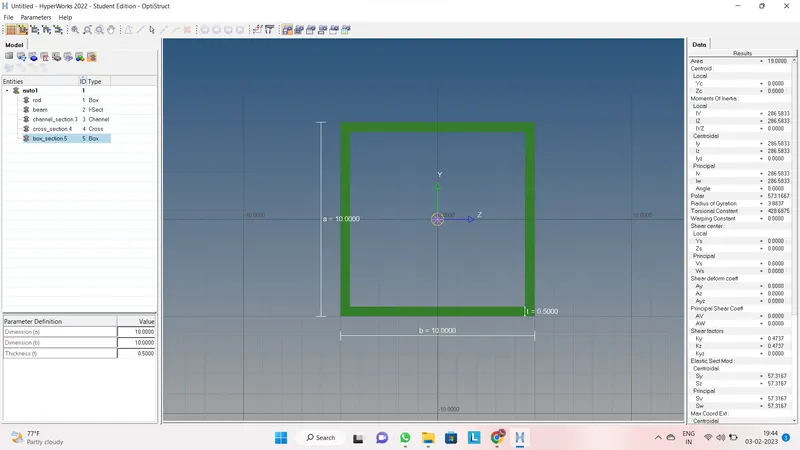
- by giving the a,b,c values as per given in the question. and rename as rod.
- next click create in tab bar of hyperbeam select standard I section for beam, and give the required units and rename as beam.
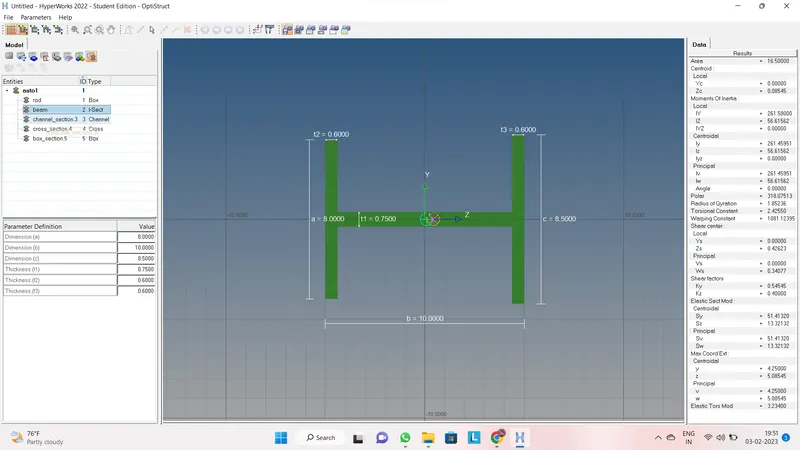
- next create the bar as cross section as , for this we have cross option in optisruct view.and by giveing the required parameters.
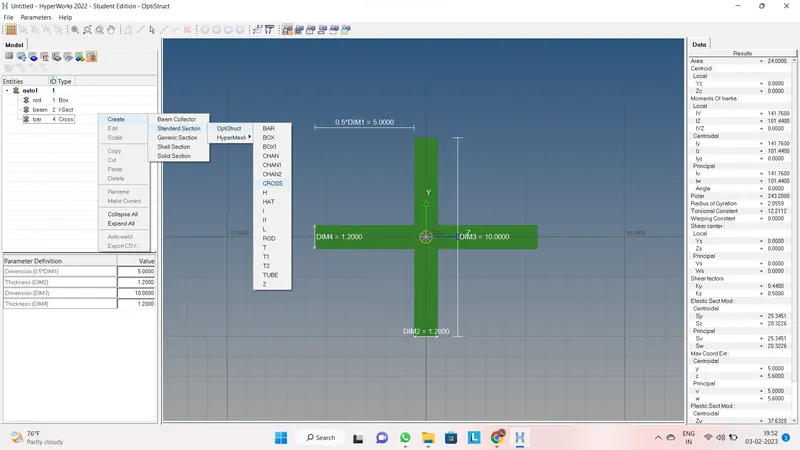
- after creating the element cross-sections, now go to main window(model) .
applaying properties to the elements:-
- in the bar create the properties like bar,rod,beam,spring.
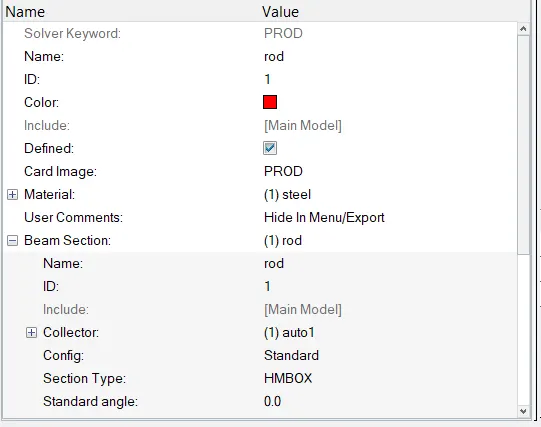

- assaign properties,material and cross-section to every element as above.
updating properties to certain elements:-
for bar

for beam

for rod

- select the element and change the property and element type and click update. it will update automatically.

- to see the detailed view of cross-section, switch to 1d detailed element representation.
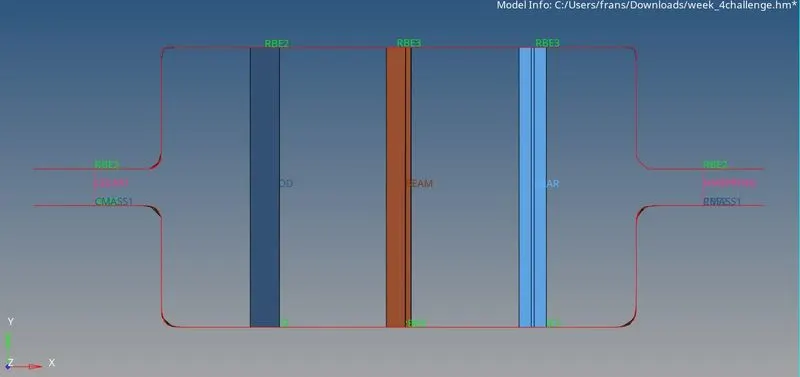
this was the detailed view of cross-section.
creating mass(d&e) and spring(f) elemnets:-
- in the question itself asked to create rbe2 elements in the d,e,f sections. so create the rbe2 elements at those sections as we have done in previous sections.
- in 1d panel we have option masses and by clicking we have to select the node, where we have to give the mass unit and give the 10 units in the mass option.
- selecting nodes of rbe2 elements at d & e sections we can create mass element.
- now coming to the spring element we have springs option in the 1d panel and by clicking this we get the nodes selection option and now select the two nodes at d,f and e,f we get the spring element.
- in order get the spring element we have to select the element type as HMSPRING so that we can get the spring element. and apply material property to spring as we have done in previous sections.
the final image of model is as below;
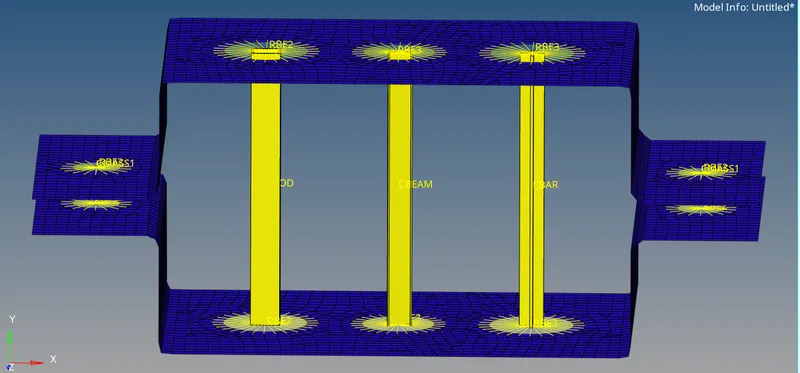
conclussion:-
thus we have compleated the 1d element creation.