Week 4-1D Element Creation Challenge
OBJECTIVE
To create 1D elements an given component with given cross section and DOF
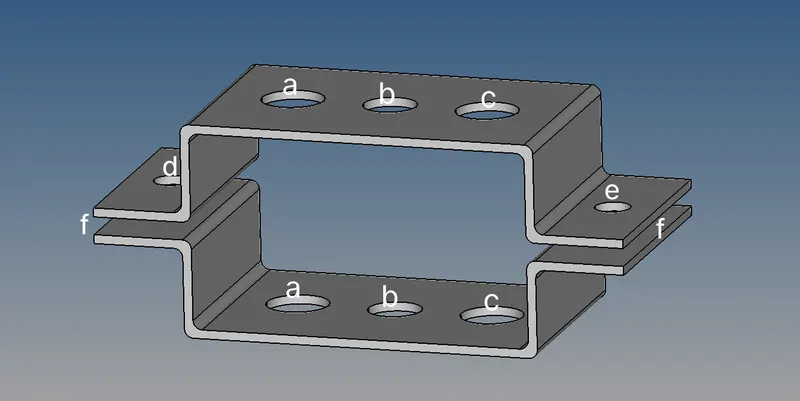
SPECIFICATIONS
a. Rod element:- Translational DOF should be Constrained with RBE2 link
Cross-Section: BOX- Dimension a= 12 mm
dimension b=10 mm
Thickness t= 0.75 mm
b. Beam element:- All DOF should be constrained with RBE3 link
Cross-Section: I Section- Dimension a= 8 mm
Dimension b= 10 mm
Dimension c= 8.5 mm
Thickness t1= 0.75 mm
Thickness t2= .6 mm
Thickness t3= .6 mm
c. Bar element:- Constrain only x and y DOFs With RBE3 link
Cross-section: X section- Dimension DIM1= 5 mm
Thickness DIM2= 1.2 mm
Dimension DIM3= 10 mm
Thickness DIM4= 1.2mm
d. & e. Apply the mass of magnitude 10 with the RBE2 link
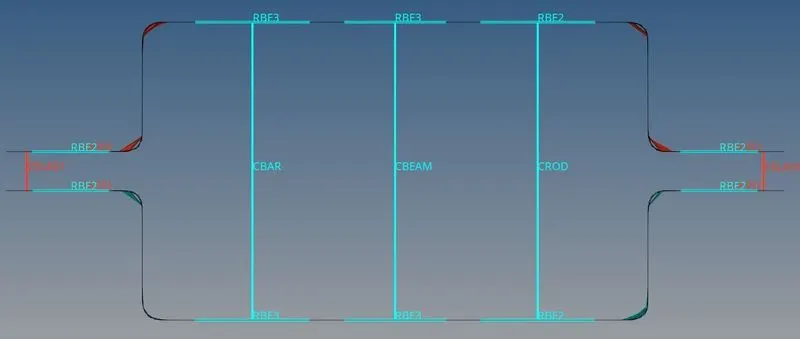
f. Join the two components with Spring elements
PROCEDURE
- Importing Geometry
File -Import - Geometry -Import
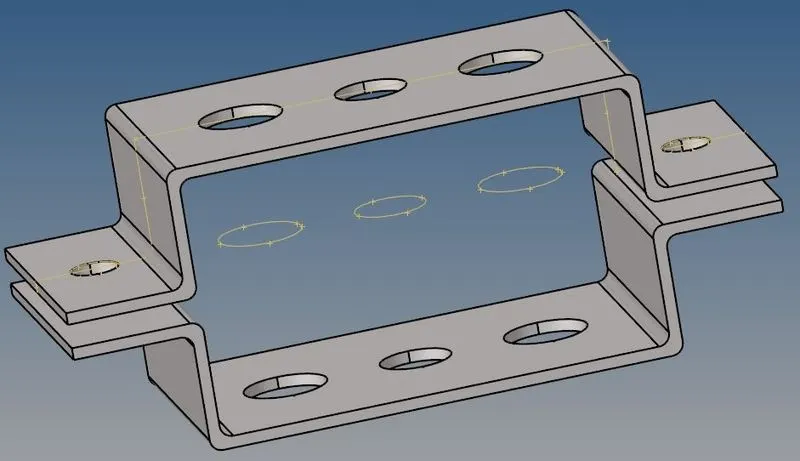
- Extarcting Midsurface and Deleting Solid Part
Extarcting midsurface
Geom-midsurface-Extract-Rename as Bracket_1
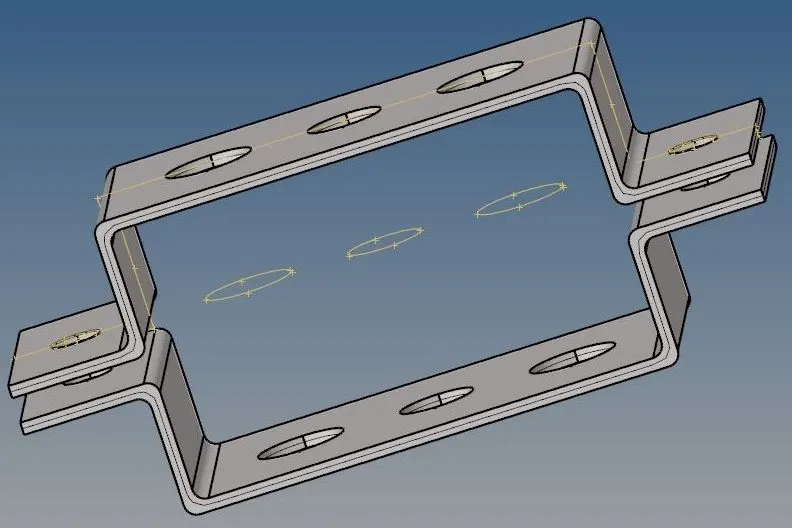
Create New Component
Component-Create -Rename as Beacket_2
- Deleting the solid part and wireframe
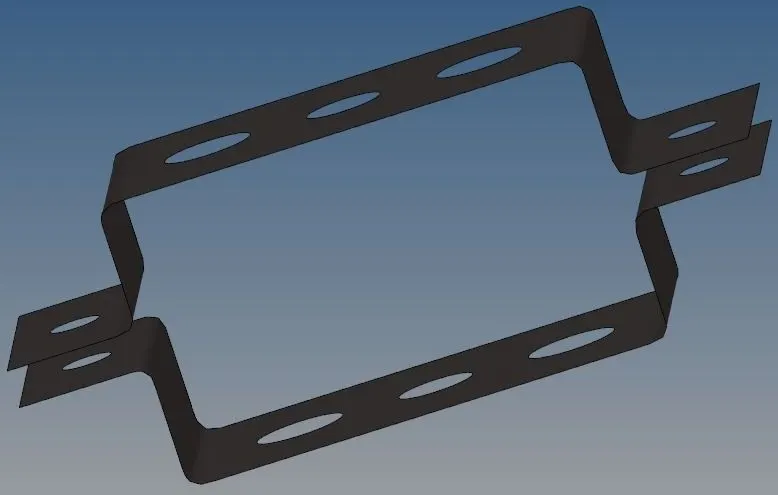
- Moving one midsurface to Bracket_2
Tool-Organize-select the surface-Give dest component-Bracket_2
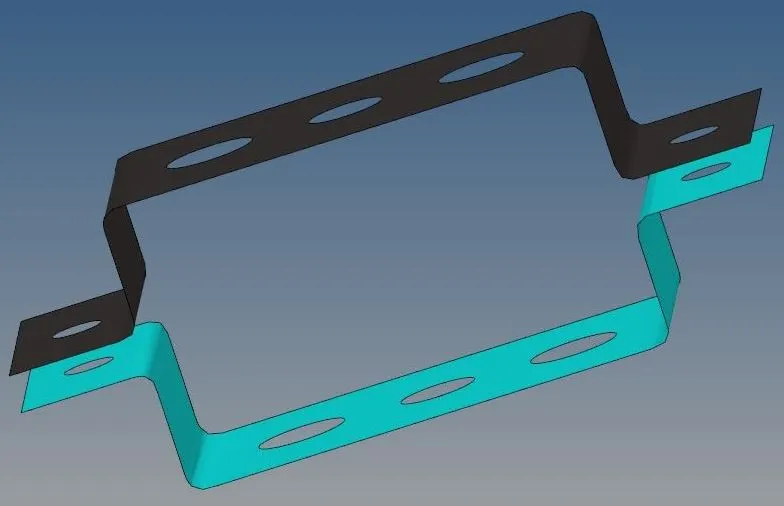
- Changing Colour
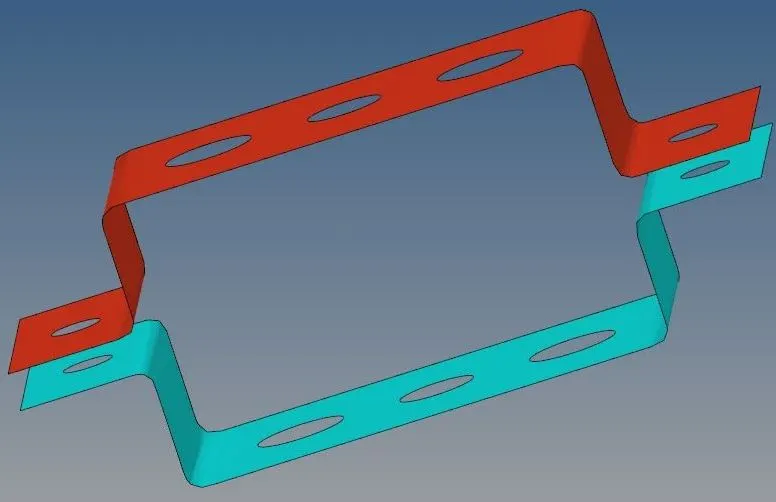
Meshing the Bracket
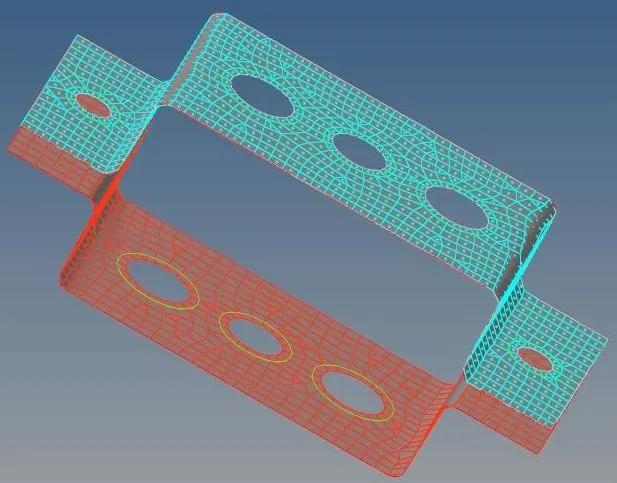
- Creating washer spilt
- Geom-QuickEdit-Give offset value-5
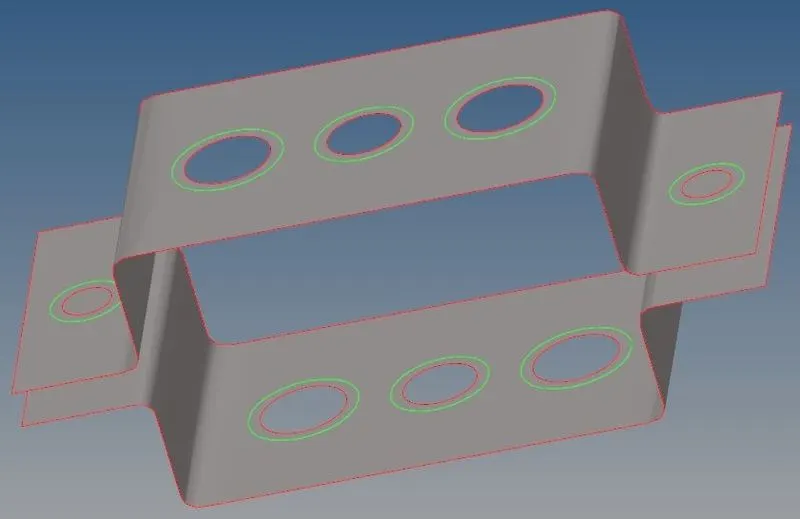
- 2D -Automesh-Select the surface-Give element size -8 -Mesh
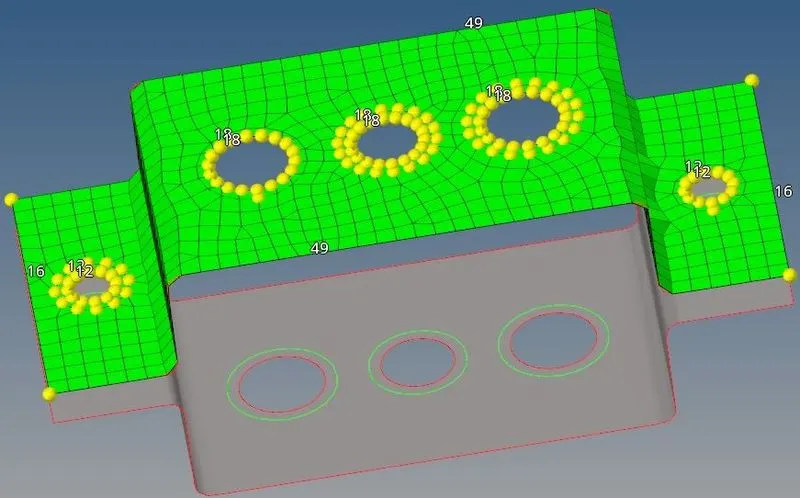
Creating Material
- Create-Material - Material Name as Steel
- Give E=210000 Nu-0.3
Creating Properties
- Create-Property
- We have to create properties for Bracket_1 Bracket_2 Rod Beam Bar and Spring
NO. PROPERTY CARD IMAGE
1 Bracket_1 PSHELL
2 Bracket_2 PSHELL
3 ROD PROD
4 BEAM PBEAM
5 BAR PBAR
6 SPRING PBUSH
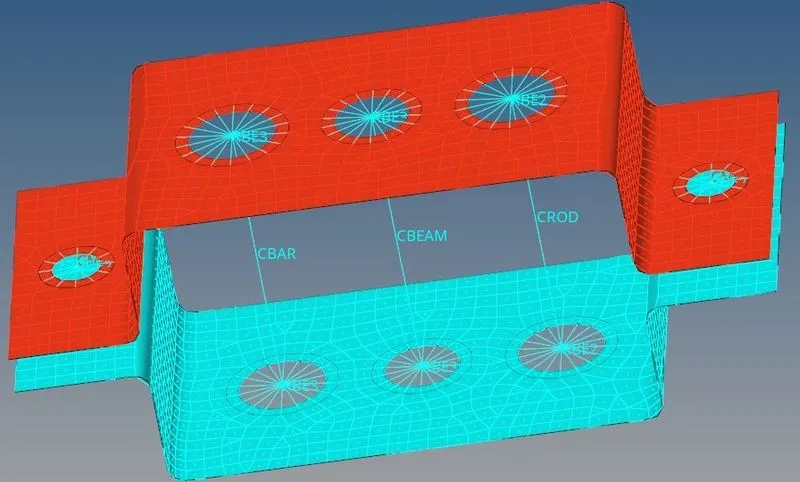
Creating rod ,Beam ,Bar and Mass elements
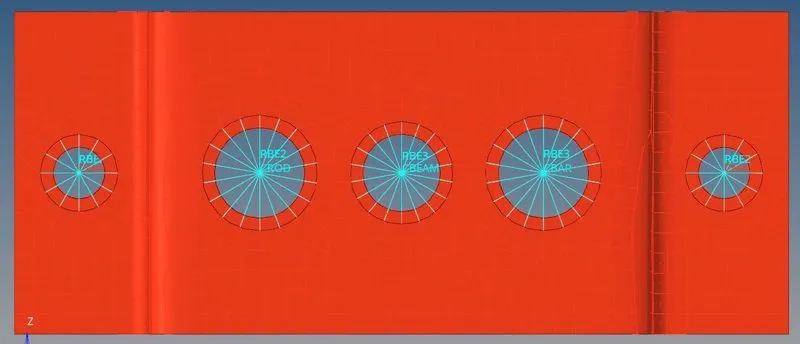
- Creating Rod
Creating RBE2 link-1D-Rigid-Select the nodes-Uncheck-dof1,dof2,dof3-CreatE
Creating Rod 1D -rods -select the nodes-Give property -Rod
- Creating Beam
Creating RBE3 link -1D-RBE3-Select the nodes-Uncheckall the dof -Create
Creating Beam 1D- Select the nodes -Give Property -Beam and Elem type-CBEAM - Give the orientation
- Creating Bar
Creating RBE3 link -1D-RBE3-Select the nodes -Uncheck dof1 dof2 dof4 and dof5
Creating bar 1D-Select the nodes-Give the property-Bar and Elem type-CBAR- Give the orientation
- Creating Masses
Creating RBE2 link -1D -rigids-Select the nodes -Create
Creating masses 1D -masses-Give Magnitude-10-Give element Type -CMASS1-Give property -Bracket_1 or Bracket_2-Create
Creating Spring
1D-Spring-Select the node -Give Property-Spring and Elem Type -CELAST
Creating Cross Section
1D-Hyperbeam-Select-Standard Section-Select HYPERBEAM - Create
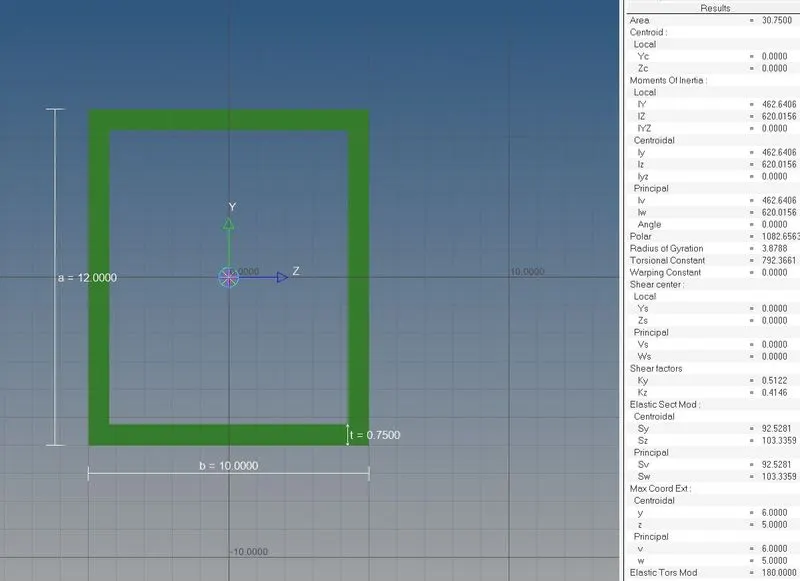
- Creating Box Cross Section
a= 12 mm
dimension b=10 mm
Thickness t= 0.75 mm
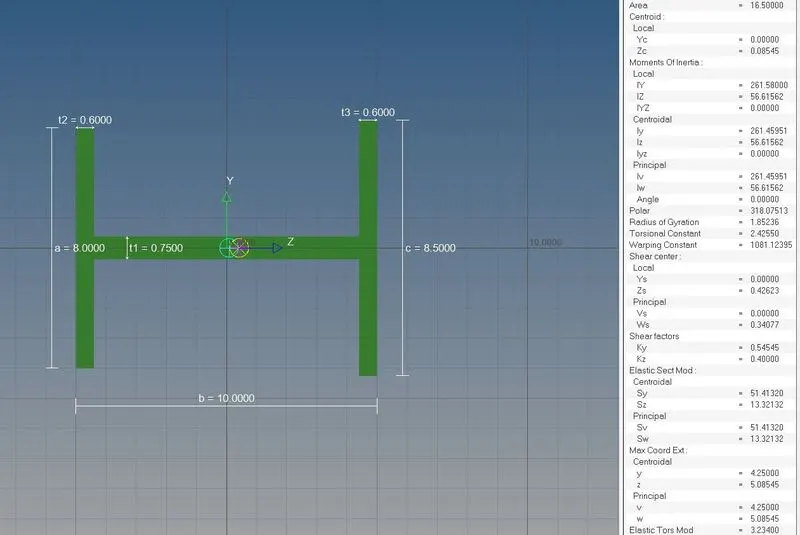
Creating I Section
Dimension a= 8 mm
Dimension b= 10 mm
Dimension c= 8.5 mm
Thickness t1= 0.75 mm
Thickness t2= .6 mm
Thickness t3= .6 mm
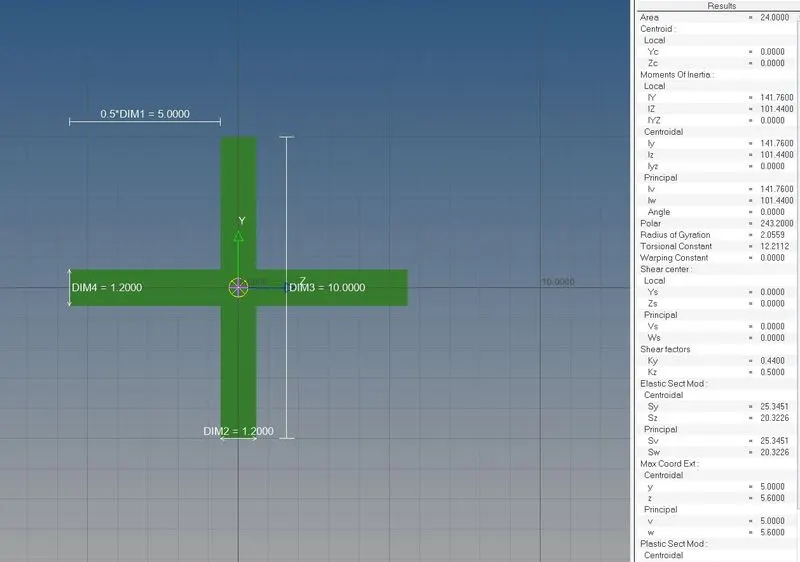
Creating Cross Section
Dimension DIM1= 5 mm
Thickness DIM2= 1.2 mm
Dimension DIM3= 10 mm
Thickness DIM4= 1.2mm
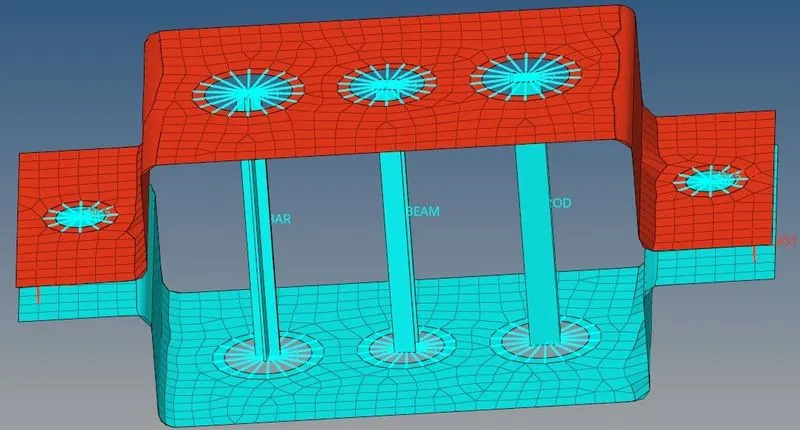
- Assigning Cross Section to Component
Select the component one by one Specify the correct beam section for each
CONCLUSION
- The geometry was importe and meshed
- 1D elements were created on the given component with given cross section and DOF