Week 3 - Solving second order ODEs
AIM
to solve an ordinary differential equation and use the calculated results to make an animated motion of a pendulum via MATLAB
INTRO
An ordinary differential equation (ODE) is a differential equation containing one or more functions of one independent variable and the derivatives of those functions.
Pendulums were utilized for many applications before the digital age. They were used in clocks and metronomes due to the regularity of their periods and also in wrecking balls and swings due to the regularity of their motions
A simple pendulum consists of a point of mass suspended on a string or wire that has no or negligible mass. If the pendulum weight or mass or bob is pulled to some angle and let go it will swing back and forth at a regular period and frequency, the following figure shows a simple pendulum diagram:-
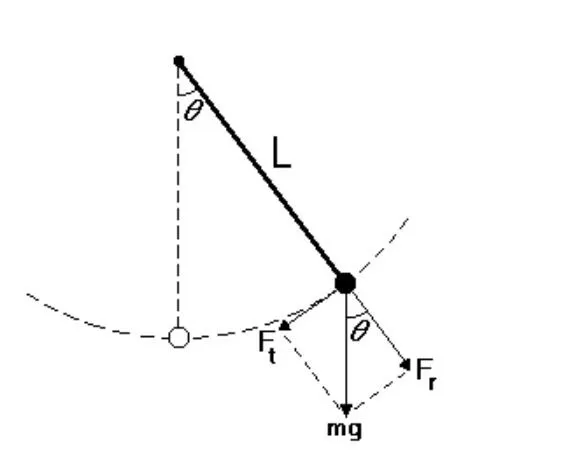
The figure shows an idealized pendulum, with a massless string or rod of length L and a bob of mass m. The dotted line represents the path that the pendulum will swing if let go from a particular angle.
The primary forces that are acting on the bob are the gravitational forces that make it move in the first place and the force exerted by the string to keep it moving along a circular path. In addition, there may be a damping force from the friction at the pivot or air resistance, or both.
FUNCTION CODE
function [dtheta_dt]= ode_func(t,theta,b,g,l,m)

theta1= theta(1)
theta2= theta(2)
dtheta1_dt=theta2;
dtheta2_dt= -(b/m)*theta2 - (g/l)*sin(theta1);
dtheta_dt = [dtheta1_dt;dtheta2_dt]
end
Explanation-
A function is a group of statements that together perform a task. In MATLAB, functions are defined in separate files. The name of the file and of the function should be the same. Functions operate on variables within their own workspace, which is also called the local workspace, separate from the workspace you access at the MATLAB command prompt which is called the base workspace.
MAIN CODE
%code for solving an ODE equation/ pendulum

clear all
close all
clc

b=0.05; % damping coefficient
g=9.81; % gravity (m/s^2)
l=1; % length of the spring
m=0.1; %mass of the bob(kg)

% initial condition
theta_0= [0;5];

% time span
%pendulum oscilates between 0 and 20 seconds
t_span= linspace(0,20,500);

% solve ODE

[t,results]= ode45(@(t,theta) ode_func(t,theta,b,g,l,m),t_span,theta_0);

%plotting the graphs

plot(t,results(:,1))
hold on
plot(t,results(:,2))
title('Damped Harmonic Vibrations of a Pendulum')
legend('Angular displacement','Angular velocity')
xlabel('Time(seconds)')
ylabel('Plot')


% For loop
% Before starting the for loop, a counter value was defined

ct =1;
 for i = 1:length(results(:,1))
 x_start = 0
 y_start = 0
 x_end = l*sin(results(i,1))
 y_end = -l*cos(results(i,1))

 % plotting the animation
 figure(2)
 plot([-1 1], [0 0], 'linewidth', 5)
 hold on
 plot([x_start x_end],[y_start y_end],'linewidth',3)
 hold on

 plot(x_end,y_end,'o','markersize',20,'markerFacecolor','y')
 title('Animation of transient behaviour of a Pendulum')
 axis([-1.5 1.5 -1.5 1])
 pause(0.03)
 hold off

 M(ct) = getframe(gcf)
 ct = ct+1

 end


% Animation of the pendulum

 movie(M)
videofile=VideoWriter('Pendulum Animation.avi', 'uncompressed avi')
open(videofile)
writeVideo(videofile,M)
close(videofile)
EXPLANATION-
- Code is started with a title using the %
- forwarded with the close all, clear all, and clc prompts
- next, all the input and define variables like the damping coefficient, length of the spring, and mass of the bob.
- next, the initial conditions are defined along with the angular displacement and angular velocity. The time span of 20 seconds is also defined.
- Next is to solve the ODE using MATLAB inbuilt command ode45.
- The function code that has been made and defined before is now called and declared.
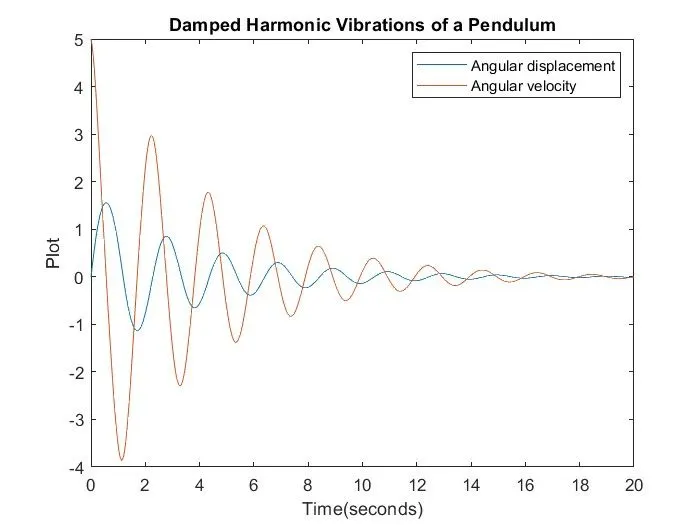
- the plot commands along with the title and legend command are used to plot the graph etc.
- the x and y axis are given labels.
- The graph obtained is as follows.
- Next, a 'For' loop has created
- the code for the animation movie is added.
- The final step is to create a movie using a movie command.
- The video writer command was used to assign the video a format, along with the open and close video file commands.
CONCLUSION
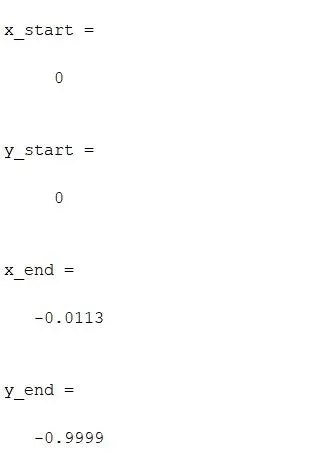
No errors were thrown while writing the code, the command window is attached.
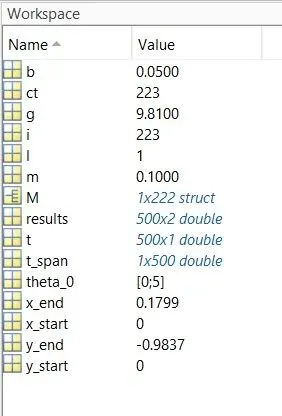
The workspace snapshot is attached.
ANIMATION VIDEO
The link for the animation video uploaded on Youtube is attached.